

If you have dates that came in as text and you want to turn them into real date values, the Date.FromText function is what you’re looking for.
In this article, I’ll show you how to use Date.FromText to convert text into dates, including how to handle different regional formats, month names, compact or oddly-separated dates, and whole columns at once.
Date.FromText Function Syntax
Date.FromText(text as nullable text, optional options as any) as nullable date
- text – The text value you want to convert into a date (like “2024-12-31” or “31/12/2024”)
- options (optional) – Usually a record that controls how the text is read. It can also be a plain culture string for legacy use. The two fields you’ll use most are
- Format (the exact date pattern, like “dd/MM/yyyy”) and
- Culture (the locale that sets the language of month and day names, and the default date pattern when no Format is given, like “en-US” or “de-DE”).
What it returns: A date value. If the text can’t be read as a date, the function returns an error.
When to Use Date.FromText
Use this function when you need to:
- Convert imported text dates into real dates you can sort, filter, and calculate with
- Read dates in a specific regional format (US, European, etc.) so Power Query doesn’t misread them
- Handle custom formats like “20241231” or “31-Dec-2024” that don’t follow a standard pattern
- Convert dates where the month is written in another language
- Transform a whole column of text dates during data cleanup
Example 1: Convert a Standard ISO Date
Let’s start with the simplest case.
Suppose you have a date in the standard ISO format (yyyy-MM-dd) stored as text, and you want it as a real date.
Create a new blank query (Home > New Source > Blank Query) and use this formula:
= Date.FromText("2024-08-15")
Result: 8/15/2024
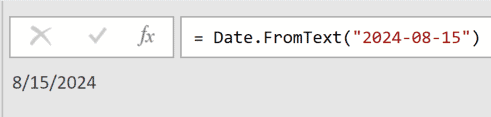
Power Query recognizes the ISO format without any extra options. It’s the most widely accepted date format, so it converts straight to a real date you can sort, filter, or do date math with.
One quick note on what you see. The screenshot shows 8/15/2024 because this system uses US date settings. If your computer is set to a different region, the same date can display another way, like 15/08/2024. It’s the same date underneath, just shown in your local format.
And because the ISO format puts the year first, Power Query can’t misread it. So you get the correct date on any machine. That isn’t the case for the formats in the next few examples, which is exactly why the Culture option matters.
Example 2: Convert a US-Format Date
Here’s a common one. You have dates in the US format (MM/dd/yyyy) and you want Power Query to read them correctly.
This matters most when your system locale isn’t US English. A date like “04/15/2024” can confuse Power Query if it expects day first.
Create a new blank query (Home > New Source > Blank Query) and use this formula:
= Date.FromText("04/15/2024", [Culture="en-US"])
Result: 4/15/2024

By passing “en-US” as the Culture, you’re telling Power Query to read the first number as the month and the second as the day. Without it, the result depends on your system locale.
Example 3: Convert a European-Format Date
This comes up a lot with data from European sources.
European dates usually use dd/MM/yyyy. So “15/04/2024” means April 15, not some 15th month.
Create a new blank query (Home > New Source > Blank Query) and use this formula:
= Date.FromText("15/04/2024", [Culture="en-GB"])
Result: 4/15/2024

With “en-GB” as the Culture, Power Query reads the first number as the day and the second as the month. You can use other locale codes the same way, like “de-DE” for German or “fr-FR” for French.
Example 4: The Same Text, Two Different Dates
This is the one to really understand, because it’s the whole reason Culture matters.
The text “04/01/2024” is ambiguous. Is it April 1 or January 4? The answer depends entirely on the Culture you pass.
Create a new blank query (Home > New Source > Blank Query) and try it the US way:
= Date.FromText("04/01/2024", [Culture="en-US"])
Result: 4/1/2024
![Formula bar showing Date.FromText("04/01/2024",[Culture="en-US"]) resulting in the date 4/1/2024](https://trumpexcel.com/wp-content/uploads/2026/06/Date-FromText-formula-4a.png)
Now the UK way:
= Date.FromText("04/01/2024", [Culture="en-GB"])
Result: 1/4/2024

Same text, two completely different dates. With en-US the first number is the month, so you get 4/1/2024 (April 1). With en-GB it’s the day, so you get 1/4/2024 (January 4).
This is why it’s worth always setting the Culture for dd/MM or MM/dd dates. Don’t rely on auto-detection, because it uses your system locale, which may not match where the data came from.
Example 5: Convert Dates with Month Names
Now let’s handle dates that spell the month out.
Suppose you get dates like “15 August 2024”. Power Query can read these on its own (as long as the month name is in your system’s language).
Create a new blank query (Home > New Source > Blank Query) and use this formula:
= Date.FromText("15 August 2024")
Result: 8/15/2024
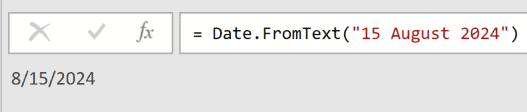
But what if the month name is in another language? German dates might look like “30 Dez 2024”, where “Dez” is short for Dezember. For that, give it both the Format and the Culture:
= Date.FromText("30 Dez 2024", [Format="dd MMM yyyy", Culture="de-DE"])
Result: 12/30/2024

The Format tells Power Query the structure of the text, and the Culture tells it to read “Dez” as a German month. Without the Culture, it wouldn’t know what “Dez” means.
Example 6: Convert Dates with No Separators
Sometimes dates arrive in a compact form with no separators at all.
Legacy systems and file names often use something like “31122024” or “20241231”. Power Query can’t guess the layout here, so you spell it out with Format.
Create a new blank query (Home > New Source > Blank Query) and use this formula:
= Date.FromText("31122024", [Format="ddMMyyyy"])
Result: 12/31/2024

The same idea works for a year-first compact date:
= Date.FromText("20241231", [Format="yyyyMMdd"])
Result: 12/31/2024

The Format is essential here. “ddMMyyyy” tells Power Query to read the first two characters as the day, the next two as the month, and the last four as the year.
Example 7: Convert Dates with Custom Separators
This one helps when your data uses unusual separators.
Some systems separate date parts with dots or dashes, like “31.12.2024” or “31-Dec-2024”. You match them by putting the actual separator in the Format.
Create a new blank query (Home > New Source > Blank Query) and use this formula:
= Date.FromText("31.12.2024", [Format="dd.MM.yyyy"])
Result: 12/31/2024

Here’s one with a dash separator and an abbreviated month:
= Date.FromText("31-Dec-2024", [Format="dd-MMM-yyyy", Culture="en-US"])
Result: 12/31/2024

Whatever the separator, include it in the Format string and Power Query knows exactly how to read the text.
Example 8: Convert a Whole Column of Text Dates
In practice you rarely convert a single date. You usually have a whole column to fix.
Suppose you have an Orders table with an Order Date column stored as text in dd/MM/yyyy format, and you want the whole column converted to real dates.
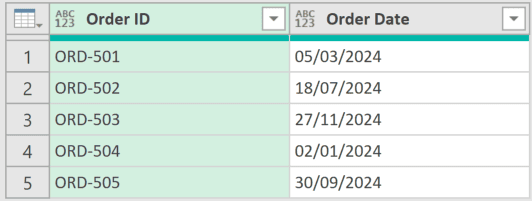
Add a new step (by clicking on the fx icon next to the formula bar) and use this formula:
= Table.TransformColumns(Source, {"Order Date", each Date.FromText(_, [Culture="en-GB"]), type date})
Result: The Order Date column becomes real dates: 3/5/2024, 7/18/2024, 11/27/2024, 1/2/2024, and 9/30/2024.
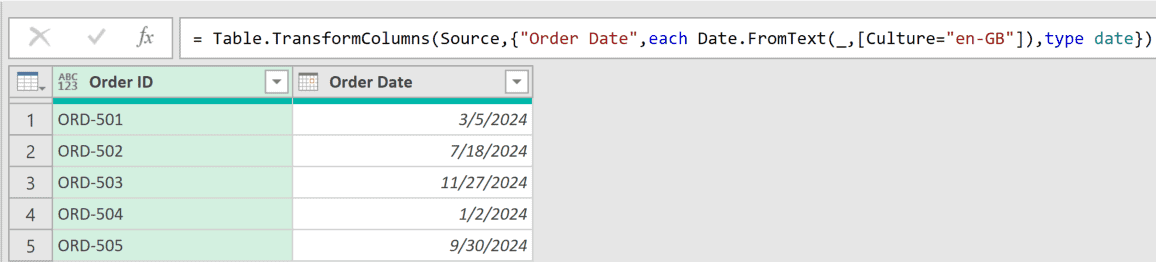
Here, Table.TransformColumns runs Date.FromText on every value in the column. The underscore stands for the current value, the Culture reads the dates as day-first, and type date sets the column type.
Example 9: Skip Text That Isn’t a Valid Date
With real data, not every value will be a clean date.
A real-world column like Delivery Date might have blanks, typos, or text like “N/A” mixed in.
Without handling, one bad value breaks the whole step. So you wrap the conversion in try … otherwise.
Suppose you have a Deliveries table with a Delivery Date column where some rows aren’t real dates.
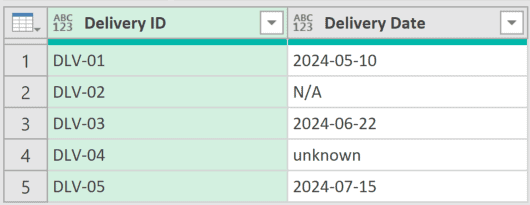
Add a new step (by clicking on the fx icon next to the formula bar) and use this formula:
= Table.TransformColumns(Source, {"Delivery Date", each try Date.FromText(_) otherwise null, type date})
Result: The valid dates convert normally (5/10/2024, 6/22/2024, and 7/15/2024), while “N/A” and “unknown” become null instead of breaking the query.
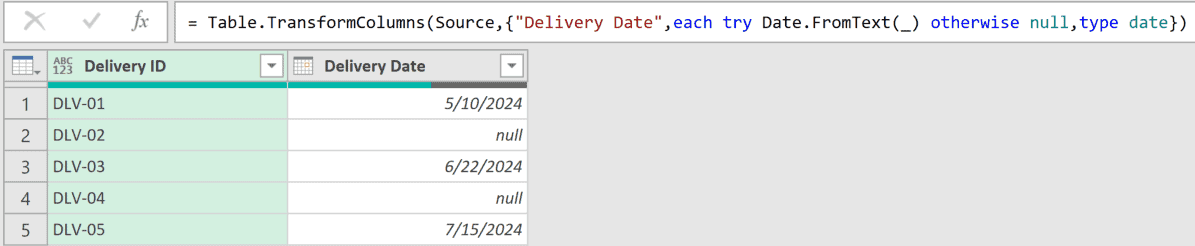
The try … otherwise pattern says “try to convert this value, but if it fails, give me null instead.” You can then filter out the nulls or fix them separately, without the whole query failing.
Tips & Common Mistakes
- Format strings are case-sensitive: “MM” means month but “mm” means minutes, and “yyyy” is a four-digit year while “yy” is two digits. The wrong case gives you the wrong result or an error.
- It needs text, not a date or number: Date.FromText errors if the value isn’t text to begin with. For a value that might already be a number or a real date, use Date.From instead.
- For text that includes a time, use DateTime.FromText: Date.FromText is for date-only text. If the text also carries a time (like “2024-08-15 14:30”), DateTime.FromText is the one to reach for.
- Null passes straight through: A null input returns null instead of an error, so blank cells are safe without any extra handling.
- Source is just the previous step: In the table examples above, Source refers to the step right before your formula. In your own query, use whatever step name comes before it, like #”Changed Type”.
Other Related Power Query Articles:
