

The CONCATENATE function joins two or more text values into one string. You can feed it cell references, typed text, numbers, or other formulas, and it stitches them together in the order you give them.
In Excel 365 or Excel 2021 and later, you can also feed CONCATENATE entire ranges and the results spill into the cells below, so one formula can fill a whole column.
Follow along with the example file
CONCATENATE Function Examples.xlsx
CONCATENATE Syntax
Here is the syntax of the CONCATENATE function:
=CONCATENATE(text1, [text2], ...)
- text1 – the first value to join. It can be a cell reference, text in quotes, a number, or another formula.
- text2, … – optional. More values to join, up to 255 items in total. Microsoft documents an 8,192-character total, though some Excel builds accept longer results. Test long strings in the version you’re using.
CONCATENATE has no delimiter argument. If you want a space, comma, or dash between values, you add it yourself as one of the arguments (in double quotes).
Microsoft has marked CONCATENATE as a compatibility function. It still works in every current version of Excel, but CONCAT joins ranges into one string and doesn’t preserve CONCATENATE’s row-by-row spill behavior. I cover when to switch in the comparison section near the end.
When to Use the CONCATENATE Function
Use CONCATENATE when you need to:
- Join values from two or more cells into one cell (one of several ways to combine cells in Excel)
- Build codes and IDs (SKUs, order numbers, reference codes) from separate columns
- Combine text with numbers or dates in a sentence or label
- Create a helper key for looking up values with multiple criteria
Let me show you a few practical examples of how to use the CONCATENATE function.
Example 1: Combine Two Cells with a Space
Let’s start with the most common job: joining the text from two cells with a space in between.
Below I have a dataset where column A has the brand of a laptop and column B has the model name. I want the full product name in column C.
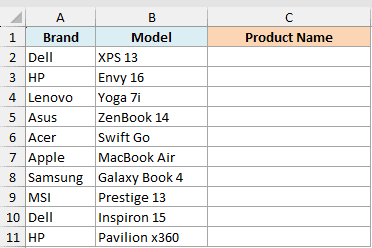
Here is the formula:
=CONCATENATE(A2:A11," ",B2:B11)
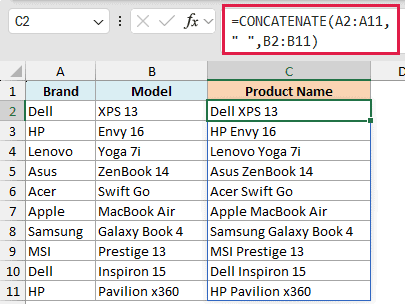
This gives me the full product name for every row, starting with Dell XPS 13.
I’m using Excel 365 here, so I gave CONCATENATE the whole ranges (A2:A11 and B2:B11). The results spill down the column, so one formula fills all ten rows. This works in Excel 2021 and later too.
The middle argument, ” “, is a space in double quotes. Without it, the brand and model would run together as one word (DellXPS 13).
In older versions of Excel, use the single-cell version instead, =CONCATENATE(A2," ",B2), and copy it down the column. I’ve also covered more ways to do this in my guide on combining two columns in Excel.
Example 2: Add a Delimiter Between Values
Here’s a scenario I see all the time in order data: building an ID code from separate columns.
Below I have a dataset with the region code in column A, the product code in column B, and the order number in column C. I want a single SKU in column D in the format US-KB-1042.
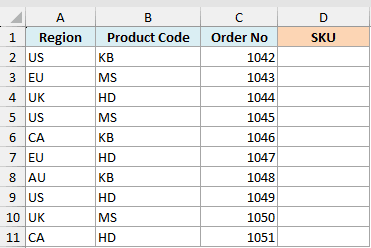
Here is the formula:
=CONCATENATE(A2:A11,"-",B2:B11,"-",C2:C11)
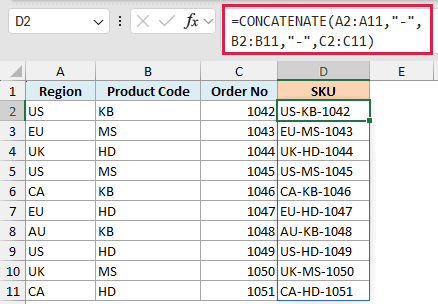
Each hyphen is its own argument in double quotes, sitting between the values it separates. That’s the CONCATENATE pattern for any delimiter: value, separator, value, separator, value.
Note that the order number in column C is a real number, not text. CONCATENATE converts it to text automatically when it joins the values.
Pro Tip: If you’re joining many values with the same delimiter, TEXTJOIN does it with a lot less typing. You give it the delimiter once and it applies it between every value.
Example 3: Combine Text with Numbers and Dates
Now let’s look at something that trips up almost everyone: combining text with a date.
Below I have a dataset with the invoice number in column A, the amount in column B, and the due date in column C. I want a readable summary line for each invoice.
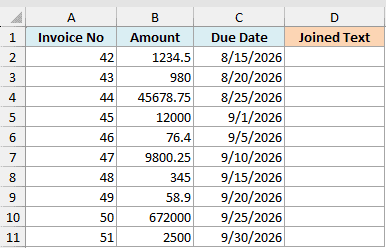
First, let me show you what goes wrong. Here is the formula most people try first:
=CONCATENATE("Due on ",C2)
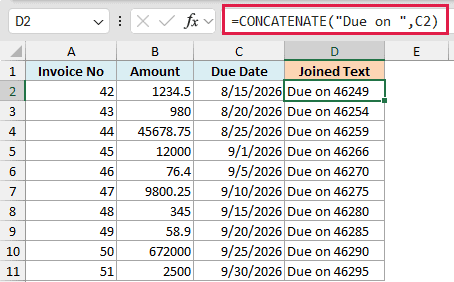
Instead of the date, you get something like “Due on 46249”. That number is Excel’s internal serial number for the date. CONCATENATE converts the date to text, and the raw text of a date is its serial number.
The fix is to wrap the date (and any formatted number) in the TEXT function, which converts it using a format you choose.
Here is the formula:
=CONCATENATE("INV-",TEXT(A2,"0000")," for ",TEXT(B2,"$#,##0.00")," due on ",TEXT(C2,"dd-mmm-yyyy"))
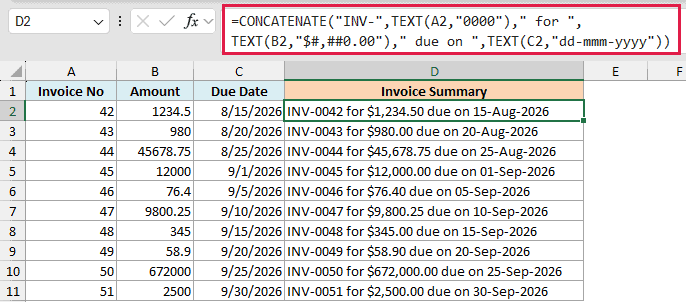
How this formula works:
- TEXT(A2,”0000″) pads the invoice number to four digits, so 42 becomes 0042.
- TEXT(B2,”$#,##0.00″) formats the amount as currency, so 1234.5 becomes $1,234.50.
- TEXT(C2,”dd-mmm-yyyy”) formats the date, so the serial number becomes 15-Aug-2026.
The rule of thumb: any time a number or date needs to keep its formatting inside CONCATENATE, run it through TEXT first. If you’re specifically combining date and time values into one cell, I have a separate guide on combining date and time in Excel.
Example 4: Add Line Breaks with CHAR(10)
You can also make CONCATENATE stack values on separate lines inside one cell.
Below I have a dataset with the name in column A, the role in column B, and the department in column C. I want a contact card in column D with each value on its own line.
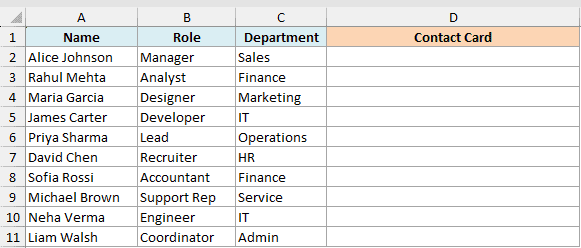
Here is the formula:
=CONCATENATE(A2,CHAR(10),B2,CHAR(10),C2)
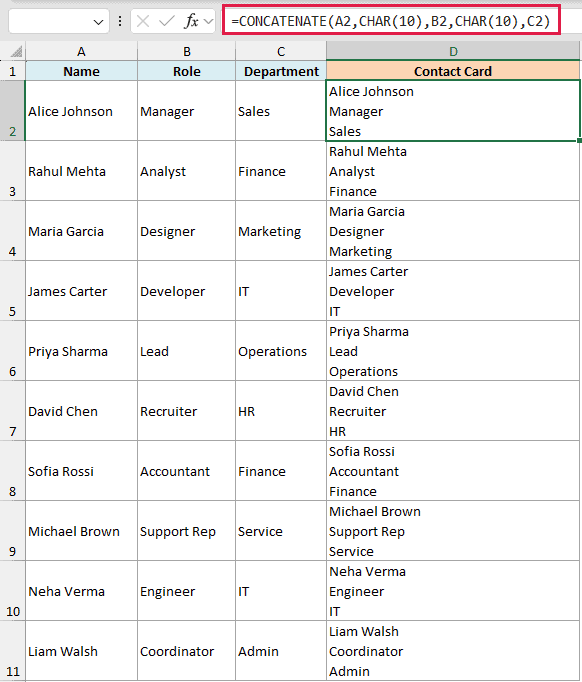
CHAR(10) is the line-feed character, so it acts as a line break between the values.
One important catch: the line breaks only show up after you turn on Wrap Text for the cell (Home tab, Alignment group). Without Wrap Text, the result looks like one run-on line.
Example 5: Build a Lookup Helper Key
This last one is my favorite practical use of CONCATENATE: creating a helper column for lookups with multiple criteria.
Below I have a dataset with sales data, where the region is in column B and the product is in column C. VLOOKUP can only match on one column, so I want a key in column A that combines both.
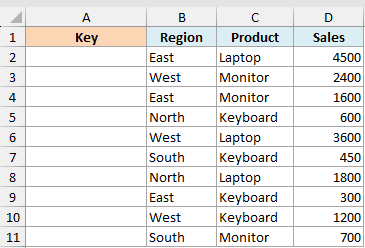
Here is the formula:
=CONCATENATE(B2,"|",C2)
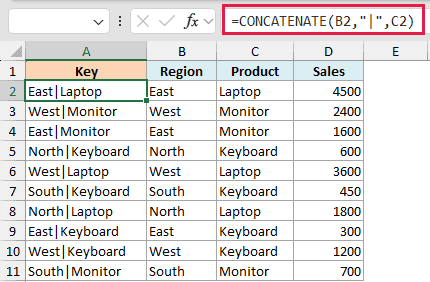
This gives me keys like East|Laptop, one per row.
The pipe character (|) is just a separator that’s unlikely to appear in the data itself. With the key column in place, you can look up “East + Laptop” with a single =VLOOKUP("East|Laptop",A2:D11,4,FALSE).
Pro Tip: In Excel 365 or Excel 2021 and later, XLOOKUP can match on multiple criteria directly (by joining the lookup arrays inside the formula), so you can skip the helper column entirely.
CONCATENATE vs Ampersand vs CONCAT vs TEXTJOIN
Excel gives you four ways to join text, and it helps to know when each one earns its place:
- CONCATENATE – what this article covers. Works in every Excel version, which makes it the safe choice for workbooks shared with people on older versions.
- The & operator –
=A2&" "&B2does the same job with less typing. Purely a style preference; the results are identical. - CONCAT – CONCATENATE’s successor. Its big upgrade is range support:
=CONCAT(A2:A11)merges the whole range into one string, which CONCATENATE cannot do (feeding CONCATENATE a range in Excel 365 spills the values back unchanged instead of merging them). - TEXTJOIN – the delimiter specialist.
=TEXTJOIN(", ",TRUE,A2:A11)joins a whole range with a separator between each value and can skip empty cells.
If you’re starting a new workbook in Excel 365, CONCAT and TEXTJOIN are the more capable tools.
CONCATENATE remains the compatibility workhorse, and everything you learned above (separators as arguments, the TEXT fix, CHAR(10)) works the same way in all of them.
Tips & Common Mistakes
- #NAME? error – almost always a misspelled function name (CONCATENATE is easy to typo). Also check for missing quotes around text arguments.
- Words jammed together – CONCATENATE adds nothing between values. If the output reads like DellXPS, you forgot a separator argument (” ” or “-“).
- Quotes showing up in the result – doubled straight quotes inside a text argument insert a literal quote character. Curly quotes used as text delimiters cause invalid formula syntax; retype those as straight double quotes in Excel.
- Dates or amounts look like raw numbers – wrap them in TEXT with a format code (see Example 3). CONCATENATE always converts values to unformatted text.
- It won’t merge a range –
=CONCATENATE(A2:A11)does not combine the column into one cell. Use=CONCAT(A2:A11)or=TEXTJOIN(", ",TRUE,A2:A11)for that. I’ve covered this in detail in my guide on concatenating Excel ranges. - Limits – up to 255 arguments. Microsoft documents an 8,192-character total, but some Excel builds accept longer results. Test long strings in the version you’re using.
- A stray @ in the formula – if you open an older workbook in Excel 365, you may see
=CONCATENATE(@A2:A11,...). The @ makes the formula return a single value instead of spilling. Remove it to get the spill back.
That covers the CONCATENATE function: the syntax, separators, the TEXT fix for numbers and dates, line breaks, and lookup keys. Master the separator-as-argument pattern and the TEXT function combo, and you can build almost any text string you need.
Other Excel Articles You May Also Like:
