

If you want to know how many characters are in a cell, whether it’s a username, a product code, or a line of feedback, the LEN function is what you’re looking for.
It counts every character in the text and gives you back a single number.
In Excel 365, you can also feed LEN a whole range and the character counts spill into the cells below.
In this article, I’ll show you how to use LEN on its own and paired with a few other functions to count spaces, words, and specific characters.
LEN Syntax
Here is the syntax of the LEN function:
=LEN(text)
- text – The text string you want to count the characters in. This can be a cell reference, or text typed directly in double quotes.
LEN takes just one argument and returns the total number of characters, including spaces, punctuation, and numbers.
When to Use the LEN Function
Use the LEN function when you need to:
- Count how many characters are in a cell
- Check that entries match a required length (like an 8-character ID)
- Flag text that goes over a character limit
- Count words or specific characters when you combine it with SUBSTITUTE
Let me show you a few practical examples of how this works.
Example 1: Count the Number of Characters in a Cell
Let’s start with a simple example.
Below is a dataset with a list of usernames in column B, and I want the character count for each one next to it.
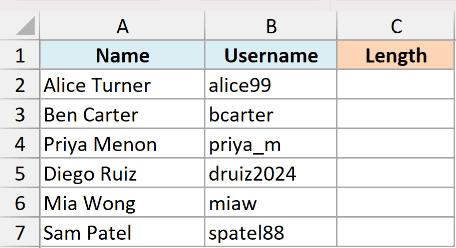
I want a single formula that returns the length of every username at once.
Here is the formula:
=LEN(B2:B7)
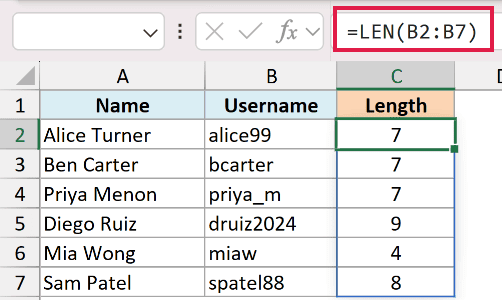
In Excel 365, feeding LEN the whole range B2:B7 makes the results spill down automatically, so one formula handles the entire column.
If you’re on an older version, you can put =LEN(B2) in the first cell and copy it down instead.
Pro Tip: LEN counts spaces too, so “rk_wilson” and a name with a trailing space that looks identical will return different numbers.
Example 2: Check for a Fixed-Length ID
Here’s a practical scenario.
Below is a dataset of employee IDs in column A. Every valid ID should be exactly 8 characters long, and I want to flag the ones that aren’t.
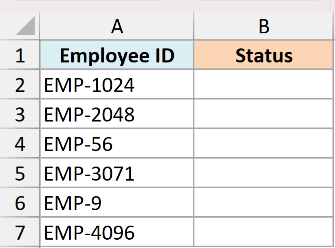
I want to mark each ID as either “Valid” or “Check length” based on its character count.
Here is the formula:
=IF(LEN(A2)=8,"Valid","Check length")
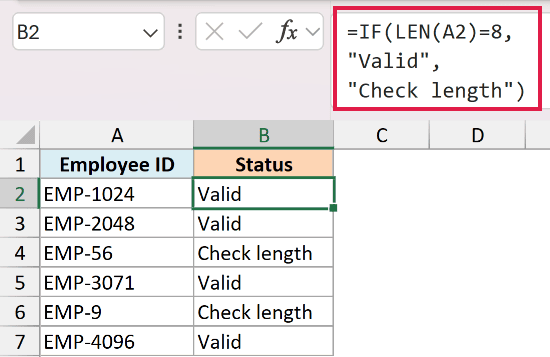
Here, LEN counts the characters in the ID, and IF compares that count to 8. If it matches, you get “Valid”, otherwise you get “Check length”.
Copy the formula down the column to check every ID. In Excel 365, you can also feed IF the whole range with =IF(LEN(A2:A6)=8,"Valid","Check length") and let it spill.
Example 3: Count Characters Without Spaces
Now let’s look at something a bit more interesting.
Below is a dataset of product SKUs in column A. Some were typed with stray spaces, and I want the real character count without those spaces.
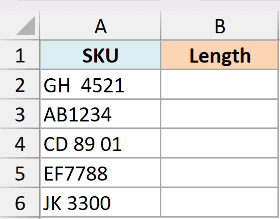
First, let me show you the plain count so you can see the difference.
Here is the formula:
=LEN(A2)
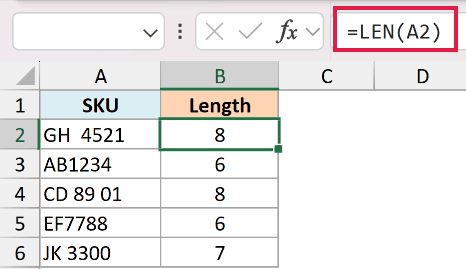
This counts everything, including the spaces, so “GH 4521” comes back as 8.
To count the characters without spaces, I first remove the spaces with SUBSTITUTE, then count what’s left.
Here is the formula:
=LEN(SUBSTITUTE(A2," ",""))
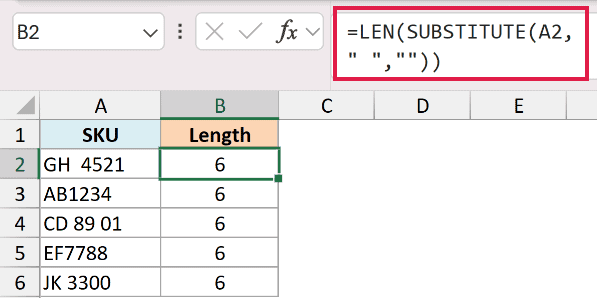
SUBSTITUTE replaces every space with an empty string, and LEN counts the shortened text. Now “GH 4521” returns 6.
Example 4: Count How Many Times a Character Appears
Here’s another handy use.
Below is a dataset of URL paths in column A, and I want to know how many forward slashes each one has, which tells me how deep the path goes.
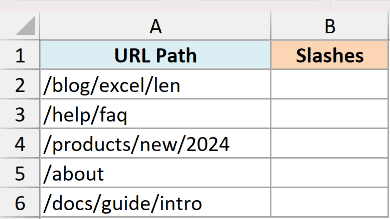
I want to count the number of “/” characters in each path.
Here is the formula:
=LEN(A2)-LEN(SUBSTITUTE(A2,"/",""))
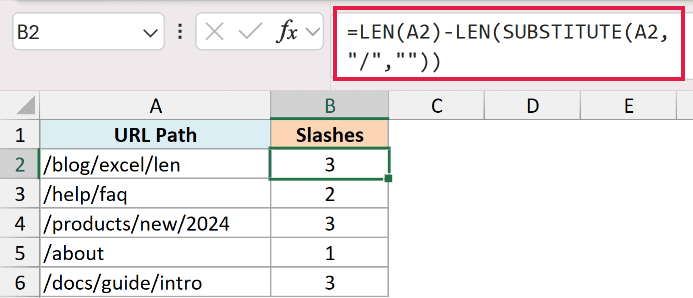
How this formula works:
LEN(A2)counts the full length of the path.SUBSTITUTE(A2,"/","")strips out every slash, and the second LEN counts what remains.- Subtracting the two gives you how many slashes were removed, which is how many there were.
Pro Tip: SUBSTITUTE is case-sensitive. If you count letters this way, “A” and “a” are treated as different characters, so pick the exact case you mean.
Example 5: Count the Number of Words in a Cell
Let’s step it up with a use case I reach for often.
Below is a dataset of short customer feedback comments in column A, and I want a word count for each one.
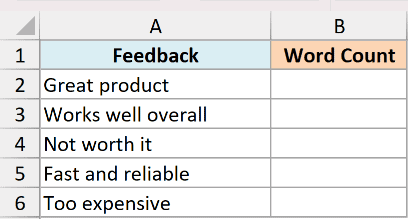
The idea is simple: the number of words is the number of spaces between them, plus one.
Here is the formula:
=LEN(TRIM(A2))-LEN(SUBSTITUTE(TRIM(A2)," ",""))+1
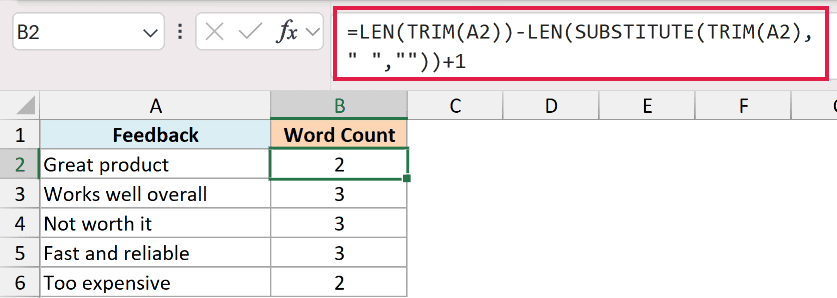
TRIM removes any extra spaces first, then LEN minus LEN-without-spaces gives the number of spaces. Adding 1 turns that space count into a word count.
TRIM matters here. Without it, a double space or a trailing space would be counted as an extra word and throw off the result.
Example 6: Flag Text That Goes Over a Character Limit
Here’s a scenario that comes up with data entry.
Below is a dataset of product descriptions in column B. Each one has to fit within a 40-character limit, and I want to flag anything longer.
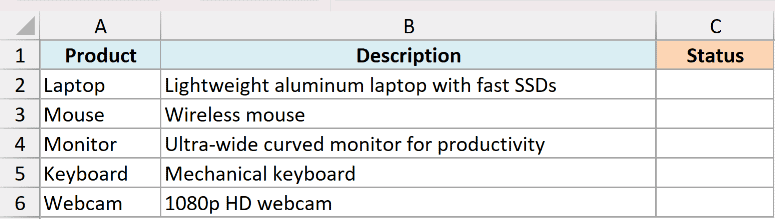
I want to mark each description as “Too long” or “OK” based on its length.
Here is the formula:
=IF(LEN(B2)>40,"Too long","OK")
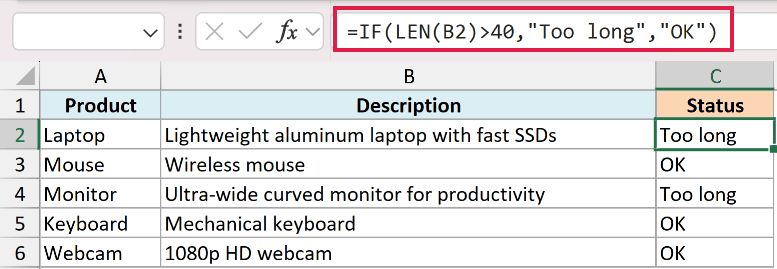
LEN counts the characters in the description, and IF checks whether that count is greater than 40. Anything over the limit gets flagged as “Too long”.
This is handy for fields with hard limits, like meta descriptions, SMS messages, or database columns that only accept so many characters.
Example 7: Use LEN Inside RIGHT to Extract Text
Let’s finish with a common combination.
Below is a dataset of product codes in column A. Each starts with the “SKU-” prefix, and I want just the number after it, no matter how many digits it has.
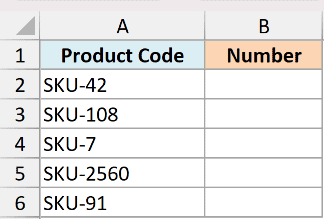
The “SKU-” prefix is always 4 characters, so I want everything from the right except those first 4.
Here is the formula:
=RIGHT(A2,LEN(A2)-4)
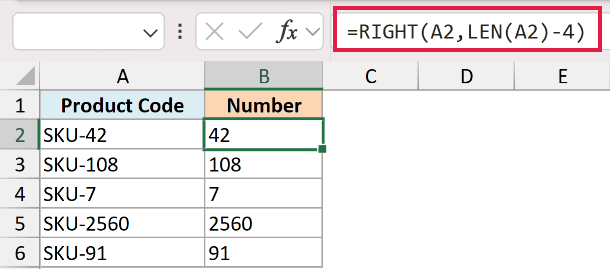
LEN(A2)-4 works out how many characters sit after the prefix, and RIGHT pulls exactly that many from the end. Because LEN measures each code, it adjusts whether the number is 2 digits or 7.
Pro Tip: In Excel 365, you can get the same result more directly with =TEXTAFTER(A2,”-“), which grabs everything after the dash without any character math.
Tips & Common Mistakes
- LEN counts spaces and every character. Spaces, punctuation, and numbers all count, so a value that looks short can return a bigger number than you expect.
- Watch out for trailing spaces. An invisible space at the end of a cell inflates the count. If your numbers look off, wrap the text in TRIM first, like
=LEN(TRIM(A2)), to ignore leading, trailing, and double spaces. - LEN counts the true value of a number, not its format. A cell showing $1,000 with currency formatting still counts as 4 characters, because the underlying value is 1000. The dollar sign and comma are formatting, not real characters.
- SUBSTITUTE is case-sensitive. When you use the LEN and SUBSTITUTE trick to count a specific letter, uppercase and lowercase are counted separately.
That covers the main ways to use LEN in Excel, from a straight character count to counting words, spaces, and specific characters by pairing it with SUBSTITUTE. Once you’re comfortable with the LEN minus LEN pattern, a lot of text-counting problems become quick one-liners.
Other Excel Articles You May Also Like:
