

The CORREL function in Excel tells you how closely two sets of numbers move together. It returns one number between -1 and 1, called the correlation coefficient.
A result near 1 means the two rise and fall together, a result near -1 means one goes down as the other goes up, and a result near 0 means there’s no clear link.
In this article, I’ll show you how to use CORREL, how to read its result, and where it can give you a misleading answer.
Follow along with the example file
CORREL Function Examples.xlsx
CORREL Function Syntax
Here is the syntax of the CORREL function:
=CORREL(array1, array2)
- array1 – The first set of values, usually a column of numbers such as B2:B11.
- array2 – The second set of values. It needs the same number of values as array1.
CORREL matches each value in array1 with the value in the same position in array2 (first with first, second with second). So both ranges need the same number of cells, and each pair should belong together (usually the same row).
The order of the two arrays doesn’t matter. =CORREL(B2:B11,C2:C11) and =CORREL(C2:C11,B2:B11) return the same result.
The CORREL function works in all Excel versions, including 365, 2024, 2021, 2019, 2016, Mac, and the web.
When to Use the CORREL Function
Use this function when you need to:
- Check whether two sets of numbers tend to rise and fall together
- Spot a negative relationship, where one value drops as the other goes up
- Confirm there’s no real link between two things before you assume one
- Compare how strongly two columns are related within different groups
- Build a correlation matrix that updates when your data changes
Let me show you six practical examples of how to use the CORREL function.
Example 1: Find a Positive Correlation Between Two Columns
Let’s start with a simple example.
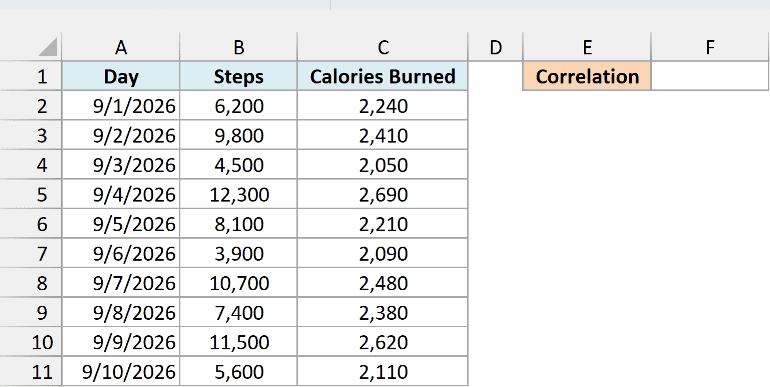
Below is a fitness tracker log with the steps walked and calories burned each day, and I want to find how closely the two are related in cell F1.
Here is the formula:
=CORREL(B2:B11,C2:C11)
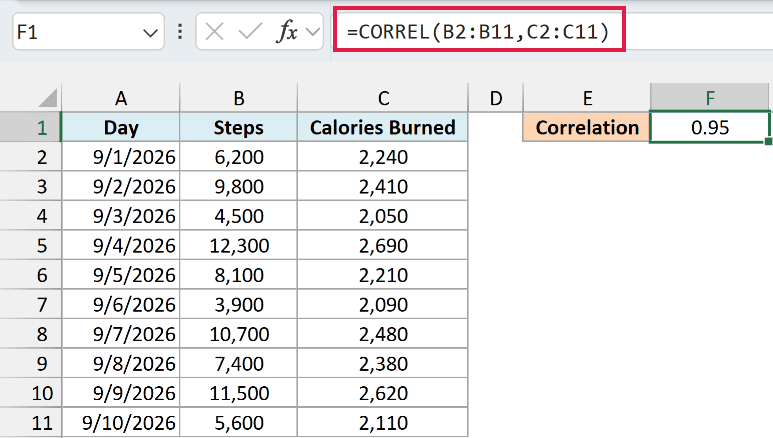
This gives 0.95.
CORREL compares the steps in B2:B11 with the calories in C2:C11, one day at a time. A result this close to 1 is a strong positive correlation, which means days with more steps also had more calories burned.
The closer the result is to 1 (or -1), the stronger the relationship, and the closer it is to 0, the weaker it is.
Important: If the two ranges have a different number of cells, CORREL returns the #N/A error. This often happens when one range includes the header row and the other doesn’t, as in =CORREL(B1:B11,C2:C11).
Example 2: Find a Negative Correlation in Excel
Now let’s look at the opposite case.
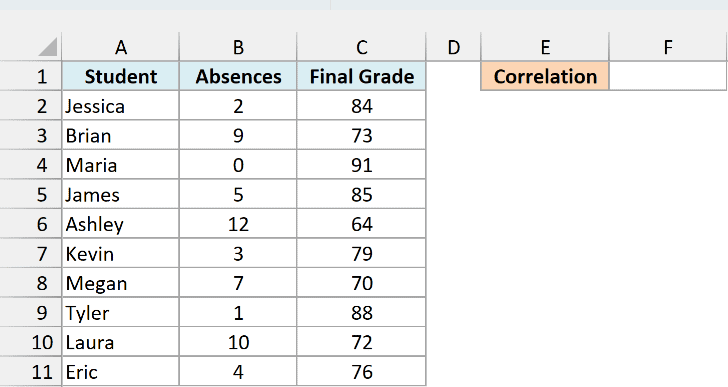
Below is a class list with the number of classes each student missed and their final grade, and I want to check how the two are related in cell F1.
Here is the formula:
=CORREL(B2:B11,C2:C11)
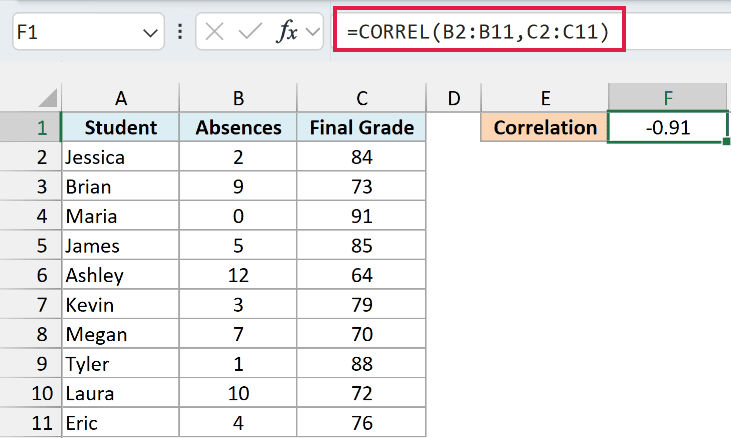
This gives -0.91.
The minus sign tells you the direction. As absences go up, final grades go down, and at -0.91 that pattern is strong.
Keep in mind that CORREL only tells you the two move together. It doesn’t prove that missing class is what lowered the grades, because other things could affect both.
Example 3: When the Correlation Is Close to Zero
Not every pair of columns is related, and CORREL shows that too.
Below are orders from an online store with each customer’s age and how much they spent, and I want to see whether age is linked to the order amount in cell F1.
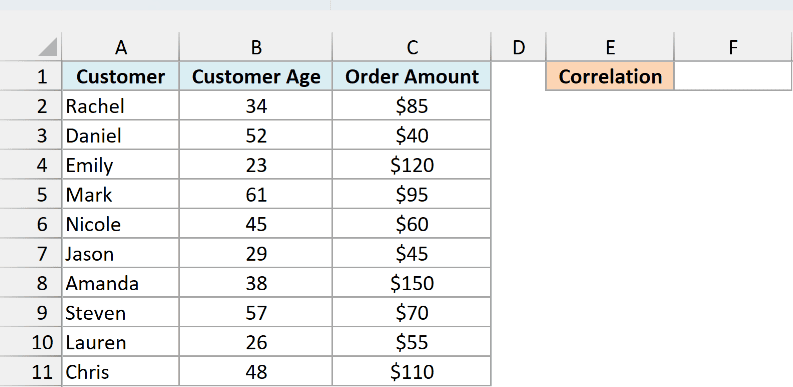
Here is the formula:
=CORREL(B2:B11,C2:C11)
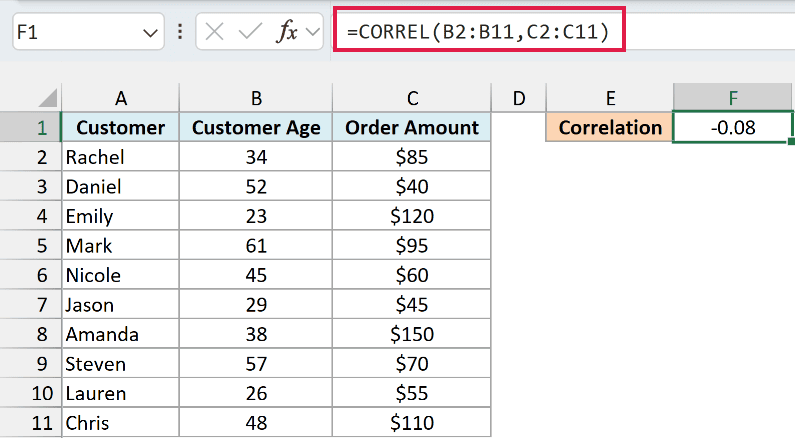
This gives -0.08.
A result this close to 0 means there’s no real relationship between the two columns. Customers of all ages placed both small and large orders, so a customer’s age tells you almost nothing about how much they’ll spend.
CORREL only measures straight-line relationships, though. Two columns can follow a clear curve and still get a result near 0, so it’s worth plotting the data in a scatter plot when the number surprises you.
Example 4: How CORREL Handles Blank Cells and Zeros
This next one is easy to get wrong without noticing.
Below is an online course tracker with the videos each student watched and their quiz score, where two students haven’t taken the quiz yet, and I want the correlation in cell G1.
Column D has the same scores with those two typed as 0, which I’ll use for a comparison in a moment.
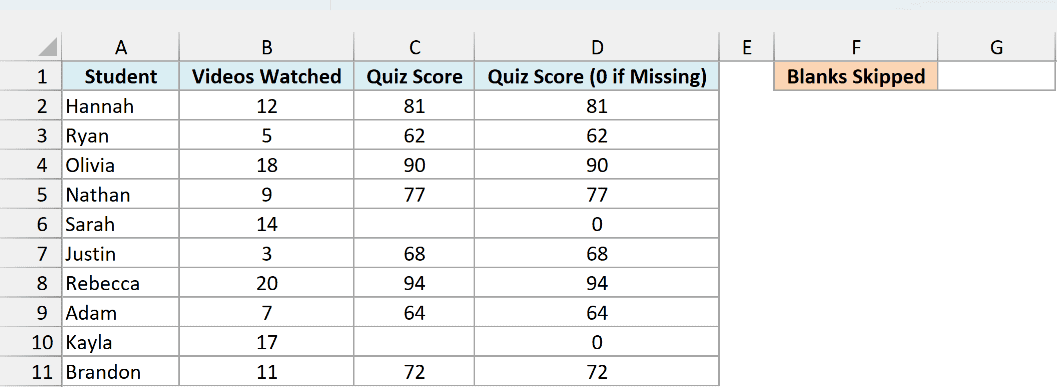
Here is the formula:
=CORREL(B2:B11,C2:C11)
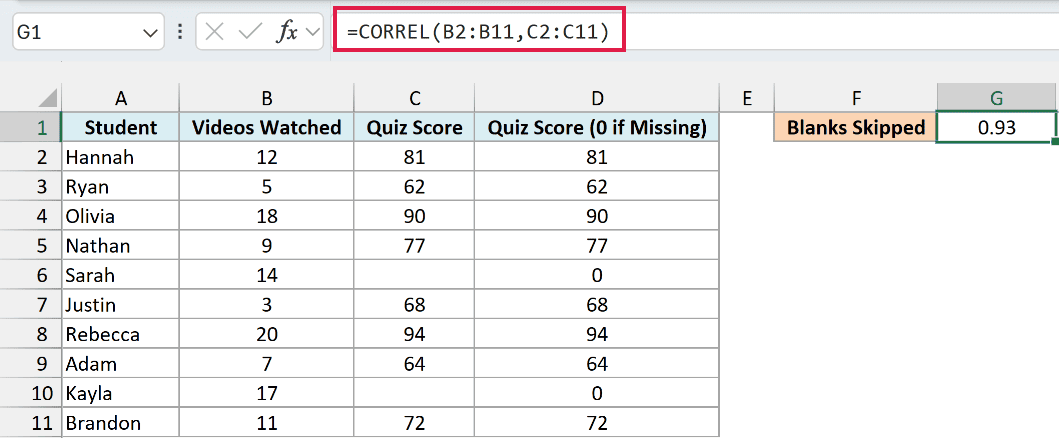
This gives 0.93.
CORREL skips any pair where one of the values is blank. Here it uses the eight students who have a score and leaves out Sarah and Kayla, so the missing quizzes don’t affect the result.
Now here is the same formula pointed at column D, where the two missing scores are 0, in cell G2:
=CORREL(B2:B11,D2:D11)
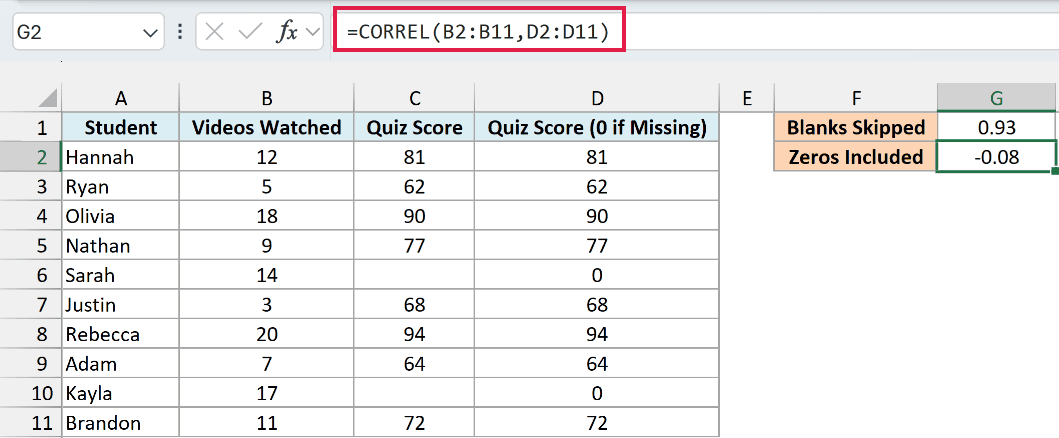
This gives -0.08.
CORREL treats 0 as a real score. So Sarah and Kayla, who watched plenty of videos, now look like they scored nothing, and that wipes out the pattern.
Important: Leave missing values blank instead of typing 0, so CORREL skips them instead of counting them as real data.
Text and TRUE/FALSE values are skipped the same way as blanks. That includes numbers stored as text, so check for those if a result looks off on data copied from another system.
Example 5: Correlation by Group Using CORREL and FILTER
Let’s step it up with a more practical use case.
Below is a food delivery log with the vehicle, distance, and delivery time for each order, and I want the correlation between distance and time separately for bikes and cars in column G.
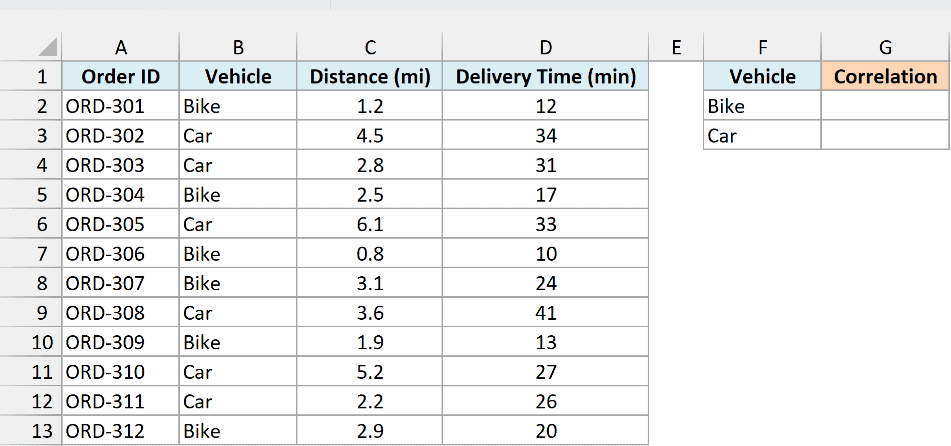
Here is the formula for cell G2, which I then copied down to G3:
=CORREL(FILTER($C$2:$C$13,$B$2:$B$13=F2),FILTER($D$2:$D$13,$B$2:$B$13=F2))
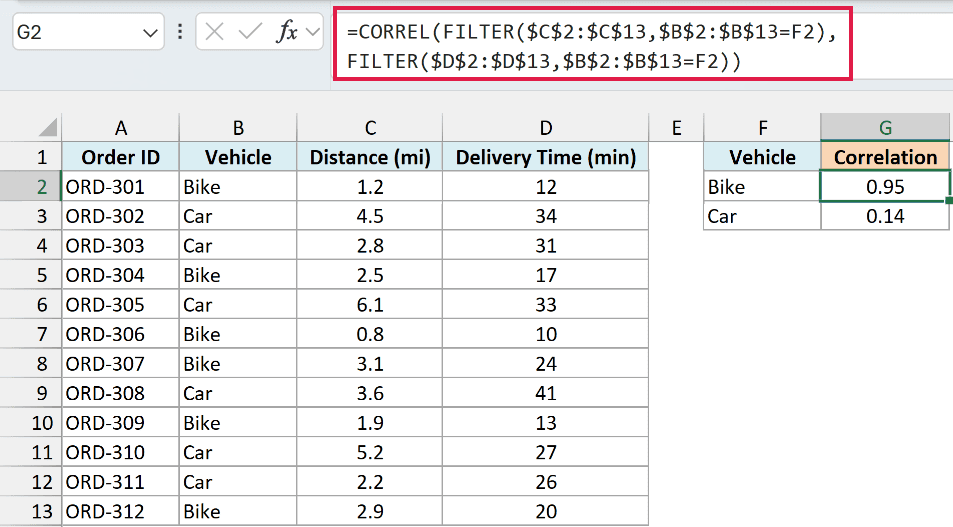
This gives 0.95 for bikes and 0.14 for cars.
How this formula works:
- FILTER($C$2:$C$13,$B$2:$B$13=F2) keeps only the distances where the vehicle matches the name in F2, which is Bike.
- The second FILTER keeps the delivery times from the same rows, so each distance still lines up with its own time.
- CORREL then works on just those filtered pairs.
The dollar signs keep the data ranges fixed. So when the formula is copied down to G3, only F2 changes to F3, and you get the result for cars.
If a vehicle had only one delivery, or every delivery had the same distance, CORREL would return the #DIV/0! error. It needs at least two pairs with some variation in both columns to calculate anything.
For bikes, longer trips clearly take longer. For cars, the link is weak, so distance alone doesn’t tell you much about how long a car delivery will take.
The FILTER function is available in Excel 365, Excel 2024, Excel 2021, and Excel for the web.
If you are using Excel 2019 or earlier, enter the below formula in cell G2 with Control + Shift + Enter, and then copy it down to G3:
=CORREL(IF($B$2:$B$13=F2,$C$2:$C$13),IF($B$2:$B$13=F2,$D$2:$D$13))
This works because IF returns FALSE for the rows of the other vehicle, and CORREL ignores FALSE values.
Example 6: Create a Correlation Matrix in Excel With One Formula
Finally, let’s check several columns against each other at once.
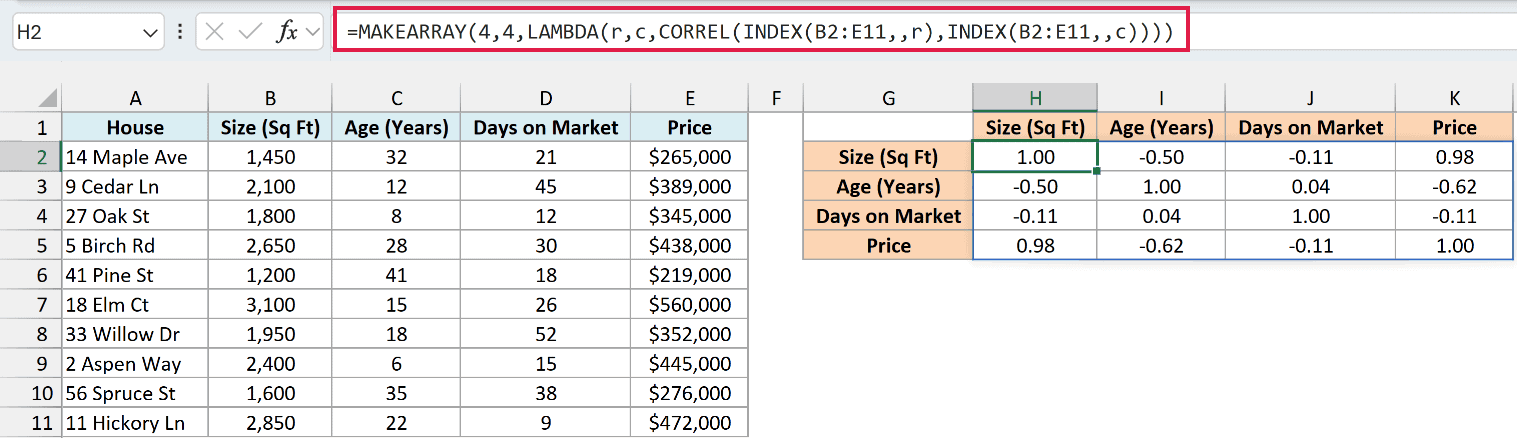
Below is a list of houses for sale with each one’s size, age, days on the market, and price, and I want the correlation between every pair of these columns in H2:K5, with the column names listed down G2:G5 and across H1:K1.
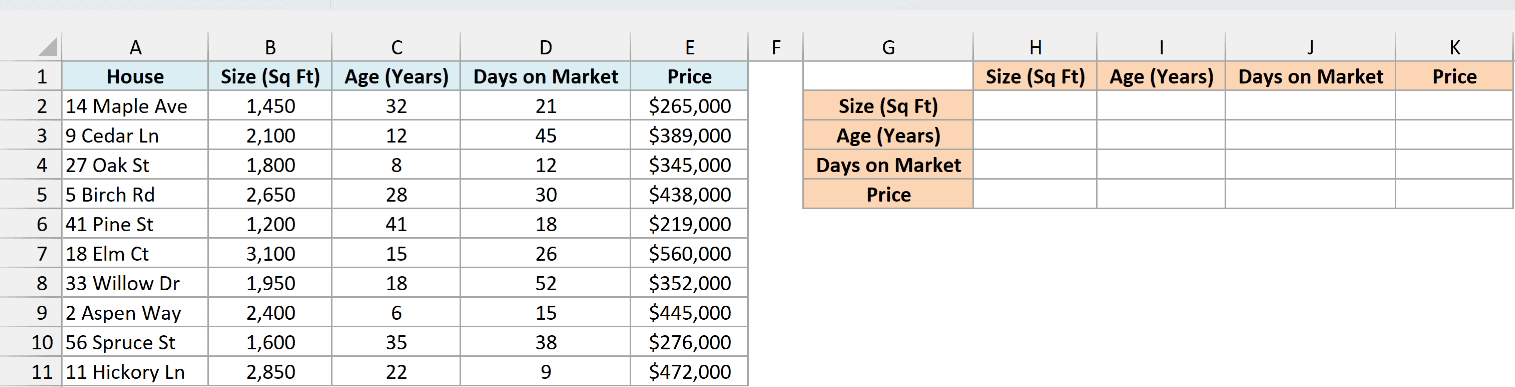
Here is the formula:
=MAKEARRAY(4,4,LAMBDA(r,c,CORREL(INDEX(B2:E11,,r),INDEX(B2:E11,,c))))
How this formula works:
- MAKEARRAY(4,4,…) builds a grid with 4 rows and 4 columns, one cell for each pair of the four data columns.
- For each cell in that grid, r is its row number and c is its column number.
- INDEX(B2:E11,,r) pulls out column number r of the data (1 is Size, 2 is Age, and so on), and INDEX(B2:E11,,c) pulls out column number c.
- CORREL finds the correlation for that pair, and all 16 results spill into H2:K5.
The diagonal is always 1.00, because each column matches itself perfectly.
Size and price have a strong positive correlation of 0.98, and age and price have a weaker negative one of -0.62. Days on the market has almost no link to price, at -0.11.
Because this is a formula, the matrix updates as soon as you change any value in the data.
The MAKEARRAY function is available in Excel 365, Excel 2024, and Excel for the web.
If you are using Excel 2021 or earlier, enter the below formula in cell H2 and then copy it across and down to K5:
=CORREL(INDEX($B$2:$E$11,0,MATCH($G2,$B$1:$E$1,0)),INDEX($B$2:$E$11,0,MATCH(H$1,$B$1:$E$1,0)))
This works because the labels in column G and row 1 match the data headers exactly, so the MATCH function can find the right data column for every cell in the grid.
You can also get a correlation table from the Data Analysis Toolpak, which I cover in this guide on how to calculate the correlation coefficient in Excel. The Toolpak gives you fixed values, though, not formulas.
So these are six ways to use the CORREL function in Excel, from a quick check between two columns to a full correlation matrix.
The PEARSON function gives exactly the same result as CORREL, so you can use either one. And if you need R-squared instead, RSQ squares the CORREL result for you.
I hope you found this article helpful.
Other Excel Articles You May Also Like:
