

The GETPIVOTDATA function in Excel pulls a value out of a pivot table by naming the field and item you want, instead of pointing at a cell. Ask it for the Latte revenue, and it finds the Latte row wherever it happens to sit.
That matters because pivot tables move. When you sort one, filter it, or refresh it with new data, a plain cell reference like =D5 can end up pointing at the wrong number, while GETPIVOTDATA still returns the right one.
In this article, I’ll show you how to use it with eight examples, and how to stop Excel from writing it for you every time you click a pivot table cell in a formula.
Follow along with the example file
GETPIVOTDATA Function Examples.xlsx
GETPIVOTDATA Function Syntax
Here is the syntax of the GETPIVOTDATA function:
=GETPIVOTDATA(data_field,pivot_table,[field1,item1],[field2,item2],...)
- data_field – the name of the value field you want a number from, in double quotes (like “Revenue”).
- pivot_table – a reference to any cell inside the pivot table. This tells Excel which pivot table to read.
- field1, item1, … – optional pairs that say which part of the pivot table you want, such as the field “Drink” and the item “Latte”. Text items go in double quotes, while numbers and dates go in without them. You can use up to 126 pairs.
For data_field, you can use the name of the column in your source data (“Revenue”) or the label the pivot table shows (“Sum of Revenue”). Both return the same number, so you can type whichever name you see.
When you leave out every field and item pair, you get the pivot table’s grand total. Each pair you add narrows the result down to one row, one column, or the cell where they meet.
The GETPIVOTDATA function works in all current Excel versions, including Excel 365, 2024, 2021, 2019, 2016, and Excel for Mac.
When to Use the GETPIVOTDATA Function
Use this function when you need to:
- Show a pivot table total in a summary cell or dashboard that stays right after the pivot table is sorted, filtered, or refreshed
- Pick out one value from a pivot table, like one product’s sales in one region
- Build your own report layout from a pivot table, with rows and columns in the order you want
- Use pivot table numbers in further calculations, like a price per unit or a share of the total
Let me show you a few practical examples of how to use the GETPIVOTDATA function.
Example 1: Get the Grand Total from a Pivot Table
Let’s start with the simplest version, with no field and item pairs at all.
Below is a pivot table that adds up a coffee shop’s July revenue by store, and I want to get the total revenue in cell A2.
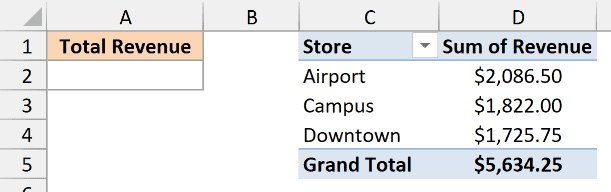
Here is the formula:
=GETPIVOTDATA("Revenue",$C$1)
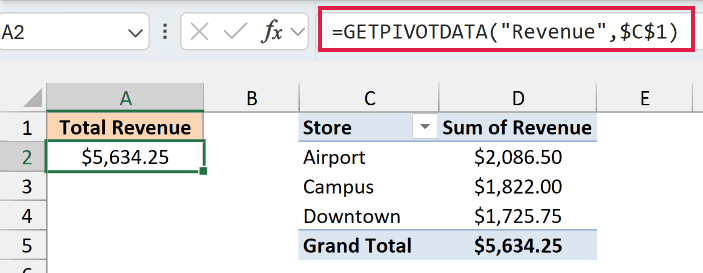
This returns $5,634.25, the same number as the pivot table’s Grand Total.
“Revenue” is the value field I want, and $C$1 is the top-left cell of the pivot table. Since there are no field and item pairs, GETPIVOTDATA returns the grand total for that value field.
You don’t have to type this formula yourself. Type = in A2, click the Grand Total value in the pivot table, and press Enter, and Excel writes the GETPIVOTDATA formula for you.
If you get a plain reference like =D5 instead, the Generate GetPivotData option is turned off. The last section of this article shows where that option lives.
Example 2: Get the Total for One Item
Now let’s narrow it down to one item in the pivot table.
Below is a pivot table with the coffee shop’s revenue for each drink, and I want to get the revenue from Latte in cell A2.
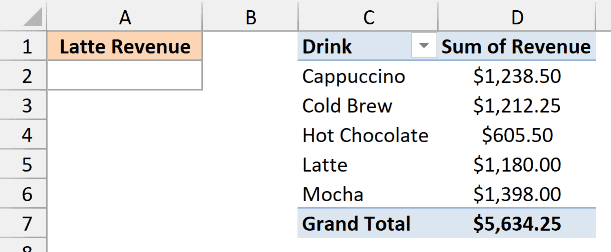
Here is the formula:
=GETPIVOTDATA("Revenue",$C$1,"Drink","Latte")
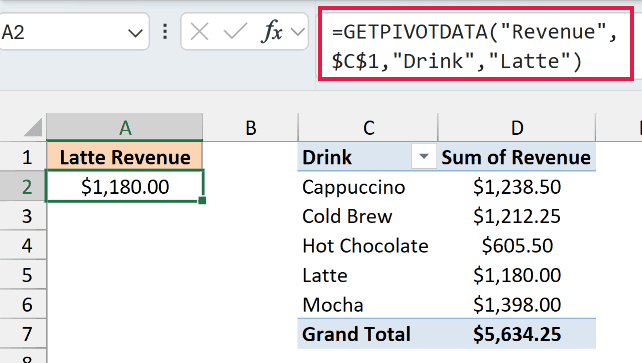
This returns $1,180.00, the Latte row of the pivot table.
The pair “Drink”,”Latte” tells GETPIVOTDATA to look in the Drink field and find the item Latte. The field name has to match a field in the pivot table, and the item has to be one that the pivot table is showing.
Since the formula looks for Latte by name, it keeps working if you sort the pivot table by revenue and Latte moves to a different row. A reference like =D5 would just keep reading whatever drink lands in D5.
Example 3: GETPIVOTDATA with Multiple Criteria
Now let’s get a value that depends on two conditions.
Below is a pivot table that shows the coffee shop’s revenue by drink and by store, and I want to get the Mocha revenue at the Airport store in cell A2.
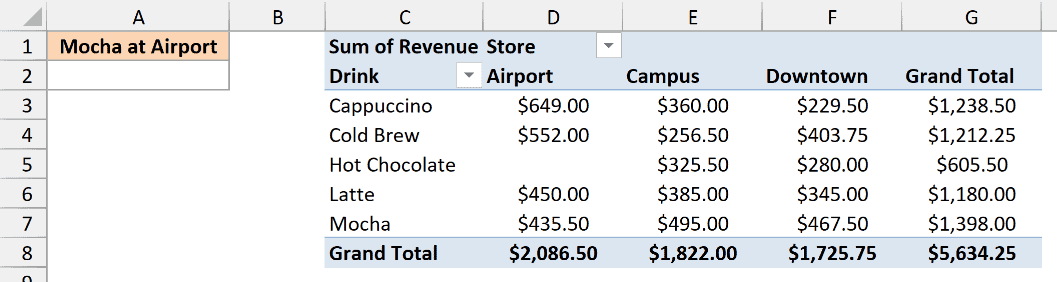
Here is the formula:
=GETPIVOTDATA("Revenue",$C$1,"Drink","Mocha","Store","Airport")
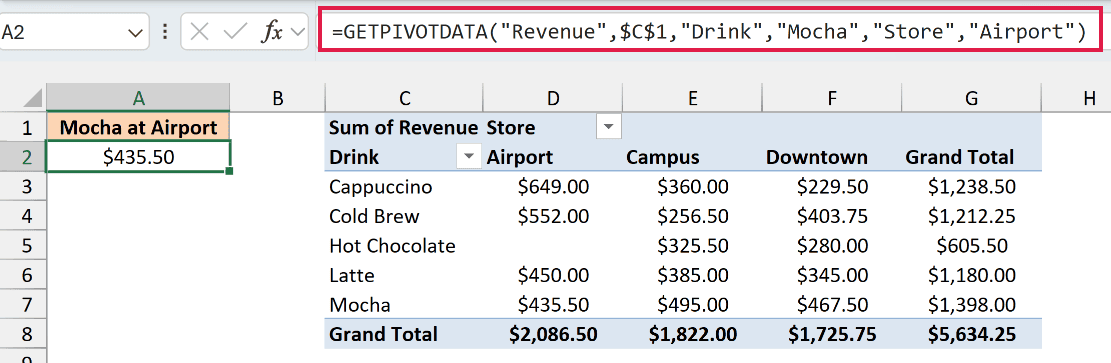
This returns $435.50, which is the cell where the Mocha row meets the Airport column.
Each field and item pair acts as one condition. “Drink”,”Mocha” picks the row and “Store”,”Airport” picks the column, so you get the value where they cross.
The pairs can go in any order, so putting the Store pair first gives the same result. And if you keep only the “Store”,”Airport” pair, you get the Airport column total, $2,086.50.
Example 4: Use Two Value Fields to Get the Price per Cup
The data_field argument decides which numbers you get, which comes in handy when a pivot table has more than one value field.
Below is a pivot table that shows both the cups sold and the revenue for each drink, and I want to get the average price per cup of Cold Brew in cell A2.
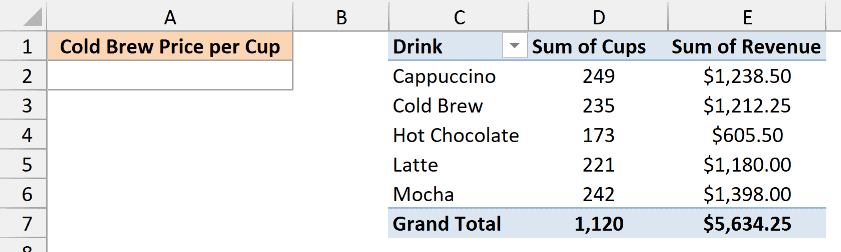
Here is the formula:
=GETPIVOTDATA("Revenue",$C$1,"Drink","Cold Brew")/GETPIVOTDATA("Cups",$C$1,"Drink","Cold Brew")
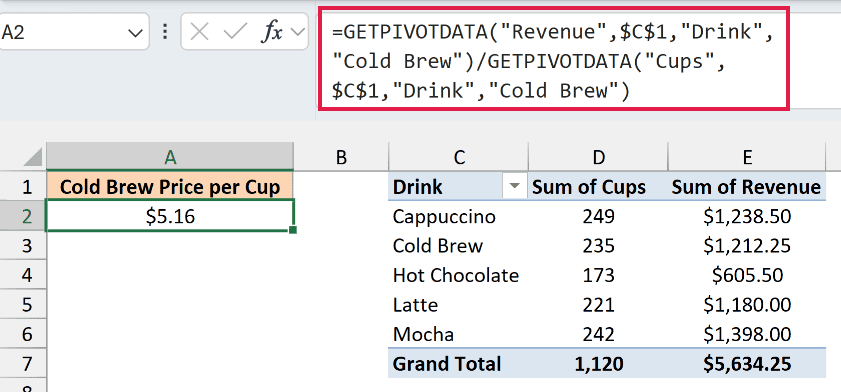
This returns $5.16.
The two GETPIVOTDATA functions point at the same pivot table and the same drink, and only the data_field is different. The first one gets the Cold Brew revenue ($1,212.25), and the second gets the Cold Brew cups (235).
Dividing one by the other gives the average price per cup, 1,212.25 / 235 = 5.1585, which shows as $5.16. You get the number without adding anything to the pivot table itself.
Example 5: Use Cell References for a Dynamic GETPIVOTDATA
Typing the item names into the formula works, but you’d have to edit the formula every time you want a different number.
Below is the same drink-by-store pivot table, with a drink in A2 and a store in B2, and I want the revenue for that drink at that store in cell C2.
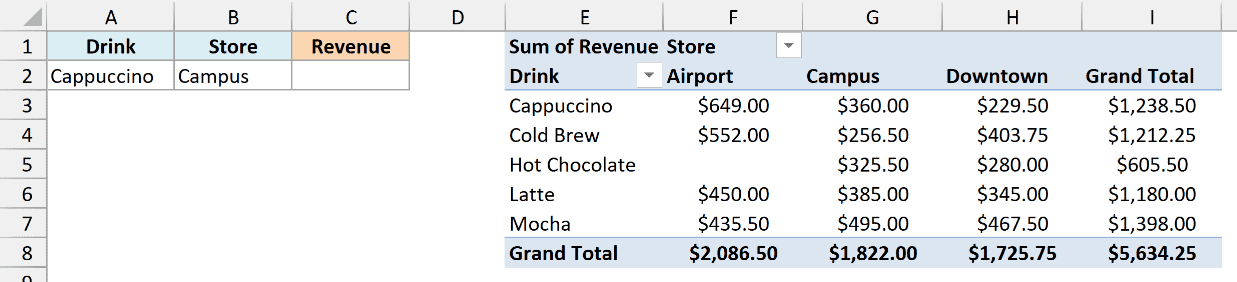
Here is the formula:
=GETPIVOTDATA("Revenue",$E$1,"Drink",A2,"Store",B2)
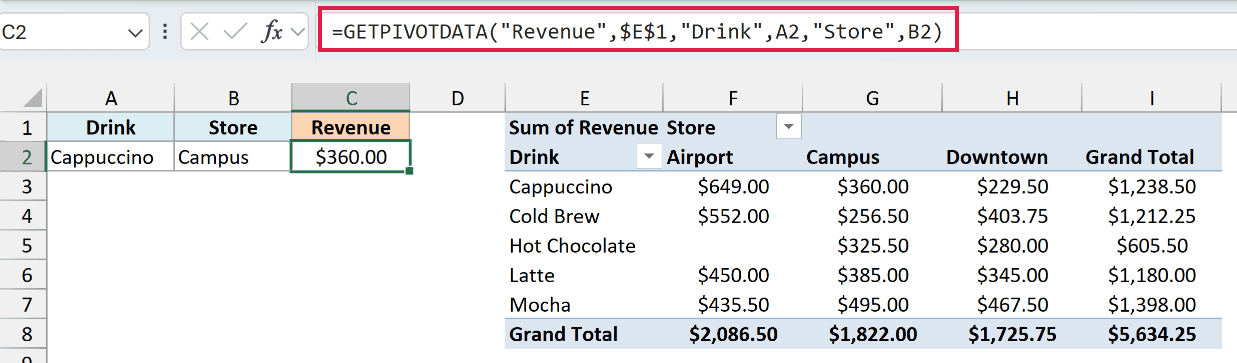
This returns $360.00, the Cappuccino revenue at the Campus store.
Instead of “Cappuccino” and “Campus” in quotes, the items now come from cells A2 and B2. Change A2 to Latte and B2 to Downtown, and the result updates to $345.00 without touching the formula.
Pro Tip: Add a drop-down list to A2 and B2 (Data > Data Validation > List) with the drinks and stores. Then anyone can pick a combination and see the number, with no risk of a typo returning an error.
Example 6: Build a Whole Report with One Formula
So far every formula has returned one number. Now let’s fill a whole table with a single GETPIVOTDATA formula.
Below is the drink-by-store pivot table and a report that lists the drinks in menu order in column A and the stores in my own order in row 1. I want to fill in the revenue for each drink and store in B2:D6.
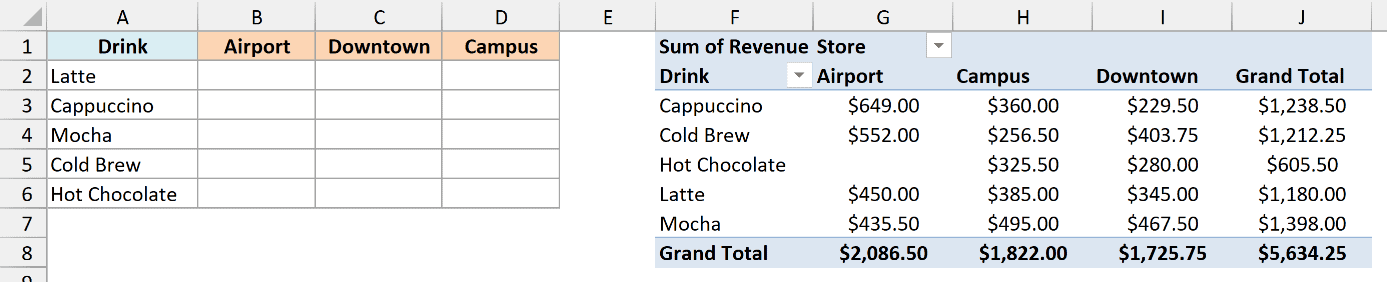
Here is the formula:
=GETPIVOTDATA("Revenue",$F$1,"Drink",A2:A6,"Store",B1:D1)
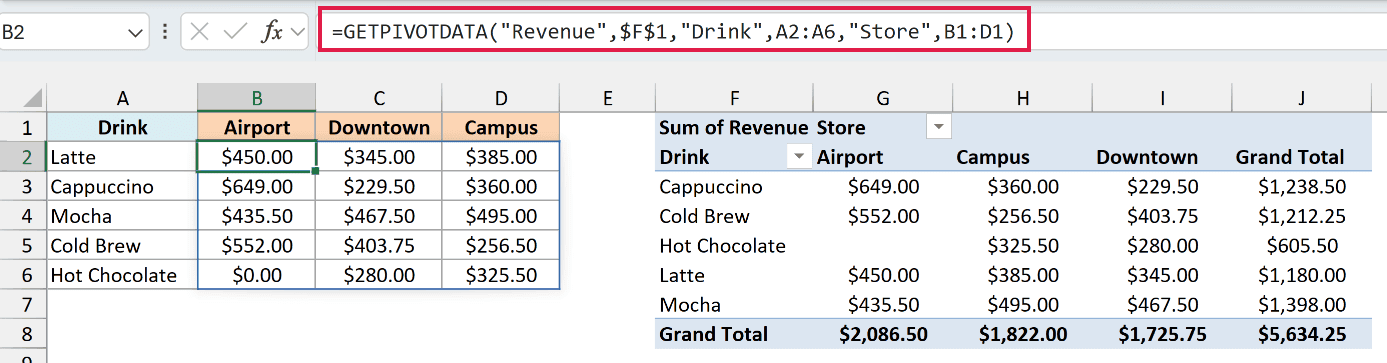
This one formula in B2 fills all 15 cells of the report.
How this formula works:
- A2:A6 gives GETPIVOTDATA five drinks instead of one, so it returns five rows of results.
- B1:D1 gives it three stores, so each row gets three results, one per store.
- Excel works out every drink and store combination and spills the results into B2:D6.
The report keeps its own order (Latte at the top, Downtown before Campus) no matter how the pivot table is sorted. That’s the main reason to build a report this way instead of copying numbers out of the pivot table.
Notice that Hot Chocolate at Airport shows $0.00. The Airport store doesn’t sell Hot Chocolate, so that cell in the pivot table is blank, and GETPIVOTDATA returns 0 for a blank pivot table cell.
An item the pivot table doesn’t have at all is different, and gives #REF! (you’ll see that in Example 8).
The results spill only in Excel 365 and Excel 2021 or later. If any cell in B2:D6 already has something in it, you’ll get a #SPILL! error, so keep that range empty.
If you are using Excel 2019 or earlier, enter the below formula in cell B2 and then copy it across to D2 and down to row 6:
=GETPIVOTDATA("Revenue",$F$1,"Drink",$A2,"Store",B$1)
The dollar signs keep the drink locked to column A and the store locked to row 1 as you copy, so each cell picks up its own drink and store.
Example 7: Use GETPIVOTDATA with Dates
Dates trip up a lot of GETPIVOTDATA formulas, so let’s look at how to pass one in.
Below is a pivot table that shows a bike rental shop’s rentals for each day of the first week of July, and I want to get the number of rentals on July 4, 2026 in cell A2.
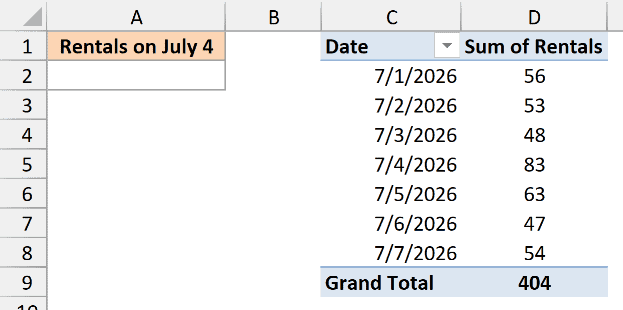
Here is the formula:
=GETPIVOTDATA("Rentals",$C$1,"Date",DATE(2026,7,4))
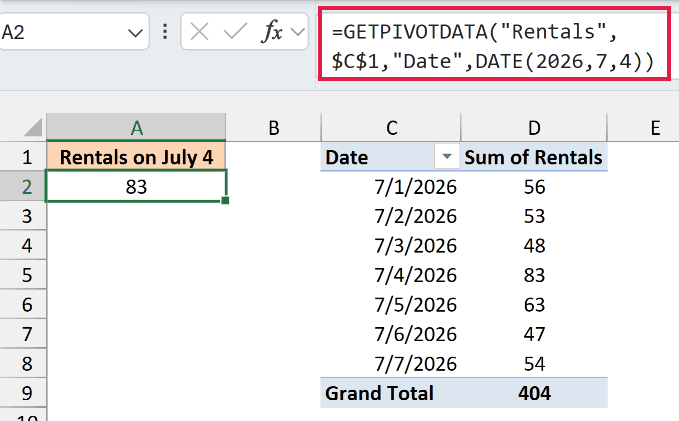
This returns 83, the July 4 row of the pivot table.
In Excel, a date is stored as a number, so the item has to be a real date value. The DATE function builds one from the year, month, and day.
If the date is already in a cell, you can point to that cell instead of using DATE. That’s handy when you want to change the date without editing the formula.
Important: Typing the date as text can return #REF!. A short form like “4-Jul” fails, and even “7/4/2026” depends on your computer’s regional settings, so use DATE or a date cell instead.
The formula also needs the pivot table to show individual dates. If your dates are grouped into months, there’s no July 4 row to find, and the formula returns #REF! until you ungroup them (right-click a date in the pivot table and choose Ungroup).
Example 8: Return 0 Instead of #REF! (GETPIVOTDATA with IFERROR)
Let’s finish with the error you’ll see most often with this function.
Below is a pivot table with the revenue for each drink, along with a list of drinks that includes Iced Tea (which hasn’t sold any cups yet), and I want to get the revenue for each drink in column B.
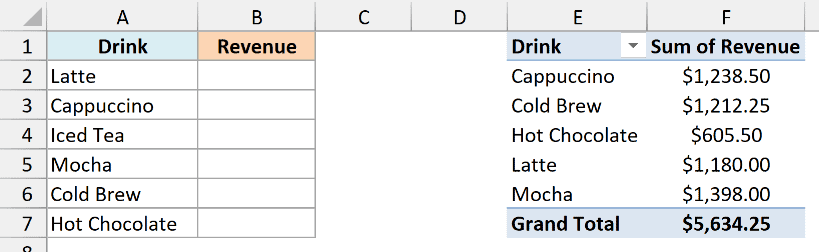
Here is the formula:
=GETPIVOTDATA("Revenue",$E$1,"Drink",A2:A7)
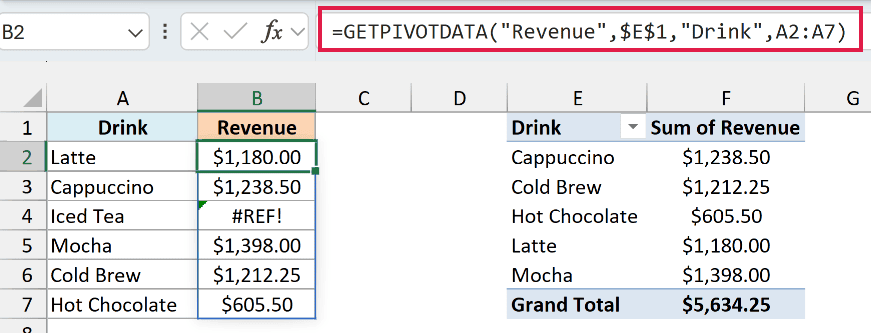
Every drink gets its revenue except Iced Tea, which shows #REF!.
Iced Tea has no sales, so it never made it into the pivot table. When an item isn’t in the pivot table, GETPIVOTDATA has nothing to return, so it gives a #REF! error.
You’ll also get #REF! when a filter hides the item or a field name is misspelled, so check those two things when a drink that should be there shows the error.
To show 0 instead of the error, wrap the formula in the IFERROR function. Here is the formula that does this in column C:
=IFERROR(GETPIVOTDATA("Revenue",$E$1,"Drink",A2:A7),0)
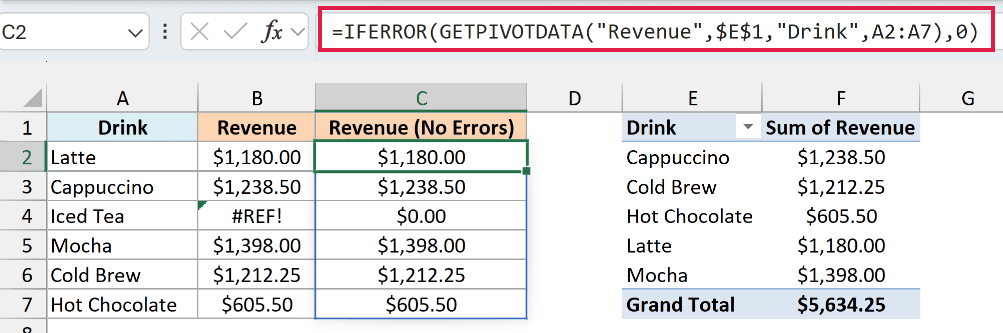
Now Iced Tea shows $0.00 and every other drink keeps its revenue. Since 0 is a number, you can still add up the column.
You need IFERROR here, not IFNA, because IFNA only catches #N/A and lets #REF! through.
IFERROR hides every error, including the #REF! you’d get if the pivot table were deleted. So if a whole column suddenly shows 0, check that the pivot table is still there before you trust the numbers.
If you are using Excel 2019 or earlier, enter the below formula in cell C2 and then copy it down to C7:
=IFERROR(GETPIVOTDATA("Revenue",$E$1,"Drink",A2),0)
How to Turn Off GETPIVOTDATA in Excel
When the Generate GetPivotData option is on, clicking a pivot table cell inside a formula gives you a GETPIVOTDATA formula instead of a plain reference like =D5.
That’s often what you want, but it gets in the way when you need a simple reference you can copy down.
Here are the steps to turn it off in Excel for Windows:
- Select any cell in the pivot table.
- Click the PivotTable Analyze tab.
- In the PivotTable group, click the small arrow next to Options. If your Excel window is narrow, this group shows up as a single PivotTable button, so click that button first.
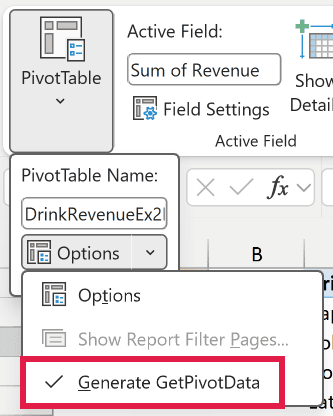
- Click Generate GetPivotData to remove its check mark.
Now clicking a pivot table cell in a formula gives you a regular cell reference like =D5. To get GETPIVOTDATA formulas back, follow the same steps and click the option again.
This is an Excel setting rather than a setting for one workbook, so it stays off in every file until you turn it back on. Your existing GETPIVOTDATA formulas aren’t affected and keep working.
You can also change it from File > Options > Formulas, where it’s called Use GetPivotData functions for PivotTable references.
And if you only need a plain reference once, you don’t have to touch the setting. Type the cell address (like =D5) instead of clicking the cell.
So this is how you can use the GETPIVOTDATA function to pull a grand total, a single item, or the value where two fields meet, and keep getting the right number when the pivot table changes.
I hope you found this Excel tutorial useful.
Other Excel Articles You May Also Like:
