

The ATAN function in Excel returns the arctangent, also called the inverse tangent, of a number. You give it a tangent value, such as a slope’s rise divided by its run, and it gives you back the angle.
That’s handy whenever you know two sides of a right triangle, like the rise and run of a slope or the height of a pole and the length of its shadow.
In this tutorial, I’ll show you five examples, from a plain arctangent to angles in degrees and the one case where you should switch to ATAN2.
Follow along with the example file
ATAN Function Examples.xlsx
ATAN Function Syntax
Here is the syntax of the ATAN function:
=ATAN(number)
- number is the tangent of the angle you want. It can be a number, a cell reference, a calculation such as
B2/C2, or a range of values.
ATAN needs a number to work with. If the argument is text that Excel can’t read as a number, like “abc”, the function returns a #VALUE! error.
A blank cell is treated as 0, so ATAN returns 0 instead of an error. If you see an angle of 0 that you didn’t expect, check whether the input cell is empty.
The ATAN function works in all Excel versions, including Microsoft 365, 2024, 2021, 2019, 2016, Mac, and the web.
When to Use the ATAN Function
Use this function when you need to:
- Get the arctangent of a value in a math or physics problem.
- Turn a slope (rise over run) into an angle, like a trail, a road, or a ramp.
- Convert a percent grade, such as a treadmill incline, into degrees.
- Find an angle of elevation from a height and a distance.
- Get an angle from x and y values (with ATAN2 when direction matters).
Let me show you how this works with a few practical examples.
Example 1: Find the Arctan (Inverse Tangent) of Numbers
Let’s start with a simple example.
Below is a list of tangent values from a geometry homework sheet, and I want the arctangent of each one in column C.
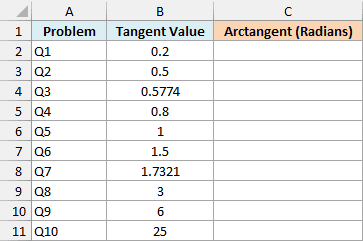
Here is the formula to enter in cell C2:
=ATAN(B2:B11)
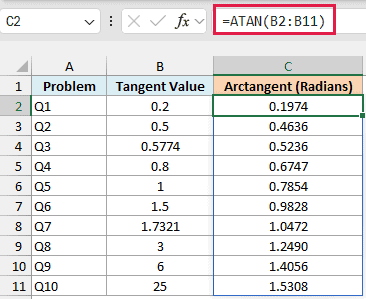
The formula returns all ten results in C2:C11, and each one is an angle in radians, not degrees. For example, Q5 has a tangent value of 1, and ATAN returns 0.7854, which is 45 degrees written in radians.
Notice that the results never go above 1.5708, even as the tangent values get bigger. Q10 has a tangent value of 25 and still returns only 1.5308.
That’s because ATAN always returns an angle between -1.5708 and 1.5708 (that’s -π/2 to π/2, or -90 to 90 degrees). A bigger tangent value just gets you closer to 90 degrees.
Since B2:B11 is a range, the results spill into the cells below C2 on their own. You enter the formula once and don’t need to copy it down.
Important: If any cell in C3:C11 already has something in it, Excel returns a #SPILL! error because the results have no room to spill. Clear those cells and the formula fills them in.
Spilling needs Excel for Microsoft 365, Excel 2021, or later. If you are using Excel 2019 or earlier, enter the below formula in cell C2 and then copy it down to C11:
=ATAN(B2)
The other spilling formulas in this article work the same way in older versions: point the formula at the first row of data and copy it down.
Example 2: Get the Arctan in Degrees
Radians are fine for math, but most of the time you’ll want the angle in degrees.
Below is a list of treadmill workouts with the incline setting for each, and I want the angle of each incline in degrees in column C.
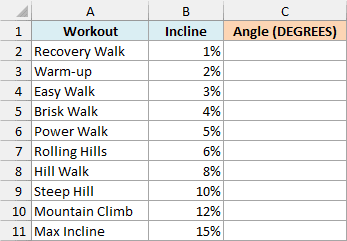
A treadmill incline is a percent grade, which is the rise divided by the run. Excel stores 5% as 0.05, so the incline is already the ratio ATAN needs.
Here is the formula to enter in cell C2:
=DEGREES(ATAN(B2:B11))
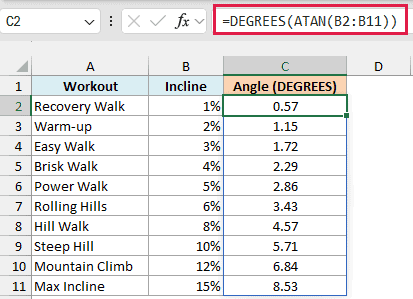
ATAN first gets each angle in radians, and the DEGREES function converts it to degrees. A 5% incline (Power Walk) works out to just 2.86 degrees, and even the 15% Max Incline is only 8.53 degrees.
If your inclines are typed as plain numbers like 5 instead of 5%, ATAN treats 5 as the tangent and returns about 79 degrees. Enter them as percentages, or divide them by 100 before they go into ATAN.
You can also do the conversion yourself by multiplying the radians by 180/PI(). Here is that version, entered in cell D2 for comparison:
=ATAN(B2:B11)*180/PI()
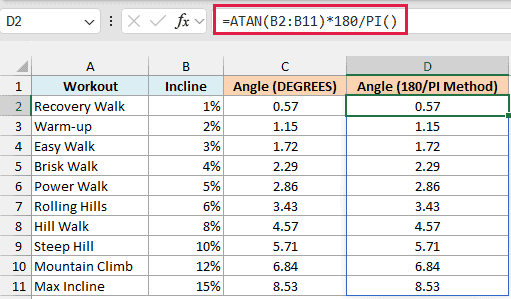
Both columns show the same angles, because DEGREES does this exact multiplication for you. DEGREES is easier to read, so that’s the one I use in the rest of this article.
Example 3: Find a Slope Angle from Rise and Run
Most of the time, you won’t have a tangent value sitting in a cell. You’ll have two numbers, the rise and the run, and the tangent is one divided by the other.
Below is a hiking trail split into segments, with the elevation change and the map distance of each, and I want the slope angle of each segment in column D.
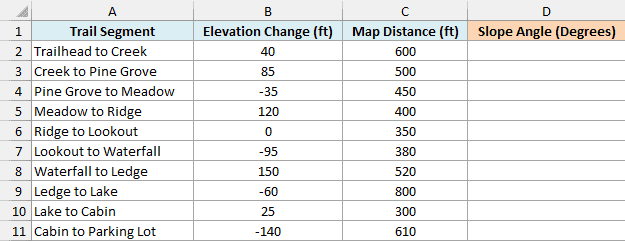
Here is the formula to enter in cell D2:
=DEGREES(ATAN(B2:B11/C2:C11))
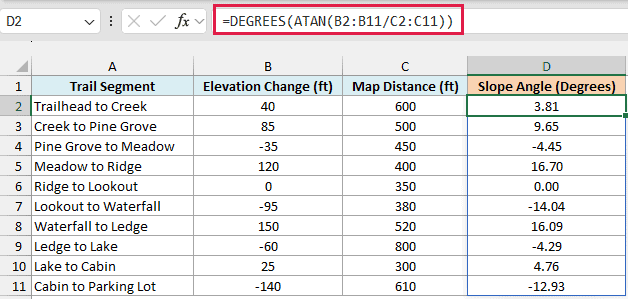
How this formula works:
B2:B11/C2:C11divides each elevation change by its map distance. That ratio (rise over run) is the tangent of the slope angle.- ATAN turns each ratio into an angle in radians.
- DEGREES converts those angles to degrees, and the results spill down to D11.
Dividing by the map distance works because a map distance is measured flat, which is exactly the run ATAN needs. If you only have the distance walked along the trail itself, that’s the slope’s long side, and you’d need the ASIN function instead.
The downhill segments have a negative elevation change, so their angles come out negative. Lookout to Waterfall drops 95 feet over 380 feet and returns -14.04, which means a 14-degree descent.
Ridge to Lookout is flat, with an elevation change of 0, so its angle is 0.00.
Follow along with the example file
ATAN Function Examples.xlsx
Example 4: Find the Sun’s Angle from a Shadow
Here’s a fun one. If you know how tall something is and how long its shadow is, ATAN can tell you how high the sun is in the sky.
Below are the shadow lengths of a pole measured every hour, with the pole height in cell F2, and I want the sun’s angle at each time in column C.
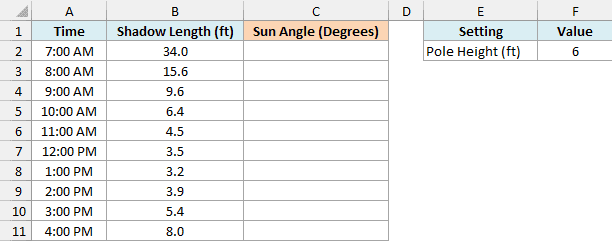
Here is the formula to enter in cell C2:
=DEGREES(ATAN(F2/B2:B11))
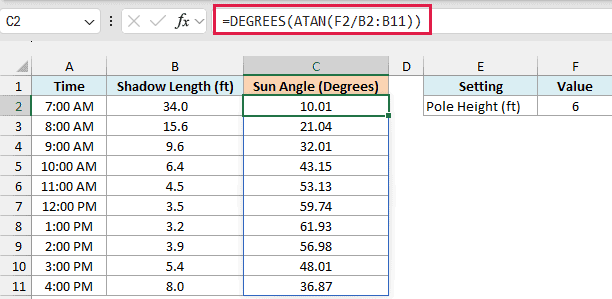
The pole and its shadow form a right triangle, so the pole height divided by the shadow length is the tangent of the sun’s angle. ATAN turns that into an angle, and DEGREES converts it to degrees.
At 7:00 AM, the 6-foot pole casts a 34-foot shadow and the sun is only 10.01 degrees up. By 1:00 PM, the shadow is down to 3.2 feet and the sun is at 61.93 degrees.
Since the pole height sits in its own cell, you can change F2 to use a different object, and all ten angles update.
If you are using Excel 2019 or earlier, enter the below formula in cell C2 and then copy it down to C11. The dollar signs make $F$2 an absolute reference, so the pole height stays fixed as you copy:
=DEGREES(ATAN($F$2/B2))
Example 5: ATAN vs ATAN2 for Directions
ATAN has one blind spot, and it shows up when you use it to find a direction.
Below is a list of places around town with how many blocks east and north each one is from home (negative means west or south), and I want each place’s direction as an angle from due east, starting with ATAN in column D.
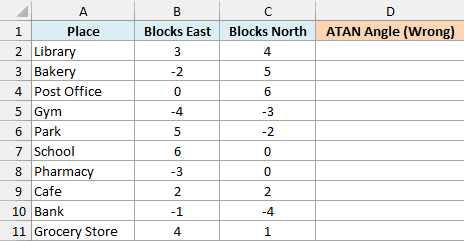
Here is the ATAN formula to enter in cell D2:
=DEGREES(ATAN(C2:C11/B2:B11))
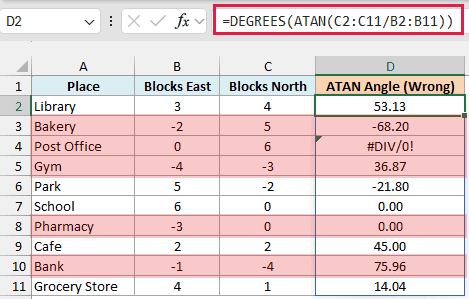
This works for the places east of home. The Library is 3 blocks east and 4 blocks north, and ATAN returns 53.13 degrees, measured counterclockwise from due east.
But it goes wrong for places that are due north or west of home. Here are three of them:
- The Post Office is 0 blocks east, so the formula divides by zero and returns a #DIV/0! error.
- The Bakery is 2 blocks west and 5 blocks north, but ATAN returns -68.20, which points southeast.
- The Pharmacy is 3 blocks west, yet ATAN returns 0.00, which points due east.
This happens because ATAN only gets the ratio. 5 north over 2 west gives -2.5, which is the same as 5 south over 2 east, so ATAN can’t tell those two places apart.
The fix is the ATAN2 function, which takes the east and north values separately. Here is the ATAN2 formula to enter in cell E2:
=DEGREES(ATAN2(B2:B11,C2:C11))
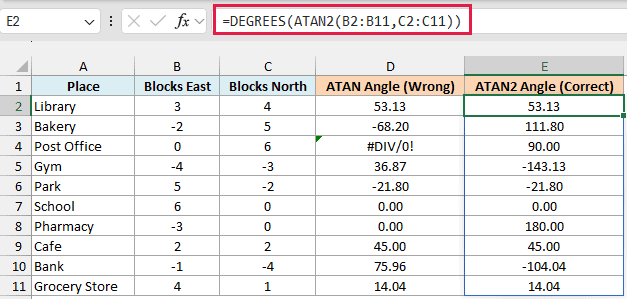
ATAN2 returns the right direction for every place. The Post Office comes back as 90 degrees (due north), the Bakery as 111.80, and the Pharmacy as 180 (due west).
Places south of home get negative angles, like -143.13 for the Gym. That’s because ATAN2 returns angles from -180 to 180 degrees instead of 0 to 360.
Important: ATAN2 takes the x value (east) first and the y value (north) second, which is the reverse of the rise-over-run order you use with ATAN. If you swap them, you get a wrong angle with no error to warn you.
When the run can be zero or negative, use ATAN2. When the run is always positive, like the map distances in Example 3, ATAN works just fine.
So these are five examples of using the ATAN function in Excel, including converting the result to degrees and finding real angles from slopes and shadows.
If you need to go the other way, from an angle back to a ratio, use the TAN function. If your angle is in degrees, convert it with the RADIANS function first.
I hope you found this tutorial useful.
Other Excel Articles You May Also Like:
