

The DSUM function adds up the numbers in one column of your data, but only for the rows that meet the conditions you set. What makes it different from SUMIFS is where those conditions live.
You type them into a small block of cells on the sheet (called the criteria range), not inside the formula. So you can change what gets added just by editing a cell, and you can set up OR conditions that are clumsy in other formulas.
There is one catch worth knowing upfront. When the condition is text, DSUM matches anything that starts with that text, so “Pen” also picks up “Pencil”.
In this tutorial, I will show you how to fix that. I’ll also cover OR conditions, date ranges, wildcards, and formula-based conditions.
Follow along with the example file
DSUM Function Examples.xlsx
DSUM Function Syntax
Here is the syntax of the DSUM function:
=DSUM(database, field, criteria)
- database – The whole data range, including the header row. Each row is a record and each column is a field.
- field – The column you want to add up. You can give its header name in double quotes (like “Sales”), or its position in the database as a number (like 4 for the fourth column).
- criteria – The range that holds your conditions. Its first row has one or more headers that match the column headers in your data (formula conditions are the one exception, covered in Example 8), and the conditions go in the cells below them.
How you arrange the conditions in the criteria range decides how they combine. Conditions on the same row work as AND (Example 3), and conditions on separate rows work as OR (Example 4).
The DSUM function works in Excel for Microsoft 365, Excel 2024, 2021, 2019, 2016, and earlier versions, on both Windows and Mac.
When to Use the DSUM Function
Use this function when you need to:
- Add up values for rows that meet one or more conditions, with the conditions kept in cells you can change
- Sum rows that match any one of several values (OR logic) without stacking several SUMIFS formulas
- Sum values between two dates or two numbers
- Sum rows based on a condition that compares two columns in the same row, which SUMIFS can’t do on its own
Let me show you a few practical examples of how to use DSUM in Excel.
Example 1: Sum Sales for One Item With DSUM
Let’s start with a simple example.
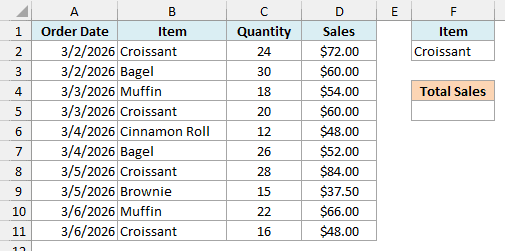
Below is a bakery’s sales log with the item sold on each order, and I want the total sales of Croissant in cell F5.
Here is the formula:
=DSUM(A1:D11,"Sales",F1:F2)
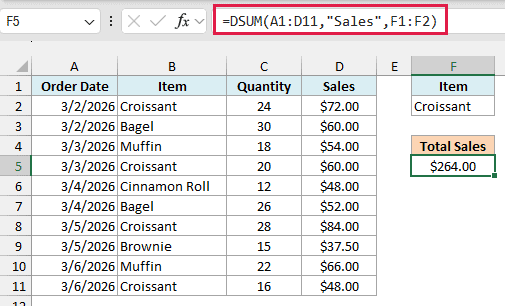
This returns $264.00, which is the total of the four Croissant orders.
In the above formula, A1:D11 is the whole table including its headers, “Sales” is the column to add, and F1:F2 is the criteria range. DSUM checks every row against the condition in F2 and only adds the sales of rows where the Item is Croissant.
Since the condition sits in a cell, you can change F2 to Bagel and the total updates on its own, with no change to the formula.
Important: The header in your criteria range must match the header in your data exactly. If F1 said “Items” or had an extra space, DSUM would quietly return 0 instead of showing an error.
I kept the criteria range to the right of the data, and that’s on purpose. Microsoft recommends not placing it right below your data, because new records usually get added in the first empty row below a list.
If you keep adding rows, convert the data to an Excel Table and use the Table’s full range as the database (like Bakery[#All] for a Table named Bakery). DSUM then picks up the new rows automatically.
A Table works because it is still a cell range on the sheet. A formula result like FILTER or SORT doesn’t, and Excel won’t even accept a DSUM formula that uses one as the database.
Example 2: Sum Values at or Above a Number (Field as a Column Number)
Here’s another practical scenario.
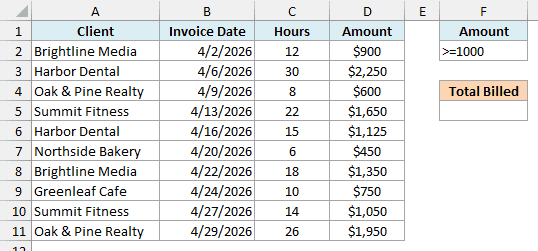
Below is a freelancer’s invoice list with the amount billed on each invoice, and I want the total of all invoices of $1,000 or more in cell F5.
Here is the formula:
=DSUM(A1:D11,4,F1:F2)
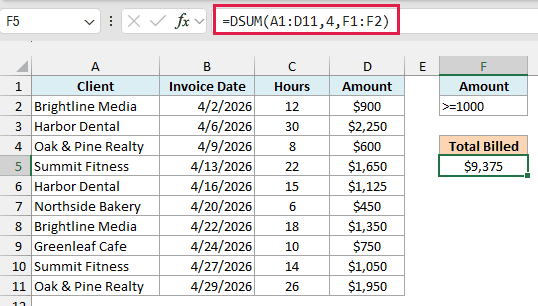
This gives us $9,375, the total of the six invoices that are $1,000 or more.
The condition in F2 is >=1000, typed straight into the cell. You can use any comparison operator the same way, such as >500, <=200, or <>0.
This time, I used 4 as the field instead of “Amount”. Since Amount is the fourth column of A1:D11, DSUM adds the values from that column.
A column number is quicker to type, but it can break silently. If someone inserts a new column inside the data, 4 will point to a different column, while a header name like “Amount” keeps working.
Example 3: DSUM With Multiple Criteria (AND)
Now let’s look at what happens when a row needs to meet two conditions at once.
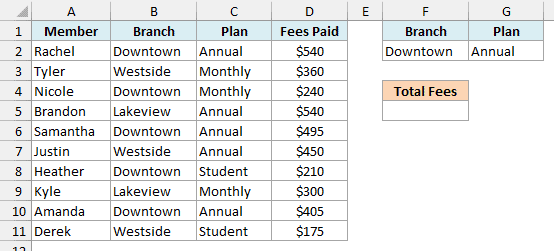
Below is a gym’s member list with each member’s branch, plan, and fees paid, and I want the total fees paid by Annual plan members at the Downtown branch in cell F5.
Here is the formula:
=DSUM(A1:D11,"Fees Paid",F1:G2)
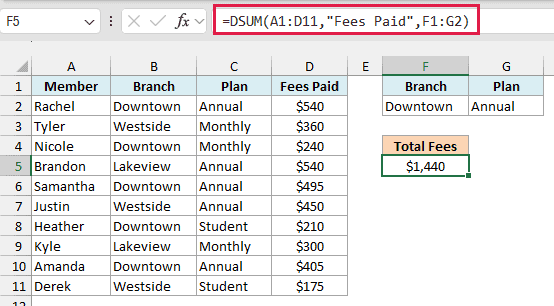
This returns $1,440, which adds up the fees paid by Rachel, Samantha, and Amanda.
Here, the criteria range F1:G2 has two headers side by side, with Downtown under Branch and Annual under Plan. Because both conditions sit on the same row, a member is counted only when both are true.
You can add more conditions the same way. Put another header next to Plan, type the condition below it, and extend the criteria range in the formula to include it.
Example 4: Sum Values That Match Either Condition (OR)
This is where DSUM is easier to use than SUMIFS.
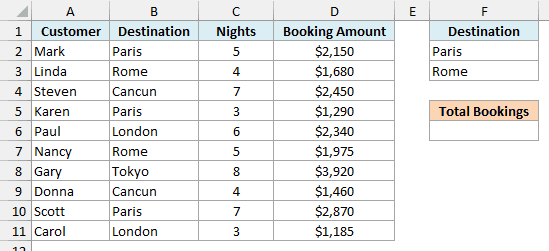
Below is a travel agency’s booking list with the destination and booking amount for each customer, and I want the total bookings for Paris or Rome in cell F6.
Here is the formula:
=DSUM(A1:D11,"Booking Amount",F1:F3)
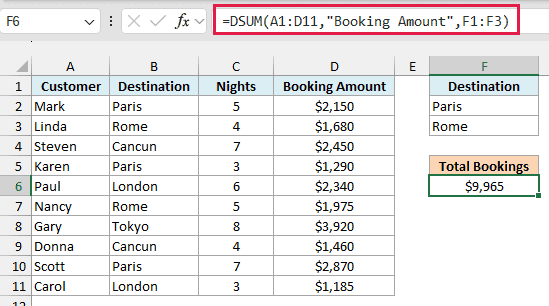
This gives us $9,965, the combined total of the three Paris bookings and the two Rome bookings.
The criteria range now has one header (Destination) and two conditions stacked below it, Paris in F2 and Rome in F3. Since they are on different rows, DSUM treats them as either-or and counts a booking if it matches either city.
To add a third city, type it in F4 and change the criteria range in the formula to F1:F4.
Important: Never include an empty row in the criteria range. If the range were F1:F4 with F4 left blank, that blank row would match every record, and DSUM would return $21,320, the total of all bookings.
Example 5: Sum Values Between Two Dates With DSUM
Let’s step it up with a date range.
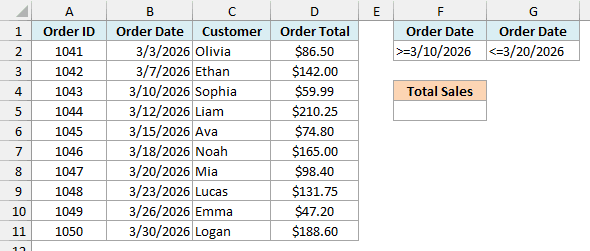
Below is a list of online store orders with each order’s date and total, and I want the total sales for orders placed from March 10 to March 20, 2026 in cell F5.
Here is the formula:
=DSUM(A1:D11,"Order Total",F1:G2)
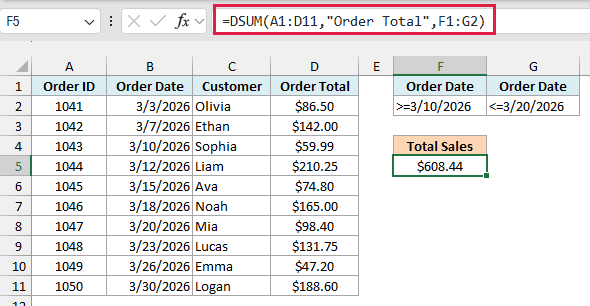
This returns $608.44, the total of the five orders placed between those two dates.
The trick is to use the Order Date header twice in the criteria range, with >=3/10/2026 in F2 and <=3/20/2026 in G2. Since both conditions are on the same row, an order has to meet both, which means it falls between the two dates.
Because I used >= and <=, the start and end dates are included. That’s why the orders from March 10 and March 20 are part of the total.
Excel reads these typed dates using your computer’s regional date setting. The dates here are in the US month/day/year format, so if your system uses day/month/year, type them as >=10/3/2026 and <=20/3/2026 instead.
Example 6: Get an Exact Text Match (DSUM Matches the Start of the Text)
This next one is easy to get wrong.
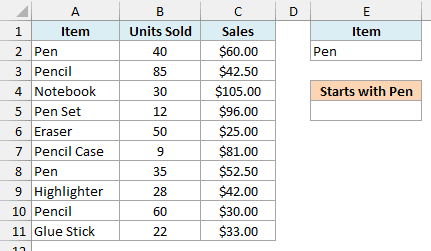
Below is a stationery shop’s sales list, and I want the total sales of Pen in cell E5.
Here is the formula:
=DSUM(A1:C11,"Sales",E1:E2)
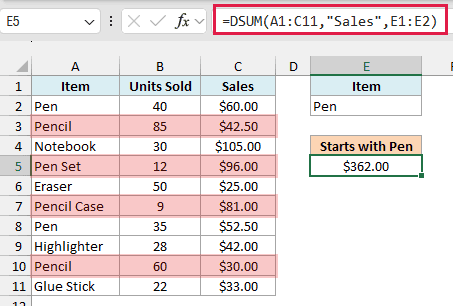
This returns $362.00, which is way more than the two Pen rows add up to ($112.50).
That’s because a text condition in DSUM matches any entry that starts with that text (and it ignores case, so pen or PEN would count too). So Pen also picks up Pencil, Pen Set, and Pencil Case, and all of their sales get added.
To match only the cells that say exactly Pen, I set up a second criteria range next to the first one, with the same Item header in G1. Then, instead of typing Pen in G2, I entered this formula:
="=Pen"
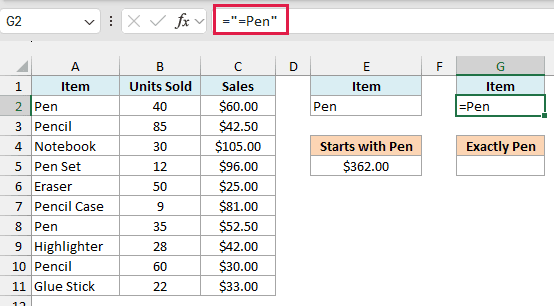
The cell now shows =Pen. That leading equal sign tells DSUM to look for cells that equal Pen, rather than cells that start with it.
Here is the formula that uses this exact-match criteria:
=DSUM(A1:C11,"Sales",G1:G2)
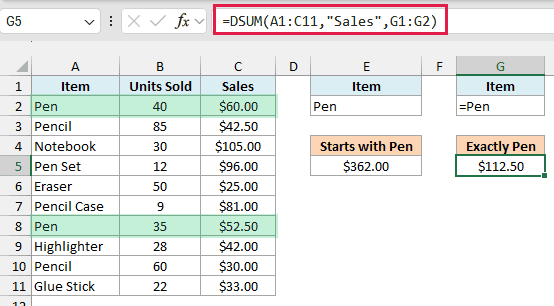
This returns $112.50, which is the correct total of the two Pen rows ($60.00 and $52.50).
Example 7: Use Wildcards to Match Partial Text
Sometimes you want to match a word that can appear anywhere in a cell.
Below is an electronics store’s product list with the revenue from each product, and I want the total revenue from every wireless product in cell E5.
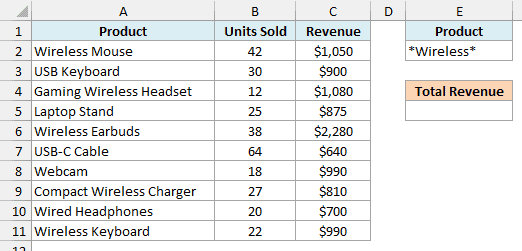
Here is the formula:
=DSUM(A1:C11,"Revenue",E1:E2)
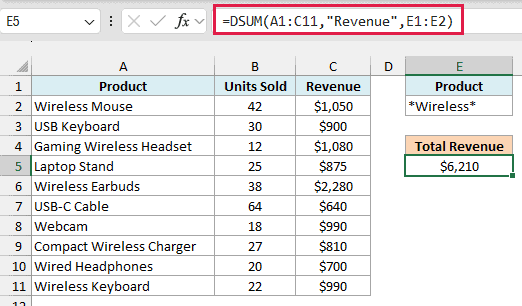
This gives us $6,210, the total revenue of the five products that have Wireless in their name.
The condition in E2 is Wireless. The asterisk (*) is a wildcard that stands for any number of characters, so this matches Wireless at the start, in the middle, or at the end of the product name.
If you typed just Wireless, DSUM would only match names that start with it (based on the starts-with behavior from Example 6). That would give you $4,320 and miss Gaming Wireless Headset and Compact Wireless Charger.
Example 8: Use a Formula as the Criteria in DSUM
Let’s end with something SUMIFS can’t do directly.
Below is a list of runners in a charity run with each runner’s fundraising goal and the amount they raised, and I want the total raised by runners who met their own goal in cell E5.
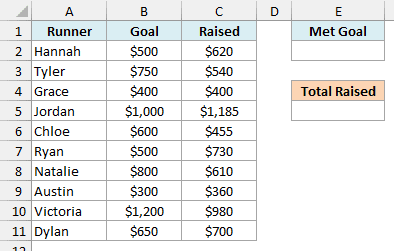
The condition here compares two columns in the same row (Raised vs Goal), so a plain value in the criteria cell won’t work. Instead, I entered this formula in cell E2:
=C2>=B2
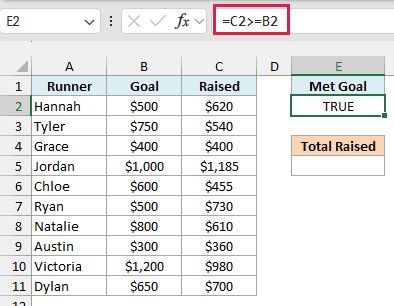
It shows TRUE because it is only checking the first runner, Hannah, who raised $620 against a $500 goal.
Here is the formula:
=DSUM(A1:C11,"Raised",E1:E2)
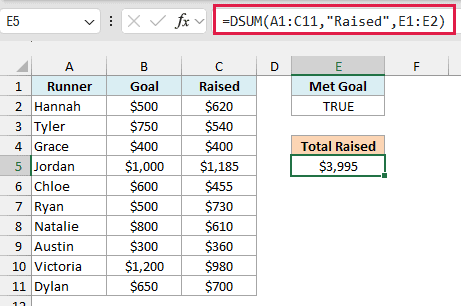
This returns $3,995, the total raised by the six runners who reached or beat their goal (including Grace, who raised exactly her $400 goal).
The criteria formula points at row 2, the first data row, with relative references (C2 and B2, no dollar signs). That is how DSUM knows to check the same comparison on every row of the data.
Important: The header above a formula criteria must not be one of your data’s column headers. With Raised in E1 instead of Met Goal, DSUM returns 0, so use a new label or leave the header cell empty.
So these are some practical ways to use the DSUM function in Excel. We went from a single condition to AND and OR conditions, date ranges, exact and partial text matches, and a formula as the criteria.
I hope you found this article helpful.
Other Excel Articles You May Also Like:
