

The ENCODEURL function converts text into a version that’s safe to use in a web address. It replaces spaces and special characters with percent codes, so a space becomes %20 and an ampersand becomes %26.
You’ll need it whenever you build a link from text in your sheet, like a map search for an address or a message that’s already typed in when the link opens. Without encoding, a single space or # in the text can break the link.
One thing to know up front: ENCODEURL only works in Excel for Windows.
In this article, I’ll show you six examples, from encoding a simple list to building map links, WhatsApp reminders, and share links.
Follow along with the example file
ENCODEURL Function Examples.xlsx
ENCODEURL Function Syntax
Here is the syntax of the ENCODEURL function:
=ENCODEURL(text)
- text – The text you want to encode. It can be text in double quotes, a cell reference, or a range of cells.
The ENCODEURL function works in Excel for Windows: Excel 365, 2024, 2021, 2019, 2016, and 2013. It isn’t available in Excel for Mac or Excel for the web.
When to Use the ENCODEURL Function
Use this function when you need to:
- Turn text with spaces or symbols into something that can go into a web address
- Build Google Maps links from a list of addresses
- Create message links with the text already filled in, like WhatsApp reminders
- Check which values in a list contain characters that would change in a URL
- Put a full web address inside another link, such as a share link
- Encode text before you send it to a web service with the WEBSERVICE function
Let me show you a few practical examples of how to use the ENCODEURL function.
Example 1: URL Encode a List of Book Titles
Let’s start with a simple example.
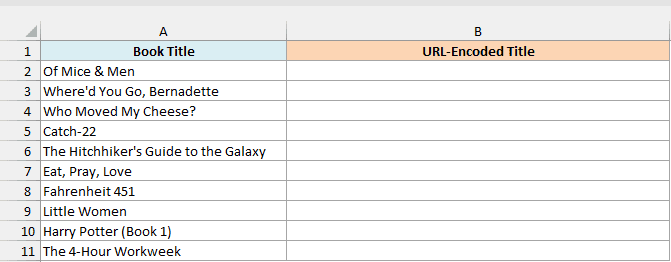
Below is a list of book titles, and I want the URL-encoded version of each title in column B.
Here is the formula:
=ENCODEURL(A2:A11)
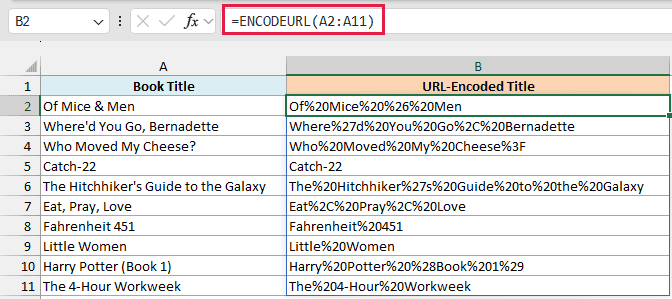
Enter it in cell B2, and it spills down to B11 with one encoded title for each title in column A. Every space becomes %20, and characters like the ampersand, apostrophe, comma, and question mark get their own codes (%26, %27, %2C, and %3F).
Letters, numbers, hyphens, periods, and underscores stay as they are. That’s why Catch-22 comes back unchanged, while Harry Potter (Book 1) turns into Harry%20Potter%20%28Book%201%29.
Since this is a spilling formula, the cells in B2:B11 need to be empty. If something is already sitting in that range, you’ll get a #SPILL! error instead of the results.
If you are using Excel 2019 or earlier, enter the below formula in cell B2 and then copy it down the range:
=ENCODEURL(A2)
You can use the same approach for the spilling formulas in Examples 2, 3, and 6, with the first cell in place of the whole range.
Example 2: Encode Accented and Non-English Characters
Now let’s see what happens with letters that aren’t in the English alphabet.
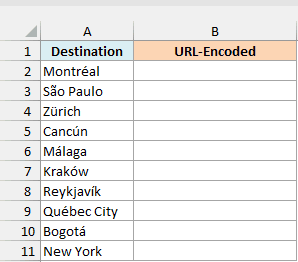
Below is a list of travel destinations, some with accented letters, and I want the URL-encoded name of each one in column B.
Here is the formula:
=ENCODEURL(A2:A11)
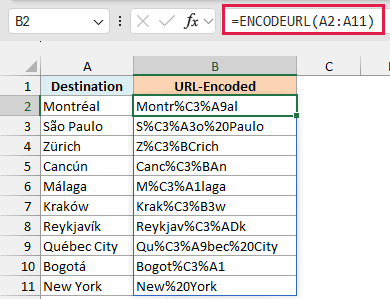
An accented letter doesn’t get just one code. ENCODEURL uses UTF-8, the standard text encoding on the web, and UTF-8 stores é as two bytes.
So é becomes %C3%A9, and Montréal turns into Montr%C3%A9al. New York has no special characters at all, so the only change there is the space.
Those UTF-8 codes are the format websites expect, so you don’t need to remove the accents before you build a link.
Example 3: Check Which Text Is URL-Safe
Here’s a handy use that doesn’t build a link at all.
Below is a list of coupon codes for an online store, and I want to check in column B which codes can go into a web address without changing.
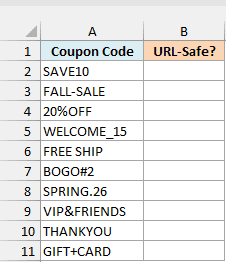
Here is the formula:
=ENCODEURL(A2:A11)=A2:A11
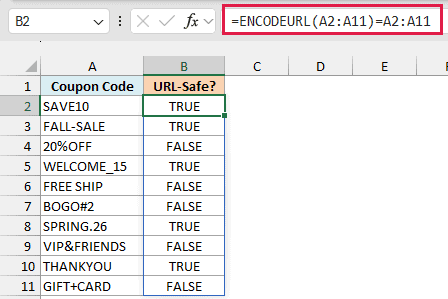
This compares each encoded code with the original. If encoding changed nothing, the two are the same and you get TRUE.
If a code has a space or a character like %, #, &, or +, ENCODEURL changes it, so the comparison returns FALSE. That’s why FREE SHIP, BOGO#2, and VIP&FRIENDS are flagged, while FALL-SALE and SPRING.26 pass.
Example 4: Create Google Maps Links from Addresses
Now let’s use ENCODEURL to build something clickable.
Below is a list of restaurants with their street addresses, and I want a Google Maps link for each restaurant in column C.
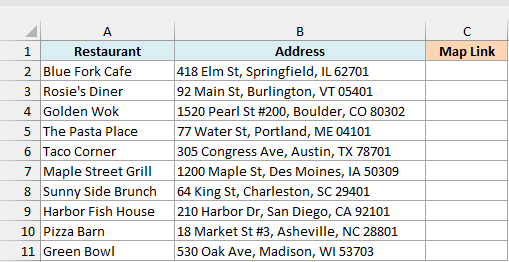
Here is the formula:
=HYPERLINK("https://www.google.com/maps/search/?api=1&query="&ENCODEURL(B2),"Open map")
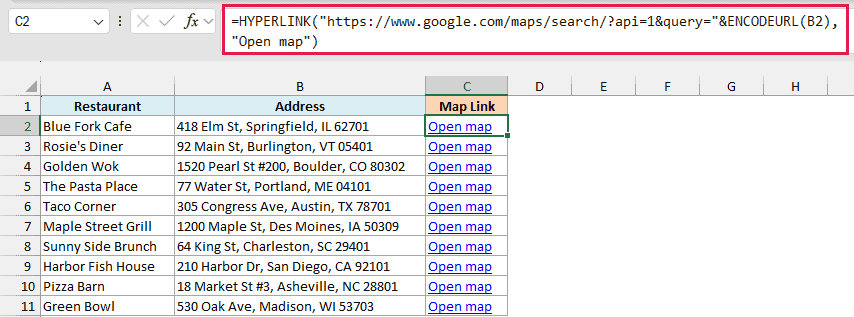
How this formula works:
- “https://www.google.com/maps/search/?api=1&query=” is Google Maps’ search link. Whatever comes after query= is what Maps searches for.
- ENCODEURL(B2) encodes the address in B2, so the spaces, commas, and the # in an address like 1520 Pearl St #200 become %20, %2C, and %23.
- The HYPERLINK function turns the joined text into a clickable link, and “Open map” is what the cell shows.
The # is a good example of why the encoding matters. A browser treats everything after a # as a spot on the page, so an unencoded # would cut the address short and Maps would search for only part of it.
Enter the formula in cell C2 and copy it down to C11. HYPERLINK doesn’t handle a spilled range well (only the top cell gets the link formatting), so this one is a per-row formula.
Important: Encode only the address, not the whole link. If you wrap the full link in ENCODEURL, https:// becomes https%3A%2F%2F, and the result is no longer a link a browser can open.
Example 5: Build WhatsApp Reminder Links with a Date
Let’s step it up and build a whole message from a few cells.
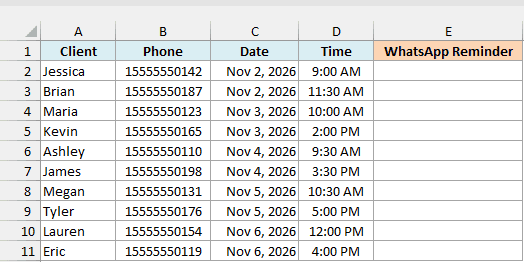
Below is a list of salon appointments with each client’s phone number, date, and time, and I want a WhatsApp link in column E that opens a ready-to-send reminder.
Here is the formula:
=HYPERLINK("https://wa.me/"&B2&"?text="&ENCODEURL("Hi "&A2&", this is a reminder of your appointment on "&TEXT(C2,"mmm d")&" at "&TEXT(D2,"h:mm AM/PM")&". Reply YES to confirm."),"Send reminder")
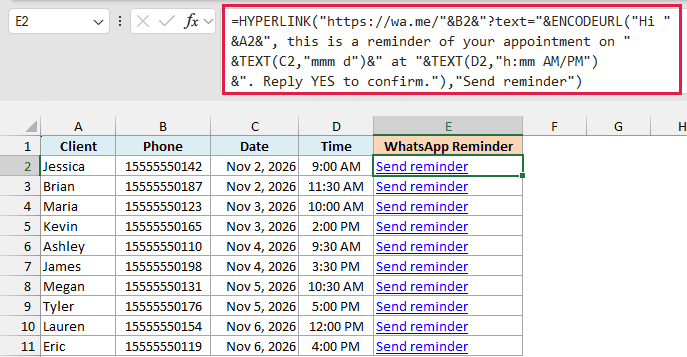
How this formula works:
- “https://wa.me/”&B2 opens a WhatsApp chat with the number in B2. WhatsApp needs the full number with the country code and no plus sign, spaces, or dashes, which is why the numbers in column B look like 15555550142.
- “?text=” adds a message that’s already typed in the chat when it opens.
- The message is built from pieces joined with &, and ENCODEURL encodes the whole message at once, so “Hi Jessica, this is a reminder” becomes Hi%20Jessica%2C%20this%20is%20a%20reminder.
- TEXT(C2,”mmm d”) and TEXT(D2,”h:mm AM/PM”) turn the date and time into Nov 2 and 9:00 AM.
- “Send reminder” is the label the cell shows.
Excel stores a date as a number, so if you used C2 on its own without the TEXT function, the message would say the appointment is on 46328 instead of Nov 2.
Like the map links, enter the formula in cell E2 and copy it down to E11.
Important: The full link inside HYPERLINK can be at most 255 characters, and every %20 counts as three of them. If a long message pushes it past that, the cell shows a #VALUE! error, so keep the message short.
Example 6: Encode a Full URL Inside Another Link
Here’s the one case where you do encode a whole web address.
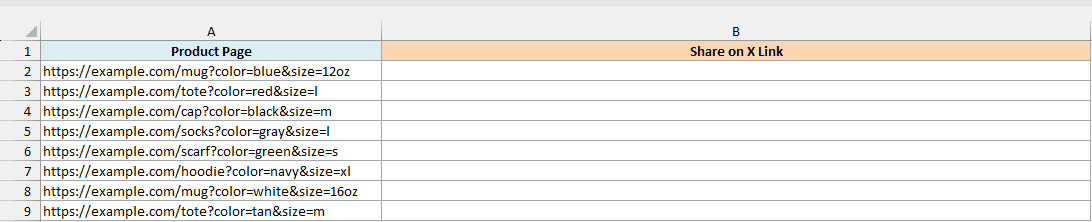
Below is a list of product page addresses for an online store, and I want a link in column B that shares each page on X (formerly Twitter).
Here is the formula:
="https://x.com/intent/tweet?url="&ENCODEURL(A2:A9)
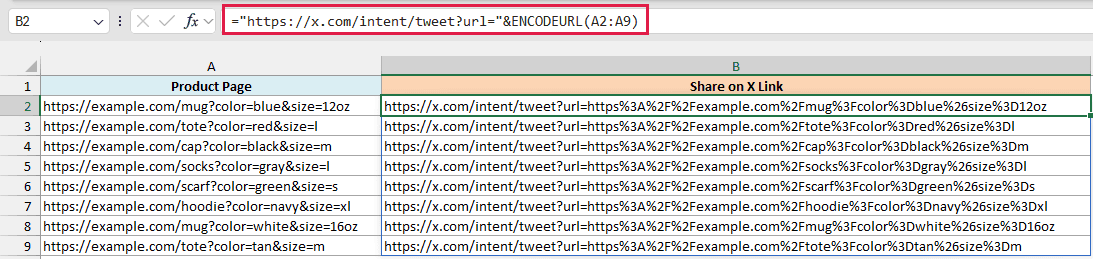
The product address is a value inside the share link, so all of it gets encoded, including https://. Excel joins the share link to each encoded address and spills the results from B2 down to B9.
Look at the first product, which has its own ?color=blue&size=12oz part. Without encoding, the share link would treat &size=12oz as its own setting rather than as a piece of the product address, so the shared link would lose the size.
There’s no HYPERLINK here, so you can see exactly what the encoded address looks like. When you want clickable links, wrap the formula in HYPERLINK and use one formula per row, like in Example 4.
The same idea applies when you create QR codes in Excel from a list of web addresses, because the address you turn into a QR code also goes inside another link.
So these are six ways to use the ENCODEURL function in Excel, along with two things to watch for: dates that need the TEXT function, and the 255-character limit when you wrap the result in HYPERLINK.
I hope you found this article helpful.
Other Excel Articles You May Also Like:
