

The SHEET function in Excel tells you the position of a sheet in your workbook. The first tab on the left is 1, the next one is 2, and so on, with hidden sheets included in the count.
It’s useful when you want a formula to know which sheet it’s sitting on, or when you need to find where (or whether) a sheet exists in a workbook with lots of tabs.
Keep in mind that SHEET handles one sheet per formula. It doesn’t spill results for a whole list of sheets, so when you have a list, you’ll use one formula per row.
In this article, I’ll show you how to use the SHEET function with six practical examples, all based on one workout tracker workbook.
Follow along with the example file
SHEET Function Examples.xlsx
SHEET Function Syntax
Here is the syntax of the SHEET function:
=SHEET([value])
- value – (Optional) The sheet you want the position of. It can be a reference to any cell on that sheet, a sheet name in double quotes, or the name of an Excel Table or named range (which gives you the sheet that Table or range is on).
If you leave the value out, =SHEET() returns the position of the sheet that has the formula.
When you use a reference, such as Sales!A1, only the sheet matters and the cell doesn’t. Any cell on the Sales sheet gives you the same number.
When you use text, such as “Sales”, SHEET looks for a sheet with that name. If there’s no such sheet, you get the #N/A error.
The SHEET function works in Excel 2013 and later versions, including Excel 365 (Windows and Mac), Excel 2024, 2021, 2019, and 2016.
When to Use the SHEET Function
Use this function when you need to:
- Show each sheet’s position (such as a week number) without typing it on every sheet
- Find where a specific sheet sits in a workbook with lots of tabs
- Check whether a sheet with a certain name exists in the workbook
- Pull a different value on each sheet based on where that sheet sits
Let me show you a few practical examples of how to use the SHEET function in Excel.
Example 1: Get the Number of the Current Sheet
Let’s start with the simplest version, with nothing inside the parentheses.
Below are the sheet tabs of the workout tracker I’ll use in all the examples, with one sheet for each week, and I want each week sheet to show its own week number in cell F2.

Here is the formula:
=SHEET()
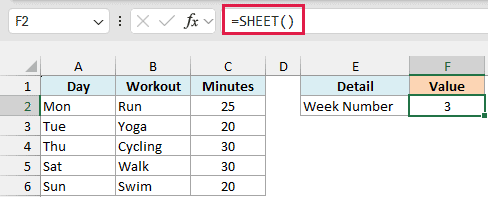
On the Week 3 sheet, the formula returns 3, because Week 3 is the third tab from the left.
I’ve entered the exact same formula in cell F2 of all four week sheets, and each one shows its own position. It returns 1 on Week 1, 2 on Week 2, and 4 on Week 4.
Since the number comes from where the tab sits, it changes when you move the tab. If you drag the Week 3 tab to the far left, its F2 changes to 1.
Example 2: Find the Position of Another Sheet
Now let’s point the SHEET function at a different sheet.
Below is the Summary sheet, and I want the position of the Week 4 sheet in cell B2.
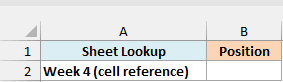
Here is the formula:
=SHEET('Week 4'!A1)
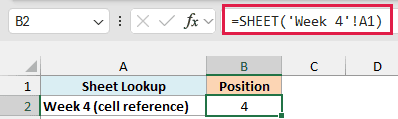
The formula returns 4, since Week 4 is the fourth tab in the workbook.
Here, ‘Week 4’!A1 is a reference to another sheet, pointing to cell A1 on the Week 4 sheet. SHEET only cares about which sheet the cell is on, so any cell on Week 4 would give you the same answer.
The single quotes are there because the sheet name has a space in it. You don’t have to type them yourself: type =SHEET( and then click any cell on the Week 4 sheet, and Excel writes the reference for you.
A reference also keeps working when you rename the sheet. If you rename Week 4 to Week Four, Excel updates the formula to =SHEET(‘Week Four’!A1), and it still returns 4.
Example 3: Use a Sheet Name Instead of a Reference
You can also give the SHEET function the sheet name as text.
In cell B3 of the same Summary sheet, I want the position of the Week 2 sheet, this time using its name.
Here is the formula:
=SHEET("Week 2")
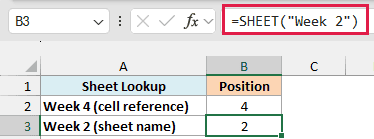
The formula returns 2.
When the value is text in double quotes, SHEET looks for a sheet with that name. Upper and lower case don’t matter, so “week 2” returns 2 as well.
If no sheet has that name, you get the #N/A error. That happens with a typo, and also with an extra space, such as “Week 2 ” with a space at the end.
Important: A sheet name typed in quotes doesn’t change when you rename the sheet. Rename Week 2 to Week Two and this formula returns #N/A, while the reference from Example 2 keeps working, so use a reference when the sheet name might change.
Example 4: Get Sheet Numbers From a List of Sheet Names
Now let’s say the sheet names are typed in cells instead of inside the formula.
Below is the Sheet List sheet with some sheet names in column A, and I want the position of each of these sheets in column B.
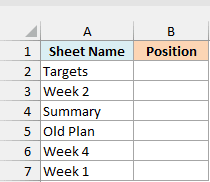
Enter the below formula in cell B2 and then copy it down to B7:
=SHEET(A2&"")
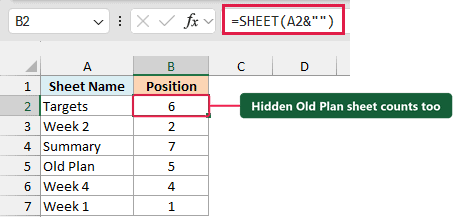
The formula returns the position of each sheet in the list, such as 6 for Targets, 2 for Week 2, and 7 for Summary.
The &”” part is what makes this work. Joining an empty text string to A2 hands SHEET the text inside A2 instead of the cell reference, so SHEET reads it as a sheet name, just like “Week 2” in Example 3.
Important: Don’t leave out the &”” part. =SHEET(A2) returns 8 in every row, because A2 is a reference, so SHEET gives you the position of the sheet that A2 is on (Sheet List is the eighth sheet).
SHEET handles one sheet per formula, which is why you copy this formula down. If you give it the whole list at once, like =SHEET(A2:A7&””), it returns a single #N/A instead of six results.
Many tutorials use the INDIRECT function to get sheet positions from names typed in cells. That works, but INDIRECT recalculates every time you change any cell, which can slow down a big workbook.
INDIRECT also returns #REF! for names with spaces like Week 2 unless you add single quotes around the name, so the &”” approach is simpler.
Now look at the result for Targets. It’s the fifth tab you can see at the bottom of the workbook, but SHEET returns 6.
That’s because there’s a hidden sheet called Old Plan between Week 4 and Targets, and SHEET counts hidden sheets too.
If you want to see Old Plan, right-click any sheet tab and choose Unhide (here’s how to unhide sheets in Excel if you have several).
Example 5: Check If a Sheet Exists in Excel
Here’s a practical way to use the same trick.
Below is the Checklist sheet with the sheets my tracker is supposed to have, and I want column B to say Yes or No depending on whether each sheet exists in the workbook.
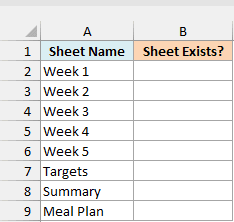
Enter the below formula in cell B2 and then copy it down to B9:
=IF(ISNUMBER(SHEET(A2&"")),"Yes","No")
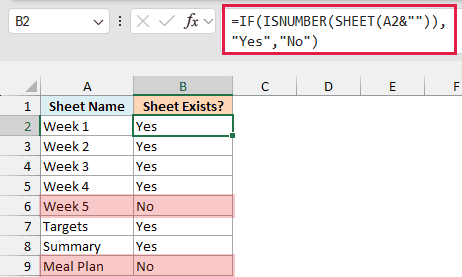
Week 5 and Meal Plan show No, because the workbook doesn’t have those sheets yet. Everything else shows Yes.
How this formula works:
- SHEET(A2&””) returns the sheet’s position when a sheet with that name exists, and the #N/A error when it doesn’t.
- ISNUMBER returns TRUE when it gets a number (the position) and FALSE when it gets the #N/A error.
- IF shows Yes for TRUE and No for FALSE.
The names in column A follow the same rules as Example 3, so upper and lower case don’t matter, but a name with an extra space at the end shows No even if the sheet is there.
Example 6: Pull a Different Value on Each Sheet With SHEET and INDEX
Let’s finish with SHEET doing something useful inside another formula.
Below is the Targets sheet with the target workout minutes for each week, and I want every week sheet to pull its own target into cell F3.
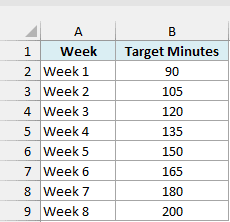
Here is the formula:
=INDEX(Targets!B2:B9,SHEET())
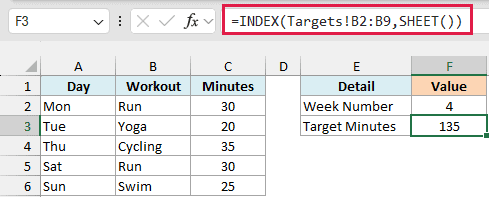
On the Week 4 sheet, this returns 135, which is the target for Week 4.
Here, SHEET() returns 4 because Week 4 is the fourth tab. The INDEX function uses that 4 as a row number, so it picks the fourth value from Targets!B2:B9.
The same formula is in cell F3 of every week sheet. On Week 1, SHEET() returns 1, so INDEX picks the first target, 90.
Important: This only works while the week sheets stay as the first tabs, in order. Move a week sheet or insert a sheet before Week 1 and the formula picks the wrong target (or #REF! past the eighth position).
So these are six ways to use the SHEET function in Excel, from getting the number of the current sheet to checking whether a sheet exists.
If you need the total number of sheets in a workbook instead of a position, use its sibling, the SHEETS function.
I hope you found this article helpful.
Other Excel Articles You May Also Like:
