

The EVEN function in Excel rounds a number up to the nearest even integer. So 3 becomes 4, 4.1 becomes 6, and a number that’s already even, like 8, stays as it is.
It’s handy whenever things come in twos, like seats booked in pairs or items sold in packs of two. In this article, I’ll show you how to use EVEN with five practical examples, including how to round to the nearest even number instead.
Follow along with the example file
EVEN Function Examples.xlsx
EVEN Function Syntax
Here is the syntax of the EVEN function:
=EVEN(number)
- number – The value you want to round. It can be a number, a cell reference, a range, or a formula that returns a number.
EVEN always rounds away from zero. A positive number goes up to the next even integer, while a negative number goes down, so -1 becomes -2 and -3.1 becomes -4.
If the number is already an even integer, including 0, EVEN returns it unchanged.
The EVEN function works in all Excel versions, including Excel for Microsoft 365, 2024, 2021, 2019, 2016, and Excel for Mac.
When to Use the EVEN Function
Use this function when you need to:
- Round a headcount up so everyone can be split into pairs
- Bill or schedule time in two-hour blocks
- Work out how many items to buy when they’re sold in packs of two
- Round the result of a calculation up to the next even number
Let me show you a few practical examples of how to use the EVEN function.
Example 1: Round Up to the Next Even Number
Let’s start with a simple example.
Below is a list of partner dance classes with the number of students in each, and since every dancer needs a partner, I want the number of dancers each class needs in column C.
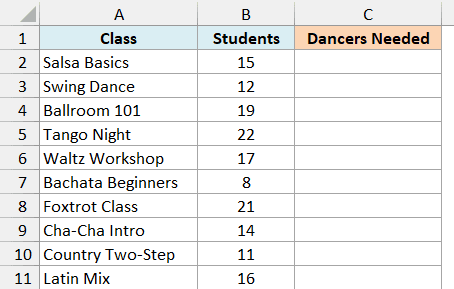
Here is the formula:
=EVEN(B2:B11)
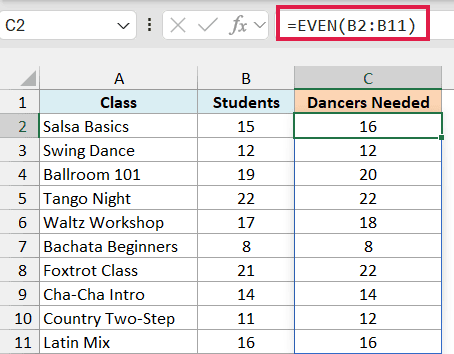
EVEN looks at each student count in B2:B11 and rounds the odd ones up by one. So Salsa Basics, with 15 students, needs 16 dancers, while Swing Dance already has 12 and stays at 12.
The formula handles all ten classes at once and spills the results down to C11. If any cell in C3:C11 already has something in it, the formula can’t spill and returns a #SPILL! error, so make sure that range is empty.
If you are using Excel 2019 or earlier, enter the below formula in cell C2 and then copy it down the range:
=EVEN(B2)
The same applies to the other spilling formulas in this article. Use the first cell of each range in the formula, then copy it down.
Example 2: Round Decimals Up to an Even Number
Now let’s see what EVEN does with decimals.
Below is a list of party rental bookings with the length of each party in hours, and since the rentals are billed in 2-hour blocks, I want the hours to bill in column C.
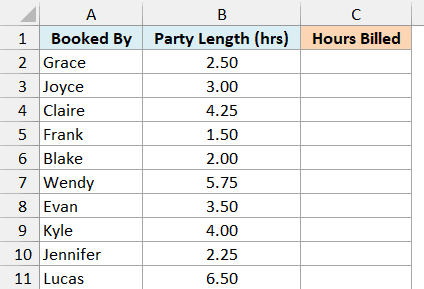
Here is the formula:
=EVEN(B2:B11)
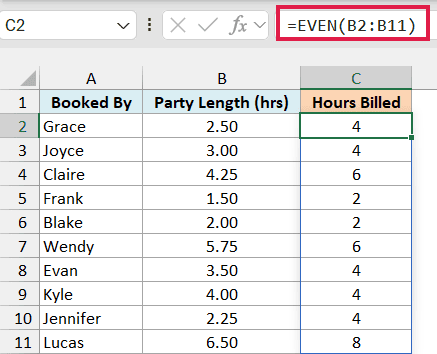
Any decimal gets rounded up to the next even number. So Grace’s 2.5-hour party is billed as 4 hours, and Lucas’s 6.5 hours becomes 8.
Now look at Jennifer’s party. At 2.25 hours, it’s only a quarter of an hour over 2, but EVEN still bills it as 4 hours, because it rounds up no matter how small the decimal is.
Important: EVEN rounds up even when a number is a tiny bit over an even number, so 4.0000001 becomes 6. If you want the closest even number instead, use the formula in Example 4.
Example 3: Use a Calculation Inside the EVEN Function
Here’s another practical scenario.
Below is a list of rooms with their wall area, and since wallpaper comes in double rolls (two single rolls in one pack), I want an even number of single rolls to buy in column C, using the coverage per single roll in F2.
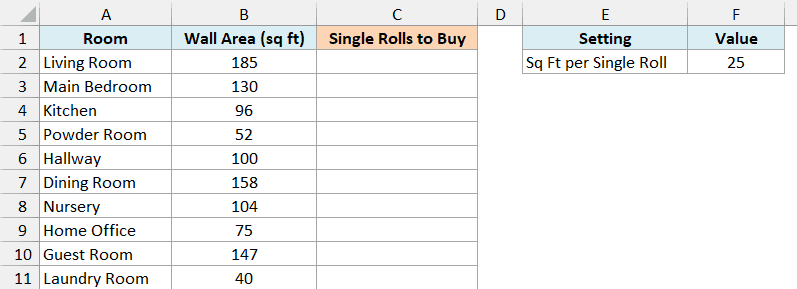
Here is the formula:
=EVEN(B2:B11/F2)
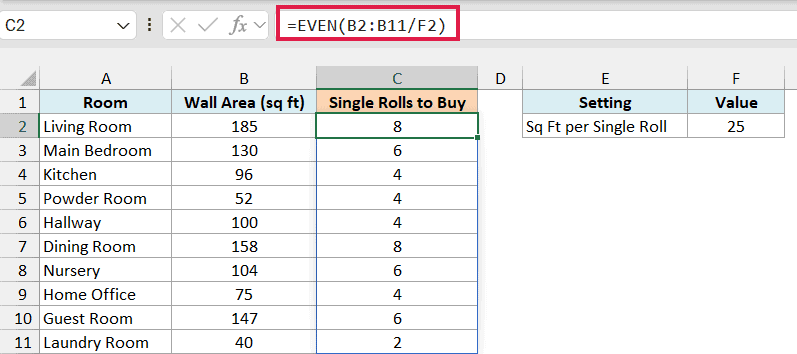
The B2:B11/F2 part divides each room’s wall area by the 25 square feet that one single roll covers. For the Living Room, that’s 185 divided by 25, which is 7.4 rolls.
EVEN then rounds each result up to the next even number. So the Living Room gets 8 single rolls, which is exactly 4 double rolls, and you never end up needing half of a double roll.
Since the coverage sits in its own cell, you can change F2 to match the wallpaper you’re buying, and every result updates.
If you are using Excel 2019 or earlier, enter the below formula in cell C2 and then copy it down the range:
=EVEN(B2/$F$2)
The dollar signs keep the reference to F2 fixed as you copy the formula down.
Example 4: Round to the Nearest Even Number Instead
EVEN always rounds up, but sometimes you just want the closest even number.
Below is a list of community center clubs with their average attendance, and since the chairs are set out in pairs, I want the chair count using EVEN in column C and using the nearest even number in column D.
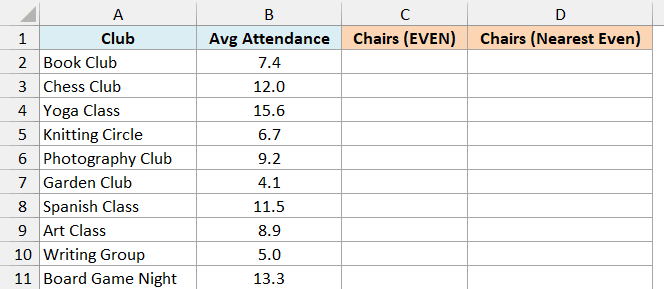
Here is the EVEN formula for column C:
=EVEN(B2:B11)
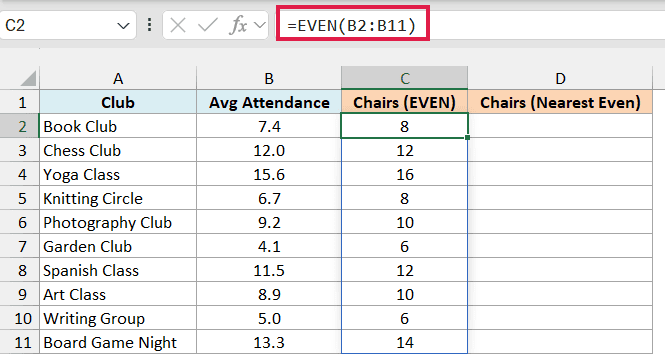
EVEN rounds every average up, so the Garden Club, with an average of 4.1, gets 6 chairs.
And here is the formula for the nearest even number in column D:
=ROUND(B2:B11/2,0)*2
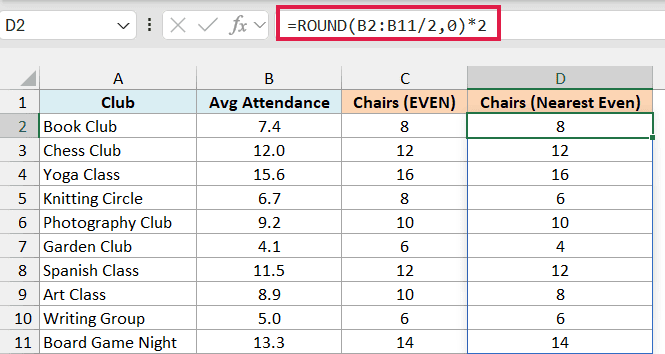
This formula divides each average by 2, rounds that to the nearest whole number with the ROUND function, and then multiplies it back by 2. So 4.1 becomes 2.05, which rounds to 2, and comes back as 4 chairs.
Compare the two columns for the Knitting Circle. EVEN gives it 8 chairs for an average of 6.7, while the nearest even number gives 6, which can leave someone standing on a busy night.
For the Writing Group’s 5.0, dividing by 2 gives 2.5, which sits exactly halfway, and ROUND takes a .5 up to 3. So both formulas give the Writing Group 6 chairs.
You might also see the MROUND function suggested for this, as in =MROUND(B2,2). It works on one cell, but it returns #VALUE! when you give it the whole range B2:B11, which is why I used ROUND here.
Example 5: Use the EVEN Function With Text and Blank Cells
Let’s finish with a problem you’ll run into with real-world data.
Below is a family reunion RSVP list with the number of guests in each party, and since the hotel only has twin rooms with two beds each, I want the number of beds to book in column D.
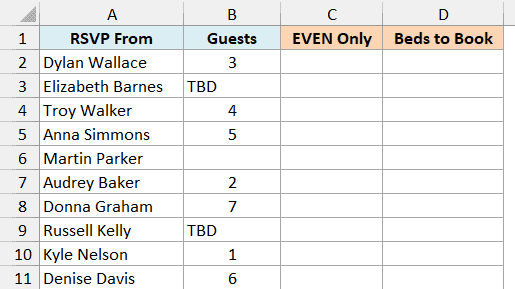
First, let’s see what a plain EVEN formula does with this data in column C:
=EVEN(B2:B11)
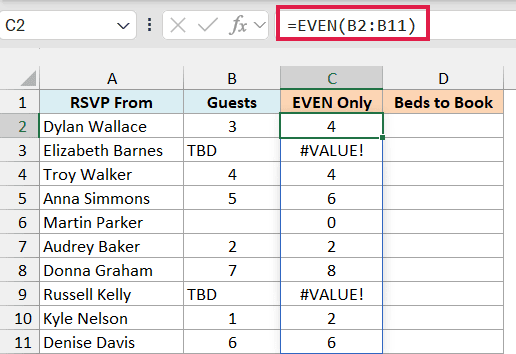
EVEN can’t round text, so both TBD entries return the #VALUE! error. And Martin Parker’s blank cell quietly becomes 0, which looks like a real answer even though there’s no reply yet.
The errors also break anything that uses these results. For example, a total such as =SUM(C2:C11) returns #VALUE! too, so you can’t add up the beds.
Here is the formula that fixes both problems in column D:
=IF(ISNUMBER(B2:B11),EVEN(B2:B11),"")
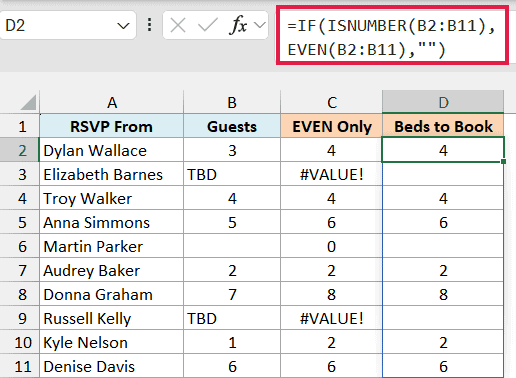
The ISNUMBER function checks each cell in B2:B11 and returns TRUE only when it holds a number. IF then runs EVEN on those cells and returns an empty text string for everything else, so the TBD rows and the blank row stay empty.
Now the results are clean, and =SUM(D2:D11) returns 32 beds.
Note that a number stored as text, like “4”, would also be left empty, because ISNUMBER doesn’t treat it as a number. If your list has numbers stored as text, convert them to real numbers first.
So these are five ways to use the EVEN function in Excel. It’s a simple function, and it’s most useful when things come in pairs and half a pair doesn’t make sense.
If you need to round up to an odd number instead, the ODD function works the same way, so 2 becomes 3 and 1.5 becomes 3. And if you only want to check whether a number is even, the ISEVEN function returns TRUE or FALSE.
I hope you found this article helpful.
Other Excel Articles You May Also Like:
