

The ACOTH function in Excel returns the inverse hyperbolic cotangent of a number. You use it when you already have a hyperbolic cotangent value and need to work backward to the number that produced it.
It accepts positive numbers greater than 1 and negative numbers less than -1. That second part is easy to miss: a negative input can be perfectly valid.
In this tutorial, I’ll show you how to calculate these values, recover an original number, and understand the errors you get with invalid inputs.
Follow along with the example file
ACOTH Function Examples.xlsx
ACOTH Function Syntax
Here is the syntax of the ACOTH function:
=ACOTH(number)
- number is the required value whose inverse hyperbolic cotangent you want to calculate. It can be a number, a cell reference, or a range in Excel versions that support dynamic arrays.
The absolute value of the input must be greater than 1. In other words, the number must be above 1 or below -1, with neither boundary included.
The ACOTH function is available in Excel 2013 and later for Windows, current Excel for Mac, and Excel for the web.
When to Use the ACOTH Function
Use this function when you need to:
- Calculate inverse hyperbolic cotangents as part of a mathematical calculation.
- Recover the original number from a hyperbolic cotangent value.
Let’s look at the calculations in Excel, starting with positive and negative inputs.
Example 1: ACOTH With Positive and Negative Numbers
Below is a set of positive and negative numbers, and we want their inverse hyperbolic cotangents in column B.
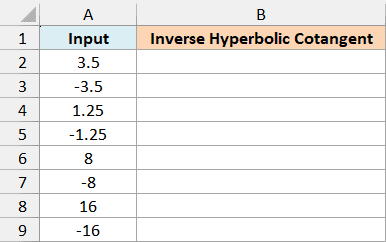
In Microsoft 365, Excel 2024, Excel 2021, or Excel for the web, enter this formula in cell B2 and press Enter:
=ACOTH(A2:A9)
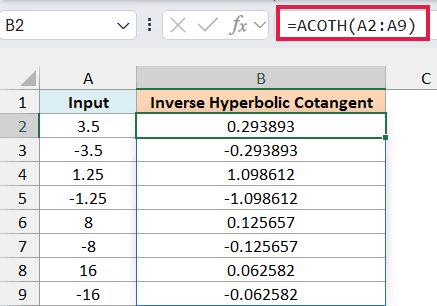
The above formula calculates a result for each value in A2:A9. The results automatically fill B2:B9, so you only need to enter the formula once.
For 3.5, the displayed result is 0.293893. For -3.5, it’s -0.293893: the magnitude is the same, but the sign changes.
You can see the same pattern with 1.25 and -1.25. Both inputs are valid because their absolute values are greater than 1.
The results are displayed to six decimal places in the example file. Excel retains more digits for subsequent calculations.
Make sure the cells below B2 are empty before entering the range formula. If something blocks the results, Excel returns a #SPILL! error; clear the blocking cells and the results can fill the range.
If you’re using Excel 2013, 2016, or 2019 without dynamic arrays, enter the following formula in B2, then copy it down to B9:
=ACOTH(A2)
This calculates one input at a time. The same approach works in the later examples: use the input cell on the current row, then copy the formula down.
Example 2: Inputs Close to 1 and -1
A small change to the input can make a large difference when that input is close to either boundary.
Below are numbers just above 1 and just below -1, and we want to compare their inverse hyperbolic cotangents in column B.
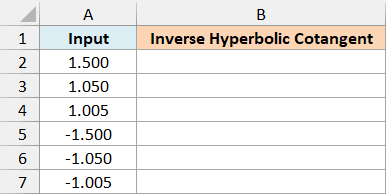
Enter the following formula in cell B2:
=ACOTH(A2:A7)
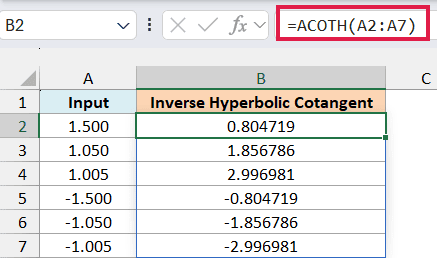
The input 1.500 gives 0.804719. Moving closer to 1, the input 1.050 gives 1.856786, while 1.005 gives 2.996981.
The negative inputs show the same increase in magnitude, with negative results. As the input approaches -1 from below, the result becomes more negative.
This is why the precision of your input matters. Rounding 1.005 to one decimal place before calculating would turn it into 1.0, which is outside the function’s allowed inputs.
Important: Keep the original input value for the calculation. If you only want fewer digits on screen, change the cell’s number format so you don’t replace a valid input with 1 or -1.
If Excel appears to have rounded a value, check the stored value in the formula bar. This guide explains the difference between displaying fewer decimals and changing the number itself.
Example 3: Reverse a COTH Calculation
The COTH function calculates a number’s hyperbolic cotangent. The ACOTH function reverses that calculation, which makes the relationship easier to see when both results sit beside the original number.
Below are six original values, and we want their hyperbolic cotangents in column B and the recovered original values in column C.
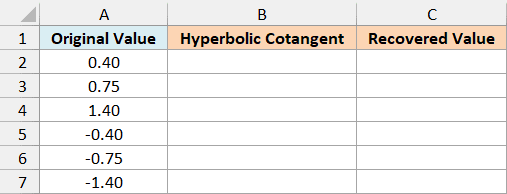
First, enter the following formula in cell B2 to calculate the hyperbolic cotangents:
=COTH(A2:A7)
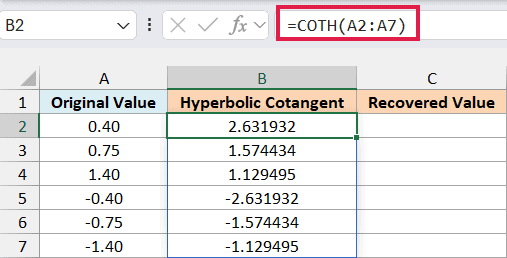
For the original value 0.40, the COTH function gives approximately 2.631932. The negative original value -0.40 gives approximately -2.631932.
Now enter the following formula in cell C2 to reverse those results:
=ACOTH(B2:B7)
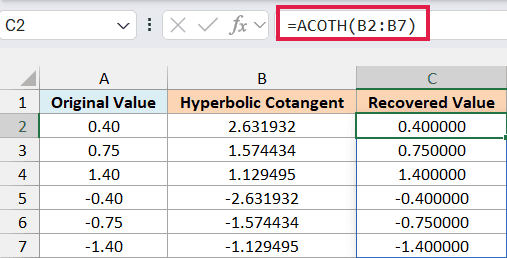
The recovered values match the original values to the six decimal places shown. For example, the first result is 0.400000, and the result for the original -0.75 is -0.750000.
Notice that the original values can fall between -1 and 1. The restriction on the ACOTH function applies to the hyperbolic cotangents in column B, which are the values its formula receives.
Excel’s decimal calculations can leave a tiny difference beyond the displayed digits. In this example, the recovered value for -1.4 is stored as approximately -1.3999999999999995, so an exact equality test isn’t a reliable way to check every recovered result.
Refer to the calculated values in column B instead of retyping their displayed six-decimal values. This keeps the available precision for the inverse calculation.
If an earlier calculation has rounded a hyperbolic cotangent to exactly 1 or -1, the ACOTH function can’t reverse it and returns #NUM!.
Example 4: Understand ACOTH Errors
The type of error helps you work out whether the input is outside the allowed range or isn’t a usable number.
Below are boundary values, valid numbers, text, and a blank cell, and we want to see the result of each test in column D.
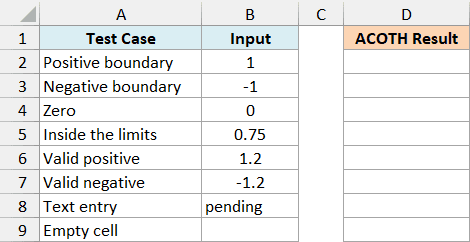
Enter the following formula in cell D2:
=ACOTH(B2:B9)
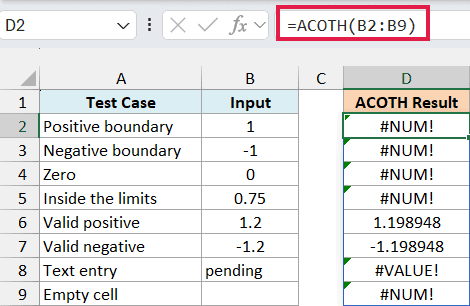
The first four inputs return #NUM!. The numbers 1 and -1 are the excluded boundaries, while 0 and 0.75 fall between them.
The valid controls, 1.2 and -1.2, return 1.198948 and -1.198948. They help show that the formula itself works even though other rows contain errors.
The word pending returns #VALUE! because it isn’t a number the function can calculate with. Replace it with the actual numeric input when that value is available.
The blank cell also returns #NUM!, because Excel treats that empty reference as zero in this calculation. If you’re using a range formula, make sure the range doesn’t extend into unused rows.
Changing the display format won’t fix these invalid inputs. Check the source value and correct it before recalculating.
So these examples show how to calculate inverse hyperbolic cotangents, reverse a COTH calculation, and identify invalid inputs. The input you pass to the ACOTH function must always be greater than 1 or less than -1.
Other Excel Articles You May Also Like:
