

The CUBEVALUE function brings a calculated value from an Excel Data Model or an OLAP cube into a worksheet cell. You can ask for an overall total or narrow it to a particular branch, product, or other category in your data.
This is useful when you want the calculations behind a PivotTable but need to arrange the results in your own report layout. The connection and calculations must already exist; putting a table on a worksheet doesn’t create a cube connection.
In this tutorial, I’ll show you how to retrieve a total, combine filters, use a cell to choose a member, and include several members in one result. The example file includes a working Data Model, so you can follow along without connecting to a server.
Follow along with the example file
CUBEVALUE Function Examples.xlsx
CUBEVALUE Function Syntax
Here is the syntax of the CUBEVALUE function:
=CUBEVALUE(connection, [member_expression1], [member_expression2], ...)
- connection is the name of an existing connection in the workbook, entered in double quotes or supplied through a cell reference. Our example file’s embedded Data Model uses
ThisWorkbookDataModel. - member_expression is optional and identifies a measure, a member, or a combination of members using the cube’s naming syntax, called MDX. You can also reference a cell containing a CUBEMEMBER or CUBESET formula.
A measure is a calculation stored in the model, such as total fees. A member is an item you can select, such as the Harbor branch; a tuple is a combination of members that identifies one selection.
Each additional member expression narrows the selection used to calculate the result. If you leave out the measure, CUBEVALUE uses the cube’s default measure, so naming the measure makes the requested calculation explicit.
These examples use desktop Excel for Windows with Data Model support and were tested in Microsoft 365. Availability of the CUBEVALUE function alone doesn’t guarantee that the same model connection works on Mac or the web.
When to Use the CUBEVALUE Function
Use this function when you need to:
- Place a model total in a specific cell of a report.
- Retrieve a measure for a combination of categories.
- Change a report’s selection through a worksheet cell.
- Combine selected members while keeping the calculation in the model.
For a small worksheet table alone, the SUM or SUMIFS function is simpler. CUBEVALUE becomes useful when the calculation you need already belongs to a Data Model or cube.
Let’s work through the examples using the model included in the download.
Example 1: Retrieve a Total With CUBEVALUE
Let’s start by retrieving a total without any filters.
The Example 1 sheet contains class-booking fees for three community-center branches, and we want the total fees in cell F2.
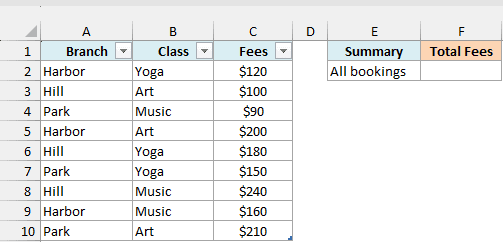
The source table is named Bookings. It has already been added to the workbook’s Data Model, along with a measure named Total Fees that adds the Fees column.
The formulas in this article use that existing model. If you paste them into a different workbook, its connection, table, and measure names need to match.
Enter this formula in F2:
=CUBEVALUE("ThisWorkbookDataModel","[Measures].[Total Fees]")
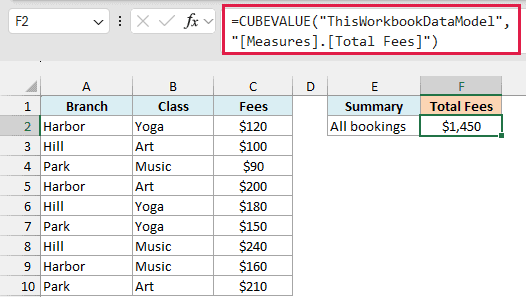
The result is $1,450, the total of all nine booking fees.
The first argument connects to the embedded model. The second asks for its Total Fees measure, and because we haven’t supplied a branch or class filter, the result includes all the bookings.
The square brackets belong to the cube’s naming syntax. Here, [Measures].[Total Fees] identifies the measure named Total Fees; it isn’t a reference to a worksheet range.
You may briefly see #GETTING_DATA while Excel retrieves a cube result. Give it time to finish before treating the cell as a formula error.
Important: If you get #NAME?, check that the named connection exists. CUBEVALUE can also return this error when an external cube server is unavailable; the workbook supplied here uses an embedded model.
The worksheet table and the model hold separate copies of the data. After changing the source fees, use Data > Refresh All and wait for the refresh to finish before relying on the CUBEVALUE results.
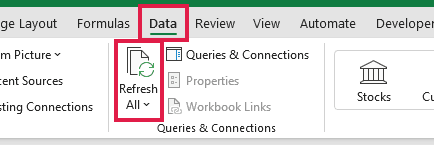
Recalculating worksheet formulas alone isn’t the same as updating the model’s data. Refresh All brings the edited booking fees into the model so its measure can use them.
Example 2: Apply Two Filters
Now let’s retrieve fees for one branch and one class.
The Example 2 sheet summarizes the Harbor and Yoga selection from the same booking model, and we want those fees in B6.
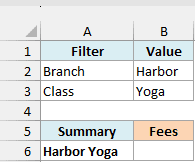
Enter this formula in B6:
=CUBEVALUE("ThisWorkbookDataModel","[Measures].[Total Fees]","[Bookings].[Branch].&[Harbor]","[Bookings].[Class].&[Yoga]")
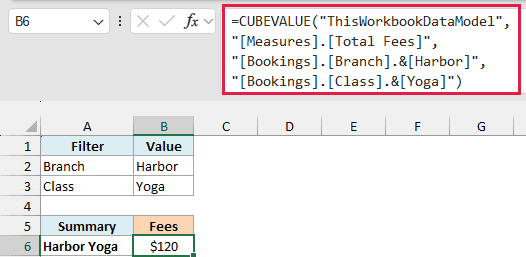
The result is $120. Only the Harbor booking for Yoga matches both selections.
Here is how the formula works:
[Measures].[Total Fees]chooses the calculation.[Bookings].[Branch].&[Harbor]selects Harbor from the Branch field in the Bookings model table.[Bookings].[Class].&[Yoga]selects Yoga from the Class field in that table.
The ampersand before [Harbor] is part of the member identifier inside the quoted text. These identifiers are specific to this model; another cube may use a different naming structure.
Both filters apply together, so this formula requests Harbor and Yoga. It doesn’t add all Harbor fees to all Yoga fees.
The values shown in B2 and B3 describe the example, but this formula contains the words Harbor and Yoga directly. Changing those cells won’t change B6; the next example connects the selection to a cell.
If a member name is misspelled or doesn’t exist, you can get #N/A. Check the table, field, and member names before changing the calculation itself.
Example 3: Choose a Member From a Cell
A cell reference makes it easier to reuse the same report for another branch.
The Example 3 sheet uses the branch entered in B2 to select bookings, and we want that branch’s total fees in B8.
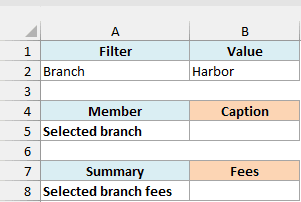
First, enter this CUBEMEMBER formula in B5 to identify the branch:
=CUBEMEMBER("ThisWorkbookDataModel","[Bookings].[Branch].&["&B2&"]","Chosen branch")
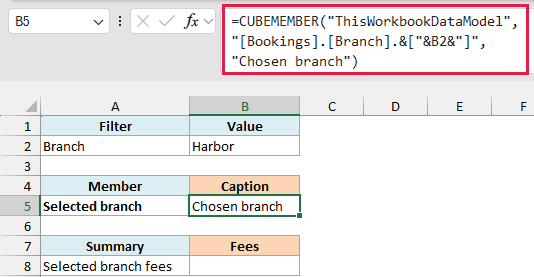
The cell displays Chosen branch. That is the custom caption supplied by the third argument, while the member it represents is Harbor because B2 contains Harbor.
The & operators outside the quotes join the fixed member-name text to B2. With Harbor in B2, the completed expression is [Bookings].[Branch].&[Harbor].
Now enter this formula in B8 to retrieve the fees for that member:
=CUBEVALUE("ThisWorkbookDataModel","[Measures].[Total Fees]",B5)
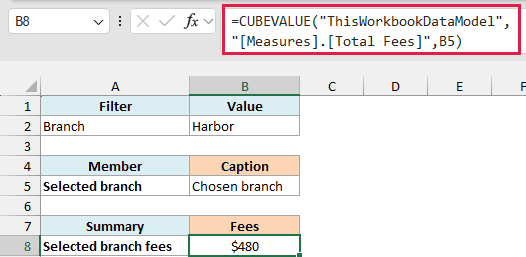
The result is $480, which includes Harbor’s $120 Yoga booking, $200 Art booking, and $160 Music booking.
CUBEVALUE reads the member represented by the CUBEMEMBER formula in B5. It doesn’t search the model for the displayed words “Chosen branch,” so the caption can describe the selection without changing its meaning.
Keep B5 as a formula. Replacing it with its displayed text removes the member information that CUBEVALUE needs.
This example uses one selected member and returns one total. Passing a vertical range of branch-member strings as one argument did not spill separate totals in the tested Excel build; use separate queries for separate results.
If your cube returns a null result for a selection, CUBEVALUE can display a zero-length string rather than a number. That blank-looking result doesn’t necessarily mean the formula failed, and direct arithmetic with it can produce #VALUE!.
When totaling a range of numeric cube results, the SUM function ignores those zero-length strings. Decide whether missing data should count as zero before replacing it, because a missing result and a genuine zero can mean different things.
Example 4: Combine Several Members in One Total
Sometimes the report needs a combined selection, such as two branches together.
The Example 4 sheet selects Harbor and Hill from the booking model, and we want their combined fees in B5.
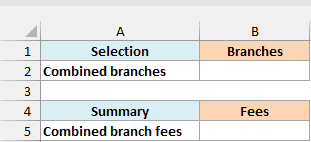
Enter this CUBESET formula in B2 to define the two selected branches:
=CUBESET("ThisWorkbookDataModel","{[Bookings].[Branch].&[Harbor],[Bookings].[Branch].&[Hill]}","Harbor and Hill")
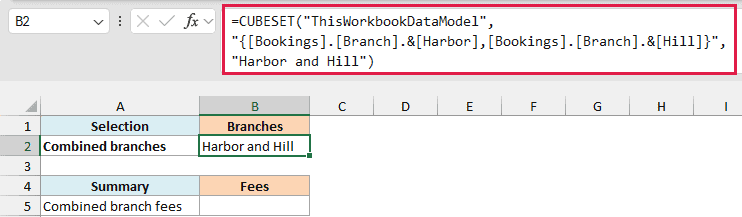
The cell displays Harbor and Hill. Inside the second argument, the curly braces define a set containing the two branch members, and the final argument supplies the caption.
Now enter this formula in B5:
=CUBEVALUE("ThisWorkbookDataModel","[Measures].[Total Fees]",B2)
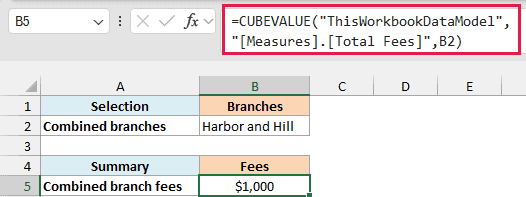
The result is $1,000: $480 for Harbor plus $520 for Hill. Park’s $450 is excluded.
The CUBESET cell gives CUBEVALUE one combined selection. Both members belong to the Branch field, so the set means Harbor or Hill for this total.
Important: Don’t pass Harbor and Hill as separate member arguments to request their combined total. Separate arguments define an intersection, and incompatible members from the same hierarchy can produce #N/A; use a set for the combined selection.
The selected measure still controls the calculation. These fees are additive, but you shouldn’t assume that adding separately retrieved averages or percentages would give the correct combined result.
With the connection and measure in place, you can keep these results wherever your report needs them. The member or set you supply determines which part of the model each cell shows.
Other Excel Articles You May Also Like:
