

The T.DIST.2T function in Excel returns a two-tailed probability from a t statistic and its degrees of freedom. You can use that probability as the p-value for a two-sided t-test.
A two-sided test checks for a difference in either direction, such as an average above or below a claimed value. T.DIST.2T includes both directions in its answer.
In this tutorial, I’ll show you four examples, including negative t statistics and a complete calculation from a small sample of commute times.
Follow along with the example file
T.DIST.2T Function Examples.xlsx
T.DIST.2T Function Syntax
Here is the syntax of the T.DIST.2T function:
=T.DIST.2T(x,deg_freedom)
- x is the nonnegative t statistic at which you want to calculate the probability. It can be a number, a cell reference, or a range of t statistics in Excel versions that support spilling.
- deg_freedom is the number of degrees of freedom for the test. It must be at least 1, and the correct value depends on the type of t-test you are using.
Both arguments are required. T.DIST.2T uses x and deg_freedom together, so the same t statistic can give different probabilities with different degrees of freedom.
Excel drops the decimal part of deg_freedom. For example, 14.9 is treated as 14, so use the degrees of freedom required by your test rather than expecting Excel to keep a fractional value.
T.DIST.2T is available in Excel 2010 and later, including Microsoft 365 and Excel 2024, 2021, 2019, and 2016. The spilling examples below require Microsoft 365 or Excel 2021 or later.
When to Use the T.DIST.2T Function
Use this function when you need to:
- Get a two-sided p-value from a t statistic you have already calculated.
- Calculate p-values for several tests, each with its own degrees of freedom.
- Finish a one-sample t-test after calculating the sample statistics.
Let me show you how these calculations work in Excel.
Example 1: Get a Two-Tailed p-Value
Let’s start with a test where the t statistic and degrees of freedom are already known.
Below is a summary of a package-weight test against a target weight, and I want its two-tailed p-value in B5.
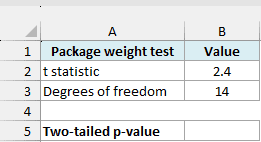
Enter the below formula in cell B5:
=T.DIST.2T(B2,B3)
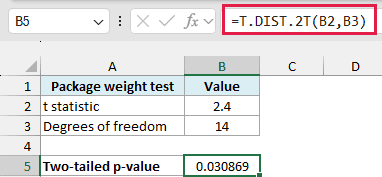
The formula returns approximately 0.030869, or 3.09%. It uses the t statistic of 2.4 in B2 and the 14 degrees of freedom in B3.
For this test, the null hypothesis is that the population’s average package weight equals the target. The p-value describes how unusual a t statistic this far from zero would be if that hypothesis and the test’s assumptions held.
Specifically, it includes t values of 2.4 or higher and -2.4 or lower. Those are the two tails, and T.DIST.2T adds their probabilities together.
Important: A p-value of 3.09% does not mean there is a 3.09% chance that the null hypothesis is true. It describes the probability of a result at least this extreme under that hypothesis and the test’s assumptions.
The result is a probability, not a cutoff t statistic. If you chose a significance level of 0.05 before testing, compare 0.030869 directly with 0.05; the function has already included both tails, so you don’t divide its answer by two.
T.DIST.2T returns #NUM! if x is negative or the degrees of freedom are below 1. Nonnumeric text, such as a word entered in either input cell, gives a #VALUE! error.
Example 2: Calculate Several p-Values at Once
When you already have results for several tests, you can pass their t statistics and degrees of freedom to one formula.
Below are six store wait-time tests with their t statistics and degrees of freedom, and I want their two-tailed p-values in column D.
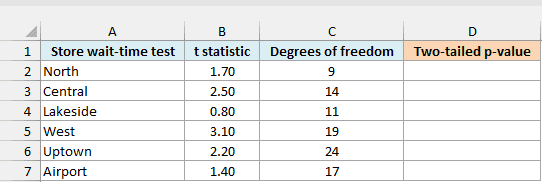
Enter the below formula in cell D2:
=T.DIST.2T(B2:B7,C2:C7)
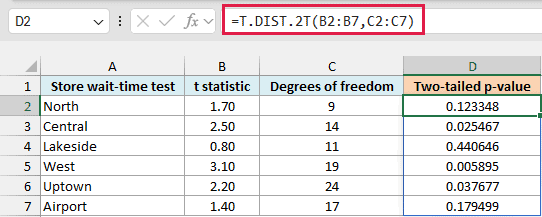
The formula spills six results down column D. It pairs each t statistic in B2:B7 with the degrees of freedom on the same row in C2:C7.
For example, Central’s t statistic of 2.5 and 14 degrees of freedom produce approximately 0.025467. North’s smaller t statistic of 1.7, with 9 degrees of freedom, gives approximately 0.123348.
Each row represents a separate test. These calculations turn existing test statistics into p-values; they don’t calculate t statistics from the stores’ original wait-time observations.
Make sure D3:D7 are empty before entering the formula. If one of those cells contains something, Excel returns a #SPILL! error because it cannot place all six answers.
If you are using Excel 2019 or earlier, enter the below formula in cell D2 and copy it down to D7:
=T.DIST.2T(B2,C2)
Example 3: Use a Negative t Statistic
A t statistic can be negative when a sample result is below the value being tested. For a two-sided test, its distance from zero matters in either direction.
Below are fitness-class test results with positive and negative t statistics, and I want their two-tailed p-values in column D.
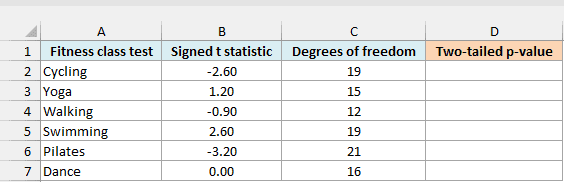
Enter the below formula in cell D2:
=T.DIST.2T(ABS(B2:B7),C2:C7)
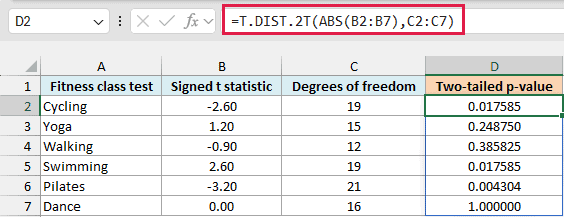
The ABS function removes the minus sign from each negative t statistic before T.DIST.2T uses it. Positive values and zero stay as they are.
Cycling has a t statistic of -2.6, while Swimming has 2.6. Both have 19 degrees of freedom, so they return the same two-tailed p-value of approximately 0.017585.
Dance has a t statistic of zero and returns 1.000000. Every possible t value is at least zero units away from zero, so the combined probability is 100%.
Important: Passing a negative t statistic directly to T.DIST.2T gives a #NUM! error. Use ABS for this two-sided calculation, where equally large positive and negative statistics count as equally extreme.
Keep the original signed statistics in column B. The formula uses their magnitudes to calculate the probabilities, while the original signs still show the direction of the differences.
If you are using Excel 2019 or earlier, enter the below formula in cell D2 and copy it down to D7:
=T.DIST.2T(ABS(B2),C2)
Follow along with the example file
T.DIST.2T Function Examples.xlsx
Example 4: Run a One-Sample t-Test
So far, the t statistics were already available. This time, let’s calculate one from the observations and use T.DIST.2T for the final p-value.
A one-sample t-test compares a population mean with a specified value. Here, the null hypothesis is that the population’s mean commute time is 30 minutes, and the two-sided alternative is that it differs from 30 minutes.
These are made-up observations to demonstrate the calculation. For a real small-sample test, use independent observations from an approximately normal population; the formula cannot check those assumptions for you.
Below are ten commute times with a claimed mean of 30 minutes in E2, and I want the test’s two-tailed p-value in E8.
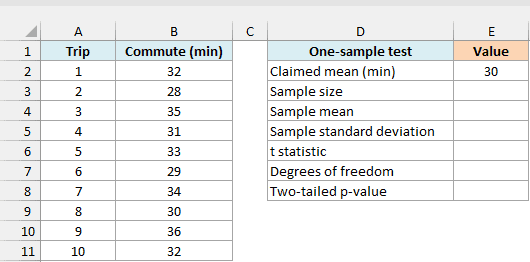
First, use the COUNT function in cell E3 to get the number of numeric observations:
=COUNT(B2:B11)
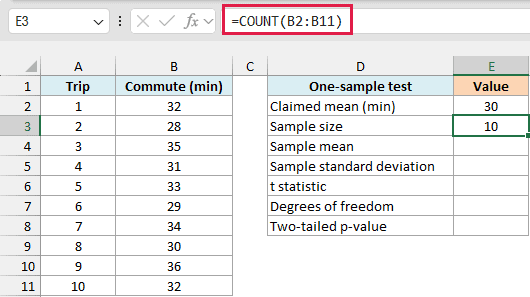
This returns 10. Use numeric times throughout the sample, because COUNT ignores text and blank cells in a range.
Next, use the AVERAGE function to calculate the sample mean in cell E4:
=AVERAGE(B2:B11)
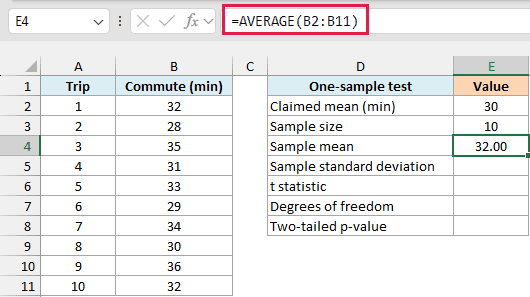
The sample mean is 32.00 minutes. That is 2 minutes above the claimed mean, but the test also needs to account for the variation between observations.
Calculate the sample standard deviation in cell E5:
=STDEV.S(B2:B11)
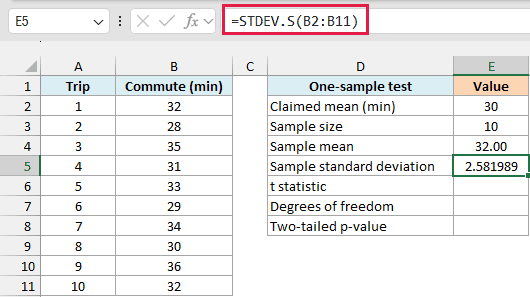
This returns approximately 2.581989 minutes. The STDEV.S function estimates the variation using the sample, which is what this test needs.
Now calculate the t statistic in cell E6:
=(E4-E2)/(E5/SQRT(E3))
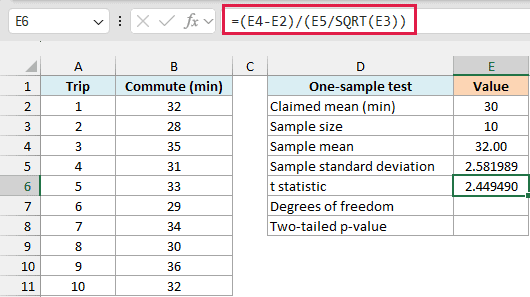
How this formula works:
E4-E2subtracts the claimed mean of 30 from the sample mean of 32.E5/SQRT(E3)calculates the estimated standard error, which measures the uncertainty in the sample mean. It divides the sample standard deviation by the square root of the sample size.- Dividing the difference by that standard error gives the t statistic, approximately 2.449490.
For this one-sample test, the degrees of freedom are the sample size minus one. Enter the below formula in cell E7:
=E3-1
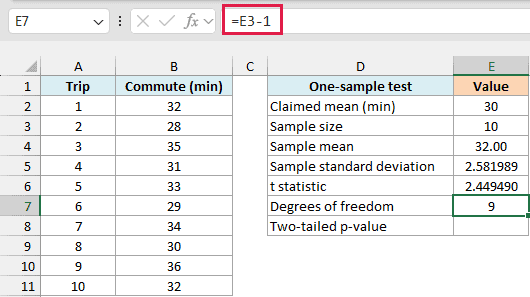
This gives 9 degrees of freedom. The sample-size-minus-one rule belongs to this one-sample test; other types of t-tests can use a different calculation.
Finally, calculate the two-tailed p-value in cell E8:
=T.DIST.2T(ABS(E6),E7)
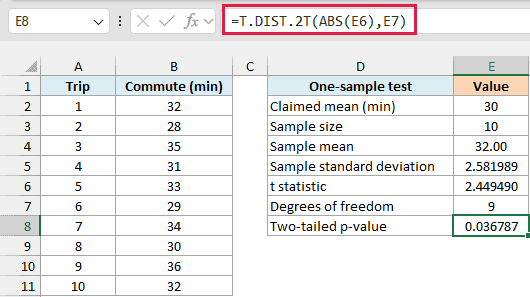
The formula returns approximately 0.036787, or 3.68%. ABS also keeps the formula working if you change the sample or claimed mean and the t statistic becomes negative.
If you chose a 5% significance level before looking at the results, 0.036787 is below 0.05. You would reject the null hypothesis of a 30-minute population mean, provided the test’s assumptions hold.
This is one test on one sample, so it produces one p-value. The two spilling examples above instead start with several separate test statistics and produce one p-value for each.
So these are four ways to use the T.DIST.2T function, starting with a known t statistic and finishing with a one-sample calculation from the original observations.
I hope you found this article helpful.
Other Excel Articles You May Also Like:
