

The T.INV.2T function in Excel gives you the two-tailed t critical value, the cutoff you need for a confidence interval or a t-test when you’re working with a small sample.
You give it how much risk you’re willing to take (like 5%) and the degrees of freedom, and it returns the t-value that leaves that much of the t-distribution in its two tails combined.
The one thing that trips people up is the first argument. It wants the significance level (0.05 for 95% confidence), not the confidence level itself, so I’ll point that out again where it matters.
I’ll start with the basics of finding a critical value, and then use it for a confidence interval, a one-tailed test, and a hypothesis test.
Follow along with the example file
T.INV.2T Function Examples.xlsx
T.INV.2T Function Syntax
Here is the syntax of the T.INV.2T function:
=T.INV.2T(probability, deg_freedom)
- probability – The total probability in both tails of the t-distribution combined. This is your significance level, so for a 95% confidence level, it’s 0.05.
- deg_freedom – The degrees of freedom. For a single sample, this is the sample size minus 1.
Both arguments are required.
The probability has to be more than 0 and no more than 1. If you give it 0 or a negative number, you get a #NUM! error, and if you give it text, you get a #VALUE! error.
The degrees of freedom have to be 1 or more, otherwise you get a #NUM! error. If you enter a decimal like 10.9, Excel cuts off the decimal part and uses 10.
The T.INV.2T function works in Excel 2010 and later versions, including 365, 2024, 2021, 2019, 2016, and Mac.
When to Use the T.INV.2T Function
Use this function when you need to:
- Find the t critical value for a confidence level and sample size
- Build your own t-table for different confidence levels
- Calculate a confidence interval for an average from a small sample
- Get a one-tailed t critical value for a one-sided test
- Decide whether a t-test result is significant
Let me show you a few practical examples of how to use the T.INV.2T function in Excel.
Example 1: Find the t Critical Value for Different Sample Sizes
Let’s start with a simple example.
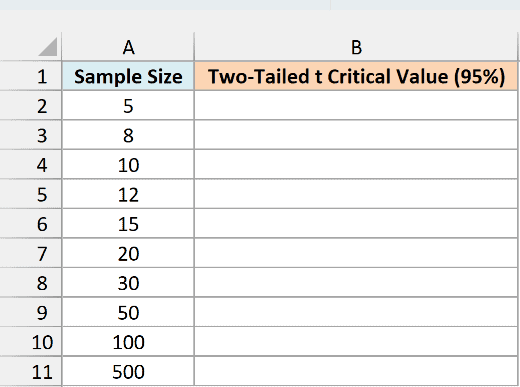
Below I have a list of sample sizes, and I want the two-tailed t critical value at a 95% confidence level for each one in column B.
Here is the formula:
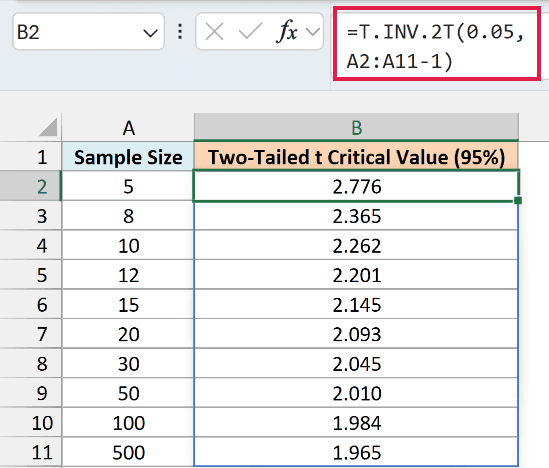
=T.INV.2T(0.05,A2:A11-1)
How this formula works:
- 0.05 is the significance level for a 95% confidence level (100% minus 95%).
A2:A11-1subtracts 1 from each sample size to get the degrees of freedom.- Since I’ve given the function the whole range, it returns a critical value for every sample size, and the results spill down into B2:B11 from this one formula.
With a sample of just 5, the critical value is 2.776. As the sample gets bigger, it drops to 2.262 for 10 and 2.045 for 30, and by 500 it’s down to 1.965.
That’s because a small sample gives you less information, so the t-distribution uses a wider cutoff to stay on the safe side. With a large sample, it gets very close to the 1.96 you’d get from the normal curve with the NORM.S.INV function.
Important: Don’t enter the confidence level as the probability. With 10 degrees of freedom, =T.INV.2T(0.95,10) returns 0.064 instead of 2.228, and Excel won’t warn you, so a confidence interval built on it comes out far too narrow.
If you are using Excel 2019 or earlier, enter the below formula in cell B2 and then copy it down the range:
=T.INV.2T(0.05,A2-1)
Example 2: Build Your Own t-Table
If you’ve ever used a printed t-table from a statistics book, you can build the same thing in Excel with one formula.
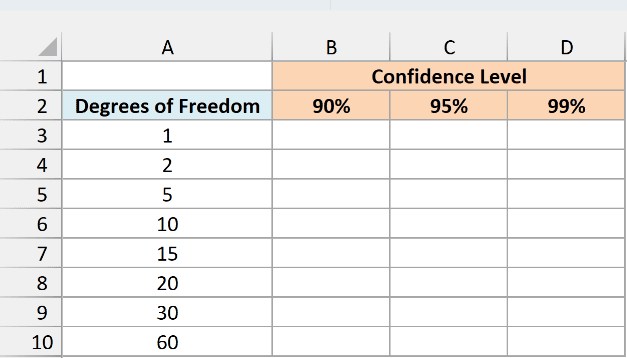
Below I have a list of degrees of freedom and three confidence levels, and I want the t critical value for every combination in B3:D10.
Here is the formula:
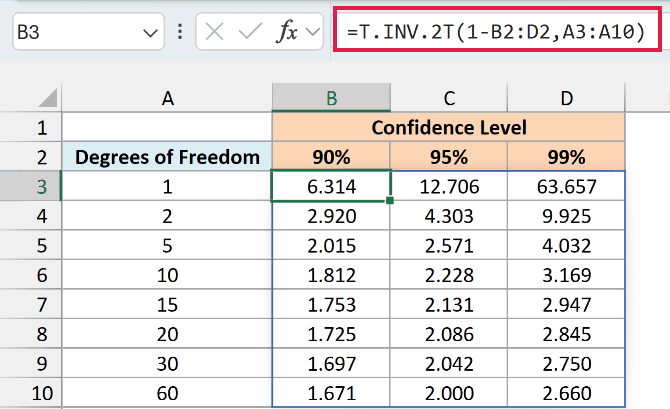
=T.INV.2T(1-B2:D2,A3:A10)
How this formula works:
1-B2:D2turns the three confidence levels (90%, 95%, and 99%) into significance levels (10%, 5%, and 1%).A3:A10gives the eight degrees of freedom.- Since one range runs across and the other runs down, the function returns a value for every pair, and the results spill into the whole B3:D10 grid.
For example, at 95% confidence with 10 degrees of freedom, the critical value is 2.228. That’s the same value you’d find in a printed t-table.
You can also see how quickly the values climb for very small samples. With just 1 degree of freedom, the 99% critical value is 63.657.
If you are using Excel 2019 or earlier, enter the below formula in cell B3 and then copy it across to D3 and down to row 10:
=T.INV.2T(1-B$2,$A3)
Example 3: Calculate a Confidence Interval with T.INV.2T
Now let’s use the critical value for something practical.
Below I have the battery life of 12 laptops of the same model from a test run, and I want a 95% confidence interval for the average battery life of that model in E7:E10.
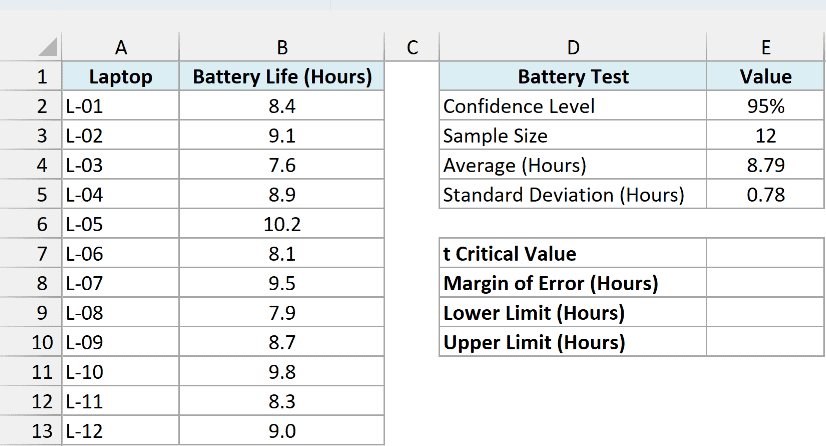
The sample size, average, and standard deviation in E3:E5 come from the COUNT, AVERAGE, and STDEV.S functions on the battery life in B2:B13.
Here is the formula for the t critical value:
=T.INV.2T(1-E2,E3-1)
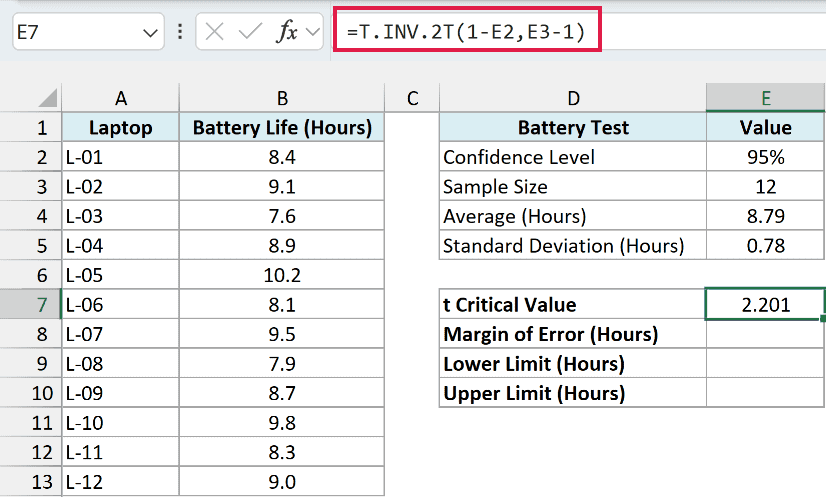
Here, 1-E2 turns the 95% confidence level into a 5% significance level, and E3-1 gives 11 degrees of freedom (12 laptops minus 1). The formula returns 2.201.
Now here is the formula for the margin of error:
=E7*E5/SQRT(E3)
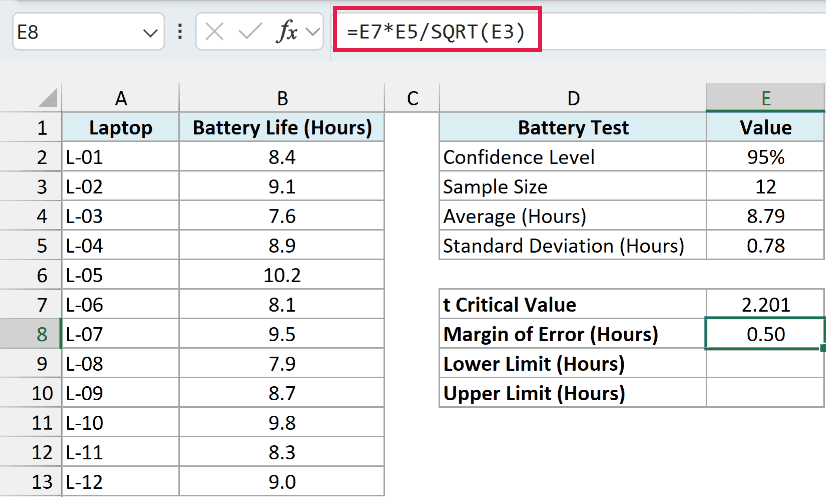
How this formula works:
E5/SQRT(E3)divides the standard deviation by the square root of the sample size. This gives the standard error, which tells you how much the average of 12 laptops can bounce around.- Multiplying it by the t critical value in E7 gives the margin of error, which is 0.50 hours.
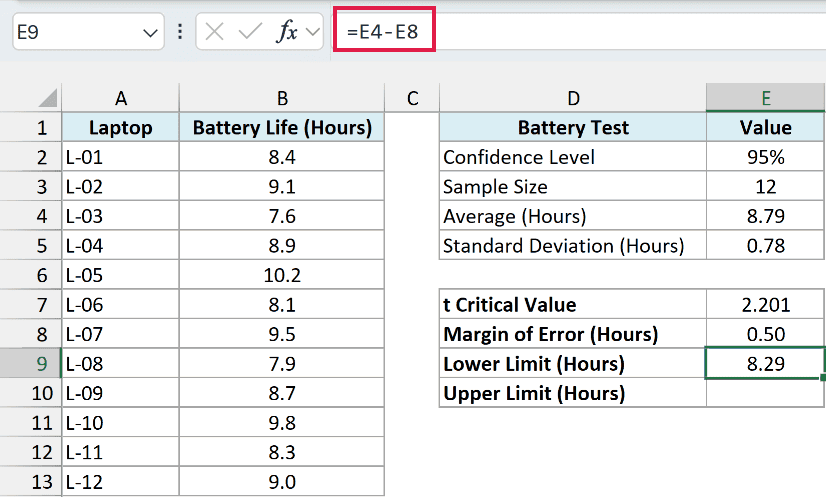
So based on these 12 laptops, the model’s average battery life is 8.79 hours, give or take 0.50 hours. To turn that into a range, subtract the margin of error from the average for the lower limit, and add it for the upper limit.
Here is the formula for the lower limit:
=E4-E8
And here is the formula for the upper limit:
=E4+E8
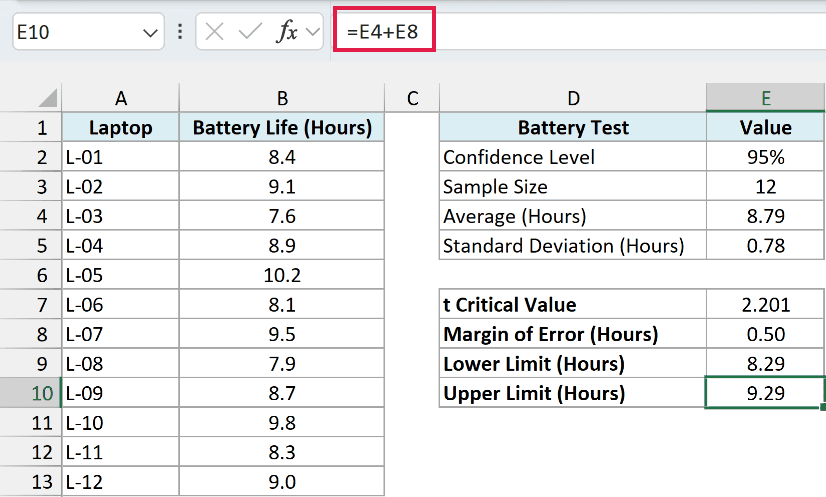
That puts the 95% confidence interval between 8.29 and 9.29 hours. In other words, you can be 95% confident that the average battery life of this laptop model falls somewhere in that range.
Since the confidence level comes from cell E2, you can change it to 90% or 99%, and the critical value, margin of error, and both limits update on their own.
Pro Tip: The CONFIDENCE.T function gives you the margin of error in one step. =CONFIDENCE.T(1-E2,E5,E3) returns the same 0.50 without a separate critical value cell.
Example 4: Get a One-Tailed t Critical Value
T.INV.2T is built for two-tailed tests, but you can also use it for a one-tailed test with a small change.
Below I have a list of significance levels for a test that checks whether a study app raises the test scores of 20 students, and I want the one-tailed critical value for each level in column B.
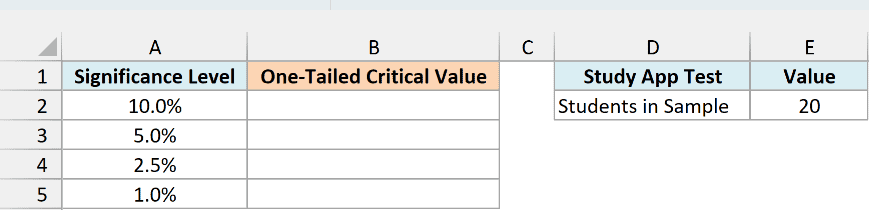
Here is the formula:
=T.INV.2T(2*A2:A5,E2-1)
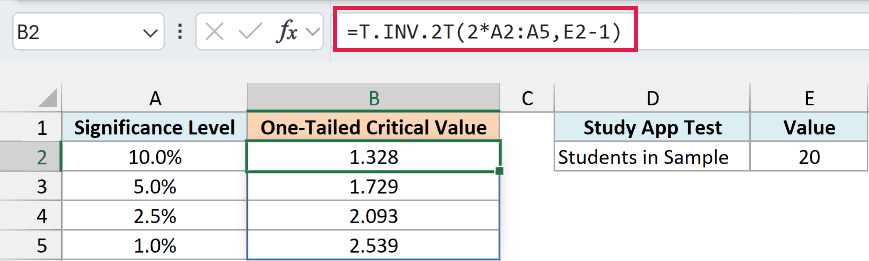
How this formula works:
- A one-tailed test puts the whole significance level in one tail. T.INV.2T always splits the probability between two tails, so
2*A2:A5doubles each level to make up for it. E2-1gives 19 degrees of freedom (20 students minus 1).
At a 5% significance level, the one-tailed critical value is 1.729.
The t-test turns the students’ score changes into a single number called the t statistic (I show how to calculate one in Example 5), and if it comes out above 1.729, the app’s improvement is significant.
Notice that the one-tailed value at 2.5% (2.093) is the same as the two-tailed value at 5%. Both leave exactly 2.5% of the curve in the upper tail.
You can get the same one-tailed values from the T.INV function with =T.INV(1-A2:A5,E2-1). The T.INV function wants the probability to the left of the cutoff, so 1 minus the significance level gives you the same upper cutoff.
If you are using Excel 2019 or earlier, enter the below formula in cell B2 and then copy it down the range:
=T.INV.2T(2*A2,$E$2-1)
Example 5: Use T.INV.2T in a Hypothesis Test
Let’s step it up and use the critical value to make a real decision.
Below I have the results of a quality check on a cereal box filling machine that should put 500 grams in every box, and I want to work out in B8:B10 whether the machine needs adjusting.
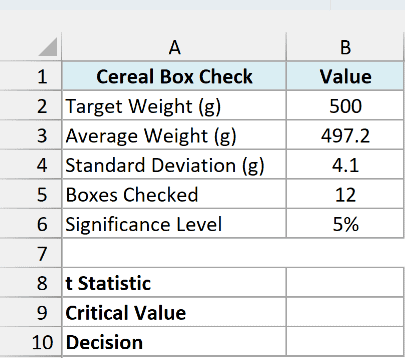
First, here is the formula for the t statistic:
=(B3-B2)/(B4/SQRT(B5))
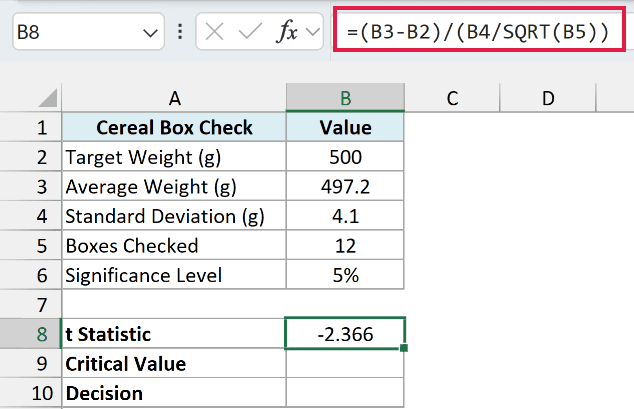
This measures how far the average weight of 497.2 grams is from the 500-gram target, in units of standard error. It returns -2.366, which is negative because the boxes came out lighter than the target.
Here is the formula for the critical value:
=T.INV.2T(B6,B5-1)
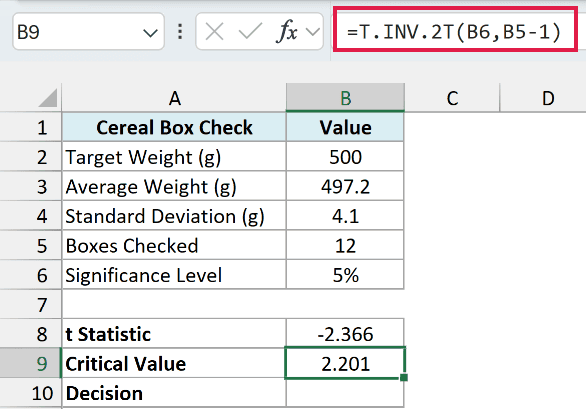
With a 5% significance level and 11 degrees of freedom (12 boxes minus 1), the critical value is 2.201. I’m using the two-tailed value because a machine that overfills is just as much of a problem as one that underfills.
And here is the formula that makes the decision:
=IF(ABS(B8)>B9,"Machine needs adjusting","No action needed")
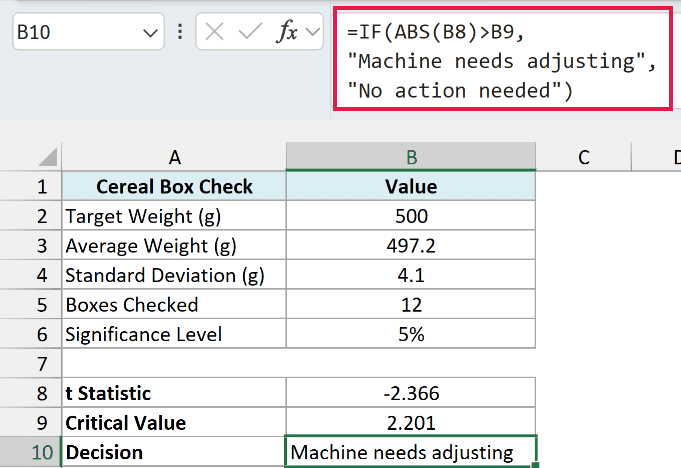
How this formula works:
ABS(B8)removes the minus sign from the t statistic, so -2.366 becomes 2.366.- The IF function checks if that’s bigger than the critical value of 2.201. It is, so the formula returns “Machine needs adjusting”.
Important: Always compare the absolute value of the t statistic with the critical value. T.INV.2T returns only the positive cutoff, so without ABS, a negative t statistic like -2.366 would never look significant.
So these are five ways you can use the T.INV.2T function in Excel. Just remember to give it the significance level (like 0.05) and not the confidence level, and you’ll get the right critical value every time.
If you need the opposite direction, from a t statistic back to a probability (the p-value), the T.DIST.2T function does that.
Excel 2007 and earlier have the older TINV function, which takes the same two arguments and returns the same result.
I hope you found this article helpful.
Other Excel Articles You May Also Like:
