

The LOGNORM.DIST function in Excel calculates probabilities and probability density for a lognormal distribution. It’s useful for modeling positive values, such as completion times or file sizes, when their natural logarithms follow a normal distribution.
The main thing to watch is the input scale: you supply a value in its original units, but the mean and standard deviation describe its natural logarithm. Below, I’ll show you how that works with four examples.
Follow along with the example file
LOGNORM.DIST Function Examples.xlsx
LOGNORM.DIST Function Syntax
Here is the syntax of the LOGNORM.DIST function:
=LOGNORM.DIST(x,mean,standard_dev,cumulative)
- x is required. The positive value where you want to evaluate the distribution, such as a time of 8 hours.
- mean is required. The average of the natural logarithms of the modeled values, rather than the average of the original values.
- standard_dev is required. The standard deviation of those natural logarithms, and it must be greater than zero.
- cumulative is required. Use TRUE for the probability of a value being at or below x, or FALSE for the height of the probability density curve at x.
With TRUE, the result is a probability between 0 and 1, which you can display as a percentage. With FALSE, the result is a density value, so it isn’t the probability of getting exactly x.
LOGNORM.DIST works in Excel 365, 2024, 2021, 2019, 2016, Mac, and the web. The spilling formulas below need Excel 365, 2024, 2021, or Excel for the web.
When to Use the LOGNORM.DIST Function
Use this function when you have a lognormal model and need to:
- Estimate the chance of a job finishing within a time limit.
- Calculate the probability of a value exceeding a cutoff or falling between two limits.
- Calculate density values for a lognormal curve.
- Use estimates from the natural logs of sample data in a probability calculation.
Let’s start with the probability of finishing within a deadline.
Example 1: Calculate Cumulative Probability for Deadlines
For this example, assume film-scanning turnaround times follow a lognormal model with a mean of 1.6 and a standard deviation of 0.55 on the natural-log scale. These are fictional model parameters, not statistics from a real business.
Below are turnaround-time limits for film-scanning jobs, and I want the probability of finishing within each limit in column B.
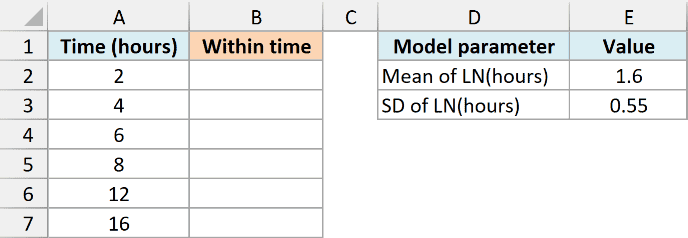
Enter the following formula in cell B2:
=LOGNORM.DIST(A2:A7,$E$2,$E$3,TRUE)
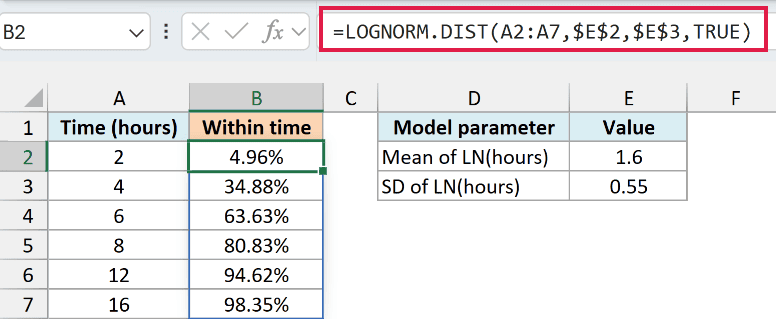
The formula returns six probabilities, which spill down from B2 to B7. For example, the model gives a 34.88% chance of finishing within 4 hours and an 80.83% chance of finishing within 8 hours.
Here, A2:A7 supplies the time limits, while E2 and E3 supply the mean and standard deviation of the log values. TRUE tells Excel to return the cumulative probability, meaning everything up to and including each time limit.
The dollar signs create absolute cell references, which keep the parameters fixed. The percentage format changes how the answers appear, so 0.348802 appears as 34.88%.
Important: Keep the time limits in hours. Applying a logarithm to the limits before passing them to LOGNORM.DIST would transform them twice, because the function already handles that transformation.
A time limit of zero or less, or a standard deviation of zero or less, returns #NUM!. Text such as “eight” in a numeric input returns #VALUE!, so check the input rather than hiding the error.
If the formula returns #SPILL!, a value may be blocking the cells below B2. Move that value out of the intended result area, then let Excel spill the answers again.
If you see an @ before LOGNORM.DIST, Excel is using implicit intersection to reduce the result to one value. For the range formula shown here, remove that @ to allow all six results to spill.
If you’re using Excel 2019 or 2016, enter the following formula in B2 and copy it down through B7:
=LOGNORM.DIST(A2,$E$2,$E$3,TRUE)
Example 2: Find Above-Limit and Between-Limit Probabilities
The cumulative result also lets you answer questions about the part of the distribution above a limit or between two limits.
Below are the same film-scanning model parameters with 4-hour and 8-hour limits, and I want the probabilities of taking more than 8 hours and between 4 and 8 hours in column B.
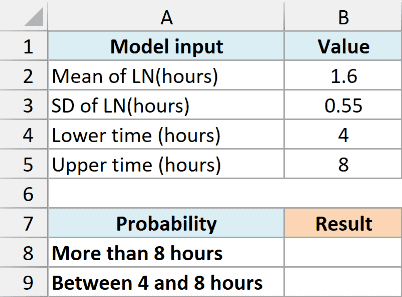
To get the chance of taking more than 8 hours, enter this formula in B8:
=1-LOGNORM.DIST(B5,B2,B3,TRUE)
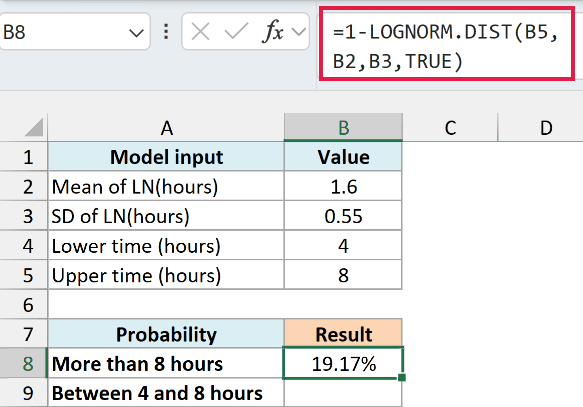
The result is 19.17%. LOGNORM.DIST gives the probability of taking 8 hours or less, so subtracting it from 1 leaves the probability of taking longer.
For the chance of taking between 4 and 8 hours, enter this formula in B9:
=LOGNORM.DIST(B5,B2,B3,TRUE)-LOGNORM.DIST(B4,B2,B3,TRUE)
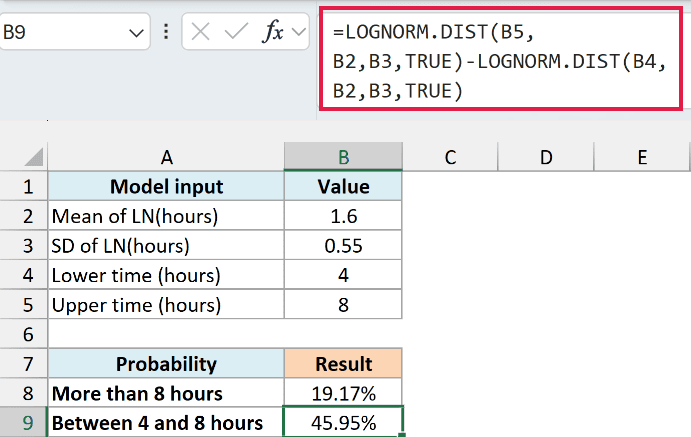
This returns 45.95%. The first calculation includes all times up to 8 hours, and the second includes all times up to 4 hours, so their difference leaves the part between those limits.
Both formulas return one probability because each question has one answer. We don’t need a spilling formula for these two individual questions.
The model is continuous, which means a value at one exact point has zero probability. Including or excluding the exact endpoints therefore doesn’t change these modeled probabilities.
These straightforward subtractions suit the limits shown here. If you’re calculating extremely small tail probabilities or very narrow intervals, subtracting nearly equal numbers can lose precision.
Follow along with the example file
LOGNORM.DIST Function Examples.xlsx
Example 3: Calculate Lognormal Probability Density
Now let’s set the cumulative argument to FALSE to get density values, which describe the height of the distribution’s curve.
Below are possible sizes for audio downloads under a hypothetical lognormal model, and I want the density at each size in column B.
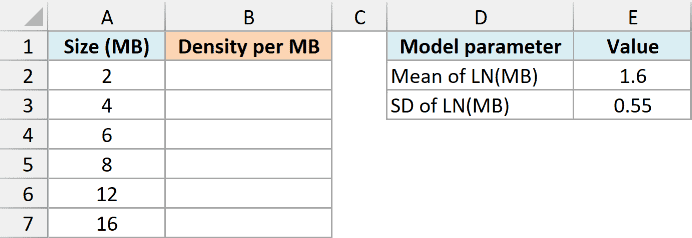
The sizes use MB, and the model parameters describe their natural logs. Enter this formula in B2:
=LOGNORM.DIST(A2:A7,$E$2,$E$3,FALSE)
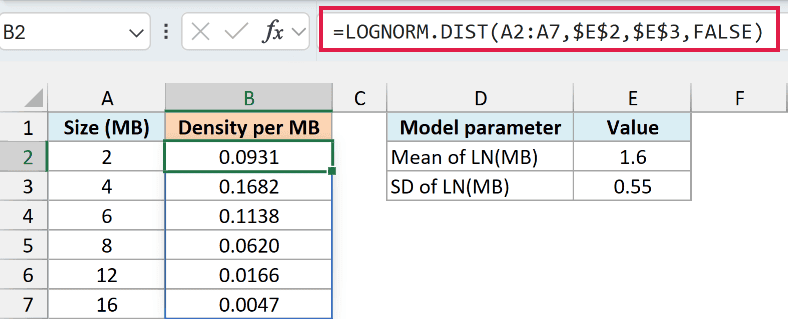
The results spill down the column. At 4 MB, the density is approximately 0.1682 per MB.
That value is the curve’s height at 4 MB. The probability of a size falling within a range comes from the area under the curve over that range, which you can calculate by subtracting cumulative probabilities as in Example 2.
Important: A density of 0.1682 does not mean a 16.82% chance of getting exactly 4 MB. Keep density results in decimal format; percentage formatting would suggest a probability the formula hasn’t calculated.
A density can be greater than 1 because it measures curve height per unit. The total area under a probability density curve is 1, rather than every height being limited to 1.
If you’re using Excel 2019 or 2016, enter the following formula in B2 and copy it down through B7:
=LOGNORM.DIST(A2,$E$2,$E$3,FALSE)
Example 4: Get Model Inputs From Sample Data
So far, we’ve supplied the log-scale mean and standard deviation. This example shows how to calculate those inputs from a sample of positive observations.
Below are eight fictional bike-repair times, and I want their natural logs in column C and an estimated probability of finishing within 8 hours in F7.
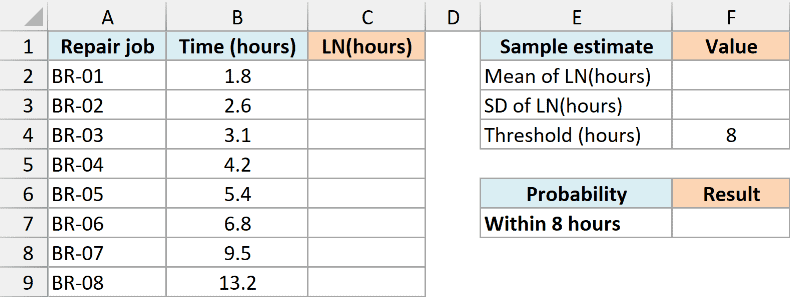
First, enter the following formula in C2 to calculate each time’s natural logarithm:
=LN(B2:B9)
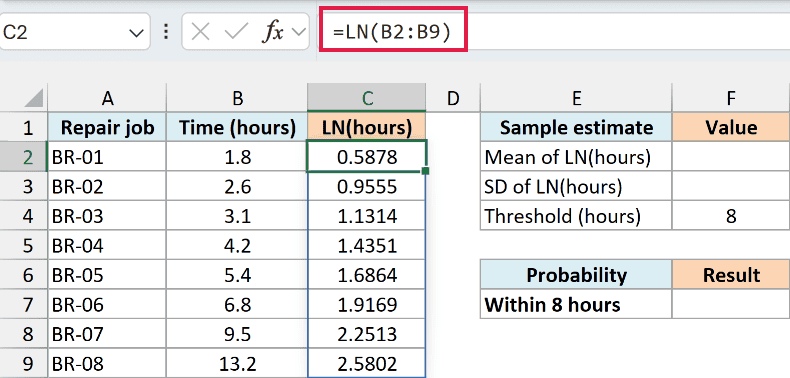
The LN function transforms the eight times into log values. For example, 1.8 hours becomes approximately 0.5878.
If you’re using Excel 2019 or 2016, enter the following formula in C2 and copy it down through C9:
=LN(B2)
Next, calculate the average of those log values in F2:
=AVERAGE(C2:C9)
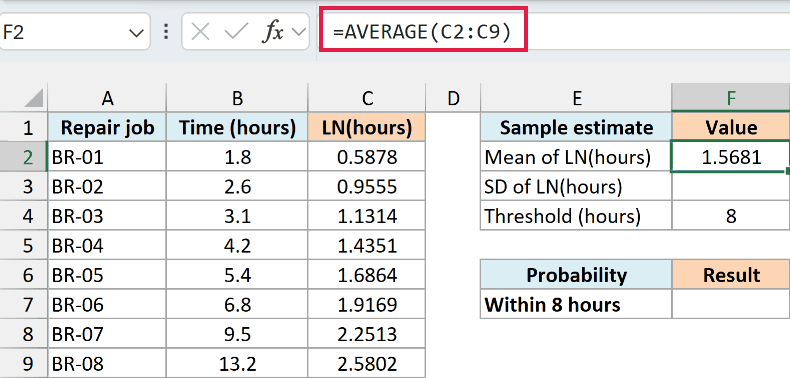
The mean of the log values is approximately 1.5681. This is the mean input for LOGNORM.DIST, rather than the average of the repair times in column B.
To estimate the standard deviation from this sample, enter the following formula in F3:
=STDEV.S(C2:C9)
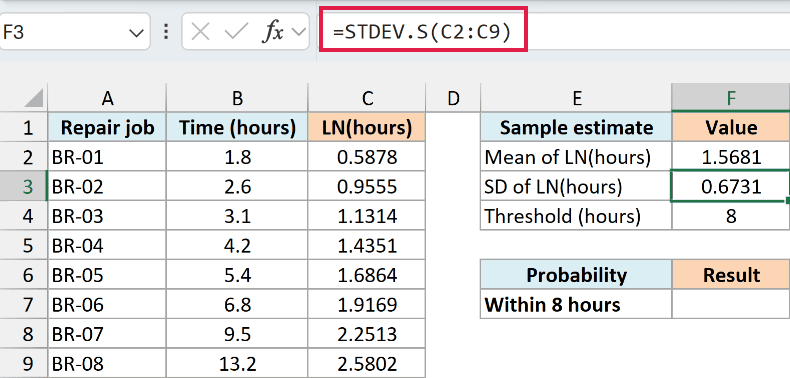
The result is approximately 0.6731.
The STDEV.S function calculates sample standard deviation using the number of observations minus one in its denominator. Here, the eight repair times are a sample of the jobs being modeled.
Finally, use the threshold in F4 and the two estimates to calculate the probability in F7:
=LOGNORM.DIST(F4,F2,F3,TRUE)
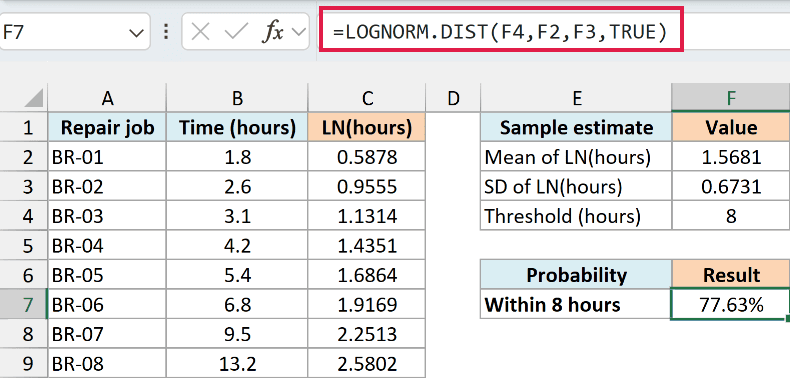
The result is 77.63%, using the full-precision values stored in F2 and F3. Formatting those cells to four decimal places doesn’t round the values Excel uses in the calculation.
Important: This probability assumes a lognormal model is suitable for repair times. Taking natural logs and calculating their mean and standard deviation doesn’t establish that the logs follow a normal distribution.
Eight fictional observations let us follow the calculation, but they don’t validate a model for real repair jobs. A real analysis needs enough representative data and a separate check of the distribution assumption.
In this article, I showed you how to use LOGNORM.DIST for cumulative probabilities and density values, and how to calculate its inputs from sample data. I hope you found this article helpful.
Other Excel Articles You May Also Like:
