

The CUBESET function defines a group of items, called a set, from an Excel Data Model or an OLAP cube. You can sort that set by name or by a calculation such as total tickets, and give it a label to show in the cell.
The catch is that the cell shows only the label, not the items inside the set. The set stays behind the scenes until another cube function counts it, lists it, or totals it, and that is what I’ll show you here.
The example file includes a working Data Model, so you can follow along without connecting to a server.
Follow along with the example file
CUBESET Function Examples.xlsx
CUBESET Function Syntax
Here is the syntax of the CUBESET function:
=CUBESET(connection, set_expression, , [sort_order], [sort_by])
A field is a column of a table in the model. A member is one item in that field, such as the Comedy genre in the Genre field.
A set is a group of members, and a measure is a calculation stored in the model, such as total tickets.
- connection is the name of an existing connection in the workbook, entered in double quotes. The Data Model inside our example file uses
ThisWorkbookDataModel. - set_expression is text that describes the set, such as all the values of a field or a hand-picked list. It can also be a cell that holds that text, or a range of CUBEMEMBER formulas, each of which returns one member such as a single genre.
- caption (optional) is the text the cell displays for the set.
- sort_order (optional) is a number from 0 to 6 that sorts the set. The default is 0.
- sort_by (optional) is the measure to sort by, entered as text, such as
"[Measures].[Total Tickets]".
The caption is only a label, and it replaces the members in the cell. In the Excel build I tested, a formula with no caption left the cell looking empty, so always add one.
Here is what each sort_order number does:
- 0 keeps the members in the order the set expression gives them.
- 1 sorts ascending by the sort_by measure.
- 2 sorts descending by the sort_by measure.
- 3 sorts A to Z by member name.
- 4 sorts Z to A by member name.
- 5 and 6 sort ascending and descending in the field’s natural order in the model. For the Genre field they matched 3 and 4, so 3 and 4 are enough here.
Only 1 and 2 use sort_by. For the other numbers, it is ignored.
I tested every example in Excel for Windows with Microsoft 365 (build 20618). I did not test Mac, Excel for the web, or server cubes such as Analysis Services.
When to Use the CUBESET Function
Use this function when you need to:
- Define a group of items once and reuse it in several cells.
- Sort the items of a Data Model field by name or by a calculation.
- Pull the top few items from a model into your own report layout.
- Get one combined total for a group of items.
If your data is only a range on the worksheet, the SORT function or the UNIQUE function is simpler. CUBESET earns its place when the data already lives in a Data Model or a cube.
Let me show you how it works with a few examples.
Example 1: Create a Set of All Genres
Let’s start with the simplest set, every value in one field.
Below is a cinema ticket log with the tickets sold per genre at two cinemas, and I want a set of its genres in column F.
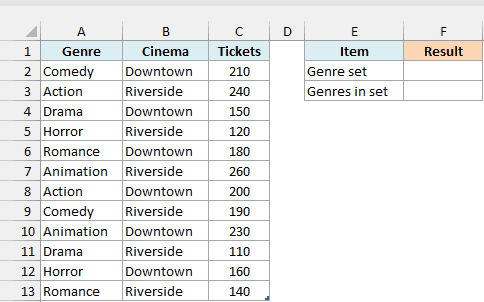
The Data Model is where Excel keeps tables and calculations behind the worksheet, the same place a PivotTable can draw from. The example file already has one, and ThisWorkbookDataModel is the connection name that reaches it.
The log is a table named Screenings, and the model also holds a measure named Total Tickets that adds the Tickets column.
All five examples use this one model, so the other sheets don’t repeat the data.
Enter this formula in F2:
=CUBESET("ThisWorkbookDataModel","[Screenings].[Genre].[Genre].Members","All genres")
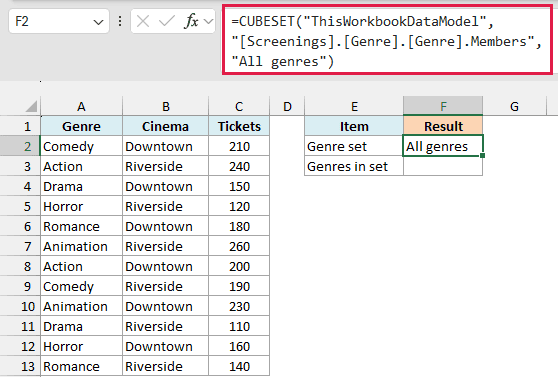
The cell shows All genres, which is the caption from the third argument. The set itself holds six genres, but the cell doesn’t list them.
The second argument is a path. [Screenings] is the table, the first [Genre] is the column, and the second [Genre] is the list of individual genre values in that column.
The .Members at the end returns every value in that list, so the set holds all the genres.
To see how many items the set holds, use the CUBESETCOUNT function and point it at the set cell. Enter this formula in F3:
=CUBESETCOUNT(F2)
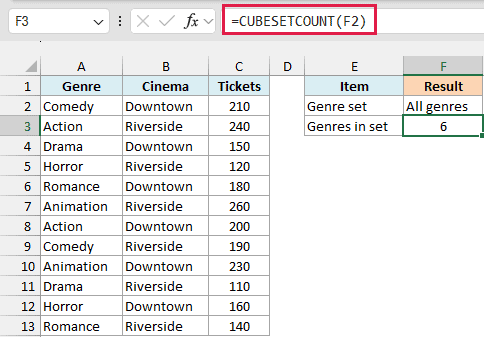
The result is 6, one for each genre in the table. The count reads the set stored behind F2, so it doesn’t matter which caption you chose.
While Excel fetches the data, the cell can briefly show #GETTING_DATA…. Give it a moment before treating it as an error.
Important: A wrong connection name returns #N/A in the Excel build I tested. Microsoft’s page lists #NAME? for this, so check the connection name first if either error shows up.
Example 2: Sort a Set Alphabetically
Now let’s put a set in order. The sort_order argument does this, and the numbers 3 and 4 sort by name.
Below I have three hand-picked genres, and I want them sorted three ways in columns A to C: as typed, A to Z, and Z to A.
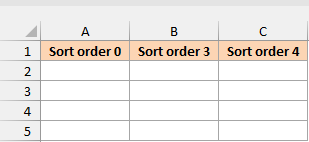
Enter this formula in A2 to create the set in the order I typed it:
=CUBESET("ThisWorkbookDataModel","{[Screenings].[Genre].&[Drama],[Screenings].[Genre].&[Action],[Screenings].[Genre].&[Comedy]}","As entered",0)

The curly braces make a list, and each [Screenings].[Genre].&[Drama] names one genre. The & before the value is part of the member name, so keep it.
Every member in the braces must come from the same field. A set that mixed a genre with a cinema returned #N/A in my test.
The last argument, 0, keeps the members in the order they were typed. A caption is all the cell displays, so we need another formula to see the genres.
Enter this formula in A3 to list the set’s members:
=CUBERANKEDMEMBER("ThisWorkbookDataModel",A2,SEQUENCE(CUBESETCOUNT(A2)))
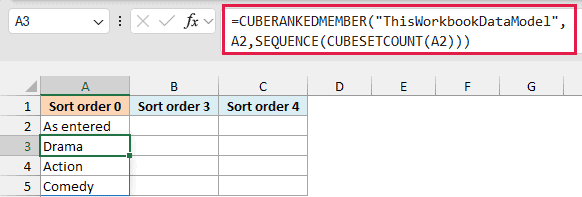
The CUBERANKEDMEMBER function returns the member at a given position in a set. Its second argument is the set cell, A2, and its third argument is the position to return.
CUBESETCOUNT(A2) counts the members, which gives 3. The SEQUENCE function turns that into 1, 2, 3, so CUBERANKEDMEMBER returns one genre for each number and they spill down from A3 in their typed order.
If you are using Excel 2019 or earlier, enter the below formula in cell A3 and then copy it down to A5:
=CUBERANKEDMEMBER("ThisWorkbookDataModel",A$2,ROWS(A$3:A3))
ROWS(A$3:A3) grows as you copy down, so it returns 1 in A3, 2 in A4, and 3 in A5. The A$2 stays fixed on the set cell.
Now let’s sort the same set from A to Z. Enter this formula in B2:
=CUBESET("ThisWorkbookDataModel","{[Screenings].[Genre].&[Drama],[Screenings].[Genre].&[Action],[Screenings].[Genre].&[Comedy]}","A to Z",3)
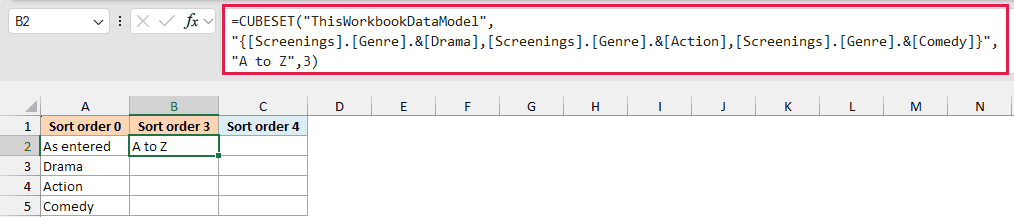
For Z to A, enter this formula in C2:
=CUBESET("ThisWorkbookDataModel","{[Screenings].[Genre].&[Drama],[Screenings].[Genre].&[Action],[Screenings].[Genre].&[Comedy]}","Z to A",4)
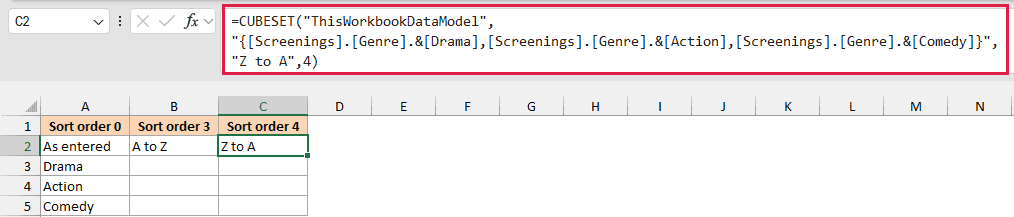
Copy the list formula from A3 to B3 and C3, and each column spills its own order. If you are using the ROWS version, copy each column down to row 5 instead.
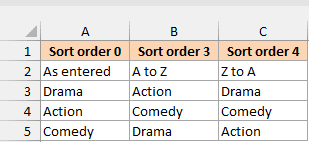
Column A keeps the typed order of Drama, Action, Comedy. Column B runs Action, Comedy, Drama, and column C runs Drama, Comedy, Action.
Sorting by name needs no sort_by, but sorting by a number does, which is the next example.
Example 3: Sort a Set by a Value
Sorting by name is handy, but a ranking usually depends on a number. That is where sort_by comes in.
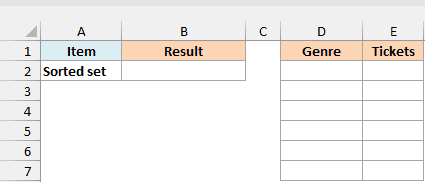
Below is the same ticket log, and I want the genres ranked by total tickets, with each genre’s total in column E.
Enter this formula in B2:
=CUBESET("ThisWorkbookDataModel","[Screenings].[Genre].[Genre].Members","Genres by tickets",2,"[Measures].[Total Tickets]")
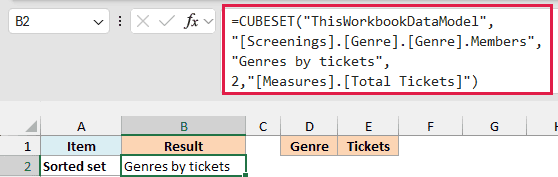
The sort_order of 2 means descending, and sort_by names the measure that decides the ranking. Change the 2 to 1 and the same set starts with the lowest genre, Drama.
Now list the ranked genres in D2 with the same CUBERANKEDMEMBER formula as before:
=CUBERANKEDMEMBER("ThisWorkbookDataModel",$B$2,SEQUENCE(CUBESETCOUNT($B$2)))
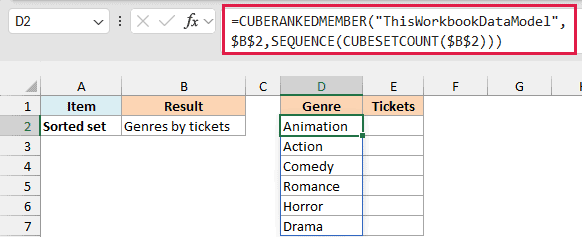
Animation comes first, then Action, Comedy, Romance, Horror, and Drama. To show each genre’s total, use the CUBEVALUE function in E2:
=CUBEVALUE("ThisWorkbookDataModel","[Measures].[Total Tickets]",D2)
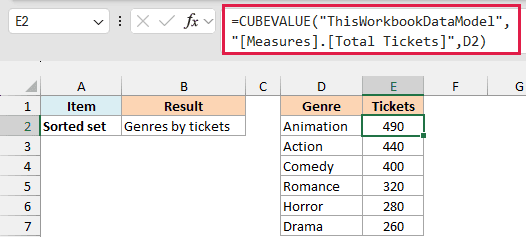
Copy the formula down to E7. D2 holds a genre member, so CUBEVALUE returns the tickets for that genre.
Here we keep CUBEVALUE as a per-row formula because it doesn’t spill. When I gave it the whole range D2:D7 in a test, it returned #N/A in one cell instead of six totals.
Important: A sort_order of 1 or 2 needs sort_by. Without it, the formula returns #VALUE!, and a measure name that doesn’t exist returns #N/A.
Example 4: Get the Top 3 Items in a Set
A report often needs only the top few items, not every one.
Below I want the top three genres by tickets as one set in B2, with the tickets for just those three in B4.
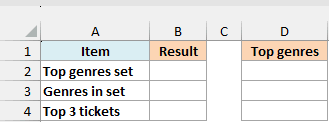
CUBESET has no argument for a top number, so the work happens inside the set expression. Enter this formula in B2:
=CUBESET("ThisWorkbookDataModel","TopCount([Screenings].[Genre].[Genre].Members,3,[Measures].[Total Tickets])","Top 3")
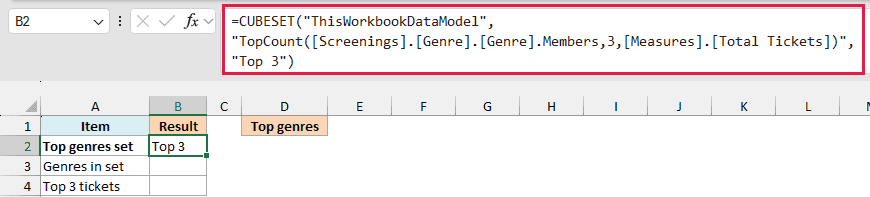
TopCount is a function of MDX, the language cubes use for set expressions. Its three arguments are the set to pick from, how many items to keep, and the measure that ranks them.
The set to pick from is the all-genres set from Example 1, [Screenings].[Genre].[Genre].Members.
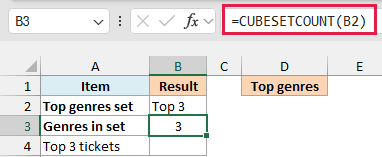
Enter this formula in B3 to confirm the set holds three items:
=CUBESETCOUNT(B2)
CUBEVALUE can take a whole set as its member argument, not just one member. Enter this formula in B4 to get one combined total for the set:
=CUBEVALUE("ThisWorkbookDataModel","[Measures].[Total Tickets]",B2)
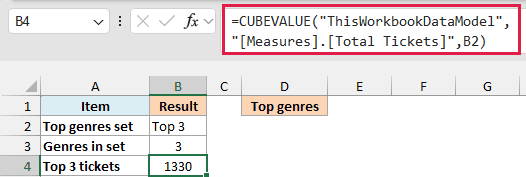
The result is 1,330, the combined tickets of the three top genres. CUBEVALUE adds the genres in the set together, so you get one total instead of three.
To see which genres made the cut, enter the CUBERANKEDMEMBER formula in D2, this time pointing at B2:
=CUBERANKEDMEMBER("ThisWorkbookDataModel",$B$2,SEQUENCE(CUBESETCOUNT($B$2)))
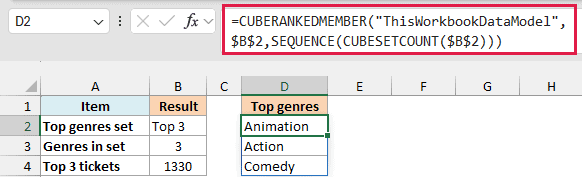
The list shows Animation, Action, and Comedy. Together they sold 490, 440, and 400 tickets, which adds up to the 1,330 in B4.
Example 5: Build a Set From a List of Cells
So far the genres were typed inside the formula. Let’s read them from a list on the sheet instead.
Below I have a short list of genres in column A, and I want one set made from that list, with its total tickets in D3.
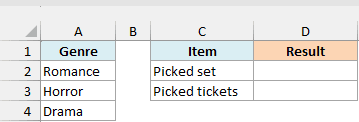
Enter this formula in D2:
=CUBESET("ThisWorkbookDataModel","{"&TEXTJOIN(",",TRUE,"[Screenings].[Genre].&["&A2:A4&"]")&"}","Picked genres")
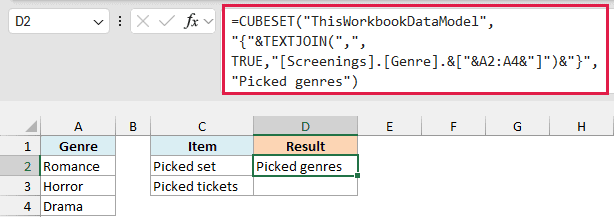
Here is how the formula works:
"[Screenings].[Genre].&["&A2:A4&"]"builds one member name for each genre in the list.- The TEXTJOIN function joins those names with commas.
- The
"{"&and&"}"at the ends add the curly braces that make it a set.
With Romance, Horror, and Drama in the list, the set expression ends up as {[Screenings].[Genre].&[Romance],[Screenings].[Genre].&[Horror],[Screenings].[Genre].&[Drama]}. Change a genre in column A and the set follows.
Now enter this formula in D3 to total the set:
=CUBEVALUE("ThisWorkbookDataModel","[Measures].[Total Tickets]",D2)
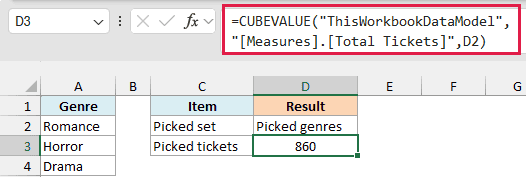
The result is 860, which is Romance’s 320, Horror’s 280, and Drama’s 260.
If you add genres to the list, extend the A2:A4 reference to match. Blank cells in the reference break the set, because TEXTJOIN’s TRUE skips empty text but a blank cell here still produces text like [Screenings].[Genre].&[], which names a member that doesn’t exist.
I tested this formula in Microsoft 365. It relies on A2:A4 being read as an array, so I can’t promise the same result in older versions.
Important: One misspelled genre makes the whole set #N/A, not just that item. CUBESETCOUNT, CUBERANKEDMEMBER, and CUBEVALUE then return #N/A as well.
That covers what CUBESET does. It defines and sorts the set, and the other cube functions read from that cell to count it, list it, or total it.
Other Excel Articles You May Also Like:
