

The Table.FirstN function in Power Query keeps the rows at the top of a table. You can ask for a fixed number of rows, or keep rows from the top until one fails a condition.
In this article, I’ll show you how to use it with practical examples, like keeping the first few rows, getting the first rows in each group, and stopping at a total row or a blank row.
Follow along with the example file
Table.FirstN Function Examples.xlsx
Table.FirstN Function Syntax
= Table.FirstN(table as table, countOrCondition as any) as table
- table – the table you want the rows from. This is usually the previous step, such as
Source. - countOrCondition – either a number or a condition. A number like
5keeps that many rows from the top. A condition likeeach [Status]="Pass"keeps rows from the top until it reaches the first row that doesn’t meet the condition.
What it returns – a table with the same columns, holding only the rows that were kept.
The count has to be a whole number of 0 or more. A count larger than the number of rows doesn’t cause an error, you get all the rows.
The Table.FirstN function works in Power Query in Excel and in Power BI.
When to Use the Table.FirstN Function
Use this function when you need to:
- Keep the first few rows of a table, for example to preview a large dataset
- Get the top entries from a list that’s already ranked or sorted
- Keep the first few rows in each group, like the first two sign-ups per class
- Remove the total row and the notes at the bottom of an exported report
- Keep the rows above the first blank row
- Keep the leading run of rows that meet a condition, and stop at the first one that doesn’t
- Let someone choose how many rows to keep by typing a number in a cell
Example 1: Get the First 5 Rows of a Table
Let’s start with the basic use, keeping a fixed number of rows from the top.
Below is a list of online orders, and I want to keep only the first 5 orders.
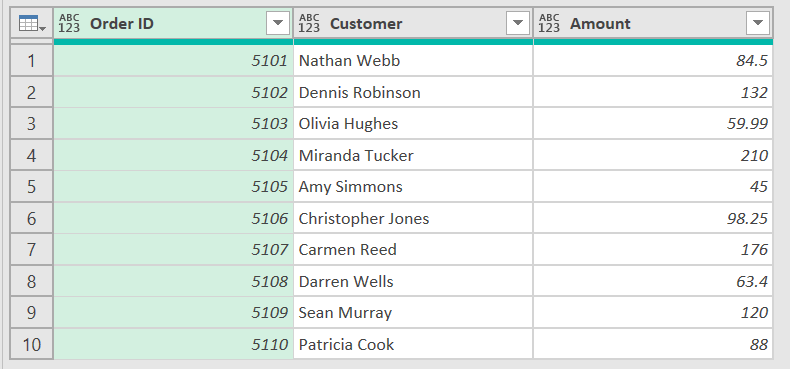
To follow along, select any cell in the table and go to Data > From Table/Range to open it in the Power Query Editor. If Power Query adds a Changed Type step, use #"Changed Type" in place of Source in the formulas below.
Add a new step (by clicking on the fx icon next to the formula bar) and use this formula:
= Table.FirstN(Source,5)
Result: a table with orders 5101 to 5105
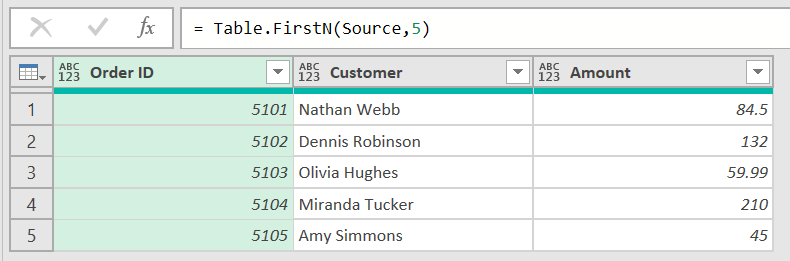
Here, the function keeps the first 5 rows of the Source table and drops the other 5. All three columns stay as they are.
If you ask for more rows than the table has, say Table.FirstN(Source,20), you don’t get an error. You get all 10 orders.
The Table.Skip function does the opposite job. Table.Skip(Source,5) removes the first 5 rows and keeps the rest.
Example 2: Get the Top 3 From a Ranked List
Table.FirstN works by position, so it works best when the rows are already in the order you want.
Below is a fundraiser leaderboard that’s already ranked by the amount each student raised, and I want to get the top 3 students for the prizes.
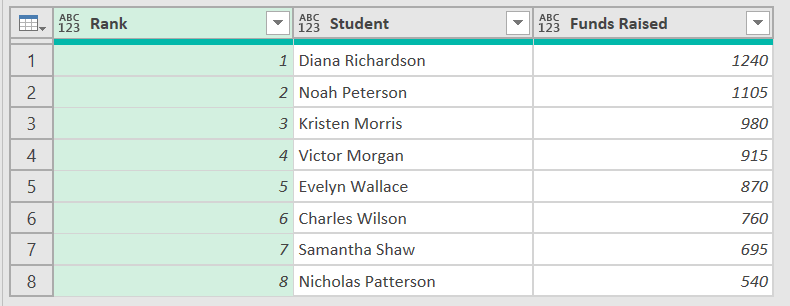
Load this table into Power Query the same way as in Example 1, then add a new step (by clicking on the fx icon) and use this formula:
= Table.FirstN(Source,3)
Result: a table with Diana Richardson, Noah Peterson, and Kristen Morris
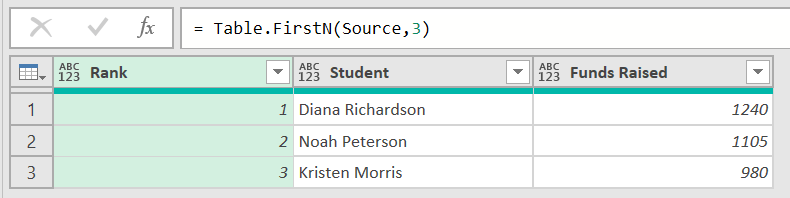
Here, the list is sorted from the highest amount to the lowest, so the first 3 rows are the top 3 students.
Table.FirstN doesn’t look at the values, it only counts rows from the top. If your list isn’t sorted, the first 3 rows are just whatever happens to come first.
For an unsorted list, sort it first with the Table.Sort function, or use Table.MaxN(Source,"Funds Raised",3). The Table.MaxN function finds the 3 highest values for you, wherever they are in the table.
Example 3: Get the First 2 Rows in Each Group
Here’s a common one, where you want the first few rows for every category, not just for the whole table.
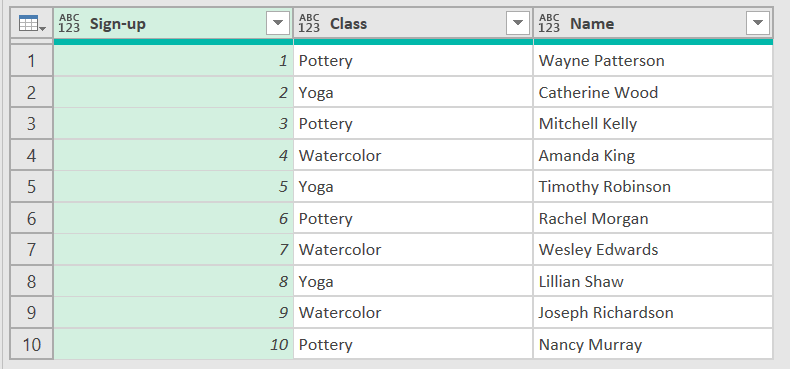
Below is a list of sign-ups for three art classes in the order people signed up, and I want the first 2 people in each class, who get a free starter kit.
This query has more than one step, so it goes in the Advanced Editor. Go to Data > Get Data > From Other Sources > Blank Query, then open the Advanced Editor (Home > Advanced Editor) and use this code.
The table is named ClassSignups, and the code reads it by name, so you don’t need to load it into Power Query first.
let
    Source = Excel.CurrentWorkbook(){[Name="ClassSignups"]}[Content],
    #"Grouped Rows" = Table.Group(Source,{"Class"},{{"First Two",each Table.FirstN(_,2),type table}}),
    #"First Two Per Class" = Table.Combine(#"Grouped Rows"[First Two])
in
    #"First Two Per Class"
Result: a table with 6 rows, the first 2 sign-ups for Pottery, Yoga, and Watercolor
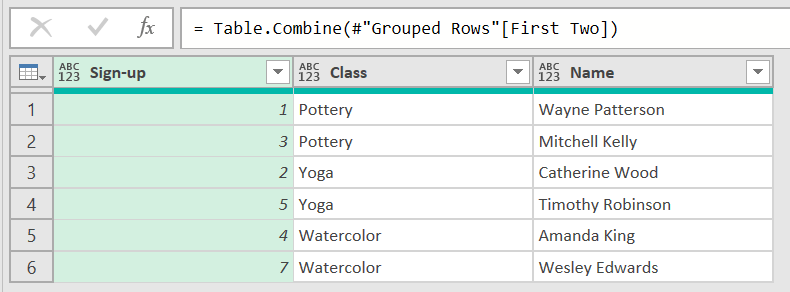
Here, the Table.Group function splits the sign-ups into one small table per class. For each of those tables, each Table.FirstN(_,2) keeps its first 2 rows, where the underscore _ stands for the class’s table.
The grouping step puts each of those trimmed tables in a new column called First Two, with one row per class.
Table.Group keeps the rows of each class in their original order, so “first” still means the earliest sign-ups. That’s why Pottery gets sign-ups 1 and 3, and not 6 and 10.
The last step uses the Table.Combine function to stack the tables in the First Two column back into one. #"Grouped Rows"[First Two] gets that column as a list of tables.
Example 4: Keep the Rows Before the Total Row
Now let’s use a condition instead of a number.
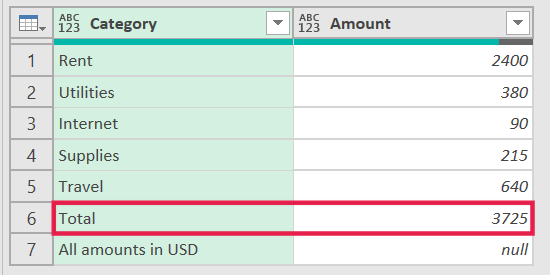
Below is a monthly expense report exported from an accounting app, with a Total row and a note at the bottom, and I want only the expense rows.
Load this table into Power Query the same way as in Example 1, then add a new step (by clicking on the fx icon) and use this formula:
= Table.FirstN(Source,each [Category]<>"Total")
Result: a table with the 5 expense rows, Rent to Travel
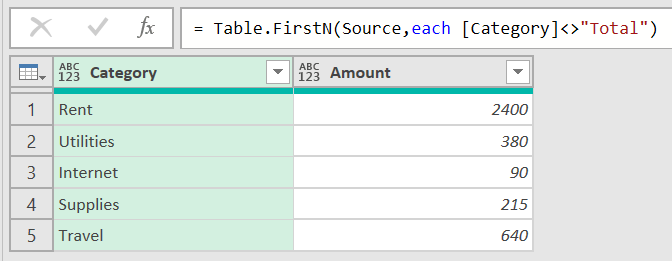
Here, the function checks each row from the top and keeps it as long as the Category isn’t “Total”. At the Total row, the condition is false, so it stops there.
The note row below the Total row is dropped too, because Table.FirstN never looks past the first row that fails.
A fixed count like Table.FirstN(Source,5) would break in a month with 6 expense rows. The condition finds the Total row wherever it is, so it works however many rows the report has.
Follow along with the example file
Table.FirstN Function Examples.xlsx
Example 5: Keep the Rows Above the First Blank Row
This next one comes up a lot with lists people maintain by hand.
Below is a list of dinner reservations with a waitlist added below a blank row, and I want only the confirmed bookings above the blank row.
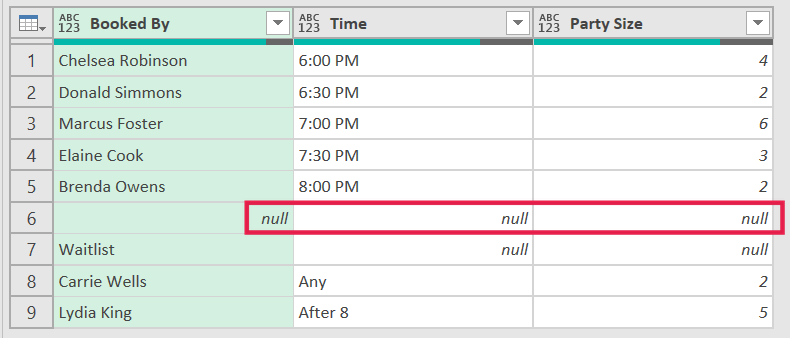
Load this table into Power Query the same way as in Example 1, then add a new step (by clicking on the fx icon) and use this formula:
= Table.FirstN(Source,each [Booked By]<>null)
Result: a table with the 5 confirmed bookings, Chelsea Robinson to Brenda Owens
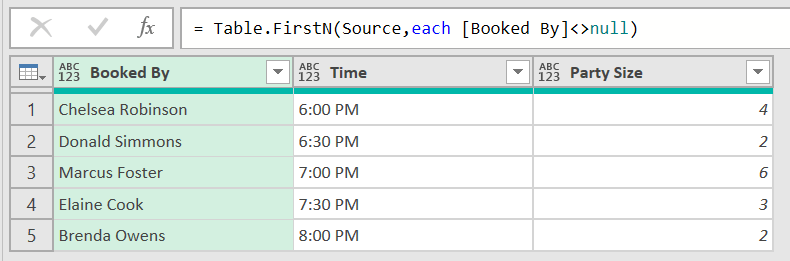
Here, a blank cell comes into Power Query as null. The function keeps rows while Booked By has a name, and stops at the blank row, so the waitlist below it is left out.
You might be tempted to test a number column instead, like each [Party Size]>0. But at the blank row, comparing null to 0 gives null rather than true or false.
Important: A condition that returns null makes the step fail with the error “We cannot convert the value null to type Logical.” Test for null directly, as in the formula above.
Example 6: Stop at the First Row That Fails (vs. Table.SelectRows)
With a condition, Table.FirstN doesn’t behave like a filter, and this example shows why.
Below is a log of quality checks on production batches, in the order they were made, and I want the batches that passed before the first failure.
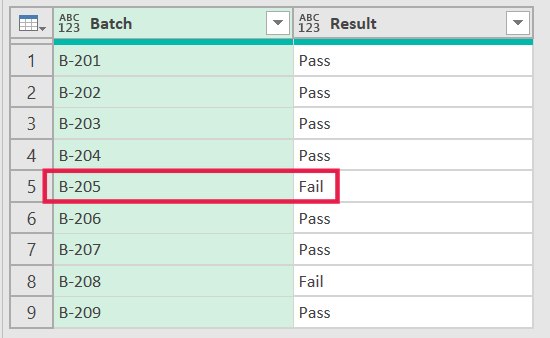
Load this table into Power Query the same way as in Example 1, then add a new step (by clicking on the fx icon) and use this formula:
= Table.FirstN(Source,each [Result]="Pass")
Result: a table with batches B-201 to B-204
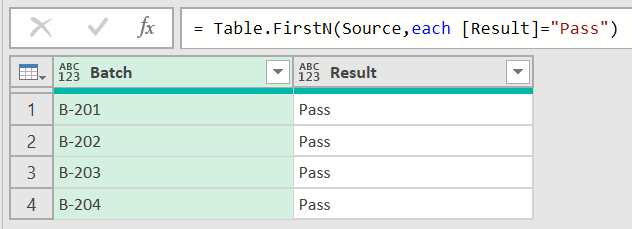
Here, the first four batches passed, and B-205 failed. The function stops at B-205, so you get 4 rows, even though B-206, B-207, and B-209 also passed.
That’s the difference from filtering. If you want every batch that passed, anywhere in the table, use the Table.SelectRows function with the same condition:
= Table.SelectRows(Source,each [Result]="Pass")
Result: a table with all 7 batches that passed
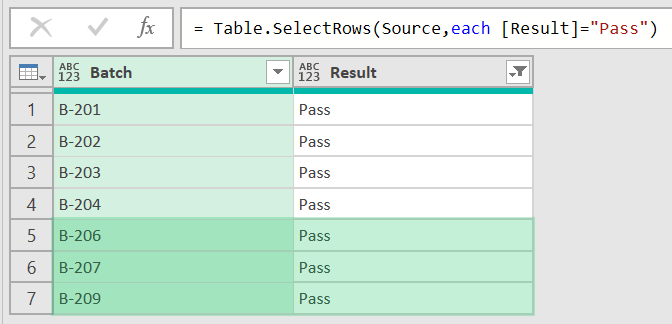
So use Table.FirstN with a condition when the order matters and you want the unbroken run from the top. Use Table.SelectRows when you want every matching row.
Example 7: Use a Number From a Cell as the Count
Typing the count into the formula means editing the query every time you want a different number of rows.
Below is a list of sales leads ranked by score, and I want to keep the number of leads typed in a cell, so the sales team can change it without touching the query.
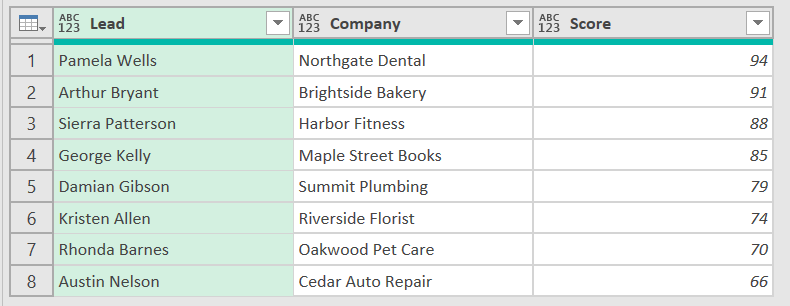
The leads list is a table named SalesLeads. The count sits in a one-cell table named CallSettings (header Leads to Call) on the Example 7 Settings sheet, and it’s set to 4.
This query has more than one step, so create a new blank query and open the Advanced Editor the same way as in Example 3, then use this code:
let
    Source = Excel.CurrentWorkbook(){[Name="SalesLeads"]}[Content],
    LeadsToCall = Excel.CurrentWorkbook(){[Name="CallSettings"]}[Content]{0}[Leads to Call],
    #"Leads for Today" = Table.FirstN(Source,LeadsToCall)
in
    #"Leads for Today"
Result: a table with the top 4 leads, Pamela Wells to George Kelly
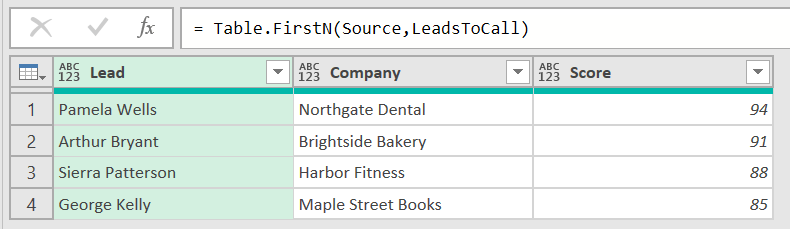
Here, the LeadsToCall step reads the CallSettings table, takes its first row with {0}, and gets the value in the Leads to Call column, which is 4. Table.FirstN then uses that number as the count.
Change the cell to 6 and refresh the query (Data > Refresh All), and you get the top 6 leads.
Important: The cell must hold a whole number of 0 or more. A decimal like 2.5 gives the error “The number is out of range of a 64 bit integer value.”, and a negative number gives “We expected a CountOrCondition value.”
Example 8: Get the First Row as a Table
This last one is about getting just one row, and why you might pick Table.FirstN over Table.First for it.
Below is a shipment tracking log with the newest update at the top, and I want to keep only the latest update.
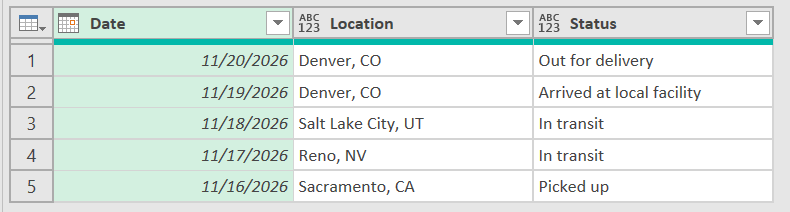
The table is named ShipmentTracking. Create a new blank query and open the Advanced Editor the same way as in Example 3, then use this code:
let
    Source = Excel.CurrentWorkbook(){[Name="ShipmentTracking"]}[Content],
    #"Changed Type" = Table.TransformColumnTypes(Source,{{"Date",type date}}),
    #"Latest Update" = Table.FirstN(#"Changed Type",1)
in
    #"Latest Update"
Result: a one-row table for 11/20/2026 (Denver, CO, Out for delivery)

Here, the Changed Type step sets the Date column to a date, because Excel dates come into Power Query as a date and time. Table.FirstN then keeps the first row.
The result is still a table with the Date, Location, and Status columns. You can load it to a sheet or add more steps to it, like any other table.
The Table.First function also gets the first row, but it returns it as a record instead of a table. A record is handy when you want to read one value from it, like Table.First(#"Changed Type")[Status].
If you want to keep working with a table, use Table.FirstN with 1. If you only need one value from the top row, Table.First gets you there in one step.
Other Excel Articles You May Also Like:
- Table.ReverseRows function
- List.FirstN – Use List.FirstN in Power Query M to get the first items of a list.
- List.First – Use List.First in Power Query M to get the first item in a list.
- List.Skip – Use List.Skip in Power Query M to skip items at the start of a list.
- Table.RemoveRows – Use Table.RemoveRows in Power Query M to delete rows by position.
- Table.Max – Use Table.Max in Power Query M to get the row with the largest value.
- Table.RowCount – Use Table.RowCount in Power Query M to count table rows.
- Table.PromoteHeaders – Use Table.PromoteHeaders in Power Query M to make the first row your headers.
