

The COUPDAYBS function in Excel returns the number of days from the start of a bond’s coupon period to its settlement date. A coupon is a scheduled interest payment, and the settlement date is when the buyer takes ownership of the bond.
This gives you the days that have passed in the current coupon period, using the bond’s day-count convention. It doesn’t calculate an interest amount.
Let’s look at how settlement dates, payment frequency, and the day-count basis affect the result.
Follow along with the example file
COUPDAYBS Function Examples.xlsx
COUPDAYBS Function Syntax
Here is the syntax of the COUPDAYBS function:
=COUPDAYBS(settlement,maturity,frequency,[basis])
- settlement is the date the buyer takes ownership of the security. Enter a real Excel date or refer to a cell containing one.
- maturity is the date the security expires. Excel uses this date and the payment frequency to work back through the coupon schedule.
- frequency is the number of coupon payments per year: 1 for annual, 2 for semiannual, or 4 for quarterly payments.
- basis is the optional day-count convention. If you leave it out, Excel uses 0, which is US (NASD) 30/360.
The basis codes are:
| Basis | Day-count convention |
|---|---|
| 0 or omitted | US (NASD) 30/360 |
| 1 | Actual/actual |
| 2 | Actual/360 |
| 3 | Actual/365 |
| 4 | European 30/360 |
The actual-day conventions count calendar days in the period. The 30/360 conventions use rules based on 30-day months, so the result can differ from a calendar-day count.
Excel truncates all four arguments to integers, so any time portion of a date is ignored. Enter whole numbers for frequency and basis to avoid having a decimal silently treated as a different input.
COUPDAYBS is available in Excel 365, 2024, 2021, 2019, and 2016, including supported Mac versions. The spilling examples below need dynamic-array Excel; copy-down alternatives are included for older versions.
When to Use the COUPDAYBS Function
Use this function when you need to:
- Get the days since the start of the coupon period for several settlement dates.
- Compare how the five day-count bases handle a month-end coupon schedule.
- Check what happens when settlement falls on or just after a coupon date.
Let’s start with several settlement dates for the same bond.
Example 1: Count Days Since the Last Coupon
Below are settlement dates for a bond that pays interest twice a year, and we want the days since the start of its coupon period in column B.
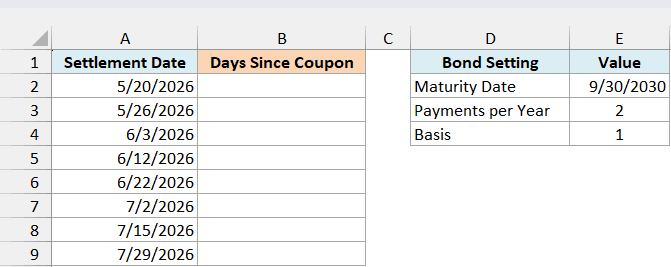
Enter the following formula in cell B2:
=COUPDAYBS(+A2:A9,$E$2,$E$3,$E$4)
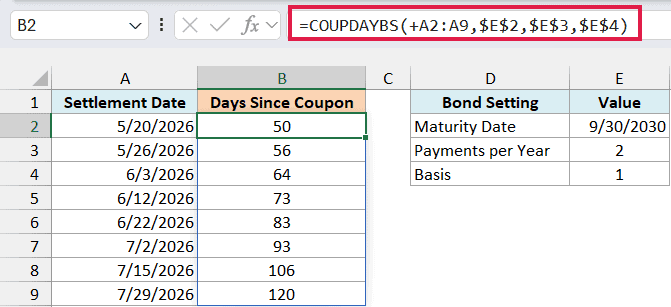
The formula uses each settlement date in A2:A9 with the same maturity date, frequency, and basis from the settings on the right. The results spill down column B, so you only enter the formula once.
For May 20, 2026, the result is 50. With a September 30 maturity date and two payments per year, the current coupon period starts on March 31, 2026.
Basis 1 counts the actual days from March 31 to May 20. Later settlement dates in the same period return larger counts, reaching 120 for July 29.
The plus sign before A2:A9 makes Excel evaluate the date range as an array of serial numbers. COUPDAYBS needs that conversion here; passing the range directly can return #VALUE! instead of spilling the results.
Important: The dates must be real Excel dates, not text that only looks like a date. The plus sign supports array evaluation here; it isn’t a substitute for fixing invalid date inputs.
An invalid date input can produce #VALUE!. If you build a date inside a formula, use the DATE function rather than typing a date with slashes into the formula.
If the spill area contains other data, Excel returns #SPILL!. Clear those cells so the results can expand into them.
In Excel 2019 or earlier, enter this formula in B2 and copy it down through B9:
=COUPDAYBS(A2,$E$2,$E$3,$E$4)
The dollar signs create absolute cell references, keeping the bond settings fixed as you copy the formula down.
Example 2: Compare the Day-Count Bases
The basis choice matters around month-end dates.
Below are the five basis codes for a bond settling on March 15, 2026, and we want to compare their day counts in column C.
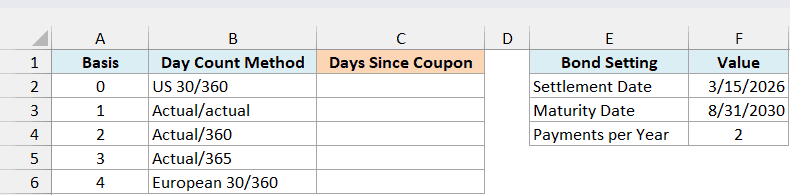
Enter this formula in cell C2:
=COUPDAYBS($F$2,$F$3,$F$4,+A2:A6)
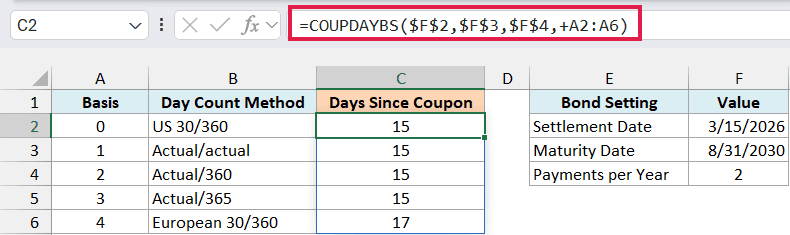
Here, the settlement date, maturity date, and payment frequency stay fixed. The formula evaluates each basis code in A2:A6 and spills the five results into column C.
For this semiannual schedule ending on August 31, the previous coupon date is February 28, 2026. The actual-day bases all return 15, the calendar days from February 28 to March 15.
US 30/360 also returns 15, while European 30/360 returns 17. The two conventions handle the February month-end differently, so they don’t always give the same answer.
Actual/actual, actual/360, and actual/365 match here because COUPDAYBS returns a number of days. It doesn’t divide that count by the number of days in a year.
Use the basis specified for the bond. Leaving the argument out selects US 30/360, which may give a different result from the convention you need; a basis outside 0 through 4 returns #NUM!.
In Excel 2019 or earlier, enter this formula in C2 and copy it down through C6:
=COUPDAYBS($F$2,$F$3,$F$4,A2)
Example 3: Compare Coupon Payment Frequencies
Payment frequency determines which coupon date starts the current period.
Below are three possible payment schedules with the same settlement and maturity dates, and we want to compare the days since the last coupon in column C.

Enter the following formula in cell C2:
=COUPDAYBS($F$2,$F$3,+B2:B4,$F$4)
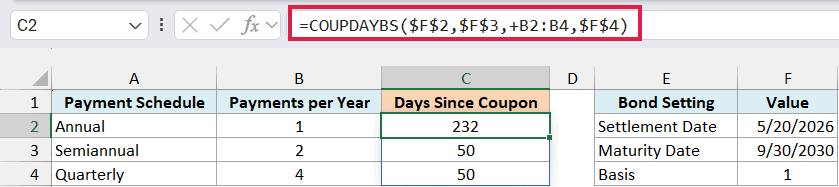
The formula tests the frequencies in B2:B4 while keeping the settlement date, maturity date, and basis unchanged.
For the annual schedule, the current period starts on September 30, 2025. That gives 232 days up to the May 20, 2026 settlement date.
Both the semiannual and quarterly schedules return 50. For this particular settlement date, both have March 31, 2026 as the previous coupon date, even though their next payment dates differ.
These are alternative schedules for comparison. For an actual bond, use its stated payment frequency rather than choosing a frequency based on the result you want.
COUPDAYBS only accepts 1, 2, or 4 payments per year. Entering 12 for a monthly schedule returns #NUM!.
In Excel 2019 or earlier, enter this formula in C2 and copy it down through C4:
=COUPDAYBS($F$2,$F$3,B2,$F$4)
Example 4: Check Settlement on a Coupon Date
The count starts over when settlement reaches a new coupon period.
Below are settlement dates around a September 30 coupon payment, and we want to see the day count before and after that date in column B.
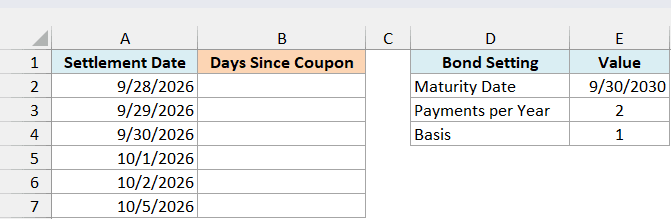
Enter this formula in cell B2:
=COUPDAYBS(+A2:A7,$E$2,$E$3,$E$4)
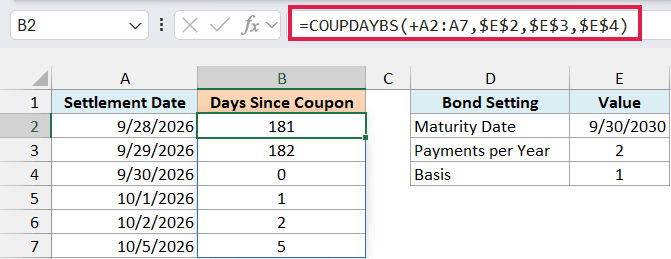
The results rise from 181 on September 28 to 182 on September 29. On September 30, the result becomes 0 because settlement falls at the start of the new coupon period.
The next dates return 1, 2, and 5. COUPDAYBS has switched to the September 30 period start, so it doesn’t keep counting from the previous March coupon date.
Important: A settlement date equal to or later than maturity returns #NUM!. The zero in this example is for an intermediate coupon date in 2026, while the bond matures in 2030.
In Excel 2019 or earlier, enter this formula in B2 and copy it down through B7:
=COUPDAYBS(A2,$E$2,$E$3,$E$4)
COUPDAYBS gives you the day count within the coupon period. Make sure the frequency and basis match the bond’s terms before using that count in a larger calculation.
Other Excel Articles You May Also Like:
