

The COUPPCD function in Excel finds the most recent coupon date on or before a bond’s settlement date. A coupon is a bond’s regular interest payment, and settlement is the date the buyer takes ownership.
You give COUPPCD the settlement date, maturity date, and payment frequency, and it works backward through the payment schedule. In this tutorial, I’ll show you how to find those dates, compare payment schedules, and use the returned date in a calculation.
Follow along with the example file
COUPPCD Function Examples.xlsx
COUPPCD Function Syntax
Here is the syntax of the COUPPCD function:
=COUPPCD(settlement, maturity, frequency, [basis])
- settlement is the date the bond purchase is completed. COUPPCD uses this date to locate the current coupon period.
- maturity is the date the bond expires. Excel works backward from this date to determine the regular coupon schedule.
- frequency is the number of coupon payments each year: 1 for annual payments, 2 for semiannual payments, or 4 for quarterly payments.
- basis is optional and specifies the day-count convention. If you leave it out, Excel uses 0, which means US (NASD) 30/360.
A day-count convention is a rule for counting days in bond calculations. Actual-day conventions count calendar days, while 30/360 conventions use rules based on 30-day months and a 360-day year.
The basis codes are 0 for US (NASD) 30/360, 1 for Actual/actual, 2 for Actual/360, 3 for Actual/365, and 4 for European 30/360. Use the convention specified for your bond; values outside 0 through 4 return #NUM!.
The settlement date must be earlier than the maturity date. If they are equal, or settlement comes later, COUPPCD returns #NUM!.
Excel drops the decimal part of all four arguments. Use whole numbers for frequency and basis, and dates without a time component, so nothing is silently discarded.
COUPPCD is available in Excel for Microsoft 365, 2024, 2021, 2019, and 2016, including supported Mac editions. The spilling examples below need dynamic-array Excel, such as Microsoft 365, 2024, or 2021.
When to Use the COUPPCD Function
Use this function when you need to:
- Find the beginning of the coupon period containing a bond’s settlement date.
- Compare previous coupon dates for annual, semiannual, and quarterly payment schedules.
- Use a previous coupon date in another date calculation.
Let’s work through the examples in the downloadable workbook.
Example 1: Find Previous Coupon Dates
Let’s start with bonds that pay interest twice a year.
Below is a list of six bonds, and I want to find the previous coupon date for each one in column E.
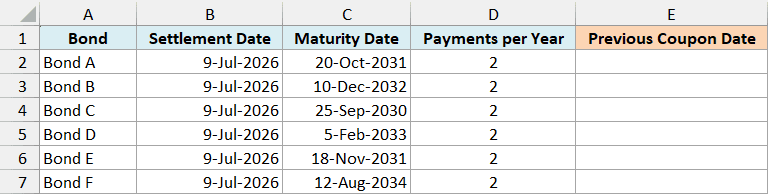
On the Previous Coupon Dates sheet, enter this formula in cell E2:
=COUPPCD(+B2:B7,+C2:C7,+D2:D7)
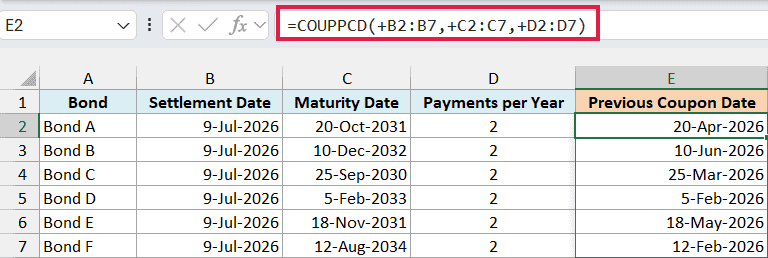
The formula returns six dates, spilling from E2 through E7. For Bond A, it returns 20-Apr-2026.
Bond A matures on October 20 and pays twice a year, so its regular coupon dates fall on April 20 and October 20. For a settlement date of July 9, 2026, the most recent one is April 20, 2026.
Each + before a range makes Excel pass the range’s values into COUPPCD as an array. This matters because passing bare ranges directly to COUPPCD can return #VALUE!, even in Excel with dynamic arrays.
The + signs don’t change the dates or payment frequencies. They let this one formula calculate all six rows without copying it down.
COUPPCD returns an Excel date serial number, so a result may initially look like 46132. Change the date format to display it as a date; the example file uses d-mmm-yyyy.
Important: The input dates must be real Excel dates. Formatting text to look like a date does not convert it, and an invalid date can cause a #VALUE! error.
If you are building dates from separate year, month, and day values, the DATE function creates real Excel dates. Avoid typing ambiguous date text directly into the formula because Excel may interpret it differently under another regional setting.
If Excel reports #SPILL!, make sure the cells below E2 where the results belong are empty. Only E2 should contain the formula.
If you are using Excel 2019 or earlier, enter the below formula in cell E2 and copy it down to E7:
=COUPPCD(B2,C2,D2)
Example 2: Compare Payment Frequencies
Now let’s keep the dates the same and change how often the bond pays interest.
Below are three payment schedules for the same settlement and maturity dates, and I want their previous coupon dates in column E.

On the Payment Frequency sheet, enter this formula in cell E2:
=COUPPCD(+B2:B4,+C2:C4,+D2:D4)
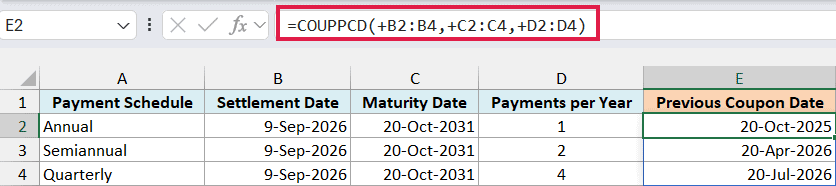
With settlement on September 9, 2026, the three schedules return different dates:
- Annual payments return 20-Oct-2025.
- Semiannual payments return 20-Apr-2026.
- Quarterly payments return 20-Jul-2026.
For the annual schedule, the October 2026 payment hasn’t arrived yet, so Excel returns the October date from the previous year. With quarterly payments, July 20 is the latest scheduled coupon date before settlement.
Important: COUPPCD only supports frequencies of 1, 2, and 4. Entering 12 for monthly payments returns #NUM!; this function cannot model a monthly coupon schedule.
If you are using Excel 2019 or earlier, enter the below formula in E2 and copy it down to E4:
=COUPPCD(B2,C2,D2)
Example 3: Settle on a Coupon Date
The word “previous” can be misleading when settlement falls exactly on a coupon date.
Below are settlement dates around a bond’s February and August coupon payments, and I want to find the coupon-period start date in column E.
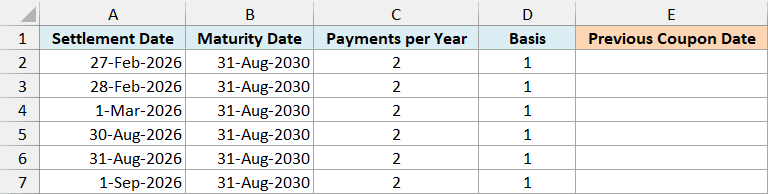
On the Coupon Day Boundary sheet, enter this formula in cell E2:
=COUPPCD(+A2:A7,+B2:B7,+C2:C7,+D2:D7)
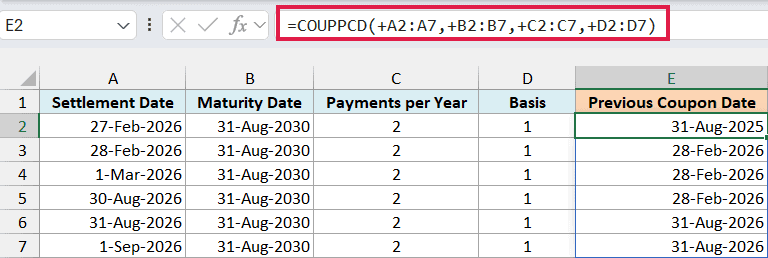
The bond matures on August 31 and pays twice a year. Its schedule uses the ends of February and August, so the February coupon date in 2026 is February 28.
For settlement on February 27, COUPPCD returns 31-Aug-2025. Move settlement forward one day to February 28, and it returns 28-Feb-2026, which is the settlement date itself.
The same thing happens at the August boundary: settlement on August 31 returns 31-Aug-2026. So COUPPCD gives the coupon date at the start of the current period, including today if settlement is exactly on that date.
Column D supplies basis 1, or Actual/actual. This example keeps the basis explicit while changing only the settlement date, so you can see where the coupon period switches.
COUPPCD constructs a regular schedule from maturity and frequency. It does not check a record of payments actually made, and it has no argument for an unusual first or last coupon period.
If you are using Excel 2019 or earlier, enter the below formula in E2 and copy it down to E7:
=COUPPCD(A2,B2,C2,D2)
Example 4: Use the Date in Arithmetic
Because COUPPCD returns a real Excel date, you can use its result in another calculation.
Below are settlement dates for one bond, and I want the calendar days since its previous coupon date in column D.
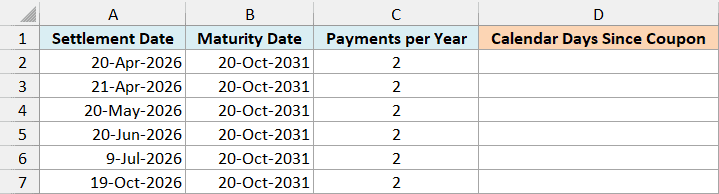
On the Calendar Days Elapsed sheet, enter this formula in cell D2:
=A2:A7-COUPPCD(+A2:A7,+B2:B7,+C2:C7,1)
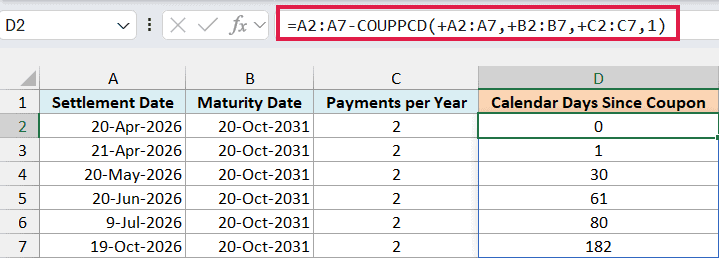
COUPPCD finds the previous coupon date, and the subtraction works out how many days separate it from settlement. The results are 0, 1, 30, 61, 80, and 182 calendar days.
For July 9, 2026, the previous coupon date is April 20, 2026. Subtracting April 20 from July 9 gives 80.
The first row returns zero because settlement is on the coupon date itself. Format these results as General or Number, since they are day counts rather than dates.
This example shows how to use COUPPCD’s returned date in arithmetic. If you only need elapsed coupon days, the COUPDAYBS function with basis 1 is the dedicated alternative and gives the same results here.
Date subtraction always counts actual calendar days. It does not apply a 30/360 convention, so don’t use this subtraction as a substitute for a bond’s specified day-count calculation.
If you are using Excel 2019 or earlier, enter the below formula in D2 and copy it down to D7:
=A2-COUPPCD(A2,B2,C2,1)
So these are a few ways to find previous coupon dates and use them in Excel. Remember that settlement on a coupon date returns that same date, which is useful when you’re identifying the start of the current coupon period.
I hope you found this tutorial helpful.
Other Excel Articles You May Also Like:
