

The DBCS function converts half-width (single-byte) characters, such as English letters and katakana (one of the Japanese writing scripts), to their full-width (double-byte) forms. A full-width A is as wide as a Japanese character, while the A you type on an English keyboard is narrower.
You’d use it when a system or form expects full-width text, which mostly comes up with Japanese data. It’s the reverse of the ASC function, which goes from full-width back to half-width.
There is a catch, though. Microsoft says what DBCS converts depends on your language settings, and the Excel installation used for this tutorial returned every string unchanged.
So the examples show the actual results beside clearly labeled reference targets, and you can use the workbook to check how DBCS behaves in your own Excel.
Follow along with the example file
DBCS Function Examples.xlsx
DBCS Function Syntax
Here is the syntax of the DBCS function:
=DBCS(text)
- text is required. It’s the text you want to convert, or a reference to the cell that has it.
You can type the text in double quotes or point to a cell. If the text has no half-width letters or katakana in it, DBCS gives it back unchanged.
Microsoft lists DBCS for Excel 365, 2024, 2021, 2019, and 2016 on Windows, and for Excel 365, 2024, and 2021 on Mac. The range formulas below use dynamic arrays, which need Excel 365, 2024, or 2021.
When to Use the DBCS Function
Use the DBCS function when you need to:
- Convert half-width letters in codes to full-width, for a system that only accepts full-width text.
- Turn half-width katakana into standard full-width katakana.
- Check whether width conversion actually works on your installation before you rely on it.
Let’s look at two examples, starting with ordinary English codes.
Example 1: Convert Booking Codes to Full-Width Text
Let’s start with something easy to compare.
Below is a list of codes and words from a travel itinerary, and I want to see their full-width versions in column C.
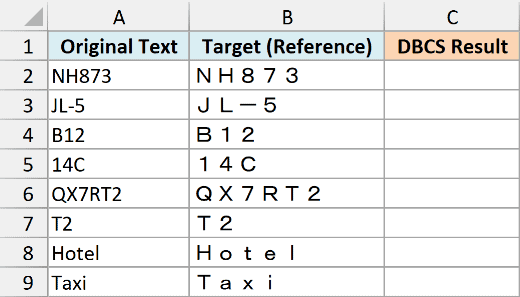
The Target (Reference) column is comparison text entered separately. It shows the full-width form we’re hoping for, not something DBCS calculated.
Enter the below formula in cell C2:
=DBCS(A2:A9)
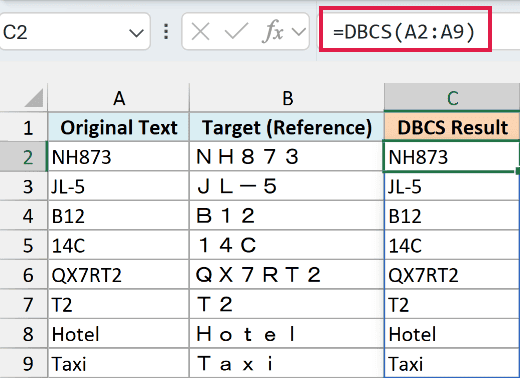
The formula hands all eight values to DBCS at once and spills one result per row into C2:C9. You only enter it once, in C2.
On the installation shown, NH873 stays NH873 instead of becoming the reference target NH873. That’s a limitation of this Excel setup, and the codes in column C haven’t been converted.
Important: If DBCS gives you back the same text, the data has not been converted. Even with Japanese added as an editing language in Office, this installation returned unchanged text, so test one known value before using the results.
A quick way to test is to compare one result with its original using the EXACT function. If =EXACT(C2,A2) returns TRUE, DBCS didn’t change anything in that row.
If Excel shows a #SPILL! error, clear anything sitting in C2:C9 so the results have room to appear.
If you are using Excel 2019 or 2016, enter the below formula in cell C2 and then copy it down to C9:
=DBCS(A2)
The one-cell version returns the same result, so it won’t help if the range version comes back unchanged.
Microsoft also says the function’s name depends on your language settings, and Japanese-language guides cover this job under a function called JIS. Those guides describe JIS converting digits as well, which is why the reference targets above show full-width digits.
On the English installation used here, =JIS(A2) returned a #NAME? error, so stick with DBCS in English Excel.
Example 2: Convert Half-Width Katakana to Full-Width
Now let’s look at the Japanese text DBCS was really made for.
Below is a café menu written in half-width katakana, and I want to get the standard full-width katakana in column C.
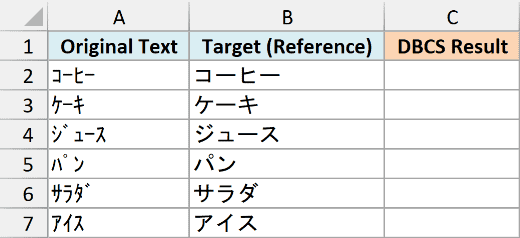
Enter the below formula in cell C2:
=DBCS(A2:A7)
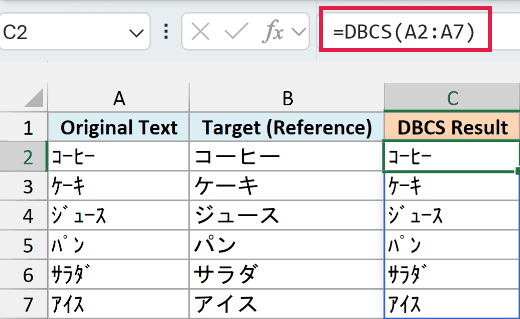
This spills six results into C2:C7. Just like in the first example, the screenshot shows the unchanged output this installation returned.
Compare コーヒー (coffee) with its reference target コーヒー. Both say the same thing, but the half-width version is squeezed into narrower characters.
Now compare ジュース in column A with its reference target ジュース in column B. In half-width katakana the voicing mark ゙ is a separate character, while the full-width form writes it as part of the letter, so it has 4 characters instead of 5.
So if you check lengths with the LEN function, expect the full-width forms of パン and サラダ to be shorter too. That’s just how the full-width form is written, not lost data.
DBCS only changes character width, so a working result would still be in Japanese. It should match the full-width text in column B, not the half-width text you see in column C here.
If you are using Excel 2019 or 2016, enter the below formula in cell C2 and then copy it down to C7:
=DBCS(A2)
In this article, I showed you what DBCS is meant to do with English codes and half-width katakana, and how to tell whether your Excel actually converts them.
Before you run it on a whole list, try it on one value like NH873 and check that the result really is wider.
I hope you found this article helpful.
Other Excel Articles You May Also Like:
