

The EXACT function checks whether two text values are exactly the same, including uppercase and lowercase letters, and returns TRUE or FALSE. It’s the function to use when “SAVE20” and “save20” should count as two different things.
That matters because most of Excel’s comparisons don’t care about case. The equal sign, COUNTIF, and XLOOKUP all treat those two codes as the same value.
In this tutorial, I’ll show you how EXACT works with text, spaces, and numbers, and how to use it for case-sensitive counts and lookups.
Follow along with the example file
EXACT Function Examples.xlsx
EXACT Function Syntax
Here is the syntax of the EXACT function:
=EXACT(text1, text2)
- text1 – The first text value you want to compare. It can be text in double quotes, a cell reference, or a range of cells.
- text2 – The second text value, the one you want to compare with text1.
EXACT returns TRUE only when both values have the same characters, in the same order, with the same case. So “Excel” and “excel” return FALSE, and so does a value with an extra space anywhere in it.
The EXACT function works in all Excel versions, including Microsoft 365, Excel 2024, 2021, 2019, 2016, and Excel for Mac.
When to Use the EXACT Function
Use this function when you need to:
- Check whether two lists match exactly, including uppercase and lowercase letters
- Check answers or entries where case matters, such as codes and symbols
- Make sure text was typed in uppercase
- Find mismatches caused by extra spaces
- Count or look up values with a case-sensitive match
Let me show you a few practical examples of how to use the EXACT function in Excel.
Example 1: Compare Two Columns for an Exact Match
Let’s start with a simple example.
Below is a list of brand names written the correct way and the same names as someone typed them into a product catalog, and I want to check whether each pair matches exactly in column C.
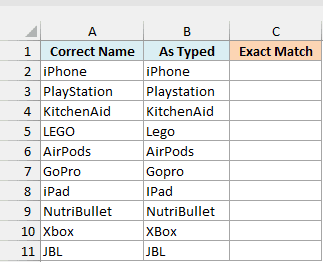
Here is the formula:
=EXACT(A2:A11,B2:B11)
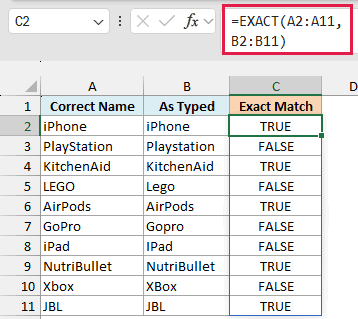
The formula compares each name in A2:A11 with the name next to it in B2:B11 and spills TRUE or FALSE down column C. You enter it only once, in C2.
Look at row 3, where PlayStation was typed as Playstation. The two look almost the same, but one lowercase “s” is enough for EXACT to return FALSE.
Spilling a range like this needs Excel 365 or Excel 2021 and later. If you are using Excel 2019 or earlier, enter the below formula in cell C2 and then copy it down the range:
=EXACT(A2,B2)
The same single-cell approach works for every spilling formula in this article.
TRUE and FALSE do the job, but a word like Match or Mismatch is easier to read when you share the sheet with someone. You can get that by wrapping EXACT inside the IF function.
Here is the formula that shows a label in column D:
=IF(EXACT(A2:A11,B2:B11),"Match","Mismatch")
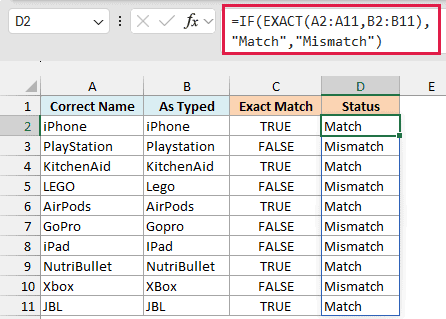
EXACT does the comparison, and IF turns each TRUE into Match and each FALSE into Mismatch.
Example 2: EXACT vs the Equal Sign (Case-Sensitive Comparison)
Now let’s see why you need EXACT when the equal sign seems to do the same job.
Below is a student’s chemistry quiz with the correct symbol for each element and the answer the student wrote, and I want to check the answers with the equal sign in column D and with EXACT in column E.
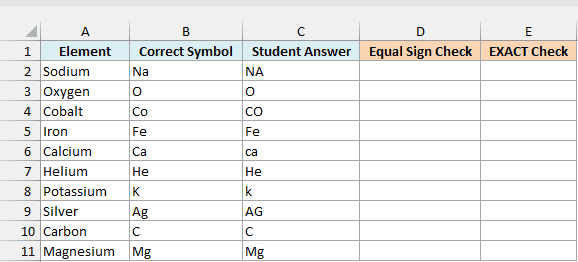
Here is the formula using the equal sign:
=B2:B11=C2:C11
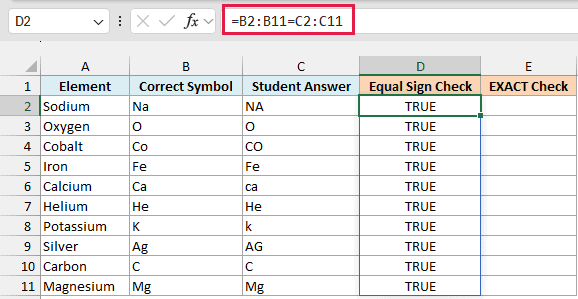
The equal sign returns TRUE for every row, so it says the student got all ten right. That’s because the equal sign ignores case, so it sees Co and CO as the same text.
In chemistry, that’s a real mistake, since Co is cobalt and CO is carbon monoxide.
Now here is the formula using EXACT:
=EXACT(B2:B11,C2:C11)
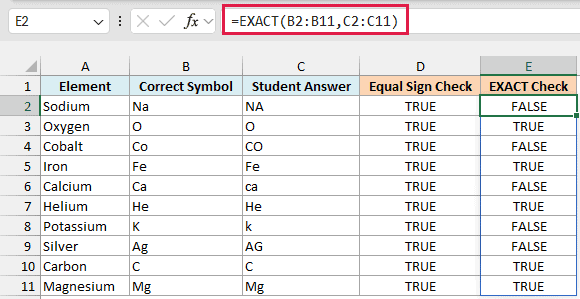
EXACT returns FALSE for the five answers written in the wrong case (NA, CO, ca, k, and AG). So the student actually got five out of ten right.
Example 3: Check If Text Is in Uppercase
Here’s another practical scenario.
Below is a customer list where some state abbreviations were typed in lowercase or mixed case, and I want to check whether each state code is in uppercase in column D.
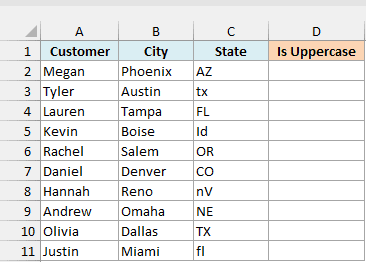
Here is the formula:
=EXACT(C2:C11,UPPER(C2:C11))
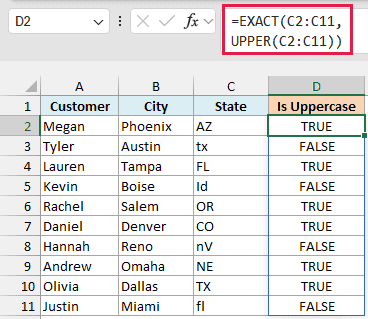
The UPPER function converts each state code to uppercase, and EXACT compares that with the original. If the code was already in uppercase, the two match and you get TRUE.
Codes like tx, Id, and nV change when converted, so EXACT returns FALSE for them. You can use the same idea with the LOWER or PROPER function to check for lowercase or proper case.
Pro Tip: To stop codes that aren’t in uppercase from being entered at all, select C2:C11, go to Data > Data Validation, choose Custom, and enter =EXACT(C2,UPPER(C2)) as the formula.
Example 4: Find Mismatches Caused by Extra Spaces
Extra spaces are one of the most common reasons two values that look the same don’t match.
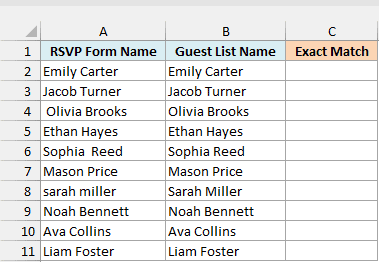
Below is a list of names from an RSVP form and the same guests from a guest list, and I want to check whether each pair matches exactly in column C.
Here is the formula:
=EXACT(A2:A11,B2:B11)
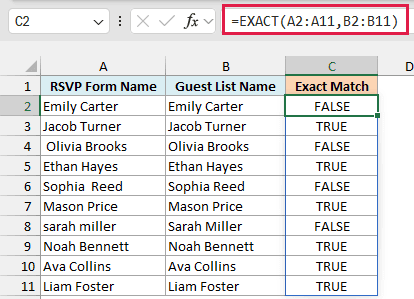
EXACT returns FALSE for four names. Three of them have extra spaces, which EXACT counts as characters: a trailing space you can’t see after Emily Carter in A2, a leading space before Olivia Brooks in A4, and a double space in Sophia Reed in A6.
The fourth one, sarah miller in A8, is a case difference, not a space problem.
To ignore the extra spaces, you can wrap both ranges in the TRIM function.
Here is the formula:
=EXACT(TRIM(A2:A11),TRIM(B2:B11))
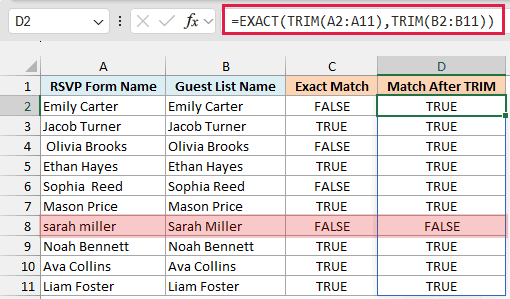
TRIM removes the leading and trailing spaces and cuts double spaces between words down to one, before EXACT compares the names. So the three rows with space problems now return TRUE.
Row 8 still returns FALSE, because TRIM only fixes spaces and sarah miller is still in lowercase. That’s what you want when the case matters.
Example 5: How EXACT Compares Numbers and Text
EXACT is meant for text, but you can use it on numbers too, and the result can surprise you.
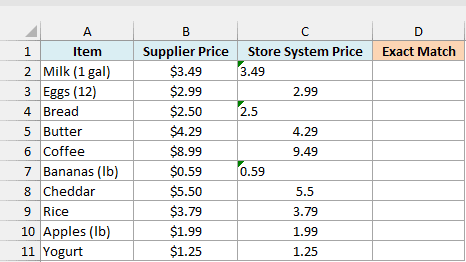
Below is a price list with the supplier’s price and the price in a store’s system for each item, and I want to check whether the two prices match in column D.
Here is the formula:
=EXACT(B2:B11,C2:C11)
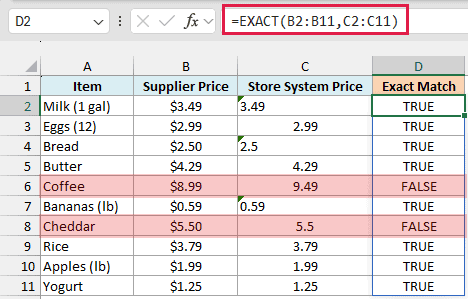
EXACT ignores cell formatting, so $2.99 in B3 matches 2.99 in C3, even though only one of them shows a dollar sign.
The left-aligned prices in C2, C4, and C7 are numbers stored as text, which often happens with imported data. EXACT still returns TRUE for them, while the equal sign would return FALSE because it sees a number and text as different values.
Row 6 is a real price difference, $8.99 against 9.49, so FALSE is the right answer there.
Row 8 is the tricky one. The Cheddar price in B8 shows $5.50, but the cell actually holds 5.499, so EXACT returns FALSE.
Important: EXACT compares the value stored in the cell, not the formatted number you see. If your prices have hidden decimals, round them with the ROUND function before you compare them.
Example 6: Case-Sensitive Count With EXACT and SUMPRODUCT
Let’s step it up with a case-sensitive count.
Below is a list of online orders with the promo code each customer entered, and the store only accepts the code in uppercase. I want to count how many orders used the code in D2 exactly as written, with the result in E2.
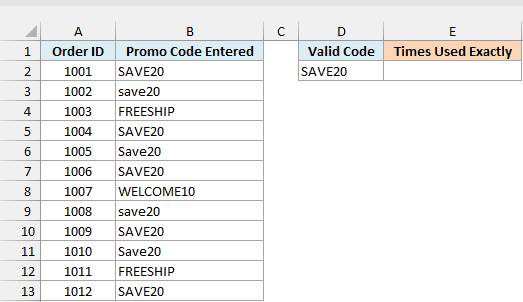
Here is the formula:
=SUMPRODUCT(--EXACT(B2:B13,D2))
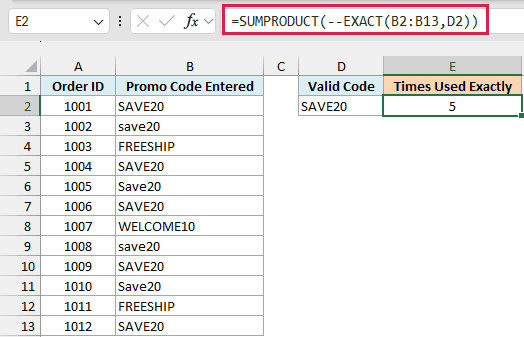
The formula returns 5.
How this formula works:
- EXACT(B2:B13,D2) compares every promo code in B2:B13 with SAVE20 in D2 and returns an array of TRUE and FALSE values.
- The double minus (–) converts each TRUE to 1 and each FALSE to 0.
- SUMPRODUCT adds up those 1s and 0s, which gives you the number of exact matches.
The COUNTIF function would return 9 here, because it ignores case and also counts save20 and Save20.
SUMPRODUCT handles the array on its own, so this formula works in every Excel version, including Excel 2019 and earlier.
Example 7: Case-Sensitive Lookup With XLOOKUP and EXACT
Finally, let’s do a case-sensitive lookup.
Below is a list of gift card codes with their balances, where some codes differ only in case, and I want to get the balance for the code in D2 in cell E2.
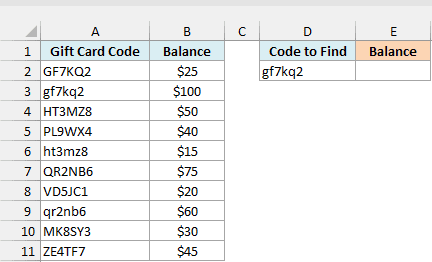
Here is the formula:
=XLOOKUP(TRUE,EXACT(A2:A11,D2),B2:B11)
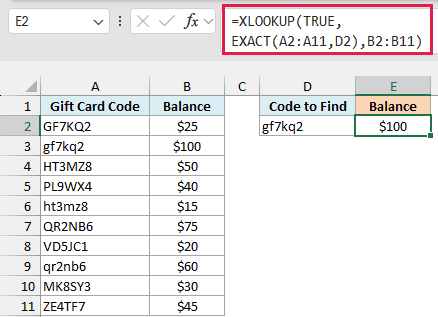
The formula returns $100, the balance of gf7kq2 in row 3.
How this formula works:
- EXACT(A2:A11,D2) compares the code in D2 with every code in A2:A11 and returns TRUE only for the one with the same case.
- XLOOKUP looks for TRUE in that array and returns the balance from the same row in B2:B11.
A regular XLOOKUP with D2 as the lookup value would return $25 instead. It ignores case, so it stops at GF7KQ2 in row 2, which is a different gift card.
If no code matches exactly, the formula returns #N/A. To show a message instead, add it as the fourth argument of XLOOKUP, such as “Not found”.
XLOOKUP needs Excel 365 or Excel 2021 and later. If you are using Excel 2019 or earlier, enter the below formula in cell E2 and press Ctrl + Shift + Enter instead of Enter:
=INDEX(B2:B11,MATCH(TRUE,EXACT(A2:A11,D2),0))
Without Ctrl + Shift + Enter, older versions return #N/A for this formula.
So these are some practical ways to use the EXACT function in Excel. Whenever uppercase and lowercase letters matter in your data, EXACT is the function to reach for.
I hope you found this Excel tutorial useful.
Other Excel Articles You May Also Like:
