

The DELTA function in Excel checks whether two numbers are equal. It returns 1 when they match and 0 when they don’t, so you can add up the results to count how many pairs match.
Despite its name, DELTA doesn’t calculate the difference between two numbers. For that, you need a simple subtraction or a percentage change formula.
In this article, I’ll show you how to use DELTA with six practical examples, from comparing two cells to counting matches and avoiding a sneaky decimal problem.
Follow along with the example file
DELTA Function Examples.xlsx
DELTA Function Syntax
Here is the syntax of the DELTA function:
=DELTA(number1, [number2])
- number1 – The first number you want to compare. This one is required.
- number2 – The number you want to compare it with. This one is optional, and if you leave it out, Excel uses 0.
Because number2 defaults to 0, a formula like =DELTA(A2) checks whether A2 is zero. It returns 1 for a zero and 0 for anything else.
Both arguments need to be numbers, although text that looks like a number (such as “34.99”) is fine, as Example 5 shows. Other text, like “abc”, or a TRUE/FALSE value returns the #VALUE! error.
Since Excel stores dates as numbers, you can also use DELTA to check whether two dates are the same.
The DELTA function works in Excel for Microsoft 365, Excel 2024, 2021, 2019, 2016, and Excel for Mac.
When to Use the DELTA Function
Use this function when you need to:
- Check whether two numbers match and get a 1 or 0 for each pair
- Flag values that are exactly zero, like an invoice balance that’s been paid off
- Count how many pairs of numbers match, like the correct answers on a quiz
- Compare numbers when one side is stored as text, like prices from an imported file
Let me show you a few practical examples of how to use the DELTA function.
Example 1: Check If Two Numbers Are Equal
Let’s start with a simple example.
Below is a list of online orders with the quantity ordered and the quantity shipped, and I want to check whether each order was fully shipped in column D.
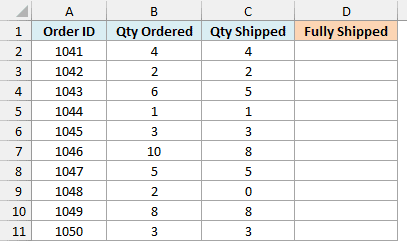
Here is the formula to enter in cell D2 and copy down:
=DELTA(B2,C2)
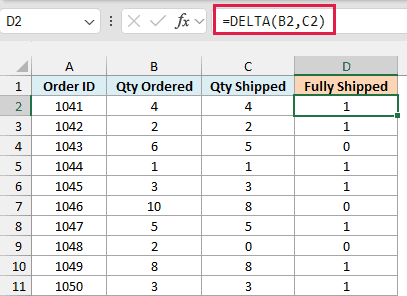
DELTA compares the ordered quantity in B2 with the shipped quantity in C2. When they’re the same, it returns 1, and when they’re different, like order 1043 (6 ordered, 5 shipped), it returns 0.
I’ve used a per-row formula here because DELTA doesn’t accept a whole range directly. The next example shows how to get around that with a single formula.
Example 2: Compare Two Columns with One DELTA Formula
Copying a formula down works fine, but in Excel 365 you’d usually want one formula that handles the whole column.
Below is a gym’s class log with the number of classes each member booked and attended, and I want to check whether each member attended all their booked classes in column D.
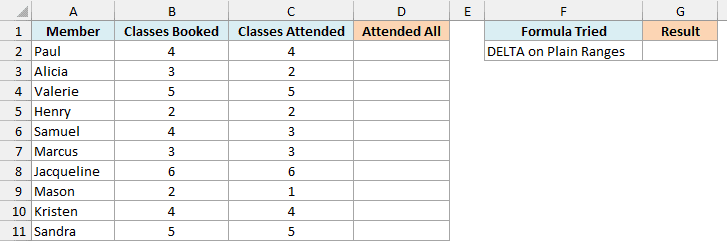
The natural first try is to give DELTA both ranges. I’ve put that attempt in cell G2, and it returns a #VALUE! error:
=DELTA(B2:B11,C2:C11)
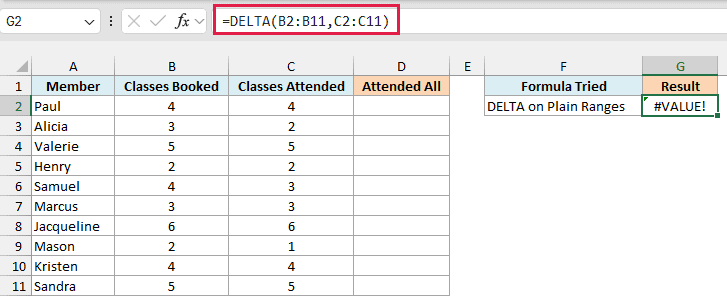
This happens because DELTA can’t take a range reference like B2:B11 directly. It only works with numbers, or with a list of numbers held in memory (called an array).
Putting a plus sign (+) in front of each range fixes this, because Excel then turns the range into an array of values that DELTA can work with. Here is the formula that works:
=DELTA(+B2:B11,+C2:C11)
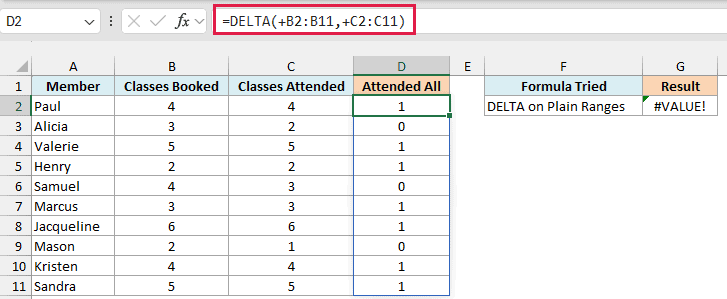
Enter this in cell D2, and it spills the results down to D11, a 1 or a 0 for each member. Alicia, Samuel, and Mason each missed a class, so they get 0.
The same plus-sign trick also works for other functions that won’t spill, such as EOMONTH and EDATE.
If you are using Excel 2019 or earlier, enter the below formula in cell D2 and then copy it down the range:
=DELTA(B2,C2)
Example 3: Check If a Value Is Zero (Leave Out number2)
Here’s another practical scenario.
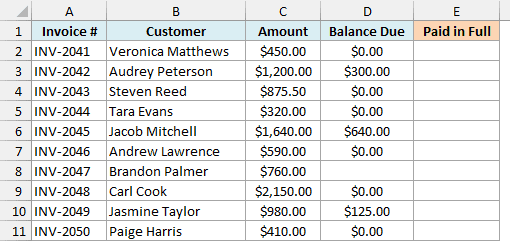
Below is a list of invoices with the amount and the balance still due, and I want to mark the invoices that are paid in full (a balance of zero) in column E.
Here is the formula:
=DELTA(+D2:D11)
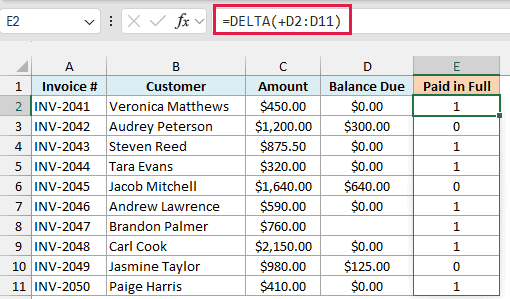
Since I’ve left out the second argument, DELTA compares each balance with 0. A zero balance returns 1 (paid in full), and any amount still due returns 0.
The plus sign in front of D2:D11 is there for the same reason as in Example 2. It turns the range into an array so DELTA can check every balance in one formula.
If you are using Excel 2019 or earlier, enter the below formula in cell E2 and then copy it down the range:
=DELTA(D2)
Important: DELTA treats an empty cell as 0, so INV-2047, which has no balance entered, shows 1 as if it were paid. If some balances could be missing, fill them in before you trust the result.
Example 4: Count Matching Values with DELTA and SUM
Since DELTA gives you 1s and 0s, you can add them up to count how many pairs match.
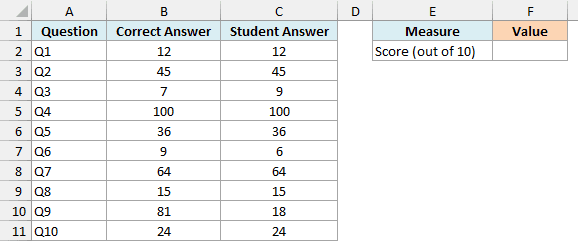
Below are a student’s answers on a 10-question math quiz next to the correct answers, and I want the quiz score (the number of correct answers) in cell F2.
Here is the formula:
=SUM(DELTA(+B2:B11,+C2:C11))
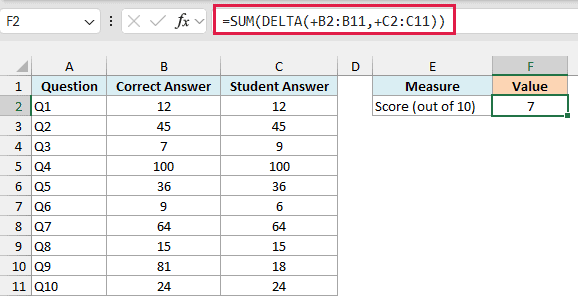
This returns 7, as the student got 7 out of 10 answers right.
DELTA compares each student answer with the correct answer and returns an array of ten 1s and 0s. SUM then adds up that array to give the score.
If you are using Excel 2019 or earlier, use the below formula instead, as SUMPRODUCT handles the array without you having to press Control + Shift + Enter:
=SUMPRODUCT(DELTA(+B2:B11,+C2:C11))
Example 5: Compare Numbers Stored as Text
Now let’s look at something more interesting.
Below is a price check where the store prices are real numbers but the website prices came in as text, and I want to check whether each pair of prices matches in column D.
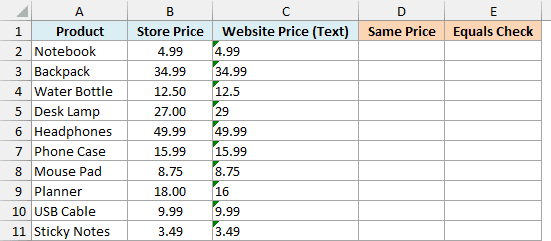
Here is the formula to enter in cell D2 and copy down:
=DELTA(B2,C2)
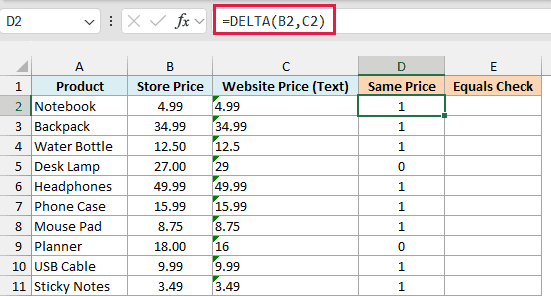
DELTA converts a number stored as text (like “34.99”) into a real number before it compares. So it returns 1 for every matching price, and only the Desk Lamp and the Planner get 0 because their prices really are different.
I’ve used a per-row formula here, but the plus-sign version from Example 2 gives the same result. The plus sign leaves the text as it is, and DELTA still does the converting.
Now compare this with a plain equals check. Enter the below formula in cell E2 and copy it down:
=B2=C2
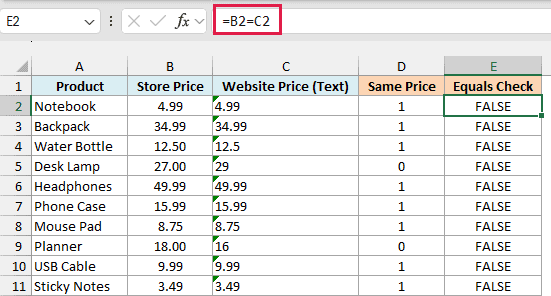
This returns FALSE for every row, even for the prices that match. The equals sign treats a number and a text value as different things, so it never finds a match here.
Example 6: Avoid Decimal Mismatches with ROUND
Let’s step it up with a problem that’s easy to miss.
Below is a café bill with each item’s price, quantity, and billed amount, and I want to check whether each line was billed correctly (price times quantity) in column E.
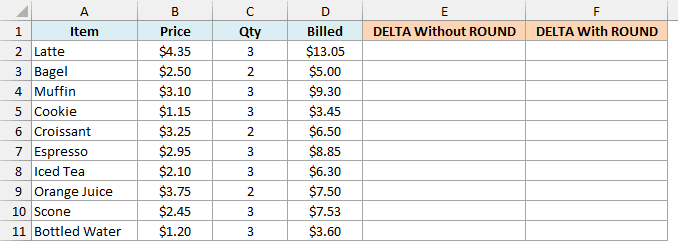
Here is the formula:
=DELTA(B2:B11*C2:C11,+D2:D11)
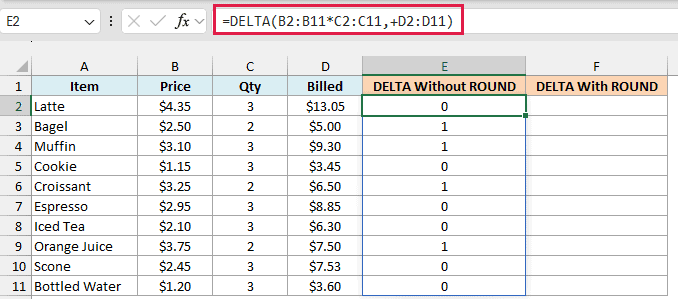
Only D2:D11 needs the plus sign here, because multiplying B2:B11 by C2:C11 already gives DELTA an array.
But this formula returns 0 for six rows, including the Latte, where $4.35 times 3 is clearly $13.05.
That’s because Excel stores decimal numbers in binary, so 4.35 times 3 is actually stored as 13.049999999999999. DELTA compares the exact stored values, so even that tiny gap makes it return 0.
A plain equals comparison has a small tolerance built in and would call these values equal, but DELTA doesn’t.
The fix is to use the ROUND function to round the calculated amount to two decimal places before comparing:
=DELTA(ROUND(B2:B11*C2:C11,2),+D2:D11)
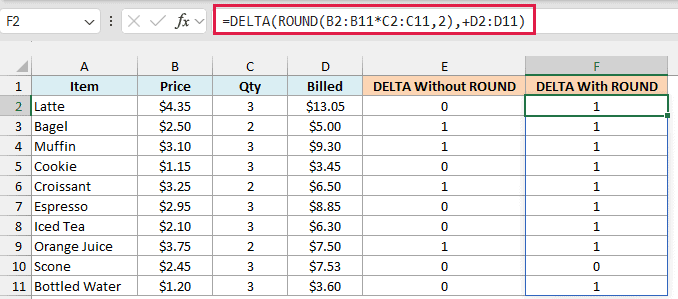
Now only the Scone shows 0, and that one is a real billing mistake. Three scones at $2.45 should be $7.35, but the bill says $7.53.
If you are using Excel 2019 or earlier, enter the below formula in cell F2 and then copy it down the range:
=DELTA(ROUND(B2*C2,2),D2)
Important: When you use DELTA on numbers that come from a calculation with decimals, wrap that calculation in ROUND first. Otherwise, DELTA can return 0 for values that look exactly the same.
So these are some practical ways to use the DELTA function in Excel. It returns 1 when two numbers are equal and 0 when they aren’t.
Just remember to put a plus sign in front of your ranges and round decimal results before you compare. I hope you found this article helpful.
Other Excel Articles You May Also Like:
