

Less than or equal to is a mathematical symbol that represents inequality between two values. You may want to use it when working with comparisons, mathematical formulas, or data analysis.
While in most cases, you can represent less than equal to with <=, the actual symbol is a less than operator with a line at the bottom (≤).
In this short article, I will show you some easy ways to insert the Less-Than or Equal-to symbol in Excel. I’ll also show you why you still need to type <= when you use it in a formula.
Insert Less Than Or Equal To Symbol in Excel
Below are some details about the Less Than Or Equal To symbol in Excel.
| Details / Methods | Description |
|---|---|
| Symbol Name | Less Than Or Equal To Symbol |
| Symbol | ≤ |
| Windows Shortcut | ALT + 243 |
| Mac Shortcut | Option + , |
| Emoji Panel (Windows) | Windows key + . (period), then Symbols > Math symbols |
| Formula | =UNICHAR(8804) |
| Symbol Dialog Box | Select the ‘Mathematical Operators’ subset in the Symbol dialog box, then find and insert the Less-Than or Equal To sign |
| Character Map | Use Windows Character Map to find and insert the Less-Than or Equal To sign |
Copy and Paste the Less Than Or Equal To Symbol into Excel
Below, I have given the Less-than or Equal-to sign that you can copy and use in your Excel worksheet.
≤
Use Control + C to copy this symbol, then navigate to any cell in Excel and press Control + V to paste it.
Keyboard Shortcut to Insert Less Than Or Equal To Symbol in Excel
Below is the keyboard shortcut you can use to insert the Less Than Or Equal To symbol in Excel:
For Windows:
ALT + 243
To use the above shortcut, hold the ALT key and then press the 2, 4, and 3 keys on your numeric keypad. Also, ensure that the NUM lock is enabled.
Type 243 without a leading zero. With the zero (ALT + 0243), Windows looks the number up in a different code table, and you get ó instead of ≤.
On US English Windows setups, ALT + 243 gives ≤. On some other language setups (many Western European ones, for example), the same code gives ¾ instead.
If that happens, or if your laptop doesn’t have a numeric keypad, use the Windows emoji panel covered in the next section.
For Mac:
Option + ,
To use this shortcut, hold the option key and then press the comma (,) key on your keyboard.
You can also press Control + Command + Space to open the Character Viewer on a Mac. Search for “less-than” and click the ≤ symbol to insert it.
Pro Tip: If you want to insert the Less-Than or Equal-to symbol in Microsoft Word or Outlook, type 2264, hold the ALT key, and then press the X key. It will convert 2264 to ≤ sign.
Also read: Insert Arrows in Excel
Insert the Less Than Or Equal To Sign Using the Windows Emoji Panel
The Windows emoji panel lets you pick the ≤ sign from a list, so you don’t need a numeric keypad or any code.
It’s a Windows feature, not an Excel one, so it works in any app.
Here are the steps to insert the Less Than Or Equal To sign using the emoji panel:
- Double-click the cell where you want the symbol (or select it and press F2).
- Press the Windows key + . (period) to open the emoji panel.
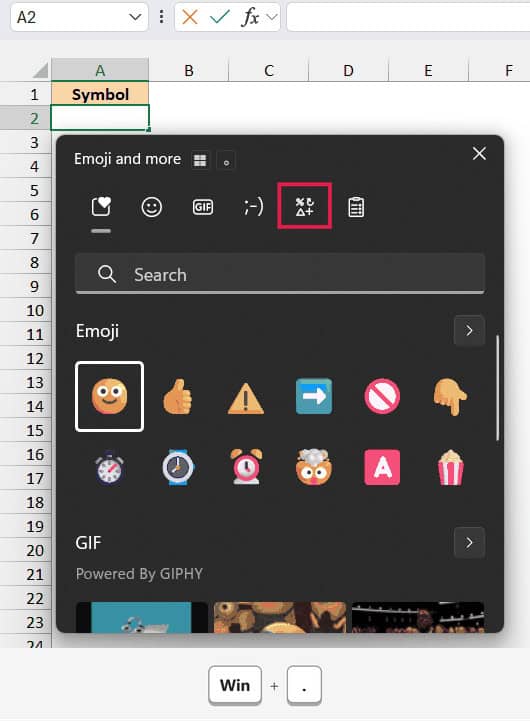
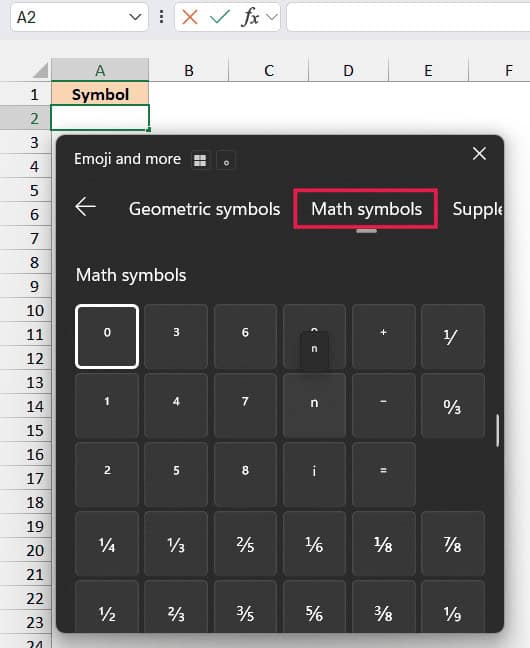
- Click the Symbols icon (the one with %, Δ and + on it), then click Math symbols.
- Click the ≤ symbol to insert it.
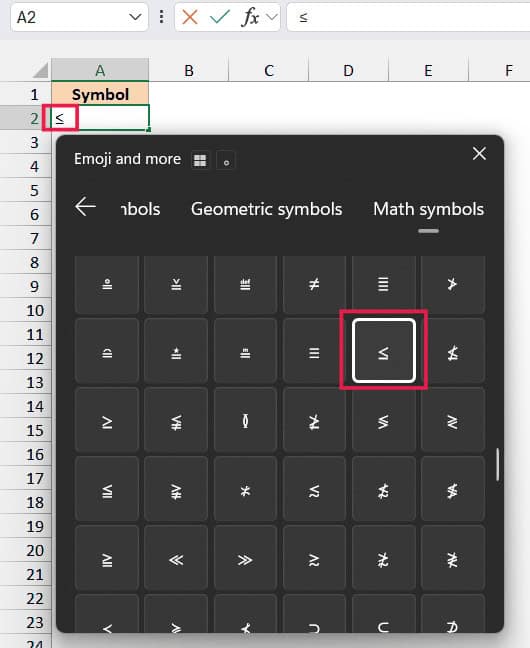
Press Enter to confirm the entry. The ≤ goes into the cell as a regular text character.
Formula to Get the Less Than Or Equal To Symbol
Below is the formula you can use in Excel to get the Less-than or Equal-to symbol as a result of the formula:
=UNICHAR(8804)
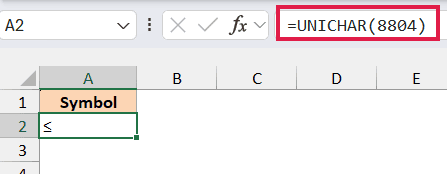
8804 is the Unicode number for the ≤ symbol. The UNICHAR function works in Excel 2013 and later versions.
Since the ALT code is 243, you might try =CHAR(243) as the formula version. That returns ó, not ≤, because the CHAR function reads a different code table, so stick with UNICHAR.
Using the Equation Symbols in Excel Ribbon
One easy way that doesn’t require you to remember any keyboard shortcut or alt code is by using the equation tab in the Excel Ribbon.
This method would insert the less than or equal to symbol in the equation text box that you can then copy and use in Excel.
Below are the steps to get the Less-Than Equal-To sign using the Equation option in Excel:
- Click on the Insert tab in the ribbon.
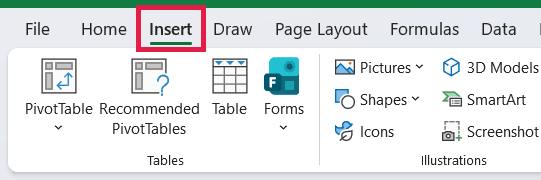
- Click on the Equation option in the Symbols group. If the group is collapsed, click Symbols first, then click Equation.
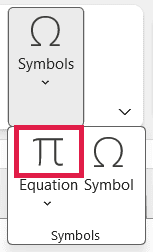
This will insert an equation text box in the worksheet and open the Equation tab in the ribbon.
- Select the ≤ symbol in the Symbols group. This will insert the symbol in the equation text box in the worksheet.
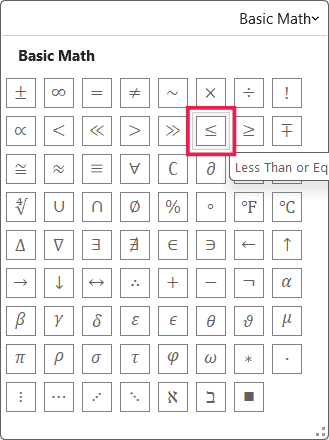
If you prefer typing, you can also type \le in the equation text box and press the Space bar. Excel converts it to ≤ on its own.
- Select the ≤ in the equation text box and press Control + C to copy it.
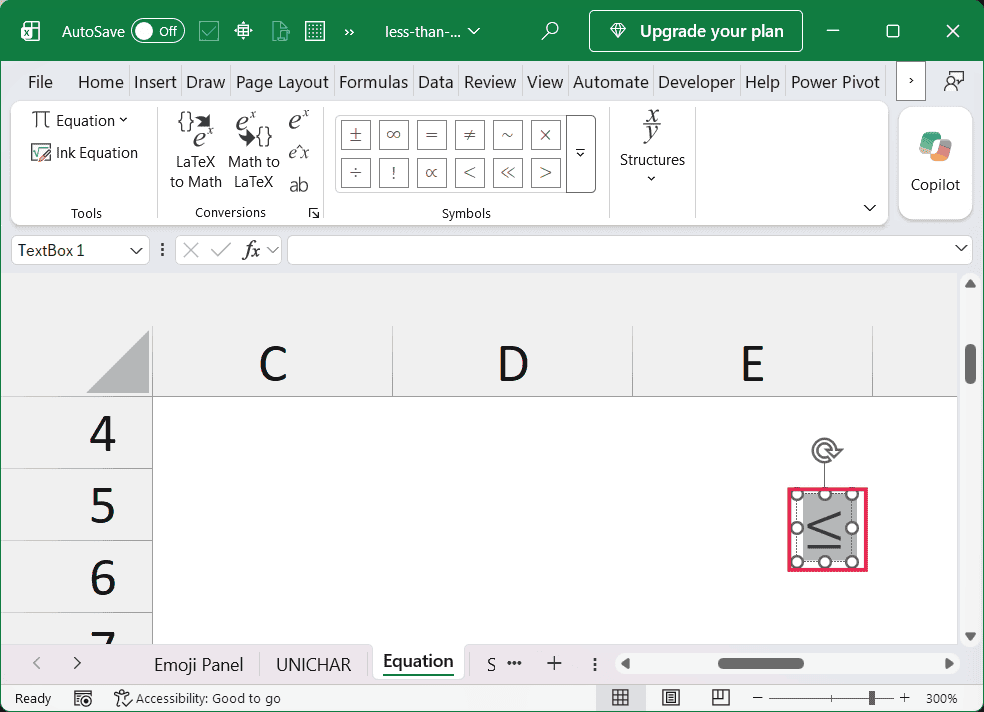
- Double-click the cell where you want the symbol (or select it and press F2), and then press Control + V.
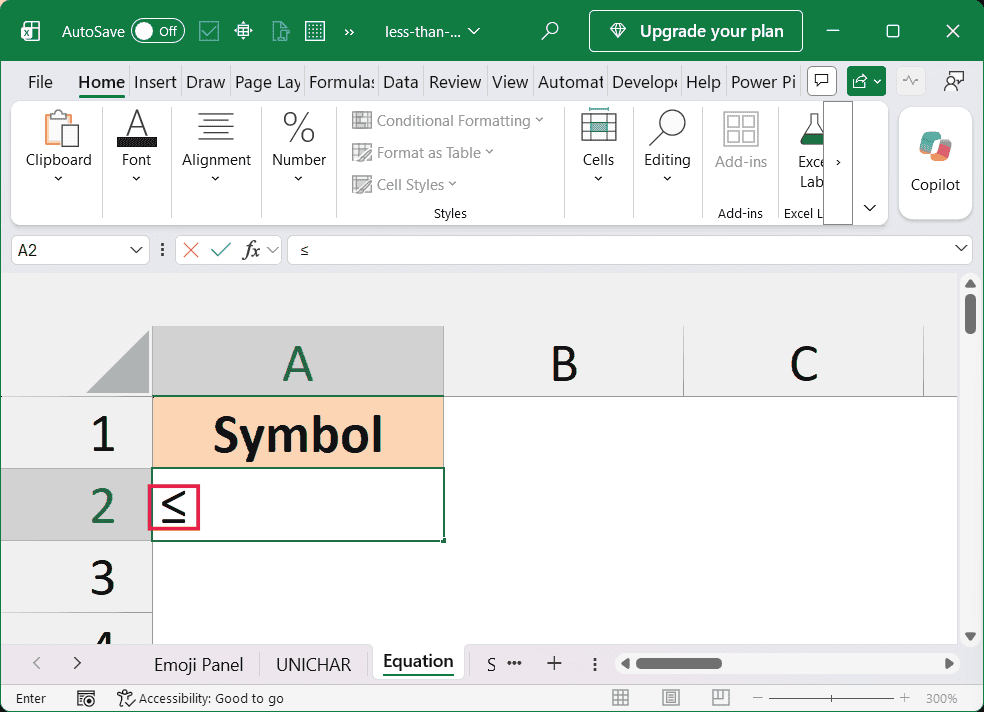
Pasting while you’re editing the cell matters here. If you paste with the cell just selected, Excel also brings over the equation’s Cambria Math font and makes the row much taller.
Once you’re done, click the border of the equation text box and press Delete to remove it.
I prefer this method as it doesn’t require me to remember any keyboard shortcut, formula, or ALT code.
Also read: Insert Infinity Symbol in Excel
Inserting Less Than Or Equal To Symbol Using the Symbol Dialog Box
Another way to get the ≤ symbol is by using the Symbol dialog box in Excel.
Below are the steps you can use to insert the Less Than Or Equal To symbol in Excel:
- Select the cell where you want the symbol.
- Click the Insert tab in the ribbon.
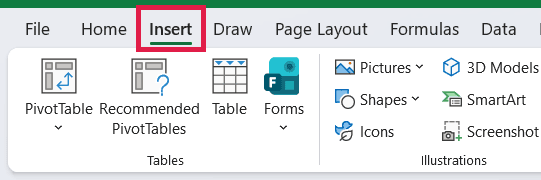
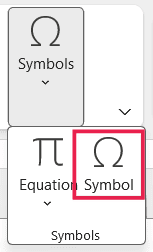
- Click on the Symbol icon to open the Symbol dialog box. If the Symbols group is collapsed, click Symbols first.
- In the dialog box, select ‘Mathematical Operators’ from the Subset drop-down.
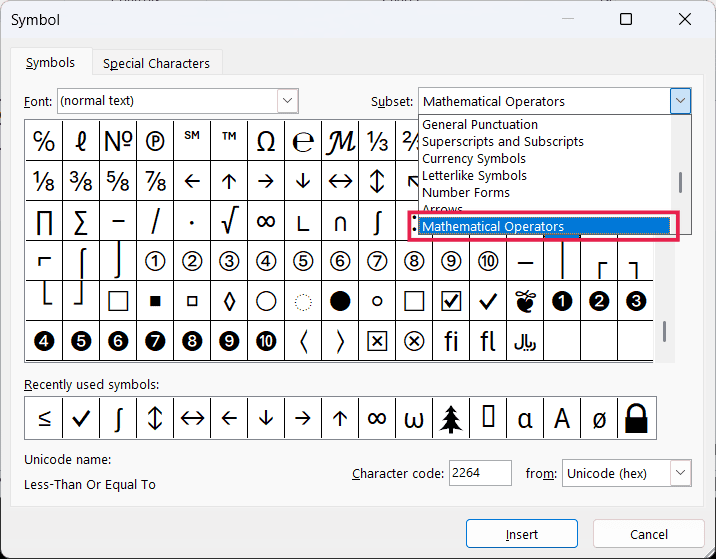
- Find and double click on the Less-than or Equal-to symbol (or select the symbol and then click on the Insert button).
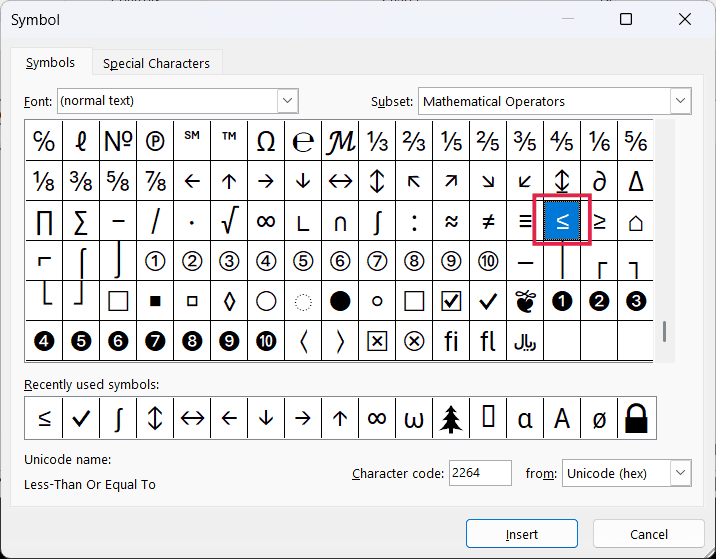
The above steps would insert the ≤ symbol in the cell you selected in step 1. The dialog box stays open after that, so click Close when you’re done.
Pro Tip: You can also quickly locate the ≤ symbol by manually typing 2264 in the Character Code field (with ‘from’ set to Unicode (hex)). As soon as you enter 2264, it will automatically select the less than or equal to symbol.
Also read: Insert Approximate (Almost Equal To) Symbol in Excel
Using the Character Map App on Windows
The Character Map in Windows is also a handy tool to find and insert the “less than or equal to” symbol in Excel:
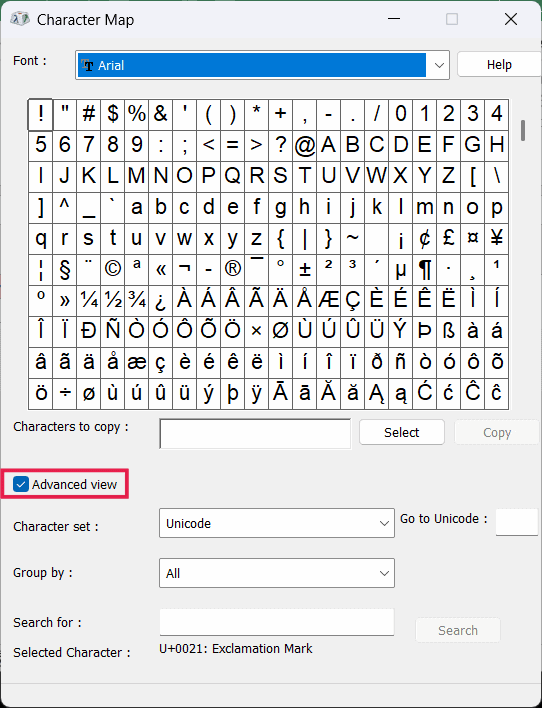
- Search for Character Map in the Windows search bar and open it.
- In the Character Map dialog box, check the ‘Advanced view’ option. This will show you some additional options in the Character Map dialog box.
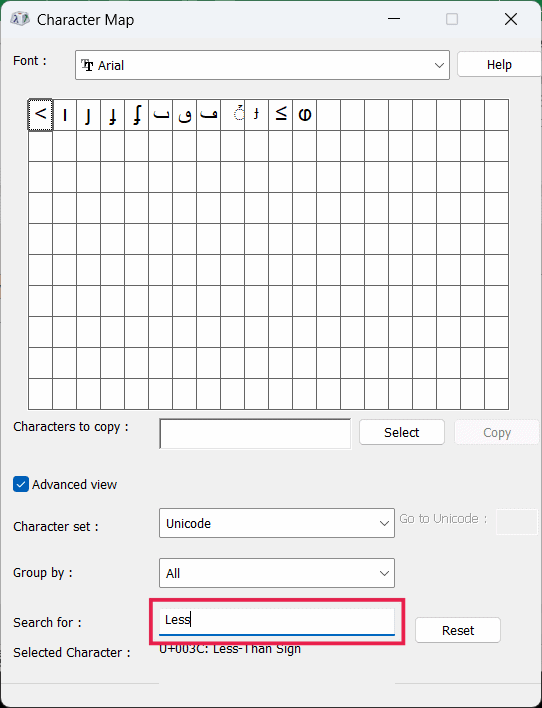
- Type ‘Less’ in the ‘Search for’ field and press Enter. This will search and give you all the symbols that have the word less in their name.
- Double-click on the Less-Than or Equal-to symbol and then click on the copy button. This will copy the symbol to the clipboard.
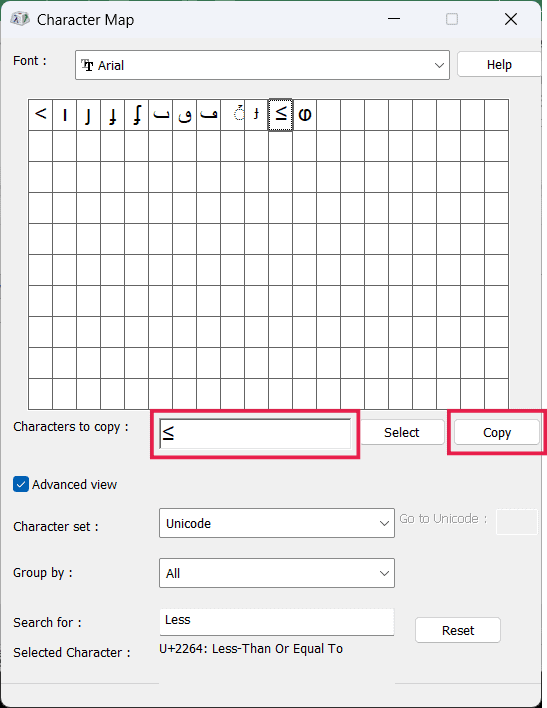
- Paste in the desired cell in Excel.
This method is versatile and can be used in any Windows application, including all MS Office apps.
Use AutoCorrect to Type the Less Than Or Equal To Sign Faster
If you need the ≤ sign often, you can set up AutoCorrect so Excel types it for you. You pick a short code, such as (le), and Excel replaces it with ≤ every time you type it.
Here are the steps to set this up:
- Click the File tab, and then click Options.
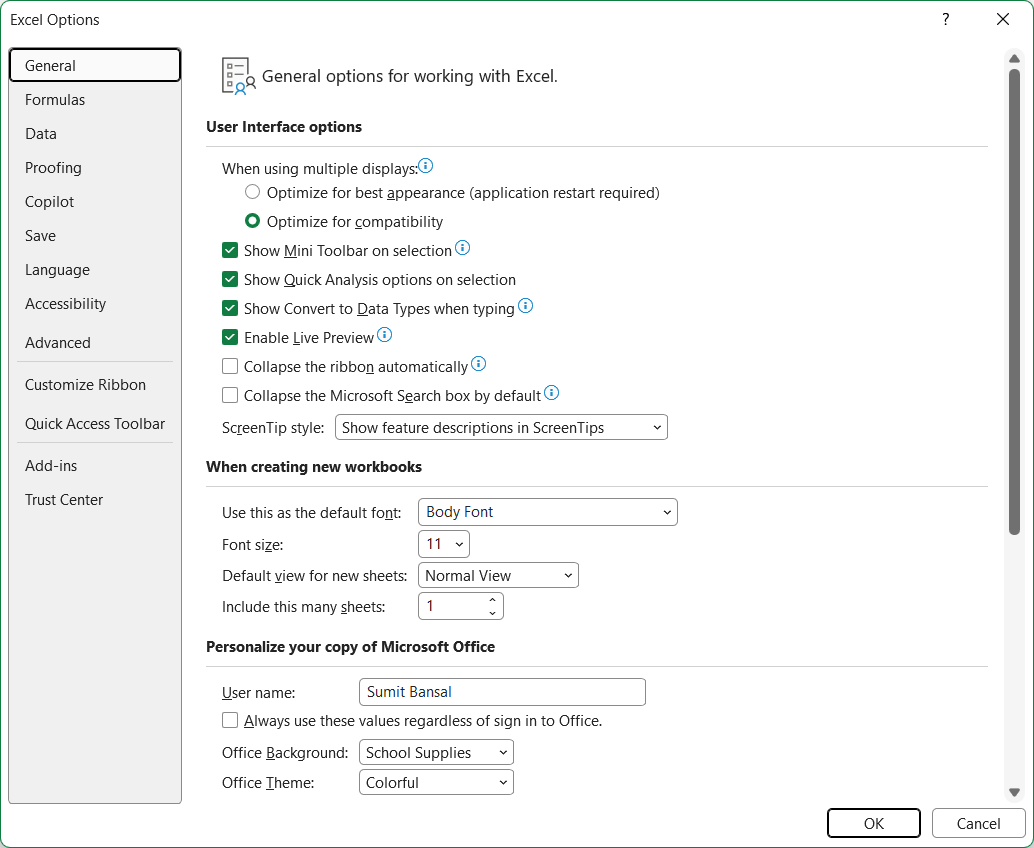
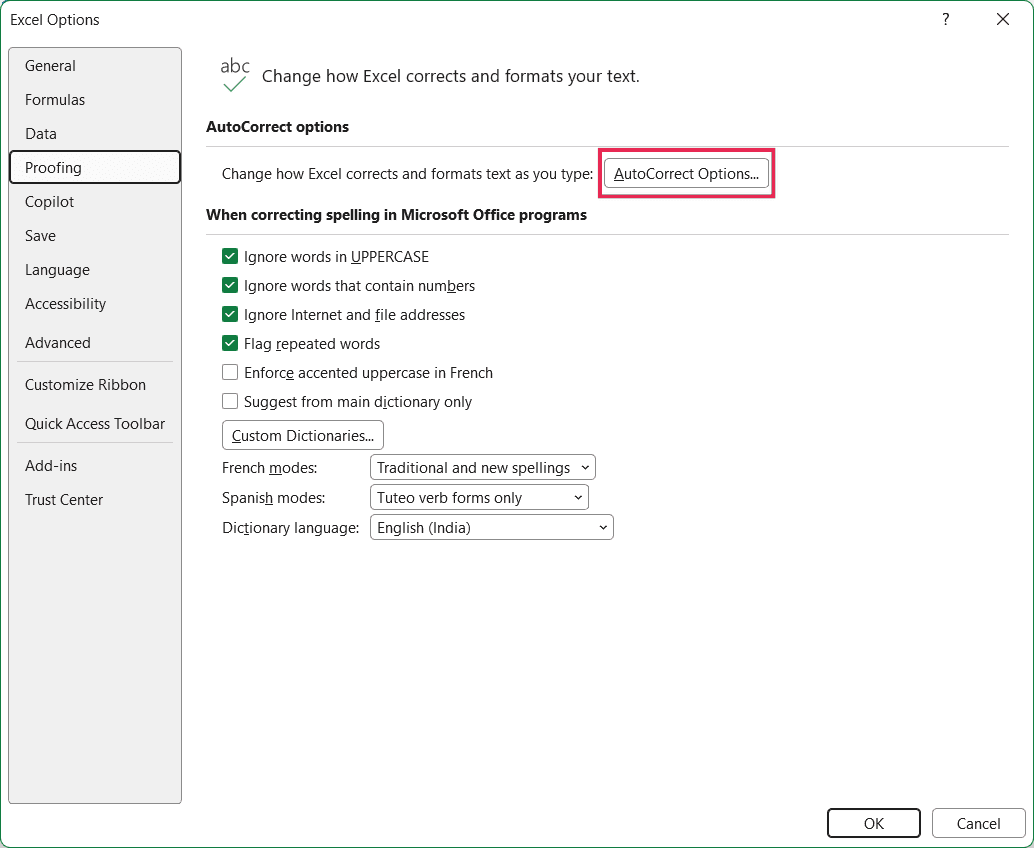
- In the Excel Options dialog box, select Proofing, and then click the AutoCorrect Options button.
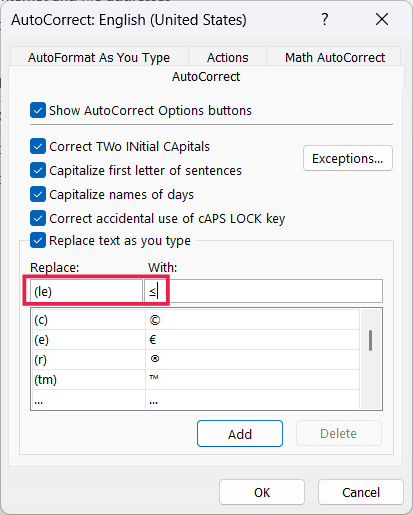
- Type (le) in the Replace field, and paste ≤ in the With field.
- Click Add, and then click OK.
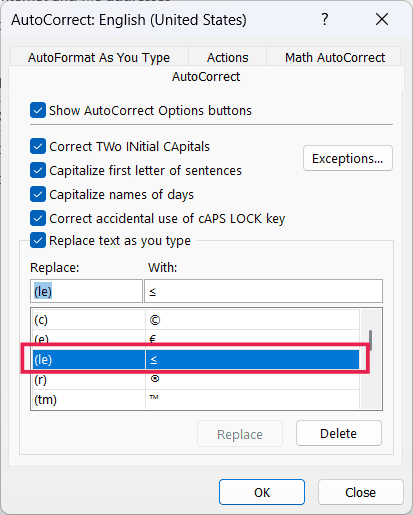
Now when you type 5 (le) 10 in a cell, Excel changes it to 5 ≤ 10.
Important: Don’t use <= as the code. AutoCorrect works inside formulas too, so =2 <= 5 would turn into =2 ≤ 5, and Excel would show an error.
Using Less Than Or Equal To in Excel Formulas
The ≤ symbol is great for labels and notes, but Excel doesn’t treat it as an operator. So you can’t use it to compare values in a formula.
If you type =5≤10, Excel shows a “There’s a problem with this formula” message. And if you use cell references, like =B2≤C2, you get the #NAME? error.
In formulas, you need to type it as two characters, the less than sign followed by the equal to sign (<=).
This also applies to functions like COUNTIF, where you put <= inside the quoted criteria, such as "<=5". You can learn more in the guide on how to count cells less than a value.
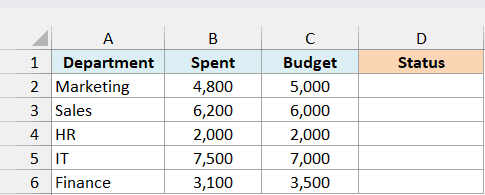
Below I have a list of departments with what each one spent and its budget, and I want to check whether each department stayed within budget in column D.
Here is the formula:
=IF(B2:B6<=C2:C6,"Within budget","Over budget")
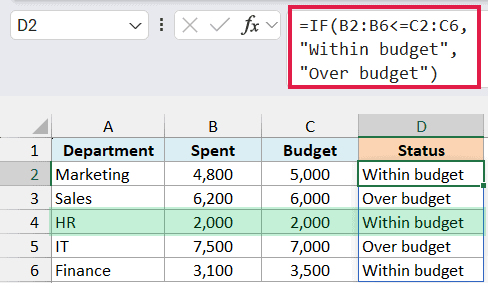
The formula compares each Spent value with its Budget and returns “Within budget” when the spend is less than or equal to the budget.
HR spent exactly its budget of 2,000, so it also shows “Within budget”, which is the “or equal to” part at work.
In Excel 365 and Excel 2021 or later, this one formula in D2 fills all of D2:D6 on its own (it spills), so you don’t need to copy it.
If you are using Excel 2019 or earlier, enter the below formula in cell D2 and then copy it down to D6:
=IF(B2<=C2,"Within budget","Over budget")
I hope you found this Excel article helpful.
Feel free to share your thoughts in the comments section below, and let me know if you have other methods to insert the “less than or equal to” symbol in Excel.
Other Excel articles you may also like:
