

What do you do when you have to enter a sequence of serial numbers in a column in Excel? For example, entering numbers 1 to 1000 in cell A1:A1000.
The regular way of doing this is:
- Enter 1 in cell A1.
- Enter 2 in cell A2.
- Select both the cells and drag it down using the fill handle.
Sometimes it may get a bit irritating to drag the fill handle to the last cell which can be many folds below the current cell.
In this tutorial, I’ll show you a faster way to fill numbers in cells without any dragging.
Quickly Fill Numbers in Cells without Dragging
Here are the steps:
- Enter 1 in cell A1.
- Go to Home –> Editing –> Fill –> Series.

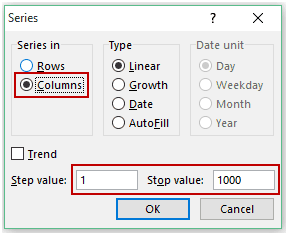
- In the Series dialogue box, make the following selections:
- Series in: Columns
- Type: Linear
- Step Value: 1
- Stop Value: 1000
- Click OK.
This will fill the cell A1:A1000 with the numbers 1 to 1000.
Notes:
- If you want to fill the numbers in the row instead of the column, select ‘Rows’ in the ‘Series in’ options.
- If you want to start from a number other than 1, fill that number in cell A1. Also, you can choose a different step. For example, select 2 for getting all numbers with a difference of 2.
You May Also Like the Following Excel Tutorials:



That is all nice, but what if my number need to start with
0161481 and finish with 0163030. That is impossible to do with fill option.
I would be happy if someone know how.
excellent n wonder videos
This is a nice website. I looked at various tutorials and found them to be easy, especially that several examples are also given. I ended up getting the free e-book.
How to do this job in excel installed on ipad?
Thank you so much for your easy explanation of Excel!