

The List.Intersect function in Power Query finds the values that two or more lists have in common. You give it the lists, and it returns only the values that show up in every one of them.
This is how you find the customers who ordered in both months, the products every store carries, or the people who came every week, without merging any tables.
Follow along with the example file
List.Intersect Function Examples.xlsx
List.Intersect Function Syntax
List.Intersect(lists as list, optional equationCriteria as any) as list
- lists – the lists you want to compare, put together inside one outer list. So two lists go in as
{List1,List2}, with an extra pair of curly brackets around them. - equationCriteria (optional) – tells List.Intersect how to decide that two values match. For example,
Comparer.OrdinalIgnoreCasemakes it ignore upper and lower case (Example 4).
What it returns: A list of the values found in every list, in the order they appear in the first list. If there’s nothing in common, you get an empty list.
The List.Intersect function is part of the Power Query M language, and Power Query is built into Excel 365, 2024, 2021, 2019, and 2016 for Windows. Excel for Microsoft 365 on Mac has Power Query too, but Excel 2016 and 2019 for Mac don’t.
When to Use the List.Intersect Function
Use this function when you need to:
- Find the values two lists have in common
- Find the values shared by three or more lists
- Find the customers, products, or IDs that appear in two tables
- Match values that differ only in upper and lower case
- Match IDs stored as numbers in one list and as text in another
- Find the values that appear in every column of a table
- Find the items that every group has, like the products sold in every region
Example 1: Find the Common Values in Two Lists
Let’s start with a simple one. Suppose the North warehouse stocks a desk lamp, office chair, monitor stand, keyboard, and mouse pad, the South warehouse stocks a mouse pad, webcam, keyboard, and desk lamp, and you want the items both warehouses carry.
In Excel, go to Data > Get Data > From Other Sources > Blank Query. In the Power Query Editor that opens, type this formula in the formula bar:
= List.Intersect({{"Desk Lamp","Office Chair","Monitor Stand","Keyboard","Mouse Pad"},{"Mouse Pad","Webcam","Keyboard","Desk Lamp"}})
Result: A list with Desk Lamp, Keyboard, and Mouse Pad

Here, each inner pair of curly brackets is one warehouse’s list. The outer pair holds both lists, and that’s the single argument List.Intersect needs.
The result follows the order of the first list. Mouse Pad is first in the South list, but it comes last in the result because it’s last in the North list.
If you want the opposite, the items in the North list that the South warehouse doesn’t stock, use the List.Difference function. And to get every item from both lists, use the List.Union function.
And if you only need to check whether the South warehouse stocks one item, say a webcam, the List.Contains function gives you TRUE or FALSE instead.
In the example file, Example 1 types its values right into the query, so it doesn’t have a sheet. You can open it from Data > Queries & Connections.
Example 2: Find the Values Common to Three or More Lists
List.Intersect isn’t limited to two lists. Suppose you’re planning a meeting with Audrey, Travis, and Victor, you know the days each of them is free, and you want the days that work for all three.
Create a new blank query (as in Example 1), open the Advanced Editor (Home > Advanced Editor), and use this code:
let
    Audrey = {"Mon","Tue","Wed","Thu"},
    Travis = {"Tue","Wed","Fri"},
    Victor = {"Mon","Tue","Wed","Thu","Fri"},
    CommonDays = List.Intersect({Audrey,Travis,Victor})
in
    CommonDays
Result: A list with Tue and Wed
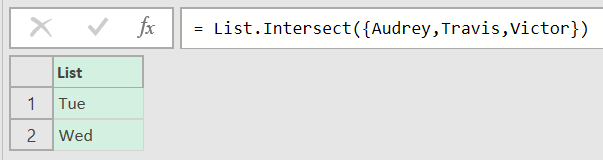
Here, the first three steps hold each person’s free days as a list. The last step puts all three lists inside one pair of curly brackets, and List.Intersect keeps only Tue and Wed, the two days in every list.
Mon is in Audrey’s and Victor’s lists, but Travis isn’t free on Monday, so it’s left out. A value has to be in every list to make it into the result.
To add a fourth person, add a step with their list and put its name inside the curly brackets in the last step.
Example 3: Find the Common Values in Two Tables
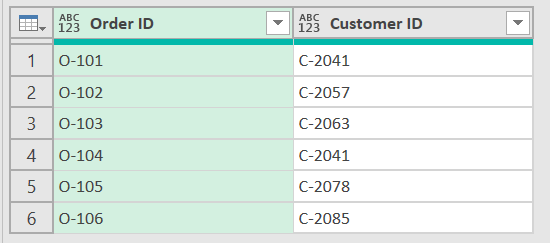
This one comes up a lot with real data. I have January orders in one table and February orders in another, and I want the customers who ordered in both months.
Below is the January table, on the Example 3 Jan sheet.
And here is the February table, on the Example 3 Feb sheet. It has the same two columns.
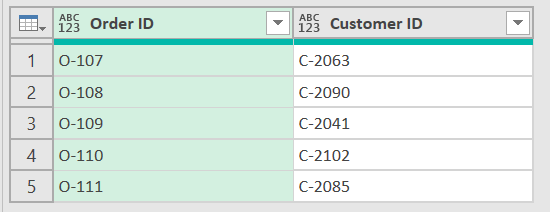
The two tables are Excel Tables named JanOrders and FebOrders. The code below reads them by those names, so for your own data, change the names to match your tables.
Create a new blank query, open the Advanced Editor, and use this code:
let
    Source = Excel.CurrentWorkbook(){[Name="JanOrders"]}[Content],
    Feb = Excel.CurrentWorkbook(){[Name="FebOrders"]}[Content],
    Returning = List.Intersect({Source[Customer ID],Feb[Customer ID]})
in
    Returning
Result: A list with C-2041, C-2063, and C-2085
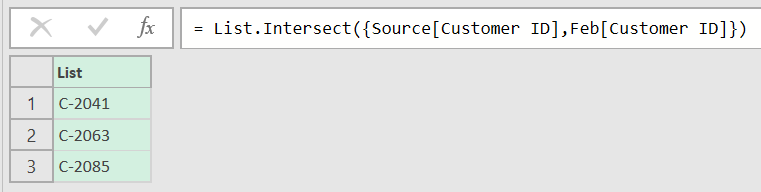
Here, the Source step reads the January table and the Feb step reads the February table. Source[Customer ID] and Feb[Customer ID] each give the Customer ID column as a list, and List.Intersect returns the IDs found in both.
C-2041 placed two orders in January, but it shows up only once in the result because it ordered once in February.
If a customer had ordered twice in both months, their ID would come back twice. Example 5 shows why, and how to get each ID only once.
This gives you a list of customer IDs. If you need the full order rows for those customers, merge the two tables with an inner join (Home > Merge Queries) instead.
Example 4: Ignore Upper and Lower Case
By default, List.Intersect treats “Joyce.Johnson” and “joyce.johnson” as two different values. Below is a table named EmailLists with two separate lists, the emails of webinar attendees and of newsletter subscribers, and I want the people who are on both lists.
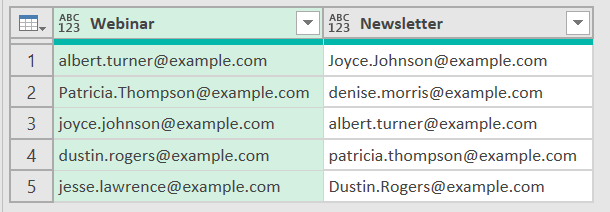
Create a new blank query, open the Advanced Editor, and use this code:
let
    Source = Excel.CurrentWorkbook(){[Name="EmailLists"]}[Content],
    Common = List.Intersect({Source[Webinar],Source[Newsletter]},Comparer.OrdinalIgnoreCase)
in
    Common
Result: A list with albert.turner@example.com, Patricia.Thompson@example.com, joyce.johnson@example.com, and dustin.rogers@example.com
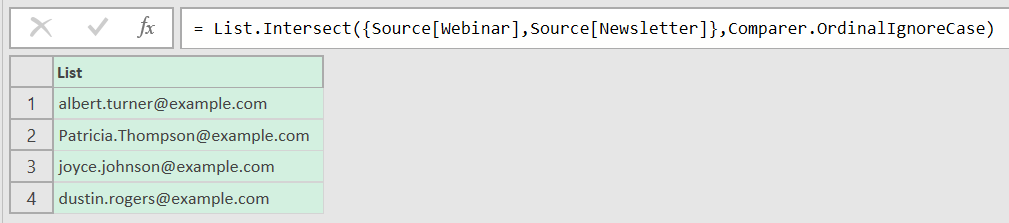
Here, Comparer.OrdinalIgnoreCase is the second argument, and it tells List.Intersect to ignore upper and lower case when it compares the emails. Without it, you’d get only albert.turner@example.com, the one email typed the same way in both columns.
When two spellings match, the result uses the one from the first list. That’s why you get Patricia.Thompson from the Webinar column and not patricia.thompson from the Newsletter column.
The comparer only ignores case. An email with an extra space at the end still won’t match, so trim both columns before you compare (select the columns, then Transform > Format > Trim).
Follow along with the example file
List.Intersect Function Examples.xlsx
Example 5: Understand How Repeated Values Are Handled
This is the part of List.Intersect that surprises people. Suppose you scanned product codes at two checkpoints, P-12 was scanned three times at the first one and twice at the second, and you want the codes scanned at both.
Create a new blank query, open the Advanced Editor, and use this code:
let
    Source = List.Intersect({{"P-12","P-15","P-12","P-20","P-12"},{"P-12","P-20","P-12","P-31"}})
in
    Source
Result: A list with P-12, P-12, and P-20

Here, P-12 shows up twice in the result. List.Intersect keeps a value as many times as it appears in every list, which is the smaller count.
P-12 is in the first list three times and in the second list twice, so it’s kept twice.
If you want each common value only once, wrap the result in the List.Distinct function. In the code above, replace the Source line with this one:
Source = List.Distinct(List.Intersect({{"P-12","P-15","P-12","P-20","P-12"},{"P-12","P-20","P-12","P-31"}}))
Now you get P-12 and P-20, each once.
Example 6: Match Numbers Stored as Text
Here’s a problem that’s easy to miss. Your HR system has the employee IDs 1001 to 1004 as numbers, the badge system exported the IDs 1003 to 1005 as text, and you want the IDs found in both.
If you run List.Intersect on these two lists as they are, you get an empty list. The number 1003 and the text “1003” are different values to Power Query, so nothing matches.
The fix is to turn the numbers into text first. Create a new blank query, open the Advanced Editor, and use this code:
let
    HRIDs = {1001,1002,1003,1004},
    BadgeIDs = {"1003","1004","1005"},
    Common = List.Intersect({List.Transform(HRIDs,Text.From),BadgeIDs})
in
    Common
Result: A list with 1003 and 1004

Here, the List.Transform function runs the Text.From function on every HR ID, so 1001 becomes “1001” and so on. Now both lists hold text, and List.Intersect finds 1003 and 1004 in both.
When you compare columns from two tables and get an empty list you didn’t expect, check the column types first. If one side holds numbers and the other holds text, nothing will match.
With table columns, you can also fix it by setting both ID columns to the Text type (Transform > Data Type > Text) before List.Intersect runs.
Converting to text is safer than converting to numbers, because text keeps leading zeros and doesn’t error on an ID like “B-17”.
Example 7: Find the Values Common to Every Column
Now let’s compare a whole table at once. Below is a table named WeeklyAttendance with the people who came to a training session each week, one column per week, and I want the people who came every week.
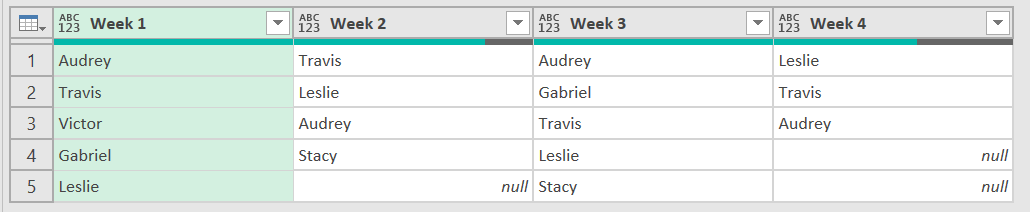
Create a new blank query, open the Advanced Editor, and use this code:
let
    Source = Excel.CurrentWorkbook(){[Name="WeeklyAttendance"]}[Content],
    EveryWeek = List.Intersect(Table.ToColumns(Source))
in
    EveryWeek
Result: A list with Audrey, Travis, and Leslie
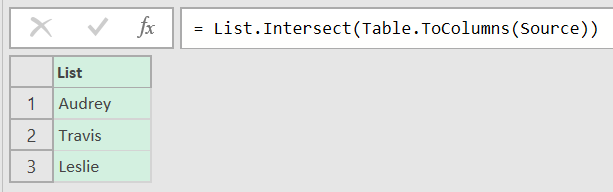
Here, the Table.ToColumns function turns the table into a list of lists, one list per column. That’s exactly the shape List.Intersect needs, so it compares all four weeks without you naming any column.
This also means the query keeps working when you add a Week 5 column to the table. Click Refresh, and it compares five weeks instead of four.
Weeks 2 and 4 have empty cells, and Power Query reads them as null. A null would only show up in the result if every column had an empty cell, and Weeks 1 and 3 don’t, so you don’t see one here.
If every column in your data can have empty cells, wrap the result in the List.RemoveNulls function, so the EveryWeek line becomes EveryWeek = List.RemoveNulls(List.Intersect(Table.ToColumns(Source))).
Example 8: Find the Items Common to Every Group
In this last example, the lists come from groups of rows. Below is a table named RegionSales with the units of each product sold in three regions, and I want the products that sold in every region.
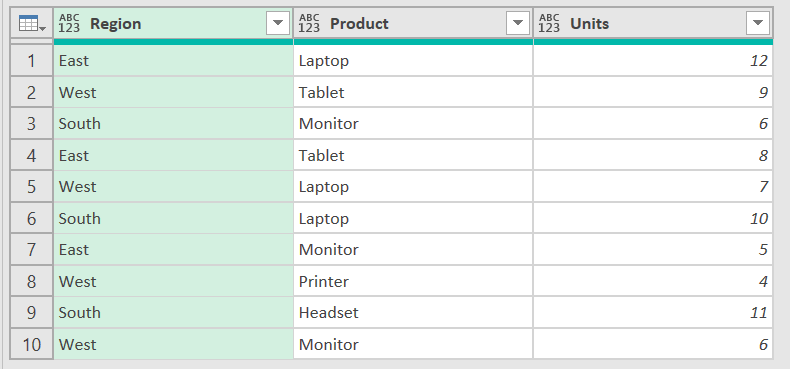
Create a new blank query, open the Advanced Editor, and use this code:
let
    Source = Excel.CurrentWorkbook(){[Name="RegionSales"]}[Content],
    Grouped = Table.Group(Source,{"Region"},{{"Products",each [Product],type list}}),
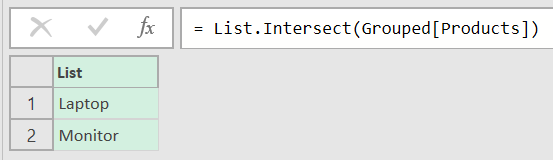
    InEveryRegion = List.Intersect(Grouped[Products])
in
    InEveryRegion
Result: A list with Laptop and Monitor
Here, the Table.Group function makes one row for each region, and each [Product] collects that region’s products into a list. So the Products column holds three lists, one for East, one for West, and one for South.
Grouped[Products] takes that column as a list of lists, and List.Intersect keeps Laptop and Monitor, the only products in all three. Tablet is left out because South didn’t sell it.
East comes first in the table, so East’s list is the first list in Grouped[Products]. List.Intersect follows the first list’s order, which is why Laptop comes before Monitor.
If every region listed Laptop in two rows, Laptop would show up twice in the result, for the reason Example 5 explains. When your data can have repeats like that, use each List.Distinct([Product]) in the Grouped step instead.
Other Excel Articles You May Also Like:
- List.Combine – Use List.Combine in Power Query M to join lists into one.
- Table.Join – Use Table.Join in Power Query M to join two tables.
- Table.NestedJoin – Use Table.NestedJoin in Power Query M to merge two tables.
- List.IsDistinct – Use List.IsDistinct in Power Query M to check if every value in a list is unique.
- List.MatchesAny – Use List.MatchesAny in Power Query M to check if any item meets a condition.
- Table.Distinct – Use Table.Distinct in Power Query M to remove duplicate rows.
- List.Select – Use List.Select in Power Query M to keep only the list items that meet a condition.
- List.IsEmpty – Use List.IsEmpty in Power Query M to check whether a list has values or is empty.
