

The Table.Join function in Power Query combines two tables by matching the values in a key column, like an ID or a code. You get one flat table with the columns from both tables side by side, ready to use.
The catch is column names. If both tables have a column with the same name, Table.Join often refuses to run, and the rules for when that happens aren’t obvious.
In this article, I’ll show you how Table.Join works with practical examples, including the join kinds you’ll use most and how to fix the duplicate column name error.
Follow along with the example file
Table.Join Function Examples.xlsx
Table.Join Function Syntax
Table.Join(table1 as table, key1 as any, table2 as table, key2 as any, optional joinKind as nullable number, optional joinAlgorithm as nullable number, optional keyEqualityComparers as nullable list) as table
- table1 – the first table. Its columns come first in the result.
- key1 – the key column (or columns) in table1 to match on. Use text for one column, like
"Member ID", or a list for more than one, like{"Region","Quarter"}. - table2 – the second table you want to bring in.
- key2 – the matching key column (or columns) in table2. It can have a different name from key1. If you use a list, give it the same number of columns as key1.
- joinKind (optional) – which rows to keep. It’s an inner join if you leave it out, so only rows with a match in both tables stay. Other options are JoinKind.LeftOuter, JoinKind.RightOuter, JoinKind.FullOuter, JoinKind.LeftAnti, JoinKind.RightAnti, JoinKind.LeftSemi, and JoinKind.RightSemi.
- joinAlgorithm (optional) – how Power Query performs the join behind the scenes. The default, JoinAlgorithm.Dynamic, picks one for you, so you can almost always leave this out.
- keyEqualityComparers (optional) – Microsoft says this one is for internal use only, so you can ignore it.
What it returns: A single flat table with the columns of table1 followed by the columns of table2. With the default inner join, you get one row for each matching pair of rows, and the joinKind argument changes which rows you get.
The Table.Join function is part of the core Power Query M library, so it works wherever Power Query does, including Excel 365, 2024, 2021, 2019, 2016, and Power BI.
When to Use the Table.Join Function
Use this function when you need to:
- Bring columns from a lookup table into your main table in one step, without the extra expand step that Merge Queries needs
- Keep every row of one table, even the ones with no match
- Compare two lists and find the records that are in one but not the other
- Match rows on two or more columns at once, like region and quarter
- Filter a table down to only the rows that appear in another table
Example 1: Bring In Details from Another Table
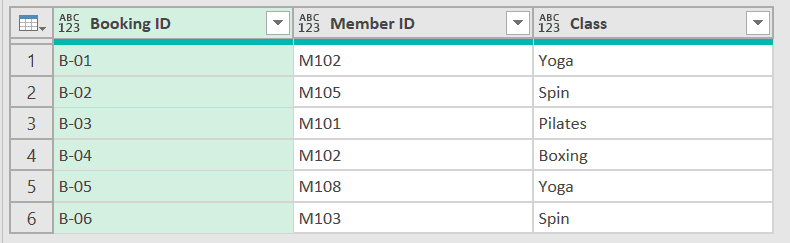
Let’s start with a basic example. Below is a gym’s class bookings table with a Member ID for each booking, and I want to bring in each member’s name and plan from a separate Members table.
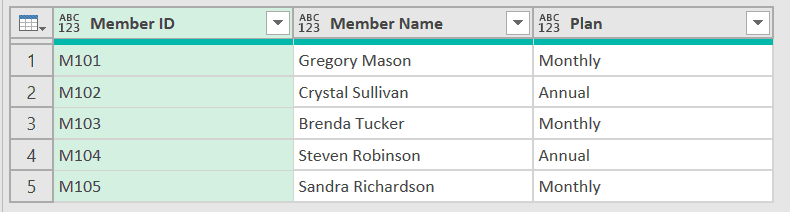
And here’s the Members table, which also has a Member ID column.
In the example file, both lists are Excel Tables named Bookings and Members. The first two steps in the code below load them, so if you use your own data, change these names to your table names.
Create a new blank query (Data > Get Data > From Other Sources > Blank Query), open the Advanced Editor (Home > Advanced Editor), and use this code:
let
    Source = Excel.CurrentWorkbook(){[Name="Bookings"]}[Content],
    Members = Excel.CurrentWorkbook(){[Name="Members"]}[Content],
    Joined = Table.Join(Source,"Member ID",Members,"Member ID")
in
    Joined
Result: A table with Booking ID, Member ID, Class, Member Name, and Plan columns, with 5 bookings
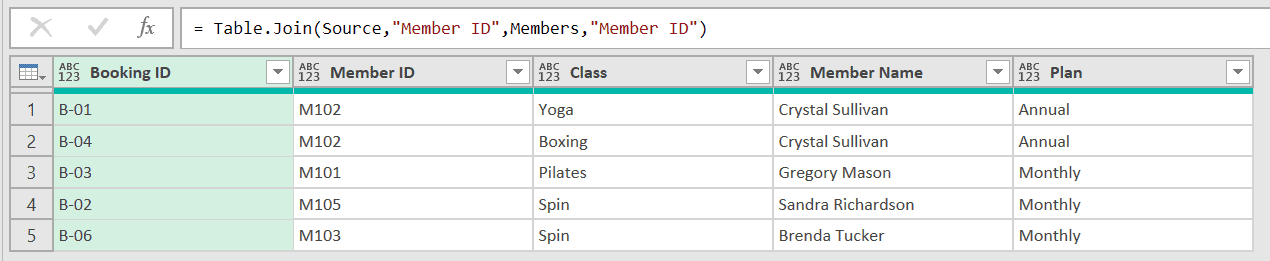
Here, Table.Join looks at the Member ID in each booking, finds the row with the same Member ID in the Members table, and puts that member’s columns next to the booking.
Since I didn’t specify a join kind, this is an inner join. So booking B-05 (member M108, who isn’t in the Members table) is left out, and so is Steven Robinson (M104), who has no bookings.
Crystal Sullivan (M102) has two bookings, so her name and plan show up on both of them. And because both key columns are called Member ID, the result keeps just one Member ID column.
Also, notice that the rows are grouped by member rather than in the original booking order. Table.Join doesn’t keep the original row order, so if the order matters, sort the result with the Table.Sort function.
If you’ve merged tables using the Merge Queries button, Power Query used a different function behind the scenes, Table.NestedJoin.
That one gives you a column of nested tables that you then expand. Table.Join skips that and gives you the flat columns right away.
Example 2: Keep Every Row with a Left Outer Join
An inner join drops rows that don’t have a match, which isn’t always what you want.
Below is a shipments table with a Carrier Code for each shipment, and I want to add the carrier name and rate from a Carriers table without losing any shipment.
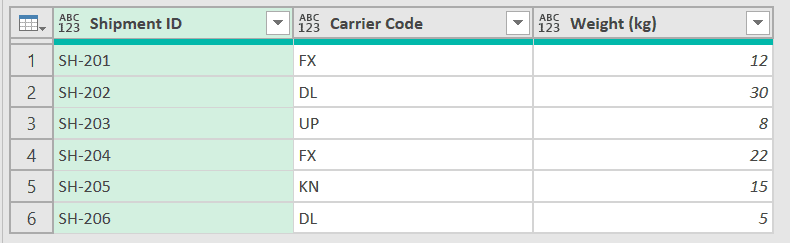
Here’s the Carriers table. Note that its key column is called Code, not Carrier Code.

Create a new blank query, open the Advanced Editor, and use this code:
let
    Source = Excel.CurrentWorkbook(){[Name="Shipments"]}[Content],
    Carriers = Excel.CurrentWorkbook(){[Name="Carriers"]}[Content],
    Joined = Table.Join(Source,"Carrier Code",Carriers,"Code",JoinKind.LeftOuter)
in
    Joined
Result: All 6 shipments with Code, Carrier, and Rate per kg columns added, and null in those columns for SH-205

Here, JoinKind.LeftOuter keeps every row of the first table. Shipment SH-205 has the carrier code KN, which isn’t in the Carriers table, so it stays in the result with null in all the Carriers columns.
Since the two key columns have different names, the key1 and key2 arguments are different (“Carrier Code” and “Code”), and both columns show up in the result. If you don’t need the second one, you can remove it with the Table.RemoveColumns function.
Example 3: Fix the Duplicate Column Name Error (Same Key Name)
This next one is a common error with Table.Join. Below is a staff list with a Staff ID column, and I want to show the certificates each person holds while keeping every staff member, even those with no certificate.
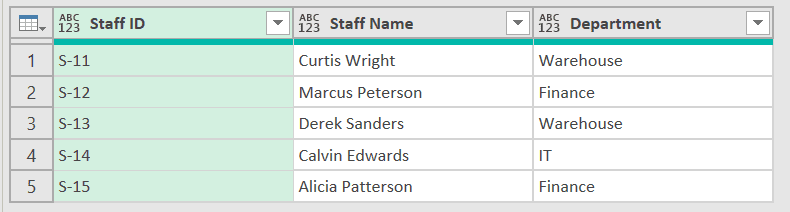
The Certificates table also uses a column called Staff ID.
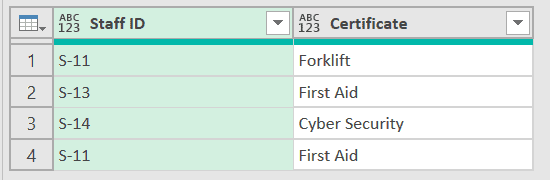
If you use a left outer join with the same key name on both sides, like this:
= Table.Join(Source,"Staff ID",Certificates,"Staff ID",JoinKind.LeftOuter)
You get this error: A join operation cannot result in a table with duplicate column names (“Staff ID”).

This happens because, for any join kind other than inner, Table.Join keeps both key columns, and two columns can’t share a name. An inner join is the only case where it merges the two key columns into one, which is why Example 1 worked.
The fix is to rename the columns of the second table before the join. In the code below, the Attempt step is the failing join from above, kept so you can click it and see the error, and the final Joined step doesn’t use it.
Create a new blank query, open the Advanced Editor, and use this code:
let
    Source = Excel.CurrentWorkbook(){[Name="Staff"]}[Content],
    Certificates = Excel.CurrentWorkbook(){[Name="Certificates"]}[Content],
    Attempt = Table.Join(Source,"Staff ID",Certificates,"Staff ID",JoinKind.LeftOuter),
    Joined = Table.Join(Source,"Staff ID",Table.PrefixColumns(Certificates,"Cert"),"Cert.Staff ID",JoinKind.LeftOuter)
in
    Joined
Result: Six rows covering all 5 staff members, with Cert.Staff ID and Cert.Certificate columns, and null for Marcus Peterson and Alicia Patterson
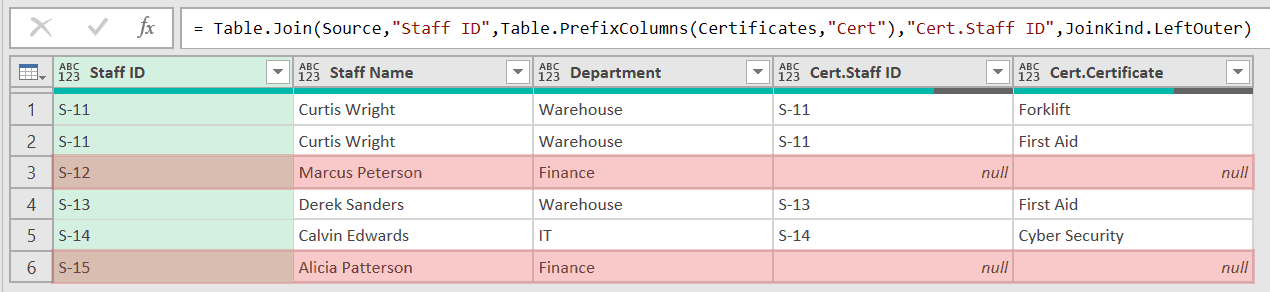
Here, the Table.PrefixColumns function adds “Cert.” to the start of every column name in the Certificates table. So its key becomes Cert.Staff ID, which is what I use as key2.
Curtis Wright has two certificates, so he shows up twice. Marcus Peterson and Alicia Patterson have none, so the left outer join keeps them with null in the Cert columns.
Example 4: Fix the Duplicate Column Name Error (Other Columns)
The same error shows up when any other column has the same name in both tables, even with an inner join.
Below is a hotel rooms table with a housekeeping Status for each room, and I want to bring in the guest and booking status from a Room Bookings table.
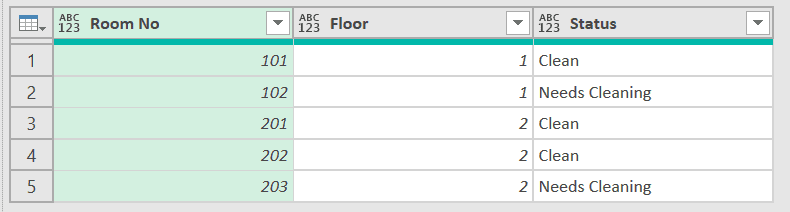
The Room Bookings table matches on its Room column, and it also has a column called Status.
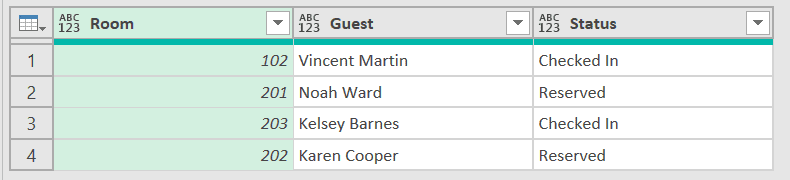
The key columns have different names here (Room No and Room), but joining the two tables as they are still fails, this time on the Status column (in the example file, click the Attempt step to see it):

Since only one column clashes, you can rename just that one. Create a new blank query, open the Advanced Editor, and use this code:
let
    Source = Excel.CurrentWorkbook(){[Name="Rooms"]}[Content],
    RoomBookings = Excel.CurrentWorkbook(){[Name="RoomBookings"]}[Content],
    Attempt = Table.Join(Source,"Room No",RoomBookings,"Room"),
    Joined = Table.Join(Source,"Room No",Table.RenameColumns(RoomBookings,{{"Status","Booking Status"}}),"Room")
in
    Joined
Result: Four booked rooms with Room No, Floor, Status, Room, Guest, and Booking Status columns

Here, the Table.RenameColumns function renames Status to Booking Status inside the join, so the two Status columns no longer clash. Room 101 has no booking, so the inner join leaves it out.
Renaming one column keeps the other names short and readable. Prefixing every column, like in Example 3, is easier when several columns clash or when you don’t know the column names in advance.
Example 5: Join on Two Key Columns
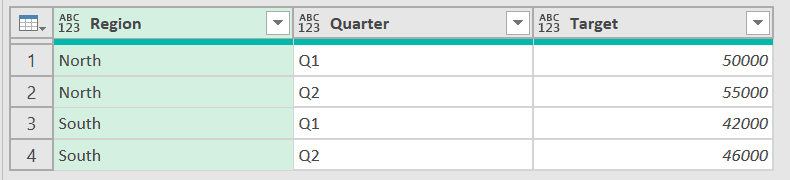
Sometimes one column isn’t enough to identify a match. Below is a sales targets table by Region and Quarter, and I want to put the actual sales next to each target from an Actuals table.
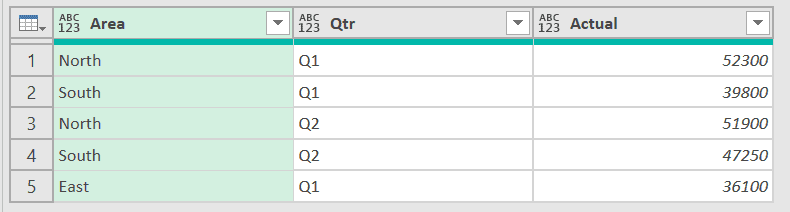
The Actuals table has the same information in its Area and Qtr columns.
Create a new blank query, open the Advanced Editor, and use this code:
let
    Source = Excel.CurrentWorkbook(){[Name="Targets"]}[Content],
    Actuals = Excel.CurrentWorkbook(){[Name="Actuals"]}[Content],
    Joined = Table.Join(Source,{"Region","Quarter"},Actuals,{"Area","Qtr"})
in
    Joined
Result: Four rows, each target with its matching Area, Qtr, and Actual value

Here, the keys are lists of two columns each, and Table.Join pairs them in order: Region with Area, and Quarter with Qtr.
A row only matches when both values match, so the North Q1 target gets the North Q1 actual and not the North Q2 one.
The East Q1 row in Actuals has no target, so the inner join leaves it out.
Follow along with the example file
Table.Join Function Examples.xlsx
Example 6: Reconcile Two Lists with a Full Outer Join
This next one comes up a lot when you’re checking two lists against each other.
Below is a bank statement with a reference and an amount for each transaction, and I want to line it up against the ledger and see what’s missing on either side.
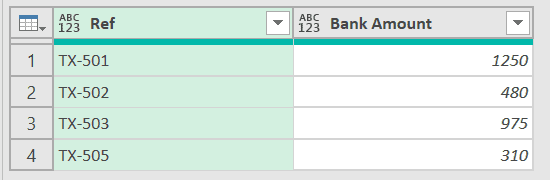
Here’s the Ledger table, with an Entry Ref for each entry.
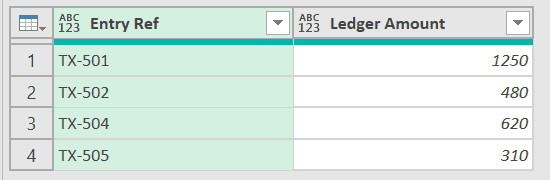
Create a new blank query, open the Advanced Editor, and use this code:
let
    Source = Excel.CurrentWorkbook(){[Name="Bank"]}[Content],
    Ledger = Excel.CurrentWorkbook(){[Name="Ledger"]}[Content],
    Joined = Table.Join(Source,"Ref",Ledger,"Entry Ref",JoinKind.FullOuter)
in
    Joined
Result: Five rows, with TX-503 showing null in the Ledger columns and TX-504 showing null in the Bank columns
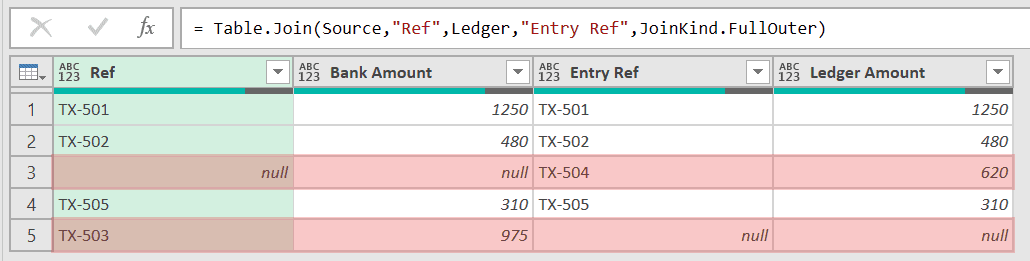
Here, JoinKind.FullOuter keeps every row from both tables. Matched transactions sit on one row, while TX-503 (only in the bank statement) and TX-504 (only in the ledger) each get their own row with nulls on the missing side.
So any row with a null in Ref or Entry Ref is a transaction you need to look into.
Example 7: Find Rows with No Match (Left Anti Join)
Here’s a really useful one. Below is a list of students, and I want to find the students who haven’t submitted their assignment yet, using a Submissions table.
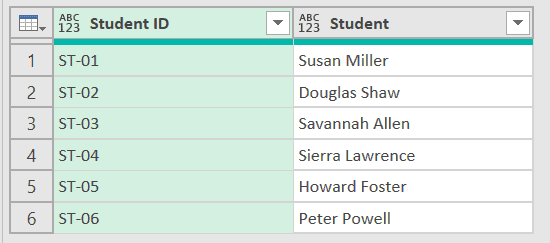
The Submissions table has a Student No and a Score for everyone who has submitted.
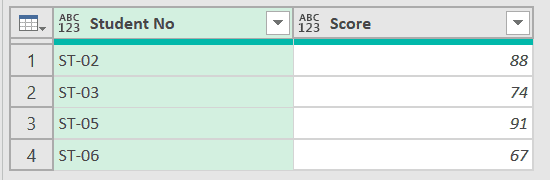
Create a new blank query, open the Advanced Editor, and use this code:
let
    Source = Excel.CurrentWorkbook(){[Name="Students"]}[Content],
    Submissions = Excel.CurrentWorkbook(){[Name="Submissions"]}[Content],
    Joined = Table.Join(Source,"Student ID",Submissions,"Student No",JoinKind.LeftAnti),
    Cleaned = Table.SelectColumns(Joined,Table.ColumnNames(Source))
in
    Cleaned
Result: Two students, ST-01 Susan Miller and ST-04 Sierra Lawrence
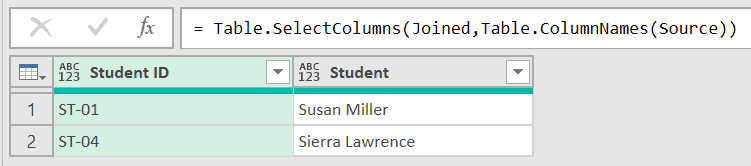
Here, JoinKind.LeftAnti keeps only the rows of the first table that have no match in the second. So you get the two students whose IDs don’t appear in Submissions.
One odd thing about the anti and semi join kinds in Table.Join is that the result still includes the second table’s columns (Student No and Score here), with null in every row.
That’s why the Cleaned step uses the Table.SelectColumns function to keep only the columns from the original Students table.
Example 8: Keep Only Rows with a Match (Left Semi Join)
This one is the opposite of the anti join. Below is a list of event volunteers, and I want only the volunteers who have signed up for at least one shift in the Shifts table.
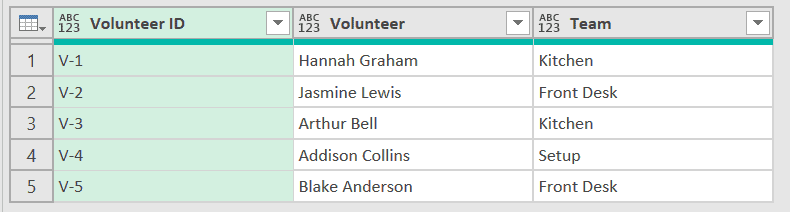
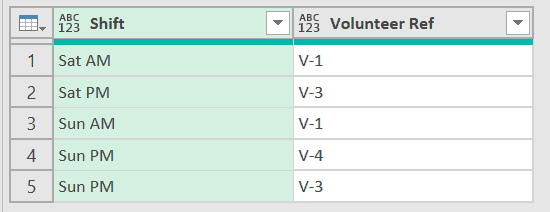
The Shifts table has one row per sign-up, so some volunteers appear more than once.
Create a new blank query, open the Advanced Editor, and use this code:
let
    Source = Excel.CurrentWorkbook(){[Name="Volunteers"]}[Content],
    Shifts = Excel.CurrentWorkbook(){[Name="Shifts"]}[Content],
    Joined = Table.Join(Source,"Volunteer ID",Shifts,"Volunteer Ref",JoinKind.LeftSemi),
    Cleaned = Table.SelectColumns(Joined,Table.ColumnNames(Source))
in
    Cleaned
Result: Three volunteers, Hannah Graham, Arthur Bell, and Addison Collins
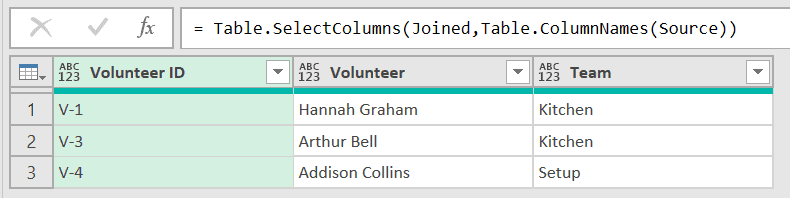
Here, JoinKind.LeftSemi keeps the rows of the first table that have at least one match in the second. Each volunteer appears only once, even though Hannah Graham (V-1) and Arthur Bell (V-3) each signed up for two shifts.
That’s the difference from an inner join, which would list Hannah and Arthur twice. Like in Example 7, the Cleaned step removes the empty Shifts columns that the semi join adds.
Example 9: When the Keys Look the Same but Don’t Match
This last one is a problem you’ll hit sooner or later. Below is a parking permits table with a Permit No for each vehicle, and I want to bring in the amount paid from a Payments table.
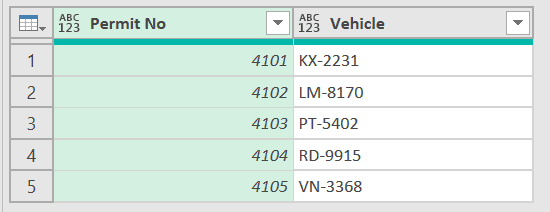
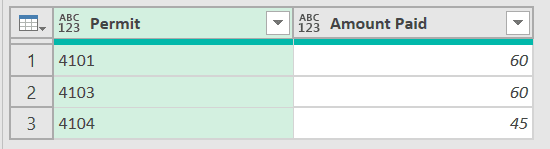
The Payments table has the permit numbers in its Permit column, but they’re stored as text.
If you join them as they are with a left outer join, there’s no error. But every permit comes back with null in the Payments columns (click the Attempt step in the example file to see this):
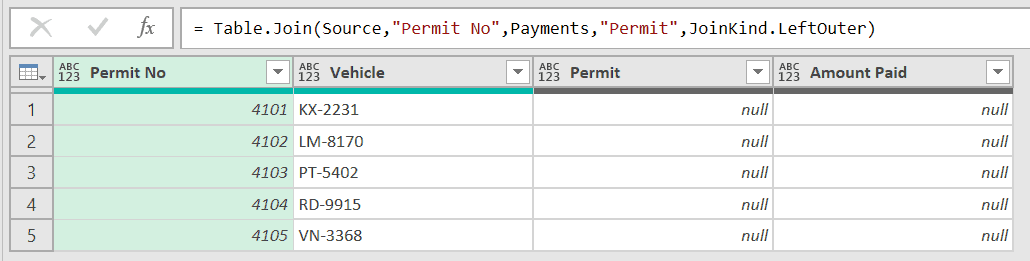
This happens because Table.Join only matches values that are exactly equal, including their type. The number 4101 and the text “4101” are different values, so nothing matches.
To fix it, convert the key column so both sides have the same type. Create a new blank query, open the Advanced Editor, and use this code:
let
    Source = Excel.CurrentWorkbook(){[Name="Permits"]}[Content],
    Payments = Excel.CurrentWorkbook(){[Name="Payments"]}[Content],
    Attempt = Table.Join(Source,"Permit No",Payments,"Permit",JoinKind.LeftOuter),
    Joined = Table.Join(Source,"Permit No",Table.TransformColumnTypes(Payments,{{"Permit",Int64.Type}}),"Permit",JoinKind.LeftOuter)
in
    Joined
Result: All 5 permits, with an Amount Paid of 60, 60, and 45 for permits 4101, 4103, and 4104, and null for the other two

Here, the Table.TransformColumnTypes function changes the Permit column to whole numbers inside the join. Now 4101 matches 4101, and only permits 4102 and 4105 (which haven’t paid) show null.
The same exact-match rule applies to text, and text keys are case-sensitive, so “abc” doesn’t match “ABC”, and a trailing space also stops a match.
To fix those, clean the key columns in both tables before the join: the Text.Trim function removes extra spaces, and the Text.Upper function makes the case match.
Also note that two null keys count as a match, so if both tables have blank IDs, those rows get joined to each other. Filter out the blank keys before the join if you don’t want that.
Other Excel Articles You May Also Like:
- Table.Combine – Use Table.Combine in Power Query M to stack multiple tables into one by appending rows.
- Table.ExpandTableColumn – Use Table.ExpandTableColumn in Power Query M to expand merged table columns.
- List.Combine – Use List.Combine in Power Query M to join lists into one.
- Table.Distinct – Use Table.Distinct in Power Query M to remove duplicate rows.
- Table.ExpandRecordColumn – Use Table.ExpandRecordColumn in Power Query M to turn a record column into columns.
- Table.CombineColumns – Use Table.CombineColumns in Power Query M to merge columns into one.
- Table.ColumnNames – Use Table.ColumnNames in Power Query M to list a table’s column names.
- List.Distinct – Use List.Distinct in Power Query M to remove duplicates from a list.
