

The List.MatchesAny function in Power Query checks whether at least one item in a list meets a condition you set. It returns TRUE as soon as it finds a match, and FALSE if nothing matches.
Since a column, a few cells from the same row, or a list of keywords can all be turned into a list, you can use it to answer questions like “is any amount negative?” or “does this comment mention any of these words?”
Follow along with the example file
List.MatchesAny Function Examples.xlsx
List.MatchesAny Function Syntax
List.MatchesAny(list as list, condition as function) as logical
- list – the list of values you want to check. It can be a list you type in curly brackets, such as
{320,410,2150}, or a column of a table. - condition – a function that tests one value and returns TRUE or FALSE. You usually write it with
each, as ineach _ > 2000, where_stands for the value being checked.
What it returns: TRUE if the condition is TRUE for at least one value in the list, and FALSE if it’s TRUE for none of them (or the list is empty).
The List.MatchesAny function is part of the Power Query M language, so it works wherever Power Query does in Excel: Excel 365, 2024, 2021, 2019, and 2016 for Windows, and Excel for Microsoft 365 on Mac.
When to Use the List.MatchesAny Function
Use this function when you need to:
- Check whether any value in a column crosses a limit, like a negative amount or a slow response time
- Check whether any text in a list contains a word, ignoring upper and lower case
- Flag rows where any of several columns meets a condition
- Flag or filter rows whose text contains any word from a keyword list
- Check each group (each customer, store, or project) for at least one value that meets a condition
Example 1: Check If Any Value Is Above a Limit
Let’s start with the simplest use. Suppose you have a list of website response times in milliseconds, and you want to know if any of them took longer than 2,000 milliseconds.
In Excel, go to Data > Get Data > From Other Sources > Blank Query. In the Power Query Editor that opens, open the Advanced Editor (Home > Advanced Editor) and use this code:
let
    Source = {320,410,2150,380,295},
    #"Has Slow Response" = List.MatchesAny(Source,each _ > 2000)
in
    #"Has Slow Response"
Result: TRUE

Here, the curly brackets create a list of five numbers. The condition each _ > 2000 is checked against each number in turn, with _ standing for the number being checked.
The third number, 2150, is more than 2000, so List.MatchesAny returns TRUE. It only needs one match, so it doesn’t matter that the other four numbers are below the limit.
In the example file, Examples 1 and 5 type their values right into the query, so they don’t have a sheet. You can open them from Data > Queries & Connections.
Example 2: Check a Column for a Value That Meets a Condition
Here’s a common use. Below is a table named ExpenseClaims with the amount of each claim, and I want to check if any claim has a negative amount, which usually means a data entry mistake.
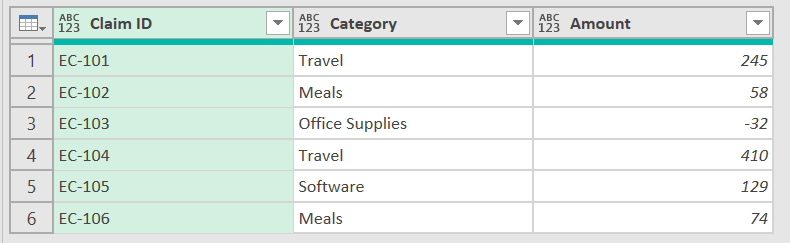
In the code below, the Source line uses the Excel.CurrentWorkbook function to pull the ExpenseClaims table into Power Query by its name.
If you try this on your own data, format it as a table (Ctrl + T) and put your table’s name in place of “ExpenseClaims”.
Create a new blank query (as in Example 1), open the Advanced Editor, and use this code:
let
    Source = Excel.CurrentWorkbook(){[Name="ExpenseClaims"]}[Content],
    #"Has Negative Amount" = List.MatchesAny(Source[Amount],each _ < 0)
in
    #"Has Negative Amount"
Result: TRUE

Here, Source is the name of the first step, and it holds the ExpenseClaims table. Source[Amount] takes the Amount column and returns it as a list, and List.MatchesAny checks each amount with each _ < 0.
Claim EC-103 has an amount of -32, so the result is TRUE. A single TRUE or FALSE like this works well as a quick check before you load or share the data.
Example 3: Check If Any Text Contains a Word (Ignoring Case)
This next one is about text. Below is a table named SupportTickets with the subject of each ticket, and I want to know if any subject contains the word “urgent”, whether it’s typed in upper or lower case.
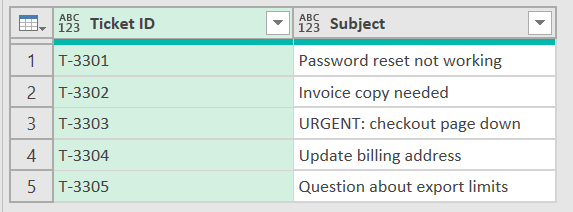
Create a new blank query, open the Advanced Editor, and use this code:
let
    Source = Excel.CurrentWorkbook(){[Name="SupportTickets"]}[Content],
    #"Has Urgent Ticket" = List.MatchesAny(Source[Subject],each Text.Contains(_,"urgent",Comparer.OrdinalIgnoreCase))
in
    #"Has Urgent Ticket"
Result: TRUE

Here, the condition uses the Text.Contains function to check whether each subject contains “urgent”. Ticket T-3303 has the subject “URGENT: checkout page down”, so the result is TRUE.
The third argument, Comparer.OrdinalIgnoreCase, is what makes the match ignore case. Text.Contains is case-sensitive without it, so the same formula would return FALSE here, because “URGENT” in capitals doesn’t match “urgent”.
You may wonder why not use the List.Contains function here. List.Contains only finds a value that matches a whole item exactly, so it can’t find a word inside a longer subject line.
List.MatchesAny lets you write any test you want as the condition, which is why it works here.
Example 4: Check If Any Date Falls on a Weekend
Now let’s check dates. Below is a table named Deliveries with the date of each delivery, and I want to confirm whether any delivery is scheduled on a Saturday or Sunday.
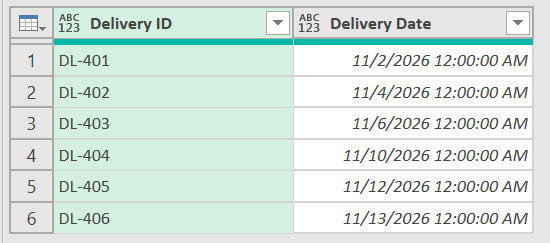
Create a new blank query, open the Advanced Editor, and use this code:
let
    Source = Excel.CurrentWorkbook(){[Name="Deliveries"]}[Content],
    #"Changed Type" = Table.TransformColumnTypes(Source,{{"Delivery Date",type date}}),
    #"Has Weekend Delivery" = List.MatchesAny(#"Changed Type"[Delivery Date],each Date.DayOfWeek(_,Day.Monday) >= 5)
in
    #"Has Weekend Delivery"
Result: FALSE

Here, the Changed Type step sets the Delivery Date column to the date type. Dates from an Excel table come into Power Query with a time part (12:00:00 AM) attached, which you can see in the Source step preview in the dataset image above.
The Date.DayOfWeek function then gives each date a day number. With Day.Monday as the second argument, Monday is 0 and Sunday is 6, so Saturday and Sunday are the only days with a number of 5 or more.
This day number is the same with or without the time part, so the Changed Type step doesn’t change the result. It just makes the column hold plain dates, which is good practice before you work with them.
The six deliveries fall on a Monday, Wednesday, Friday, Tuesday, Thursday, and Friday, so no date matches the condition and List.MatchesAny returns FALSE.
Example 5: What Happens with an Empty List
Before we use List.MatchesAny on rows and groups, it helps to know what it does with an empty list. This example puts it next to its sibling, the List.MatchesAll function, which checks whether every value meets the condition.
Create a new blank query, open the Advanced Editor, and use this code:
let
    Source = #table({"Formula","Result"},{
        {"List.MatchesAny({},each _ > 0)",List.MatchesAny({},each _ > 0)},
        {"List.MatchesAll({},each _ > 0)",List.MatchesAll({},each _ > 0)}})
in
    Source
Result: A small table where List.MatchesAny shows FALSE and List.MatchesAll shows TRUE
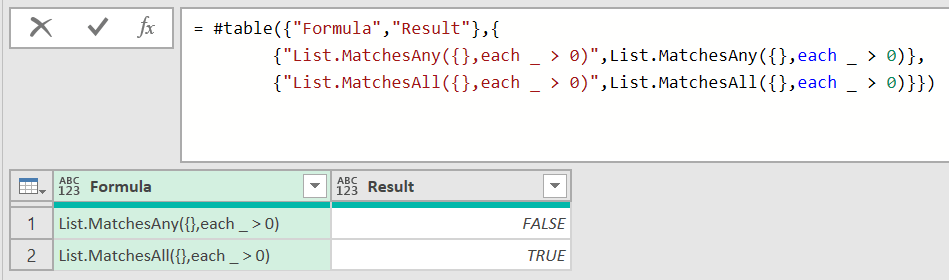
Here, the #table function builds a two-row table. The Formula column shows each formula as text, and the Result column shows what it returns.
{} is an empty list. List.MatchesAny returns FALSE for it, because there’s no value that could meet the condition.
List.MatchesAll returns TRUE for the same empty list, because there’s no value that fails the condition. This matters when your list comes from a filter that matched no rows, since “any” gives FALSE and “all” gives TRUE.
Follow along with the example file
List.MatchesAny Function Examples.xlsx
Example 6: Check Several Columns in Each Row
This one comes up a lot with weekly or monthly data.
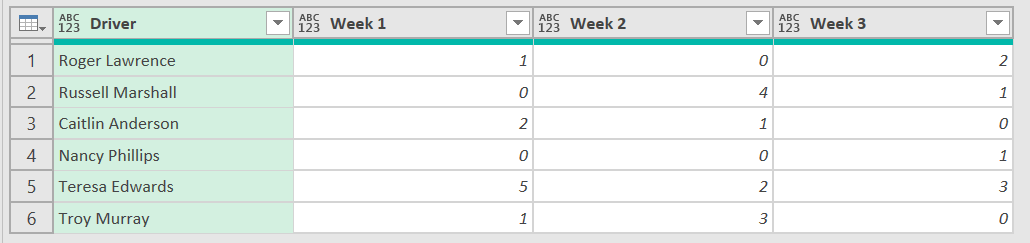
Below is a table named LateDeliveries with the number of late deliveries for each driver over three weeks, and I want a Needs Review column that shows TRUE for any driver with more than 3 late deliveries in any week.
Create a new blank query, open the Advanced Editor, and use this code:
let
    Source = Excel.CurrentWorkbook(){[Name="LateDeliveries"]}[Content],
    #"Added Needs Review" = Table.AddColumn(Source,"Needs Review",each List.MatchesAny({[Week 1],[Week 2],[Week 3]},each _ > 3),type logical)
in
    #"Added Needs Review"
Result: A new Needs Review column with TRUE for Russell Marshall and Teresa Edwards, and FALSE for everyone else
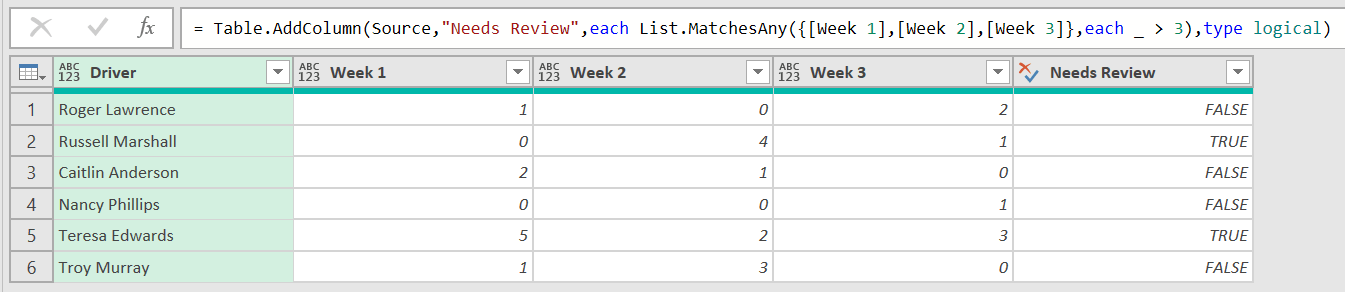
Here, the Table.AddColumn function adds a Needs Review column and runs the formula after the first each once for every row.
For each row, {[Week 1],[Week 2],[Week 3]} builds a list of that driver’s three weekly numbers. List.MatchesAny then checks them with each _ > 3, where _ now stands for one weekly number.
For example, Russell Marshall has 0, 4, and 1, and 4 is more than 3, so his row shows TRUE. Teresa Edwards has 5 in Week 1, so hers is TRUE too, and everyone else stays at 3 or below.
There are two each keywords here. The first one makes _ the current row, and [Week 1] is short for _[Week 1], that row’s Week 1 value.
The inner each then gives _ a new meaning (one weekly number). This works because the three week values are read from the row before the inner each starts, and Example 7 shows what happens when a row value is read inside it.
Example 7: Flag Rows That Contain Any Keyword
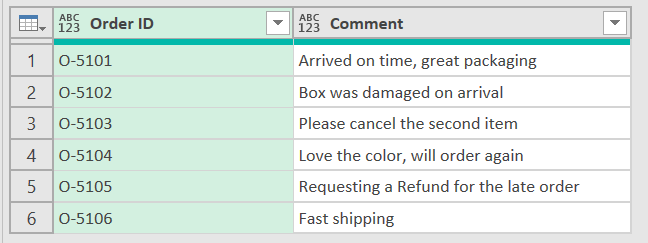
This is one of the most useful things you can do with List.MatchesAny. Below is a table named OrderComments with a customer comment for each order, and I want a Follow Up column that shows TRUE when a comment mentions “refund”, “cancel”, or “damaged”.
Here, the list you check is the list of keywords, and the condition tests each keyword against the comment in the current row. Since Example 6 used each twice, you might write this the same way:
let
    Source = Excel.CurrentWorkbook(){[Name="OrderComments"]}[Content],
    #"Added Follow Up" = Table.AddColumn(Source,"Follow Up",each List.MatchesAny({"refund","cancel","damaged"},each Text.Contains([Comment],_,Comparer.OrdinalIgnoreCase)),type logical)
in
    #"Added Follow Up"
Result: Every row in the Follow Up column shows an Error
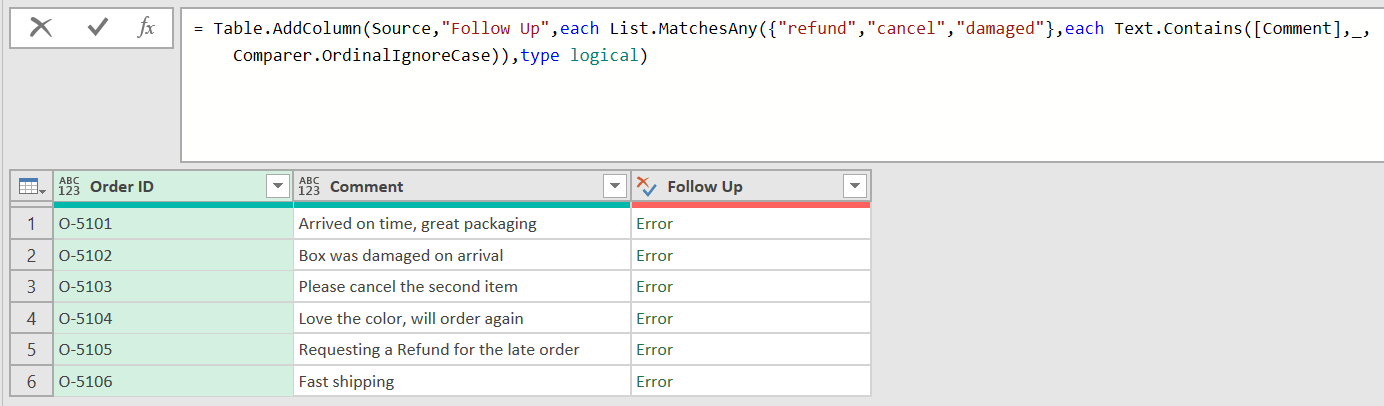
If you click one of the Error cells, you’ll see the message “We cannot apply field access to the type Text.”
This happens because [Comment] is short for _[Comment], and inside the inner each, _ is the keyword (like “refund”), not the row. So Power Query tries to find a Comment field inside a piece of text, which fails on every row.
To fix this, give the inner function its own name for the keyword. Create a new blank query, open the Advanced Editor, and use this code:
let
    Source = Excel.CurrentWorkbook(){[Name="OrderComments"]}[Content],
    #"Added Follow Up" = Table.AddColumn(Source,"Follow Up",each List.MatchesAny({"refund","cancel","damaged"},(word) => Text.Contains([Comment],word,Comparer.OrdinalIgnoreCase)),type logical)
in
    #"Added Follow Up"
Result: A new Follow Up column with TRUE for orders O-5102, O-5103, and O-5105, and FALSE for the rest
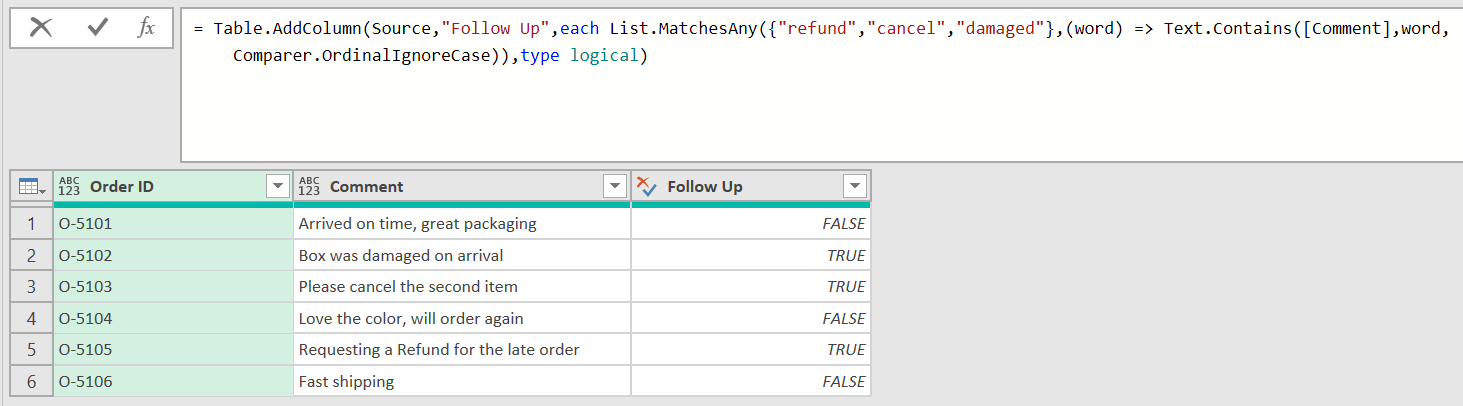
Here, (word) => creates a function where word holds the keyword being checked. Since there’s no inner each anymore, [Comment] refers to the comment in the current row, as you’d expect.
O-5102 mentions “damaged”, O-5103 mentions “cancel”, and O-5105 mentions “Refund” (with a capital R, which still counts because of Comparer.OrdinalIgnoreCase). The other three comments contain none of the keywords, so they show FALSE.
Example 8: Filter Rows Using a Keyword Table
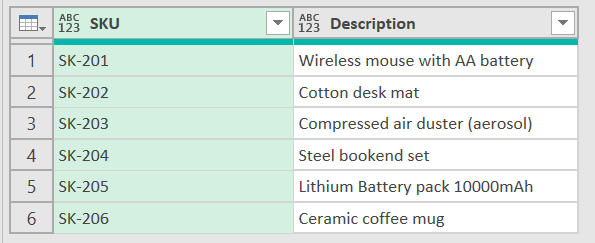
Now let’s keep the keywords in their own Excel table, so you can change them without editing the query. Below is a table named Items with a description of each product, and I want to keep only the items that need special shipping.
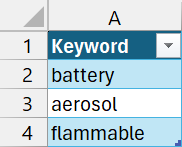
The words that trigger special shipping are in a separate table named ShippingKeywords, on the Example 8 Keywords sheet.
Create a new blank query, open the Advanced Editor, and use this code:
let
    Source = Excel.CurrentWorkbook(){[Name="Items"]}[Content],
    Keywords = Excel.CurrentWorkbook(){[Name="ShippingKeywords"]}[Content][Keyword],
    #"Special Shipping" = Table.SelectRows(Source,each List.MatchesAny(Keywords,(word) => Text.Contains([Description],word,Comparer.OrdinalIgnoreCase)))
in
    #"Special Shipping"
Result: Three rows remain: SK-201, SK-203, and SK-205

Here, the Keywords step pulls the ShippingKeywords table and takes its Keyword column as a list ({“battery”, “aerosol”, “flammable”}).
The Table.SelectRows function then keeps a row only when List.MatchesAny returns TRUE for it, which means its description contains at least one keyword.
SK-201 and SK-205 mention a battery and SK-203 is an aerosol, so those three rows stay. If you add a word like “lithium” to the ShippingKeywords table later, just refresh the query and it picks up the new word.
Example 9: Check Each Group for a Value That Meets a Condition
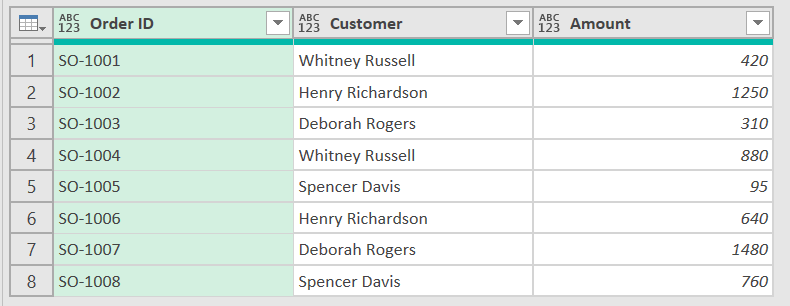
This is a common use of List.MatchesAny with grouping. Below is a table named CustomerOrders with each order’s amount, and I want one row per customer with a Big Order column that shows TRUE if any of their orders is over 1,000.
Create a new blank query, open the Advanced Editor, and use this code:
let
    Source = Excel.CurrentWorkbook(){[Name="CustomerOrders"]}[Content],
    #"Grouped Rows" = Table.Group(Source,{"Customer"},{{"Big Order",each List.MatchesAny([Amount],each _ > 1000),type logical}})
in
    #"Grouped Rows"
Result: One row per customer, with Big Order showing TRUE for Henry Richardson and Deborah Rogers, and FALSE for Whitney Russell and Spencer Davis

Here, the Table.Group function groups the rows by Customer. For each customer, [Amount] is the list of amounts from that customer’s orders only.
List.MatchesAny then checks those amounts with each _ > 1000. Henry Richardson has an order of 1250 and Deborah Rogers has one of 1480, so both show TRUE.
Whitney Russell’s biggest order is 880 and Spencer Davis’s is 760, so their rows show FALSE.
Example 10: Handle Text Values in a Number Column
This last one deals with messy data.
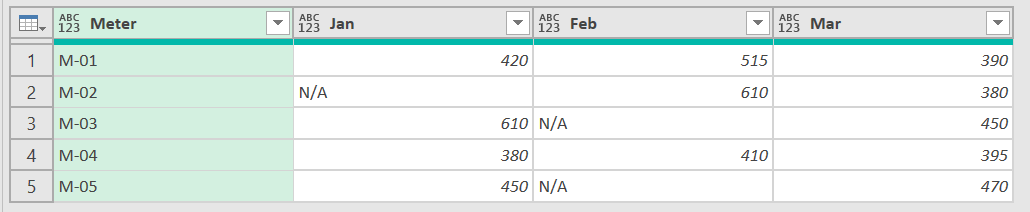
Below is a table named MeterReadings with the electricity used (in kWh) by each meter for three months, where a missing reading was typed as “N/A”, and I want an Over 500 column that shows TRUE when any month is above 500.
If you use the same approach as in Example 6, the code looks like this:
let
    Source = Excel.CurrentWorkbook(){[Name="MeterReadings"]}[Content],
    #"Added Over 500" = Table.AddColumn(Source,"Over 500",each List.MatchesAny({[Jan],[Feb],[Mar]},each _ > 500),type logical)
in
    #"Added Over 500"
Result: The Over 500 column shows Error for M-02 and M-05, TRUE for M-01 and M-03, and FALSE for M-04

The Error cells come from comparing the text “N/A” with the number 500, which Power Query can’t do.
If you click one, you’ll see the message We cannot apply operator < to types Number and Text. The message names the < operator even though the code uses >, so there’s no typo in your formula.
M-03 also has “N/A”, but it doesn’t show an error. That’s because List.MatchesAny stops at the first match, and M-03’s January reading of 610 already matches, so the “N/A” in February is never checked.
So the same “N/A” gives an error in one row and no error in another, depending on where it sits.
To fix this, check that each value is a number before comparing it. Create a new blank query, open the Advanced Editor, and use this code:
let
    Source = Excel.CurrentWorkbook(){[Name="MeterReadings"]}[Content],
    #"Added Over 500" = Table.AddColumn(Source,"Over 500",each List.MatchesAny({[Jan],[Feb],[Mar]},each _ is number and _ > 500),type logical)
in
    #"Added Over 500"
Result: The Over 500 column shows TRUE for M-01, M-02, and M-03, and FALSE for M-04 and M-05

Here, _ is number returns FALSE for “N/A”. The and operator stops as soon as its left side is FALSE, so _ > 500 is only checked for real numbers.
M-02 now shows TRUE because its February reading is 610. M-05’s numbers are 450 and 470, so it shows FALSE.
Blank cells don’t need this extra check. A blank comes into Power Query as null, and List.MatchesAny treats null > 500 as no match instead of an error.
Other Excel Articles You May Also Like:
- List.AnyTrue Function in Power Query M
- List.IsEmpty – Use List.IsEmpty in Power Query M to check whether a list has values or is empty.
- List.Select – Use List.Select in Power Query M to keep only the list items that meet a condition.
- List.IsDistinct – Use List.IsDistinct in Power Query M to check if every value in a list is unique.
- List.Intersect – Use List.Intersect in Power Query M to find values common to lists.
- List.PositionOf – Use List.PositionOf in Power Query M to find where a value sits in a list.
- List.Difference – Use List.Difference in Power Query M to find items in one list but not another.
- Text.StartsWith – Use Text.StartsWith in Power Query M to check whether text begins with a prefix.
