

The List.AnyTrue function in Power Query checks a list of conditions and returns TRUE if at least one of them is true. It’s an easy way to flag rows that meet any of several rules, like an expense with no receipt.
It also handles blank cells better than the or operator. A blank can make an or condition return null, which breaks an if, while List.AnyTrue simply treats it as not true.
Follow along with the example file
List.AnyTrue Function Examples.xlsx
List.AnyTrue Function Syntax
List.AnyTrue(list as list) as logical
- list – a list of TRUE/FALSE values or conditions. You can type the conditions in curly brackets, such as
{[Amount] > 500,[Receipt] = "No"}, or use a column that already holds TRUE and FALSE values.
What it returns: TRUE if any item in the list is TRUE, and FALSE if none of them are.
An empty list returns FALSE, and a null item counts as not true. Microsoft’s documentation doesn’t cover these two cases, but that’s what you get when you test them.
The List.AnyTrue function is part of the Power Query M language, so it works wherever Power Query does in Excel: Excel 365, 2024, 2021, 2019, and 2016 for Windows, and Excel for Microsoft 365 on Mac.
When to Use the List.AnyTrue Function
Use this function when you need to:
- Check whether any of several conditions is true for a row
- Add a TRUE/FALSE flag column based on a few different rules
- Create a label (like “Check” or “OK”) when any rule is met
- Keep only the rows that meet at least one condition
- Check whether a TRUE/FALSE column has at least one TRUE, overall or for each group
- Combine conditions safely when some cells are blank
Example 1: Check if Any Condition in a List Is True
Let’s start with the simplest use. Suppose you have three comparisons, and you want to know if at least one of them is true.
In Excel, go to Data > Get Data > From Other Sources > Blank Query. In the Power Query Editor that opens, type this formula in the formula bar:
= List.AnyTrue({12 > 15,8 = 9,20 > 18})
Result: TRUE

Here, the curly brackets create a list of three conditions. 12 > 15 is false and 8 = 9 is false, but 20 > 18 is true, so List.AnyTrue returns TRUE.
If all three were false, you’d get FALSE. And if the list is empty, you also get FALSE, because there’s nothing in it that’s true.
If you need every condition to be true instead of just one, the List.AllTrue function does that. Note that it returns TRUE for an empty list, the opposite of List.AnyTrue.
In the example file, Example 1 types its list right into the query, so it doesn’t have a sheet. You can open it from Data > Queries & Connections.
Example 2: Check if a TRUE/FALSE Column Has Any TRUE
Sometimes your data already has a TRUE/FALSE column. Below is a table named FreezerAlarms with the temperature of five freezer units and whether each unit’s alarm is on, and I want to know if any alarm is on.
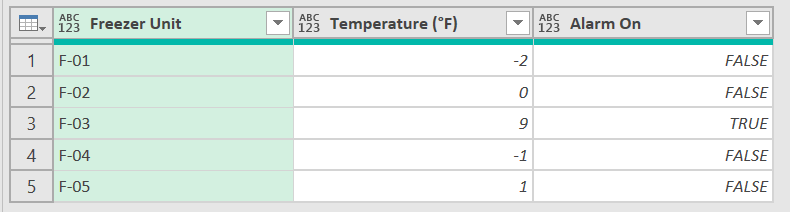
In the code below, the Source line uses the Excel.CurrentWorkbook function to pull the FreezerAlarms table into Power Query by its name.
If you try this on your own data, format it as a table (Ctrl + T) and put your table’s name in place of “FreezerAlarms”.
Create a new blank query (as in Example 1), open the Advanced Editor (Home > Advanced Editor), and use this code:
let
    Source = Excel.CurrentWorkbook(){[Name="FreezerAlarms"]}[Content],
    AnyAlarm = List.AnyTrue(Source[Alarm On])
in
    AnyAlarm
Result: TRUE

Here, Source[Alarm On] takes the Alarm On column of the table as a list of TRUE and FALSE values. Unit F-03 has its alarm on, so List.AnyTrue returns TRUE.
TRUE and FALSE values in an Excel table come into Power Query as logical values, so List.AnyTrue can use them directly. If they’re stored as text, you need one extra step first (see Example 7).
Example 3: Flag Rows That Meet Any of Several Conditions
This is the most common use of List.AnyTrue. Below is a table named ExpenseClaims with each employee’s expense category, amount, and whether a receipt was attached, and I want a Needs Review column that shows TRUE for claims to check.
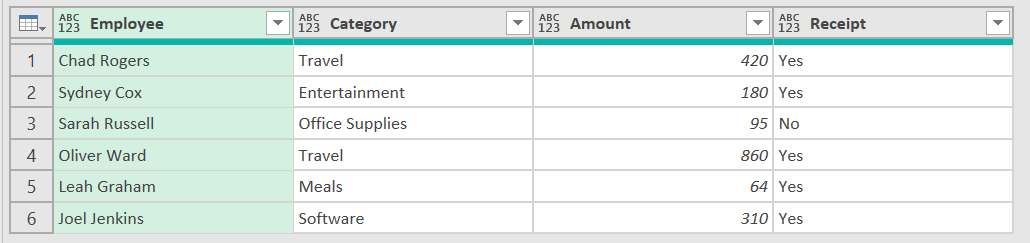
A claim needs a review if the amount is over 500, there’s no receipt, or the category is Entertainment.
Create a new blank query, open the Advanced Editor, and use this code:
let
    Source = Excel.CurrentWorkbook(){[Name="ExpenseClaims"]}[Content],
    #"Added Needs Review" = Table.AddColumn(Source,"Needs Review",each List.AnyTrue({[Amount] > 500,[Receipt] = "No",[Category] = "Entertainment"}),type logical)
in
    #"Added Needs Review"
Result: A new Needs Review column (FALSE, TRUE, TRUE, TRUE, FALSE, and FALSE)

Here, the Table.AddColumn function adds the Needs Review column and runs the formula after each once for every row. For each row, the curly brackets build a list of three TRUE/FALSE results, one for each rule.
Sydney Cox’s claim is Entertainment, Sarah Russell has no receipt, and Oliver Ward spent 860, so each of them gets TRUE. The other three claims don’t meet any rule, so they get FALSE.
To add another rule later, just add one more condition inside the curly brackets. The type logical at the end sets the new column’s data type to TRUE/FALSE.
You could also write this with or between the three conditions, and here you’d get the same result. List.AnyTrue keeps each rule as a separate item in one list, and it also copes better with blank cells, as the next example shows.
Example 4: Avoid Errors When Some Cells Are Blank
This one shows why List.AnyTrue is often better than the or operator. Below is a table named OnlineOrders with each order’s total and discount percent, and I want a Review column that says “Check” for orders over 1000 or with a discount above 20.
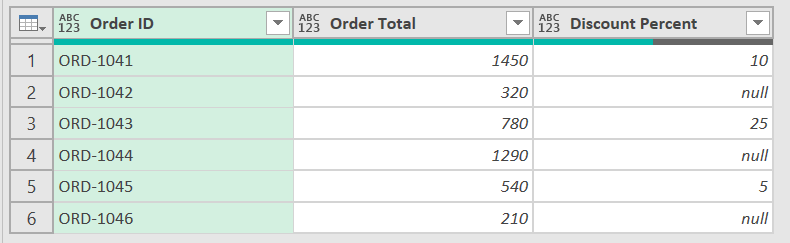
Three orders had no discount, so their Discount Percent cells are blank. In Power Query, blank cells come in as null.
Here’s what happens with the usual or approach. Create a new blank query, open the Advanced Editor, and use this code:
let
    Source = Excel.CurrentWorkbook(){[Name="OnlineOrders"]}[Content],
    #"Added Review" = Table.AddColumn(Source,"Review",each if [Order Total] > 1000 or [Discount Percent] > 20 then "Check" else "OK",type text)
in
    #"Added Review"
Result: The Review column shows Error for ORD-1042 and ORD-1046
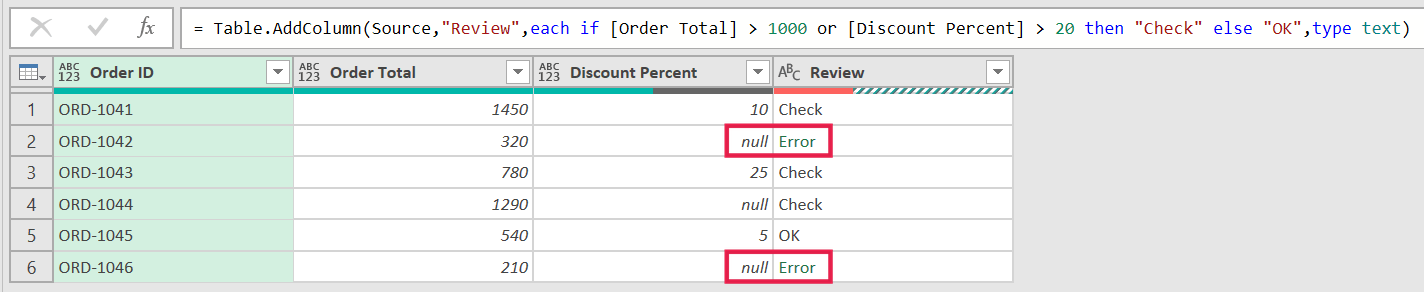
For ORD-1042, the discount is null, so [Discount Percent] > 20 returns null instead of TRUE or FALSE. The order total is under 1000, so the whole or also returns null, and if can’t work with null, so you get an error.
ORD-1044 is blank too, but its total is over 1000. The or is already TRUE there, so that row works, which makes this problem easy to miss.
Now here’s the same check with List.AnyTrue:
let
    Source = Excel.CurrentWorkbook(){[Name="OnlineOrders"]}[Content],
    #"Added Review" = Table.AddColumn(Source,"Review",each if List.AnyTrue({[Order Total] > 1000,[Discount Percent] > 20}) then "Check" else "OK",type text)
in
    #"Added Review"
Result: A Review column with Check, OK, Check, Check, OK, and OK

Here, List.AnyTrue treats the null as not true. So for ORD-1042, the list is {FALSE, null}, nothing in it is TRUE, and the result is FALSE, which gives “OK”.
That’s the right answer here, because a blank discount means no discount. If a blank in your data means the value is unknown, decide whether those rows should really count as “OK”.
Follow along with the example file
List.AnyTrue Function Examples.xlsx
Example 5: Filter Rows That Meet Any Condition
You can also use List.AnyTrue to keep rows. Below is a table named FleetVehicles with the miles and days since each van’s last service, and whether its warning light is on, and I want only the vans that are due for service.
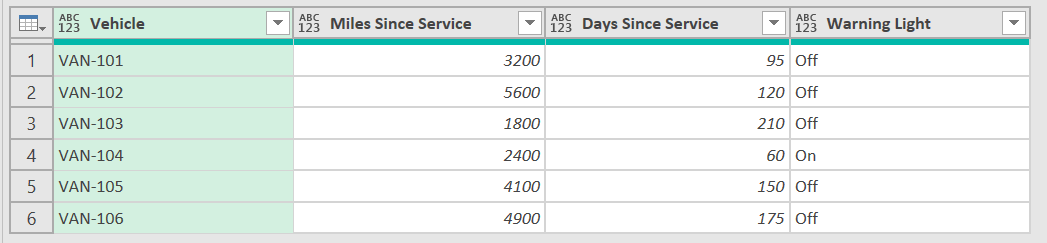
A van is due if it has gone more than 5000 miles or more than 180 days since its last service, or if its warning light is on.
Create a new blank query, open the Advanced Editor, and use this code:
let
    Source = Excel.CurrentWorkbook(){[Name="FleetVehicles"]}[Content],
    DueForService = Table.SelectRows(Source,each List.AnyTrue({[Miles Since Service] > 5000,[Days Since Service] > 180,[Warning Light] = "On"}))
in
    DueForService
Result: A table with three vans, VAN-102, VAN-103, and VAN-104

Here, the Table.SelectRows function keeps a row only when the formula after each returns TRUE. VAN-102 is over 5000 miles, VAN-103 is over 180 days, and VAN-104 has its warning light on.
As in Example 3, or between the three conditions would work here too. And if some of these cells were blank, or still wouldn’t give an error, because Table.SelectRows treats a null test as “don’t keep the row” (unlike if in Example 4).
So here, List.AnyTrue is simply easier to read and edit when you have several rules.
Example 6: Check if Any Row in Each Group Is TRUE
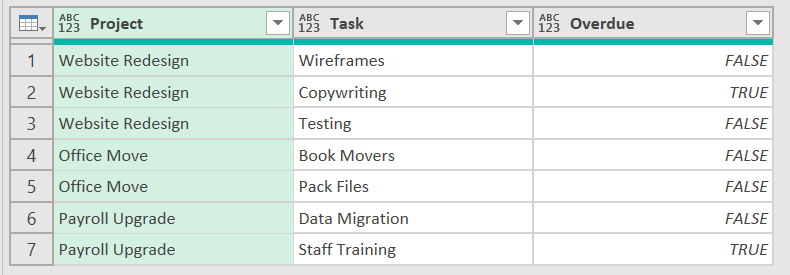
This next one works on groups. Below is a table named ProjectTasks with the tasks for three projects and whether each task is overdue, and I want to know which projects have at least one overdue task.
Create a new blank query, open the Advanced Editor, and use this code:
let
    Source = Excel.CurrentWorkbook(){[Name="ProjectTasks"]}[Content],
    Grouped = Table.Group(Source,{"Project"},{{"Has Overdue Task",each List.AnyTrue([Overdue]),type logical}})
in
    Grouped
Result: One row per project (Website Redesign TRUE, Office Move FALSE, and Payroll Upgrade TRUE)

Here, the Table.Group function groups the rows by Project. For each project, [Overdue] is the list of Overdue values from that project’s rows only, and List.AnyTrue checks if any of them is TRUE.
Website Redesign has one overdue task (Copywriting), so it gets TRUE. Office Move has none, so it gets FALSE.
Example 7: Fix TRUE/FALSE Values Stored as Text
This last one is a common problem with exported data. Below is a table named SafetyChecks with the results of three safety checks at four sites, and I want a Has Issue column that shows TRUE if any check failed.

The TRUE and FALSE values here are stored as text, so Power Query sees them as words, not logical values.
Here’s what happens if you use List.AnyTrue on them as they are. Create a new blank query, open the Advanced Editor, and use this code:
let
    Source = Excel.CurrentWorkbook(){[Name="SafetyChecks"]}[Content],
    #"Added Has Issue" = Table.AddColumn(Source,"Has Issue",each List.AnyTrue({[Exit Blocked],[Extinguisher Expired],[Exposed Wiring]}),type logical)
in
    #"Added Has Issue"
Result: The Has Issue column shows Error in every row

List.AnyTrue only accepts logical values. When it gets the text “TRUE” or “FALSE”, it gives an error that says it cannot convert the value to type Logical.
To fix it, change the three check columns to the TRUE/FALSE type before you use List.AnyTrue:
let
    Source = Excel.CurrentWorkbook(){[Name="SafetyChecks"]}[Content],
    #"Changed Type" = Table.TransformColumnTypes(Source,{{"Exit Blocked",type logical},{"Extinguisher Expired",type logical},{"Exposed Wiring",type logical}}),
    #"Added Has Issue" = Table.AddColumn(#"Changed Type","Has Issue",each List.AnyTrue({[Exit Blocked],[Extinguisher Expired],[Exposed Wiring]}),type logical)
in
    #"Added Has Issue"
Result: A Has Issue column with FALSE, TRUE, FALSE, and TRUE

Here, the Changed Type step turns the text “TRUE” and “FALSE” into real logical values. Now List.AnyTrue can check them, and Warehouse B and Store 15 get TRUE because at least one of their checks failed.
You can also change the type without code. Select the three columns, right-click one of the headers, and choose Change Type > True/False.
Other Excel Articles You May Also Like:
- List.MatchesAny function
- List.Intersect function
- List.IsEmpty – Use List.IsEmpty in Power Query M to check whether a list has values or is empty.
- List.Contains – Use List.Contains in Power Query M to check if a value exists in a list.
- List.IsDistinct – Use List.IsDistinct in Power Query M to check if every value in a list is unique.
- Text.Contains – Guide to Text.Contains in Power Query M.
- List.Select – Use List.Select in Power Query M to keep only the list items that meet a condition.
- List.NonNullCount – Use List.NonNullCount in Power Query M to count the filled, non-null values in a list.
