

The List.Sort function in Power Query sorts the items in a list, from smallest to largest by default. You can also sort in descending order, sort by a value you work out from each item, or follow your own custom order.
In this article, I’ll show you how it works with practical examples, from sorting a simple list of numbers to sorting the text inside each cell of a table.
Follow along with the example file
List.Sort Function Examples.xlsx
List.Sort Function Syntax
List.Sort(list as list, optional comparisonCriteria as any) as list
- list – the list you want to sort. It can be a list you type in curly brackets, like
{3,1,2}, or a column from a table, likeSource[Destination]. - comparisonCriteria (optional) – how to sort. Leave it out to sort in ascending order, or use
Order.Descendingfor largest first. You can also give a function that works out a sort value for each item, a list with that function and an order, or a function that compares two items.
What it returns: A new list with the same items in sorted order. The original list isn’t changed.
The List.Sort function is part of the core Power Query M library, so it works wherever Power Query does, including Excel 365, 2024, 2021, 2019, 2016, and Power BI.
When to Use the List.Sort Function
Use this function when you need to:
- Sort a list of numbers, text, or dates
- Get a sorted list of the unique values in a column, such as for a drop-down list
- Sort codes like TKT-7 and TKT-105 by their number instead of as text
- Sort items in your own order, such as shirt sizes from XS to XL
- Sort the comma-separated items inside each cell of a column
If you want to sort the rows of a whole table, use the Table.Sort function instead. List.Sort works on one list at a time.
Example 1: Sort a List of Numbers
Let’s start with the basics. Suppose you have a list of daily order counts and you want them sorted from smallest to largest.
In Excel, go to Data > Get Data > From Other Sources > Blank Query. In the Power Query Editor that opens, type this formula in the formula bar:
= List.Sort({48,15,92,7,33,61})
Result: 7, 15, 33, 48, 61, 92
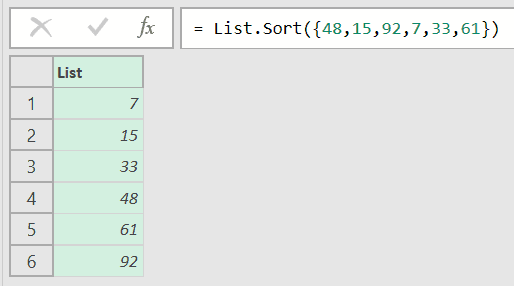
Here, the curly brackets create a list of six numbers. Since there’s no second argument, List.Sort uses ascending order, so the smallest number comes first.
The Power Query Editor shows the result as a list, with one item per row.
Examples 1, 2, 4, 6, and 8 type their list right into the query, so they don’t need a table on a worksheet. In the example file, you can open them from Data > Queries & Connections.
Example 2: Sort in Descending Order
Now let’s flip the order. To get the same order counts from largest to smallest, add Order.Descending as the second argument.
Create a new blank query and use this formula:
= List.Sort({48,15,92,7,33,61},Order.Descending)
Result: 92, 61, 48, 33, 15, 7
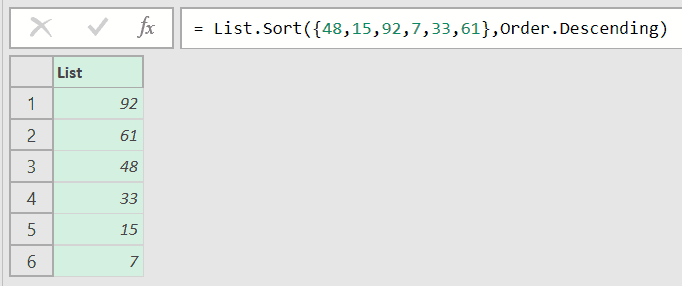
Here, Order.Descending tells List.Sort to put the largest number first. There’s also Order.Ascending, but you rarely need to type it because ascending is already the default.
Example 3: Get a Sorted List of Unique Values from a Column
This next one is a very common use case. Below is a shipment log with the destination city of each shipment, and I want a sorted list of the cities, with each city appearing only once.
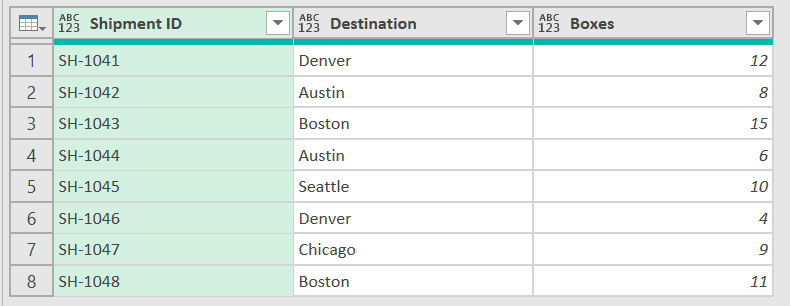
The shipment log is an Excel Table named Shipments. The code below reads it by that name, so for your own data, change “Shipments” to the name of your table.
Create a new blank query, open the Advanced Editor (Home > Advanced Editor), and use this code:
let
    Source = Excel.CurrentWorkbook(){[Name="Shipments"]}[Content],
    Destinations = List.Sort(List.Distinct(Source[Destination]))
in
    Destinations
Result: Austin, Boston, Chicago, Denver, Seattle
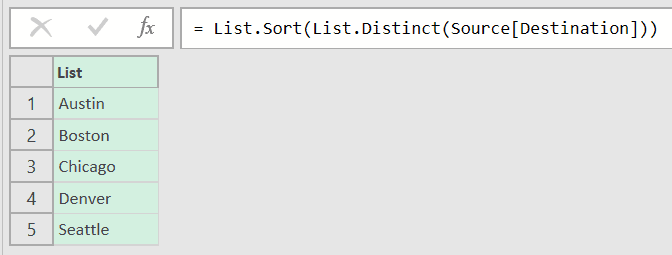
Here, Source[Destination] gives the Destination column as a list of eight cities. The List.Distinct function removes the repeats, which leaves five cities, and List.Sort puts them in alphabetical order.
A sorted list of unique values like this is handy as the source for a drop-down list.
Example 4: Sort Text Without Worrying About Capital Letters
Capital letters can mess up a text sort. Suppose you have a list of product tags where some start with a capital letter and some don’t.
If you sort it with a plain List.Sort, the result is Monitor, Mouse, Webcam, headset, keyboard, laptop. That’s because List.Sort compares text character by character, and every capital letter comes before every lowercase letter.
To sort it alphabetically regardless of case, create a new blank query and use this formula:
= List.Sort({"laptop","Monitor","keyboard","Mouse","headset","Webcam"},Comparer.OrdinalIgnoreCase)
Result: headset, keyboard, laptop, Monitor, Mouse, Webcam
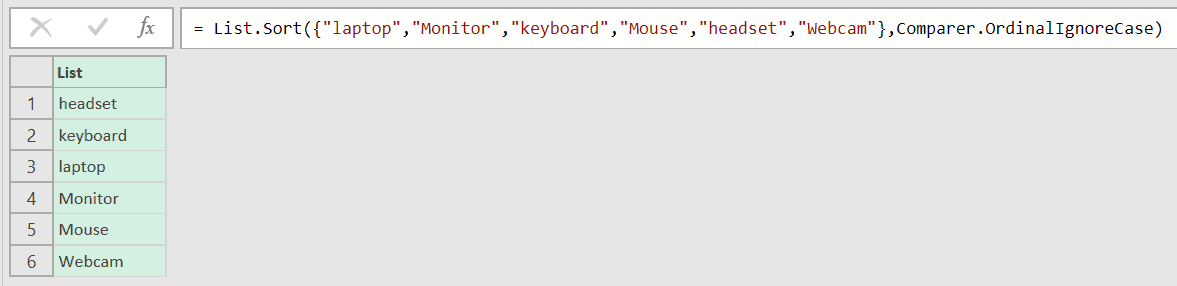
Here, Comparer.OrdinalIgnoreCase is a function that compares two text values and ignores the difference between capital and small letters. List.Sort uses it to decide which tag goes first.
The items keep their original capitalization in the result. Only the order changes.
Example 5: Sort Codes by the Number in Them
This next one comes up a lot with IDs and invoice numbers. Below is a list of support tickets with a Ticket ID like TKT-7 or TKT-105, and I want a list of the IDs sorted by their number.
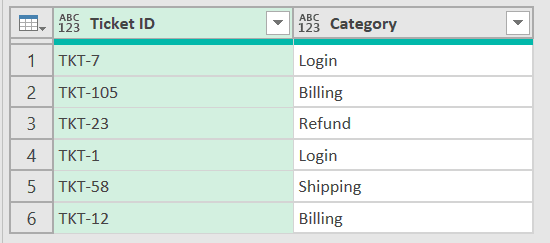
If you sort these IDs as text, you get TKT-1, TKT-105, TKT-12, TKT-23, TKT-58, TKT-7. Text is compared one character at a time, so TKT-105 comes before TKT-12, because 0 comes before 2.
To sort by the actual number, create a new blank query, open the Advanced Editor, and use this code:
let
    Source = Excel.CurrentWorkbook(){[Name="Tickets"]}[Content],
    SortedIDs = List.Sort(Source[Ticket ID],each Number.From(Text.AfterDelimiter(_,"-")))
in
    SortedIDs
Result: TKT-1, TKT-7, TKT-12, TKT-23, TKT-58, TKT-105
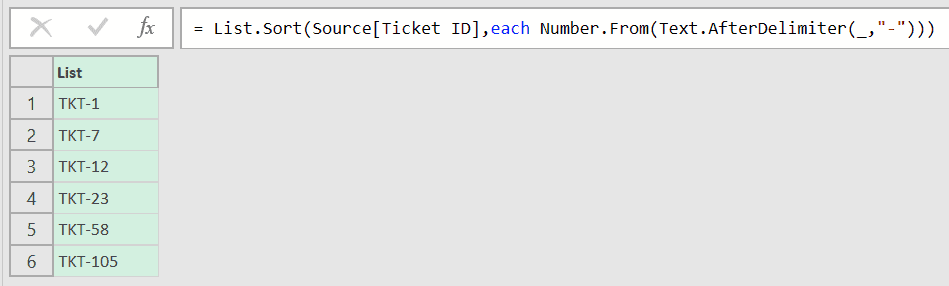
Here, the second argument is a function that works out a sort value for each ID.
The each keyword runs the expression after it once for every item, and the underscore (_) stands for the current item. It’s the same shorthand you may have seen with the Table.SelectRows function.
So for TKT-105, the Text.AfterDelimiter function returns the text after the hyphen, “105”, and the Number.From function turns it into the number 105. List.Sort then sorts the IDs by these numbers, but the result still shows the original IDs.
The result is only the list of IDs, without the Category column. To sort the whole table instead, use the Table.Sort function, where the function reads the column by name: Table.Sort(Source,{each Number.From(Text.AfterDelimiter([Ticket ID],"-")),Order.Ascending}).
Follow along with the example file
List.Sort Function Examples.xlsx
Example 6: Sort by a Value and Choose the Order
Sometimes you want to sort by a worked-out value and also pick the direction. Suppose you have a list of budget variances, some over budget and some under, and you want the biggest ones first, no matter the sign.
Create a new blank query and use this formula:
= List.Sort({-450,120,-30,300,-75,15},{each Number.Abs(_),Order.Descending})
Result: -450, 300, 120, -75, -30, 15
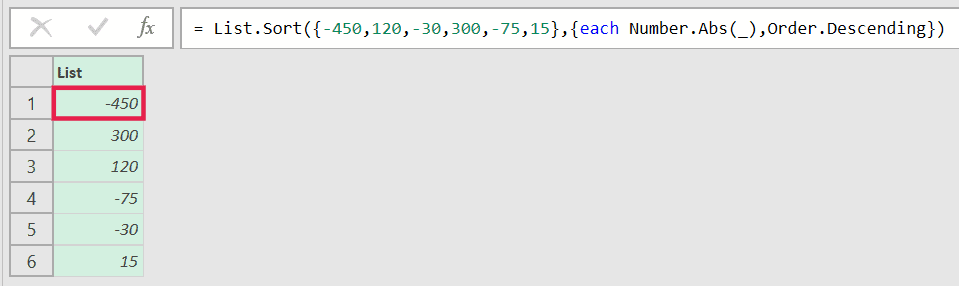
Here, the second argument is a list with two parts. The first part, each Number.Abs(_), sorts by the size of each number without its minus sign, and the second part, Order.Descending, puts the largest first.
So -450 comes first because it’s the biggest variance, even though it’s the smallest number in the list.
Example 7: Sort in a Custom Order
Not everything sorts well alphabetically. Below is a list of T-shirt orders with the size of each order, and I want a list of the sizes in the order XS, S, M, L, XL.
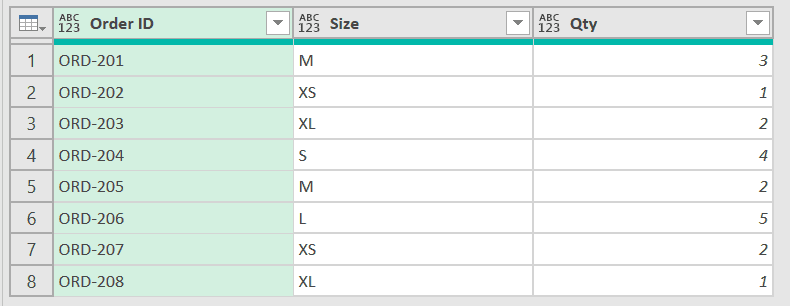
A plain alphabetical sort would give L, M, S, XL, XS, which isn’t much use. So the trick is to write down the order you want and sort each size by its position in it.
Create a new blank query, open the Advanced Editor, and use this code:
let
    Source = Excel.CurrentWorkbook(){[Name="ShirtOrders"]}[Content],
    SizeOrder = {"XS","S","M","L","XL"},
    Sizes = List.Sort(List.Distinct(Source[Size]),each List.PositionOf(SizeOrder,_))
in
    Sizes
Result: XS, S, M, L, XL
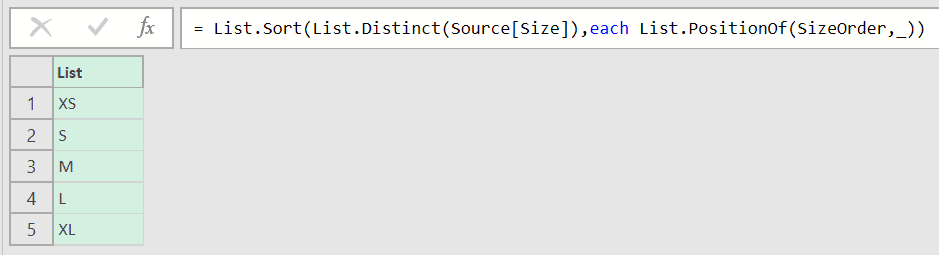
Here, the SizeOrder step holds the sizes in the order you want. For each size, the List.PositionOf function returns where it sits in SizeOrder, so XS gets 0, S gets 1, and so on, and List.Sort sorts by those numbers.
List.Distinct first removes the repeated sizes, so each size shows up once in the result.
Important: Any size that’s missing from SizeOrder (say, XXL) gets a position of -1, so it jumps to the top of the sorted list. Add every possible value to your custom order list.
Example 8: Sort by Two Keys
Now let’s sort by more than one thing. Suppose you have a list of room codes like B-12 and A-3, and you want them sorted by the letter first and then by the number.
Create a new blank query, open the Advanced Editor, and use this code:
let
    Source = {"B-12","A-3","C-1","B-2","A-10","C-20"},
    Sorted = List.Sort(Source,{
        {each Text.BeforeDelimiter(_,"-"),Order.Ascending},
        {each Number.From(Text.AfterDelimiter(_,"-")),Order.Ascending}
    })
in
    Sorted
Result: A-3, A-10, B-2, B-12, C-1, C-20
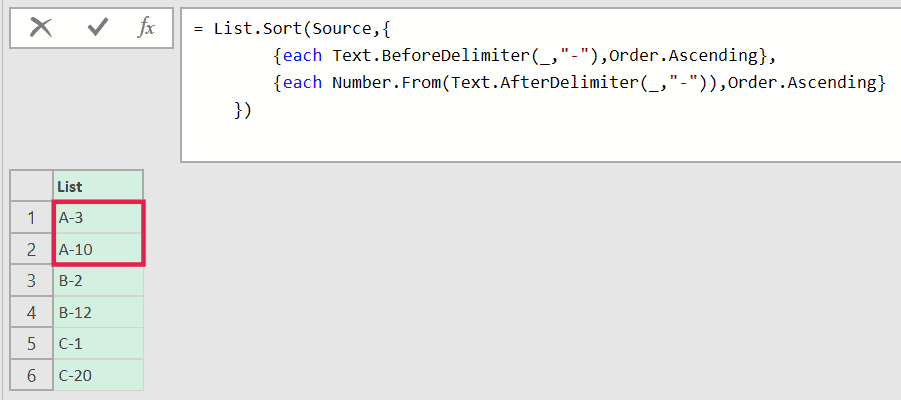
Here, the Source step holds the room codes, and the second argument is a list of two sort rules, each with its own function and order. The first rule sorts by the letter before the hyphen, and the second sorts by the number after it.
The second rule only matters when two codes share the same letter. That’s why A-3 comes before A-10, because 3 is smaller than 10.
Microsoft’s List.Sort page doesn’t mention this two-rule form, but it works in Excel, as the result above shows.
Example 9: Sort the Items Inside Each Cell
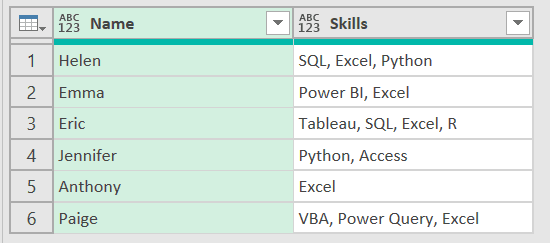
This last one combines List.Sort with a few text functions. Below is a list of team members with their skills in one cell, separated by commas, and I want the skills in each cell sorted alphabetically.
Create a new blank query, open the Advanced Editor, and use this code:
let
    Source = Excel.CurrentWorkbook(){[Name="TeamSkills"]}[Content],
    #"Sorted Skills" = Table.TransformColumns(Source,{{"Skills",each Text.Combine(List.Sort(Text.Split(_,", ")),", "),type text}})
in
    #"Sorted Skills"
Result: The Skills column with each cell sorted, so “SQL, Excel, Python” becomes “Excel, Python, SQL”
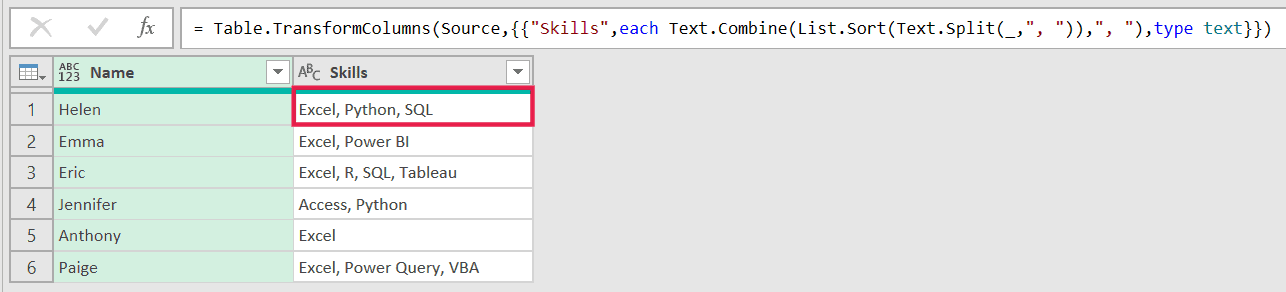
Here, the Table.TransformColumns function changes every value in the Skills column. For each cell, the Text.Split function breaks the text at each comma and space into a list, like {“SQL”,”Excel”,”Python”}.
List.Sort sorts that list, and the Text.Combine function joins it back into one text value with a comma and space between the items.
This works because the skills are always separated by a comma followed by a space. If your data uses a different separator, change “, ” in both Text.Split and Text.Combine.
Other Excel Articles You May Also Like:
- List.Reverse function
- Table.AddRankColumn function
- Table.Distinct Function in Power Query M
- List.Max – Use List.Max in Power Query M to find the largest value in a list.
- List.Combine – Use List.Combine in Power Query M to join lists into one.
- List.IsDistinct – Use List.IsDistinct in Power Query M to check if every value in a list is unique.
- List.Transform – Use List.Transform in Power Query M to run the same change on every item in a list.
- List.Select – Use List.Select in Power Query M to keep only the list items that meet a condition.
