

The Web.Contents function downloads whatever sits at a web address, like an API, a CSV file, or an Excel workbook, so Power Query can work with it.
In this article, I’ll show you how to use it to pull web data into Excel, and how its options handle query strings, headers, POST requests, and error codes.
Follow along with the example file
Web.Contents Function Examples.xlsx
Web.Contents Function Syntax
Web.Contents(url as text, optional options as nullable record) as binary
- url – the web address you want to download, as text (for example
"https://date.nager.at/api/v3/PublicHolidays/2026/US"). - options (optional) – a record of extra settings. The ones you’ll use most are Query (adds query parameters to the URL and handles the escaping for you), RelativePath (adds a path to the end of the base URL), Headers (sends HTTP headers with the request), Content (turns the request into a POST and sends this value as its body), ManualStatusHandling (a list of HTTP status codes you want to handle yourself instead of getting an error), and Timeout (a duration, 100 seconds by default). The record also accepts ApiKeyName (covered in Example 6), IsRetry (set it to true to ignore any cached response and fetch fresh data), and ExcludedFromCacheKey (a list of header names to leave out when Power Query decides whether a cached response can be reused).
What it returns – The downloaded content as a binary value. That binary isn’t readable on its own, so you wrap Web.Contents in a function that knows the file type, such as Json.Document, Csv.Document, or Excel.Workbook.
The first time Excel connects to a new website, it may ask how you want to sign in. For the public addresses in this article, choose Anonymous.
The Web.Contents function works in Power Query in Excel for Windows (Excel 2016 and later, including Microsoft 365) and in Power BI.
When to Use the Web.Contents Function
Use this function when you need to:
- Pull data from a web API that returns JSON
- Import a CSV or Excel file that someone shares through a link
- Send query parameters, such as a date or a currency code, to an API
- Pass an API key or other header that a service requires
- Send data to an API with a POST request
- Check the HTTP status code of a request and handle errors like 404 yourself
Example 1: Get JSON Data from a Public API
Let’s start with the most common use, pulling data from an API.
Suppose you want a list of 2026 US federal holidays for a staffing plan. The free Nager.Date API returns public holidays for many countries as JSON, so you can point Web.Contents at it.
Create a new blank query (Data > Get Data > From Other Sources > Blank Query), open the Advanced Editor (Home > Advanced Editor), and paste this code:
let
    Source = Web.Contents("https://date.nager.at/api/v3/PublicHolidays/2026/US"),
    #"Parsed JSON" = Json.Document(Source),
    #"Converted to Table" = Table.FromRecords(#"Parsed JSON"),
    #"Filtered Rows" = Table.SelectRows(#"Converted to Table",each [global] = true),
    #"Removed Other Columns" = Table.SelectColumns(#"Filtered Rows",{"date","name"}),
    #"Changed Type" = Table.TransformColumnTypes(#"Removed Other Columns",{{"date",type date}})
in
    #"Changed Type"
Result: A table with 11 holidays, from 1/1/2026 (New Year’s Day) to 12/25/2026 (Christmas Day)
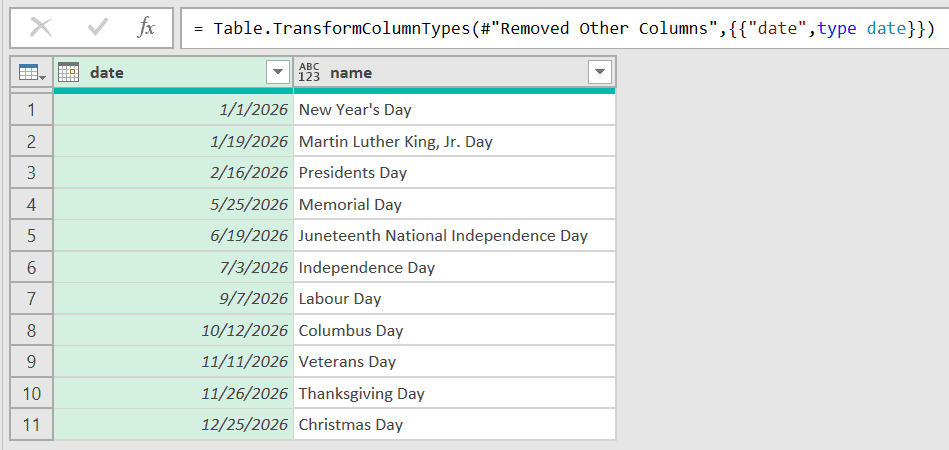
Here, the Source step is Web.Contents on its own. If you click that step in Applied Steps, you won’t see a table, just the downloaded binary, because Web.Contents only fetches the content.
The Json.Document function then reads that binary as JSON, which gives a list of records, and Table.FromRecords turns that list into a table.
The API also returns holidays that only some states observe, so the Filtered Rows step uses Table.SelectRows to keep the rows where the global column is true.
After that, I kept the date and name columns and changed the date column from text to a real date.
The holiday names come straight from the API, which is why you see “Labour Day” with the British spelling. Independence Day shows as 7/3/2026 because July 4 falls on a Saturday in 2026, and the API returns the observed date.
The dates appear in month/day/year order because this computer uses US regional settings. A UK computer shows Independence Day as 03/07/2026, but the underlying date value is the same.
Example 2: Import a CSV File from a URL
This next one comes up when a colleague or a system publishes a CSV file online.
Suppose your sales team keeps its quarterly rep numbers in a CSV file shared through a Dropbox link, and you want that data in Excel without downloading the file first.
Create a new blank query, open the Advanced Editor, and paste this code:
let
    Source = Csv.Document(Web.Contents("https://www.dropbox.com/scl/fi/ogrnr7mxbaozlktddjup6/Rep-Sales-Q3-2026.csv?rlkey=q71i5itswio6vdyxwtpxz2uae&dl=1"),[Delimiter=",",Encoding=65001]),
    #"Promoted Headers" = Table.PromoteHeaders(Source,[PromoteAllScalars=true]),
    #"Changed Type" = Table.TransformColumnTypes(#"Promoted Headers",{{"Units Sold",Int64.Type},{"Revenue",Int64.Type}})
in
    #"Changed Type"
Result: A table with 6 sales reps and their Region, Units Sold, and Revenue
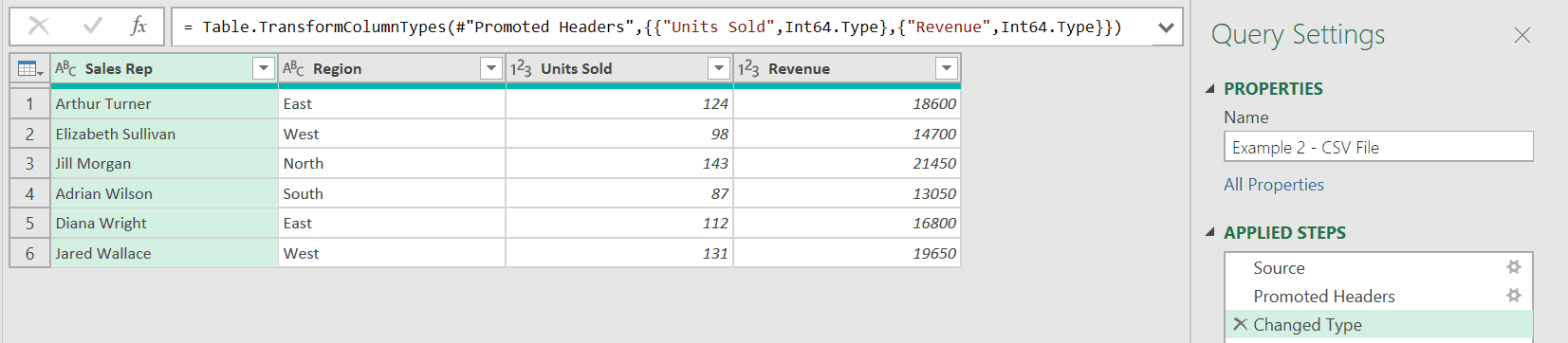
In the above example, Web.Contents downloads the file, and the Csv.Document function reads it as comma-separated text. Encoding=65001 tells it the file is UTF-8, so names with accents come through correctly.
Note the dl=1 at the end of the Dropbox link. With dl=0, Dropbox sends its preview web page instead of the file, and Csv.Document would try to read that HTML as data.
Since the data now lives at a URL, refreshing the query pulls the latest version of the file. When the team updates the CSV, you just click Refresh.
Example 3: Import an Excel Workbook from a URL
Web.Contents works with Excel files just as well as CSV files.
Suppose you want to analyze Microsoft’s Financial Sample workbook, which Microsoft hosts online for Power BI practice. Instead of saving the file to your computer, you can read it straight from its link.
Create a new blank query, open the Advanced Editor, and paste this code:
let
    Source = Excel.Workbook(Web.Contents("https://go.microsoft.com/fwlink/?LinkID=521962"),null,true),
    financials_Table = Source{[Item="financials",Kind="Table"]}[Data]
in
    financials_Table
Result: The financials table with 700 rows and 16 columns, starting with Segment, Country, and Product
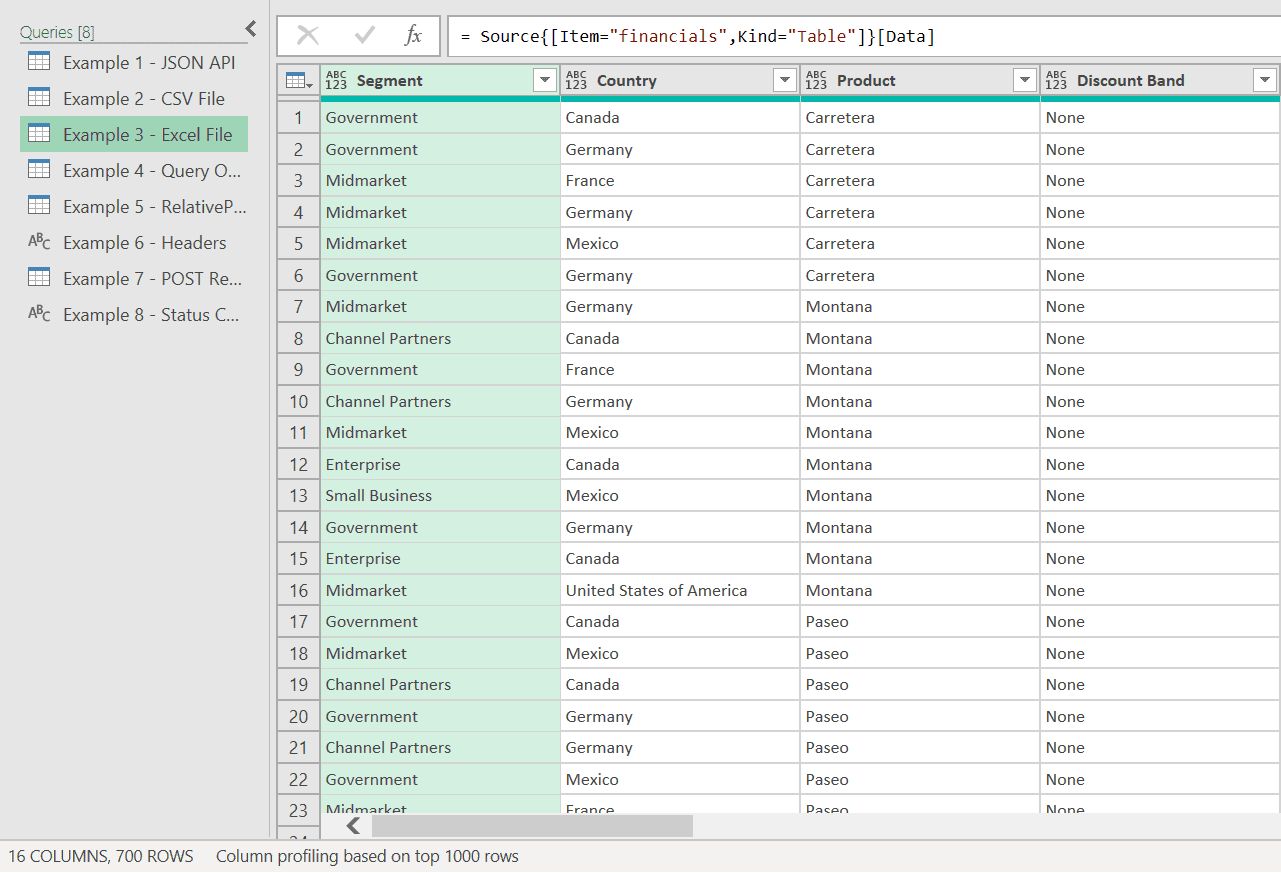
Here, the Excel.Workbook function opens the downloaded binary as a workbook. Its Source step lists everything inside the file: a sheet called Sheet1 and a table called financials.
The second step picks the row where Item is “financials” and Kind is “Table”, and returns its Data, which is the table itself. This is the same step Excel’s Navigator writes when you click a table, which is why Applied Steps shows it as Navigation.
The columns come in without data types, so in a real query you’d add a Changed Type step next.
Also watch the Sales column. Its name in this file starts with a space (” Sales”), so a reference to [Sales] without the space won’t find it.
Example 4: Add Query Parameters with the Query Option
Most APIs take their settings as query parameters, the part of a URL after the ?.
Suppose you need year-end exchange rates to convert USD amounts into euros, British pounds, and Indian rupees. The free Frankfurter API returns European Central Bank rates for any date, and you tell it the base currency and target currencies through query parameters.
Create a new blank query, open the Advanced Editor, and paste this code:
let
    Source = Json.Document(Web.Contents("https://api.frankfurter.dev/v1/2025-12-31",[Query=[base="USD",symbols="EUR,GBP,INR"]])),
    #"Rates Table" = Record.ToTable(Source[rates])
in
    #"Rates Table"
Result: EUR 0.85106, GBP 0.74264, INR 89.87

Here, the Query record turns into the query string of the URL, so Power Query actually requests https://api.frankfurter.dev/v1/2025-12-31?base=USD&symbols=EUR,GBP,INR. The API sends back a record whose rates field holds each currency, and Record.ToTable turns that record into a Name and Value table.
You could type that full URL yourself, but the Query record is safer. It escapes special characters like spaces and & for you, and it’s easier to read and change one parameter at a time.
Example 5: Build the URL with RelativePath
Now let’s make the date in that request easy to change.
Suppose you want the same rates, but for a date you pick, such as the June 30 quarter end. You could glue the date into the URL text with &, but the RelativePath option is the cleaner way to do it.
Create a new blank query, open the Advanced Editor, and paste this code:
let
    RateDate = #date(2025,6,30),
    Source = Json.Document(Web.Contents("https://api.frankfurter.dev/v1",[RelativePath=Date.ToText(RateDate,[Format="yyyy-MM-dd",Culture="en-US"]),Query=[base="USD",symbols="EUR,GBP,INR"]])),
    #"Rates Table" = Record.ToTable(Source[rates])
in
    #"Rates Table"
Result: EUR 0.85324, GBP 0.72995, INR 85.8
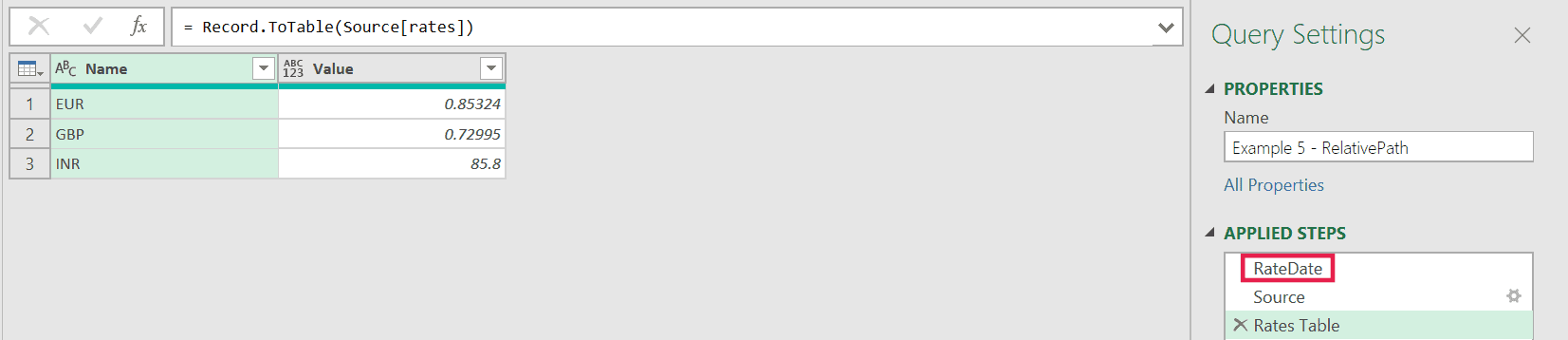
In the above example, the first argument is only the fixed base URL. RelativePath adds the date (2025-06-30) to the end of it, and Query adds the currencies, so the final request is the same shape as in Example 4.
To get rates for another day, change the date in the RateDate step. If that day is a weekend or holiday, the API returns the rates from the last working day before it.
If you later publish to Power BI, this pattern can help with scheduled refresh. Power BI can recognize the fixed base URL while RelativePath and Query handle the parts that change.
Important: If you use dates from a table to make web requests, Excel may ask you to set privacy levels before it combines the sources. If you see “Information is needed in order to combine data,” check the privacy settings for the table and the web source.
Example 6: Send an API Key with the Headers Option
Many APIs ask you to identify yourself with a key sent in a request header.
Suppose a service expects your key in a header called X-Api-Key. To see what actually reaches the server, this example sends the request to Postman Echo, a free test service that replies with the headers it received.
Create a new blank query, open the Advanced Editor, and paste this code:
let
    Source = Json.Document(Web.Contents("https://postman-echo.com/headers",[Headers=[#"X-Api-Key"="demo-key-123"]])),
    #"Key Received" = Source[headers][#"x-api-key"]
in
    #"Key Received"
Result: demo-key-123
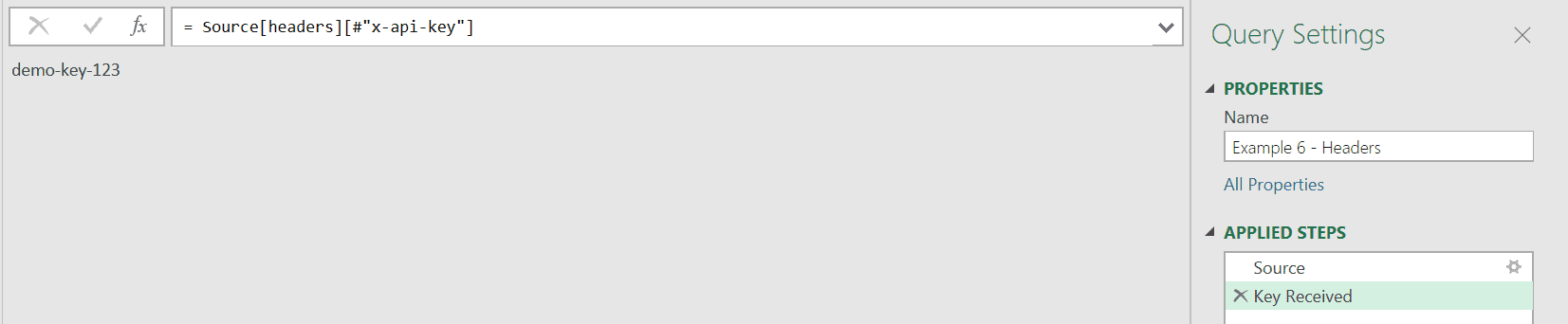
Here, the Headers record adds an X-Api-Key header to the request. The header name has a hyphen, so it goes inside #"...", which is how M writes a field name that isn’t a plain word.
Postman Echo returns the headers in lowercase, so the second step reads x-api-key from the reply. Getting demo-key-123 back proves the header reached the server.
Keep in mind that a key typed into the query is visible to anyone who opens the workbook.
When an API takes its key as a URL parameter, set ApiKeyName to the parameter’s name and pick Web API when Excel asks how to sign in. You enter the key there, and Excel stores it as a credential instead of in the M code.
Example 7: Send Data with a POST Request
By default, Web.Contents sends a GET request, which only asks for data. Some APIs need you to send data in the body of a POST request, for example to run a search or a calculation.
Suppose an API expects a JSON body with a region and a number of units. This example posts that body to Postman Echo, which replies with the JSON it received.
Create a new blank query, open the Advanced Editor, and paste this code:
let
    Body = Json.FromValue([region="West",units=42]),
    Source = Json.Document(Web.Contents("https://postman-echo.com/post",[Headers=[#"Content-Type"="application/json"],Content=Body])),
    #"Data Received" = Record.ToTable(Source[json])
in
    #"Data Received"
Result: region West, units 42
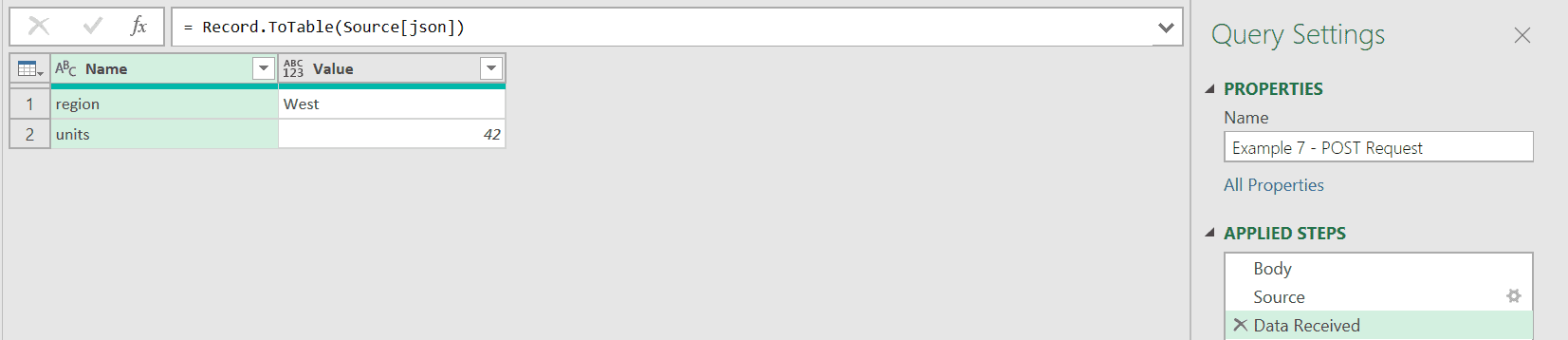
Here, the Json.FromValue function turns the M record into JSON, so you don’t have to type the quotes and braces by hand. Adding the Content option is what switches the request from GET to POST.
The Content-Type header tells the server the body is JSON, so it can read it. The server echoed both values back, so the data arrived as sent.
Microsoft’s documentation notes that POST requests can only be made anonymously. So this works with public APIs, but not with a site where you sign in with a username and password.
Example 8: Handle a 404 Error with ManualStatusHandling
When a request fails, Web.Contents stops the whole query with an error by default.
Suppose you ask the holidays API for a country code it doesn’t know, XX. Without any options, the query fails with “Web.Contents failed to get contents from ‘https://date.nager.at/api/v3/PublicHolidays/2026/XX’ (404): Not Found”.
Create a new blank query, open the Advanced Editor, and paste this code:
let
    Source = Web.Contents("https://date.nager.at/api/v3/PublicHolidays/2026/XX",[ManualStatusHandling={404}]),
    #"Status Code" = Value.Metadata(Source)[Response.Status],
    Result = if #"Status Code" = 404 then "Country not found" else Table.FromRecords(Json.Document(Source))
in
    Result
Result: Country not found
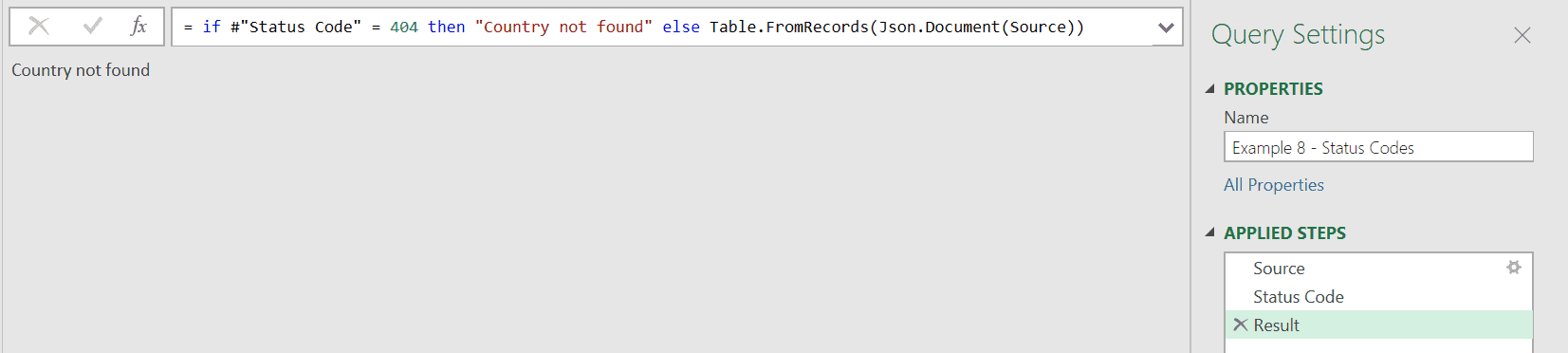
Here, ManualStatusHandling={404} tells Power Query to hand you the 404 response instead of raising an error. The status code itself is stored in the response’s metadata, and the Value.Metadata function reads it from the Response.Status field.
The last step checks that code. If it’s 404, you get the message “Country not found”, and otherwise the query returns the full holidays table for that country.
Only the codes in the list are handled this way. A different failure, such as a 500 server error, still raises an error, so add any other codes you want to catch, like {404,500}.
Other Excel Articles You May Also Like:
- Sql.Database – Use Sql.Database in Power Query M to connect to a SQL Server database.
