

The Table.FromRecords function in Power Query turns a list of records into a table. Each record becomes a row, and each field name becomes a column header.
You’ll run into lists of records all the time, especially with JSON data and web APIs. In this article, I’ll show you how to use Table.FromRecords with practical examples, including setting column types, handling missing fields, and adding a total row to a table.
Follow along with the example file
Table.FromRecords Function Examples.xlsx
Table.FromRecords Function Syntax
= Table.FromRecords(records as list, optional columns as any, optional missingField as nullable number) as table
- records – the list of records you want to turn into a table, such as
{[Name="Lisa",Score=82],[Name="Tom",Score=75]}. Each record becomes one row. - columns (optional) – a list of column names, such as
{"Name","Score"}, or a table type, such astype table [Name=text,Score=number]. If you leave it out, the column names come from the fields of the first record. - missingField (optional) – what to do when a record doesn’t have a field the table needs. Use
MissingField.Error(the default, which turns that record’s whole row into errors) orMissingField.UseNull(puts null in that cell).
What it returns – a table with one row for each record in the list.
The Table.FromRecords function works in Power Query in Excel for Microsoft 365, 2024, 2021, 2019, 2016, and Excel for Mac (Microsoft 365), as well as in Power BI.
When to Use the Table.FromRecords Function
Use this function when you need to:
- Type a small lookup or reference table directly in a query
- Turn JSON data or a web API response (a list of records) into a table
- Turn a single record, like a set of totals, into a one-row table
- Add a total row or any new rows to an existing table
- Build a table from a list you generate, like the 12 months of the year
- Combine records whose fields aren’t always in the same order
Example 1: Create a Table from a List of Records
Let’s start with the basic use, turning a few records into a table.
Say you have an office supply order with an item name, quantity, and price for each item, and you want it as a table with Item, Qty, and Price columns.
In the example file, every example except Examples 7 and 8 is saved as a query, since it doesn’t need any worksheet data. You can open them from Data > Queries & Connections.
Create a new blank query (in Excel, go to Data > Get Data > From Other Sources > Blank Query) and use this formula in the formula bar:
= Table.FromRecords({[Item="Stapler",Qty=4,Price=6.5],[Item="Sticky Notes",Qty=12,Price=1.25],[Item="Desk Organizer",Qty=2,Price=18],[Item="Whiteboard Markers",Qty=6,Price=3.75]})
Result: a table with Item, Qty, and Price columns, and one row for each of the four items
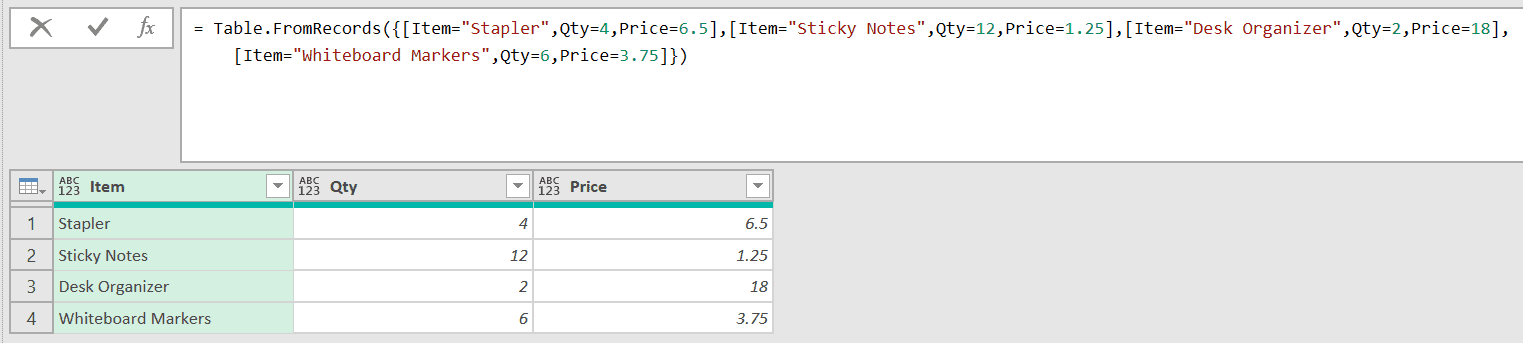
Here, each record is written inside square brackets, like [Item="Stapler",Qty=4,Price=6.5], and the whole list of records sits inside curly brackets. Table.FromRecords makes one row per record.
I didn’t give any column names, so the function took them from the field names of the first record: Item, Qty, and Price.
The columns have the Any type, which means no specific data type yet (you’ll see the ABC123 icon in each header). The next example shows how to set the types in the same step.
Example 2: Set the Column Data Types
In Example 1, the columns came out with the Any type (the ABC123 icon). You can set the real types inside Table.FromRecords itself.
Say you have a list of training sessions with the session name, date, and number of seats, and you want the Session column as text, Date as a date, and Seats as a whole number.
Create a new blank query and use this formula:
= Table.FromRecords({[Session="Pivot Tables",Date=#date(2026,3,2),Seats=24],[Session="Power Query Basics",Date=#date(2026,3,9),Seats=18],[Session="Dashboards",Date=#date(2026,3,16),Seats=30]},type table [Session=text,Date=date,Seats=Int64.Type])
Result: a table with Session (text), Date (date), and Seats (whole number) columns, with the dates showing as 3/2/2026, 3/9/2026, and 3/16/2026

Here, the second argument is a table type, type table [Session=text,Date=date,Seats=Int64.Type]. It names the columns and sets their data types, so the headers show the text, date, and whole number icons.
#date(2026,3,2) creates a real date for March 2, 2026. Power Query shows it in your computer’s regional date format, so a UK machine shows 02/03/2026 for the same date.
Important: A table type labels the columns but doesn’t convert the values. If a record had Seats="24" (text), it would stay text in the Seats column and show up as an error when you load the table to a sheet.
Example 3: Pick and Reorder Columns
Your records often have more fields than you need. You can keep only some of them, in the order you want.
Say you have shipping records with five fields (OrderID, Customer, City, Weight, and Carrier), and you only want OrderID, Carrier, and City, in that order.
Create a new blank query and use this formula:
= Table.FromRecords({[OrderID="SO-5101",Customer="Harbor Supply",City="Denver",Weight=12.5,Carrier="FedEx"],[OrderID="SO-5102",Customer="Pinecrest Dental",City="Austin",Weight=3.2,Carrier="UPS"],[OrderID="SO-5103",Customer="Bluewater Cafe",City="Madison",Weight=8,Carrier="USPS"]},{"OrderID","Carrier","City"})
Result: a table with only the OrderID, Carrier, and City columns, in that order

Here, the second argument is the list {"OrderID","Carrier","City"}. Table.FromRecords picks those fields from each record by name and puts the columns in the same order as the list, so Customer and Weight are left out.
The names in the list must match the field names exactly. If you type a name that isn’t in the records, like "Carier", every row shows Error, with the message “The field ‘Carier’ of the record wasn’t found.”
Example 4: Records with Fields in a Different Order
This one shows how Table.FromRecords handles records whose fields are typed in a different order.
Say you have a staff directory where each record has a Name, Team, and Ext (phone extension) field, but the records were typed by different people, so the fields aren’t always in the same order.
Create a new blank query and use this formula:
= Table.FromRecords({[Name="Kendra Warren",Team="Finance",Ext=214],[Team="IT",Name="Anna Adams",Ext=305],[Ext=118,Name="Alan Owens",Team="Sales"],[Name="Philip Kelly",Ext=402,Team="HR"]})
Result: a table with Name, Team, and Ext columns, where every value sits in its correct column
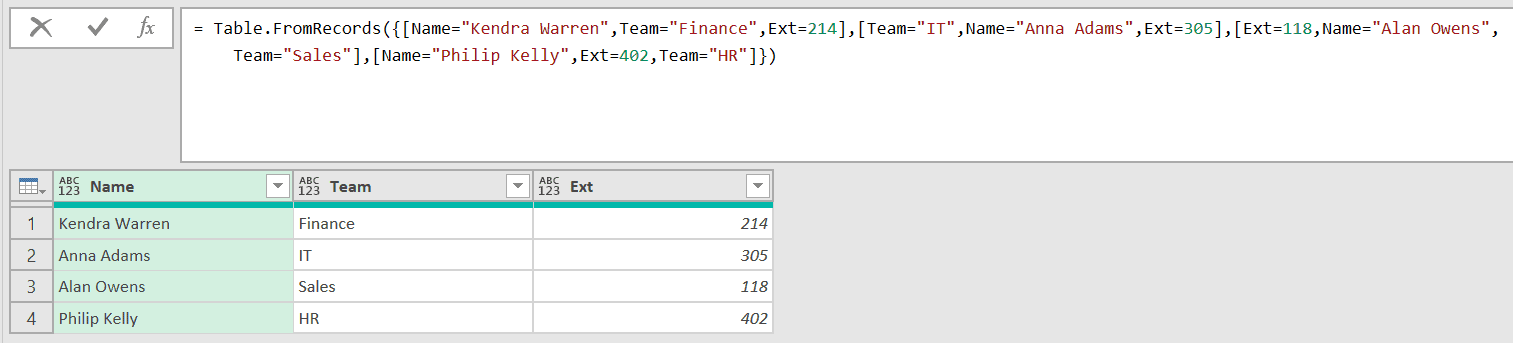
Here, Table.FromRecords matches each field to its column by name, not by position. So even though Anna Adams’s record starts with Team and Alan Owens’s starts with Ext, their values still land under the right headers.
You can also turn records into a table with the Table.FromList function and Record.FieldValues. That method reads each record’s values in the order they were typed and fills the columns in that order.
So with that method, Anna Adams’s record would put IT in the Name column and her name in the Team column. Table.FromRecords doesn’t have this problem.
Example 5: Fix Errors from Missing Fields
Real data isn’t always complete. Some records may not have every field.
Say you have a list of gym members with a Member, Plan, and Phone field, but two of the members didn’t give a phone number, so their records have no Phone field at all.
Create a new blank query and use this formula:
= Table.FromRecords({[Member="Grace Bell",Plan="Annual",Phone="555-0142"],[Member="Dustin Lewis",Plan="Monthly"],[Member="Vanessa Parker",Plan="Annual",Phone="555-0187"],[Member="Connor Perry",Plan="Monthly"]})
Result: a table with Member, Plan, and Phone columns, where the rows for Dustin Lewis and Connor Perry show Error in every column
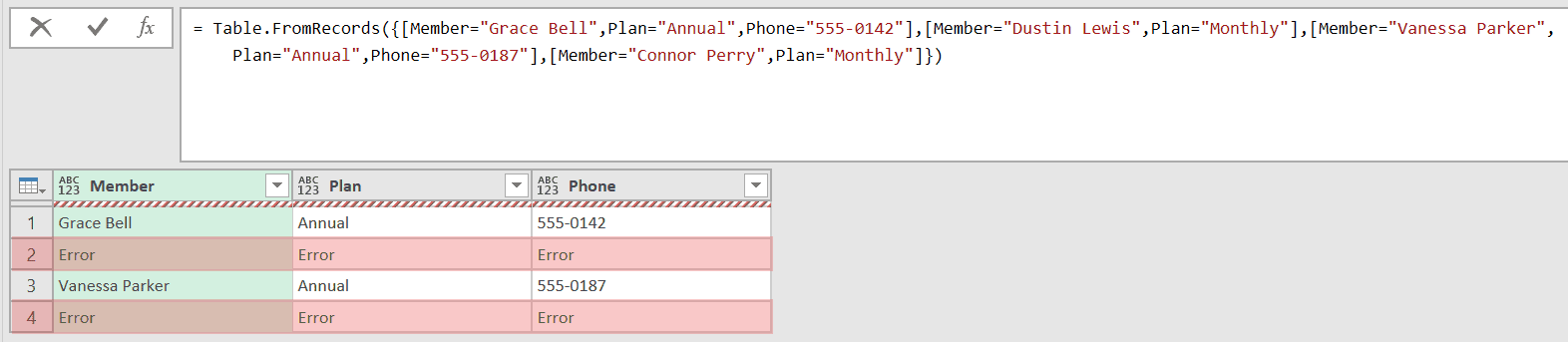
Here, the columns come from the first record, which has a Phone field. Dustin Lewis’s and Connor Perry’s records don’t, so by default (MissingField.Error) their whole rows turn into errors.
Even their Member and Plan values are lost. Click any of those Error cells, and you see “The field ‘Phone’ of the record wasn’t found.” If you load this table to a worksheet, these two rows come in blank.
To fix it, add MissingField.UseNull as the third argument:
= Table.FromRecords({[Member="Grace Bell",Plan="Annual",Phone="555-0142"],[Member="Dustin Lewis",Plan="Monthly"],[Member="Vanessa Parker",Plan="Annual",Phone="555-0187"],[Member="Connor Perry",Plan="Monthly"]},null,MissingField.UseNull)
Result: the same table, with null in the Phone cell for Dustin Lewis and Connor Perry
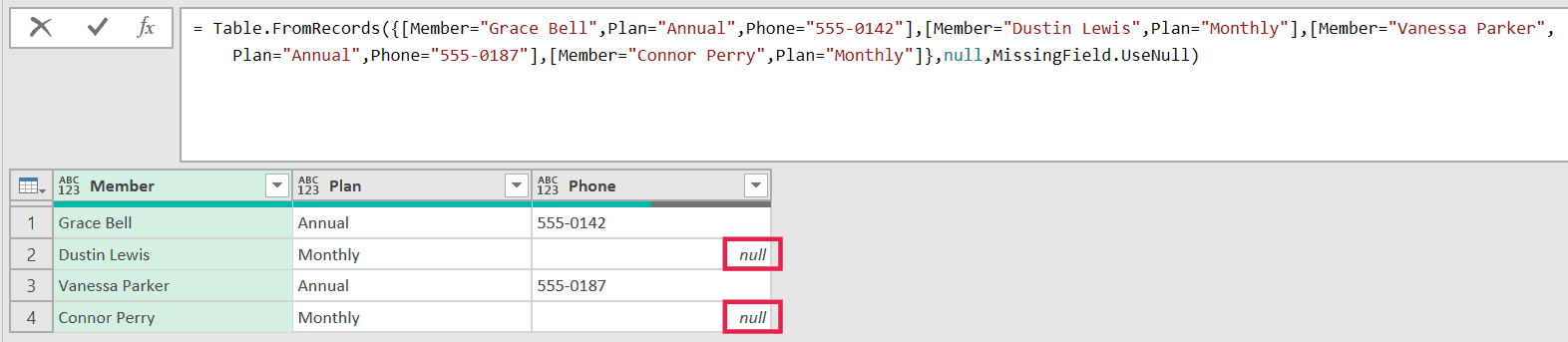
Now the missing fields come back as null instead of an error. The second argument is null because I didn’t need to name or pick any columns here.
This works only because the first record has all three fields. MissingField.UseNull doesn’t add a column that the first record is missing, which is what Example 6 covers.
You may also see MissingField.Ignore mentioned elsewhere, but Table.FromRecords doesn’t accept it. It gives the error “The ‘missingField’ argument must be either MissingField.Error or MissingField.UseNull.”
Follow along with the example file
Table.FromRecords Function Examples.xlsx
Example 6: Keep Fields That Only Some Records Have
In Example 5, a later record was missing a field that the first record had. Here it’s the other way around: a later record has a field that the first record doesn’t, and Power Query gives no error at all.
Say you have product records with a Product and Price field, and some products also have a Discount field. The first record doesn’t have a discount.
Create a new blank query and use this formula:
= Table.FromRecords({[Product="Desk Lamp",Price=29],[Product="Monitor Arm",Price=45,Discount=0.1],[Product="Webcam",Price=39],[Product="Keyboard",Price=55,Discount=0.15]})
Result: a table with only two columns, Product and Price, and no Discount column
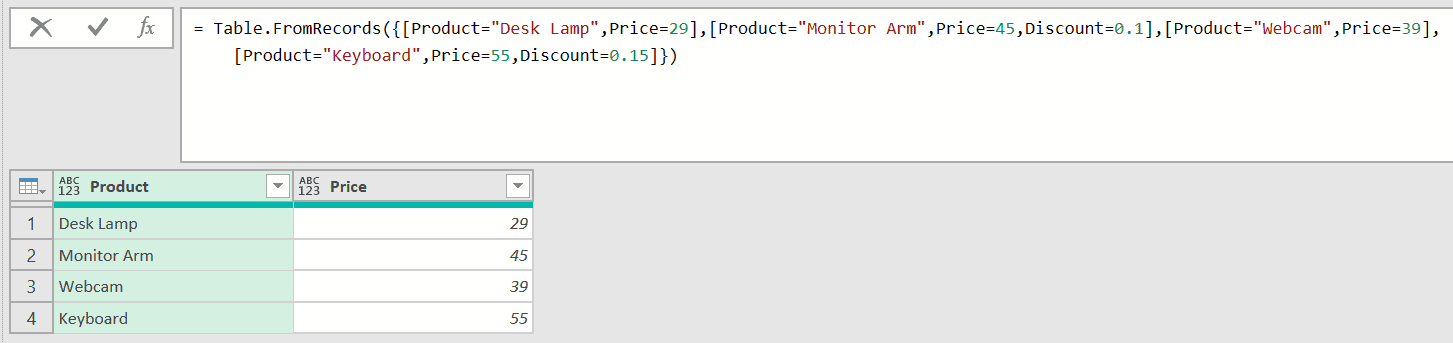
Here, the column names come from the first record only, and the Desk Lamp record has no Discount field. So the discounts for the Monitor Arm and Keyboard are silently dropped, with no error.
To keep every field, list all the column names in the second argument and add MissingField.UseNull:
= Table.FromRecords({[Product="Desk Lamp",Price=29],[Product="Monitor Arm",Price=45,Discount=0.1],[Product="Webcam",Price=39],[Product="Keyboard",Price=55,Discount=0.15]},{"Product","Price","Discount"},MissingField.UseNull)
Result: a table with Product, Price, and Discount columns, where Discount shows 0.1 and 0.15 for the two discounted products and null for the others
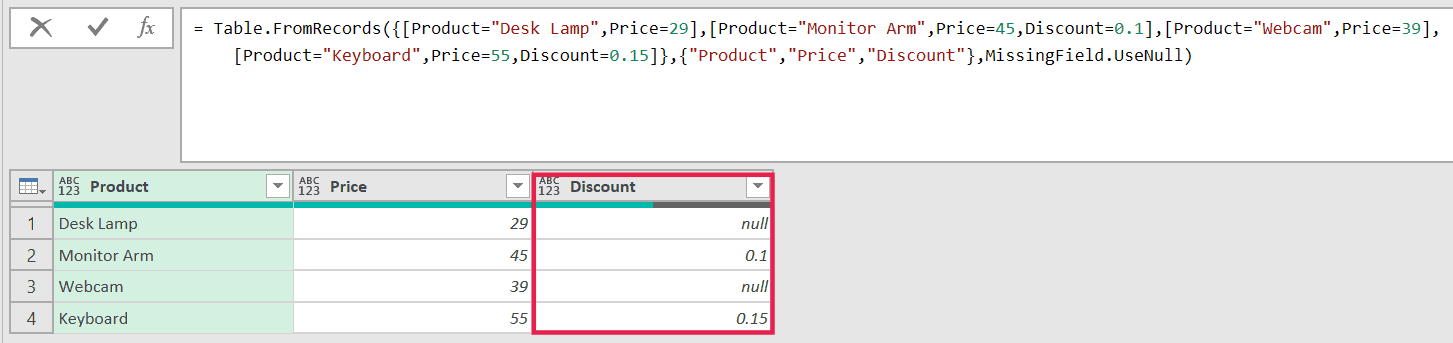
Now the Discount column is there, because you asked for it by name. The records without a discount get null in that column.
You need both parts here. Without MissingField.UseNull, the Desk Lamp and Webcam rows show Error in every column, and MissingField.UseNull alone (with null as the second argument) still drops the column.
Example 7: Turn a Single Record into a One-Row Summary Table
Table.FromRecords also works with a list that has only one record. That’s a handy way to build a small summary table.
Below is an Orders table with an order ID, region, and amount for each order, and I want a one-row table showing the number of orders, the total sales, and the largest order.
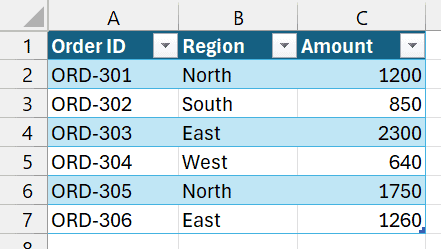
To follow along, select any cell in the table and go to Data > From Table/Range to open it in the Power Query Editor. If Power Query adds a Changed Type step, use #"Changed Type" in place of Source in the formula below.
Add a new step (by clicking on the fx icon next to the formula bar) and use this formula:
= Table.FromRecords({[Orders=Table.RowCount(Source),Total Sales=List.Sum(Source[Amount]),Largest Order=List.Max(Source[Amount])]})
Result: a one-row table with Orders (6), Total Sales (8000), and Largest Order (2300)

Here, I built one record with three fields. The Table.RowCount function counts the rows, and the List.Sum and List.Max functions work on the Amount column, which Source[Amount] returns as a list.
The record sits inside curly brackets, so Table.FromRecords gets a list with one record and returns a table with one row. Notice that field names like Total Sales can have spaces in them inside a record.
The three result columns have no data type (you’ll see the ABC123 icon), so set them to Whole Number before you load the table.
Example 8: Add a Total Row to a Table
This next one comes up a lot when you prepare a report.
Below is a RegionSales table with the sales for four regions, and I want to add a Total row at the bottom with the sum of all the sales.
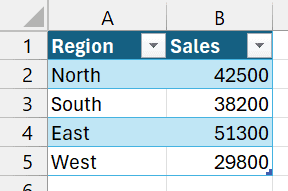
Open the table in the Power Query Editor (Data > From Table/Range). If Power Query adds a Changed Type step, use #"Changed Type" in place of Source (in both places) in the formula below.
Add a new step and use this formula:
= Table.Combine({Source,Table.FromRecords({[Region="Total",Sales=List.Sum(Source[Sales])]})})
Result: the four region rows, followed by a new Total row with 161800 in the Sales column
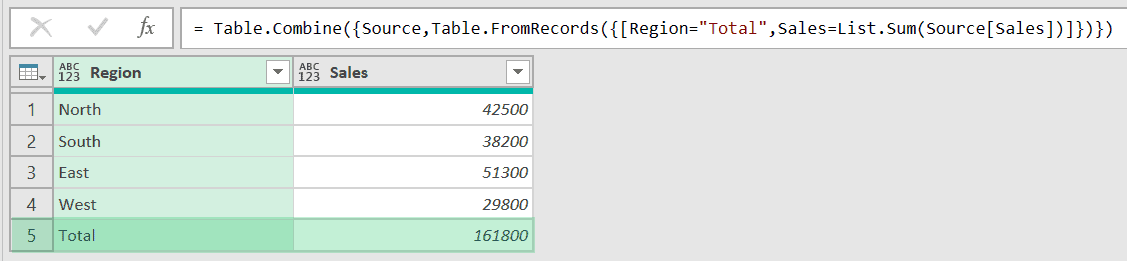
Here, Table.FromRecords makes a one-row table from the record [Region="Total",Sales=List.Sum(Source[Sales])]. The Table.Combine function then stacks it below the original table.
The field names in the record have to match the column names of the table exactly. If you typed Amount= instead of Sales=, Table.Combine would add a new Amount column instead of putting the total under Sales.
The new row has no data type. So if you built on the Changed Type step, where Sales is a Whole Number column, Sales goes back to the Any type after this step, and you need to set it again.
Important: The Total row is now an ordinary row of data. If you later sum the Sales column or build a pivot table from this query, the total gets counted again, so add the total row only in the final output.
Example 9: Convert JSON Text into a Table
Data from a web API or a JSON file usually arrives as a list of records. Table.FromRecords is the usual way to turn that into a table.
Say you have some JSON text listing three customers, each with a Customer, Plan, and Seats value, and you want it as a table.
Create a new blank query and use this formula:
= Table.FromRecords(Json.Document("[{""Customer"":""Leah Taylor"",""Plan"":""Pro"",""Seats"":5},{""Customer"":""Edward Shaw"",""Plan"":""Basic"",""Seats"":1},{""Customer"":""Jocelyn Johnson"",""Plan"":""Team"",""Seats"":12}]"))
Result: a table with Customer, Plan, and Seats columns, one row per customer
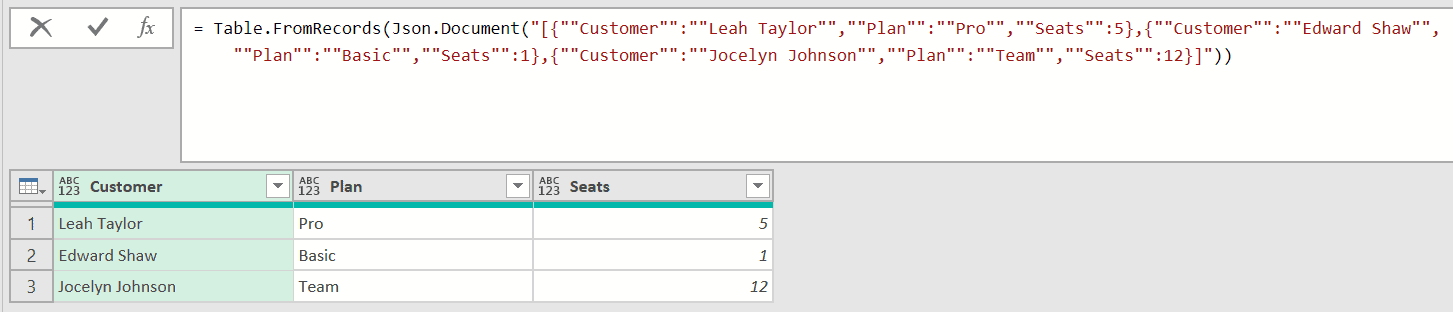
Here, the Json.Document function reads the JSON text and returns a list of three records. Table.FromRecords then turns that list into a table, using the JSON keys as the column names.
The double quotes inside the JSON text are doubled (""), because that’s how you write a quote inside a text value in M. When the JSON comes from a file or a web address, you don’t need to do this.
Example 10: Build a Month Table from a List of Numbers
You can also create the records with a formula, instead of typing them one by one.
Say you want a month lookup table with the month number, the month name, and the quarter for all 12 months.
Create a new blank query and use this formula:
= Table.FromRecords(List.Transform({1..12},each [Month Number=_,Month=Date.MonthName(#date(2026,_,1)),Quarter="Q"&Text.From(Date.QuarterOfYear(#date(2026,_,1)))]))
Result: a 12-row table with Month Number (1 to 12), Month (January to December), and Quarter (Q1 to Q4) columns
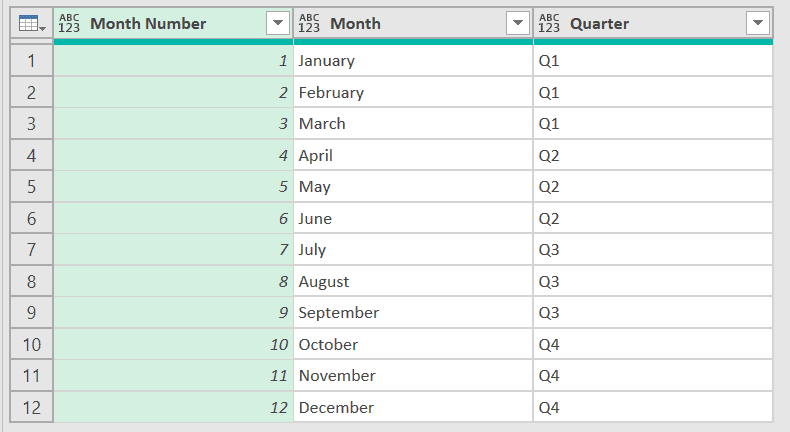
Here, {1..12} is a list of the numbers 1 to 12. The List.Transform function turns each number (_) into a record with three fields, and Table.FromRecords turns those 12 records into a table.
For each number, #date(2026,_,1) makes the first day of that month. The Date.MonthName function gets the month name from that date, and the Date.QuarterOfYear function gets its quarter number (1 to 4).
The month names follow your computer’s language settings, so you may see them in another language. Also, the three columns have no data type yet, so set the types before you use this as a lookup table.
Other Excel Articles You May Also Like:
- Table.SelectColumns
- Web.Contents function
- Table.ExpandRecordColumn – Use Table.ExpandRecordColumn in Power Query M to turn a record column into columns.
- Record.Field – Use Record.Field in Power Query M to get a value from a record by field name.
- Table.ExpandTableColumn – Use Table.ExpandTableColumn in Power Query M to expand merged table columns.
- Csv.Document – Use Csv.Document in Power Query M to read CSV files.
- Table.ColumnNames – Use Table.ColumnNames in Power Query M to list a table’s column names.
