

If you want to pull data from a SQL Server database into Power Query, the Sql.Database function is how you make the connection. You point it at a server and a database, and it hands you back everything inside that database to work with.
In this article, I’ll walk you through Sql.Database with practical examples: making a basic connection, drilling into a single table, running your own SQL query, parameterizing the server, and a few of the useful options along the way.
To follow along, download the AdventureWorks OLTP backup for your SQL Server version and follow Microsoft’s restore steps. Set the destination database name to AdventureWorks to match the examples.
Use localhost if you restored the database on a local default instance. For a different server, named instance, or database name, use the values from your setup.
Sql.Database Function Syntax
Sql.Database(server as text, database as text, optional options as nullable record) as table
- server – The name of the SQL Server you’re connecting to, as text (for example
"localhost"or"MYSERVER\SQLEXPRESS"). You can add a port after the server name, separated by a comma or a colon. - database – The name of the database on that server, as text.
- options (optional) – A record that controls how the connection behaves. Common fields are Query (a native SQL statement to run on the server), CommandTimeout (a duration setting how long a query can run before it’s canceled, default 10 minutes), ConnectionTimeout (a duration for how long to wait when connecting), HierarchicalNavigation (true/false to group objects by schema, default false), CreateNavigationProperties (true/false to generate relationship navigation, default true), MaxDegreeOfParallelism (sets the maxdop clause), and MultiSubnetFailover (true/false for failover clusters). You write it as
[Query="select ...", CommandTimeout=#duration(0,0,20,0)].
What it returns: A table of the SQL tables, views, and stored functions in that database. This is a navigation table, so you drill into it to reach the specific object you want.
When you pass a Query in the options, it returns the result of that SQL query instead.
When to Use the Sql.Database Function
Use this function when you need to:
- Connect Power Query to a specific SQL Server database
- Pull a single table or view from that database into Excel
- Run your own SELECT statement on the server and load just the result
- Point the same query at different servers or databases by parameterizing them
- Raise the timeout for a slow query or a very large table
- Connect to SQL Server on a non-default port
Example 1: Connect to a Database
Let’s start with the most basic connection. You give Sql.Database a server name and a database name, and it returns everything inside that database.
Create a new blank query (Home > New Source > Blank Query), open the Advanced Editor, and use this:
let
    Source = Sql.Database("localhost", "AdventureWorks")
in
    Source
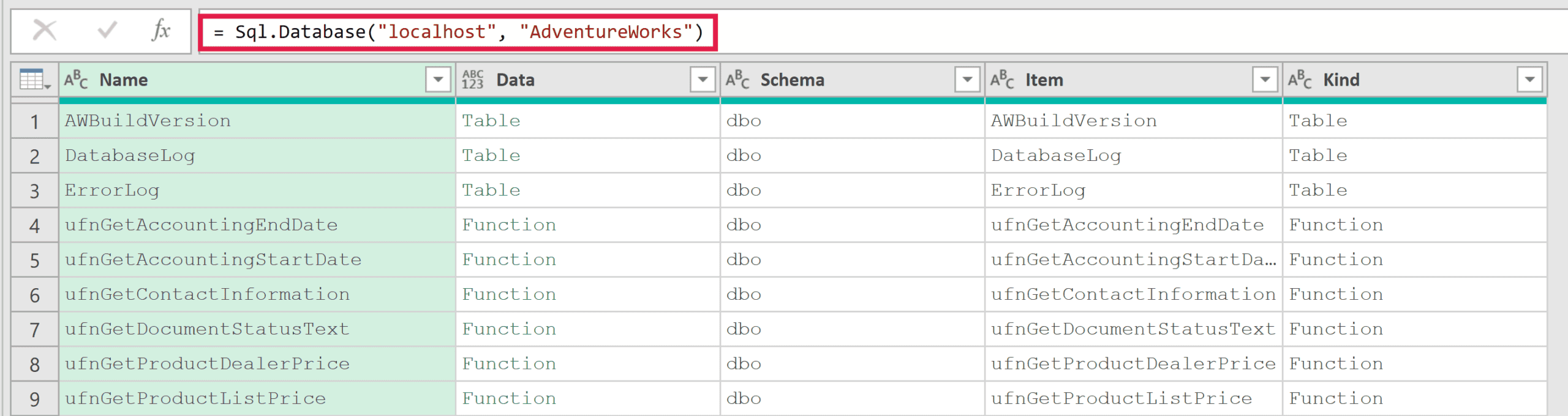
This returns a navigation table listing every table, view, and stored function in the AdventureWorks database. From here you’d click into a specific object to load its rows.
Replace "localhost" with your own server name and "AdventureWorks" with your database name. Everything in the rest of this article builds on this one step.
Example 2: Drill Into a Single Table
Here’s the most common thing you’ll actually do. You don’t want the whole navigation table, you want one specific table’s rows.
Say you want the Sales.SalesOrderHeader table out of that database. Use this:
let
    Source = Sql.Database("localhost", "AdventureWorks"),
    SalesOrders = Source{[Schema="Sales",Item="SalesOrderHeader"]}[Data]
in
    SalesOrders
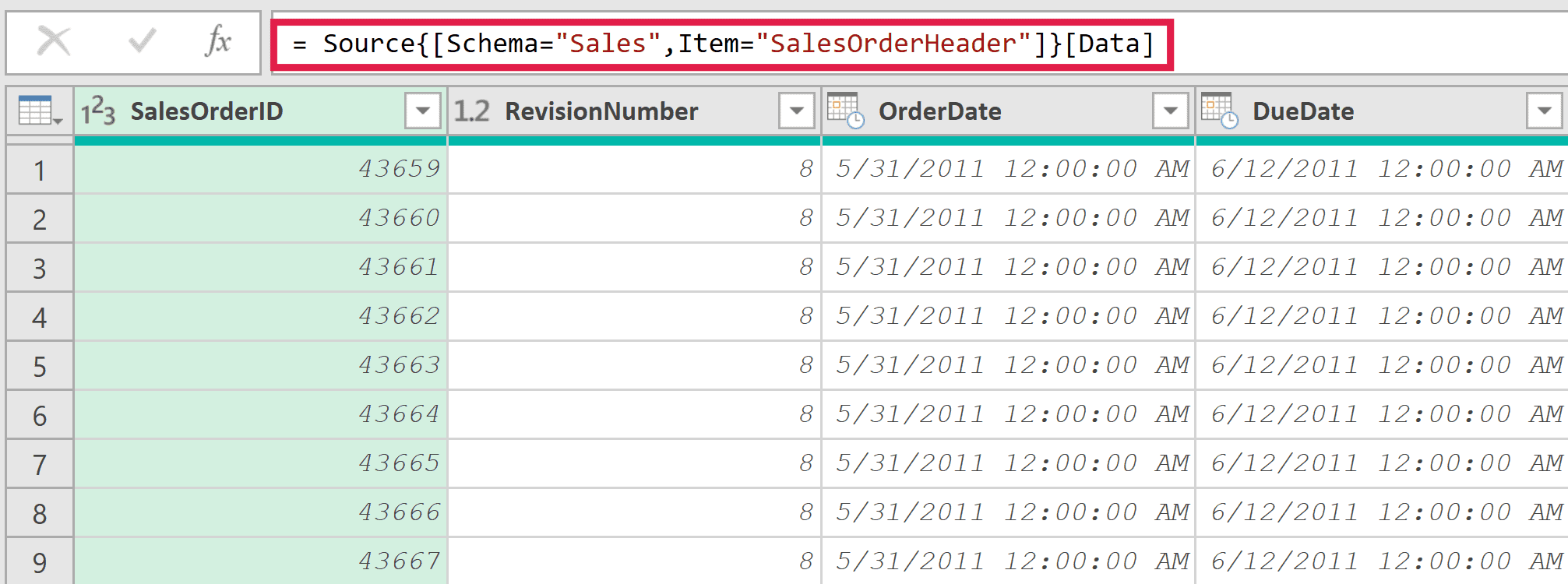
The second step is what does the work. After Sql.Database returns the navigation table, Source{[Schema="Sales",Item="SalesOrderHeader"]}[Data] selects the Sales.SalesOrderHeader table and returns its rows.
This is exactly what Power Query writes for you when you double-click a table in the Navigator window. Seeing it as M just makes the pattern easy to reuse. Swap the Schema and Item values for your own schema and table names.
Example 3: Run a Native SQL Query
This next one is handy when you already know SQL. Instead of pulling a whole table and filtering it in Power Query, you can hand the server a SELECT statement and get back only the rows you asked for.
You do this with the Query option. Here’s a query that returns three columns for products priced over 100:
let
    Source = Sql.Database("localhost", "AdventureWorks", [Query="SELECT ProductID, Name, ListPrice FROM Production.Product WHERE ListPrice > 100"])
in
    Source
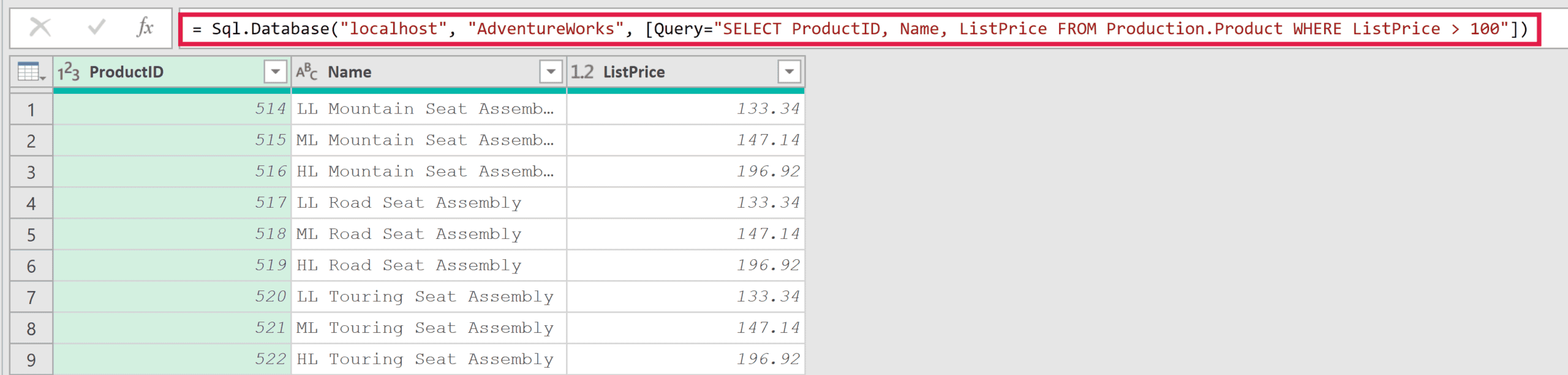
Here the SELECT runs on the SQL Server itself, and only the matching rows come back to Excel. That’s lighter than importing the whole Production.Product table and filtering afterward.
One thing to know: if your query returns more than one result set, only the first one is used. Replace the SELECT with your own statement to fit your data.
Example 4: Parameterize the Server and Database
Once your query works, you’ll often want to point it at a different environment without rewriting it. Pulling the server and database out into their own values makes that a one-line change.
Here the server and database live in named steps, and Sql.Database reads them from there:
let
    ServerName = "localhost",
    DatabaseName = "AdventureWorks",
    Source = Sql.Database(ServerName, DatabaseName),
    Customers = Source{[Schema="Sales",Item="Customer"]}[Data]
in
    Customers
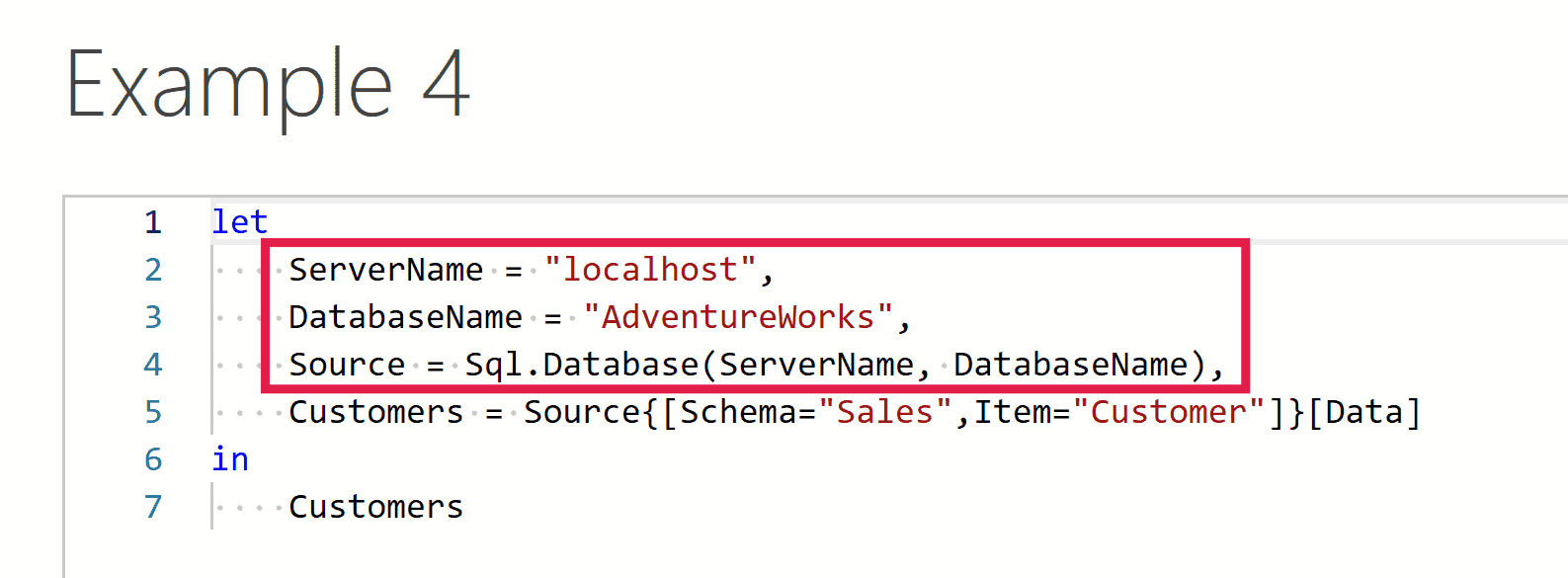
Now switching from Dev to Test to Production is just changing the ServerName or DatabaseName value in one place, and the rest of the query follows.
In a real workbook you’d usually make ServerName and DatabaseName actual Power Query parameters (Home > Manage Parameters). I’ve shown them as let-steps here so the whole thing runs as a single query you can paste in.
Example 5: Raise the Command Timeout
Some queries take a while, especially against a large table. Power Query waits up to 10 minutes by default for a command to complete, and you can raise that with the CommandTimeout option.
This sets the timeout to 20 minutes before drilling into the Production.Product table:
let
    Source = Sql.Database("localhost", "AdventureWorks", [CommandTimeout=#duration(0,0,20,0)]),
    Products = Source{[Schema="Production",Item="Product"]}[Data]
in
    Products
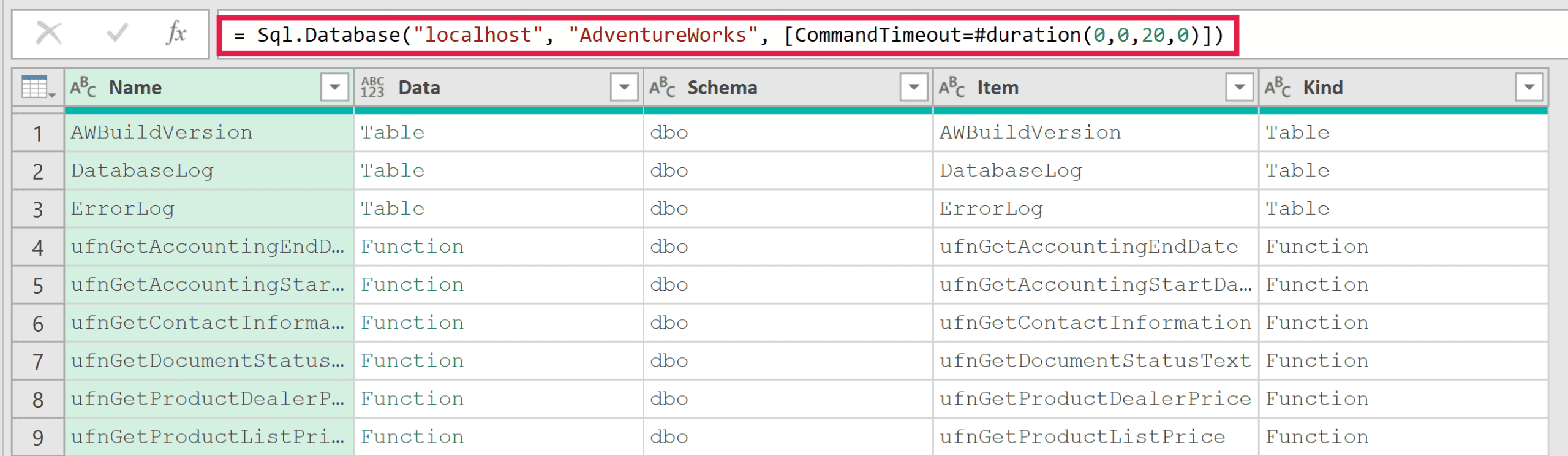
The #duration(0,0,20,0) part is days, hours, minutes, seconds, so this is 20 minutes. Adjust it to whatever your query needs.
If a big pull keeps timing out on you, this is usually the fix. Give it more headroom rather than trimming down the query.
Example 6: Connect on a Non-Default Port
SQL Server usually listens on port 1433, but not always. When it’s on a custom port, you add the port to the server name.
You separate the port from the server with a comma (a colon works too):
let
    Source = Sql.Database("localhost,14330", "AdventureWorks")
in
    Source
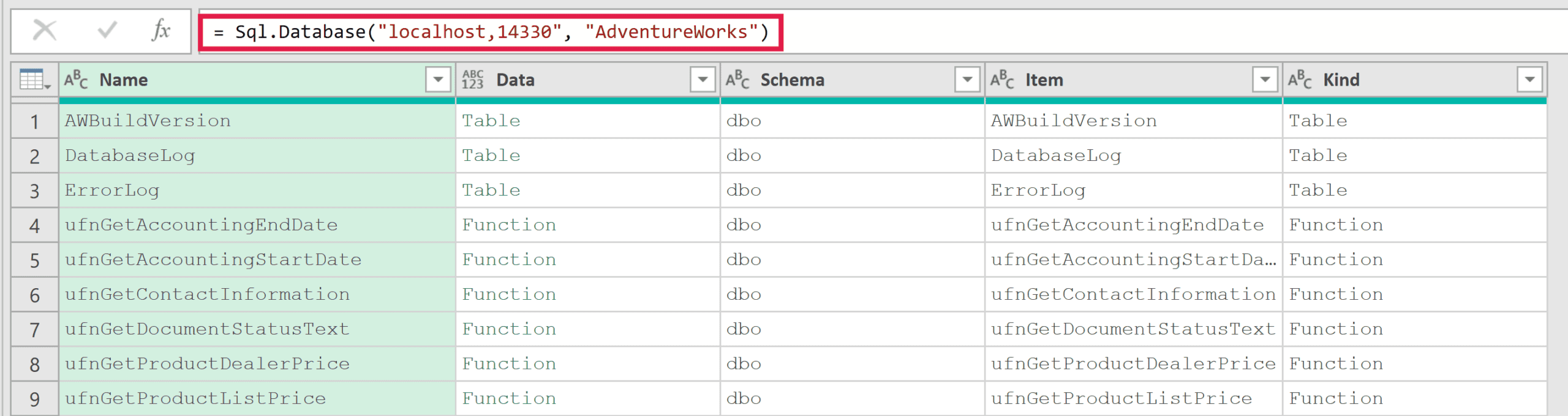
This example assumes your SQL Server listens on TCP port 14330. Replace 14330 with the port your server actually uses.
This comes up most often with named instances or when a DBA has moved SQL Server off the default port. Ask which port yours uses if you’re not sure.
Example 7: Group Objects by Schema
If your database has hundreds of tables, the flat Navigator list gets hard to scan. The HierarchicalNavigation option groups everything by schema instead.
Set it to true when you make the connection:
let
    Source = Sql.Database("localhost", "AdventureWorks", [HierarchicalNavigation=true])
in
    Source
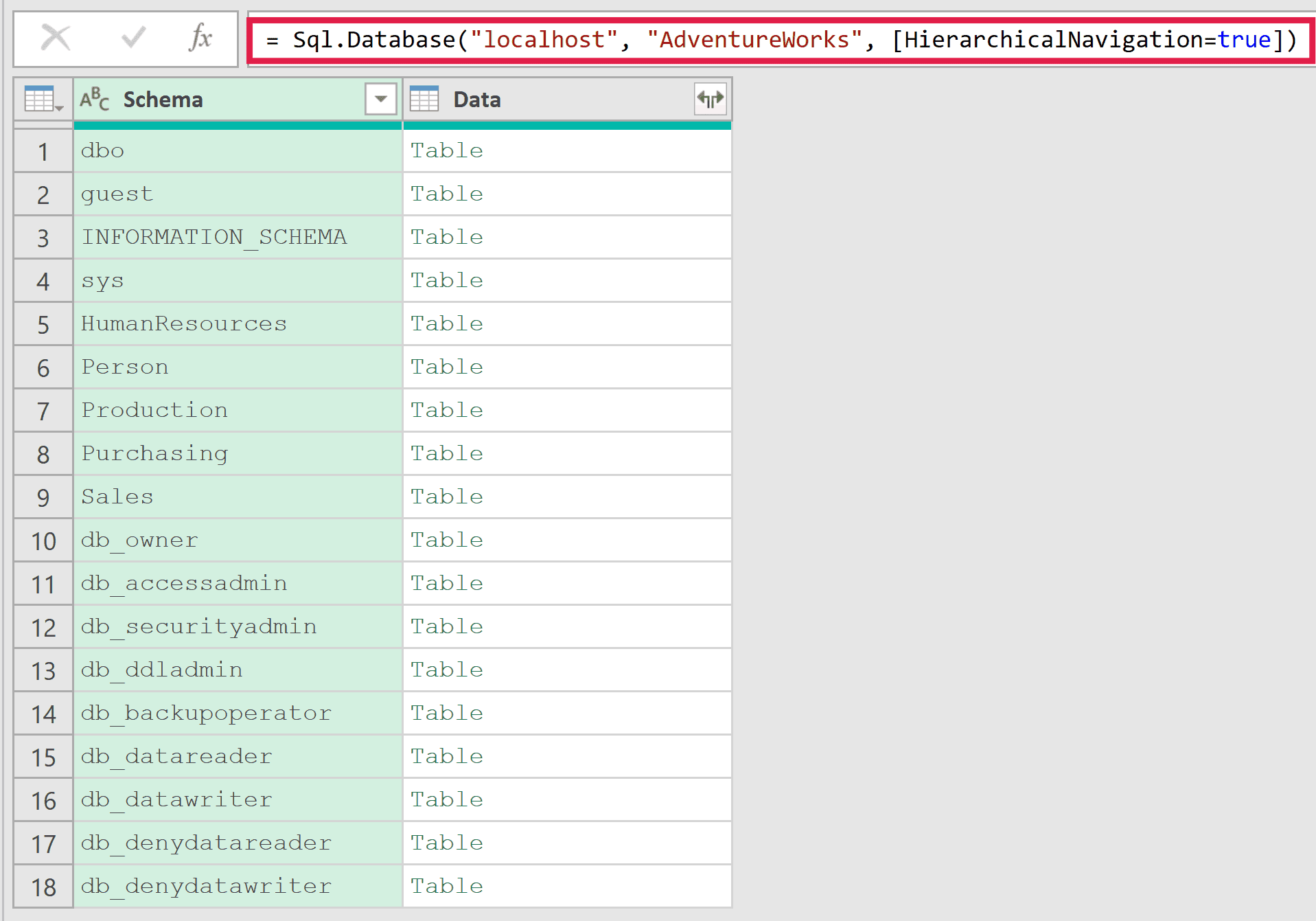
Now the navigation table groups objects under their schemas (Sales, Production, HumanResources, and so on) rather than listing every table in one long list.
The default is false, which is the flat list. On a big database with many schemas, flipping this to true makes finding the right table much quicker.
Example 8: Pass a Parameter to a SQL Query Safely
Sometimes you want a native query that filters on a value, but you don’t want to glue that value into the SQL string yourself. That’s where Value.NativeQuery comes in.
You run it on top of a Sql.Database connection and pass the value in a separate record:
let
    Source = Sql.Database("localhost", "AdventureWorks"),
    Result = Value.NativeQuery(Source, "SELECT * FROM Production.Product WHERE Color = @color", [color="Red"], [EnableFolding=true])
in
    Result
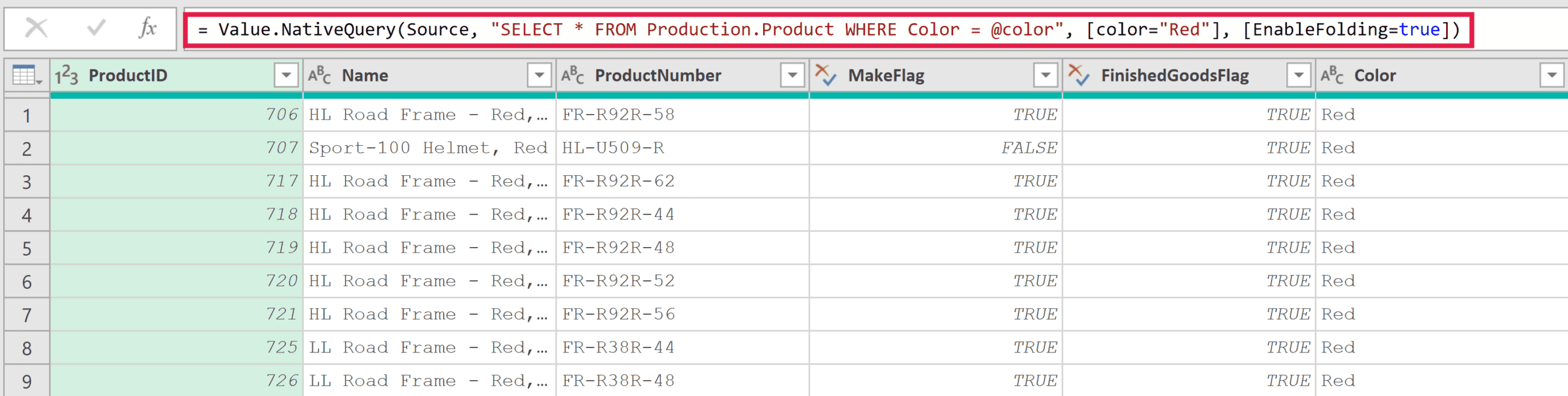
The @color placeholder in the SQL is filled from the record [color="Red"], so the value never gets string-concatenated into the statement. That’s the safe way to inject values into a query.
SQL Server runs the WHERE clause as part of the native query. The [EnableFolding=true] option lets Power Query try to fold eligible steps you add afterward.
Example 9: Sql.Database vs Sql.Databases
There’s a closely related function, Sql.Databases (plural), and it’s easy to mix them up. Sql.Database connects to one database you name. Sql.Databases connects to the whole server and lists every database on it.
Use the plural one when you don’t know the database name up front or want to browse:
let
    Source = Sql.Databases("localhost"),
    AdventureWorks = Source{[Name="AdventureWorks"]}[Data],
    SalesOrders = AdventureWorks{[Schema="Sales",Item="SalesOrderHeader"]}[Data]
in
    SalesOrders

Notice the extra step. Sql.Databases returns a list of databases, so you first pick AdventureWorks by name, and then drill into the Sales.SalesOrderHeader table the same way as before.
The important difference: Sql.Databases does not accept a Query option. If you want to run a native SQL query, you have to use Sql.Database (singular). That’s the main reason to reach for the singular version.
Tips & Common Mistakes
- Sql.Database vs Sql.Databases: Sql.Database (singular) takes both a server and a database and connects straight to that database. Sql.Databases (plural) takes only a server and returns a list of all databases on it. Only Sql.Database accepts the Query option, so a native SQL query has to go through the singular version.
- Query folding and native queries: Power Query can turn supported transformations into SQL and run them on the server. When you write a native query, use the parameters argument of Value.NativeQuery to pass values separately, as in Example 8.
- CommandTimeout takes a duration, not a number: Use
#duration(days, hours, minutes, seconds), so 20 minutes is#duration(0,0,20,0), not20. Passing a plain number will error. - The port goes on the server, not the database: Append the port to the server text with a comma or colon (
"localhost,14330"). Use the port set on your server. - Credentials are separate from the M: The first time you connect, Power Query prompts for the authentication method (Windows or database login) and stores it outside the query. If a connection suddenly fails, check Data source settings, not the M code.
- Buffer a small pulled table if you reuse it: If you pull a small lookup table from SQL and reference it many times in the same query, wrapping it in Table.Buffer reads it once and keeps it in memory instead of hitting the server again. Skip this for large tables, since buffering also stops query folding.
- Filtering against a list is like SQL’s IN: Once your table is loaded, if you want to keep only rows whose value is in a set, List.Contains inside Table.SelectRows is Power Query’s version of the SQL IN operator, handy when a native WHERE clause isn’t practical.
Related Power Query Functions / Articles:
- Table.Combine – Stacks multiple tables into one by appending their rows
- Web.Contents – Use Web.Contents in Power Query M to get data from a URL or API.
- Excel.Workbook – Use Excel.Workbook in Power Query M to read sheets and tables from a workbook.
- Csv.Document – Use Csv.Document in Power Query M to read CSV files.
- Power Query vs Power Pivot vs Power BI – Power Query, Power Pivot, and Power BI explained in plain English: what each one does, how they fit together, and a simple way to pick the right tool.
