

In this tutorial, I will show you how to create a drop-down filter in Excel so that you can extract data based on the selection from the drop-down.
As shown in the pic below, I have created a drop-down list with country names. As soon as I select any country from the drop-down, the data for that country gets extracted to the right.
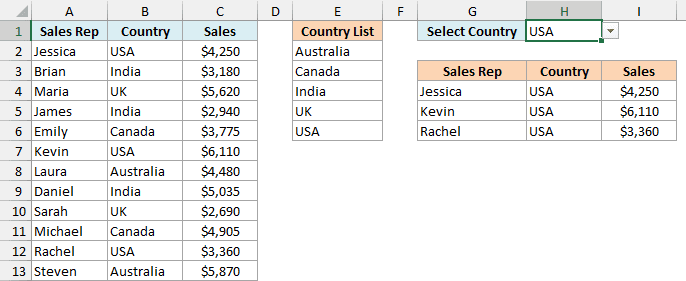
Note that as soon as I select USA from the drop-down filter, all the records for USA are extracted.
If you’re using Excel 365, Excel 2024, or Excel 2021, the FILTER function does almost all the work here.
I’ll also show you how to add an “All” option, how to pull the records onto another sheet, and a helper column method that works in older versions.
By the way, if all you want is the small filter arrows in your header row (the ones you click to sort and filter a column), select any cell in your data and press Ctrl + Shift + L (or click Data > Filter).
That’s Excel’s regular filter, and I’ve covered it in this guide to Excel data filter options.
Follow along with the example file
Drop Down Filter in Excel.xlsx
Create a Drop Down Filter in Excel Using the FILTER Function
Let’s start with the FILTER function method.
Here are the steps to create a drop-down filter that will extract data for the selected item:
- Create a unique list of items.
- Add a drop-down filter to display these unique items.
- Use the FILTER function to extract the records for the selected item.
Let’s see what needs to be done in each of these steps.
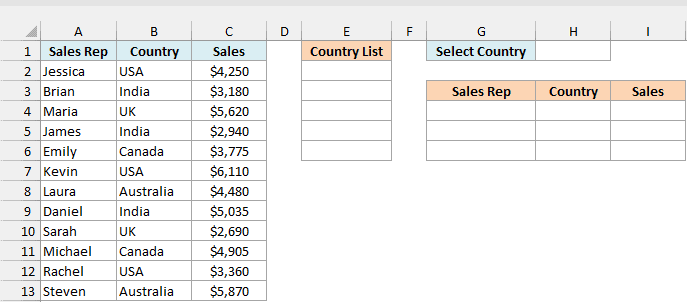
Below is a sales dataset with the sales rep, country, and sales value for each deal, and I want to pick a country in cell H1 and get all its records in columns G to I.
The FILTER, SORT, and UNIQUE functions used in this method work in Excel for Microsoft 365, Excel 2024, and Excel 2021. If you’re on Excel 2019 or earlier, use the helper column method further below.
Step 1: Create a unique list of countries
While there could be repetitions of an item in your dataset, we need unique item names so that we can create a drop down filter using it.
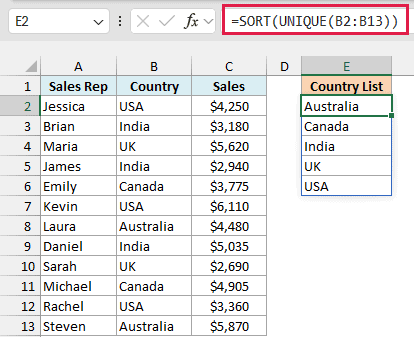
In the above example, the first step is to get the unique list of all the countries. Here is the formula that will do this when entered in cell E2:
=SORT(UNIQUE(B2:B13))
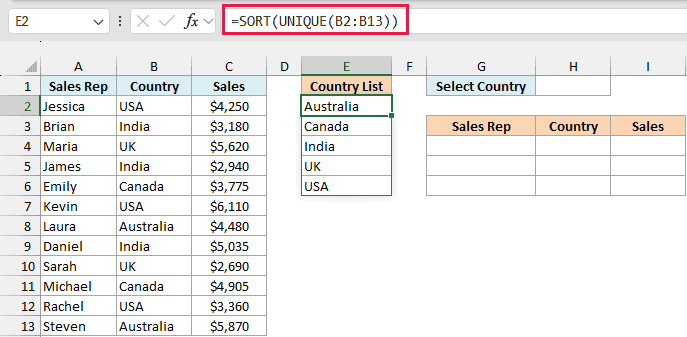
The UNIQUE function gives each country from B2:B13 only once, and the SORT function puts them in alphabetical order, so the drop-down is easy to scan.
You only enter the formula in E2. The list spills down on its own and updates whenever the countries in B2:B13 change.
Step 2: Create the drop-down filter
Now we will use this unique list to create the drop-down list in cell H1. Here are the steps:
- Select cell H1.
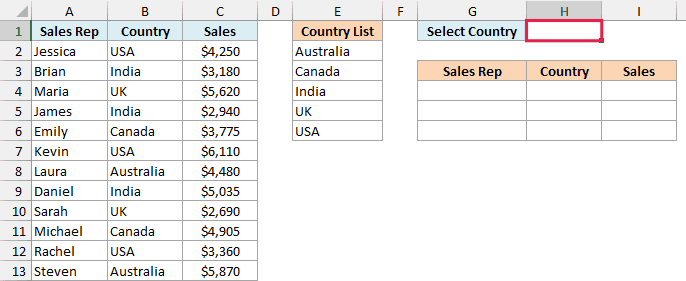
- Click the Data tab, and then click Data Validation (in the Data Tools group).

- In the Data Validation dialog box, in the Settings tab, select List in the Allow drop-down.
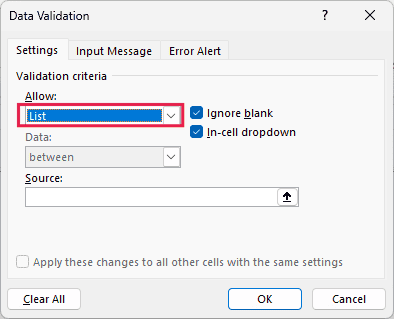
- In the Source field, enter =$E$2#
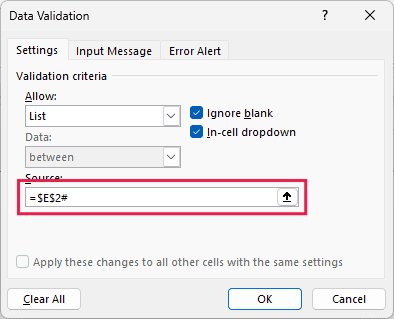
- Click OK.
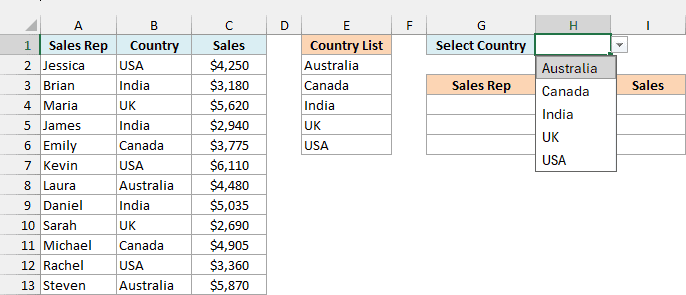
Cell H1 now has a drop-down arrow, and clicking it shows the five countries.
The # at the end of $E$2# is the spill range operator.
It refers to the whole list that the formula in E2 returns, so the drop-down always shows whatever that formula currently gives, without you editing the Source.
Step 3: Extract the records for the selected country
The goal now is to select any country from the drop-down list, and that should give us the list of records for the country.
Enter the below formula in cell G4:
=FILTER(A2:C13,B2:B13=H1,"No records found")
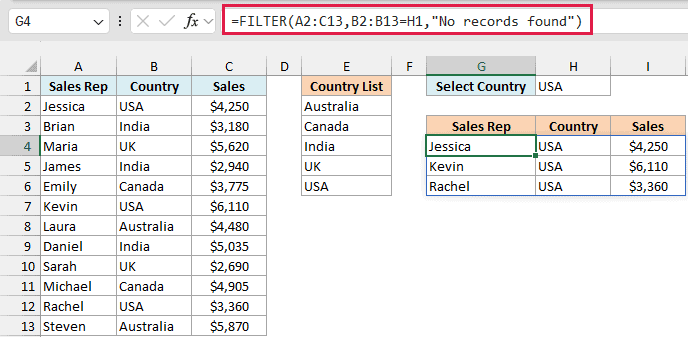
With USA selected in H1, the formula returns the three USA records (Jessica, Kevin, and Rachel) in G4:I6. Pick a different country, and the result changes right away.
How this formula works:
- A2:C13 is the data we want to get back, all three columns of it.
- B2:B13=H1 checks each country against the one selected in H1 and gives TRUE for a match and FALSE for everything else.
- The FILTER function returns only the rows that got a TRUE.
- “No records found” is what the formula shows if nothing matches. Without it, you’d see a #CALC! error instead.
FILTER returns only the matching rows, not the headers. That’s why the headers in G3:I3 are typed in (I copied them from the dataset).
If you add more records below row 13 later, update the ranges in both formulas (B2:B13 and A2:C13) so the new rows are included.
You can now hide the original data if you want.
Add an “All” Option to the Drop Down Filter
Once the filter works, you’ll probably also want a way to see all the records again.
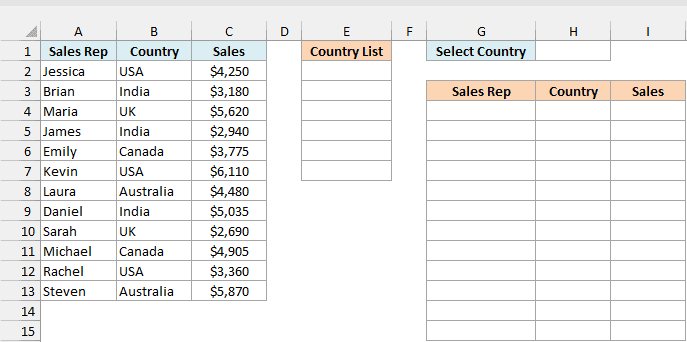
Below is the same sales dataset, and I want the drop-down in cell H1 to have “All” as the first option, with the records showing up in columns G to I.
First, we need a country list that starts with “All”. This uses the VSTACK function, which works in Excel for Microsoft 365 and Excel 2024 (Excel 2021 readers can use the workaround below).
Here is the formula for cell E2:
=VSTACK("All",SORT(UNIQUE(B2:B13)))
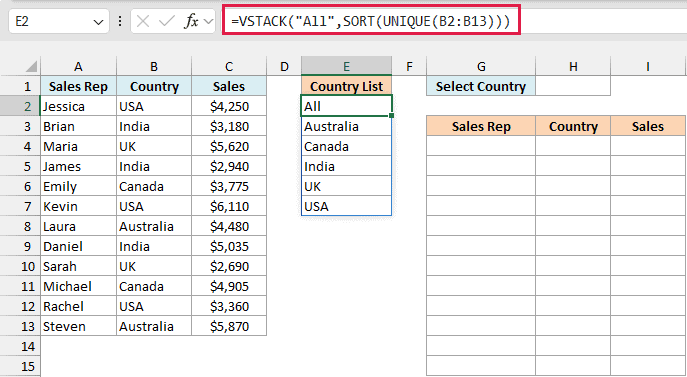
SORT and UNIQUE give us the sorted country list like before, and the VSTACK function stacks the word “All” on top of it.
Now create the drop-down in H1 with the same Data Validation steps as above, and use =$E$2# in the Source field.
Then enter this formula in cell G4:
=FILTER(A2:C13,(B2:B13=H1)+(H1="All"),"No records found")
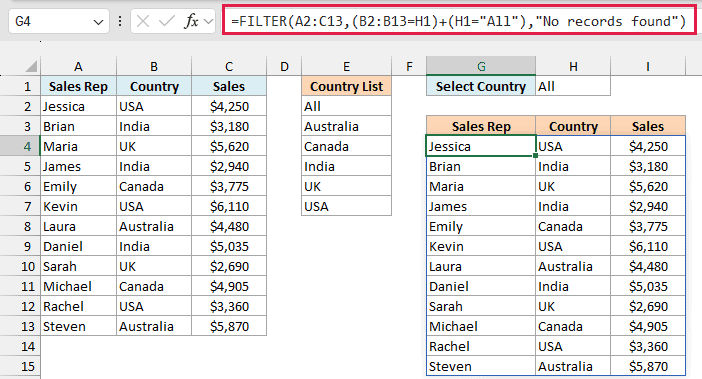
When “All” is selected, the formula returns all 12 records. Select a country instead, and you only get the records for that country.
Here is how the condition works. B2:B13=H1 is TRUE for rows with the selected country, and H1=”All” is TRUE (for every row) when “All” is selected.
The plus sign adds the two. In the back end, Excel considers TRUE as 1 and FALSE as 0, so a row gets kept when either check is TRUE.
If you’re using Excel 2021, type All in cell E2, enter the below formula in cell E3, and then use =$E$2:$E$7 as the Source of the drop-down:
=SORT(UNIQUE(B2:B13))
Extract Data to Another Sheet Based on Drop Down Selection
You can have the original data and extracted data in two different worksheets as well. This is handy when you want a clean report sheet and the raw data tucked away somewhere else.
Below, the sales data is on the Sales Data sheet, along with a sorted country list in column E (made with the same SORT and UNIQUE formula from the first method, entered in cell E2).
I want the drop-down in cell B1 of the Report sheet, with the records for the selected country showing up from row 4.
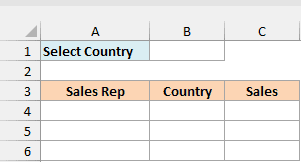
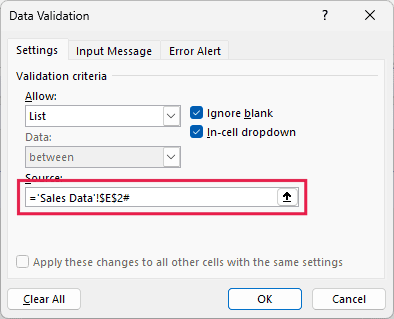
Create the drop-down in cell B1 of the Report sheet with the same Data Validation steps, and use this in the Source field: =’Sales Data’!$E$2#
Then enter this formula in cell A4 of the Report sheet:
=FILTER('Sales Data'!A2:C13,'Sales Data'!B2:B13=B1,"No records found")
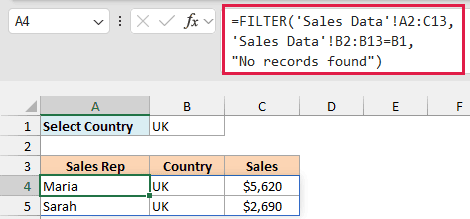
With UK selected in B1, you get the two UK records (Maria and Sarah). It’s the same FILTER formula as before, except the ranges now point to the Sales Data sheet.
Since the sheet name has a space in it, it needs to be inside single quotes (‘Sales Data’). If you build the formula by clicking on the other sheet, Excel adds the quotes for you.
Follow along with the example file
Drop Down Filter in Excel.xlsx
Drop Down Filter in Older Excel Versions (Using Helper Columns)
If you’re using Excel 2019 or earlier, you won’t have the FILTER function. You can still build the same drop-down filter with a few helper columns and some regular formulas.
Below is the same sales dataset, and I want to pick a country in cell K1 and get its records in columns J to L.
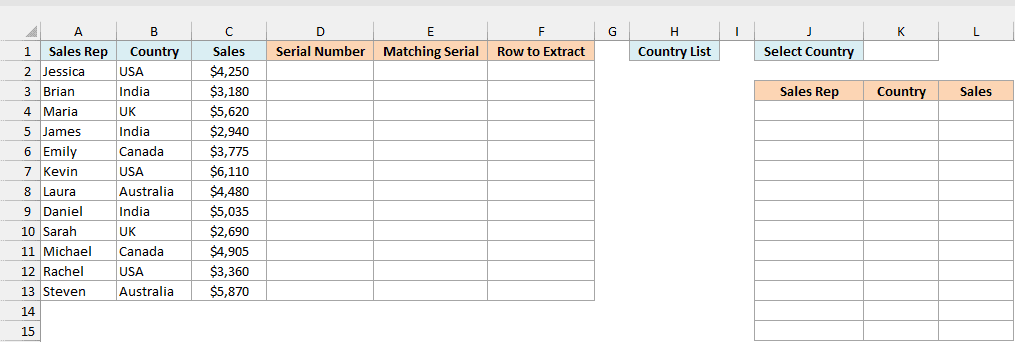
Step 1: Create a unique list of countries
Since there’s no UNIQUE function in older versions, here are the steps to get a unique list with Remove Duplicates:
- Select all the Countries (B2:B13), copy them, and paste them in another part of the worksheet (I pasted them in cell H2, below a Country List header).
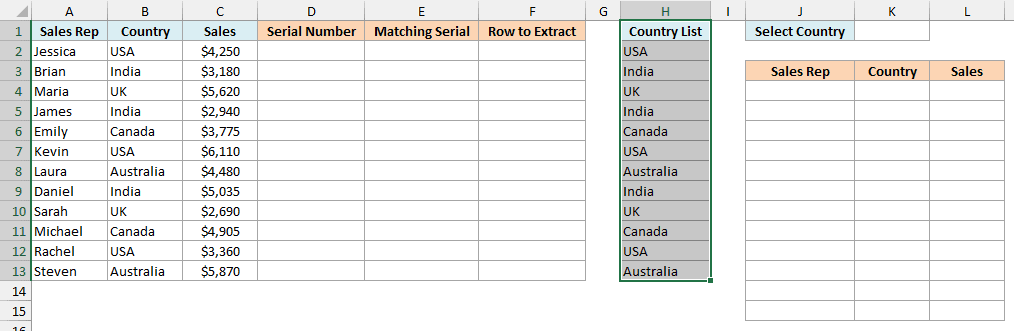
- Select the pasted list along with its header (H1:H13), and go to Data > Remove Duplicates.

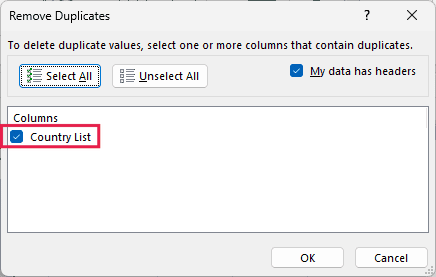
- In the Remove Duplicates dialog box, select the column where you have the list of countries, and click OK.
- With the list still selected, go to Data > Sort A to Z.
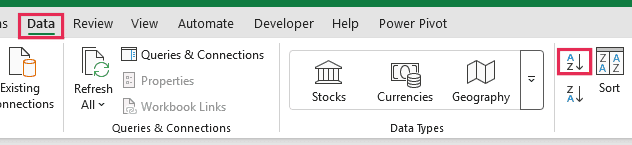
This will give you a unique list of the five countries in H2:H6. Remove Duplicates keeps the countries in the order they first appear, which is why the sort step is there.
See Also: The Ultimate Guide to Find and Remove Duplicates in Excel.
Step 2: Create the drop-down filter
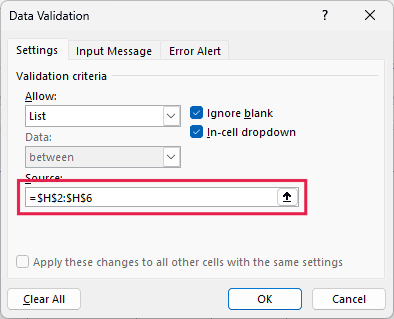
Create the drop-down in cell K1 with the same Data Validation steps as in the first method. The only difference is the Source, which is the static list: =$H$2:$H$6
Step 3: Create helper columns to find the matching records
As soon as you make the selection from the drop down, you need Excel to automatically identify the records that belong to that selected item. This can be done using three helper columns.
Helper Column #1 (Serial Number): Enter the serial number for all the records (12 in this case).
You can use the ROWS function to do this. Enter the below formula in cell D2 and copy it down to D13:
=ROWS($A$2:A2)
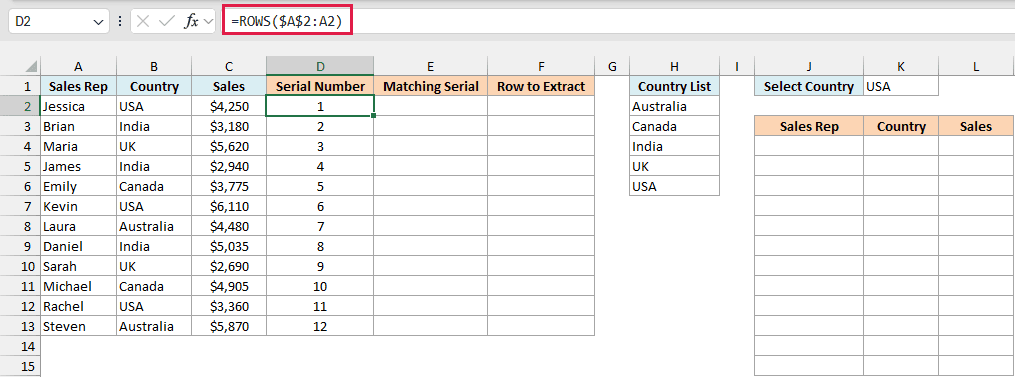
The ROWS function counts the rows in $A$2:A2, which is 1. As you copy it down, the range grows to $A$2:A3, $A$2:A4, and so on, so you get 1 to 12.
Helper Column #2 (Matching Serial): Use this simple IF Function in cell E2 and copy it down to E13:
=IF(B2=$K$1,D2,"")
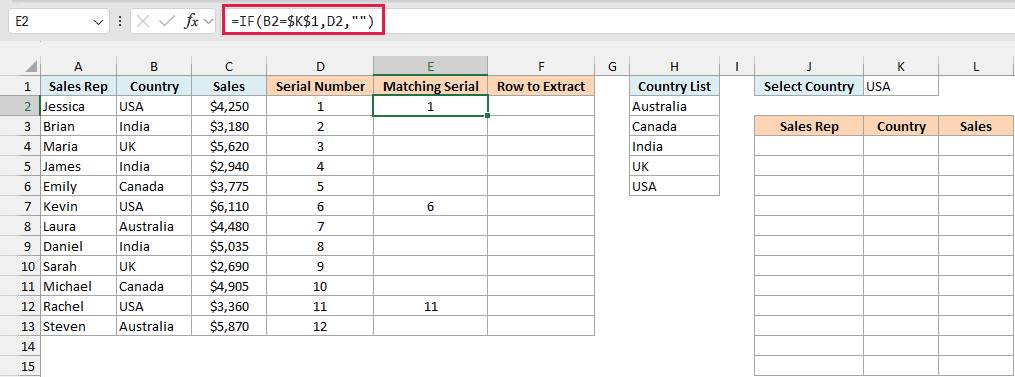
This formula checks whether the country in the first row matches the one in the drop down menu. So if I select USA, it checks whether the first row has USA as the country or not.
If it’s True, it returns that row’s serial number, else it returns blank (“”). Now when we select any country, only the serial numbers of the rows that have the selected country show up in this column (1, 6, and 11 for USA).
Now we need to extract the data for these rows only.
However, these serial numbers have blanks between them, and we want the records one after the other, without the blanks. This can be done using a third helper column.
Helper Column #3 (Row to Extract): Use the following combination of IFERROR and SMALL functions in cell F2 and copy it down to F13:
=IFERROR(SMALL($E$2:$E$13,D2),"")
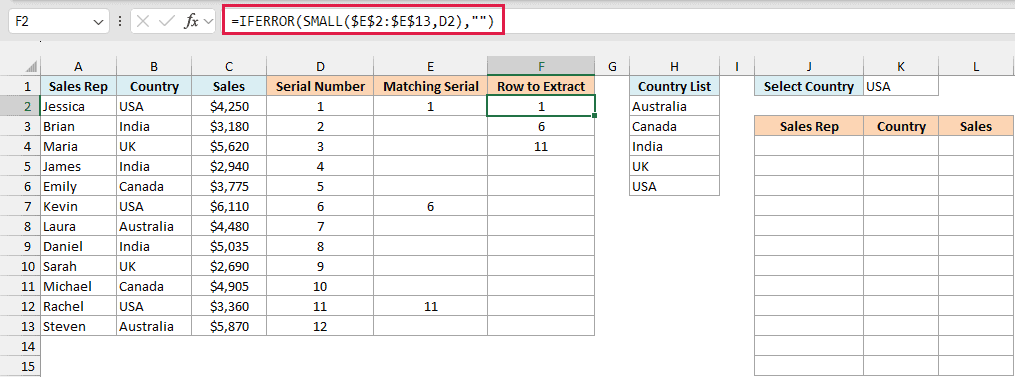
In the first row, SMALL gives the smallest serial number in column E, in the second row the second smallest, and so on. So the matching serial numbers (1, 6, and 11) now sit together at the top of column F.
Once it runs out of matches, SMALL returns a #NUM! error, and IFERROR turns that into a blank.
Step 4: Extract the records
Now when we have the serial numbers together, we just need to extract the data for each of them. This can be done easily using the INDEX function.
Enter the below formula in cell J4, and then copy it to the right (to L4) and down (to row 15):
=IFERROR(INDEX($A$2:$C$13,$F2,COLUMNS($J$3:J3)),"")
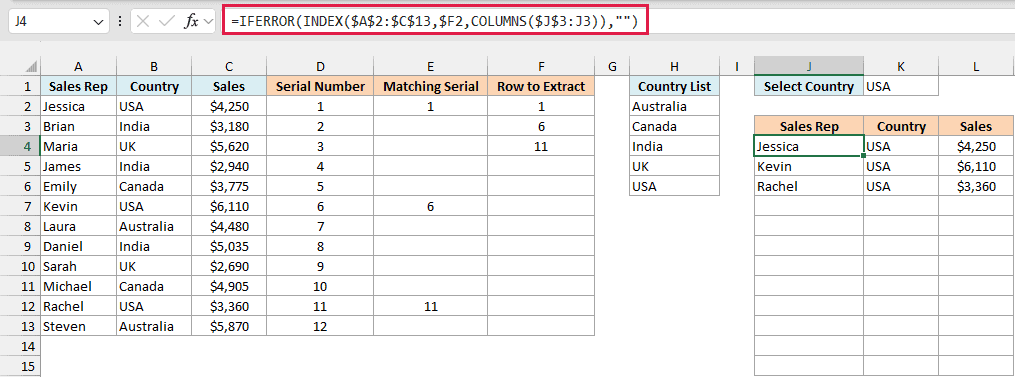
This formula has 3 parts:
- INDEX: This extracts the data based on the serial number in column F (which is the record’s position in A2:C13).
- COLUMNS: COLUMNS($J$3:J3) returns 1, and it becomes 2 and 3 as you copy the formula to the right, so you get the Sales Rep, Country, and Sales columns.
- IFERROR: This function returns blank when there is no data.
With USA selected, you get the three USA records in J4:L6, and the rest of the rows stay blank. You can hide the helper columns if you don’t want them showing.
Go ahead. Use this technique, and impress your boss and colleagues (a little show-off is never a bad thing).
So these are the ways you can create a drop-down filter in Excel to extract data based on the selection.
Did you like the tutorial? Let me know your thoughts in the comments section.
You May Also Find the Following Tutorials Useful:
- Dynamic Excel Filter – Extract Data as you type.
- Dynamic Search in Excel Using Conditional Formatting.
- Create Dynamic Drop Down with Search Suggestions.
- How to Extract a Substring in Excel Using Formulas.
- How to Filter Cells with Bold Font Formatting in Excel.
- How to Create a Dependent Drop Down List in Excel.
- Excel Advanced Filter – A Complete Guide with Examples.
- Creating Multiple Drop-down Lists in Excel without Repetition.

While put the formula in Helper 3 getting a #NAME? error.
Please help.
Does anyone know how I could do this, but add a second filter in addition to the first? Ie. I want to filter for India and then within what’s filtered for India I want to also filter by Sales Rep name?
This tutorial was extraordinarily helpful in demonstrating this technique and enabling me to accomplish a specific task I was trying to complete. Thank you!
Hi Sumit,
Thank you for your tutorial, I have used your technique last year in an attendance sheet by creating a drop down list with department names and then it lists the staff name and ID. I have created the helper table on each tab of the sheet representing the year and using the drop down list of each sheet.
My problem is when adding newly hire employee or removing retired employee i have to make it manually on each sheet.
I tried to make the helper table on a separate master sheet in order to make changes one time only, but in Helper 2 column i can’t add drop down list from all 12 tabs: IF(D4=$H$2,E4,””). I mean instead of $H$2, add ‘June20′! $C3:’July 21’!$C3
Is there a away to show you the sheet and help me to have more than one drop down list in the formula of Helper
Thank you 2.
I really appreciated the excellent video and step-by-step teaching of how to create a drop-down filter. My question: Is there a way to add a “Show All” to the drop-down filter so that all filtered data in the table becomes visible? Or, have the data table already populated when the worksheet is first open then use the drop-down filter to filter the data in the same table? Thanks.
Very helpful.This is I wanted for a long time. Based on this video I created a table.In the unique list there are names like Sandiya and Balasandiya. When I extract the details for Sandiya, the details for Balasandiya are also extracted but not in vice versa.How to correct it? Please help me.
Hey mate. Love your Excel tips. Cheers
Hi Sumit okay lets start at A. I have two sheets, data sheet and main sheet. on main sheet I have drop down on cell D6 with values that match the values in row 8 on data sheet. If any value is true I want that complete column to be returned on main page. There could be up to 4 values that could match any of the values matched in row 8 on data sheet. My first attempt was with this: =IFERROR(INDEX(Inverter!$C$2:$T$15;;Inverter!C$19;ROWS(Inverter!$C$21:C$21));””), this works okay but only return the value of row 2 even with drag across all 4 columns match but only with top row. As soon as I drag the formula down the same value as in the top cell of each column return.
Hi Sumit,
I’m struggling to work out which formulas I need to be using.
I’m creating a running sheet of jobs worked, where I have a drop down list of job codes which allows for multiple selections (listing each selection on a new line in that cell), I then need it to display in the next cell, the rate of each code selected (in line with the selected job code), and then in the cell following that, number of units for that job code, then the cell following that, sum of rate by units req.
please help.
I can send you a file of where I’m currently at, please let me know where to send it.
regards
Steve
Hi sumit, Is there any way of showing all items in a product which is in dropdown list?
Greetings Sumit, I’m completely stumped, I’m trying to do this in the opposite direction. I have a Row which will be the main position of the primary selector. After selecting which item in the drop box i need; rather than having the information populate in different columns; I need the extractor to populate the data beneath that primary select in the same row and create additional rows if possible. I have a visual representation of what I need; is this even possible? Please respond.
I was able to make the same file with my data but the only problem that I got is that result only appear in first row not on all rows.
Dear sir, when i make like this including date format and number, My answer is wrong. How to do this. Can i send you my file. Thanks
I follow all the steps but when i my country in the drop down list menu – it did not populate with country selected
Brilliant tip. Did just what I wanted.
This is great! How can I achieve this same result for a comma delimited column?
Thank you very much, this was the best lesson I have seen! However, I have a little different challenge and I need to add multiple dropdown selections and produce a consolidated list of only correct matches. Can you please help me?
I need this too
How do I repeat this on the next drop down with the same information needed? I’m using it to pull equipment used on a test.
I’ve used your method and got what i want, but I need some more help, as I’ve a ledger of some consumers which contains some data like consumer name, consumer number (unique number), city, and area or street they live. I want to extract filtered data using more than one dependent drop down list, 1st one is “city” and another one is “area or street they live in”. what to do?
if i use the above example, i only get one type of data which is dependent on “area or street they live in, but i wanted to filter it out with both city and street…
plz help me..
Hi Sumit
Great tutorial. It works a treat.
I have an issue; if a record (row)on a separate data worksheet is deleted or inserted, the helper1 and 2 columns receive a #REF error as the reference is broken. I tried a number of solutions but couldn’t get it to work. I have ended up protecting rows and columns in the sheet. Any ideas?
Thanks again.
Hi Everyone,
I need a favor of yours. I have just implemented the same into Google spreadsheet and it’s creating an issue. I and created the same in Excel and it’s working fine.
In google sheet, the logic =IFERROR(INDEX(Data!$A$4:$C$52,Data!F4,1),””) is not working especially when there is no reference instead of printing blank it’s breaking.
Please let me know if you have any solution here.
Thanks in advance.
Hello, I have an excel sheet with multiple columns containing different information. In the drop down list for each column, multiple values can be selected. How do I pull data from a drop down list with multiple values?