

In this tutorial, I will show you how to create a drop-down filter in Excel so that you can extract data based on the selection from the drop-down.
As shown in the pic below, I have created a drop-down list with country names. As soon as I select any country from the drop-down, the data for that country gets extracted to the right.
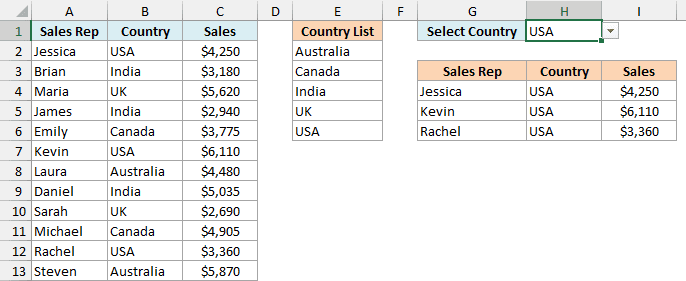
Note that as soon as I select USA from the drop-down filter, all the records for USA are extracted.
If you’re using Excel 365, Excel 2024, or Excel 2021, the FILTER function does almost all the work here.
I’ll also show you how to add an “All” option, how to pull the records onto another sheet, and a helper column method that works in older versions.
By the way, if all you want is the small filter arrows in your header row (the ones you click to sort and filter a column), select any cell in your data and press Ctrl + Shift + L (or click Data > Filter).
That’s Excel’s regular filter, and I’ve covered it in this guide to Excel data filter options.
Follow along with the example file
Drop Down Filter in Excel.xlsx
Create a Drop Down Filter in Excel Using the FILTER Function
Let’s start with the FILTER function method.
Here are the steps to create a drop-down filter that will extract data for the selected item:
- Create a unique list of items.
- Add a drop-down filter to display these unique items.
- Use the FILTER function to extract the records for the selected item.
Let’s see what needs to be done in each of these steps.
Below is a sales dataset with the sales rep, country, and sales value for each deal, and I want to pick a country in cell H1 and get all its records in columns G to I.
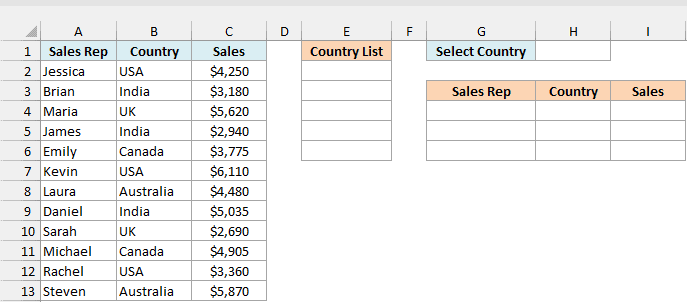
The FILTER, SORT, and UNIQUE functions used in this method work in Excel for Microsoft 365, Excel 2024, and Excel 2021. If you’re on Excel 2019 or earlier, use the helper column method further below.
Step 1: Create a unique list of countries
While there could be repetitions of an item in your dataset, we need unique item names so that we can create a drop down filter using it.
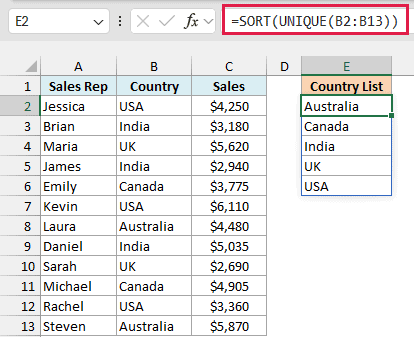
In the above example, the first step is to get the unique list of all the countries. Here is the formula that will do this when entered in cell E2:
=SORT(UNIQUE(B2:B13))
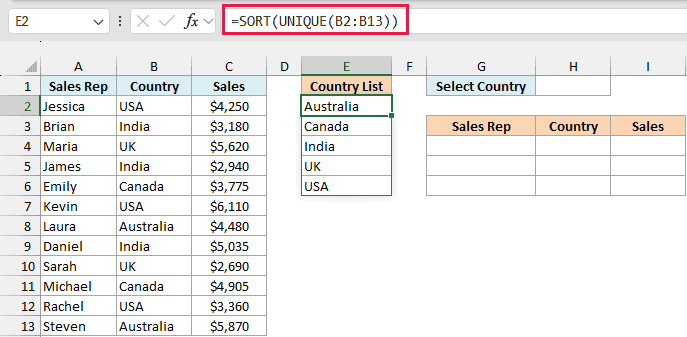
The UNIQUE function gives each country from B2:B13 only once, and the SORT function puts them in alphabetical order, so the drop-down is easy to scan.
You only enter the formula in E2. The list spills down on its own and updates whenever the countries in B2:B13 change.
Step 2: Create the drop-down filter
Now we will use this unique list to create the drop-down list in cell H1. Here are the steps:
- Select cell H1.
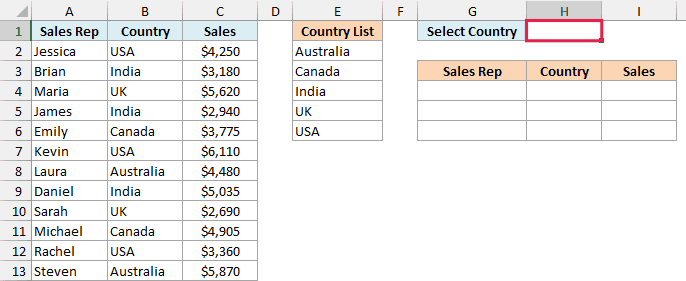
- Click the Data tab, and then click Data Validation (in the Data Tools group).

- In the Data Validation dialog box, in the Settings tab, select List in the Allow drop-down.
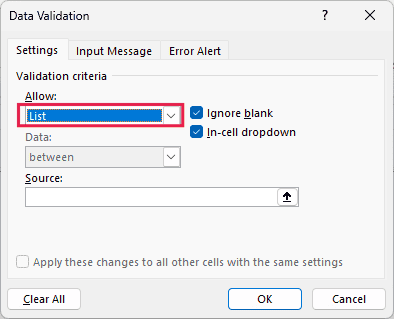
- In the Source field, enter =$E$2#
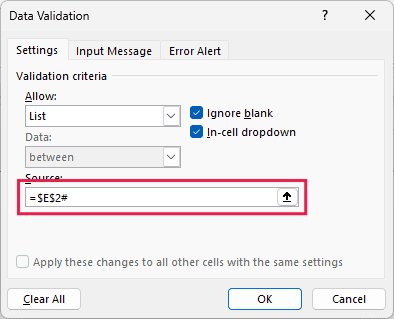
- Click OK.
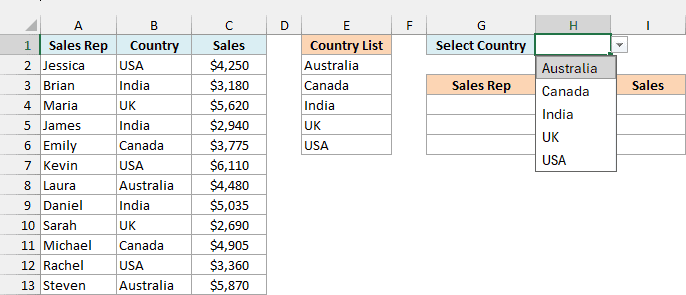
Cell H1 now has a drop-down arrow, and clicking it shows the five countries.
The # at the end of $E$2# is the spill range operator.
It refers to the whole list that the formula in E2 returns, so the drop-down always shows whatever that formula currently gives, without you editing the Source.
Step 3: Extract the records for the selected country
The goal now is to select any country from the drop-down list, and that should give us the list of records for the country.
Enter the below formula in cell G4:
=FILTER(A2:C13,B2:B13=H1,"No records found")
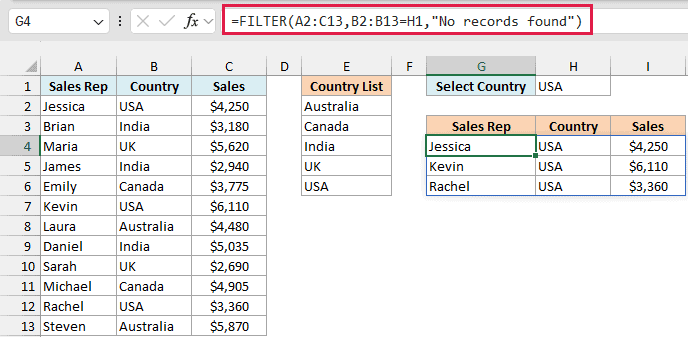
With USA selected in H1, the formula returns the three USA records (Jessica, Kevin, and Rachel) in G4:I6. Pick a different country, and the result changes right away.
How this formula works:
- A2:C13 is the data we want to get back, all three columns of it.
- B2:B13=H1 checks each country against the one selected in H1 and gives TRUE for a match and FALSE for everything else.
- The FILTER function returns only the rows that got a TRUE.
- “No records found” is what the formula shows if nothing matches. Without it, you’d see a #CALC! error instead.
FILTER returns only the matching rows, not the headers. That’s why the headers in G3:I3 are typed in (I copied them from the dataset).
If you add more records below row 13 later, update the ranges in both formulas (B2:B13 and A2:C13) so the new rows are included.
You can now hide the original data if you want.
Add an “All” Option to the Drop Down Filter
Once the filter works, you’ll probably also want a way to see all the records again.
Below is the same sales dataset, and I want the drop-down in cell H1 to have “All” as the first option, with the records showing up in columns G to I.
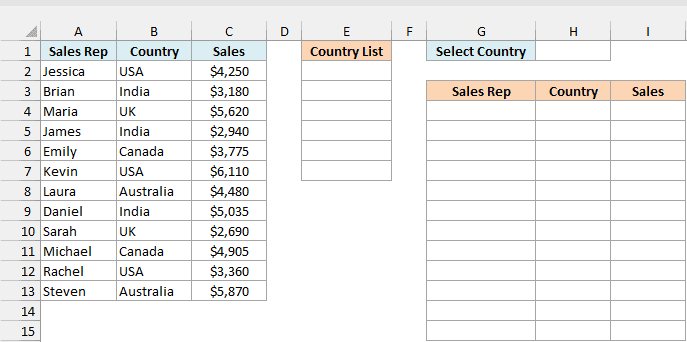
First, we need a country list that starts with “All”. This uses the VSTACK function, which works in Excel for Microsoft 365 and Excel 2024 (Excel 2021 readers can use the workaround below).
Here is the formula for cell E2:
=VSTACK("All",SORT(UNIQUE(B2:B13)))
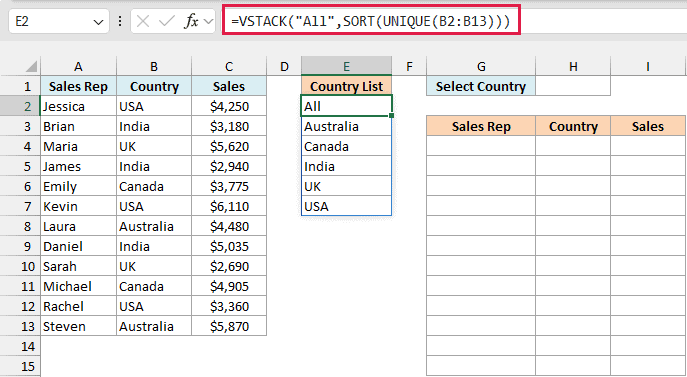
SORT and UNIQUE give us the sorted country list like before, and the VSTACK function stacks the word “All” on top of it.
Now create the drop-down in H1 with the same Data Validation steps as above, and use =$E$2# in the Source field.
Then enter this formula in cell G4:
=FILTER(A2:C13,(B2:B13=H1)+(H1="All"),"No records found")
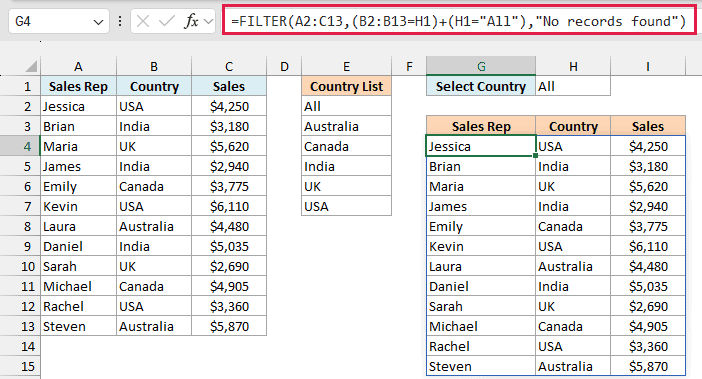
When “All” is selected, the formula returns all 12 records. Select a country instead, and you only get the records for that country.
Here is how the condition works. B2:B13=H1 is TRUE for rows with the selected country, and H1=”All” is TRUE (for every row) when “All” is selected.
The plus sign adds the two. In the back end, Excel considers TRUE as 1 and FALSE as 0, so a row gets kept when either check is TRUE.
If you’re using Excel 2021, type All in cell E2, enter the below formula in cell E3, and then use =$E$2:$E$7 as the Source of the drop-down:
=SORT(UNIQUE(B2:B13))
Extract Data to Another Sheet Based on Drop Down Selection
You can have the original data and extracted data in two different worksheets as well. This is handy when you want a clean report sheet and the raw data tucked away somewhere else.
Below, the sales data is on the Sales Data sheet, along with a sorted country list in column E (made with the same SORT and UNIQUE formula from the first method, entered in cell E2).
I want the drop-down in cell B1 of the Report sheet, with the records for the selected country showing up from row 4.
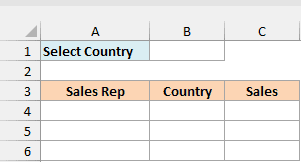
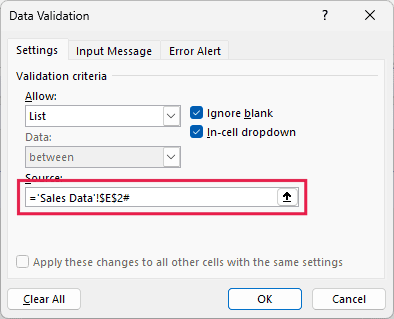
Create the drop-down in cell B1 of the Report sheet with the same Data Validation steps, and use this in the Source field: =’Sales Data’!$E$2#
Then enter this formula in cell A4 of the Report sheet:
=FILTER('Sales Data'!A2:C13,'Sales Data'!B2:B13=B1,"No records found")
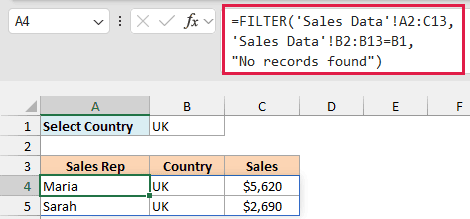
With UK selected in B1, you get the two UK records (Maria and Sarah). It’s the same FILTER formula as before, except the ranges now point to the Sales Data sheet.
Since the sheet name has a space in it, it needs to be inside single quotes (‘Sales Data’). If you build the formula by clicking on the other sheet, Excel adds the quotes for you.
Follow along with the example file
Drop Down Filter in Excel.xlsx
Drop Down Filter in Older Excel Versions (Using Helper Columns)
If you’re using Excel 2019 or earlier, you won’t have the FILTER function. You can still build the same drop-down filter with a few helper columns and some regular formulas.
Below is the same sales dataset, and I want to pick a country in cell K1 and get its records in columns J to L.
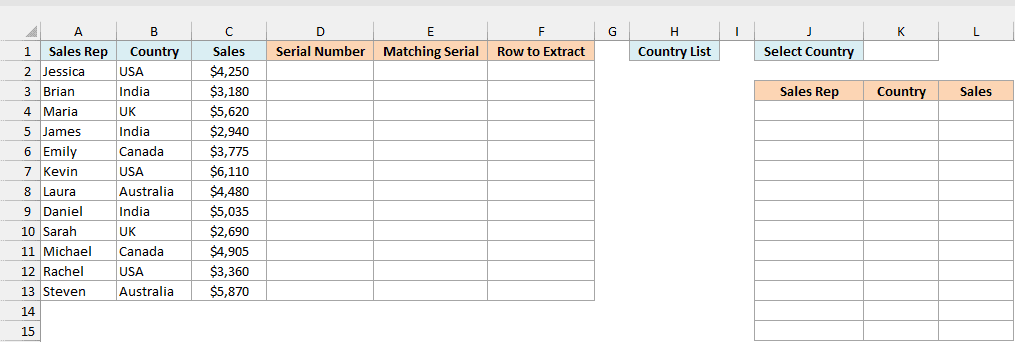
Step 1: Create a unique list of countries
Since there’s no UNIQUE function in older versions, here are the steps to get a unique list with Remove Duplicates:
- Select all the Countries (B2:B13), copy them, and paste them in another part of the worksheet (I pasted them in cell H2, below a Country List header).
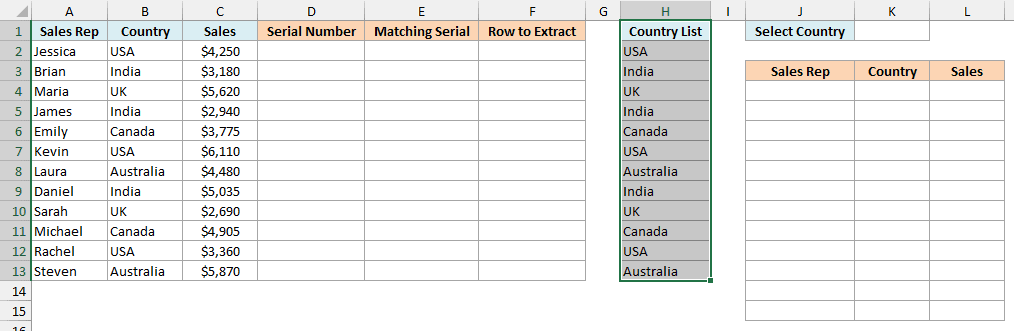
- Select the pasted list along with its header (H1:H13), and go to Data > Remove Duplicates.

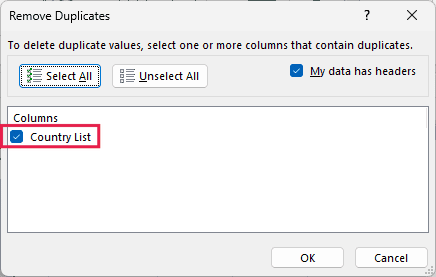
- In the Remove Duplicates dialog box, select the column where you have the list of countries, and click OK.
- With the list still selected, go to Data > Sort A to Z.
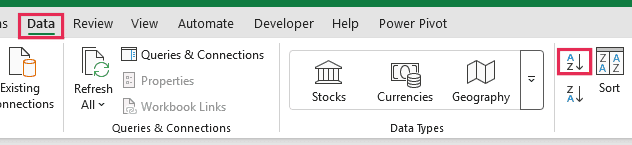
This will give you a unique list of the five countries in H2:H6. Remove Duplicates keeps the countries in the order they first appear, which is why the sort step is there.
See Also: The Ultimate Guide to Find and Remove Duplicates in Excel.
Step 2: Create the drop-down filter
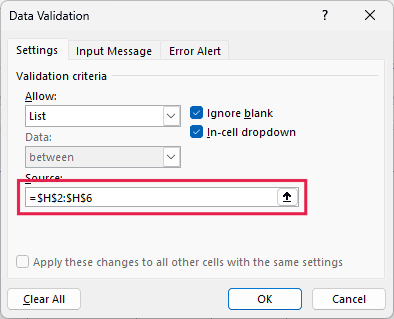
Create the drop-down in cell K1 with the same Data Validation steps as in the first method. The only difference is the Source, which is the static list: =$H$2:$H$6
Step 3: Create helper columns to find the matching records
As soon as you make the selection from the drop down, you need Excel to automatically identify the records that belong to that selected item. This can be done using three helper columns.
Helper Column #1 (Serial Number): Enter the serial number for all the records (12 in this case).
You can use the ROWS function to do this. Enter the below formula in cell D2 and copy it down to D13:
=ROWS($A$2:A2)
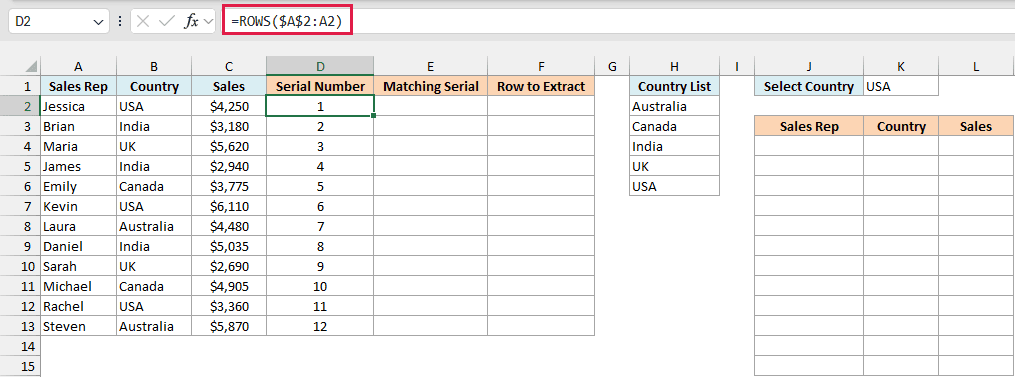
The ROWS function counts the rows in $A$2:A2, which is 1. As you copy it down, the range grows to $A$2:A3, $A$2:A4, and so on, so you get 1 to 12.
Helper Column #2 (Matching Serial): Use this simple IF Function in cell E2 and copy it down to E13:
=IF(B2=$K$1,D2,"")
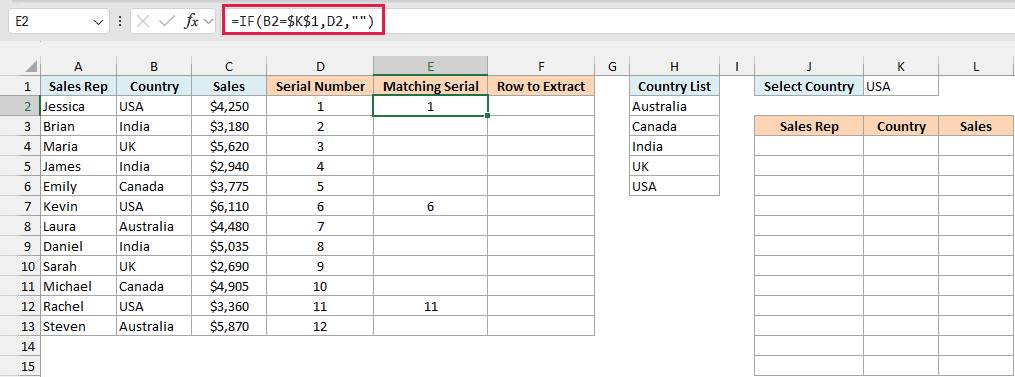
This formula checks whether the country in the first row matches the one in the drop down menu. So if I select USA, it checks whether the first row has USA as the country or not.
If it’s True, it returns that row’s serial number, else it returns blank (“”). Now when we select any country, only the serial numbers of the rows that have the selected country show up in this column (1, 6, and 11 for USA).
Now we need to extract the data for these rows only.
However, these serial numbers have blanks between them, and we want the records one after the other, without the blanks. This can be done using a third helper column.
Helper Column #3 (Row to Extract): Use the following combination of IFERROR and SMALL functions in cell F2 and copy it down to F13:
=IFERROR(SMALL($E$2:$E$13,D2),"")
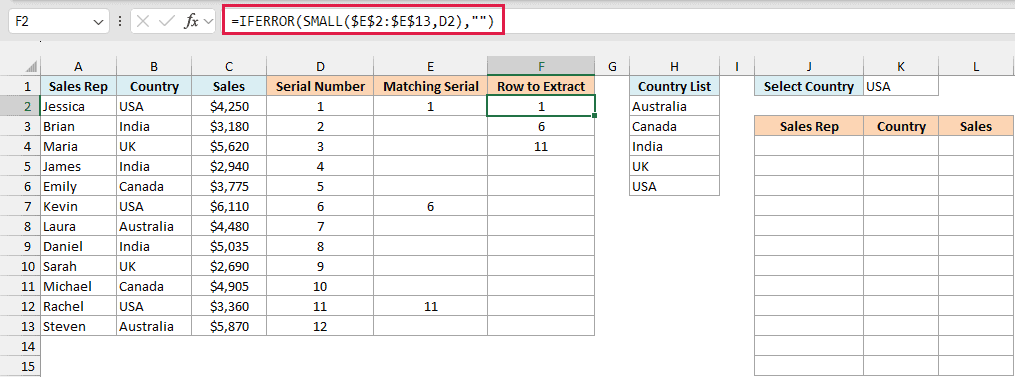
In the first row, SMALL gives the smallest serial number in column E, in the second row the second smallest, and so on. So the matching serial numbers (1, 6, and 11) now sit together at the top of column F.
Once it runs out of matches, SMALL returns a #NUM! error, and IFERROR turns that into a blank.
Step 4: Extract the records
Now when we have the serial numbers together, we just need to extract the data for each of them. This can be done easily using the INDEX function.
Enter the below formula in cell J4, and then copy it to the right (to L4) and down (to row 15):
=IFERROR(INDEX($A$2:$C$13,$F2,COLUMNS($J$3:J3)),"")
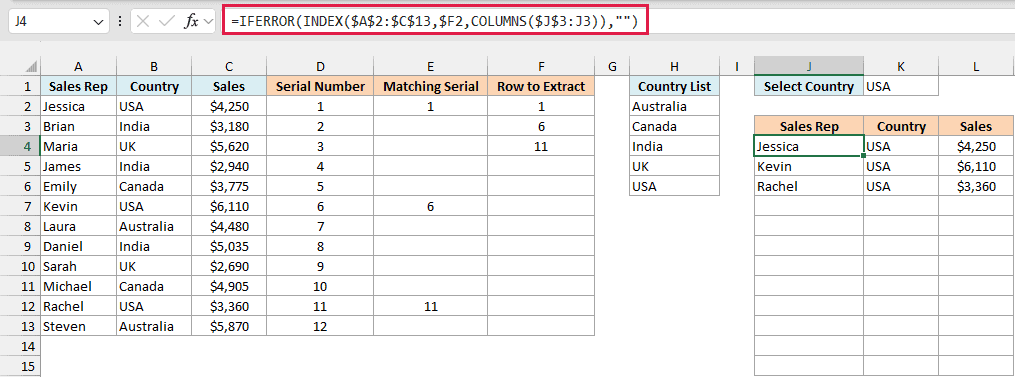
This formula has 3 parts:
- INDEX: This extracts the data based on the serial number in column F (which is the record’s position in A2:C13).
- COLUMNS: COLUMNS($J$3:J3) returns 1, and it becomes 2 and 3 as you copy the formula to the right, so you get the Sales Rep, Country, and Sales columns.
- IFERROR: This function returns blank when there is no data.
With USA selected, you get the three USA records in J4:L6, and the rest of the rows stay blank. You can hide the helper columns if you don’t want them showing.
Go ahead. Use this technique, and impress your boss and colleagues (a little show-off is never a bad thing).
So these are the ways you can create a drop-down filter in Excel to extract data based on the selection.
Did you like the tutorial? Let me know your thoughts in the comments section.
You May Also Find the Following Tutorials Useful:
- Dynamic Excel Filter – Extract Data as you type.
- Dynamic Search in Excel Using Conditional Formatting.
- Create Dynamic Drop Down with Search Suggestions.
- How to Extract a Substring in Excel Using Formulas.
- How to Filter Cells with Bold Font Formatting in Excel.
- How to Create a Dependent Drop Down List in Excel.
- Excel Advanced Filter – A Complete Guide with Examples.
- Creating Multiple Drop-down Lists in Excel without Repetition.

Hi – I have found your tutorial really interesting and easy to follow / use.
I’m now wondering if there is a way to link 2 or more drop down lists for one data table to dynamically update based on options selected within multiple down lists. I’m guessing there must be a way to amend the following formula “=INDEX(‘Table1′!$F$7:$L$5654,’Table1’!$N7,COLUMNS($G$8:G8))” to expand on the dropdown lists used to update the data tables.
Are you able to advise how I should go about achieving this or point me in the right direction of where I can find tutorials around this please?
Any help / advise would be greatly appreciated.
Many thanks, Mike.
V. Helpful and just what I was looking for. One question: if, using your example, the sales reps covered multiple countries how could you filter in that case? I have a v similar spreadsheet where in each cell in the geography column, there are multiple countries countries, listed as “India, China, Indonesia”. I need to be able to filter by one country. Would there be a way of filtering by country without delimiting the countries into separate cells? Thanks!!
Hii..Very helpful excel functionalities..The steps helped me to develop a report completely.
Thanks.
Hi! Thanks for sharing this, really helpful. Also, if I have to create three unique drop-down lists and pull data from source sheet automatically based on the drop-down selection. Say have data by industry, by geography and by month, now need to pull information by a combination of this 3 filters from unique drop-down lists. Can you help?
Almost exactly what I’ve been looking for. Thank you.
How do I add multiple drown down menus? For example,
If i wanted a drop down menu for Geography and product name?
Hi Guys, I’m stumped with this one. I’m using the following formula to get the helper 3 coloumn. It works fine for a small array of 1000 rows, but when I increase it to 10,000 for example…. it returns BLANK? – Any Ideas?
=IFERROR(SMALL($Q$2:$Q$1048,ROWS($Q$2:Q2)),””)
Hi Guys, I’m stumped with this one. I’m using the following formula in column E to return the row numbers of the name I’ve selected in column A, to get the helper 3 bit. It works fine for a small array of 1000 rows, but when I increase it to 10,000 for example…. it returns BLANK? – Any Ideas?
=IFERROR(SMALL($Q$2:$Q$1048,ROWS($Q$2:Q2)),””)
HI, nice tutorial, but i was made for 3 column, what if i have around 12 columns, how many helper i will create?
Hello, How would the formula change on the helper columns if I’m trying to extract several columns of data. For example if I need 6 columns extracted would I need 6 helpers columns and what formulas would change?
Thank you!
Helper column is not how many columns of data you are extracting rather they are there to help finding row numbers from the data needs to be extracted.
Now from how many columns you have you can use array formula if more by selecting the columns and enter formula, then enter ALT+CTRL+ENTER
you will see { } brackets in formula bar that will extract all the columns data in one go
Hello! is it possible for the drop down list to be multiple selection? how do i extract multiple data if i have more than one selection from the list?
Hi, thank you for this!
I just have one more question, what if i want to add one more column after sales rep column, what is the formula for that?
thanks
Do you know how to do this through Google Sheets?
Does this pull from multiple sheets? I’d like to get a drop down to reference several sheets of values on the last page so people can see all the data relative to their names and save searching time, but there are multiple sheets worth of data to track, and compiling them into one document makes my work significantly harder.
Wow… this works perfectly.
Thanks a bunch.
I have a multiple drop down it has the match all the drop down and fetch the data Please help. I am able to use only one drop down to fetch the data as explained above
Can anyone please help me with the below query?
My requirement is… when i select a value on column A, then column B should list only the values related to Column A
ColumnA ColumnB
123 1
123 2
234 1
234 2
345 1
456 1
567 1
678 1
Expected Result
ColumnA (drop down) ColumnB (drop down)
123 1
2
Hi Sumit,
Hope you can help me with this..
My requirement is… when i select a value on column A, then column B should list only the values related to Column A
ColumnA ColumnB
123 1
123 2
234 1
234 2
345 1
456 1
567 1
678 1
Expected Result
ColumnA (drop down) ColumnB (drop down)
123 1
2
Thank you for this solution.
IS this able to be done in Google Sheets?
Thank you
Thanks so much. This tutorial helped me improve our processes and productivity. Looking forward to doing so much more with Excel now. (They should pay you!)
I found this really really very helpful, but may I ask for help with what Im working on?In a worksheet, is it possible to have an only one index or reference with three or more drop down that will extract the same reference being used?
Hi! this is so great thanks! Is there a way I can add one more drop down list criteria? So for example in your tutorial. I select India and get data extracted for India, but what if i want India AND only sales rep Joe. SO i would have a drop down list for India and another drop down list to just look at sales rep Joes stuff?
i know youve answered this but i dont know how to adjust my helper column to make sure that it returns true after two criteria are met
Have a look at this: https://www.dropbox.com/s/4kdooaij0ch5lvu/Extarct%20Data%202%20conditions_Custom-Filter.xls?dl=0
Hey Ashley, Have a look at this: https://www.dropbox.com/s/4kdooaij0ch5lvu/Extarct%20Data%202%20conditions_Custom-Filter.xls?dl=0
How can i also incorporate ALL meaning just show me ALL for country and ALL for sales rep?
Hi Sumit, can you do this so it is not AND. I want mutliple drop down boxes and it only picks up to seach if some is selected. ie if i pick country and sales rep it shows only when both but if i just pick country the list still populates
is there a way to have a searchable drop down list? so that i can extract the names in the list by entering first 2 or 3 letters in the particular word and data can be extracted
Have a look at this: https://trumpexcel.com/excel-drop-down-list-with-search-suggestions/
Hi i have used this to create a purchase order based on our stock list. It works brilliantly, except i would like it to only show rows of, In my case, items to order with a quantity of 1 and above how can i do this. Thank you
Can we extract the data from multiple drop-down selection?
Yes you can extract using multiple drop downs as well. You’ll need to modify the condition in helper column such that it returns TRUE only when all the drop down selection match
OK…could you share an example please?
Can I have an excel sheet with all the data from the drop down selections on it without the drop down?
Hello Karl.. Yes you can have it on a different sheet. If you’re looking to get static data, you can also use Advanced filter (http://trumpexcel.com/2013/08/advanced-filter-in-excel-some-cool-tricks/)
Hi, if one product is shared by two countries how can I filter that ?
Hi,
Request you to please share same process in VBA code.
Email.id : sachin.nikam@hungama.com
Hello there!
Thank you so much for your explanation, it is great!
I am using a file which doesn’t bring country list; however, brings some information other spreadsheet. Anyway it is not working, the “helper 3” brings the information, but doesn’t show up on “Product name or Sales Rep” and I do not know what I made wrong.
Can you please help me? I really got stuck on these files, 2 weeks already 🙁
Thank you,
Cris
I forgot the file!
Thank you!
greetings trump excel.com it is great platform to learn best excel warm greetings and thanks to all excel bestie’s here in this list….m here suppose to ask question but i see lawre*** has already ask the same question question thanks to Mr. sumit bansal for great help!!!!!
shaikh imran
This has helped! But I do have a question (apologies if this
has already been answered in the comments).
I am having a problem with cross referencing the data. For example I want to
see all the people from a certain district and then filter the results by how
many male/female in that district. When I try this it doesn’t work, I believe
it has something to do with the ‘helper’ columns. Do you know how to make this
work?
Thanks a lot, this is amazing!
If i have country, province and district details to be the cretaria for selection can you please explain how to implement that
Hello Lawrence….how do i do this with lots of data
Hi if I want to add a row into the data like example I want to insert an additional product between product 14 and product 15, the helpers do not update automatically. What can I do to make the helpers update automatically when a row is added / deleted? So that the extracted data on the right shows the new data?
Once you have inserted a new row, click on the first cell of each column. When you click on the cell you will see a small black square at the bottom right. Click on it and drag it down. Do it for all the columns.
Hi! Great tutorial.
I’m trying to make a excel sheet with product information witch can sort out and display products witch match certain criteria. Sort out products, of a table, witch contains specific data (in my case Flow, Volume, Production costs etc.). My goal is to have a worksheet with my company’s old work (I work with water cleaning systems) and with this worksheet sort out all the water cleaning systems witch match my search, and display those in some way. And then automaticly calculate a price based on those. I want to able to have multiple drop downs to make my search narrower.
I have tried slicers but i can’t get it to work and display multiple matches. Maybe it’s easier with drop down lists?
Hello Erik.. It would be helpful if you could share a sample data file.
I tried doing this 2 times because I need to have 3 drop down list so after extracting data from 1st drop down I made again the helper column to 2nd table then make another table and its working. but my problem is, I want to make my drop down list dependent on what 1st drop down list chose then 2nd drop down list to 3rd drop down list. I tried following the dependent drop down list tutorial but it’s not working. please help me to make this 3 drop down list dependent to each other after extracting data from one another. Or is there any way to do this. thanks
Hello.. Can you share the sample file. It would be easier to guide once I can see the data
Hi, in your spreadsheet I would like to add 2 additional drop down boxes for Sales Rep then Product Name. I want each drop down to be dependent on the first drop down boxes criteria. How can I make this possible?
Great tutorial!! These lessons keep opening new ideas for existing files I work with to make them better. I do need to manipulate the data from this lesson once more. I have a database that lists as columns: First name, Last name Floor, Cubicle, Job Position, Training Date, Equipment issued, issued date. When data is entered I have drop down menus for Job position and Equipment issued. Multiple equipment can be issued to the same person which creates blank cells in the other columns until another name is entered. On the next sheet I have the sort by drop down list as mentioned above. I have successfully implemented it and even get the blank lines to be ignored. However, I need that sorted table, or the first one, to be listed alphabetically by LAST NAME automatically. I cannot sort the first database by last name as the blank lines will not properly adjust with the associated name. Basically I need to sort alphabetically Helper column 3 from above or the main database taking in to account the blank cells.
Hi….Is there is possibility to Add more 3 or 4 columns along with Product Name, Sales Representative and Geography ?. If, Yes, Kindly request you please add 4 columns. Waiting for your new editions.
I guesst this is the formula I’ve tried:
=IFERROR(INDEX(‘DUES MTH 1′:’DUES MTH 12′!$E$4:’DUES MTH 1′:’DUES MTH 12′!$AI$68,’DUES MTH 1′:’DUES MTH 12’!$C4, COLUMNS($B$5)),””)
This is what I’m trying to perform on B5 (Sheet 2):
IF B2 = MTH (X) B5 =IFERROR(INDEX(‘DUES MTH (X)’!$E$4:’DUES MTH (x)’!$AI$68,’DUES MTH (x)’!$C4, COLUMNS($B$5)),””)
I guess my question would be how can I get the drop down for months(setup as sheets) to manipulate the formula’s, which will change to month from 1 to 2 and etc.
I’m trying to use this concept to display data from different sheets. My project is current using this concept to display data on for each person and each month. I found out if I use the following formula below I can get data to display for month 1 for each person, but I can figure out what formula I need to display data based on the month as well.
=IFERROR(INDEX(‘DUES MTH 1′!$E$4:’DUES MTH 1′!$AI$68,’DUES MTH 1’!$C4, COLUMNS($B$5)),””)
hi
I’m looking for help, I’m a complete newbie at excel so struggling to create something similar to this but its much more basic.
i need 1 list (data validation) which i worked out how to do, and i need it to extract information from 1 row.
there are no duplicates, no multiple entries.
just a simple drop down list that brings up a few columns of data in a row.
example:
NAME l PHONE l ID Number l
steven l 07827288292 l 4332 l
so i would click a name and it would return his personal data, i have about 60 names i need to do this with.
i really need your help with this.
thank you
Steven.
Hello Steve.. I believe you are looking for something like this – https://www.dropbox.com/s/ur38mnnsipe8hdz/For%20Steve.xlsx?dl=0
Hope this helps!
Yes this was exactly what i wanted. Thank you.
I can see how you did it now.
Thank you.
Thanks for this. It is an excellent tool. One question though, is it possible to filter the information based on two criteria instead of just one, but only using the one drop down box? Using your example, if someone was the sales rep for India and China, then they’d appear if either of those options were selected from the one drop down box. If so, how is this done? If not, what would the workaround be? Your help would be greatly appreciated. Thanks!
Hello Jon.. I am not sure I get your question. Would be great if you could share some data or a snapshot of what you are trying to do
I tried this. however encountered some problem, in the example, I got product name on till Product16, I cant understand why? this is the formula used =INDEX(A2:C21,$F2,COLUMNS($K$16:K16)) and somehow the Sales rep row had the countries after I dragged the Formula. Another quik question : In the index formula why did you press F4 thrice for row number and how is that different from hard coding it once( Pressing F4 a single time)
Hello Sharmaine.. Try changing the formula to =INDEX($A$2:$C$21,$F2,COLUMNS($K$16:K16)). I believe you did not lock the range (A2:C21) which means that as you go down the row, it changes to A3:C22 and so on..
By pressing F4 key, you change the reference style. For example, in a cell, if you have cell reference as A1, and you drag it down, the reference would change to A2. But if it is A$1, and now you drag it down, then it would not change, as you have fixed the row number (by putting a dollar sign in front of 2)
This is great, I was just wondering if there was an easy solution to having up to 100 rows of data, not just 20?
Hi Sarah.. Thanks for commenting.. You can extend this to as many rows as you want. All you need to do is change the cell reference. For example, if you want to do it for 100 records, change the formulas:
In Helper 3: =IFERROR(SMALL($F$4:$F$103,E4),””)
Formula to extract data (in J4 which can be copied/dragged to all other cells):
=IFERROR(INDEX($B$4:$D$103,$G4,COLUMNS($J$3:J3)),””)
AHHHH excellent, I was missing the extraction change in J4.
Thanks so much 🙂
This is the best tool ever.
I have try all the formula including using the “All Country”.
I try make it to be monthly updated data. The data will be increasing by monthly. (eg. from product 20 it will increase become until product 30, product 40 & etc). For sure when we select the data we need select until the last row in excel for example:
=IFERROR(INDEX($B$4:$D$23,$G4,COLUMNS($J$3:J3)),””)
it will becoming this formula:
=IFERROR(INDEX($B$4:$D$65536,$G4,COLUMNS($J$3:J3)),””)
When I select “All Country”, it does show all the details but after the updated data It will show 0 instead of blank cell at the bottom.
Hi Evon.. Thanks for commenting. Can you share the formulas that you are now using in the helper columns? Or share the file so that I can have a look (using Dropbox or onedrive)
Hi,
Love this model and want to build something that may be able to handle up to 76 columns of criteria!! E.g. if I choose (e.g. in your case the country), I could then view a lot of material related to this country. Also would it even be possible to put the countries at the top and the profiling criteria down the column?
Thanks so much,
Thanks Keelin.. Glad you found this helpful.
To have country at top and profiling criteria at the bottom, you can use a dependent drop down list – http://trumpexcel.com/2013/07/creating-a-dependent-validation-drop-down-list/
Hope this helps!!
Thank-you soo much, I am going to try this out now 🙂
Thank-you the dependant drop down is an inspired idea and sooo very very helpful.
Now the next step!……….is there a way to only bring back certain columns of material? (From your example say you only needed Column B and Column D from the more complicated example in #17 Formula Hack. Essentially I need to be able to do the following:
1. Make a selection from 3 dependant columns at the top (tick I can do this!!)
2. Look up a database of 1200 rows with 87 columns of data (this is a summary sheet) the first 3 columns will contain data relevant for our dependant variable choices.
3. Bring back information from 22-25 columns based on our selection (idea that this can be a snapshot profile summary of variables like cost factors, resourcing…etc.)
Hi Keelin.. One straightforward solution could be to use a helper column with True and False (True if all the three selections matches the content in the three columns). Now you just need to extract all data from rows that have True. Hope I have been able to explain myself 🙂
Also, since you have a lot of data, I recommend use helper column approach instead of formula (as shown in Formula Hack #17).
Thank-you Sumit, I will attempt to use the helper columns and see how I go. On another note, I have a named range that I want to transpose, This is easy and can use an array formula something like this: =OFFSET(Governance,COLUMN()-MIN(COLUMN(HGov)),0)
My conundrum is how to base the population based on a drop down box selection of list titles.
1. I select governance from a drop down list of (e.g Governance, Finance, HR etc. )
2. I can transpose the named ranges which will be titled Governance, Finance, HR etc.)
I can type in the name of the list, e.g. Governance in the array formula to transpose the range, but I cant get it to use the drop down selection cell as the list title!
Do you think you could help?
Have managed to do it by =IF($E$8=”Finance”,OFFSET(Finance,COLUMN()-MIN(COLUMN(HGovernance)),0),IF(E8=”Governance”,OFFSET(Governance,COLUMN()-MIN(COLUMN(HFinance)),0)))
But its not very elegant to say the least ! If you have a better way do please let me know!!
Great!! This looks like a smart solution.. Glad it worked 🙂
Yep but I just found a problem!!! The horizontal row I am transposing to needs to cover 7 columns.
My formula works beautifully when I select a function with 7 range criteria, but when I select a function with only 3 or 4 the array formula brings back more information than I need and is not bringing back a null or false value for the other 3 or 4 cells I shouldnt have range criteria for 🙁
I’m nearly there but not quite! Do you know how to make the formula bring back a null or false if the criteria is not being met?
You can try IF formula. If the column number is greater than the number of elements in that named range, then it should return a blank (“”)
Hmmm, thanks its a great idea …although cant quite figure out how to make it work (i.e. to count the number of rows in the range!)
Try =CountA(Named Range)
is there a way to show all information? ie. I will add “All Country” in the dropdown list.
Hello Lawrence.. Yes, you can do this by changing the formula in Helper Column 2 to =IF(OR(D4=$H$2,$H$2=”All Countries”),E4,””)
Now when you select ‘All Countries’ from the drop down, all the countries will be displayed
Thank you so much! You are a great help.