

Formulas are the life and blood of Excel spreadsheets. And in most cases, you don’t need the formula in just one cell or a couple of cells.
In most cases, you would need to apply the formula to an entire column (or a large range of cells in a column).
For example, if you have sales values in column B and want a 15% commission in column C, you write the formula once and then need it in every row below.
And Excel gives you multiple different ways to do this with a few clicks (or a keyboard shortcut). In newer versions, you can even have the formula fill the column on its own.
Let’s have a look at these methods.
Follow along with the example file
Apply Formula to Entire Column in Excel.xlsx
By Double-Clicking on the AutoFill Handle
One of the easiest ways to apply a formula to an entire column is by using this simple mouse double-click trick.
Suppose you have the dataset as shown below, where you want to calculate the commission for each sales rep in Column C.
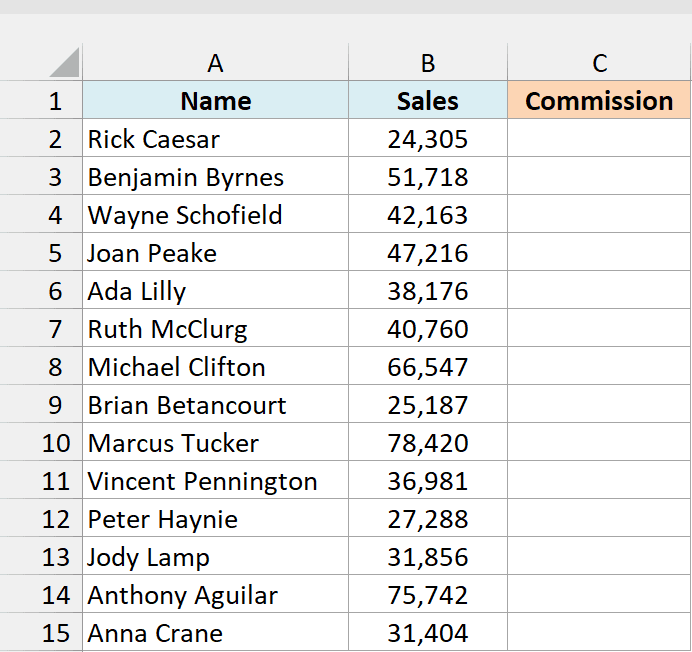
The commission would be 15% of the sale value in column B, so the formula for this would be:
=B2*15%
Below is the way to apply this formula to the entire column C:
- In cell C2, enter the formula: =B2*15%
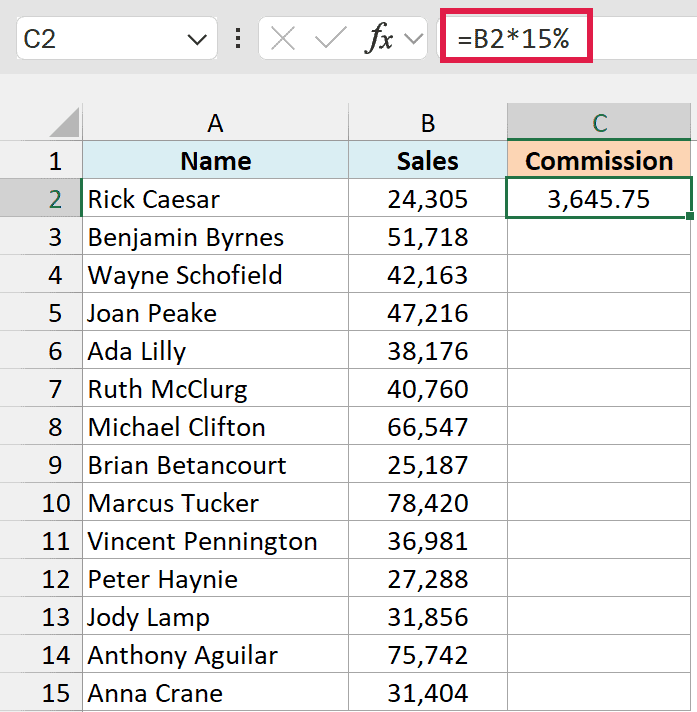
- With the cell selected, you will see a small green square at the bottom-right part of the selection. Place the cursor over it, and you will notice that the cursor changes to a plus sign (this is called the autofill handle)
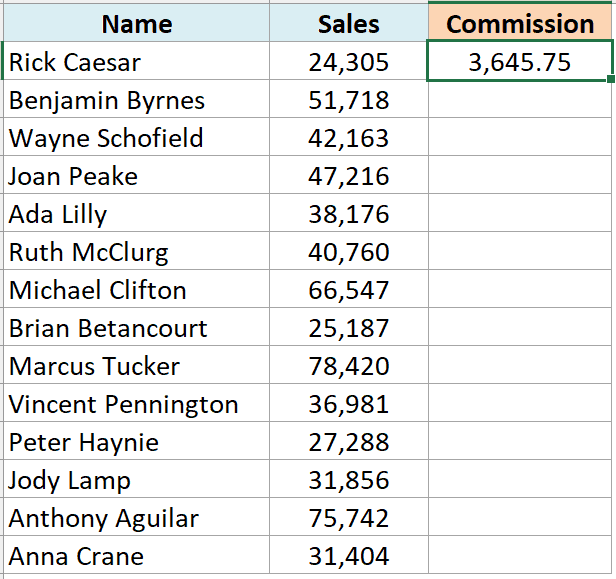
- Double click the left mouse key
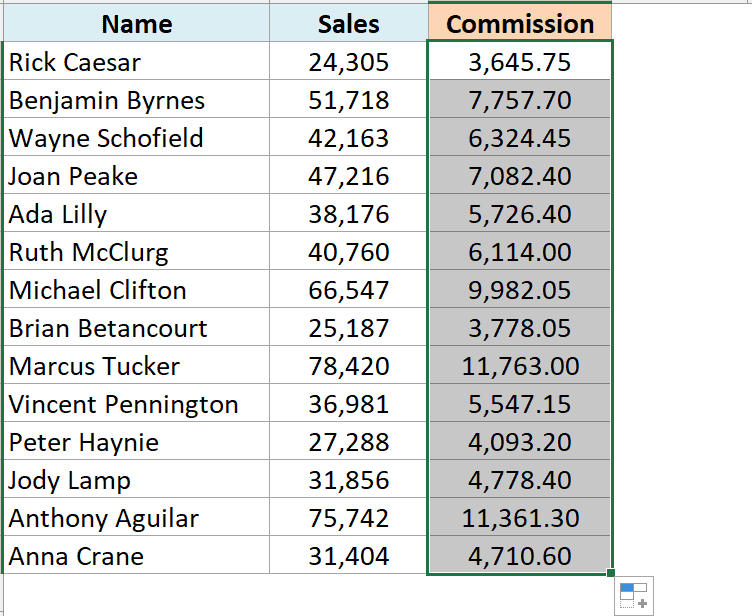
The above steps would automatically fill the entire column till the cell where you have the data in the adjacent column.
In our example, the formula would be applied till cell C15.
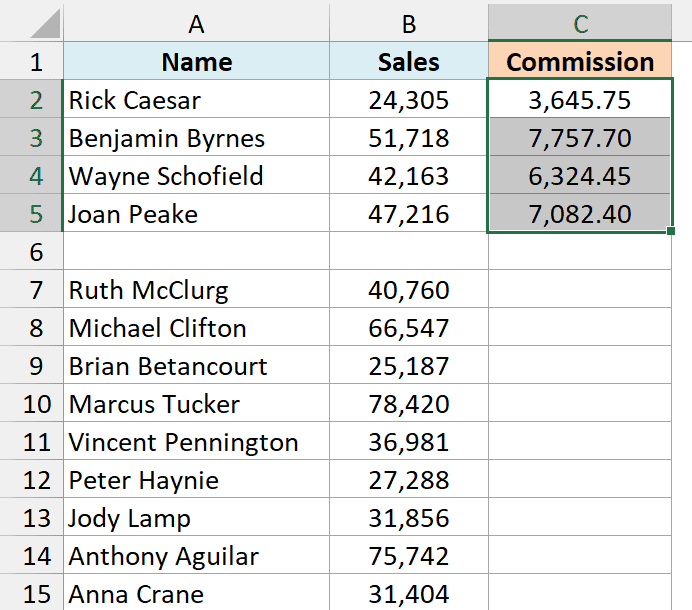
For this to work, there should not be any blank rows in your data.
If, for example, row 6 is blank, then this auto-fill double click would only apply the formula till cell C5.
A single empty cell in column B doesn’t stop it, as long as column A has data in that row.
Important: Always check the last cell after the double-click. If your data has blank rows, drag the fill handle instead or use one of the methods below.
When you use the autofill handle to apply the formula to the entire column, it’s equivalent to copy-pasting the formula manually.
This means that the cell reference in the formula would change accordingly.
For example, if it’s an absolute reference, it would remain as is while the formula is applied to the column.
And if it’s a relative reference, then it would change as the formula is applied to the cells below (B2 becomes B3 in the next row, then B4, and so on).
If you ever need the exact same formula in other cells without the references changing, here is how to copy and paste formulas without changing cell references.
By Dragging the AutoFill Handle
One issue with the above double click method is that it would stop as soon as it encountered a blank row in your data.
If you have a small data set, you can also manually drag the fill handle to apply the formula in the column.
Below I have the same sales dataset, where I have already entered the formula =B2*15% in cell C2.
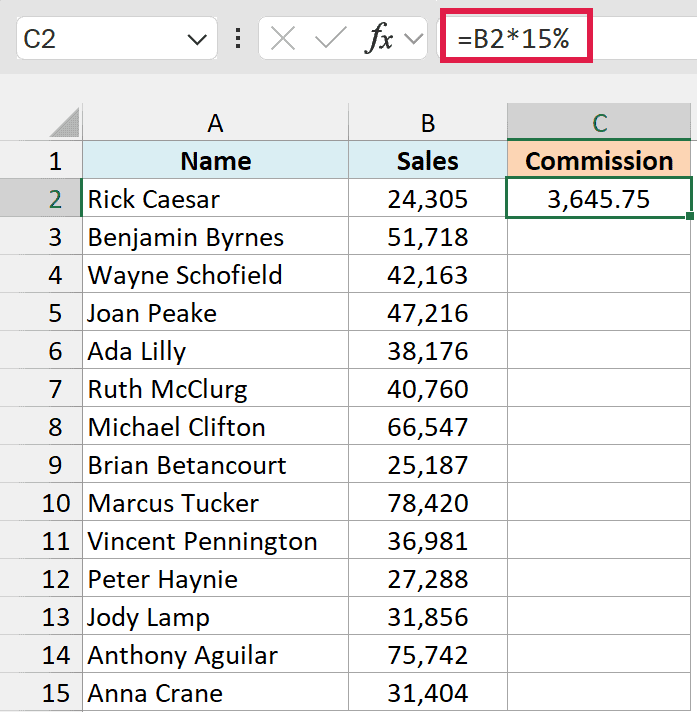
Below are the steps to do this:
- Select cell C2 and place the cursor over the small green square at the bottom-right part of the selection. You will notice that the cursor changes to a plus sign
- Hold the left mouse key and drag it to the cell where you want the formula to be applied
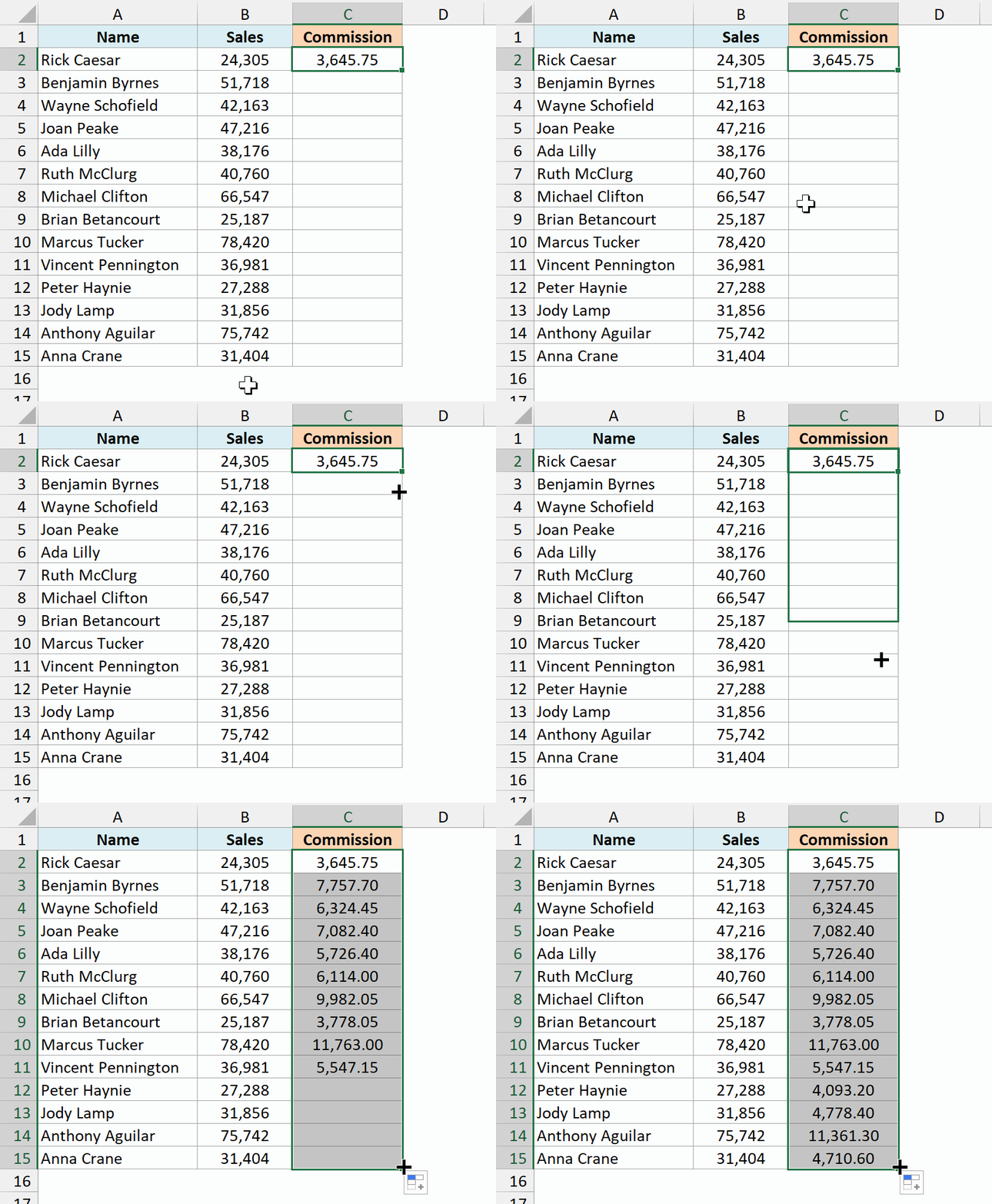
- Leave the mouse key when done
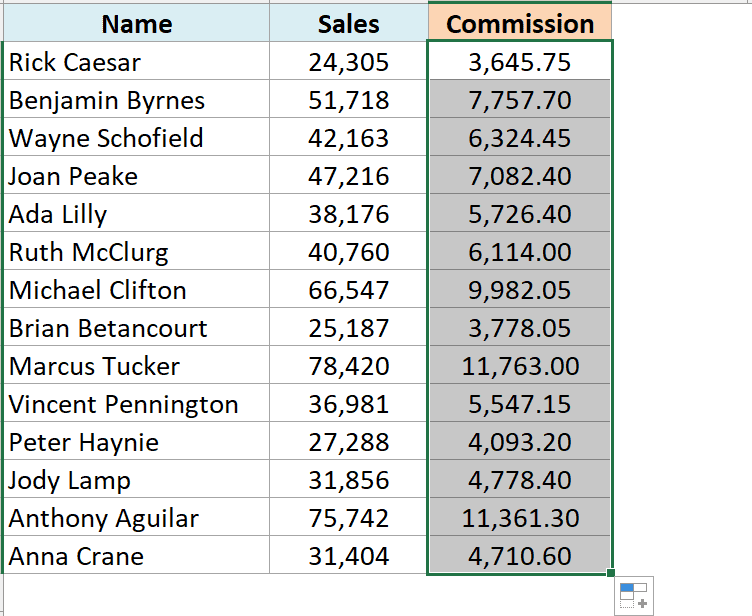
Since you decide where to stop, this works even when your data has blank rows.
Using the Fill Down Option (it’s in the ribbon)
Another way to apply a formula to the entire column is by using the fill down option in the ribbon.
For this method to work, you first need to select the cells in the column where you want to have the formula.
Below I have the same sales dataset, where I have already entered the formula =B2*15% in cell C2.
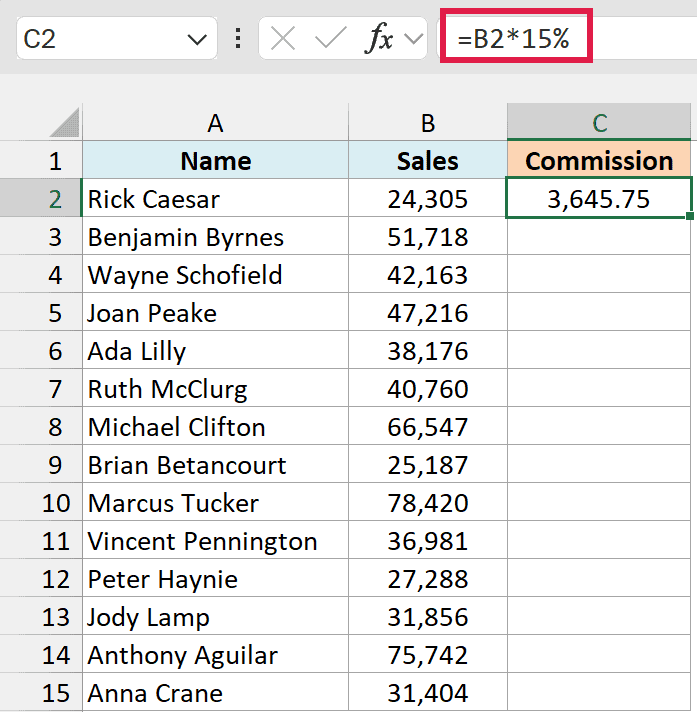
Below are the steps to use the fill down method:
- Select all the cells in which you want to apply the formula (including cell C2)
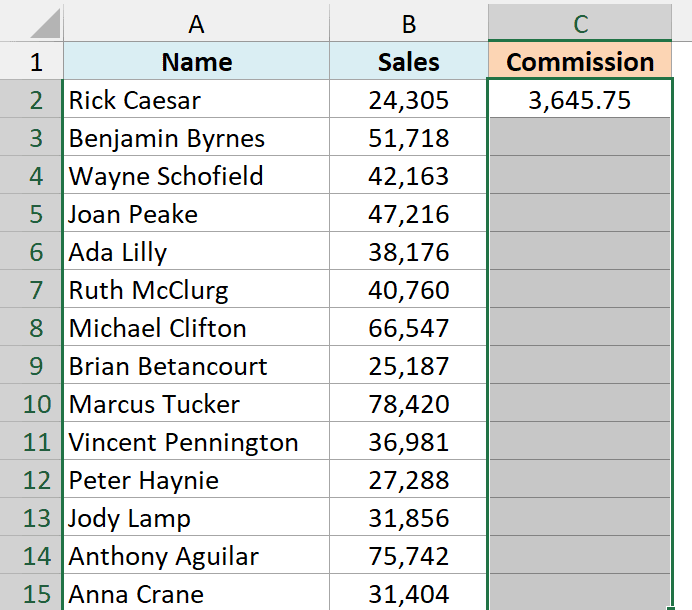
- Click the Home tab
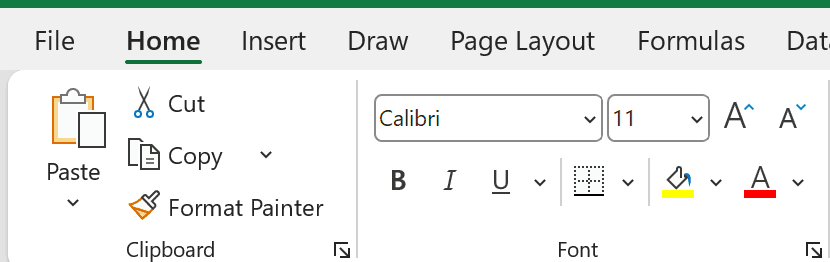
- In the Editing group, click on the Fill icon
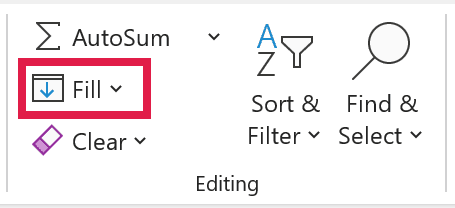
- Click on ‘Down’
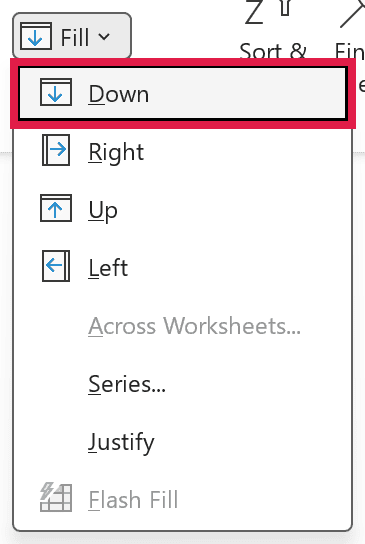
The above steps would take the formula from cell C2 and fill it in all the selected cells.
Fill Down always copies whatever is in the top cell of your selection, so make sure the cell with the formula is the first cell you select.
Adding the Fill Down in the Quick Access Toolbar
If you need to use the fill down option often, you can add that to the Quick Access Toolbar, so that you can use it with a single click (and it’s always visible on the screen).
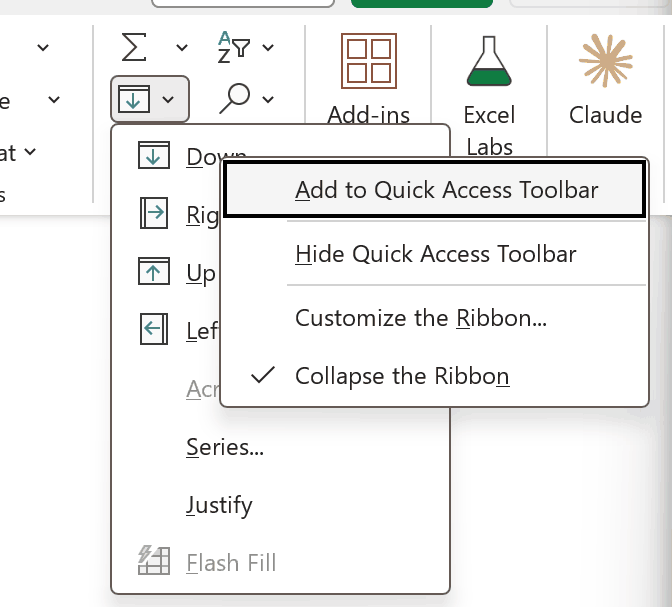
- Go to the ‘Down’ option (Home > Fill), right-click on it, and then click on ‘Add to Quick Access Toolbar’
Now, you will see the Fill Down icon appear in the Quick Access Toolbar (QAT).
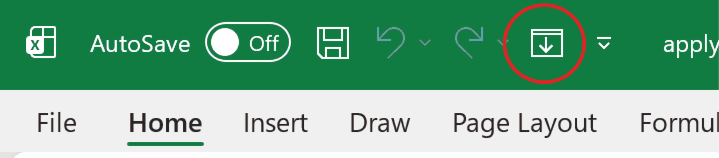
If you don’t see the Quick Access Toolbar at all, right-click on the ribbon and click on ‘Show Quick Access Toolbar’.
Keyboard Shortcut to Apply Formula to Entire Column (Control + D)
If you prefer using the keyboard shortcuts, you can also use the below shortcut to achieve the fill down functionality:
Shortcut: Control + D (hold the Control key and then press the D key)
On a Mac, use Command + D.
Below I have the same sales dataset, where I have already entered the formula =B2*15% in cell C2.
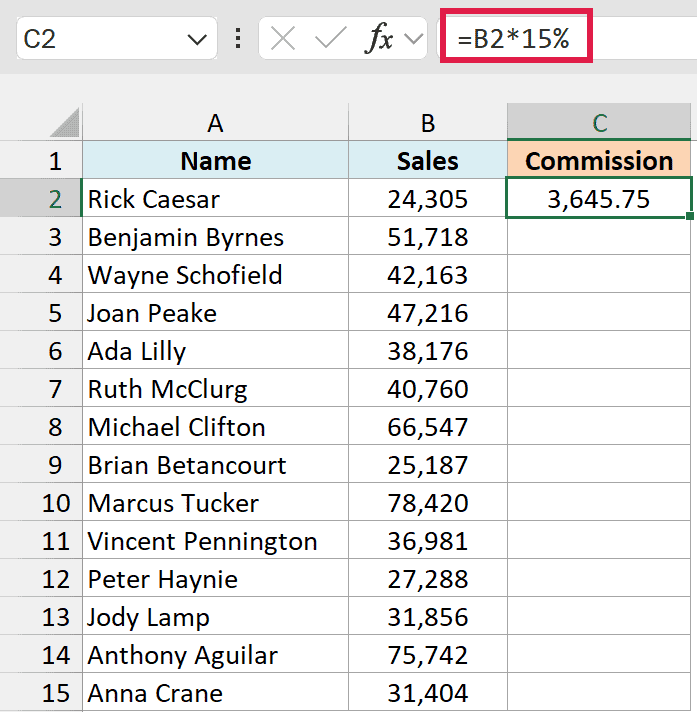
Below are the steps to use the keyboard shortcut to fill-down the formula:
- Select all the cells in which you want to apply the formula (including cell C2)
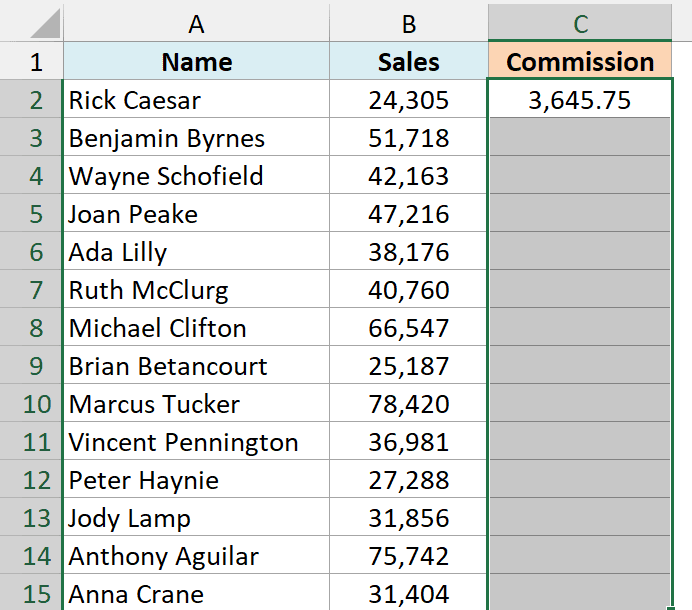
- Hold the Control key and then press the D key
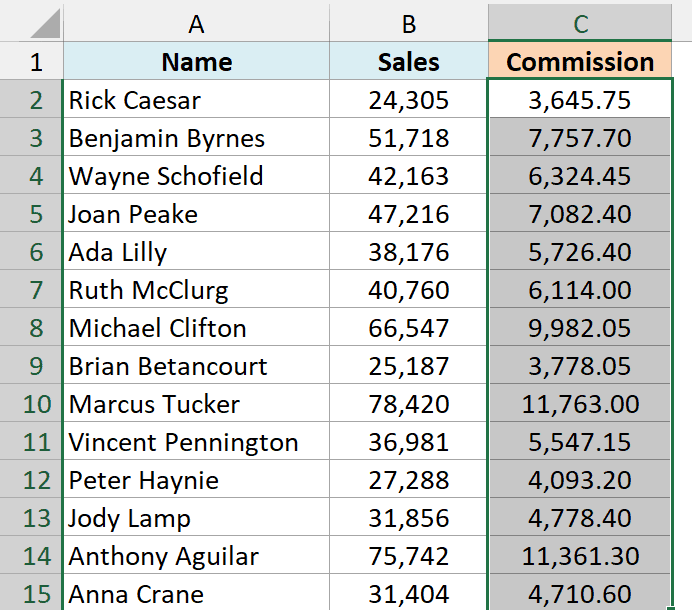
This does exactly what the Fill Down option in the ribbon does, just faster.
Apply Formula to Entire Column Without Dragging (Name Box)
When you have thousands of rows, selecting the cells with the mouse gets tiring fast.
In that case, you can use the Name Box to select the whole range and enter the formula in all the cells in one go.
Below I have the same sales dataset, and I want to calculate the commission in column C.
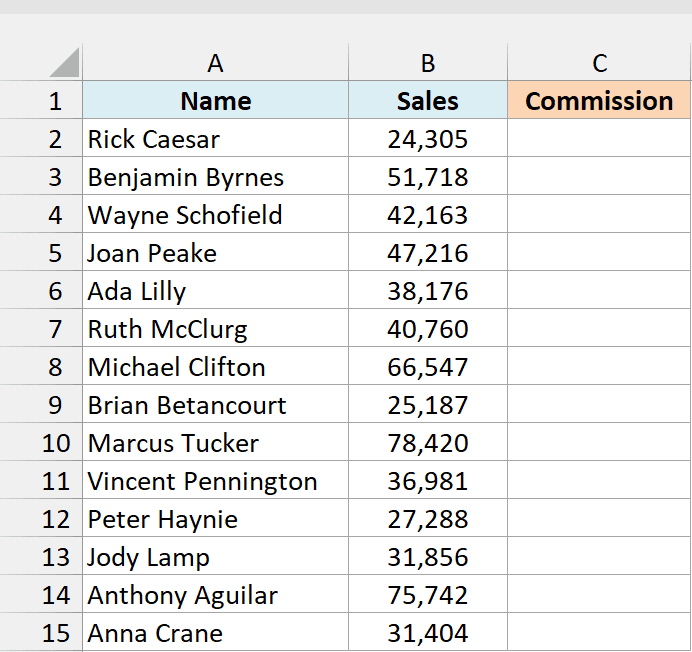
Below are the steps to do this:
- Click in the Name Box (the box to the left of the formula bar)
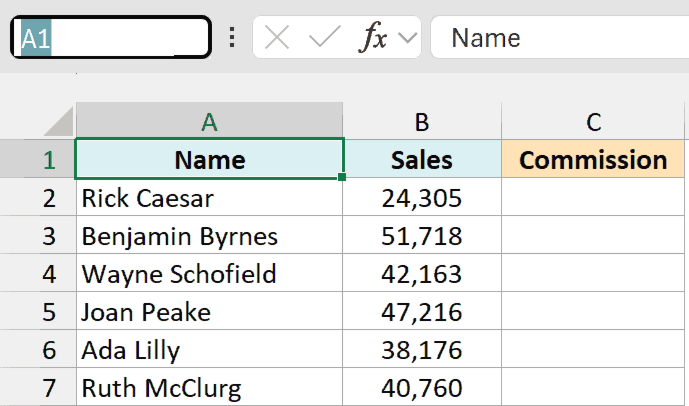
- Type C2:C15 and press Enter. This selects all the cells from C2 to C15
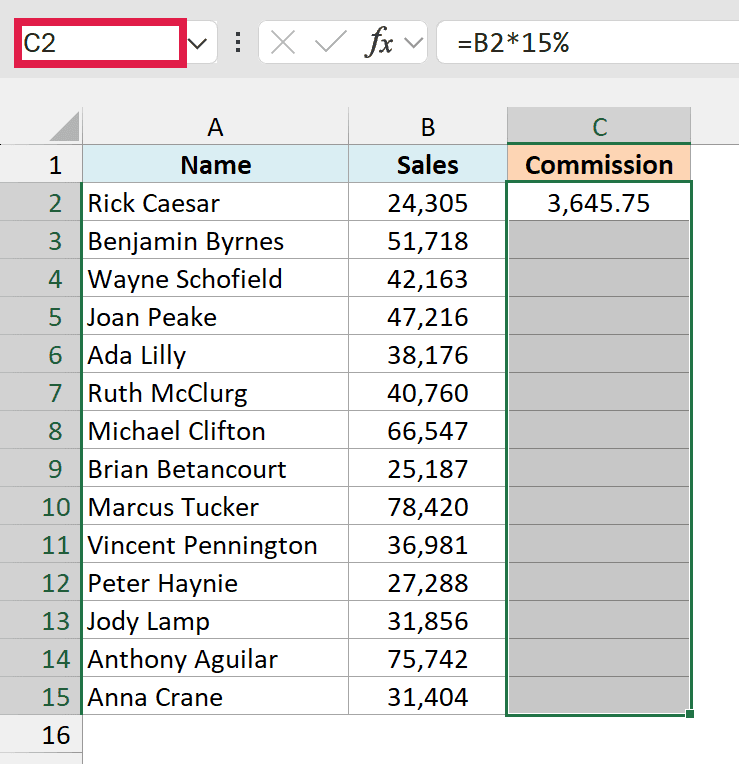
- Type the formula =B2*15% (it goes into cell C2, the first cell of the selection)
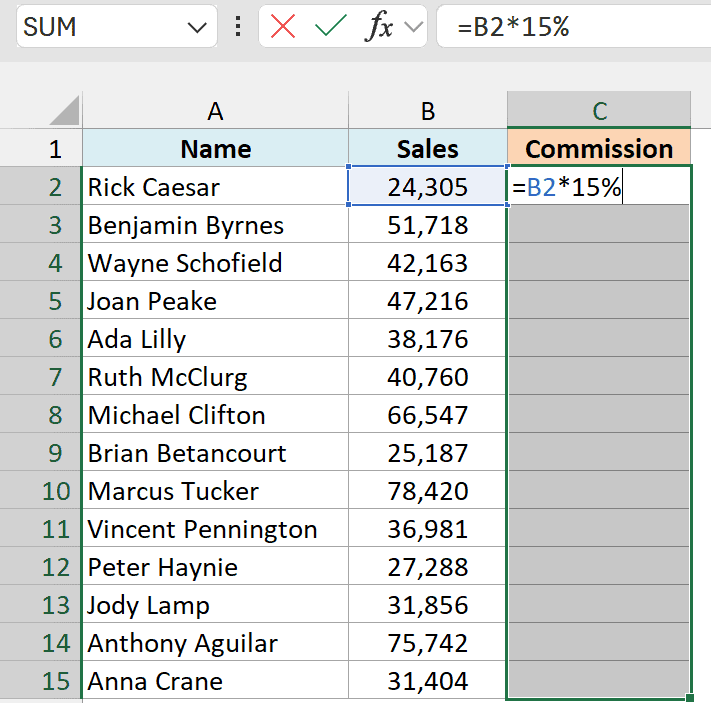
- Hold the Control key and press Enter
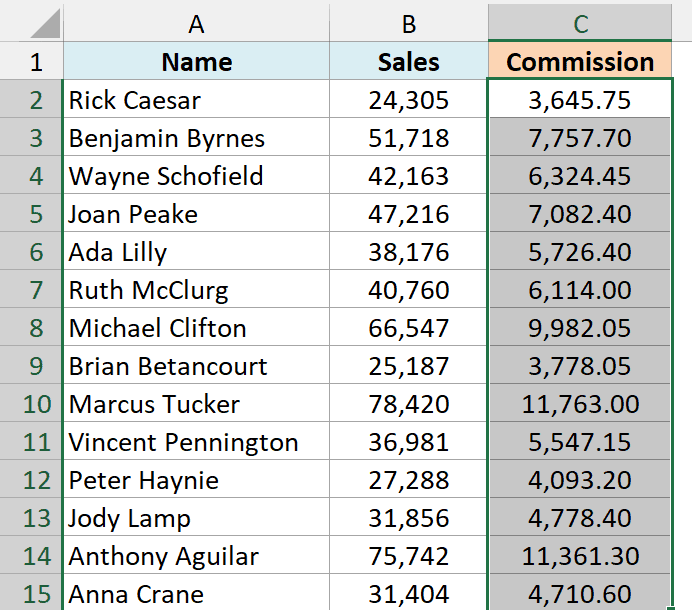
Control + Enter enters the formula in all the selected cells at once. The cell references adjust for each row, just like when you copy the formula.
If your data has 5,000 rows, you would type C2:C5001 in the Name Box. Everything else stays the same.
Copy Formula to Entire Column Using Copy-Paste
Another quick and well-known method of applying a formula to the entire column (or selected cells in the entire column) is to simply copy and paste it.
You copy the cell that has the formula and paste it over those cells in the column where you need that formula.
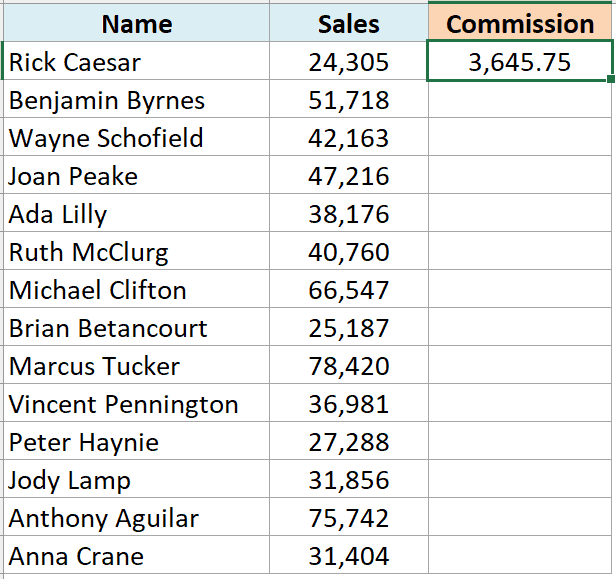
Below I have the same sales dataset, where I have already entered the formula =B2*15% in cell C2.
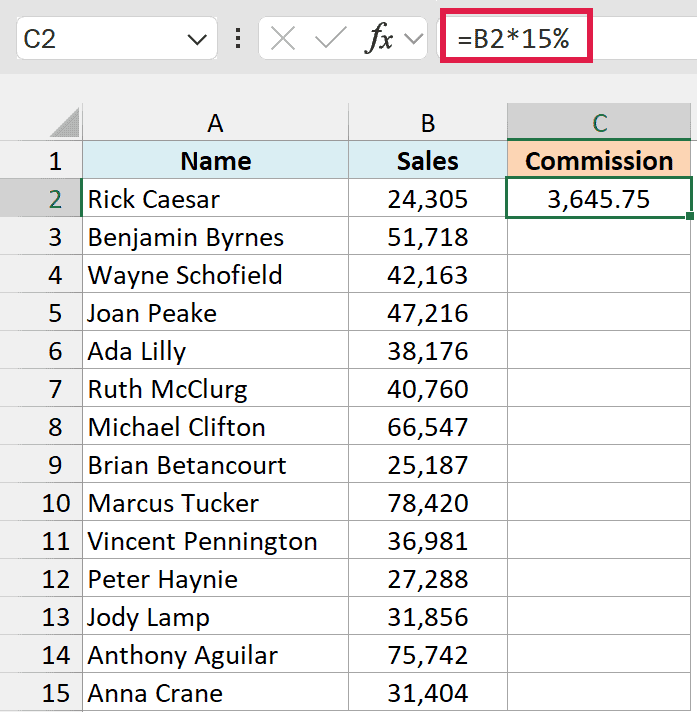
Below are the steps to do this:
- Copy cell C2 (use the keyboard shortcut Control + C in Windows or Command + C in Mac)
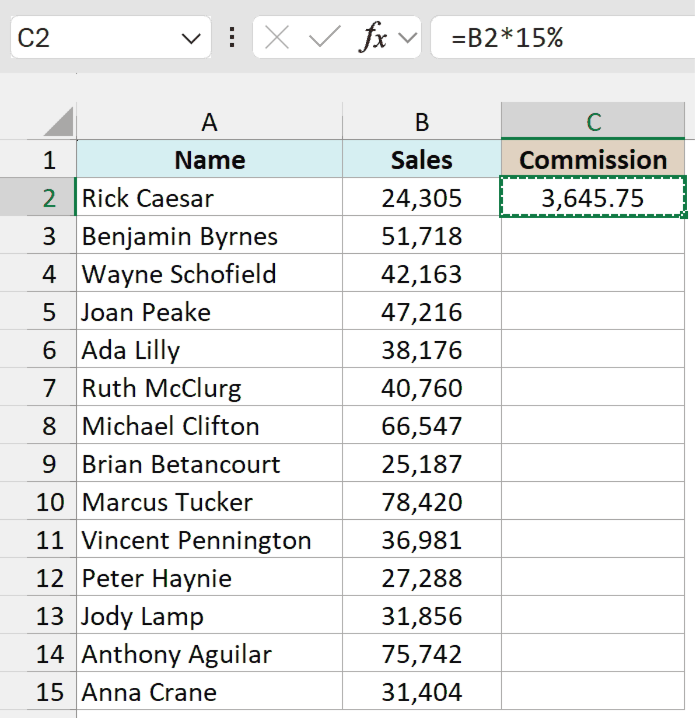
- Select all the cells where you want to apply the same formula (excluding cell C2)
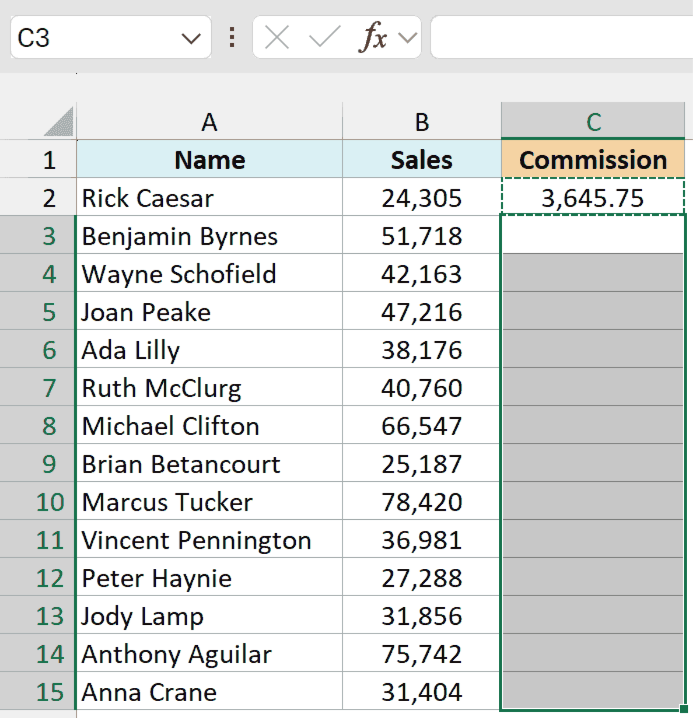
- Paste the copied cell (Control + V in Windows and Command + V in Mac)
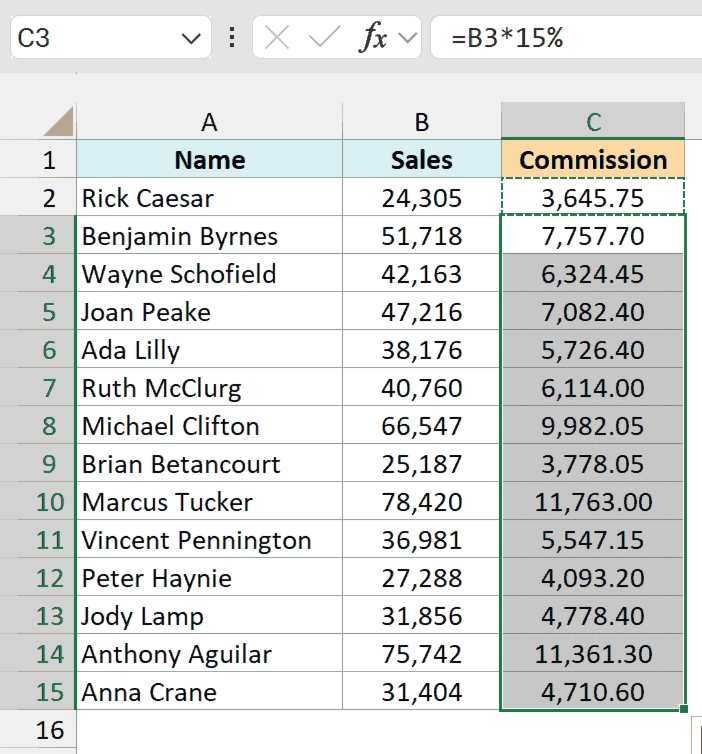
One big advantage of this copy-paste method is that you can choose to only paste the formula (and not paste any of the formatting).
For example, if cell C2 has a blue cell color in it, the fill handle, Fill Down, and Control + D methods would copy the formula and the formatting.
That means the cell color, font size, and bold/italics come along too.
If you use the Name Box method, the formatting stays as it is because you type the formula into each cell.
With the fill handle, you can undo that after the fill. Click the Auto Fill Options icon that appears at the bottom-right of the filled cells and choose ‘Fill Without Formatting’.
With copy-paste, you can do it in the paste itself. If you want to only apply the formula and not the formatting, use the steps below:
- Copy cell C2 (Control + C in Windows or Command + C in Mac)
- Select all the cells where you want to apply the same formula
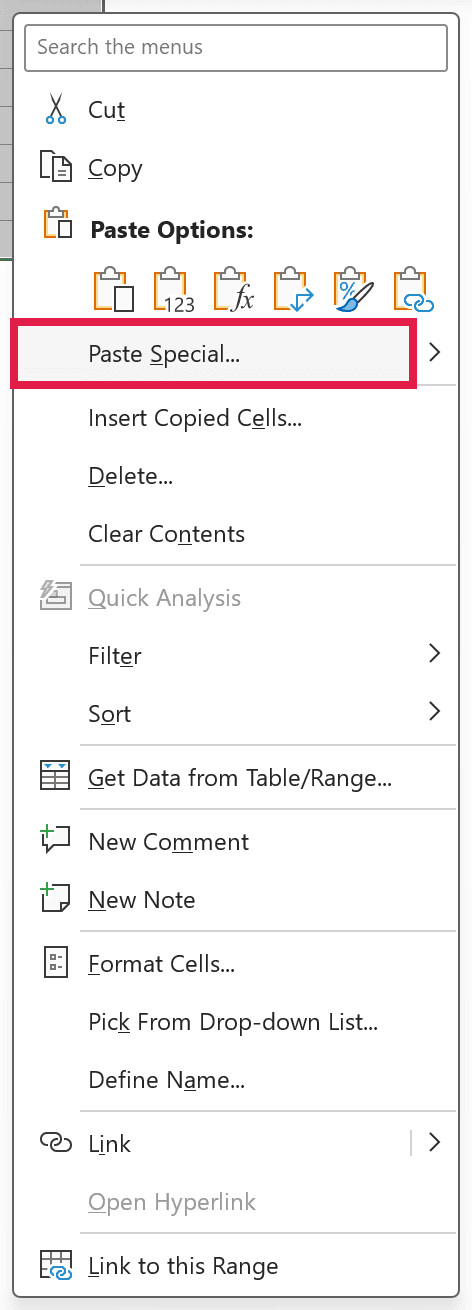
- Right-click on the selection and click on ‘Paste Special’
- In the ‘Paste Special’ dialog box, click on the Formulas option
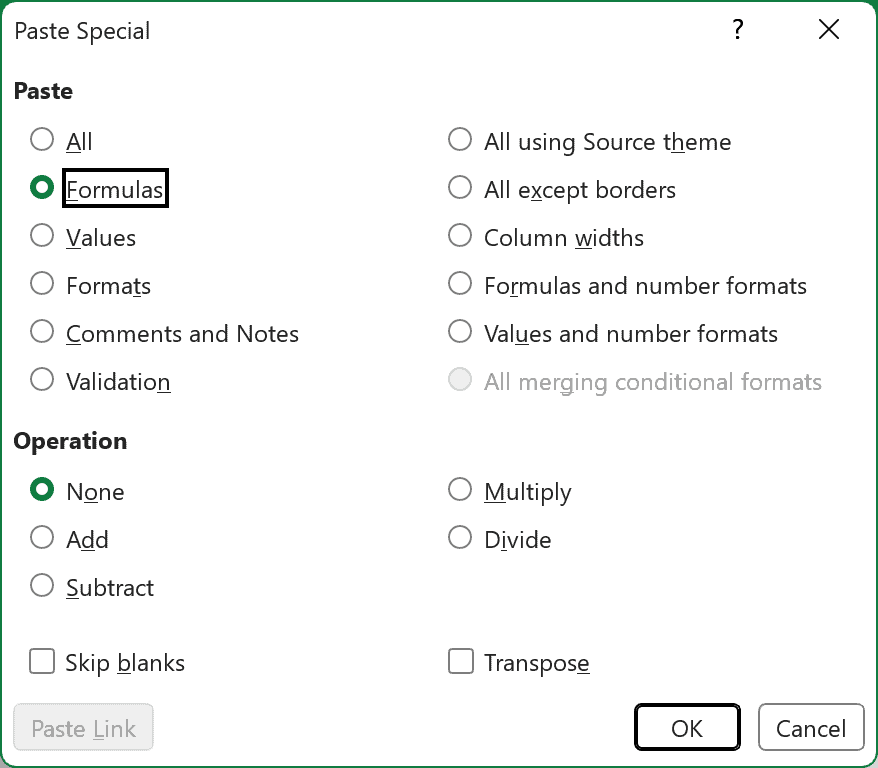
- Click OK
The above steps would make sure that only the formula is copied to the selected cells (and none of the formatting comes over with it).
Pro Tip: In Windows, you can open the Paste Special dialog box with the keyboard shortcut Control + Alt + V.
Using a Dynamic Array Formula (No Copying Needed)
If you’re using Microsoft 365 (or Excel 2021 or later), you can also use a dynamic array formula to apply a formula to the entire column.
With this method, you don’t copy the formula at all. You enter it once, and it fills the column by itself.
Suppose you have a data set as shown below and you want to calculate the Commission in column C.
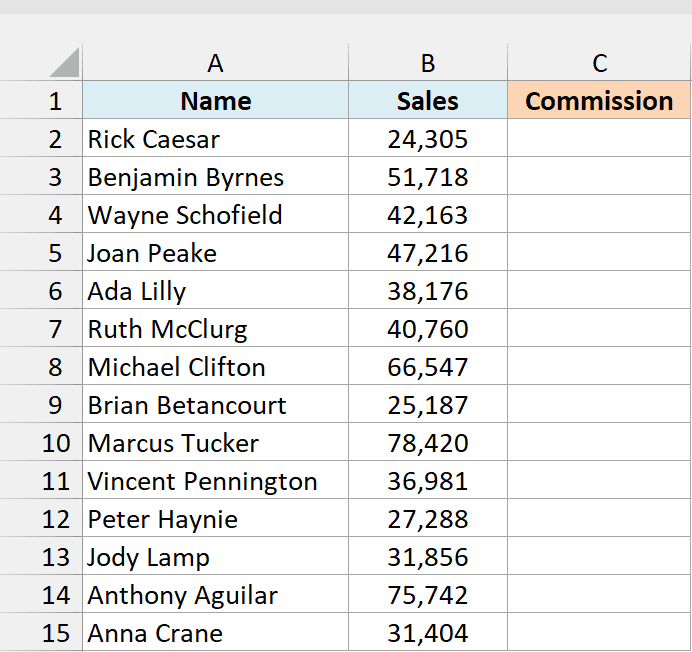
Below is the formula that you can use:
=B2:B15*15%
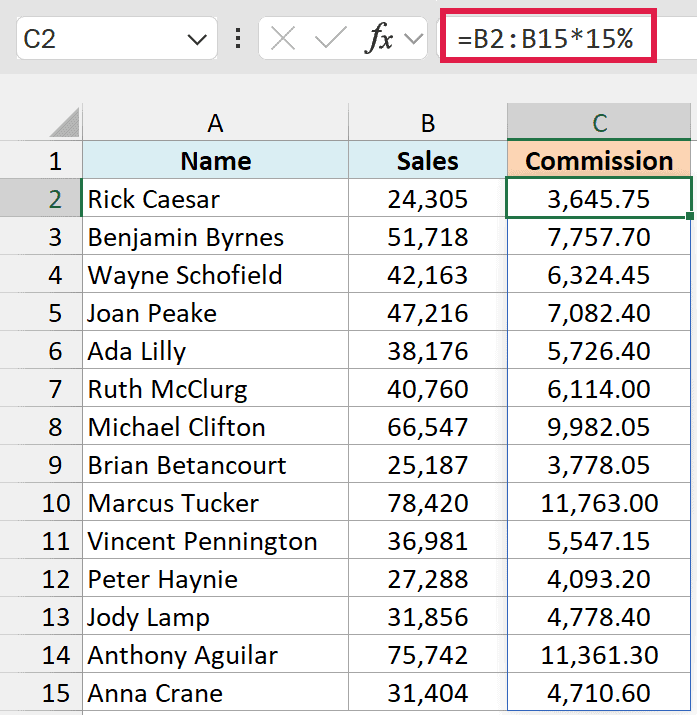
This is an array formula that would return 14 values (one each for B2:B15).
But since we have dynamic arrays, the result would not be restricted to the single cell and would spill over to fill the entire column.
You only enter this formula in cell C2. There’s no need to drag it, copy it, or press Control + Shift + Enter.
The cells below C2 need to be empty for this to work. If any of them has something in it, you get a #SPILL! error instead of the results.
Note that you cannot use this formula in every scenario.
In this case, it works fine because our formula uses the input values from an adjacent column of the same length as the column where we want the result (14 cells).
But if this is not the case, this may not be the best way to copy a formula to the entire column.
Also, the range B2:B15 is fixed. If you add a new sales rep in row 16, the formula won’t cover it until you change the range.
If you’re using Microsoft 365, you can fix this by using a trim reference. You refer to a bigger range and add a dot after the colon:
=B2:.B1000*15%
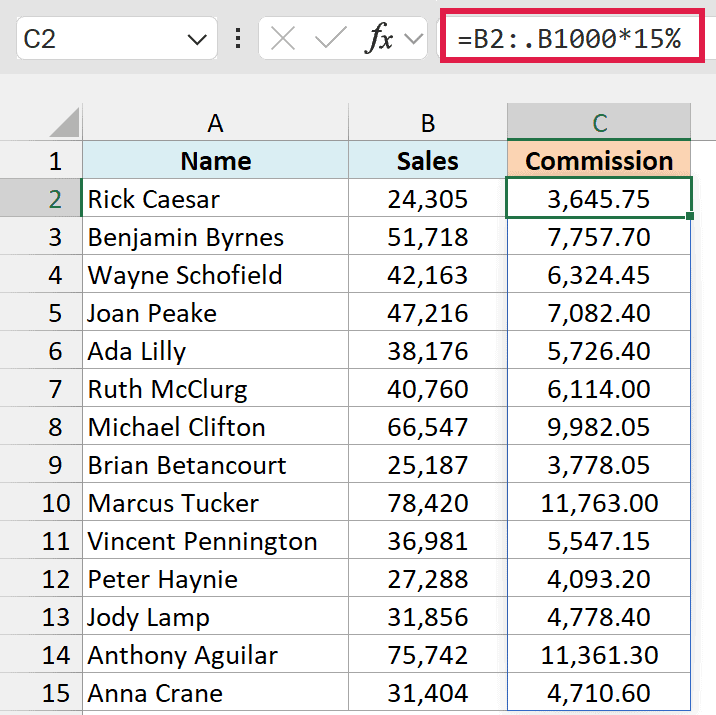
The :. tells Excel to ignore the empty cells at the end of the range B2:B1000. So the formula only spills down to the last row that has data (row 15 here).
And when you add a new sales rep in row 16, the formula automatically extends to cover that row too.
If you used B2:B1000 without the dot, the formula would fill all 999 cells and show 0 in every row that doesn’t have data yet.
You can also write this as =TRIMRANGE(B2:B1000)*15%, which gives you exactly the same result.
Important: Trim references only work in Microsoft 365, and this one stops at row 1000. In older versions, use the B2:B15 formula above or the Excel Table method below.
Using an Excel Table (Formula Fills New Rows Automatically)
If you want a formula to stay applied to the whole column, so that new rows get it automatically, convert your data into an Excel Table.
Below I have the same sales dataset, and I want the commission (15% of the sales value) in column C.
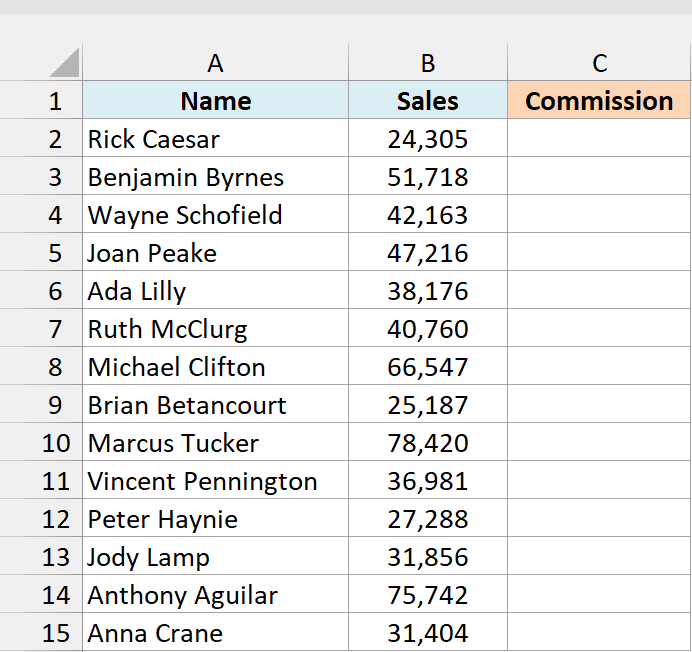
Below are the steps to do this:
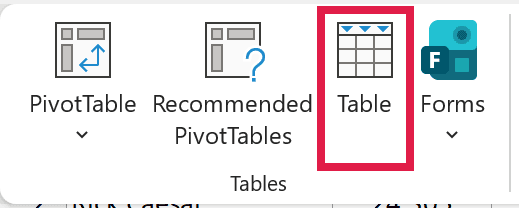
- Select any cell in the dataset and press Control + T (or go to Insert > Table)
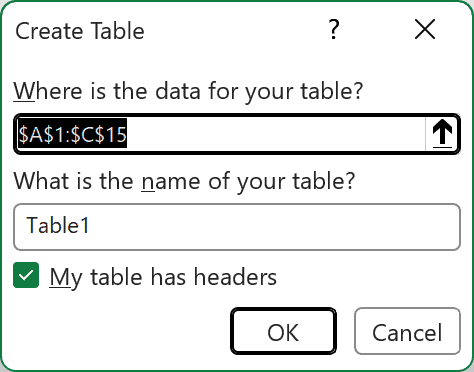
- In the Create Table dialog box, make sure ‘My table has headers’ is checked and click OK
- In cell C2, type = and click on cell B2. Excel enters [@Sales] instead of B2
![Clicking cell B2 while typing the formula inserts [@Sales] instead of B2](https://trumpexcel.com/wp-content/uploads/2026/10/afc-37-table-point.png)
- Type *15% and press Enter
![Typing =[@Sales]*15% in C2 fills the formula down the whole Commission column of the table](https://trumpexcel.com/wp-content/uploads/2026/10/afc-38-table-gif.gif)
As soon as you press Enter, Excel fills the formula in all the cells of the Commission column. This is called a calculated column.
Here is the formula you end up with in every cell of that column:
=[@Sales]*15%
[@Sales] simply means “the value in the Sales column in this same row”.
And when you add a new sales rep at the bottom of the table, the Commission formula is filled in for that row automatically. You don’t need to copy anything.
If Excel doesn’t fill the column for you, go to File > Options > Proofing > AutoCorrect Options.
In the AutoFormat As You Type tab, check ‘Fill formulas in tables to create calculated columns’ and click OK.
If you haven’t worked with Tables before, here is my guide on how to create an Excel Table and use its other features.
So these are some of the quick and easy methods that you can use to apply a formula to the entire column in Excel.
I hope you found this tutorial useful!
Other Excel tutorials you may also like:
- 5 Ways to Insert New Columns in Excel (including Shortcut & VBA)
- How to Sum a Column in Excel
- How to Compare Two Columns in Excel (for matches & differences)
- Lookup and Return Values in an Entire Row/Column in Excel
- How to Copy and Paste Columns in Excel?
- Apply Conditional Formatting Based on Another Column in Excel
- How to Multiply a Column by a Number in Excel
- Fill Down Blank Cells Until the Next Value in Excel (3 Easy Ways)
- Select Till End of Data in a Column in Excel (Shortcuts)
