

TAKE is a new Excel function that allows you to extract records from the top or bottom of an array.
TAKE function is available in Excel for Microsoft 365, Excel for the web, Excel 2024, and the corresponding Mac versions. It was released along with the DROP function (which is the opposite of the TAKE function).
While it’s useful when you want to extract records from the top or bottom of an array, its real usefulness comes in when you use it with other functions such as FILTER and SORT.
In this article, I will first explain to you how the TAKE function works and then show you some useful examples that can really help you in your day-to-day work.
Follow along with the example file
TAKE Function Examples.xlsx
TAKE Function Syntax in Excel
Below is the syntax of the Excel TAKE function:
=TAKE(array, rows,[columns])
Where:
- array – This is the array from which you want to extract/take the rows or columns from the beginning or the end
- rows – This argument tells the TAKE function to extract the specified number of rows from the beginning (if the number is positive) and from the end (if the number is negative)
- [columns] – This argument tells the TAKE function to extract the specified number of columns from the beginning (if the number is positive) and from the end (if the number is negative)
Now let me show you a couple of examples where you can use the TAKE function in your day-to-day work.
Also read: Excel XLOOKUP Function (10 Examples)
Example 1 – Extract Records from the Top or Bottom
Let’s start with a simple example where I want the TAKE function to give me rows from an array.
Below is a table (named Data) from which I want to extract the top 3 rows.
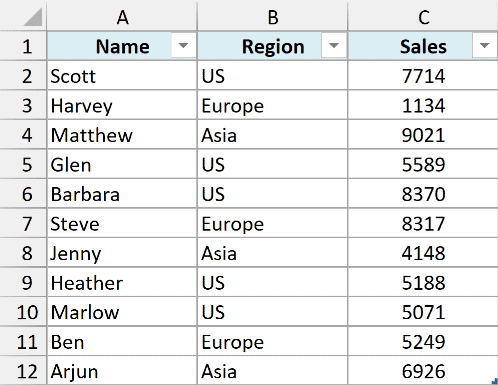
Here is the formula to get the top three rows from this table.
=TAKE(Data,3)
When I use this formula in a cell and hit Enter, it will return the top three records, as shown below.
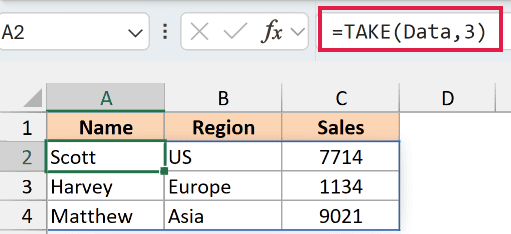
Note that the result is an array that will spill and occupy the cells based on the resulting array’s size. If any of those cells that are supposed to be occupied by the result of the TAKE function are already filled out, you will get the #SPILL! error.
If I want to get the results from the bottom, I can use the below formula that would give me the last three records from the table:
=TAKE(Data,-3)

In a nutshell, when I use a positive number, it starts from the top of the array and gives me the specified number of records, and when I use a negative number, it starts from the bottom of the array and gives me the specified number of records.
One limitation you need to know about the TAKE function is that it would always return a contiguous range of rows or columns. This means that you cannot use this function alone to extract row number 1 and row number 3 from the top.
A row or column count of 0 returns a #CALC! error because Excel cannot return an empty array.
Example 2 – Extract Columns from the Beginning or End
Just like rows, you can also use the TAKE function to extract the columns from the beginning or from the end of the array.
Below is a table from which I want to extract the first two columns:
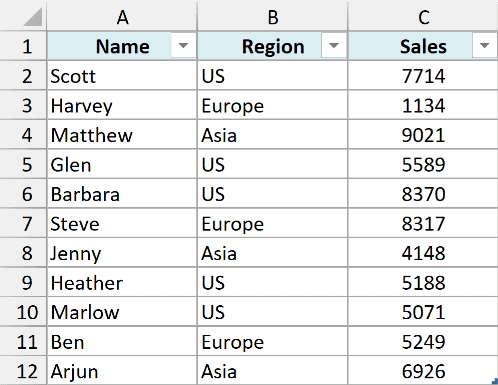
Here is the formula to do this:
=TAKE(Data,,2)
This will give me all the values in the Name and the Region column, as shown below:

Note that in the above formula, I have left the row argument empty, so it returns all the rows and then gives me the specified number of columns.
Example 3 – Extract a Sub-segment of an Array
You can also use both row and column number arguments to extract a subsegment of an array.
For example, below, I have a table, and I want to extract the first three names in the table.
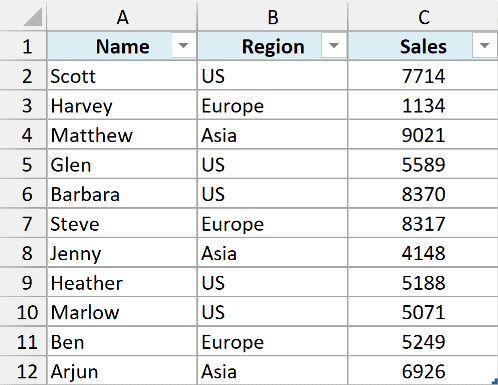
Below is the formula that will do this:
=TAKE(Data,3,1)
The above formula extracts the first three rows from the table and then only returns the values from the first column.

Example 4 – Extract Non-Contiguous Columns
While the TAKE function itself cannot return non-contiguous rows or columns, this can be done by using a combination of TAKE function with CHOOSECOLS or CHOOSEROWS.
CHOOSECOLS or CHOOSEROWS are new Excel functions that are available in Excel for Microsoft 365, Excel for the web, Excel 2024, and the corresponding Mac versions.
Below, I have a table from which I want to get the first three records, but I only want the names and their sales values. So I need to somehow extract column number 1 and 3 while leaving out column number 2.
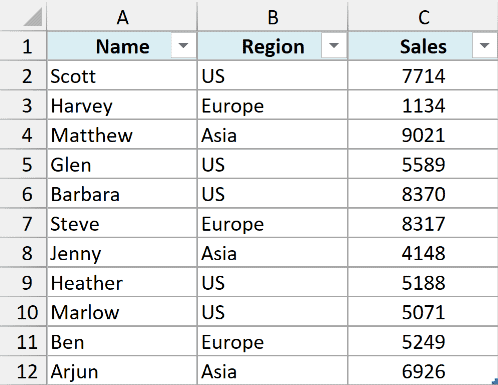
Here is the formula that would do that:
=TAKE(CHOOSECOLS(Data,1,3),3)

In the above formula, I have used CHOOSECOLS to first extract only columns 1 and 3.
This result is then fed into the TAKE function to extract the top three records from it.
Example 5 – Using TAKE with SORT Function
So far, I’ve just shown you how to extract records using the TAKE function.
But you can do a lot more meaningful work when you combine it with functions such as SORT and FILTER.
Let’s take the below example table, from which I want to get the top three records of people who have made the most sales.
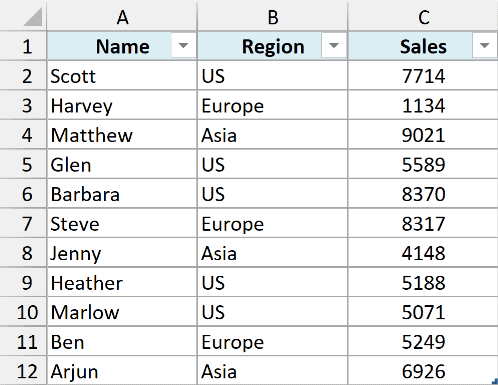
Since my table is not already sorted, I can first use the SORT function to get a sorted data set and then use the TAKE function to extract the top three rows.
Below is the formula that would give me the records for the top three salesmen by sales value:
=TAKE(SORT(Data,3,-1),3)

The above formula uses the SORT function to first give me an array that is sorted based on the sales value (which is column 3) in descending order. This array is then fed into the TAKE function, which gives me the top three rows.
If you want to get the bottom three people based on their sales values, you can use the below formula:
=TAKE(SORT(Data,3,-1),-3)

If you want to get the records of the top three salespeople but only get their name and their sales values, you can use the formula below:
=TAKE(CHOOSECOLS(SORT(A2:C12,3,-1),1,3),3)
In the download, the source table is on the Data sheet, so this example uses Data!A2:C12 in place of A2:C12.
This fixed range covers the original eleven records. If you add more records, extend the range to include them.

Example 6 – Using TAKE with FILTER Function
Now, let’s see another helpful example where you can use a combination of the TAKE and FILTER functions.
Below I have a table that shows the sales values for different people along with their region name and I want to get the top three sales people in the US based on their sales.
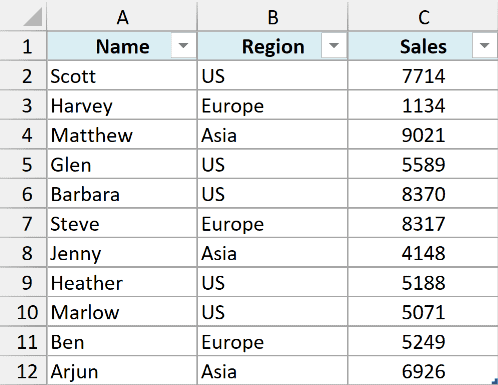
Since my data set is not sorted, I first extract only the records for US, then sort those records, and then use the TAKE function to give me the top three records.
Here is the formula that will do this:
=TAKE(SORT(FILTER(Data,Data[Region]="US"),3,-1),3)
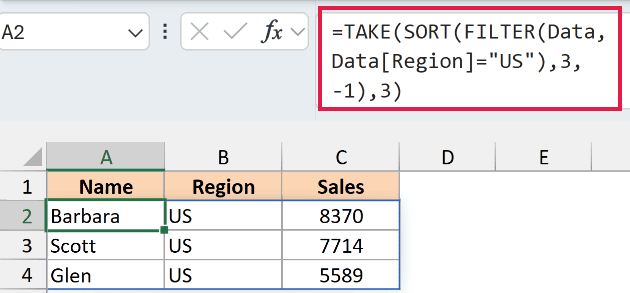
The above function first uses FILTER to extract the US records from the table. SORT then sorts those records based on the sales values (which are in column 3) in descending order.
The Data[Region]="US" part of the formula checks whether each region is US. This returns an array of TRUE and FALSE values that works as the criteria for the FILTER function.
The SORT(FILTER(Data,Data[Region]=”US”),3,-1) part of the formula gives us all the records for the US in the table, which are also sorted in descending order.
Now, we use the TAKE function on this result to get the top three records for the US.
If only one or two records match, TAKE returns those records. It does not include extra rows tied at the cutoff.
If no records match the region, FILTER returns a #CALC! error in these formulas.
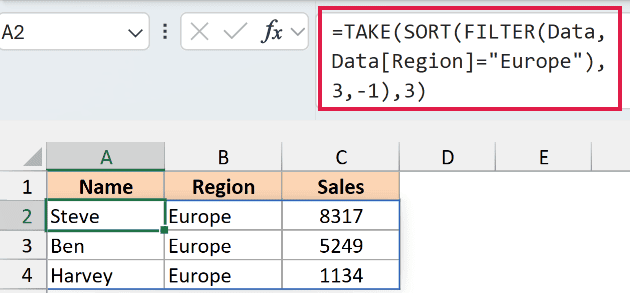
If I want to get the top three salespeople for Europe, I can replace ‘US’ with ‘Europe’, and my formula would become:
=TAKE(SORT(FILTER(Data,Data[Region]="Europe"),3,-1),3)
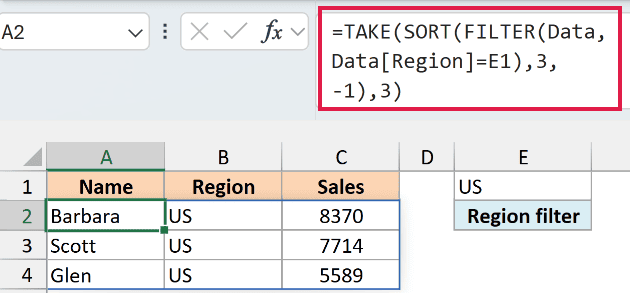
You can also make this better by having the region value in a cell and using that cell reference in the formula. For example, if I have the region value in cell E1, I can use the below formula:
=TAKE(SORT(FILTER(Data,Data[Region]=E1),3,-1),3)
Similarly, if you want to get the bottom three performing salespeople for a specific region, you can use the below formula:
=TAKE(SORT(FILTER(Data,Data[Region]="US"),3,-1),-3)
The bottom three records keep their descending sales order.
Follow along with the example file
TAKE Function Examples.xlsx
In this article, I showed you how to use the TAKE function in Excel using some practical examples. While the TAKE function is useful on its own, its real value lies in using it with other functions such as SORT and FILTER.
I hope you found this article helpful. If you have any questions or suggestions for me, do let me know in the comments section.
Other Excel articles you may also like:
