

Have you ever needed to translate text from one language to another while working in Excel?
Maybe you’re creating reports for international clients or generating invoices in multiple languages.
Good news – Microsoft Excel now has a built-in TRANSLATE function that can help you do this quickly and easily.
Excel is typically used for data analysis and number crunching, so translation might seem like an odd feature to include. But it’s actually quite handy when you need quick translations without leaving your spreadsheet.
TRANSLATE is a new Excel function, so you’ll need Excel with Microsoft 365 or Excel on the web to use it. If you’re using older versions, this function won’t be available.
Follow along with the example file
TRANSLATE Function Examples.xlsx
Syntax of TRANSLATE Function in Excel
The TRANSLATE function is straightforward and uses three arguments:
=TRANSLATE(text, [source_language], [target_language])
Here’s what each part means:
- Text: The text you want to translate. You can use a cell reference or type text directly in quotes.
- Source Language (optional): The original language of your text. While Excel can usually detect this automatically, I recommend specifying it for better accuracy.
- Target Language (optional): The language you want to translate into. If you do not specify this argument, Excel translates into your system language.
Use supported language codes in double quotes. Some codes are longer, such as “zh-Hans” for Simplified Chinese. For example, “en” for English, “es” for Spanish, or “fr” for French. Here is the official documentation from Microsoft that lists all the supported languages.
Note that Google Sheets also has a similar function called GOOGLETRANSLATE that has the same syntax.
Now let’s look at some examples of using the Translate function in Excel.
Example 1: English to Spanish Translation in Excel
Let’s say you have English text in cell A2 that you want to translate to Spanish.
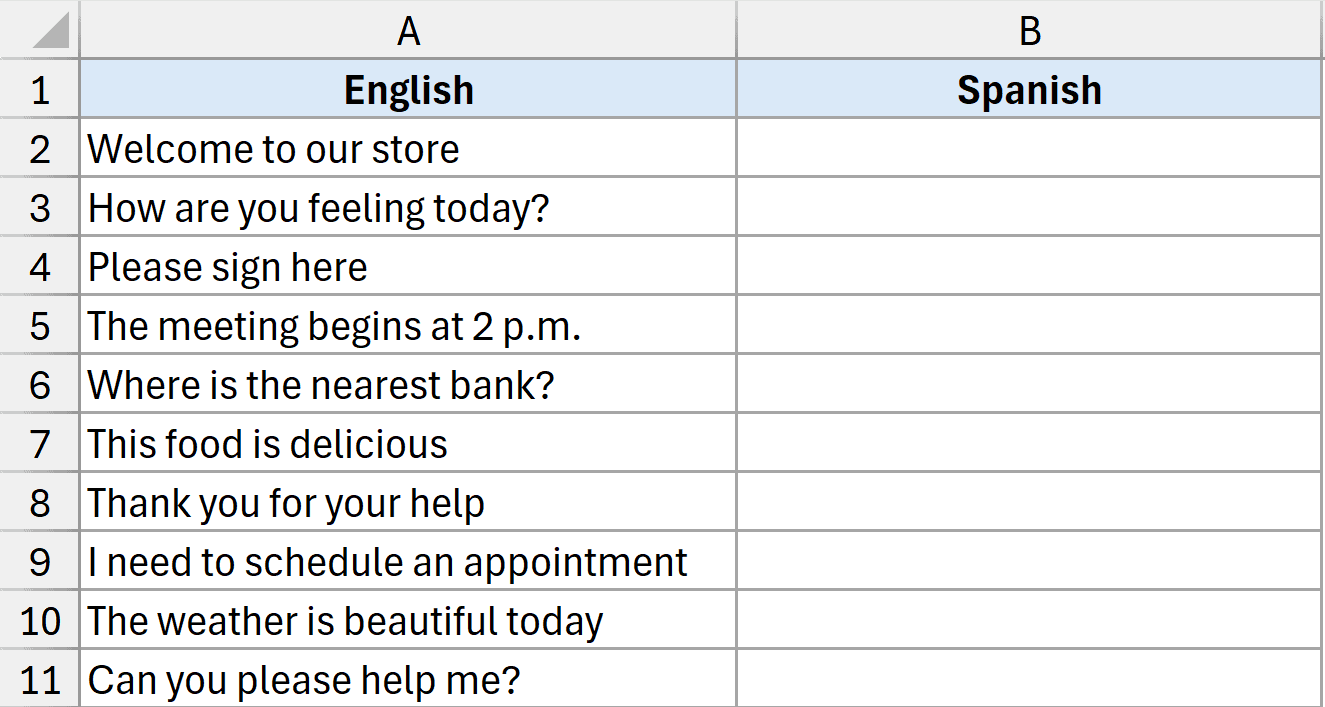
Your formula would look like this:
=TRANSLATE(A2, "en", "es")
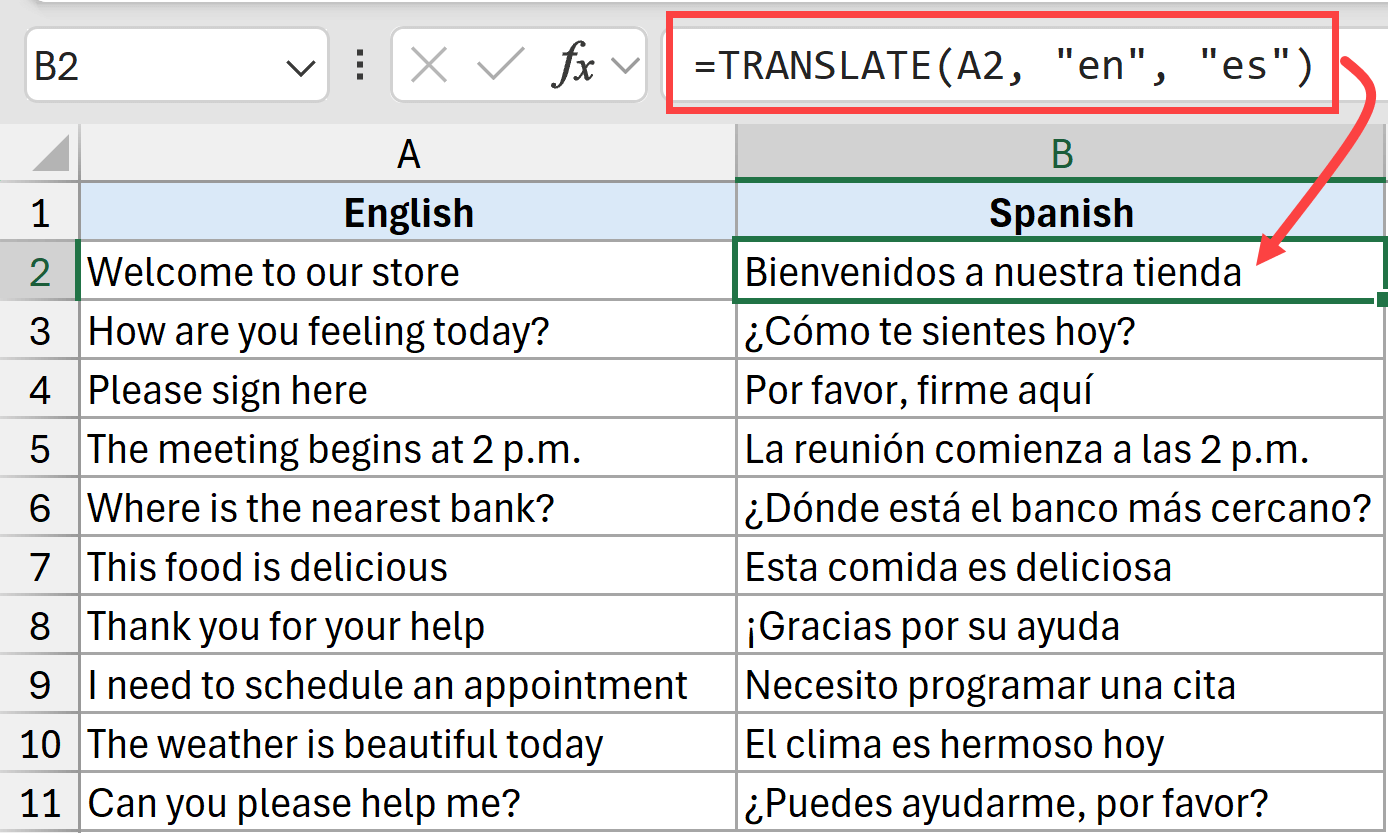
When you press Enter, Excel instantly translates your text into Spanish.
You can then copy this formula down to translate multiple cells at once.
Even though I don’t speak Spanish fluently, I checked with my Spanish-speaking friends, and they said the translation was as good as it gets.
Example 2: Automatically Detect Language and then Translate in Excel
Let’s say you’re working with a dataset that has multiple different languages (e.g., English, Spanish, Portuguese, and Dutch) and you want to translate all of them with one formula to English.
This can be done using TRANSLATE itself, by leaving the source language empty.
Below I have a dataset where I have text in different languages in column A, and I want to translate everything into English and get the result in column B.
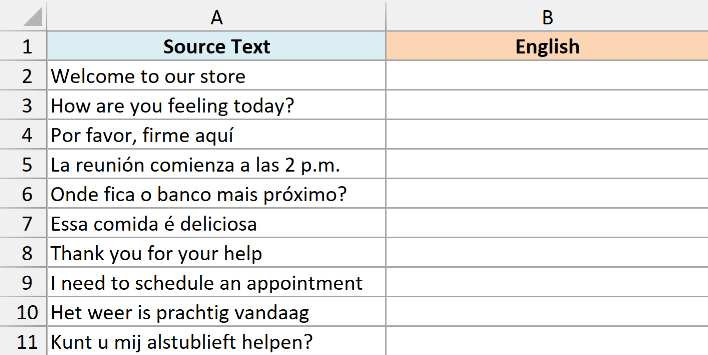
Below is the formula that will do this.
=TRANSLATE(A2,,"en")
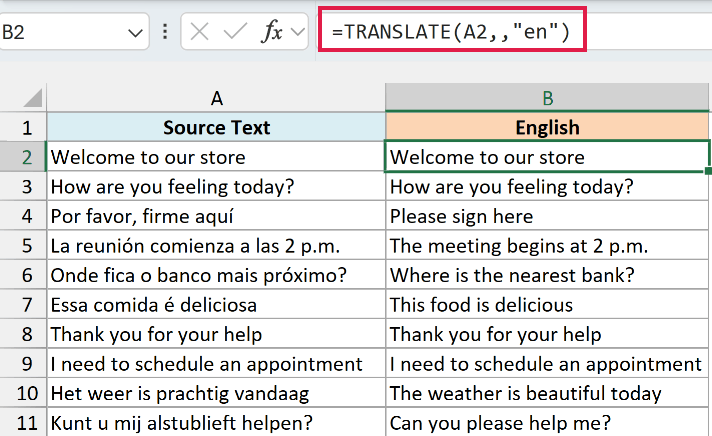
In the above formula, I have left the second argument empty so TRANSLATE automatically detects the source language. And since the third argument is “en”, the result is translated into English.
Important note: While the translations are generally accurate, don’t rely on them completely for critical documents. Always review the results to ensure accuracy and proper context.
Limitations of the Excel TRANSLATE Function
Before you start using TRANSLATE extensively, there are some important things to know.
TRANSLATE uses an online service, so supported languages and translation results can change.
Internet Connection Required
The TRANSLATE function needs an active internet connection to work. The translation happens online, so you can’t use this feature offline.
Text Length Limit
Through testing, I discovered a 3,000 character limit per translation at the time. Longer text returned a #VALUE! error in that test.
Microsoft’s current documentation warns about text being too long but does not give a fixed character limit.
I tested this with dummy text and confirmed that my samples under 3,000 characters worked fine. In that test, adding even a few more characters made the function fail (I have shown the test in the video above).
Common Error Scenarios
You might encounter errors in these situations:
- Non-text values: The function only works with text. Numbers or other data types will cause errors.
- Invalid language codes: Using incorrect or unsupported language codes will result in errors.
- Request throttling: Microsoft documents a daily translation quota, but does not specify its exact limit. You can’t run unlimited translations.
When to Use Excel’s TRANSLATE Function
Excel’s TRANSLATE function is perfect for quick translations within your existing workflows. It’s great for:
- Translating column headers for international reports
- Creating multilingual invoices or forms
- Quick translation checks while analyzing data
However, Excel isn’t a dedicated translation tool. For long documents or professional translations, you’re better off using specialized translation software.
I hope you found this Excel tutorial helpful. If you have any questions or suggestions, do let me know in the comments area.
Other Excel articles you may also like:
