

If you have been working with Excel files for a while, you have likely seen both .xls and .xlsx file extensions and wondered what the difference is.
And this is because Excel switched its default file format back in 2007, so older files still hang around with the .xls extension, while everything new uses .xlsx.
But nothing to worry about. Once you know what each format is and how they actually differ, picking the right one is straightforward.
In this article, I’ll explain both formats, walk you through the key differences, tell you which one you should use, and show you how to convert .xls files to .xlsx.
Quick Answer if You’re in a Hurry
In almost every case, you should use .xlsx.
It is the modern Excel format, supports way more rows and columns, creates smaller files, and is more reliable when files get corrupted.
The only reason to stick with .xls is if you need to send a file to someone running Excel 2003 or an older system that only accepts .xls.
Now let’s go through the details so you understand exactly why.
What is the .xls File Format?
The .xls format is the original Excel file format. It was the default format from Excel 97 all the way through Excel 2003.
Behind the scenes, .xls is a binary file format (called BIFF, short for Binary Interchange File Format). That means the data is stored in a format that only Microsoft Excel and a few other programs can read directly.
You will still come across .xls files today, usually when:
- Someone is using a very old version of Excel
- You are downloading data from a legacy system or older government website
- You are opening an attachment that was saved years ago
When you open an .xls file in modern Excel, it works just fine. But you’ll see “Compatibility Mode” in the title bar, which is Excel’s way of letting you know the file is in the old format.
What is the .xlsx File Format?
The .xlsx format is the modern Excel file format. It became the default starting with Excel 2007 and has been the standard ever since.
Unlike .xls, the .xlsx format is based on Open XML (specifically the Office Open XML standard). It is technically a ZIP file that contains a bunch of XML files inside it, one for each sheet, the styles, the shared strings, and so on.
If you ever rename an .xlsx file to .zip and open it, you can actually see those XML files. That is what makes .xlsx easier to recover when something goes wrong, easier for other programs to read, and smaller in size.
This is the format you should be saving your files in by default.
Key Differences Between XLS and XLSX
Here is a side-by-side look at how the two formats compare.
| Feature | .xls | .xlsx |
|---|---|---|
| Excel version | 97, 2000, 2002, 2003 | 2007 and later |
| File structure | Binary (BIFF) | Open XML (zipped) |
| Maximum rows | 65,536 | 1,048,576 |
| Maximum columns | 256 | 16,384 |
| Maximum colors per workbook | 56 | 16 million |
| Conditional formatting rules | 3 per cell | Unlimited |
| File size | Larger | Smaller (compressed) |
| Macros allowed | Yes | No (use .xlsm) |
| Recovery from corruption | Hard | Easier |
| Encryption strength | Weak | Strong (AES) |
| Supported by Excel 2003 | Yes | No (without converter) |
A few of these are worth calling out.
The row and column limits are the big ones.
If you are working with a dataset that has more than 65,536 rows, an .xls file simply cannot hold it. Excel will truncate the data on save, and you will lose everything past row 65,536.
The file size difference also matters in real-world use. The same workbook saved as .xlsx will usually be 30 to 50 percent smaller than the .xls version because of the ZIP compression.
And the macro point catches people off guard. If you save a workbook with macros as .xlsx, Excel removes the macros silently. To keep macros, you need to save as .xlsm instead.
Which One Should You Use?
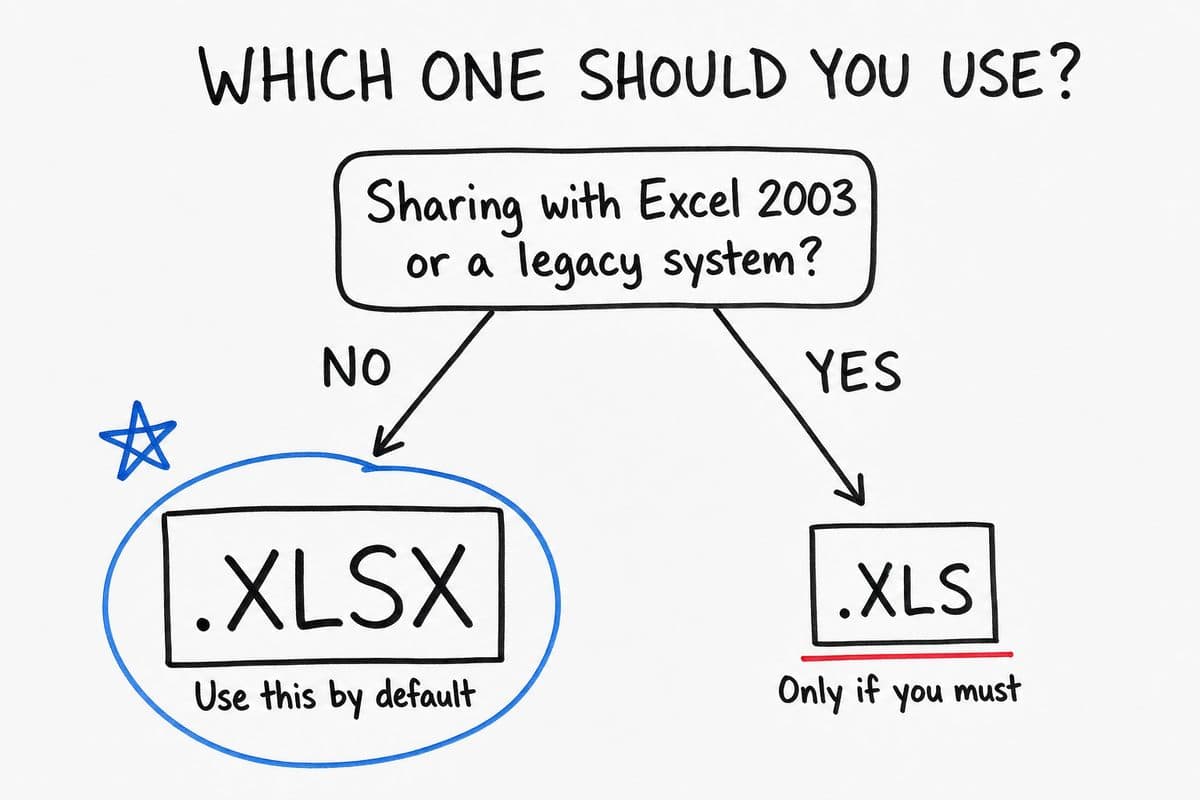
Use .xlsx for almost everything.
It is the modern format, it handles bigger datasets, it produces smaller files, and it is what every recent version of Excel uses by default.
You should only use .xls when:
- You are sharing the file with someone running Excel 2003 or earlier
- A legacy system, online portal, or older accounting software specifically requires the .xls format
- You are working with a file that already exists as .xls and there is no reason to change it
If a file you have been using for years is still in .xls format, it is worth converting it. You will save disk space, future-proof the file, and get access to the higher row and column limits.
Let me show you how.
How to Convert XLS to XLSX
There are a few ways to convert an existing .xls file to .xlsx. Let’s start with the simplest.
Method 1: Using Save As (Recommended)
This is the easiest and most reliable way to convert a single file.
Here are the steps to convert an .xls file to .xlsx using Save As:
- Open the .xls file in Excel.
- Press F12 on your keyboard, or go to the File tab and click Save As.
- Choose the location where you want to save the file.
- In the Save as type dropdown, select Excel Workbook (*.xlsx).
- Click Save.
Excel creates a new .xlsx file at the location you picked. The original .xls file is left untouched, so you have both versions if you need them.
If the original workbook contains macros, Excel will prompt you saying the macros will be lost. To keep the macros, save it as Excel Macro-Enabled Workbook (*.xlsm) instead.
Method 2: Using the Convert Button (For Compatibility Mode Files)
When you open an .xls file in modern Excel, it opens in Compatibility Mode, and Excel offers a built-in Convert option that replaces the file in place.
Here are the steps to use the Convert button:
- Open the .xls file in Excel.
- Click the File tab.
- On the Info screen, look for the Compatibility Mode section. Click the Convert button next to it.
- Excel will show a confirmation dialog explaining that converting will enable new features but the original file format will be replaced. Click OK.
- Excel will ask you to close and reopen the workbook to use the new format. Click Yes.
After the conversion, the .xls file is replaced with an .xlsx version at the same location with the same file name.
This is faster than Save As when you just want to upgrade a file in place. The downside is you do not keep a copy of the original .xls.
Method 3: Convert a Folder of .xls Files Using VBA
If you have a folder full of .xls files and want to convert all of them to .xlsx in one go, doing it manually would take forever. This is where a quick VBA macro saves a lot of time.
Here is the VBA code:
Sub ConvertXLSFolderToXLSX()
    Dim FolderPath As String
    Dim FileName As String
    Dim wb As Workbook

    FolderPath = "C:\Your\Folder\Path\"

    If Right(FolderPath, 1) <> "\" Then FolderPath = FolderPath & "\"

    FileName = Dir(FolderPath & "*.xls")

    Application.DisplayAlerts = False
    Application.ScreenUpdating = False

    Do While FileName <> ""
        If LCase(Right(FileName, 4)) = ".xls" Then
            Set wb = Workbooks.Open(FolderPath & FileName)
            wb.SaveAs FileName:=FolderPath & Replace(FileName, ".xls", ".xlsx"), _
                      FileFormat:=xlOpenXMLWorkbook
            wb.Close SaveChanges:=False
        End If
        FileName = Dir
    Loop

    Application.DisplayAlerts = True
    Application.ScreenUpdating = True

    MsgBox "Conversion complete."
End SubHere are the steps to use this macro:
- Press Alt + F11 to open the VBA Editor.
- Insert a new module by going to Insert > Module.
- Paste the code above into the module.
- Update the
FolderPathline with the path to the folder that contains your .xls files. - Press F5 to run the macro.
The macro will go through every .xls file in that folder, save it as .xlsx in the same folder, and close it. You will end up with both the original .xls and a new .xlsx version of each file.
A couple of things to be careful about with this macro:
- The condition
LCase(Right(FileName, 4)) = ".xls"makes sure it only processes .xls files and skips .xlsx and .xlsm files in the same folder. - If a file with the same .xlsx name already exists, it will be overwritten without warning. So either run this on a clean folder or back up first.
How to Change the Default Save Format in Excel
If you almost always save in one specific format, you can tell Excel to use it by default instead of picking it every time.
Here are the steps to change the default save format:
- Click the File tab and then click Options.
- In the Excel Options dialog box, click Save in the left pane.
- In the Save files in this format dropdown, pick the format you want as your default.
- Click OK.
From now on, every new workbook defaults to that format when you save. If you work with macros a lot, set this to Excel Macro-Enabled Workbook (*.xlsm) so you stop seeing the “macros will be lost” warning each time.
Other Excel File Formats Worth Knowing
xls and xlsx are the most common formats, but Excel supports several others. Here are the ones you are most likely to come across.
- .xlsm is a macro-enabled workbook. Use this when you have VBA code in your file that you want to keep.
- .xlsb is the Excel binary workbook format. It is faster to open and save than .xlsx, and produces smaller files. Worth using when you have very large workbooks.
- .xltx is the Excel template format. Use this when you want a starting point that opens as a new workbook every time.
- .csv is a plain text format with values separated by commas. Used for moving data between Excel and other tools. No formatting, formulas, or multiple sheets.
For day-to-day Excel work, xlsx is still the right default. The other formats solve specific problems.
Things to Keep in Mind
- Saving an .xlsm as .xlsx silently removes the macros. Excel will warn you, but if you click through, the VBA code is gone. Always save as .xlsm if you want the macros to stay.
- The 65,536 row limit in .xls is a real ceiling. If you save a workbook with more rows as .xls, anything past that line is dropped on save. Excel does warn you, but it is easy to miss.
- Older versions of Excel cannot open .xlsx without a free Microsoft compatibility pack. If you are sending a file to someone on Excel 2003, either save it as .xls or check that they have the pack installed.
- The .xlsx format compresses better than .xls. A 10 MB .xls workbook will often shrink to 4 to 6 MB when saved as .xlsx, with no loss of data.
- Conditional formatting limits are different. .xls allows only 3 conditional formatting rules per cell. .xlsx removes that limit, so if you have a heavy conditional formatting setup, those rules will not survive a save to .xls.
Frequently Asked Questions
Is .xlsx better than .xls?
For almost everyone, yes. The .xlsx format holds far more rows and columns, creates smaller files, recovers better from corruption, and uses stronger encryption.
The only time .xls wins is when you have to share with someone on Excel 2003 or a system that only accepts the old format.
Does converting .xls to .xlsx lose any data?
No. Going from .xls to .xlsx only gives you more room, so nothing gets dropped. The one thing to watch is macros.
If your old file has VBA code, save it as .xlsm instead of .xlsx so the macros stay. Converting the other way, from .xlsx back to .xls, is where you can lose data, since anything past the old row and column limits gets cut off.
What is the difference between .xlsx and .xlsm?
They are the same modern format, with one difference. An .xlsm file can store macros and VBA code, while an .xlsx file cannot.
If your workbook has macros you want to keep, save it as .xlsm. If it does not, .xlsx is the better default.
Why is my Excel file saved as .xls?
It was most likely created in an old version of Excel, or exported by a legacy system or website that still uses the old format. You can convert it to .xlsx in a few seconds using any of the methods above.
Can older versions of Excel open .xlsx files?
Excel 2007 and later open .xlsx files with no problem. Excel 2003 and earlier cannot open them on their own. In that case, either save the file as .xls before sending it, or have the other person move to a newer version of Excel.
Is .xlsx safer than .xls?
In a couple of ways, yes. The .xlsx format uses stronger AES encryption when you password protect a file, and it cannot carry macros, which is how a lot of malicious Excel files spread.
A plain .xlsx from an unknown sender is lower risk than an .xls or .xlsm from the same source.
And that covers what you need to know about .xls vs .xlsx, along with how to convert your old files over.
I hope you found this article helpful.
Other Excel Articles You May Also Like:
