

If you want to drop the current date and time into a cell, and have it update on its own, the NOW function is what you’re looking for.
It’s a volatile function that takes no arguments and returns a single value, and it refreshes whenever the sheet recalculates, not continuously like a live clock.
In this article I’ll show you how to use NOW in Excel, from a plain date-and-time stamp to pulling out just the time, counting hours left until a deadline, and flagging overdue rows.
Follow along with the example file
NOW Function Examples.xlsx
NOW Function Syntax
Here is the syntax of the NOW function:
=NOW()
- The NOW function takes no arguments. You just type
=NOW()with empty parentheses and press Enter.
It returns a serial number where the whole-number part is the date and the decimal part is the time. Excel usually formats that cell as a date-time automatically so you see something readable instead of the raw number.
When to Use the NOW Function
Use the NOW function when you need to:
- Stamp a cell with the current date and time.
- Pull out just the current time or just the current date.
- Do math against “right now”, like hours remaining until a deadline.
- Flag rows as overdue based on the current moment.
Let me show you a few practical examples of how this works.
Example 1: Insert the Current Date and Time
Let’s start with the simplest use of the function.
You have a blank cell and you want it to show the current date and time, the moment the sheet last calculated.
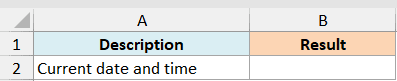
I want a single stamp that reads something like “15-Jul-2026 14:32”.
Here is the formula:
=NOW()
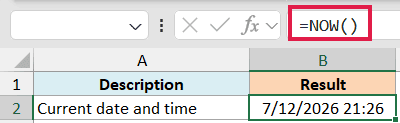
Excel reads your system clock and returns the current date and time. If the cell shows a plain number instead of a date, format it as a date-time from the Number Format dropdown.
Pro Tip: For a fixed time, press Ctrl + Shift + ;. For a fixed date and time in Excel for Windows, press Ctrl + ;, then Space, then Ctrl + Shift + ;. Press Enter to finish.
Example 2: Show Only the Current Time
Here’s a common one. You want the current time on its own, without the date next to it.
Say you’re building a small dashboard and want a “Last calculated at” label that shows just the clock time.
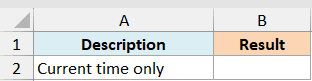
I want the result to read as a clean time like “2:32 PM”.
Here is the formula:
=TEXT(NOW(),"h:mm AM/PM")
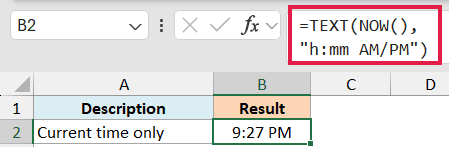
Here, NOW hands the current date-time to the TEXT function, and the "h:mm AM/PM" format code keeps only the hour and minute. TEXT returns the result as text, so use this when you want a label rather than a value for further math.
Example 3: Get Just the Current Date from NOW
Now let’s flip it and keep only the date part, dropping the time.
You want today’s date pulled out of NOW, with the time portion stripped off so the cell shows a clean date.

I want to turn the full “15-Jul-2026 14:32” into just “15-Jul-2026”.
Here is the formula:
=INT(NOW())
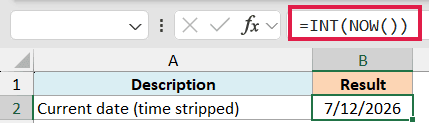
The time sits in the decimal part of the serial number, so INT chops it off and leaves the whole number, which is the date. Format the cell as a date and you get today’s date.
Pro Tip: If you only need the date and never the time, the TODAY function does this in one step. Use INT(NOW()) when you already have a NOW timestamp you want to trim down.
Example 4: Count Hours Left Until a Deadline
Let’s step it up with some date-time math.
Below is a small table of support tickets. Column A has the ticket ID and column B has each ticket’s response deadline as a full date and time. Column C is where I want the hours remaining.
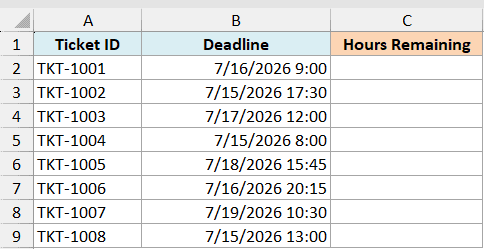
For the ticket in row 2, I want to know how many hours are left between right now and its deadline.
Here is the formula:
=(B2-NOW())*24
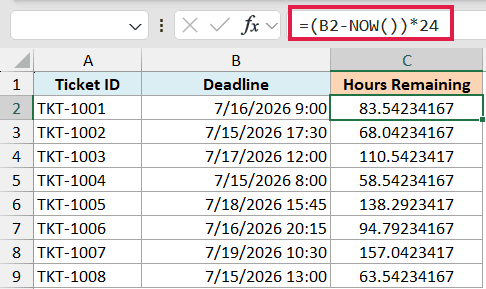
Subtracting NOW from the deadline gives the gap in days, and multiplying by 24 turns that into hours. A negative result means the deadline has already passed.
Format the result cell as a number, not a date, or you’ll see a strange date instead of a count.
These results depend on today’s date, so the example file’s past deadlines now show negative hours, unlike the screenshot taken on July 12, 2026. Change a deadline to a future date to see positive hours.
Example 5: Flag Overdue Rows Automatically
Here’s a scenario I use often for tracking due dates.
Below is an invoice tracker. Column A has the invoice number and column B has the due date and time for each one. I want column C to tell me, at a glance, whether an invoice is overdue.
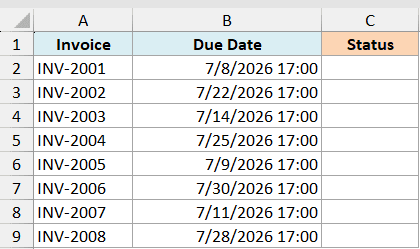
For the invoice in row 2, I want the cell to say “Overdue” if its due date has already passed, and “On Track” if it hasn’t.
Here is the formula:
=IF(NOW()>B2,"Overdue","On Track")
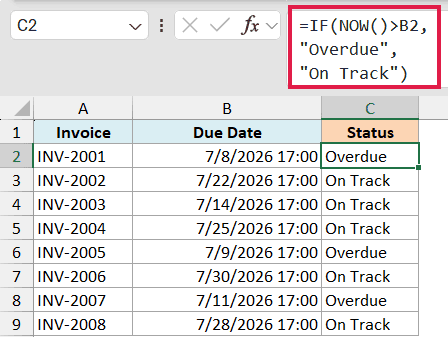
The IF function compares the current moment from NOW against the due date in B2. If now is later than the due date, the row is past due and you get “Overdue”, otherwise you get “On Track”. The label updates itself every time the sheet recalculates.
Once all the July 2026 due dates have passed, every row in the example file shows “Overdue”. Set a due date in the future and that row will show “On Track”.
Example 6: Build a Live “Last Updated” Stamp
Let’s finish with a tidy label you can drop at the top of a report.
You want a single header cell that spells out when the sheet was last calculated, mixing plain text with the current date and time.

I want the cell to read “Last updated 15-Jul-2026 14:32” and keep itself current.
Here is the formula:
="Last updated "&TEXT(NOW(),"dd-mmm-yyyy hh:mm")
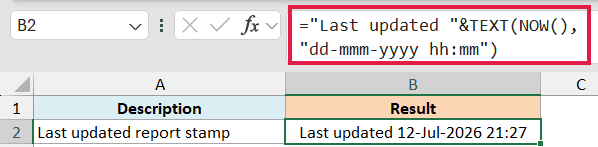
The & joins your text with the output of NOW, and the TEXT format code controls how the date and time look.
Because NOW is inside, the whole label refreshes on the next recalculation, so it shows when the sheet last calculated.
The “Last updated” wording is just a label. It does not record when the report was edited or its source data was refreshed.
NOW vs TODAY
NOW returns the current date and time as a whole-number date plus a decimal time. The TODAY function returns a whole-number date with the time at midnight, matching INT(NOW()) from Example 3.
Both take no arguments and are volatile, so they update when the sheet recalculates. Use TODAY for date-only comparisons or days left, and NOW for hours left until a deadline, as in Example 4.
Tips & Common Mistakes
- NOW is volatile, so it recalculates a lot. It updates every time the sheet calculates, which on a very large workbook can slow things down. If you don’t need it live, use a static timestamp instead.
- It doesn’t tick like a real clock. NOW only refreshes when the workbook opens or something triggers a recalculation, not second by second. Press F9 to force it to update.
- NOW takes no arguments and doesn’t spill. You can’t feed it a range to get an array of times. It always returns one value, so there’s no dynamic-array version of it.
- Wrong format shows a number, not a date. If a NOW cell shows something like 46218.6, the cell just isn’t formatted as a date-time. Change the number format and it reads correctly.
- For date-only or time-only, trim it. Use INT(NOW()) for the date, or TEXT with a time-only format code for the time, rather than expecting NOW to give you just one part.
That covers the main ways to put the NOW function to work, from a simple date-and-time stamp to trimming it down to just the date or time, and using it in deadline and overdue calculations.
Once you know it’s volatile and takes no arguments, it’s an easy one to reach for.
Other Excel Articles You May Also Like:
