

If you want to quickly find out how many cells in a range are empty, the COUNTBLANK function is the fastest way to do it. You point it at a range and it hands back the count of blank cells.
One thing to know up front. COUNTBLANK also treats a cell holding an empty string from a formula as blank, but it does not treat a cell with a single space as blank. More on that later.
COUNTBLANK returns a single number, but it slots neatly inside dynamic array formulas like =BYROW(B2:E9, LAMBDA(row, COUNTBLANK(row))) to count blanks row by row.
In this article, I’ll show you how to use COUNTBLANK to count missing entries, flag incomplete rows, measure how complete your data is, and spot which columns have the most gaps.
COUNTBLANK Syntax
Here is the syntax of the COUNTBLANK function:
=COUNTBLANK(range)
- range – The range of cells you want to count the blank cells in. This is the only argument, and it is required.
COUNTBLANK works in Excel for Microsoft 365, Excel 2024, 2021, 2019, 2016, and Excel on the web.
When to Use COUNTBLANK
Use this function when you need to:
- Count how many entries are missing in a form, survey, or dataset
- Check whether a record has any empty fields before you process it
- Measure how complete a column or table is as a percentage
- Spot which columns in a data-entry sheet have the most gaps
Let me show you a few practical examples of how this works.
Example 1: Count Blank Cells in a Range
Let’s start with the simplest case.
Below I have a webinar registration list, with the attendee name in column A and their email address in column B. A few people signed up without leaving an email.
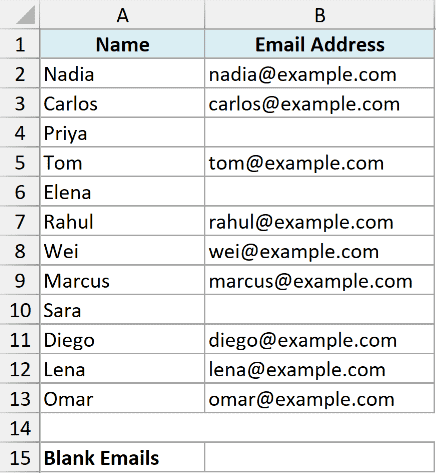
I want to know how many email addresses are missing so I can chase them up.
Here is the formula:
=COUNTBLANK(B2:B13)
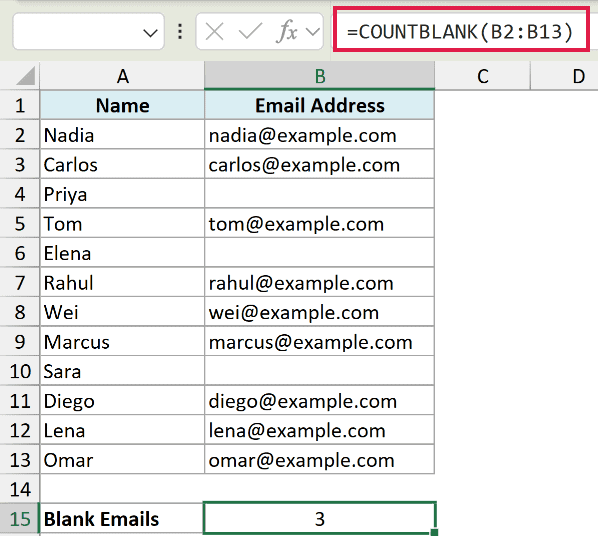
There are 12 cells in the range B2:B13, and three of them are empty, so COUNTBLANK returns 3.
That is the whole idea. Give it a range, get back the number of blank cells in it.
Example 2: Flag Incomplete Rows With COUNTBLANK
Here’s a more useful scenario.
Below is an event guest list. Each guest has an email, phone, company, and meal choice in columns B to E. Some rows are missing one or more of these.
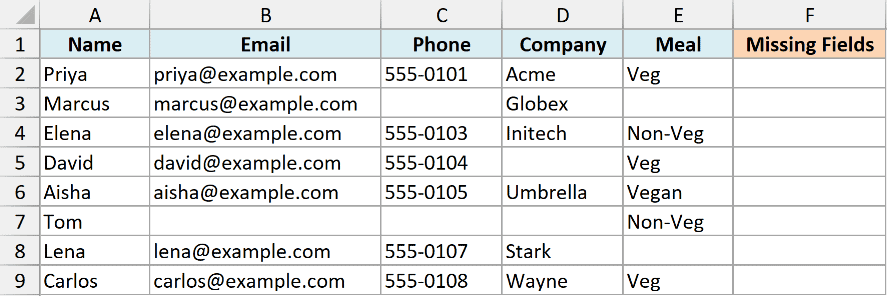
I want a count of how many fields are missing for each guest, so I can see at a glance who has an incomplete record.
Here is the formula:
=BYROW(B2:E9, LAMBDA(row, COUNTBLANK(row)))
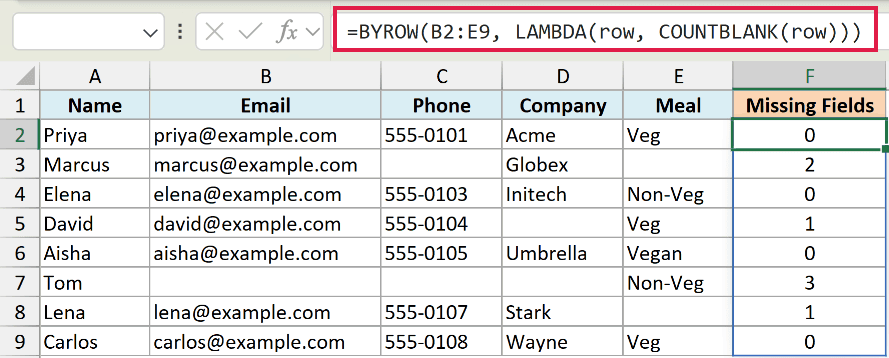
BYROW runs COUNTBLANK once for each row in the range and spills a count down the column. Priya’s row returns 0, so her record is complete. Marcus returns 2, and Tom returns 3.
Now a single formula tells you exactly which guests still need follow-up, and how much is missing for each.
Pro Tip: BYROW and LAMBDA need Excel 365 or Excel 2024. On older versions, put =COUNTBLANK(B2:E2) in the first row and drag it down to get the same per-row count.
Example 3: Calculate Data Completeness With COUNTBLANK
Now let’s turn the blank count into a percentage.
Below is a customer feedback survey. Column A has the respondent and column B has their rating out of 5. Some people skipped the rating.
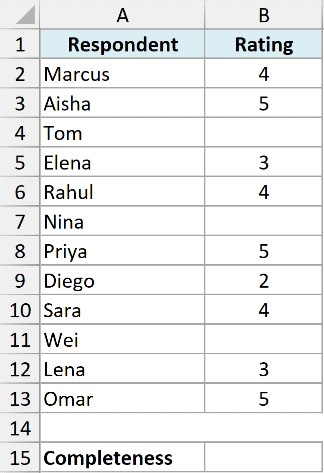
I want to know what share of the ratings column is actually filled in, as a completeness percentage.
Here is the formula:
=1-COUNTBLANK(B2:B13)/ROWS(B2:B13)
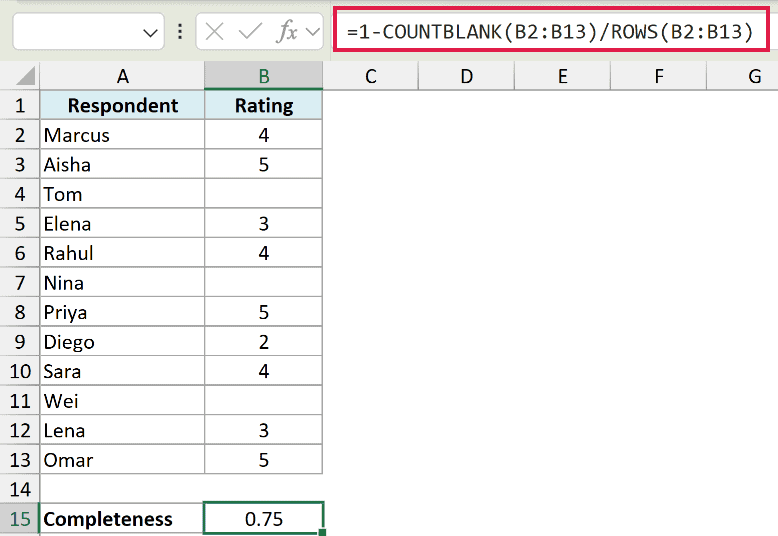
ROWS gives the total number of cells in the range, which is 12. COUNTBLANK gives the empty ones, which is 3. So 3 divided by 12 is 0.25, and 1 minus that leaves 0.75.
Format the result cell as a percentage and you get 75%, meaning three quarters of the ratings are filled in.
Pro Tip: The raw result is the decimal 0.75. Apply the Percentage number format to the cell so it reads as 75% instead.
Example 4: Find Which Columns Have the Most Gaps
Let’s step it up and check several columns at once.
Below is a product catalog that a team has been filling in. Each product has a SKU, price, weight, and description in columns B to E, and the sheet is still a work in progress.
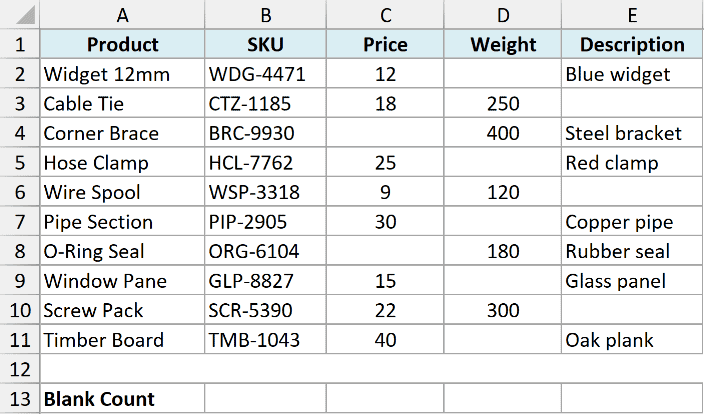
I want to see how many blanks each column has, so I know which field the team has fallen behind on.
Here is the formula:
=BYCOL(B2:E11, LAMBDA(col, COUNTBLANK(col)))
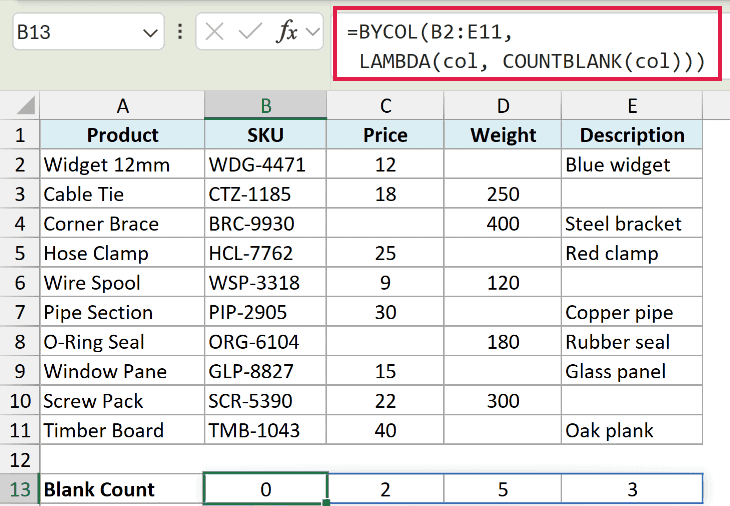
BYCOL runs COUNTBLANK on each column and spills the counts across a row. SKU returns 0, Price returns 2, Weight returns 5, and Description returns 3.
That instantly tells me Weight has the most gaps, so that is the column to focus on first.
Pro Tip: BYCOL is a 365 and 2024 function. On older versions, put =COUNTBLANK(B2:B11) under the first column and drag it across to get one blank count per column.
Example 5: Mark Records as Complete or Incomplete
For the last one, let’s use COUNTBLANK to give each record a clear status.
Below is a new-hire document checklist. Each hire needs four documents, tracked in columns B to E, and a cell is marked “Received” once that document is in.
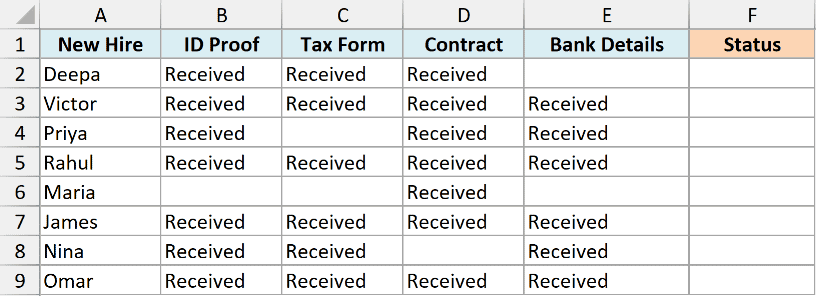
I want a status column that says “Incomplete” the moment any document is still missing, and “Complete” once everything is in.
Here is the formula:
=IF(COUNTBLANK(B2:E2)>0,"Incomplete","Complete")
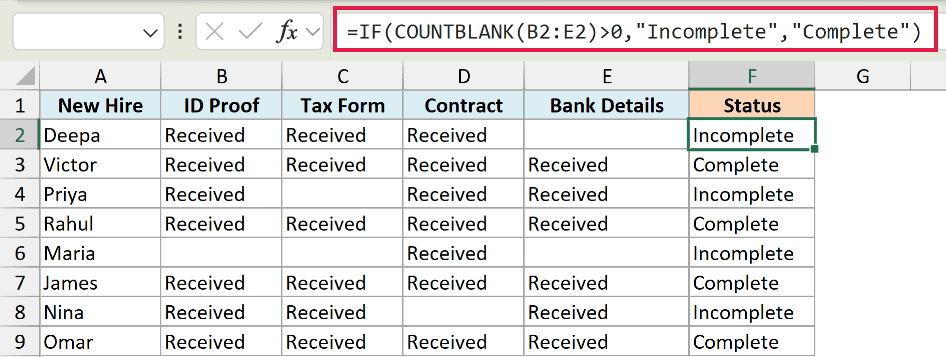
COUNTBLANK counts the empty cells in that hire’s four document columns. If the count is above 0, at least one document is missing, so the IF returns “Incomplete”. Deepa has one blank, so she shows “Incomplete”, while Victor has all four and shows “Complete”.
Copy the formula down and every hire gets a live status you can filter on.
Pro Tip: To shade the incomplete rows automatically, select B2:E9, add a conditional formatting formula rule of =COUNTBLANK($B2:$E2)>0, and pick a fill color. Any row with a missing document gets highlighted.
Tips & Common Mistakes
- A formula’s empty string counts as blank. If a cell holds a formula like
=IF(A2>10,"OK","")and it returns “”, COUNTBLANK counts that cell as blank. COUNTA, on the other hand, treats that “” as a value and counts it as filled, so the two functions can disagree on the same cell. - A space is not blank. A cell with just a space, or other invisible characters, looks empty but COUNTBLANK skips it. If your count looks too low, clean the range with TRIM or CLEAN, or use Find and Replace to strip stray spaces first.
- Zero is not blank. A cell that contains 0 is treated as filled, not empty, so COUNTBLANK will not include it in the count.
- COUNTBLANK takes only one range. Unlike COUNT and COUNTA, which accept up to 255 arguments, COUNTBLANK accepts a single range. To count blanks across separate ranges, add two calls together, like
=COUNTBLANK(A2:A10)+COUNTBLANK(C2:C10). - Need a condition? Use COUNTIFS. COUNTBLANK cannot filter. If you want to count blanks only where another column matches something, use COUNTIFS with
""as the criterion instead.
That is COUNTBLANK in a nutshell. It is a small function with one job, counting the empty cells in a range, but it powers some genuinely useful checks.
Once you pair it with BYROW, ROWS, IF, or conditional formatting, you can flag incomplete records, measure how complete your data is, and see exactly where the gaps are.
Other Excel Articles You May Also Like:
