

If you want to quickly find out how many cells in a range actually hold a number, the COUNT function is what you’re looking for. It looks through the cells you point it at and counts only the ones with a number in them.
Text, blank cells, and errors are all skipped, so you get a clean count of just the numeric entries.
COUNT returns a single value, but it also works seamlessly inside dynamic array formulas like =COUNT(FILTER(...)).
In this article, I’ll show you how to use COUNT with real examples, from counting entries in a range to counting dates and building a live count that updates on its own.
COUNT Function Syntax
Here is the syntax of the COUNT function:
=COUNT(value1, [value2], ...)
- value1 – the first item, cell reference, or range where you want to count numbers. This one is required.
- [value2], … – optional extra items, references, or ranges to include in the same count. You can add up to 255 arguments in total.
Pro Tip: COUNT only counts numbers. If you want to count non-empty cells of any type, including text, use the COUNTA function instead.
COUNT works in Excel for Microsoft 365, Excel 2024, 2021, 2019, 2016, older versions, and Excel on the web. So you can use it almost anywhere.
When to Use the COUNT Function
Use the COUNT function when you need to:
- Count how many cells in a range actually contain numbers
- Count how many entries were recorded, while skipping blanks and text
- Count dates, since Excel stores dates as numbers behind the scenes
- Get a live count of numeric records that updates as your data grows
Let me show you a few practical examples of how this works.
Example 1: Count Numeric Entries in a Range
Let’s start with the simplest case.
Below I have a step-count log with the day in column A and the steps recorded in column B. On a couple of days I forgot to log anything, so those cells are empty.
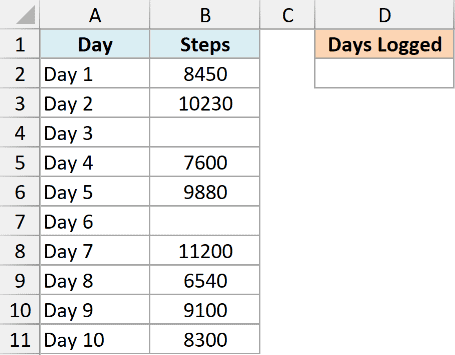
I want to know how many days I actually logged my steps.
Here is the formula:
=COUNT(B2:B11)
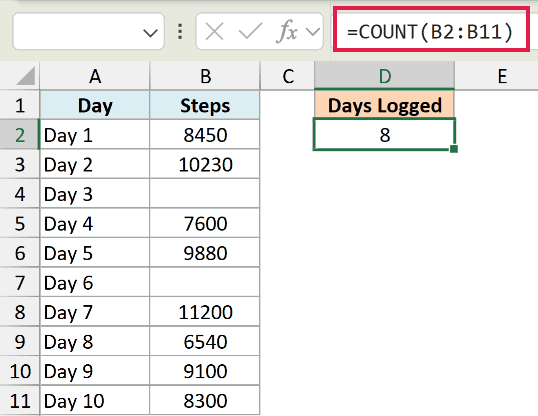
This returns 8.
There are 10 days in the range, but two of them are blank. COUNT walks through B2:B11, counts only the cells holding a number, and ignores the two empty ones. So I get 8.
Example 2: Count How Many Scores Were Entered
Here’s a more practical scenario where the range has more than just numbers and blanks.
Below is a quiz result table with the student name in column A and their score in column B. Some students were marked “Absent” as text, and one score hasn’t been entered yet, so that cell is empty.
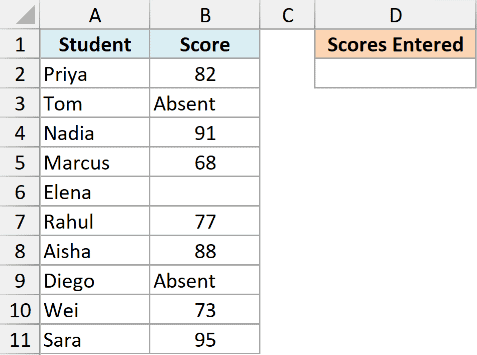
I want to know how many students actually have a score recorded.
Here is the formula:
=COUNT(B2:B11)
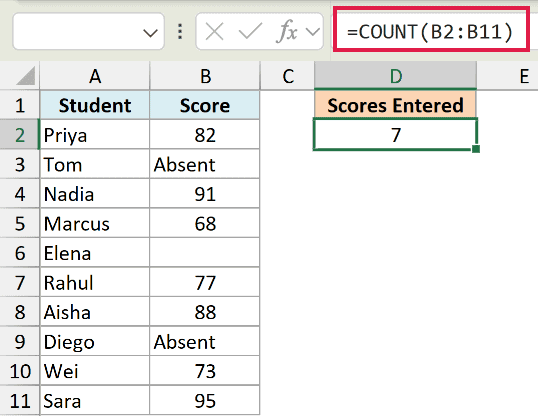
This returns 7.
Out of the 10 students, two are marked “Absent” and one score is blank. COUNT skips the text and the empty cell, and counts only the seven numeric scores.
This is exactly why COUNT is handy for survey and test data. You get the number of real responses without having to clean out the text entries first.
Example 3: COUNT vs COUNTA vs COUNTBLANK
This example shows why COUNT ignores text and blanks, by putting it next to two related functions on the same data.
Below is a feedback table with the respondent in column A and their rating from 1 to 5 in column B. Some people skipped the rating (blank cells), and a couple typed “N/A” instead of a number.
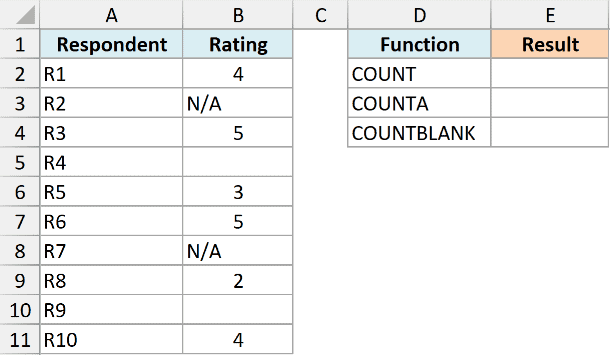
I want to see how each of these three functions treats the same column.
First, here is COUNT, which counts only the numeric ratings:
=COUNT(B2:B11)
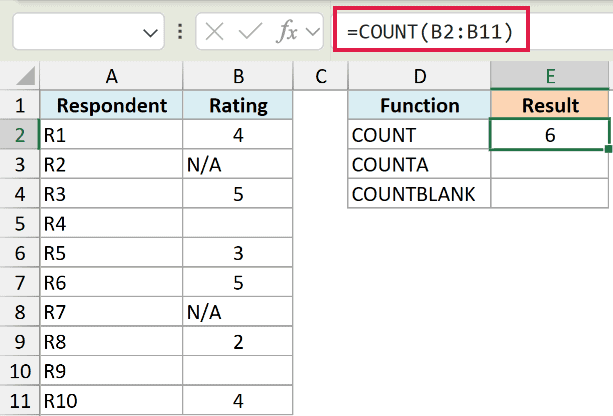
This returns 6, the six cells that hold an actual number.
Next, here is COUNTA, which counts every cell that isn’t empty:
=COUNTA(B2:B11)
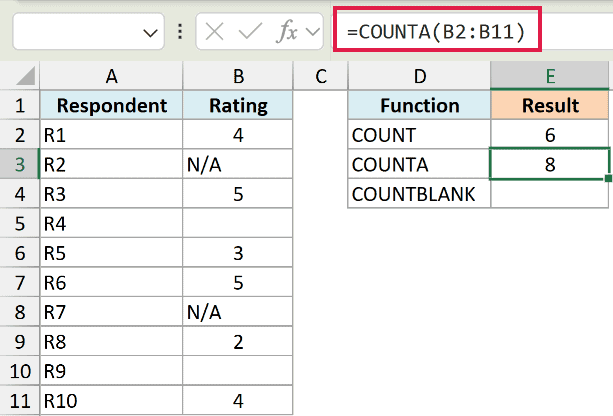
This returns 8. It counts the six numbers plus the two “N/A” text cells, because both hold something.
Finally, here is COUNTBLANK, which counts only the empty cells:
=COUNTBLANK(B2:B11)
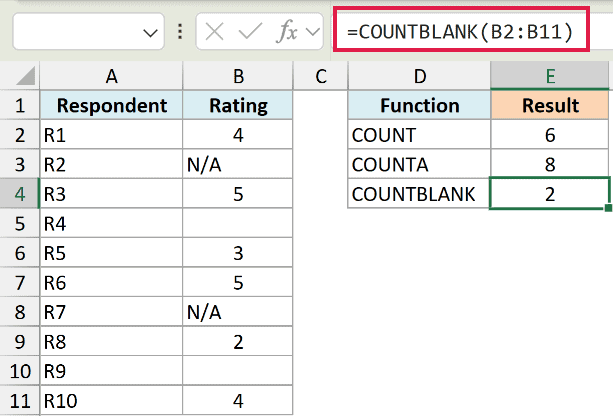
This returns 2, the two ratings that were left blank.
Notice the numbers line up. COUNTA (8) plus COUNTBLANK (2) equals the 10 cells in the range, and COUNT (6) picks out just the numbers within that.
Pro Tip: If you want to count numbers that meet a condition, like only the ratings of 5, COUNT can’t filter on its own. Reach for the COUNTIF function instead.
Example 4: Count Dates with the COUNT Function
Dates trip a lot of people up, so this one is worth seeing. Excel stores every date as a number under the hood, which means COUNT counts dates too.
Below is a project tracker with the task in column A and its completion date in column B. Tasks that are done have a date, and tasks still pending are left blank.
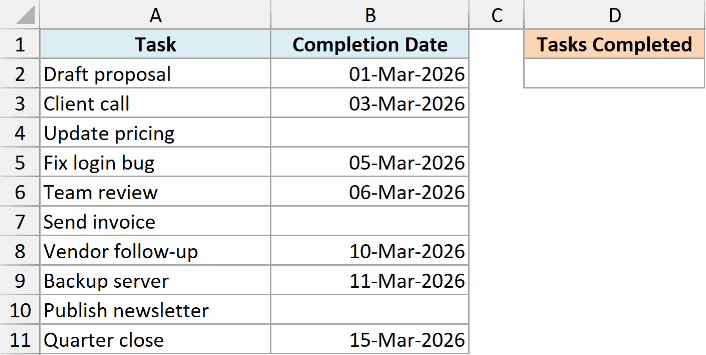
I want to know how many tasks have been completed.
Here is the formula:
=COUNT(B2:B11)
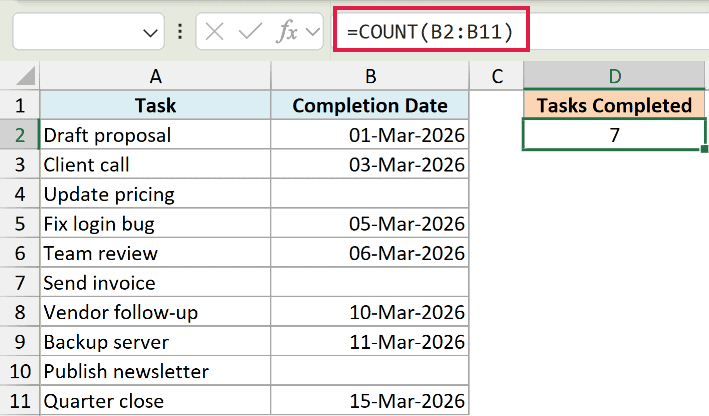
This returns 7.
Even though the cells show dates like 05-Mar-2026, Excel sees them as numbers, so COUNT counts them. The three blank rows for pending tasks are skipped, leaving 7 completed.
Pro Tip: A date that was typed as text (left-aligned in the cell) is not a real number, so COUNT won’t count it. Make sure your dates are actual dates, not text that looks like a date.
Example 5: Count Across Non-Contiguous Ranges
COUNT isn’t limited to one block of cells. You can hand it several separate ranges at once and it adds up the numbers across all of them.
Below is a small sales sheet. The Q1 deals are in column B and the Q2 deals are in column D, with a Notes column sitting in between. A few cells are blank where a rep had no deals that quarter.
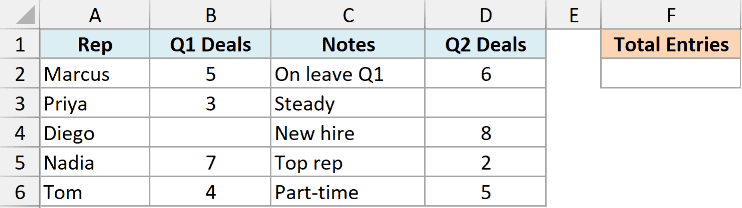
I want the total number of deal entries recorded across both quarters.
Here is the formula:
=COUNT(B2:B6,D2:D6)
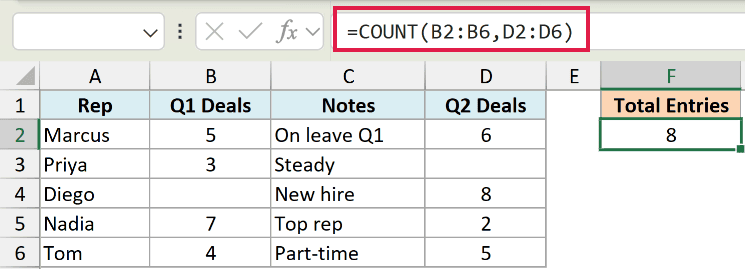
This returns 8.
I passed two separate ranges as two arguments, split by a comma. COUNT counts the numbers in column B, then the numbers in column D, and adds them together. The blanks and the text in the Notes column are ignored.
You can keep adding ranges this way, up to 255 arguments, which is useful when your numbers are scattered across columns that aren’t next to each other.
Example 6: Count Inside a Dynamic Array Formula
For the last one, let’s see how COUNT composes with a dynamic array function to give you a count that updates on its own.
Below is an order list with the order ID in column A, the region in column B, and the order amount in column C. One West order is still marked “pending” as text because the amount hasn’t been confirmed.
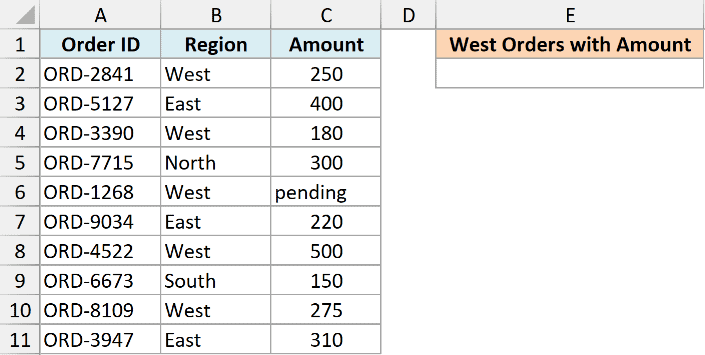
I want to count how many West orders have an actual amount recorded.
Here is the formula:
=COUNT(FILTER(C2:C11,B2:B11="West"))
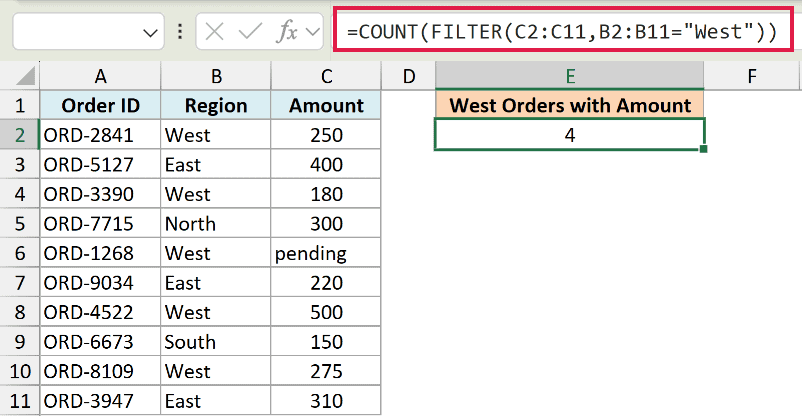
This returns 4.
Here is how it works:
- FILTER(C2:C11,B2:B11=”West”) pulls out just the amounts for the West region, which gives us five values including the “pending” text.
- COUNT then counts only the numbers in that filtered list, so the text “pending” is skipped and I get 4.
Because FILTER is dynamic, this stays live. Add a new West order and the count updates on its own, with no formula to drag down.
Pro Tip: FILTER needs Microsoft 365 or Excel 2021. On older versions, you can get a conditional count with the COUNTIFS function instead.
Tips & Common Mistakes
A few things to keep in mind so COUNT gives you the number you expect:
- COUNT counts numbers only. To count non-empty cells of any type, including text, use COUNTA. To count only the empty cells, use COUNTBLANK.
- Numbers stored as text aren’t counted. If a value is left-aligned or shows a little green triangle, Excel treats it as text and COUNT skips it. Convert it to a real number first.
- Dates and times are counted. Excel stores them as serial numbers, so COUNT includes them. A date typed as text, however, won’t count.
- COUNT can’t apply a condition. To count only numbers that meet a rule (over 50, a certain category, between two values), use the COUNTIF or COUNTIFS function.
- Logical values and errors in a range are ignored. TRUE, FALSE, and error cells like #N/A aren’t counted when they sit inside a referenced range. COUNT sticks strictly to numbers and dates.
- COUNT still counts hidden rows. If you filter your data, COUNT includes the rows that are filtered out of view. To count only the visible rows, use the SUBTOTAL function instead.
Wrapping Up
The COUNT function is one of those small tools you’ll use all the time once it clicks. It gives you a fast, clean count of the numeric entries in a range, ignoring the text and blanks that would otherwise get in the way.
Start with a single range, add more ranges when your data is spread out, and drop it inside a dynamic array formula when you want the count to stay live.
I hope you found this tutorial helpful. If you have a COUNT scenario you’re stuck on, it usually comes down to numbers hiding as text.
Other Excel Articles You May Also Like:
