

If you know the password and just want Excel to stop asking for it, you may have noticed there’s no single “remove password” button.
That’s because Excel has four different kinds of passwords, and each one lives in a different place. But once you know which one you’re dealing with, removing it takes less than a minute.
In this article, I’ll show you how to remove each type of password from an Excel file, step by step.
Follow along with the example file
Remove Password from Excel Practice File.xlsx
Which Password Does Your Excel File Have?
Before you remove anything, it helps to know which password you’re looking at. Here’s how to tell them apart:
- Password to open: Excel asks for a password before it shows you anything in the file.
- Password to modify: Excel asks for a password when you open the file, but also gives you a Read Only button to open it without one.
- Workbook structure password: The file opens fine, but you can’t add, delete, rename, or move sheets.
- Sheet password: The file opens fine, but when you try to edit cells on a sheet, Excel tells you the sheet is protected.
A file can have more than one of these at the same time. The practice file for this article has three of them (a password to modify, a workbook structure password, and two protected sheets), and every password in it is TrumpExcel.
Always Open Read-Only and Mark as Final also make a file read-only, but they don’t use a password. You turn them off from the same Protect Workbook menu.
A quick way to see what’s protected is to open the file and go to File > Info. The Protect Workbook section lists the protection that’s turned on, including the names of any protected sheets.
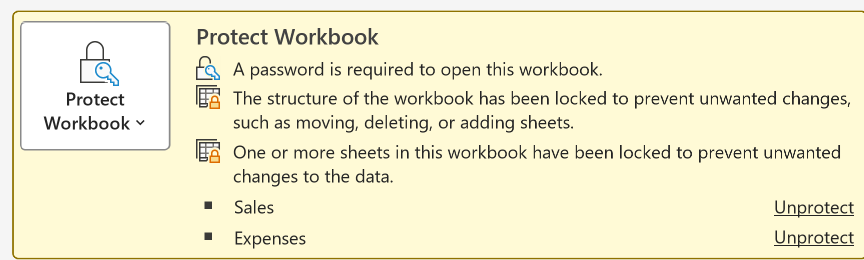
Important: Every method below needs the current password. Excel passwords are case-sensitive, so “trumpexcel” won’t work if the password is “TrumpExcel”. If you’ve lost a sheet or workbook password, see my guide on how to unprotect Excel sheets without a password instead.
Remove the Password to Open an Excel File
This is the password Excel asks for before it opens the file at all. Excel uses it to encrypt the whole workbook.
Let’s say you have a file that asks for a password every time you open it, and you want to remove that prompt.
Here are the steps to remove the password to open an Excel file:
- Open the file and enter the password when Excel asks for it.
- Click the File tab and select Info.
- Click Protect Workbook and select Encrypt with Password.
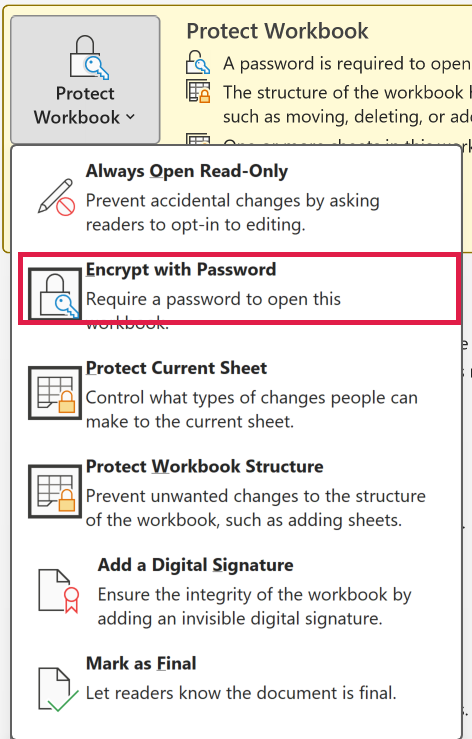
- In the Encrypt Document dialog box, delete the password so the box is empty, and click OK.
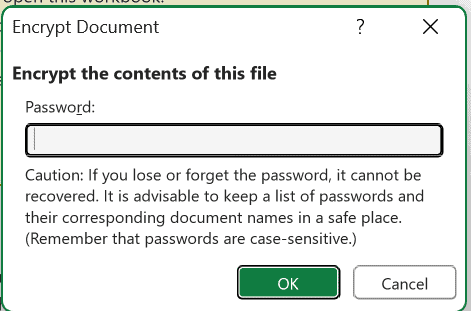
- Save the file (Control + S).
Once you click OK, the line that says “A password is required to open this workbook” disappears from the Info page. The next time you open the file, Excel won’t ask for a password.
Important: Clearing the box isn’t enough on its own. If you close the file without saving, the password stays on it.
Remove the Password to Modify
The password to modify is a lighter kind of protection. Anyone can open the file as read-only, but they need the password to make changes and save them to the same file.
It’s set from the Save As dialog box, so that’s also where you remove it.
Here are the steps to remove the password to modify:
- Open the file, enter the password, and click OK (don’t click Read Only).
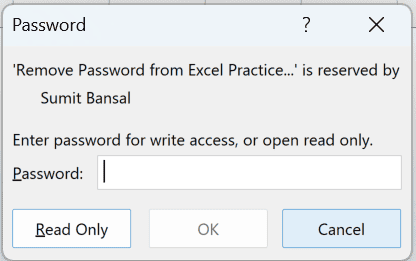
- Click the File tab, select Save As, and click More options… (or Browse).
- In the Save As dialog box, click Tools (next to the Save button) and select General Options.
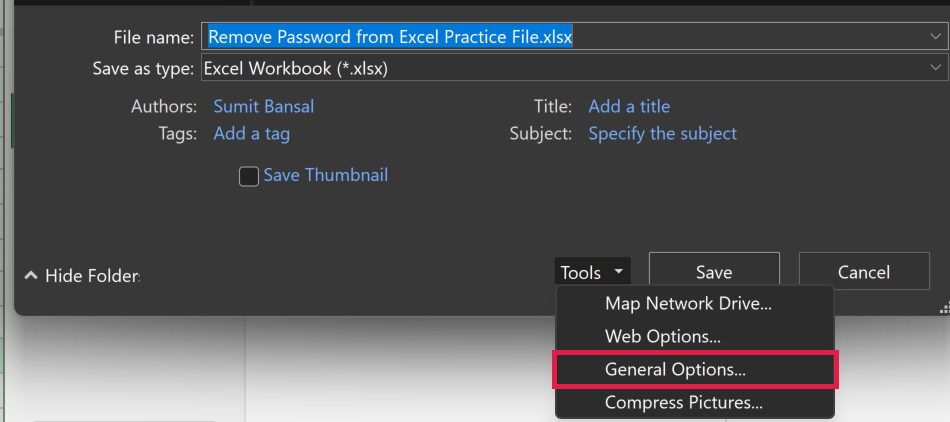
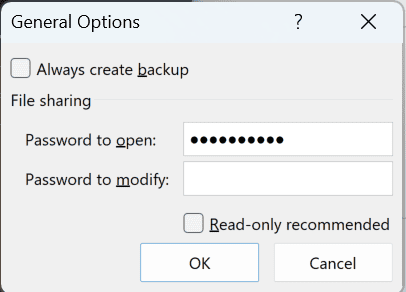
- Delete the password in the Password to modify box and click OK.
- Click Save, and then click Yes when Excel asks if you want to replace the existing file.
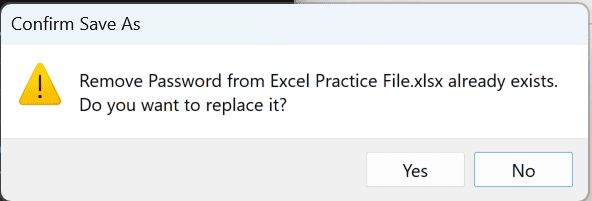
Keep the same file name and location when you save. If you save it under a new name, the new copy has no password, but the original file still does.
Pro Tip: The same General Options dialog box also has a Password to open box. If your file has both passwords, you can clear both boxes here and remove them in one go.
If Excel also suggests opening the file as read-only, uncheck Read-only recommended in the same dialog box.
Remove the Workbook Structure Password
Workbook structure protection stops people from adding, deleting, renaming, moving, or hiding sheets. The data itself can still be edited.
In the practice file, you’ll notice you can’t insert a new sheet or rename the Summary sheet. That’s the structure password stopping you.
Here are the steps to remove workbook structure protection:
- Go to the Review tab.
- In the Protect group, click Protect Workbook. When structure protection is on, this button is highlighted.
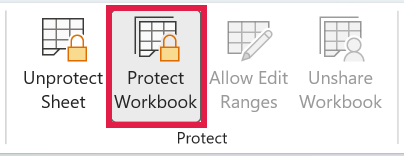
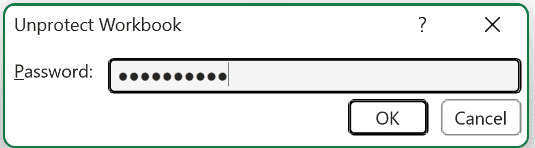
- In the Unprotect Workbook dialog box, enter the password and click OK.
The button keeps the same name, Protect Workbook, whether protection is on or off. It works like a switch, so clicking it on a protected workbook is what turns protection off.
Save the file afterward so the change sticks.
Remove the Password from an Excel Sheet
Sheet protection locks the cells on one sheet so they can’t be edited.
In the practice file, the Sales and Expenses sheets are protected, and the Summary sheet isn’t. Each protected sheet has to be unprotected on its own.
Here are the steps to remove the password from a sheet:
- Go to the protected sheet (Sales in the practice file).
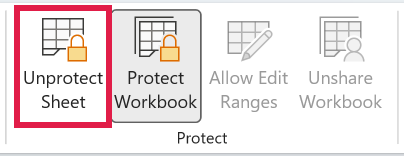
- Go to the Review tab and click Unprotect Sheet.
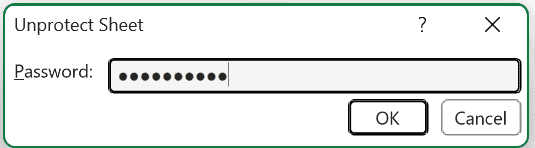
- In the Unprotect Sheet dialog box, enter the password and click OK.
Repeat this for every other protected sheet (Expenses in the practice file), and then save the file.
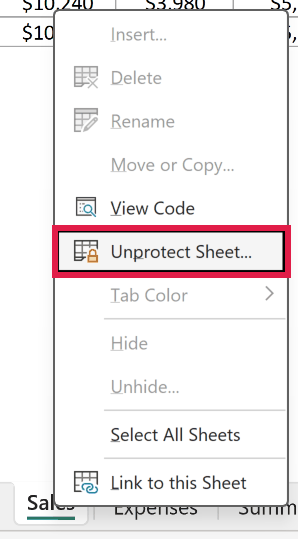
You can also right-click the sheet tab and select Unprotect Sheet…. It opens the same dialog box.
Pro Tip: File > Info lists every protected sheet with an Unprotect link next to its name. It’s a handy way to find them all when a workbook has lots of sheets.
If you have to do this on a lot of sheets regularly, a short macro can do it for you. I’ve covered that in <a href=”https://trumpexcel.com/excel-vba/protect-unprotect-sheet/”>protect and unprotect sheets using VBA</a>.
And if the password you need to remove is on the VBA project (Excel asks for it when you open the Visual Basic Editor), that’s a different thing again. Here’s how to <a href=”https://trumpexcel.com/excel-vba/remove-password/”>remove the password from a VBA project</a>.
In this article, I showed you how to remove the password to open, the password to modify, the workbook structure password, and sheet passwords in Excel.
I hope you found this article helpful.
Other Excel Articles You May Also Like:
