

The AGGREGATE function in Excel lets you run calculations like SUM, AVERAGE, MAX, or LARGE on a range while ignoring error values, hidden rows, or both.
For example, if even one cell in a column has an error like #N/A, a regular SUM of that column also shows an error. AGGREGATE can skip the error and add up the rest of the numbers.
In the same way, when you filter a list, SUM still adds the rows you can’t see, while AGGREGATE can add up only the visible ones.
In this article, I’ll show you how to use the AGGREGATE function with seven practical examples.
Follow along with the example file
AGGREGATE Function Examples.xlsx
AGGREGATE Function Syntax
AGGREGATE has two forms. Here is the syntax of the reference form, which you’ll use for functions 1 to 13 (SUM, AVERAGE, MAX, and so on):
=AGGREGATE(function_num,options,ref1,[ref2],...)
And here is the syntax of the array form, which you’ll use for functions 14 to 19 (LARGE, SMALL, and the percentile and quartile functions):
=AGGREGATE(function_num,options,array,[k])
- function_num – A number from 1 to 19 that tells AGGREGATE which calculation to run (the full list is below).
- options – A number from 0 to 7 that tells AGGREGATE what to skip: error values, hidden rows, other SUBTOTAL and AGGREGATE formulas, or a mix of these.
- ref1, [ref2], … – The range (or ranges) you want to calculate. You can give it up to 253 of them.
- array – The range or array that functions 14 to 19 work on.
- k – The extra argument that functions 14 to 19 need. For LARGE and SMALL, it’s the position you want (2 for the second largest), and for the percentile and quartile functions, it’s the percentile or quartile. Leave it out and you get a #VALUE! error.
Here are the 19 function numbers:
| Number | Function | Number | Function |
|---|---|---|---|
| 1 | AVERAGE | 11 | VAR.P |
| 2 | COUNT | 12 | MEDIAN |
| 3 | COUNTA | 13 | MODE.SNGL |
| 4 | MAX | 14 | LARGE |
| 5 | MIN | 15 | SMALL |
| 6 | PRODUCT | 16 | PERCENTILE.INC |
| 7 | STDEV.S | 17 | QUARTILE.INC |
| 8 | STDEV.P | 18 | PERCENTILE.EXC |
| 9 | SUM | 19 | QUARTILE.EXC |
| 10 | VAR.S |
And here is what each option skips:
- 0 (or omitted) – Nested SUBTOTAL and AGGREGATE formulas
- 1 – Hidden rows, plus nested SUBTOTAL and AGGREGATE formulas
- 2 – Error values, plus nested SUBTOTAL and AGGREGATE formulas
- 3 – Hidden rows, error values, and nested SUBTOTAL and AGGREGATE formulas
- 4 – Nothing
- 5 – Hidden rows
- 6 – Error values
- 7 – Hidden rows and error values
You don’t need to memorize any of these. As you type the formula, Excel shows a drop-down list of the function numbers, and then one for the options.
The AGGREGATE function works in Excel 2010 and all later versions, including Microsoft 365, Excel for Mac, and Excel on the web.
When to Use the AGGREGATE Function
Use this function when you need to:
- Get a total, average, or maximum from a column that has errors like #N/A or #DIV/0!
- Add up only the rows that are still visible after you filter or hide some
- Get a grand total from a list that already has subtotal rows, without counting them twice
- Find the second, third, or nth largest or smallest value while skipping errors
- Find the highest value that meets a condition when the data has errors
Let me show you a few practical examples of how to use the AGGREGATE function.
Example 1: Sum a Column That Has Errors
Let’s start with the most common reason to use AGGREGATE.
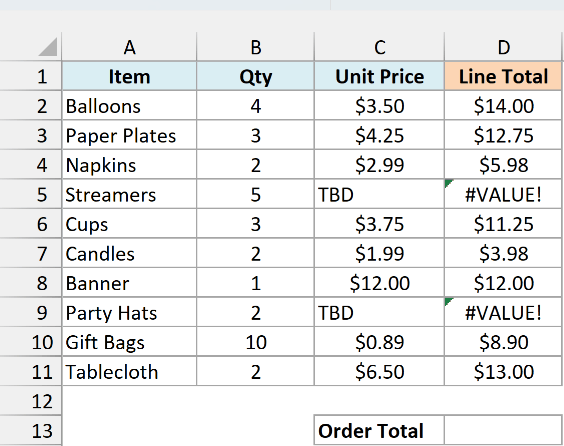
Below is a party supplies order where two prices are still TBD, and I want the order total in cell D13.
Here is the formula:
=AGGREGATE(9,6,D2:D11)
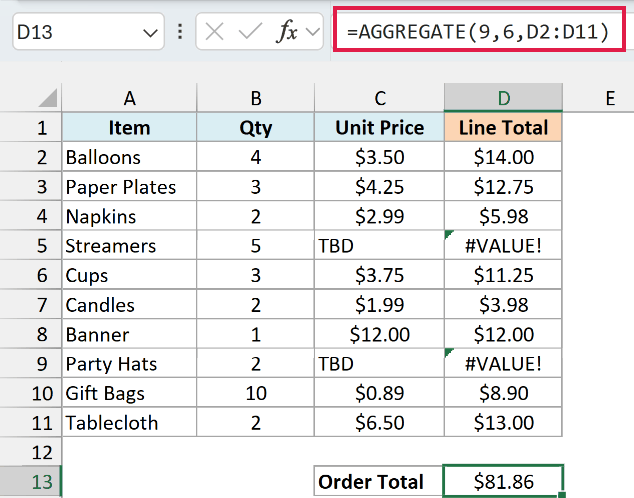
The first argument, 9, tells AGGREGATE to do a SUM. The second argument, 6, tells it to ignore error values.
So it adds the eight line totals that have a number, skips the two #VALUE! errors, and returns $81.86.
If you used =SUM(D2:D11) here, you’d get #VALUE!, because SUM returns an error as soon as the range has one.
Just remember that skipping errors hides them from the total, so the $81.86 is only the total of the items that have a price.
Example 2: Get the Average and Maximum Ignoring Errors
AGGREGATE isn’t just for sums. Change the first number and you get a different calculation.
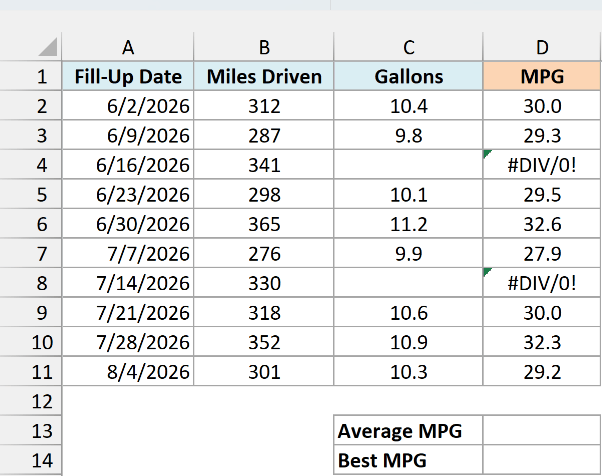
Below is a fuel log where I forgot to note the gallons for two fill-ups, and I want the average MPG in D13 and the best MPG in D14.
Here is the formula for the average MPG:
=AGGREGATE(1,6,D2:D11)
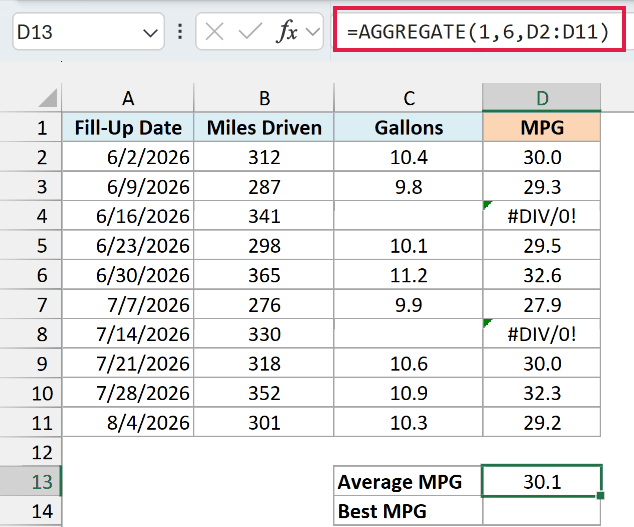
Function number 1 is AVERAGE, and option 6 skips the two #DIV/0! errors (the rows where Gallons is blank). It averages the other eight values and returns 30.1.
And here is the formula for the best MPG:
=AGGREGATE(4,6,D2:D11)
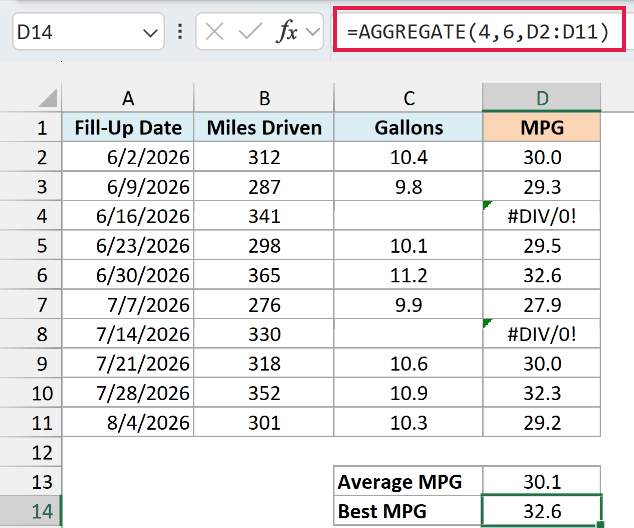
Function number 4 is MAX, so this returns the highest MPG in the list, which is 32.6.
If you want the lowest MPG instead, use 5 (MIN) as the first argument.
Example 3: Sum Only the Visible Rows After Filtering
Now let’s look at the next thing AGGREGATE can skip, which is hidden rows.
Below is a list of team expenses filtered to show only Travel, and I want the total of just the visible rows in D15.
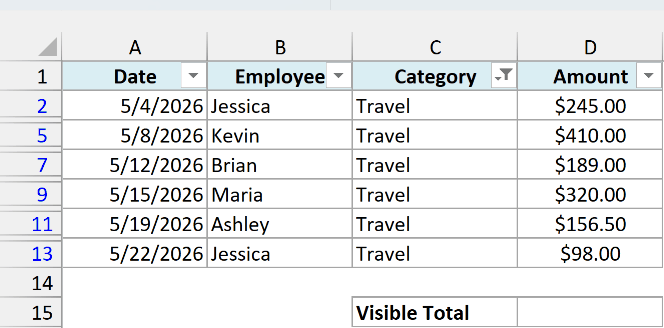
Here is the formula:
=AGGREGATE(9,5,D2:D13)
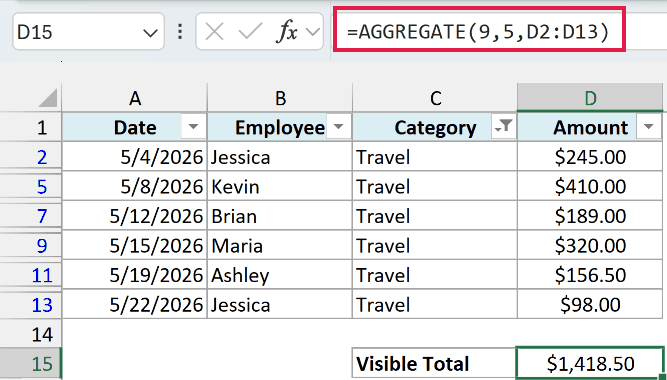
Option 5 tells AGGREGATE to ignore hidden rows. So it only adds the six Travel amounts you can see and returns $1,418.50.
A regular SUM would return $1,662.94 here, because it also adds the rows the filter has hidden.
This works the same way for rows you hide yourself (right-click the row number and choose Hide). And if the visible rows might also have errors, use option 7, which skips hidden rows and errors.
Important: Options 0, 2, 4, and 6 still count the rows a filter has hidden. For a visible-rows total, the option has to be 1, 3, 5, or 7.
If all you need is a visible-rows sum with no errors, the SUBTOTAL function gives the same result with =SUBTOTAL(109,D2:D13). Use AGGREGATE when you also need to skip errors, or need a function SUBTOTAL doesn’t have, like MEDIAN or LARGE.
Example 4: Get a Grand Total That Skips Subtotal Rows
Here’s another practical scenario. When a list already has subtotal rows, a plain SUM counts everything twice.
Below are my monthly electricity bills with a subtotal after each quarter, and I want the total for all nine months in B16.
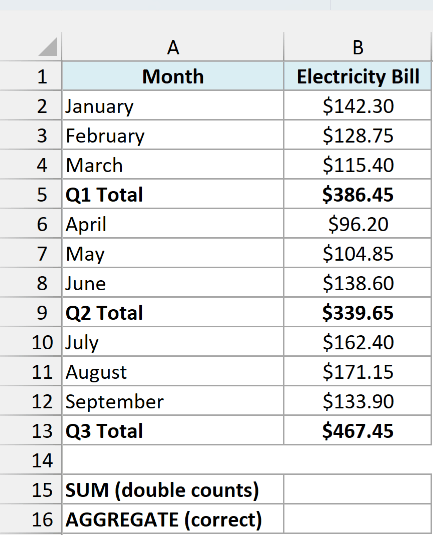
Here is what you get with SUM (in B15):
=SUM(B2:B13)
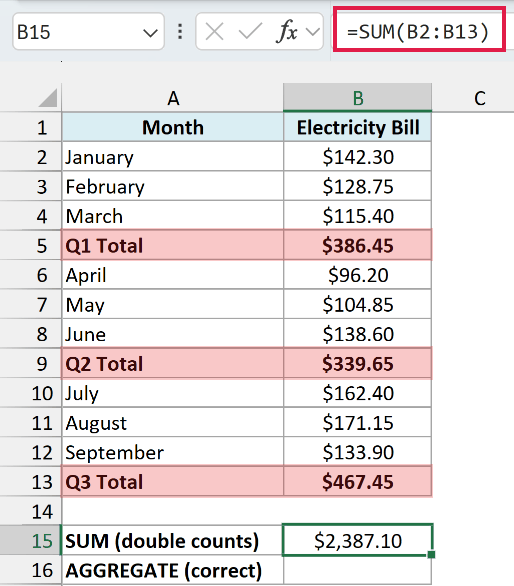
SUM adds the nine monthly bills and the three quarter totals, so every bill is counted twice and you get $2,387.10.
Here is the formula that gives the right total:
=AGGREGATE(9,0,B2:B13)
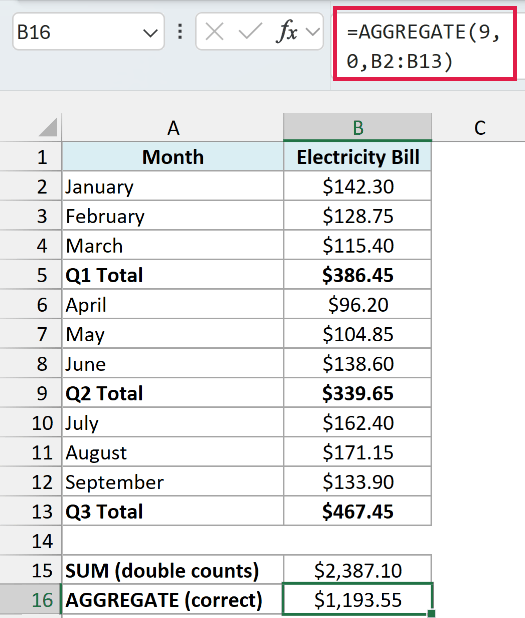
Option 0 tells AGGREGATE to skip any SUBTOTAL or AGGREGATE formulas inside the range. The quarter totals in B5, B9, and B13 are SUBTOTAL formulas, so they’re left out and you get the correct $1,193.55.
Options 1, 2, and 3 skip subtotal rows too, and so does =SUBTOTAL(9,B2:B13). Options 4 to 7 don’t, so =AGGREGATE(9,4,B2:B13) would double count just like SUM.
Important: This only works when the subtotal rows use SUBTOTAL or AGGREGATE. If your quarter totals are plain SUM formulas, AGGREGATE adds them like any other number.
Example 5: Find the 2nd Smallest Value Ignoring Errors
Let’s step it up and use the array form, which takes a fourth argument.
Below is a list of online orders where two haven’t been delivered yet, and I want to find the second fastest delivery time in D13.
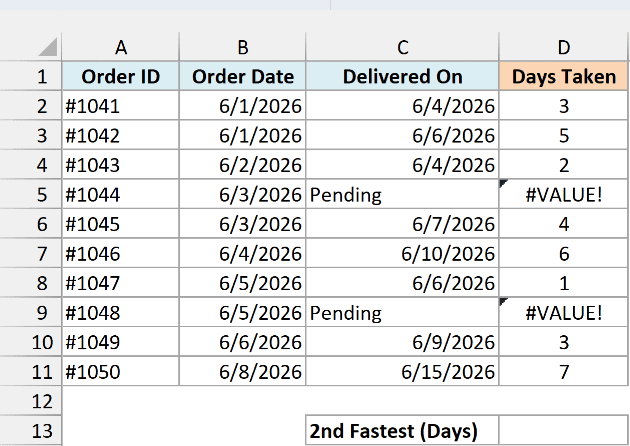
Here is the formula:
=AGGREGATE(15,6,D2:D11,2)
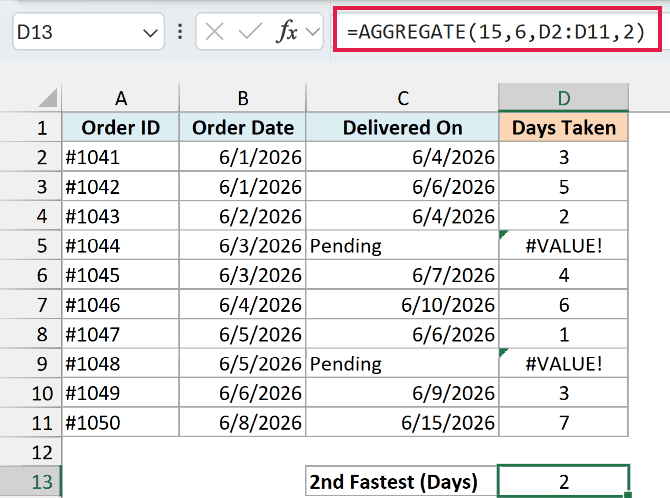
Function number 15 is the SMALL function, and the last argument, 2, tells it to return the second smallest value. So the result is 2 days.
The two #VALUE! errors come from subtracting a date from the text “Pending”. Option 6 skips them, while =SMALL(D2:D11,2) would return #VALUE!.
And for the second slowest delivery, switch the 15 to 14 (LARGE).
Example 6: Get the Top 3 Values With One Formula
This next one combines AGGREGATE with a dynamic array function.
Below are basketball stats with the points per game for each player, and I want the top 3 scoring averages in column F.
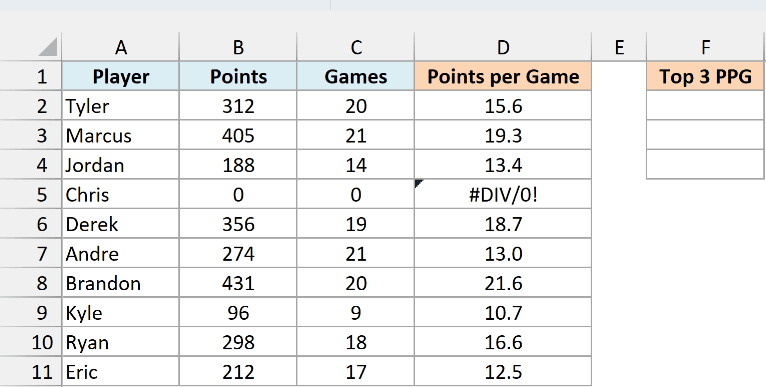
Here is the formula:
=AGGREGATE(14,6,D2:D11,SEQUENCE(3))
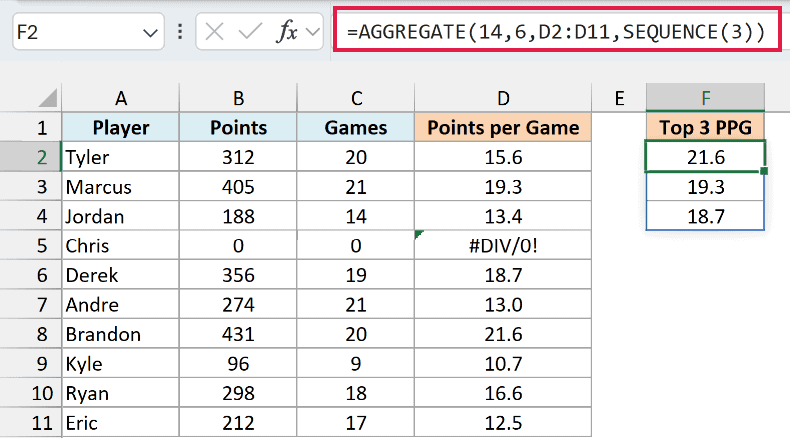
SEQUENCE(3) gives AGGREGATE the numbers 1, 2, and 3 as k. AGGREGATE runs LARGE once for each of them, skipping Chris’s #DIV/0! error, and the three results spill into F2:F4.
For the top 5, change SEQUENCE(3) to SEQUENCE(5).
If any of the cells below F2 aren’t empty, you’ll see a #SPILL! error instead. Clear those cells and the results show up.
If you are using Excel 2019 or earlier, enter the below formula in cell F2 and then copy it down to F4:
=AGGREGATE(14,6,$D$2:$D$11,ROWS(F$2:F2))
ROWS(F$2:F2) returns 1 in F2, 2 in F3, and 3 in F4, so each cell gets the next largest value.
Example 7: Find the Highest Value That Meets a Condition
Now let’s look at something more advanced, where AGGREGATE does a job MAXIFS can’t.
Below are quiz results for two classes (two absent students show #DIV/0!), and I want the best accuracy in H2 for whichever class is in G2.
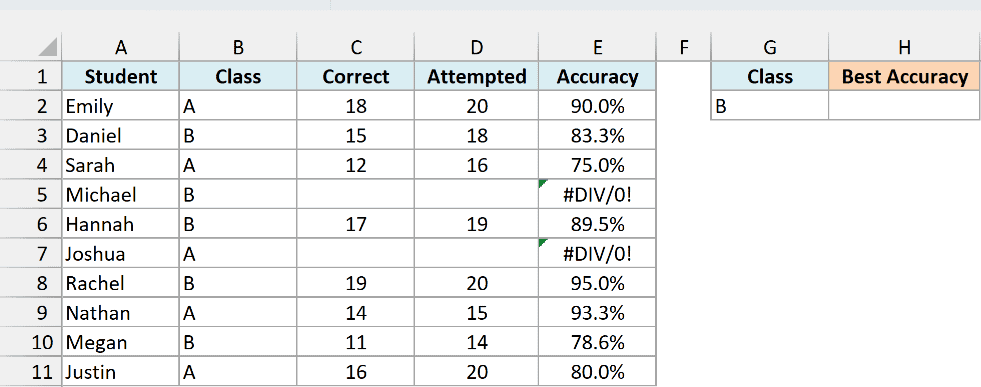
Here is the formula:
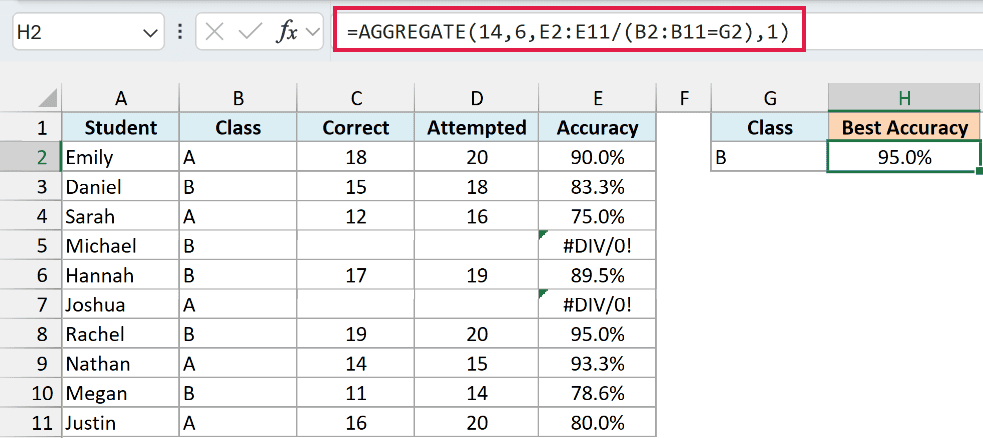
=AGGREGATE(14,6,E2:E11/(B2:B11=G2),1)
How this formula works:
- (B2:B11=G2) checks each row and returns TRUE for class B and FALSE for class A.
- E2:E11/(B2:B11=G2) divides each accuracy by that TRUE or FALSE. TRUE counts as 1, so class B values stay the same, and FALSE counts as 0, so class A rows turn into #DIV/0! errors.
- AGGREGATE(14,6,…,1) runs LARGE with k as 1, and option 6 skips every error. That leaves only the class B values, and the largest is 95.0%.
Change G2 to A and the result changes to 93.3%.
You might wonder why I didn’t use MAXIFS. It returns #DIV/0! here, because MAXIFS fails if any cell in the range is an error, even in a row that doesn’t match.
This trick only works with function numbers 14 to 19. Functions 1 to 13 (like 4 for MAX) don’t accept a calculation like this and return #VALUE!.
Important: When you use a calculation inside AGGREGATE like this, it doesn’t skip hidden or filtered rows, even with option 7. It still skips the errors, so use this form on data that isn’t filtered.
So these are seven practical ways to use the AGGREGATE function in Excel. If you remember just one combination, make it 9 and 6, a SUM that ignores errors.
I hope you found this article helpful.
Other Excel Articles You May Also Like:
