

The EXP function in Excel returns e raised to any power you give it. Here, e is a math constant, roughly 2.71828, also called Euler’s number.
Excel has no e you can type into a formula, so EXP is how you work with it. You’ll use it for the value of e, for continuous growth or decay, and to undo a natural log.
In this article, I’ll show you how to use EXP for each of these.
Follow along with the example file
EXP Function Examples.xlsx
EXP Function Syntax
Here is the syntax of the EXP function:
=EXP(number)
- number – Required. The power you want to raise e to. It can be a number, a cell reference, or a formula that returns a number.
If number points to an empty cell, EXP treats it as 0 and returns 1. So a blank input quietly gives you a result of 1 instead of an error, which is easy to miss in a long column.
If number is text that isn’t a number, such as “n/a”, EXP returns the #VALUE! error.
The number can’t be larger than about 709.78. Anything above that gives a result too big for Excel to store, so EXP returns the #NUM! error.
The EXP function works in all Excel versions, including 365, 2024, 2021, 2019, 2016, Mac, and the web.
When to Use the EXP Function
Use the EXP function when you need to:
- Get the value of e (Euler’s number) to use in a formula
- Calculate e raised to a power (e^x) for one number or a whole list
- Work out continuous compounding or continuous growth
- Model exponential decay, such as something cooling down or losing value over time
- Reverse a natural log calculated with the LN function
Let me show you five practical examples of how to use the EXP function.
Example 1: Get the Value of e (Euler’s Number) in Excel
Let’s start with the simplest use, which is getting e itself.
Below I have a label for the value of e, and I want Excel to calculate it in cell B1.
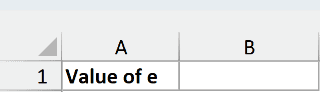
Here is the formula:
=EXP(1)
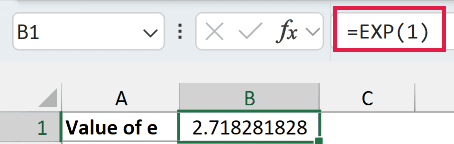
This gives 2.718281828. Since e raised to the power of 1 is just e, EXP(1) is the value of e.
It’s tempting to type 2.718 into a formula as a shortcut, but that’s only accurate to three decimal places. EXP(1) gives you the full value Excel can store, so it’s the better choice.
Important: If you type =e^2 in a cell, you’ll get the #NAME? error, because Excel has no built-in constant called e. Use =EXP(2) instead, or =EXP(1)^2, which returns the same result.
Example 2: Calculate e^x for a List of Numbers
Now let’s use EXP on a whole list of numbers in one go.
Below I have a list of numbers in column A, and I want to calculate e raised to each of them in column B.
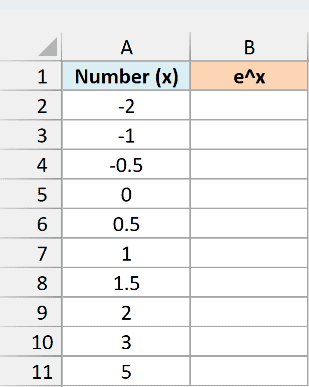
Here is the formula:
=EXP(A2:A11)
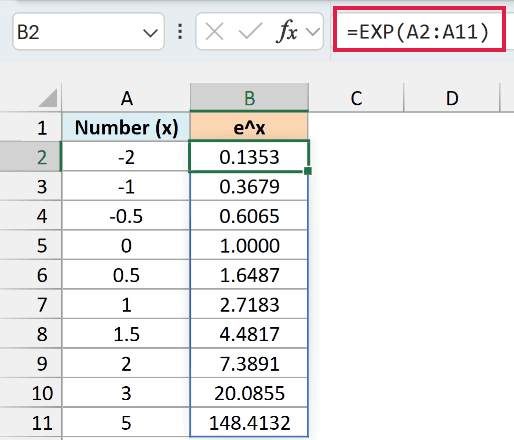
Because I gave EXP the whole range A2:A11, it returns one result for each number and spills them down column B. You enter the formula once in B2, and there’s nothing to copy down.
If you are using Excel 2019 or earlier, enter the below formula in cell B2 and then copy it down the range:
=EXP(A2)
Now look at the pattern in the results. When x is 0, you get 1, because e raised to the power of 0 is 1.
For a negative x, the result lands between 0 and 1 (e^-1 is 0.3679), and it shrinks the more negative x goes.
For positive numbers, the result grows quickly. e^3 is about 20, and e^5 is already about 148, which is why EXP shows up whenever something grows exponentially.
Pro Tip: EXP always uses e as the base. To raise any other number to a power, use the caret operator instead, for example =2^A2 for 2 raised to the value in A2.
Example 3: Calculate Continuous Compounding with EXP
Here’s a practical use of EXP with money.
With regular compound interest, the interest gets added at set times, like once a year or once a month. Continuous compounding adds it all the time, and that’s where EXP comes in.
Below I have a $2,000 gift for a newborn that will stay in savings for 18 years at a 4% annual rate, and I want the balance with continuous compounding in cell B5.
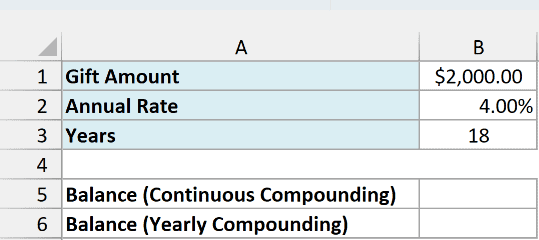
Here is the formula:
=B1*EXP(B2*B3)
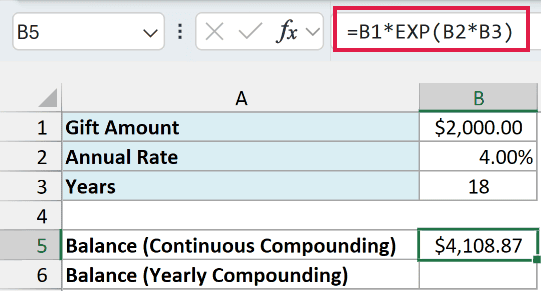
This gives $4,108.87.
The math for continuous compounding is the starting amount times e raised to (rate × years), and that’s exactly what this formula does. B2*B3 multiplies the 4% rate by 18 years to get 0.72.
EXP turns that into e^0.72 (about 2.054), and multiplying it by the $2,000 in B1 gives the final balance.
To see what difference this makes, here is the same gift compounded once a year, in cell B6:
=B1*(1+B2)^B3
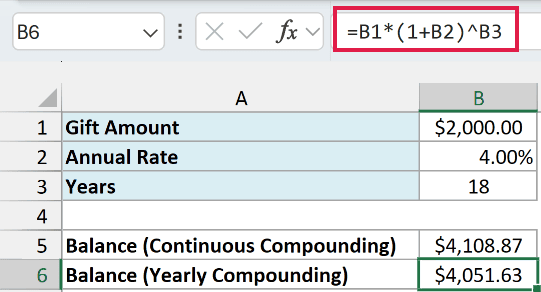
This gives $4,051.63, so continuous compounding earns about $57 more over the 18 years. No compounding schedule at a 4% rate can beat the continuous number, because it’s the limit you approach as you compound more and more often.
If you’d rather use a built-in function for the yearly balance, the FV function returns the same $4,051.63.
Example 4: Exponential Decay with EXP (Cooling Coffee)
EXP also works the other way, for things that shrink over time.
Below I have the minutes since a cup of coffee was poured, plus the room temperature, starting temperature, and cooling rate in E1:E3, and I want the coffee’s temperature at each minute mark in column B.
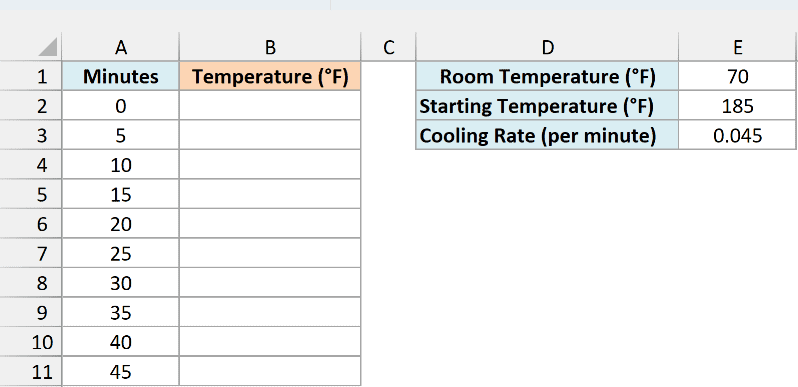
Here is the formula:
=E1+(E2-E1)*EXP(-E3*A2:A11)
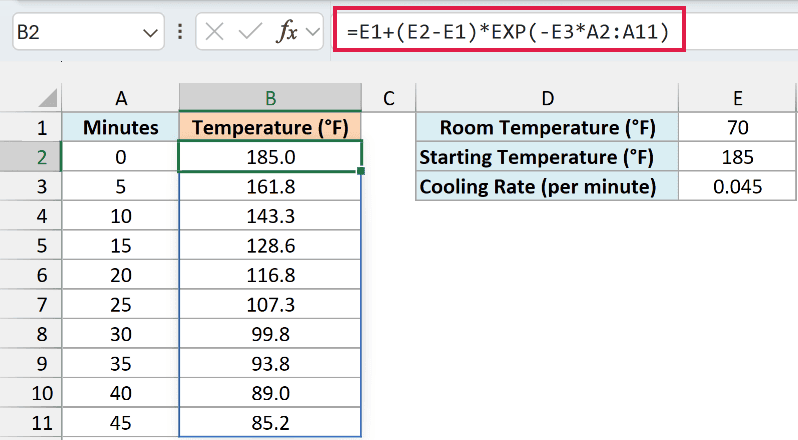
The coffee starts at 185.0°F, drops to 143.3°F after 10 minutes, and is down to 85.2°F after 45 minutes.
If you are using Excel 2019 or earlier, enter the below formula in cell B2 and then copy it down the range:
=$E$1+($E$2-$E$1)*EXP(-$E$3*A2)
How this formula works:
E2-E1is the gap between the coffee and the room, which is 115 degrees at the start.EXP(-E3*A2:A11)shrinks that gap as the minutes go by. The minus sign makes the power negative, and as you saw in Example 2, e raised to a negative number is less than 1.E1+adds the room temperature back, so the coffee gets closer and closer to 70°F but never drops below it.
This is Newton’s law of cooling, and the same pattern fits anything that shrinks by a steady percentage over time. A negative power inside EXP is the giveaway that you’re looking at decay.
The cooling rate in E3 controls how fast it happens. Change it to a bigger number, and the coffee cools faster as the whole column updates on its own.
Example 5: Reverse LN with EXP (Convert Natural Logs Back)
The last example is about undoing a natural log.
Below I have the natural log of some home sale prices, made earlier with the LN function, and I want the actual sale prices back in column C.
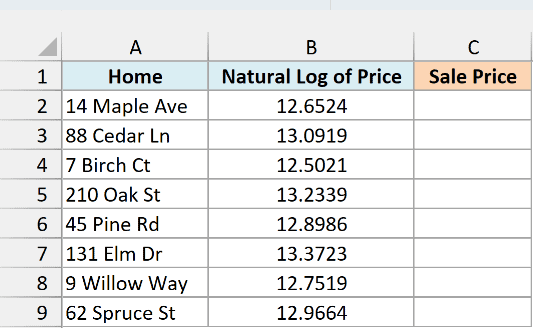
Here is the formula:
=EXP(B2:B9)
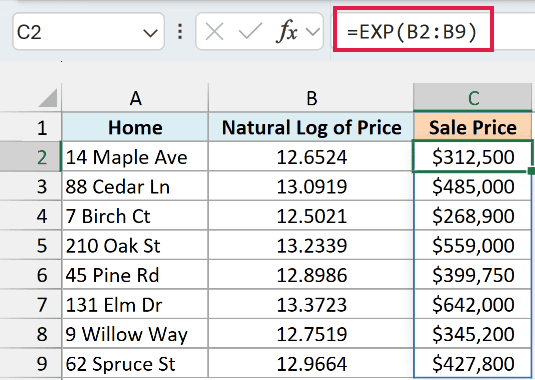
EXP is the inverse of the LN function, so EXP of a natural log gives you back the number you started with. Here, the log in B2 turns back into $312,500, which is the price that went into the LN function in the first place.
If you are using Excel 2019 or earlier, enter the below formula in cell C2 and then copy it down the range:
=EXP(B2)
The logs in column B show four decimals, but each cell holds the full value, which is why the prices come back exact. If you retype a rounded log like 12.6524, you’ll get a price that’s about $13 off.
Important: EXP only reverses the LN function, which gives the natural log. If your values came from the LOG function, which uses base 10 by default, EXP gives the wrong numbers, so reverse them with =10^B2 instead.
So these are five ways to use the EXP function in Excel, from getting the value of e to working out continuous compounding, cooling, and natural logs.
I hope you found this article helpful.
Other Excel Articles You May Also Like:
