

If you want to know how much your money will grow to over time, you can use the FV function in Excel. It calculates the future value of a one-time deposit, regular deposits, or both, at a fixed interest rate.
You get the answer in one formula, without building a month-by-month table. It can also tell you how much you still owe on a loan.
In this article, I’ll show you how to use FV with seven examples, including payment timing, a year-by-year balance, and the remaining balance on a loan.
Follow along with the example file
FV Function Examples.xlsx
FV Function Syntax
Here is the syntax of the FV function:
=FV(rate, nper, pmt, [pv], [type])
- rate – Required. The interest rate for each period.
- nper – Required. The total number of periods (for example, the number of months you’ll make deposits).
- pmt – Required. The amount you pay in every period. It has to stay the same each period.
- pv – Optional. The amount you already have at the start (a lump sum). If you leave it out, FV takes it as 0.
- type – Optional. When the payments happen. Use 0 for the end of each period and 1 for the start. If you leave it out, FV takes it as 0.
FV uses signs to tell money going in from money coming out. Money you put in (the pmt and pv amounts) goes in as a negative number, and the future value comes back as a positive number.
The rate and nper have to use the same period. With monthly deposits, divide the yearly interest rate by 12 and multiply the years by 12, otherwise FV treats a yearly rate as if you earned it every month.
If there are no regular payments, enter 0 for pmt and put the lump sum in pv. Don’t leave pmt out completely, because it’s required, and Excel won’t let you enter a formula like =FV(5%,10).
The FV function works in all Excel versions, including 365, 2024, 2021, 2019, 2016, Mac, and the web.
When to Use the FV Function
Use the FV function when you need to:
- Find out what a one-time deposit, such as a certificate of deposit, will be worth at the end of its term.
- See how much a fixed monthly deposit will add up to by a target date.
- Combine money you already have with future deposits to check if you’ll reach a savings goal.
- Build a year-by-year growth table or compare different rates and time periods side by side.
- Work out how much is still left to pay on a loan after a number of payments.
Let me show you a few practical examples of how FV works.
Example 1: Future Value of a One-Time Deposit
Let’s start with the simplest case, where you put money in once and leave it alone.
Below I have a certificate of deposit with the deposit amount, the yearly interest rate, and the number of years, and I want to find what it will be worth at the end in cell B6.
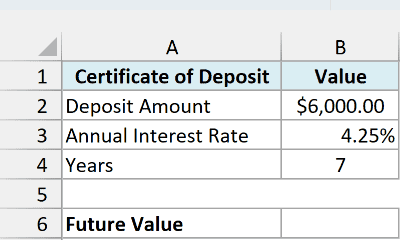
Here is the formula:
=FV(B3,B4,0,-B2)
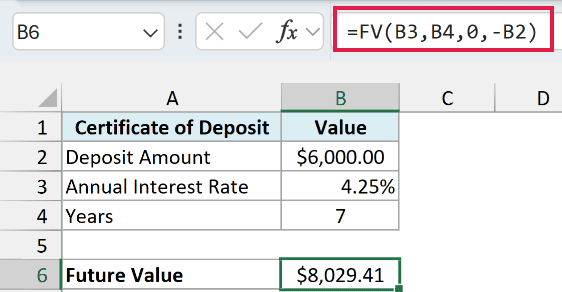
This gives me $8,029.41, so the $6,000 deposit earns $2,029.41 in interest over seven years.
In the above formula, B3 is the yearly rate and B4 is the number of years, so the two already use the same period. Since there are no monthly deposits, pmt is 0, and the $6,000 goes in the pv argument as -B2.
Important: If you leave out the minus sign and enter the deposit as B2, the formula returns -$8,029.41. Put the minus sign in front of the deposit, and the future value comes back positive.
Example 2: Calculate Future Value for a List of Savings Goals
Now let’s look at regular deposits, which is where FV saves the most effort.
Below I have a list of savings goals with the monthly deposit and the number of years for each, and I want the future value of every goal in column D.
All of them go into the same savings account, which pays the yearly rate in cell F2.
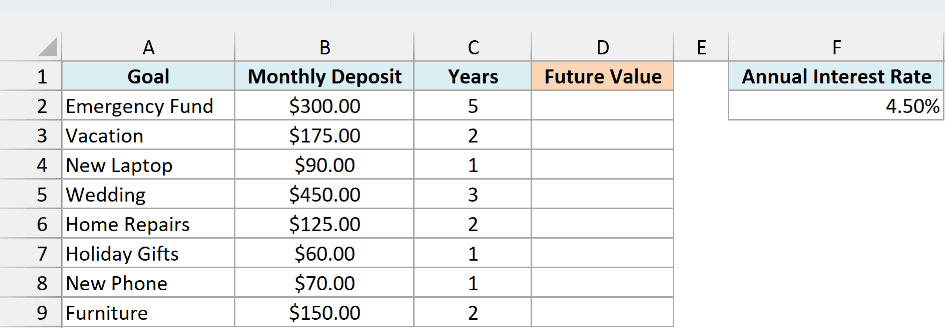
Here is the formula:
=FV(F2/12,C2:C9*12,-B2:B9)
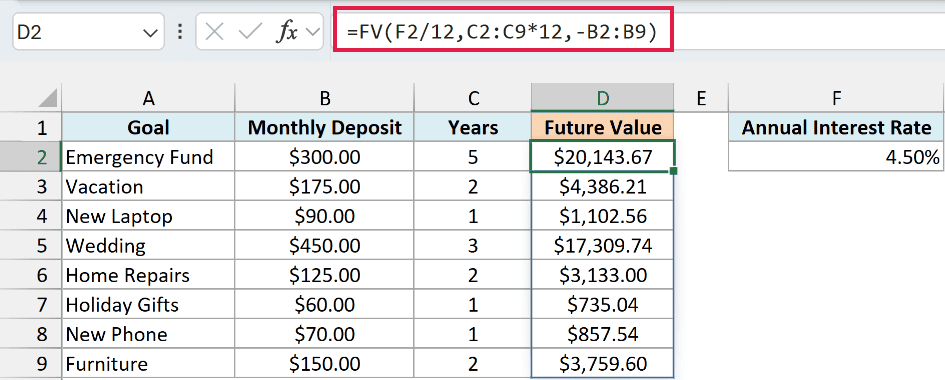
You enter this one formula in cell D2. The emergency fund’s $300 a month for five years comes to $20,143.67.
How this formula works:
F2/12turns the 4.5% yearly rate into a monthly rate, because the deposits happen every month.C2:C9*12turns each goal’s years into the number of monthly deposits.-B2:B9is the monthly deposit for each goal, negative because it’s money you put in.
Since the number of months and the deposits are whole ranges, FV runs once per row and returns eight answers. The single rate in F2 is shared by every row.
For the spill to work, D3:D9 must be empty. If anything is already in those cells, you get a #SPILL! error instead.
If you are using Excel 2019 or earlier, enter the below formula in cell D2 and then copy it down to D9:
=FV($F$2/12,C2*12,-B2)
The dollar signs lock the rate cell, so every row keeps using F2 when you copy the formula down. Without them, the copy in D3 would point to the empty F3 and work out the total with no interest at all.
Example 3: Future Value With a Starting Balance and Monthly Deposits
Most real savings plans have both parts, some money you already have plus a fixed amount you add every month.
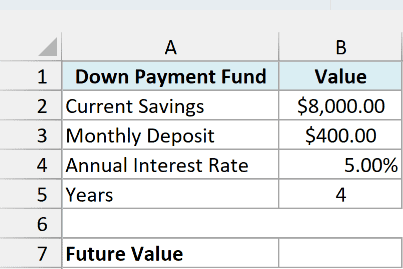
Below I have a down payment fund with the current savings, the monthly deposit, the yearly rate, and the number of years, and I want to find how much it will hold at the end in cell B7.
Here is the formula:
=FV(B4/12,B5*12,-B3,-B2)
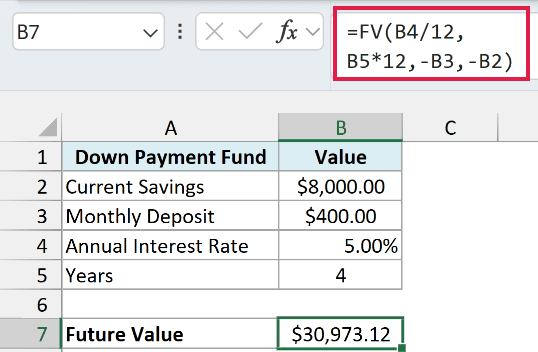
This returns $30,973.12.
Here, the $400 monthly deposit goes in pmt and the $8,000 you already have goes in pv. FV grows both for 48 months and adds them up, so you don’t need two separate calculations.
Over the four years, you put in $27,200 in total ($8,000 plus 48 deposits of $400). The other $3,773.12 is interest.
Example 4: Deposits at the Start vs End of the Month
By default, FV assumes each deposit happens at the end of the period. The type argument lets you change that, and here’s how much difference it makes.
Below I have a savings account with a monthly deposit, a yearly rate, and the number of years, and I want to compare the future value when deposits go in at the end of each month (cell B6) and at the start (cell B7).
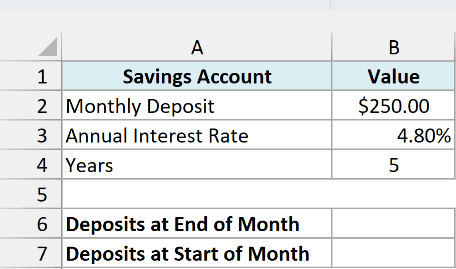
Here is the formula for deposits at the end of each month:
=FV(B3/12,B4*12,-B2)
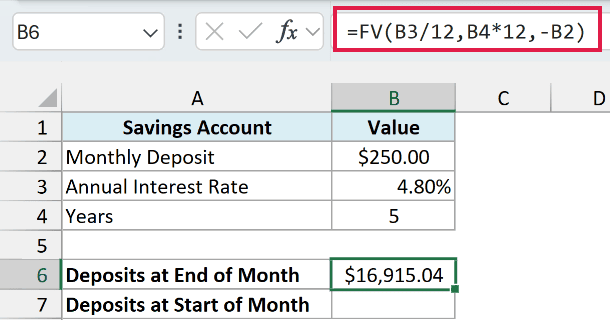
This gives $16,915.04. I left out pv and type, so FV takes both as 0, which means no starting balance and deposits at the end of each month.
And here is the formula for deposits at the start of each month:
=FV(B3/12,B4*12,-B2,0,1)
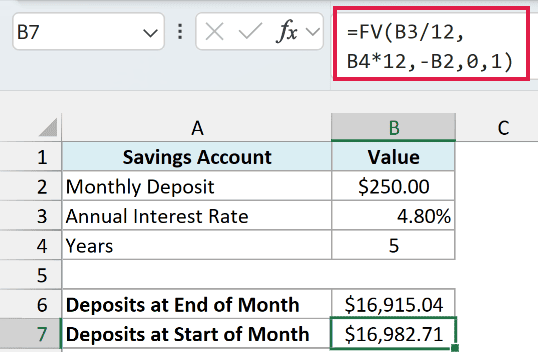
This gives $16,982.71, about $68 more. The 1 in the last argument tells FV that each deposit goes in at the start of the month, so every deposit earns one extra month of interest.
Notice the 0 before the 1. The type argument comes after pv, so pv needs a value in its place, and 0 means there’s no starting balance.
Example 5: Show the Balance Year by Year
A single final number is useful, but sometimes you want to see how the money builds up along the way.
Below I have an investment plan with a starting amount, a yearly contribution, and an expected yearly return, and I want the balance at the end of each year from 1 to 10 in column B.
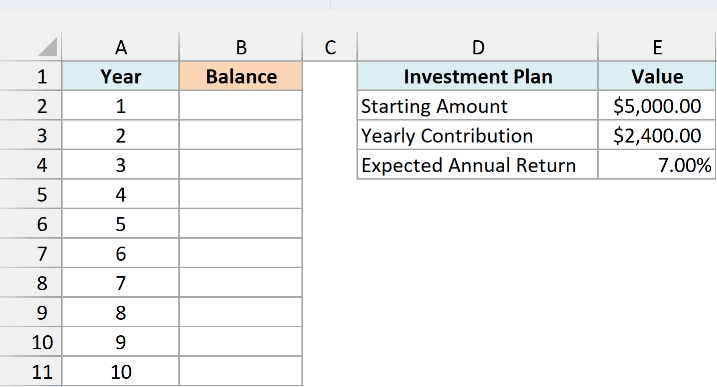
Here is the formula:
=FV(E4,A2:A11,-E3,-E2)
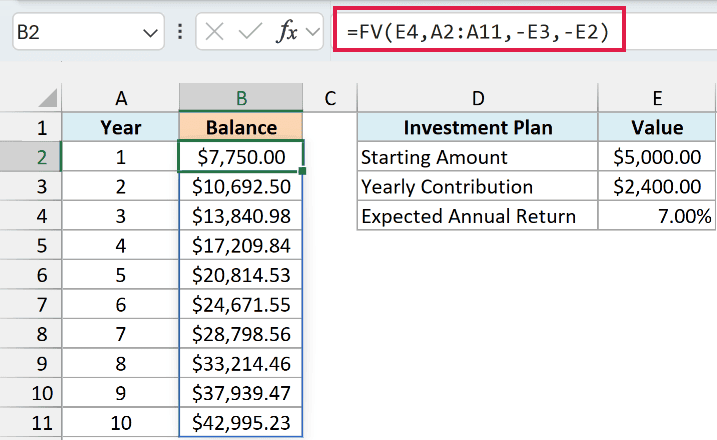
This one formula spills ten balances, from $7,750.00 after year 1 to $42,995.23 after year 10. You put in $29,000 over those ten years, and the rest is growth.
The trick is in the nper argument. Instead of one number of years, it gets the whole list of years in A2:A11, so FV works out the balance for 1 year, then 2 years, and so on.
The contribution is yearly and the return is yearly, so the rate and periods already match and there’s no need to divide by 12.
If you are using Excel 2019 or earlier, enter the below formula in cell B2 and then copy it down to B11:
=FV($E$4,A2,-$E$3,-$E$2)
Example 6: Compare Future Values Across Rates and Years
Let’s step it up and use one formula to see how much the interest rate matters over different time periods.
Below I have a grid with interest rates from 3% to 7% across the top and terms from 5 to 30 years down the side, and I want the future value of a $250 monthly deposit (cell H2) in every cell of the grid.
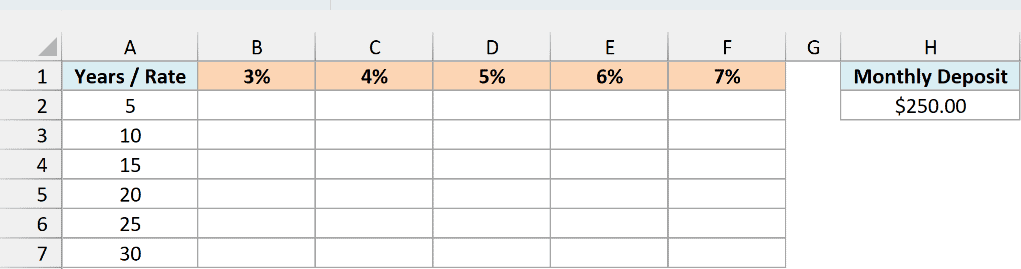
Here is the formula:
=FV(B1:F1/12,A2:A7*12,-H2)
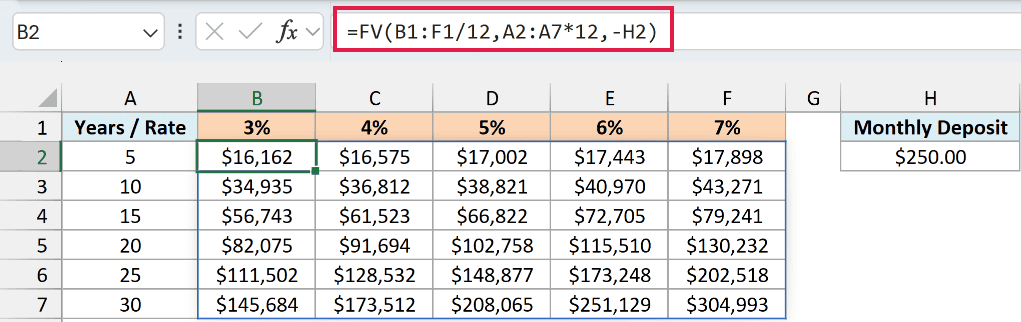
Entered in cell B2, this fills the whole 6 by 5 grid with 30 future values.
How this formula works:
B1:F1/12is the row of yearly rates, turned into monthly rates.A2:A7*12is the column of terms, turned into months.- Because one range is a row and the other is a column, Excel pairs every rate with every term, so you get one result for each combination.
Over 30 years, the same $250 a month grows to $145,684 at 3% but to $304,993 at 7%.
The rates in row 1, the years in column A, and the deposit in H2 are all inputs. Change any of them and the whole grid updates.
If you are using Excel 2019 or earlier, enter the below formula in cell B2 and then copy it across to column F and down to row 7:
=FV(B$1/12,$A2*12,-$H$2)
This one uses mixed references. B$1 keeps every copy reading a rate from row 1, and $A2 keeps every copy reading a term from column A.
Example 7: Find the Remaining Balance on a Loan
FV isn’t only for savings. Say you’ve made 18 of the 48 payments on a loan and want to know how much is still left to pay.
Below I have a renovation loan with the loan amount, the yearly interest rate, the term in months, the monthly payment, and the number of payments made so far, and I want the remaining balance in cell B8.
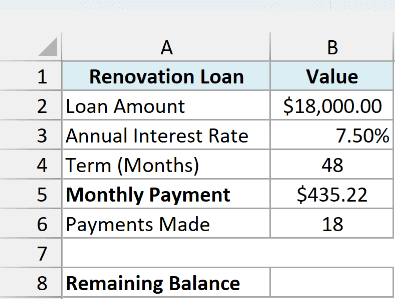
The monthly payment in B5 comes from the PMT function, =PMT(B3/12,B4,-B2), which returns $435.22.
Here is the formula:
=FV(B3/12,B6,B5,-B2)
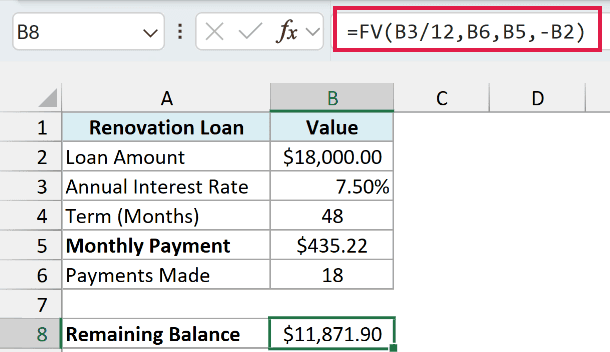
This returns $11,871.90, which is what’s left to pay.
Look at the signs here. The loan amount goes in as negative and the payment as positive.
That’s easiest to read from the bank’s side. The bank paid out $18,000 and gets $435.22 back each month, so whatever FV returns is what the bank is still owed.
Back on your side of the loan, the result also shows why the balance drops slowly at first. You’ve paid $7,833.96 so far, but the balance has only gone down by $6,128.10, because a good part of each early payment goes to interest.
FV needs the same deposit every period. If your deposits go up each year, use the growing annuity formula instead.
So these are seven ways to use the FV function in Excel, from a simple one-time deposit to a full grid of rates and terms.
Once you’re comfortable with the signs and with matching the rate to the period, the rest is just plugging in your own numbers. I hope you found this tutorial useful.
Other Excel Articles You May Also Like:
