

You can use the PV function in Excel to calculate present value, which is what a series of future payments, or a single amount due later, is worth today.
It helps you work out how much you can borrow on a monthly budget, or how much to set aside now to reach a savings goal.
In this article, I’ll show you how to use PV with six examples, including a car loan with a balloon payment and a full present value table.
Follow along with the example file
PV Function Examples.xlsx
PV Function Syntax
Here is the syntax of the PV function:
=PV(rate, nper, pmt, [fv], [type])
- rate – the interest rate for each period. For monthly payments, this is the annual rate divided by 12.
- nper – the total number of periods, such as 60 for a loan paid monthly over five years.
- pmt – the payment made each period. It has to be the same amount every period. Use 0 when there are no regular payments.
- [fv] – (optional) a single amount at the very end, after the last period, such as a savings target or a final balloon payment. If you leave it out, Excel uses 0.
- [type] – (optional) when the payments happen. Use 0 (or leave it out) for the end of each period, and 1 for the start.
Excel won’t accept a PV formula with only the rate and nper, so pmt needs to be there even when it’s 0.
If pmt and fv are both zero, there’s nothing to bring back to today, so PV simply returns 0. At least one of them needs a real amount.
The PV function works in all Excel versions, including 365, 2024, 2021, 2019, 2016, Mac, and the web.
When to Use the PV Function
Use this function when you need to:
- Find how much to set aside today to reach a savings goal
- Work out the biggest loan a monthly payment can cover
- Check whether paying for something upfront is cheaper than paying monthly
- Decide whether to accept a lump sum today or receive payments over time
- Build a table of present values for different rates and time periods
Let me show you a few practical examples of how to use it.
Example 1: Present Value of a Future Savings Goal
Let’s start with the simplest case, one amount you need at some point in the future.
Below I have a savings goal of $14,000 for a new roof in six years, with a 4% annual interest rate, and I want to find the deposit needed today in cell B6.
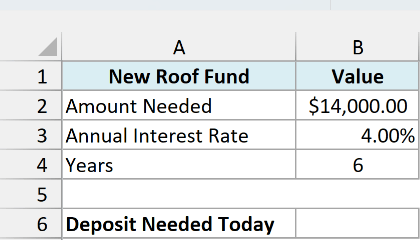
Here is the formula:
=PV(B3,B4,0,-B2)
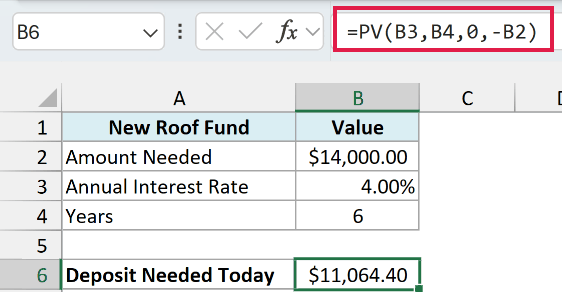
This returns $11,064.40. So if you put that amount in an account earning 4% a year, compound interest grows it to $14,000 in six years.
In the above formula, B3 is the yearly rate and B4 is the number of years. There are no regular deposits, so pmt is 0, and the $14,000 target goes into the fv argument.
You may have noticed the minus in front of B2. PV looks at the money from your side of the deal, where cash you receive is positive and cash you pay is negative, and it returns the opposite sign to the amounts you give it.
So if you enter the $14,000 as a positive number (money you’ll take out later), PV returns -$11,064.40, its way of saying the money leaves your pocket today. Adding the minus flips the result, so the deposit shows as a positive number.
Important: Enter the rate as a percentage (4%) or a decimal (0.04), never as a whole number. If B3 held 4 instead of 4%, PV would read it as 400% a year and return $0.90, with no error to warn you.
Example 2: Calculate the Maximum Loan for a Monthly Budget
Now let’s bring in regular payments, which is where PV gets really useful.
Below I have a list of purchases with the monthly amount I can afford and the number of months for each, plus a 7.5% annual interest rate in F2, and I want the maximum loan for each purchase in column D.
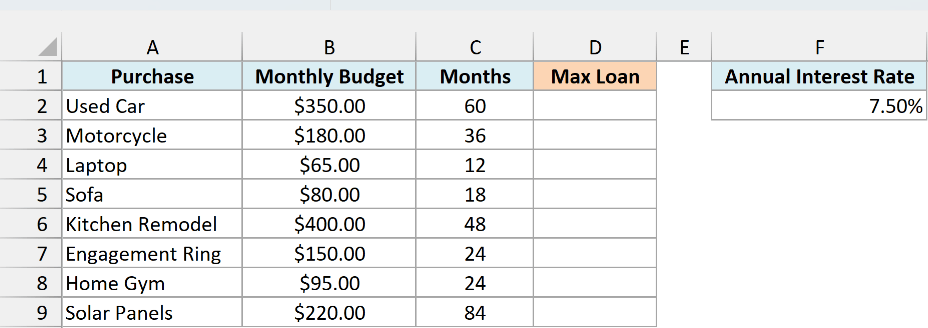
Here is the formula:
=PV(F2/12,C2:C9,-B2:B9)
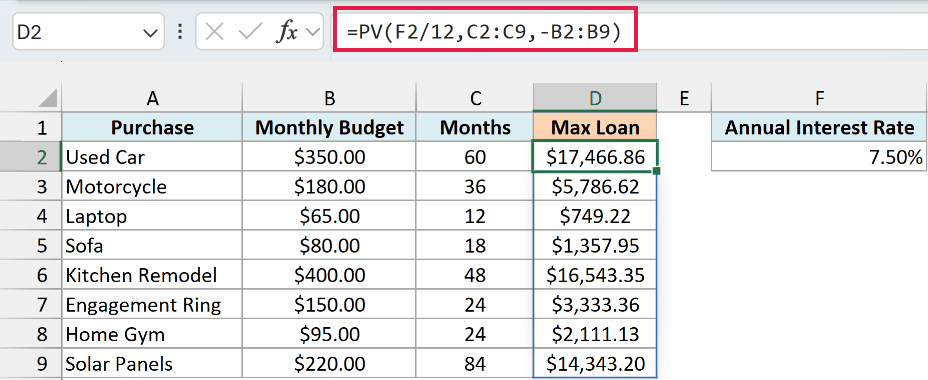
This one formula returns the maximum loan for all eight purchases. For example, $350 a month for 60 months covers a loan of $17,466.86 for the used car.
Because C2:C9 and B2:B9 are ranges, PV works out one result per row and spills them down column D. If any cell in D3:D9 already has something in it, the formula can’t spill and shows a #SPILL! error until you clear those cells.
F2/12 is the monthly rate, since the payments happen every month. C2:C9 gives the number of months for each purchase, and -B2:B9 is the monthly payment, negative because it’s money you pay.
Important: If the rate and the number of periods use different time units, PV gives a wrong answer with no error. Using F2 as it is, without dividing by 12, would return $4,605.78 for the used car instead of $17,466.86.
If you are using Excel 2019 or earlier, enter the below formula in cell D2 and then copy it down to D9:
=PV($F$2/12,C2,-B2)
The dollar signs keep the rate locked to F2 as you copy the formula down, while C2 and B2 move to the next row each time.
Example 3: Payments at the Start vs End of the Month
Here’s a practical one that shows what the last argument, type, does.
Below I have a gym membership at $55 a month for 12 months or $620 upfront, and I want to know which is cheaper by finding the value today of the monthly fees in B7 and B8.
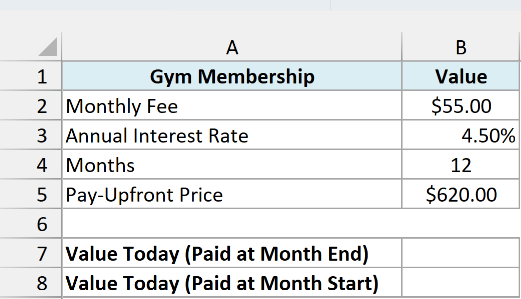
Here is the formula for fees paid at the end of each month:
=PV(B3/12,B4,-B2)
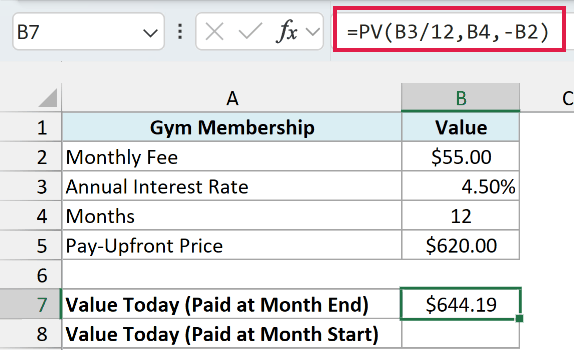
This returns $644.19. Since type is left out, PV assumes each $55 payment happens at the end of the month.
If the fee is charged at the start of each month instead, add 1 as the type argument:
=PV(B3/12,B4,-B2,0,1)
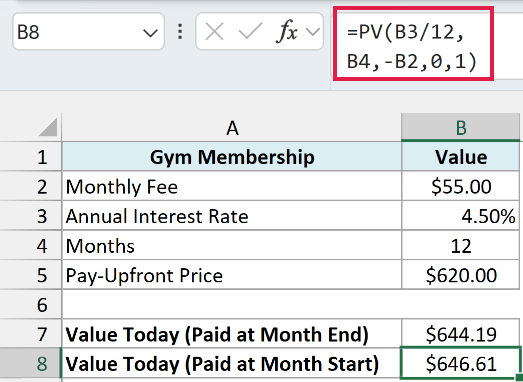
This returns $646.61, which is $2.42 more. Every payment now happens a month earlier, so each one is worth a little more in today’s money.
The 0 before the 1 is the fv argument. There’s no final amount here, but something has to fill that spot before you can get to type, so you can enter 0 or leave it empty with two commas.
Both results are higher than the $620 upfront price. So at this interest rate, paying for the year upfront is the cheaper option.
Example 4: Car Loan With a Balloon Payment
Let’s step it up with a loan that has a big payment at the end.
Below I have a car loan with a $310 monthly payment for 48 months at 6.9% a year, plus a $7,500 balloon payment at the end, and I want to find how much I can borrow in B7.
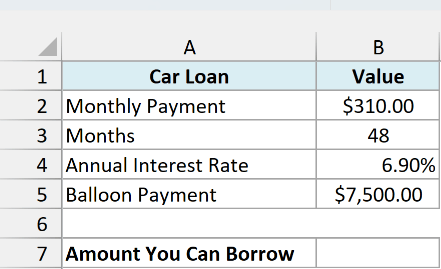
Here is the formula:
=PV(B4/12,B3,-B2,-B5)
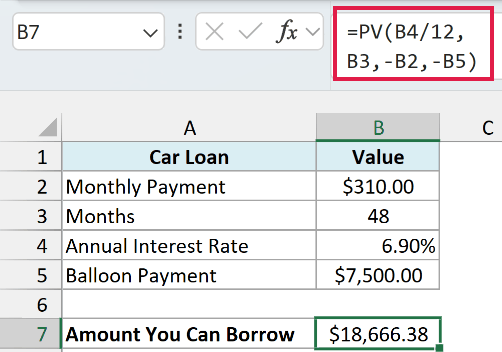
This returns $18,666.38.
The balloon payment goes into the fv argument because it’s paid once, at the end, along with the last monthly payment. The monthly payment and the balloon are both money you pay, so both go in as negative numbers.
If you enter the balloon as a positive number instead, PV treats it as money you get back at the end and returns $7,275.18, which is way off.
The balloon is what lets the same $310 a month cover a bigger loan, since without it, $310 for 48 months covers only $12,970.78. But you still owe the $7,500 at the end, so you pay $22,380 in total.
Example 5: Lump Sum or Quarterly Payments (Which Is Worth More?)
Here’s a scenario where PV helps you make a decision.
Below I have a client who offers to pay either $12,000 today or $1,150 every quarter for three years, and with a 6% annual interest rate, I want to find what the quarterly payments are worth today in B7.
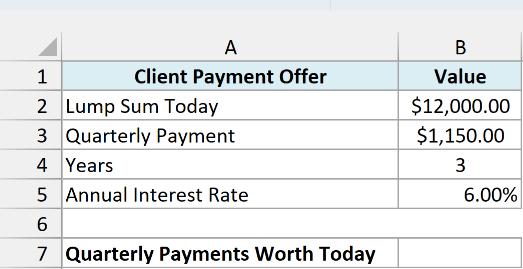
Here is the formula:
=PV(B5/4,B4*4,-B3)
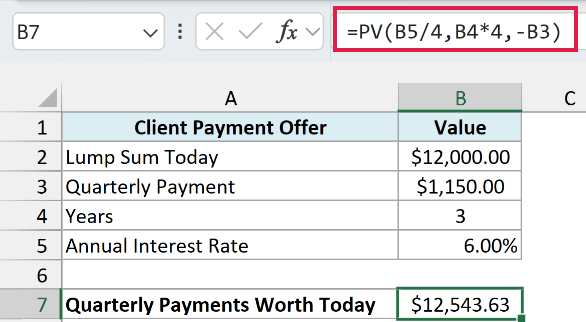
This returns $12,543.63, which is $543.63 more than the lump sum. So if 6% is what you could earn on the money, the quarterly payments are the better deal.
Since the payments come every quarter, B5/4 turns the annual rate into a quarterly rate and B4*4 turns three years into 12 quarters. Doing the conversion inside the formula means you don’t need extra cells for the quarterly rate or the number of quarters.
The payments are money you receive, so entering B3 as it is would give you -$12,543.63. The minus in front of B3 flips it to a positive value, the same way it did in Example 1.
You might be tempted to just add up the payments, which gives $13,800. But that treats a payment three years from now as if it were cash today, which is why the plain total looks bigger than the payments are really worth.
Example 6: Build a Present Value Table in One Formula
Let’s finish with something that shows how much one PV formula can do in newer versions of Excel.
Below I have years 1 to 10 in column A, interest rates from 2% to 10% in row 1, and $10,000 needed in H2, and I want to fill B2:F11 with what that $10,000 is worth today for each combination.
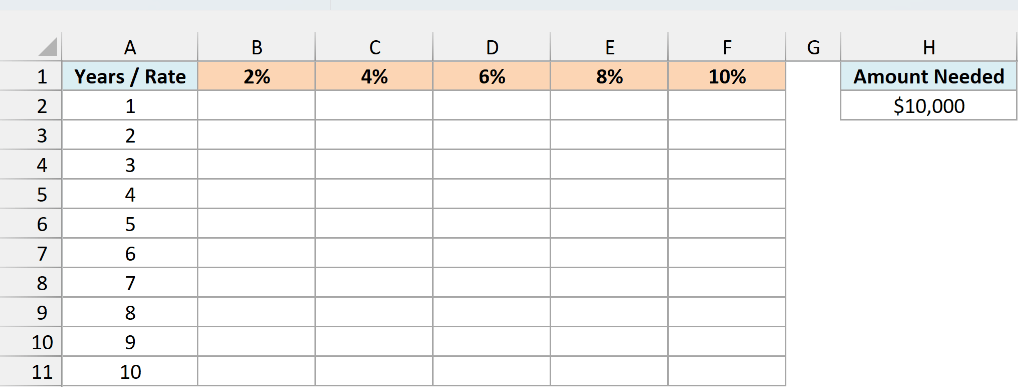
Here is the formula:
=PV(B1:F1,A2:A11,0,-H2)
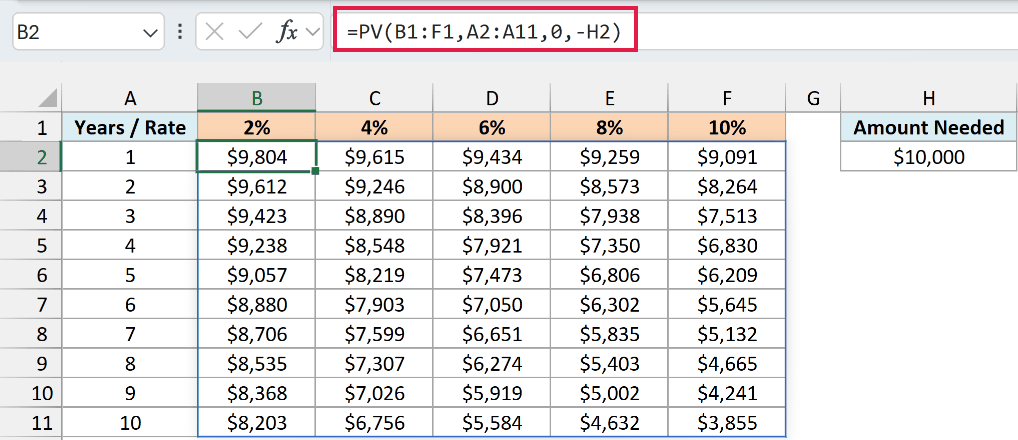
This one formula fills the whole table. For example, $10,000 you need in 10 years is worth $3,855 today at 10%, while $10,000 you need next year is worth $9,804 at 2%.
B1:F1 is a row of five rates and A2:A11 is a column of ten years. When you give PV a row and a column like this, Excel pairs every rate with every year and returns a 10 by 5 grid of results.
Reading across a row shows how a higher rate shrinks the present value. Reading down a column shows how a longer wait does the same thing.
If you are using Excel 2019 or earlier, enter the below formula in cell B2 and then copy it across to column F and down to row 11:
=PV(B$1,$A2,0,-$H$2)
The dollar signs keep each copy pointing at the rate in row 1, the year in column A, and the amount in H2.
So these are six ways you can use the PV function in Excel, from a single savings goal to a full present value table.
If you know the loan amount and want the monthly payment instead, the PMT function does the reverse of what you saw in Example 2.
PV only works when every payment is the same amount and the rate stays fixed. For cash flows that change from period to period, use the NPV function.
And if your payments grow by a set percentage each period, the growing annuity formula is the one you need.
I hope you found this article helpful.
Other Excel Articles You May Also Like:
