

The IPMT function in Excel returns the interest part of a loan payment for any period you pick, whether that’s the first payment, the last one, or anything in between.
When you pay off a loan in equal installments, the early payments are mostly interest and the later ones are mostly principal. IPMT lets you check the interest in any one of those payments without building a full repayment schedule.
One thing that catches people out is that IPMT gives you a negative number for a loan. I’ll show you why that happens and how to flip it.
Below, I’ll walk you through six examples, covering different payment schedules, payments made at the start of the month, a savings goal, and a mortgage.
Follow along with the example file
IPMT Function Examples.xlsx
IPMT Function Syntax
Here is the syntax of the IPMT function:
=IPMT(rate, per, nper, pv, [fv], [type])
- rate – The interest rate for each period. For monthly payments, this is the annual rate divided by 12.
- per – The payment number you want the interest for. It has to be between 1 and nper.
- nper – The total number of payments over the life of the loan.
- pv – The present value, which for a loan is the amount you borrowed.
- [fv] – Optional. The balance you want left after the last payment. If you leave it out, it’s 0.
- [type] – Optional. When the payments are made. Use 0 for the end of each period (the default) or 1 for the start.
Because fv defaults to 0, IPMT assumes the loan is fully paid off by the last payment, which is what you want for most loans. For a savings goal, fv is where the target amount goes (Example 5 shows this).
The IPMT function works in all Excel versions, including 365, 2024, 2021, 2019, 2016, Mac, and the web.
When to Use the IPMT Function
Use this function when you need to:
- Find the interest part of any single loan payment
- See how the interest drops month by month over a loan
- Compare the interest across monthly, quarterly, and annual payment plans
- Work out the interest you earn each month while saving toward a goal
- Check how much of a mortgage payment is going to interest at different points in the loan
Let me show you a few practical examples of how to use the IPMT function in Excel.
Example 1: Find the Interest in One Loan Payment
Let’s start with a simple example.
Below I have the details of a motorcycle loan, and I want to find the interest in the first monthly payment in cell B7.
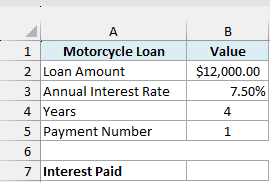
Here is the formula:
=IPMT(B3/12,B5,B4*12,B2)
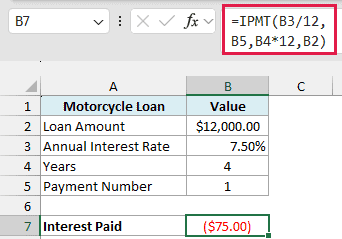
The loan has a yearly rate and a term in years, but the payments are monthly. So B3/12 turns the 7.5% annual rate into a monthly rate, and B4*12 turns 4 years into 48 monthly payments.
B5 is the payment number (1) and B2 is the loan amount, so the formula returns -$75.00, which is $12,000 multiplied by the monthly rate of 0.625%. Excel shows this as ($75.00) in red.
The result is negative because Excel treats money you pay out as a negative number, and the interest is money you pay.
Important: The rate and nper have to use the same time unit as your payments. If you use B3 without dividing it by 12, IPMT treats 7.5% as a monthly rate and returns -$900.00 instead of -$75.00.
If you want to see the interest as a positive number, put a minus sign in front of IPMT:
=-IPMT(B3/12,B5,B4*12,B2)
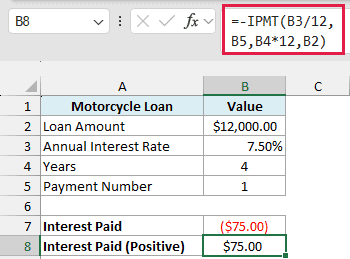
This flips the sign, so B8 shows $75.00. You’d get the same result by entering the loan amount as a negative number (-B2), but the minus sign in front lets you keep the loan amount as you’d normally type it.
You can change B5 to any payment number from 1 to 48 to see the interest in that payment. If you enter 0 or a number above 48, IPMT returns a #NUM! error, because that payment doesn’t exist.
Example 2: Get the Interest for Every Month of a Loan
Now let’s see what happens to the interest as you keep paying a loan.
Below I have a 12-month laptop loan, and I want the interest for each month in column B.
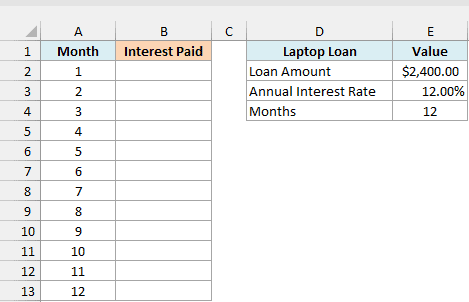
Here is the formula:
=-IPMT(E3/12,A2:A13,E4,E2)
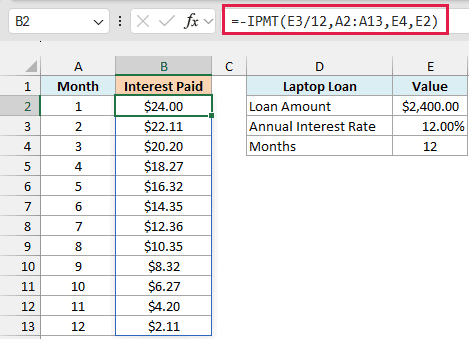
Instead of a single payment number, I’ve given the per argument the whole range A2:A13. So IPMT works out the interest for each month, and the one formula in B2 spills the results down to B13.
Since the loan term in E4 is already in months, it goes into nper as it is, with no need to multiply by 12. The rate in E3 still gets divided by 12.
The interest starts at $24.00 in month 1 and falls to $2.11 by month 12. Each payment pays off part of the balance, so the next month’s interest is calculated on a smaller amount.
If you are using Excel 2019 or earlier, enter the below formula in cell B2 and then copy it down the range:
=-IPMT($E$3/12,A2,$E$4,$E$2)
The dollar signs keep the loan details fixed as you copy the formula down, while A2 moves to the next month. The same approach works for the other spilling formulas in this article.
Example 3: IPMT for Monthly, Quarterly, and Annual Payments
Some loans let you choose how often you pay, and IPMT can show you how that changes the interest.
Below I have a $50,000 business loan with four payment schedules, and I want the interest in the first payment of each schedule in column C.

Here is the formula:
=-IPMT(F3/B2:B5,1,F4*B2:B5,F2)
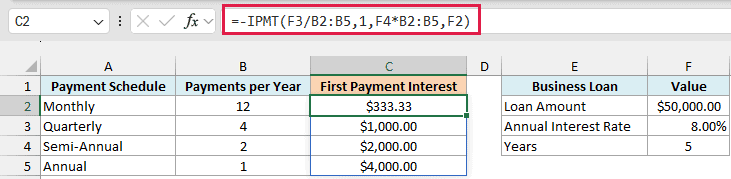
How this formula works:
F3/B2:B5divides the 8% annual rate by the number of payments per year, which gives the rate for each schedule (8%/12, 8%/4, 8%/2, and 8%/1).1is the payment number, so every row looks at the first payment.F4*B2:B5multiplies the 5-year term by the payments per year, which gives 60, 20, 10, and 5 payments.F2is the loan amount of $50,000.
The first payment carries $333.33 of interest on the monthly plan and $4,000.00 on the annual plan. A longer gap between payments gives the interest more time to build up.
These numbers only compare the first payment of each plan, not the total interest you’d pay over the whole loan.
Example 4: Interest When Payments Are Made at the Start of the Month
So far, every example has assumed you pay at the end of each period, which is Excel’s default.
Below I have a home theater financing plan where the first payment is due on the day of purchase. I want the interest for the first six months in column B, and the same with end-of-month payments in column C for comparison.
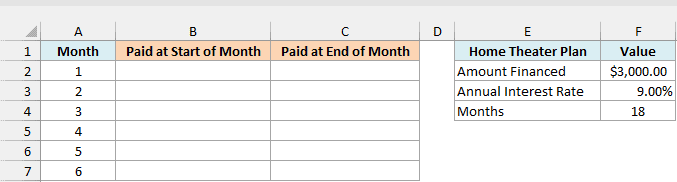
Here is the formula:
=-IPMT(F3/12,A2:A7,F4,F2,0,1)
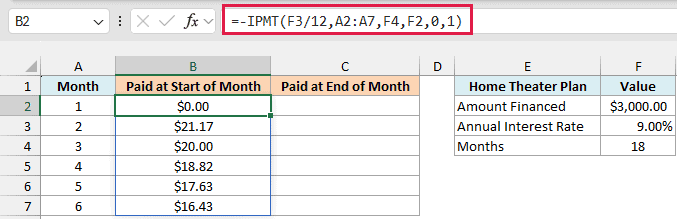
The last argument, 1, tells IPMT that each payment is made at the start of the month. The 0 before it is the fv argument, which means the plan is fully paid off at the end.
Month 1 shows $0.00 interest. The first payment is made on the day you buy, before any interest has had time to build up.
Important: Excel reads the arguments in order, so you can’t skip fv to get to type. If you write =-IPMT(F3/12,A2:A7,F4,F2,1), the 1 becomes fv, and month 1 shows $22.50 instead of $0.00 with no error to warn you.
To see the difference, here is the same plan with payments at the end of each month (the default) in column C:
=-IPMT(F3/12,A2:A7,F4,F2)
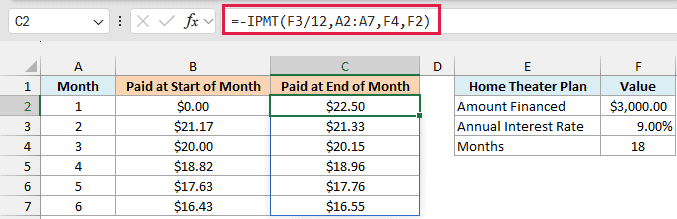
With end-of-month payments, month 1 has $22.50 of interest, and every later month is a little higher than in column B. That’s because paying at the start of each month reduces the balance one month earlier.
Example 5: Calculate Interest Earned on a Savings Goal
IPMT also works the other way around, when you’re the one earning the interest.
Below I have a vacation fund where I want to save $5,000 in 12 months, and I want to see the interest earned each month in column B.
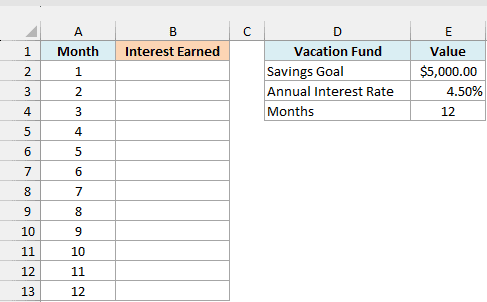
Here is the formula:
=IPMT(E3/12,A2:A13,E4,0,E2)
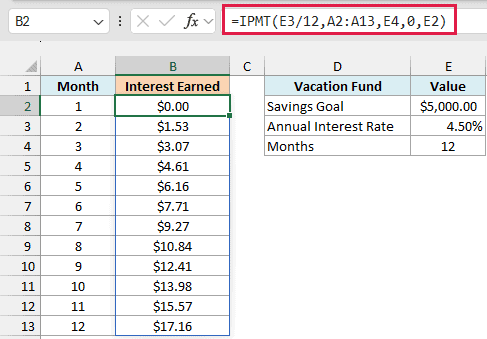
Here, pv is 0 because the fund starts empty, and the $5,000 goal in E2 goes into the fv argument. IPMT assumes you deposit the same amount at the end of every month and returns the interest earned each month.
This time there’s no minus sign in front of IPMT, and the results are still positive. That’s because the interest is money coming to you, and Excel shows money you receive as a positive number.
Month 1 shows $0.00 because the first deposit goes in at the end of month 1, so there’s nothing earning interest yet. After that, the interest grows every month as the balance grows, reaching $17.16 in month 12.
Pro Tip: To find how much you need to deposit each month, use the PMT function with the same rate, nper, pv, and fv. For this vacation fund, that’s about $408.14 a month.
Example 6: See How Much of a Mortgage Payment Goes to Interest
Let’s end with a much longer loan, a 30-year mortgage.
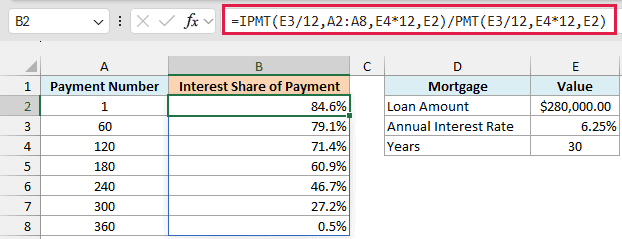
Below I have a mortgage with a few payment numbers spread across the loan, and I want the share of each payment that goes to interest in column B.
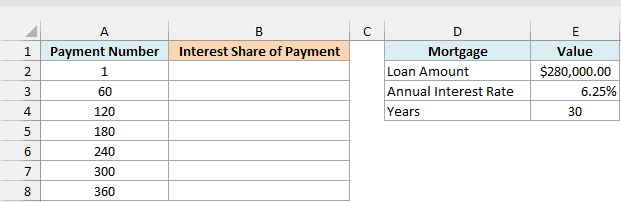
Here is the formula:
=IPMT(E3/12,A2:A8,E4*12,E2)/PMT(E3/12,E4*12,E2)
How this formula works:
IPMT(E3/12,A2:A8,E4*12,E2)returns the interest in payments 1, 60, 120, 180, 240, 300, and 360.PMT(E3/12,E4*12,E2)returns the fixed monthly payment of about $1,724.01, which PMT shows as a negative number (-$1,724.01).- Dividing the interest by the payment gives the share of the payment that goes to interest. Both values are negative, so the result comes out positive, and the column is formatted as a percentage.
In the very first payment, 84.6% of the money goes to interest. Even at payment 180, halfway through the loan, interest still takes 60.9% of the payment.
The share only drops below half somewhere between payments 180 and 240, and by the last payment it’s just 0.5%. That’s why the balance on a long mortgage goes down so slowly in the early years.
So these are six ways you can use the IPMT function in Excel, from finding the interest in a single payment to tracking how it changes over a whole mortgage.
Just remember to match the rate and nper to how often you pay, and to expect a negative number when it’s a loan. I hope you found this article helpful.
Other Excel Articles You May Also Like:
