

The RRI function gives you the steady growth rate that takes a value from its starting amount to its ending amount. Give it the start, the end, and how many periods it took, and it tells you how much the value grew each period.
When the periods are years, that rate is the compound annual growth rate (CAGR). So RRI is the shortest way to answer questions like “how fast did my investment really grow each year?” or “what’s the yearly growth in our sales?”
In this article, I’ll show you how to use RRI with seven examples, including a negative growth rate, start and end dates, monthly growth, and projecting future numbers.
Follow along with the example file
RRI Function Examples.xlsx
RRI Function Syntax
Here is the syntax of the RRI function:
=RRI(nper, pv, fv)
- nper – The number of periods over which the value grew (for example, the number of years).
- pv – The present value, which is the value at the start.
- fv – The future value, which is the value at the end.
All three arguments are required.
RRI returns the rate for one period, in the same unit you use for nper. If nper is in years, you get a yearly rate, and if it’s in months, you get a monthly rate.
Enter both the starting and the ending value as positive numbers. RRI doesn’t need a minus sign on either one.
You get a #NUM! error if nper is zero or negative, if pv is zero, or if one value is negative and the other is positive.
RRI returns the rate as a decimal, and Excel doesn’t format it as a percentage for you. Format the result cell as a percentage, so 0.0843 shows as 8.43%.
The RRI function works in Excel for Microsoft 365, 2024, 2021, 2019, and 2016 on Windows, and in Excel for Microsoft 365, 2024, and 2021 on Mac.
When to Use the RRI Function
Use the RRI function when you need to:
- Find the compound annual growth rate (CAGR) of an investment, a savings balance, or a home’s value.
- Compare how fast different products, stores, or categories grew over the same period.
- Measure how fast something lost value, such as a car or a piece of equipment.
- Get a monthly or quarterly growth rate for things like subscribers, users, or website visitors.
- Project future numbers by assuming the past growth rate continues.
Let me show you a few practical examples of how RRI works.
Example 1: Calculate CAGR of an Investment Using RRI
Let’s start with a simple example.
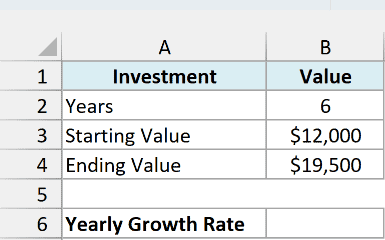
Below I have an investment with the number of years it was held, the starting value, and the ending value, and I want to find its yearly growth rate in cell B6.
Here is the formula:
=RRI(B2,B3,B4)
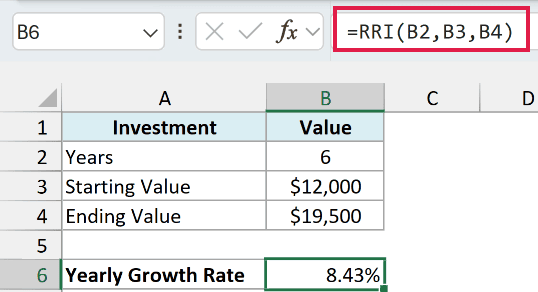
This returns 8.43%. So growing at a steady 8.43% a year takes $12,000 to $19,500 in six years.
In the above formula, B2 is the number of years (nper), B3 is the starting value (pv), and B4 is the ending value (fv).
Over the six years, the investment grew 62.5% in total, which is the percentage change from start to end.
RRI turns that total into a steady yearly rate that compounds, so each year’s 8.43% is earned on a bigger value than the year before. That’s why it’s lower than 62.5% divided by 6, which would be about 10.4%.
RRI gives you the same answer as the CAGR math formula, =(B4/B3)^(1/B2)-1. It’s just shorter and easier to read.
Example 2: Find the Growth Rate for a Whole List at Once
Now let’s do the same thing for a whole list in one go.
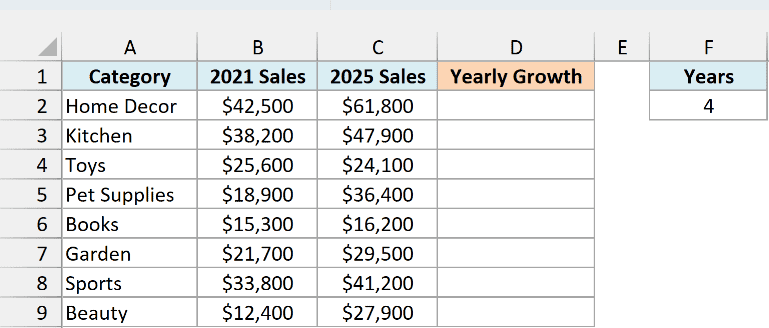
Below I have the sales of an online store by category for 2021 and 2025, with the number of years between them (4) in cell F2, and I want the yearly growth rate of every category in column D.
Here is the formula:
=RRI(F2,B2:B9,C2:C9)
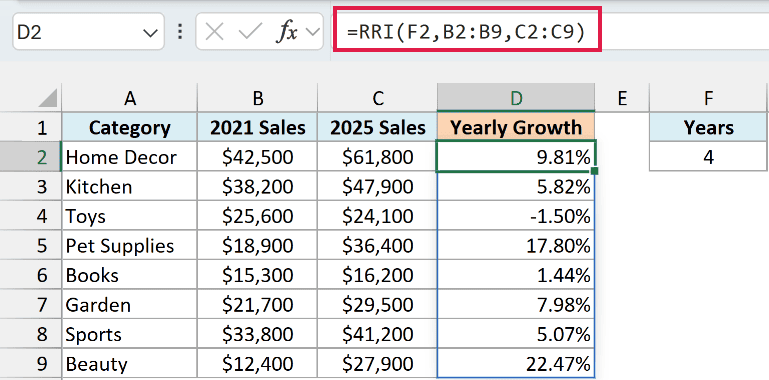
You enter this one formula in cell D2, and it spills, which means it fills the growth rate for all eight categories into the cells below on its own. Home Decor grew at 9.81% a year, while Beauty grew the fastest at 22.47%.
Here, B2:B9 has the starting sales and C2:C9 has the ending sales, so RRI works out one rate per row. The single value in F2 is used for every row.
Toys shows a negative rate because its sales went down (more on that in the next example).
For the spill to work, D3:D9 must be empty. If anything is already in those cells, you get a #SPILL! error instead.
Important: If a cell in column C is blank, RRI doesn’t show an error for that row. It returns -100%, as if that category lost everything, so make sure every ending value is filled in.
If you are using Excel 2019 or earlier, enter the below formula in cell D2 and then copy it down to D9:
=RRI($F$2,B2,C2)
The dollar signs lock the cell with the number of years, so every row keeps using F2 when you copy the formula down.
Example 3: Negative Growth Rate (When the Value Goes Down)
RRI works just as well when something loses value, and the result tells you how fast it’s dropping.
Below I have a car with the number of years I’ve owned it, the price I paid, and what it’s worth today, and I want to find how much its value changed each year in cell B6.
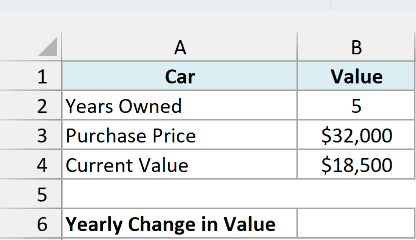
Here is the formula:
=RRI(B2,B3,B4)
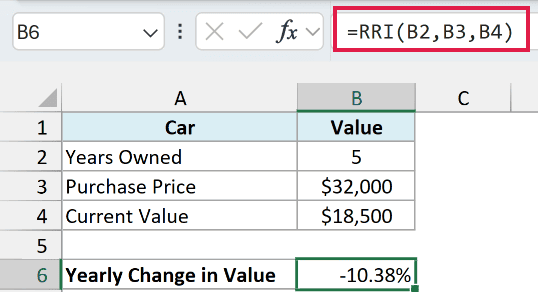
This returns -10.38%. So the car lost about 10.38% of its value every year, going from $32,000 to $18,500 in five years.
A negative result just means the ending value is lower than the starting value. You don’t need to change the formula or swap the arguments around.
If you simply divide the $13,500 drop by five years, you get $2,700 a year, which is about 8.44% of the $32,000 price.
RRI’s 10.38% is bigger because each year’s drop is taken from a smaller value than the year before, so the rate has to be higher to still lose the same $13,500 over the five years.
Example 4: Calculate CAGR From a Year-by-Year Table
Most of the time, your data won’t be in a few labeled cells like Examples 1 and 3. It will be a table with one value per year.
Below I have the number of members at a gym at the end of each year from 2019 to 2025, and I want the yearly growth rate over the whole period in cell D2.
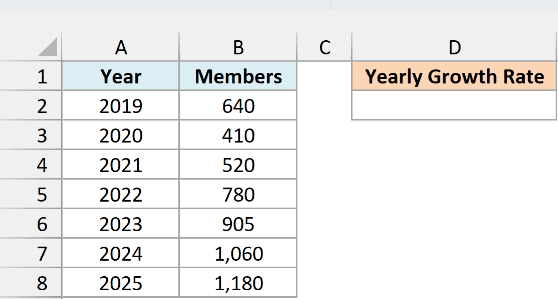
Here is the formula:
=RRI(A8-A2,B2,B8)
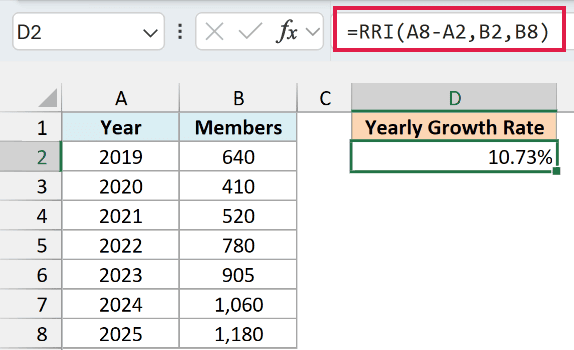
This returns 10.73%.
In the above formula, A8-A2 (2025 minus 2019) gives 6, which is the number of years between the first and the last value. B2 is the starting member count and B8 is the ending count.
Important: The table has seven years of values, but only six years of growth between them. If you use 7 as nper, RRI returns 9.13%, which understates the real growth rate.
Also notice that RRI only looks at the first and the last value. The drop to 410 members in 2020 doesn’t change the result, because RRI gives you the steady rate that connects the two end points.
If you want each year’s ups and downs to count, the average annual growth rate averages the yearly changes instead.
Example 5: Use RRI With Start and End Dates
Sometimes you don’t have the number of years, only the dates when something started and ended.
Below I have a home with its purchase date, sale date, purchase price, and sale price, and I want the yearly growth rate of its value in cell B7.
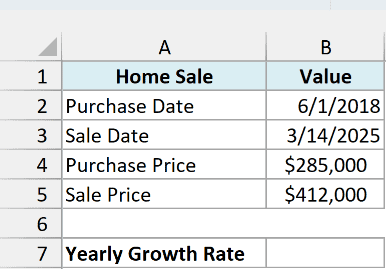
Here is the formula:
=RRI(YEARFRAC(B2,B3,1),B4,B5)
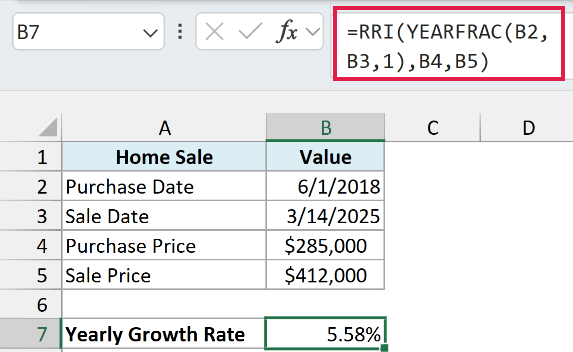
This returns 5.58%.
How this formula works:
YEARFRAC(B2,B3,1)works out the number of years between the purchase date and the sale date, including the part of a year. Here it’s about 6.78 years.- The 1 at the end tells the YEARFRAC function to count the actual days in each year.
- RRI then uses that number of years as nper, with the purchase price as pv and the sale price as fv.
RRI is fine with a number of periods that isn’t a whole number, so you don’t need to round the years. If you rounded 6.78 years up to 7, you’d get 5.41%, which makes the growth look slower than it really was.
Example 6: Monthly Growth Rate vs Yearly Growth Rate
The unit you use for nper decides the unit of the rate you get back, so you can get both a monthly and a yearly rate from the same numbers.
Below I have a newsletter with the number of months it’s been running, the subscribers it started with, and the subscribers it has now, and I want the monthly growth rate in cell B6 and the yearly growth rate in cell B7.
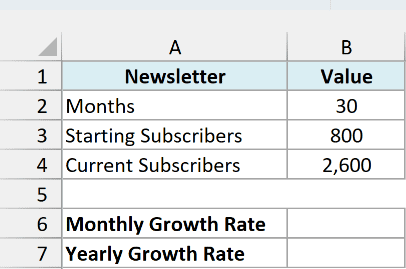
Here is the formula for the monthly growth rate:
=RRI(B2,B3,B4)
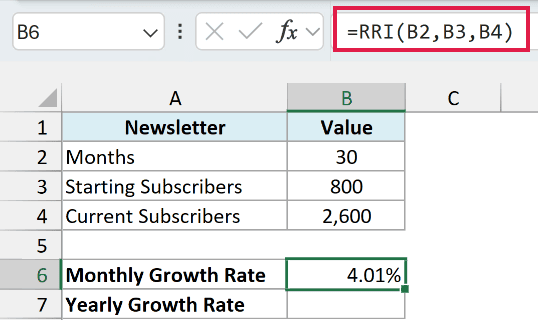
This returns 4.01%, so the newsletter grew by about 4% every month.
And here is the formula for the yearly growth rate:
=RRI(B2/12,B3,B4)
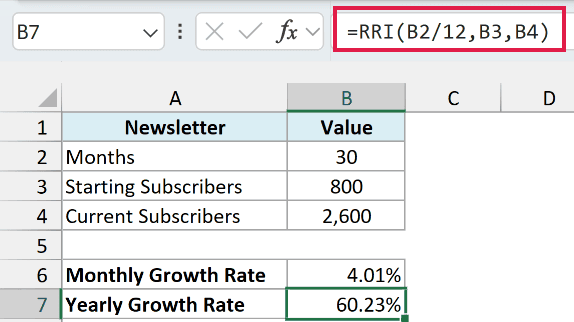
This returns 60.23%. Dividing 30 months by 12 gives 2.5 years, so now RRI returns a yearly rate.
Note that the yearly rate is not the monthly rate times 12 (that would be 48.1%). Growth compounds, so 4.01% a month adds up to 60.23% over a full year.
Example 7: Project Future Revenue Using the RRI Growth Rate
Once you have a growth rate, you can use it to estimate where the numbers are heading.
Below I have the yearly revenue of a bakery from 2020 to 2025, and I want to project its revenue for 2026, 2027, and 2028 in column E, assuming it keeps growing at the same rate.
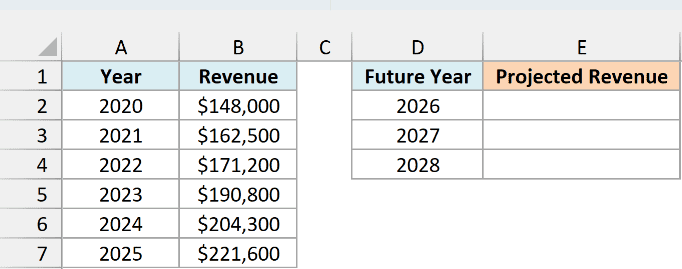
Here is the formula:
=B7*(1+RRI(A7-A2,B2,B7))^(D2:D4-A7)
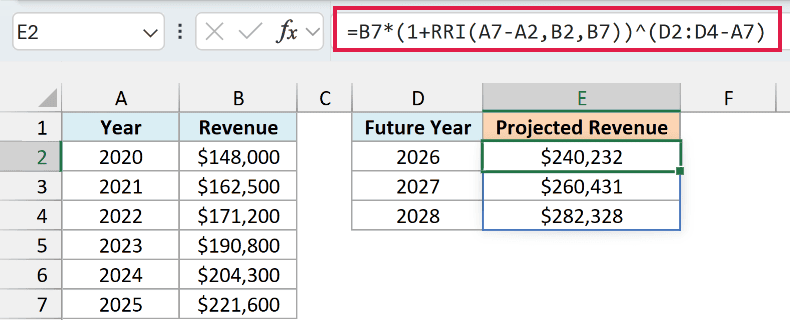
You enter this formula in cell E2, and it spills the projected revenue for all three years. The 2026 projection is $240,232.
How this formula works:
RRI(A7-A2,B2,B7)gives the yearly growth rate from 2020 to 2025, which is 8.41%.D2:D4-A7gives the number of years after 2025 for each projected year (1, 2, and 3).B7*(1+...)^(...)grows the 2025 revenue of $221,600 by 8.41% for each of those years.
If you are using Excel 2019 or earlier, enter the below formula in cell E2 and then copy it down to E4:
=$B$7*(1+RRI($A$7-$A$2,$B$2,$B$7))^(D2-$A$7)
All the references except D2 are locked with dollar signs, so each row only changes the year it projects to.
This is a simple projection. It assumes the bakery keeps growing at exactly its past rate, so use it as a rough estimate.
If you want a projection that uses every year’s value, not just the first and the last, you can forecast in Excel with the FORECAST functions or a Forecast Sheet.
So these are seven ways to use the RRI function in Excel, from a simple CAGR to projecting future revenue.
Just remember that the rate you get is always per period of nper, and count the periods between your first and last values, not the values themselves. I hope you found this article helpful.
Other Excel Articles You May Also Like:
