

The XIRR function in Excel gives you the annual rate of return on money that goes in and comes out on specific dates.
You give it the amounts and the date of each one, and it tells you what that investment, loan, or side project earned per year.
This is what you need when the cash doesn’t move on a neat schedule. Deposits happen when you have spare money, repayments come when they come, and XIRR takes the exact timing of each one into account.
Follow along with the example file
XIRR Function Examples.xlsx
XIRR Function Syntax
Here is the syntax of the XIRR function:
=XIRR(values, dates, [guess])
- values – the cash flows. Money you put in (or pay out) is a negative number, and money you get back is a positive number.
- dates – the date of each cash flow, in the same order as the values.
- guess – (optional) a starting estimate of the return. If you leave it out, Excel starts at 10%.
The values need at least one negative and one positive number. If everything is negative, XIRR has nothing to measure and returns a #NUM! error.
XIRR treats the first date in your range as the start of the investment. The other rows can be in any order, but none of them can be earlier than that first date, or you get a #NUM! error.
You get the same error if the values and dates ranges have a different number of cells.
The result is always an annual rate, no matter how far apart the dates are. XIRR counts the actual days between cash flows and uses a 365-day year to turn them into a yearly return.
The XIRR function works in Excel 365, 2024, 2021, 2019, 2016, and older versions, on both Windows and Mac.
When to Use the XIRR Function
Use this function when you need to:
- Find the return on money you lent or invested when the payments came back on irregular dates
- Calculate the real return on an investment account where you added and withdrew money at different times
- Compare the returns of several investments, each with its own deposits and dates
- Check whether a side business or a one-off deal was worth the money you put into it
Let me show you a few practical examples of how to use the XIRR function.
Example 1: Calculate the Return on a Loan Repaid on Irregular Dates
Let’s start with a simple example.
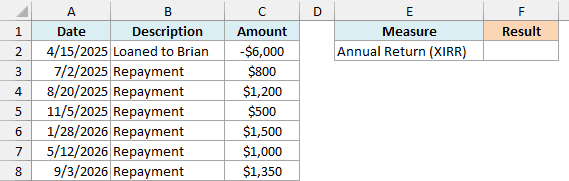
Below is a record of a $6,000 loan to a friend named Brian, along with the repayments he made on different dates, and I want to get the annual return on this loan in cell F2.
Here is the formula:
=XIRR(C2:C8,A2:A8)
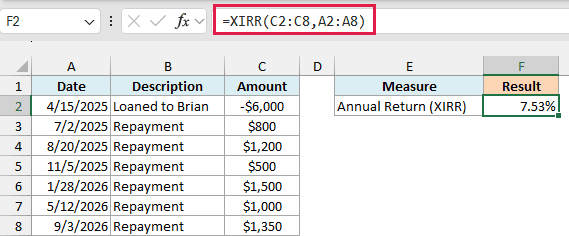
In the above formula, C2:C8 has the cash flows and A2:A8 has their dates. The loan is a negative number because that money left your pocket, and each repayment is positive because it came back to you.
Brian paid back $6,350 in total, which is $350 more than he borrowed. XIRR looks at when each payment arrived and works out that this is the same as earning 7.53% per year.
If the result shows up as a decimal, apply the Percentage format to the cell to see it as 7.53%.
Example 2: XIRR for Regular Deposits With a Current Balance
Here’s another practical scenario, where you keep adding money and want to know how the account is doing.
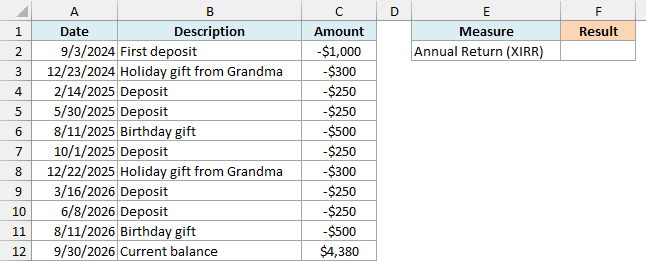
Below is a log of deposits into a college savings account, including some holiday and birthday gifts, and I want to calculate the annual return on this account in cell F2.
Here is the formula:
=XIRR(C2:C12,A2:A12)
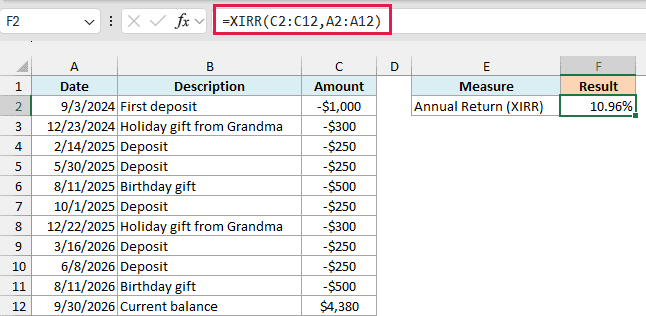
Every deposit is negative because it’s money going into the account. The last row is the account’s current balance of $4,380 on 9/30/2026, entered as a positive number.
You haven’t withdrawn that money, but XIRR needs to know what the account is worth today. So you treat the balance as if you cashed out on that date.
Without this row, all the values would be negative and XIRR would return a #NUM! error.
The result is 10.96%. That’s the yearly return on the $3,850 you deposited, taking into account that some of the money has been sitting there for two years and some for only a few weeks.
Example 3: XIRR vs IRR (Why the Dates Change the Answer)
Now let’s see why you should use XIRR instead of IRR when your cash flows don’t come at regular intervals.
Below are the cash flows of a small lawn mowing side business, with the cost of the equipment and the money earned from jobs on different dates, and I want to compare the IRR and XIRR results in column F.
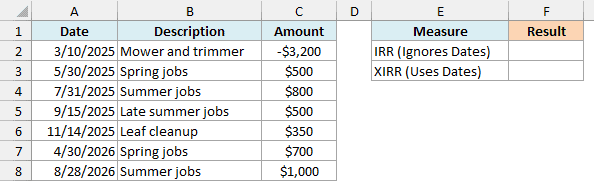
Here is the IRR formula:
=IRR(C2:C8)
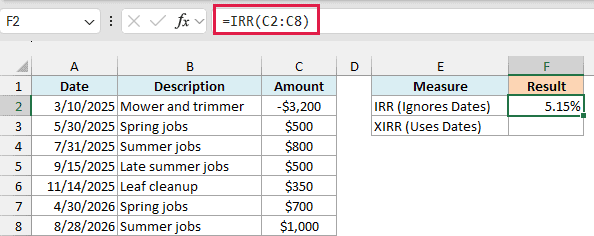
This gives 5.15%. The IRR function has no dates argument, so it assumes the cash flows are evenly spaced and returns a rate for each gap between two rows.
Here, the gaps range from about six weeks to five and a half months. So the 5.15% is a rate per “period” where the period keeps changing, which means it doesn’t tell you much.
Here is the XIRR formula:
=XIRR(C2:C8,A2:A8)
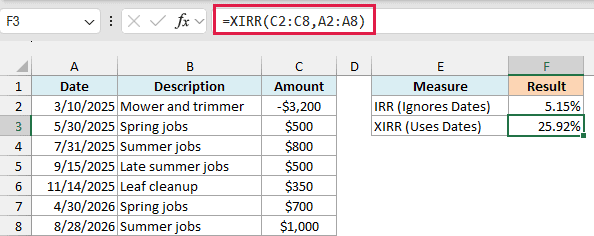
This gives 25.92%. XIRR uses the actual dates, so it sees that the $3,200 came back with a profit in about a year and a half, which works out to a much better yearly return.
If your cash flows do come at regular intervals (every month, every year), the IRR function works fine. I’ve covered it in detail in the IRR function tutorial.
Example 4: Calculate the Return on an Investment Account Without Adding a Row
Let’s step it up with a slightly more advanced use case.
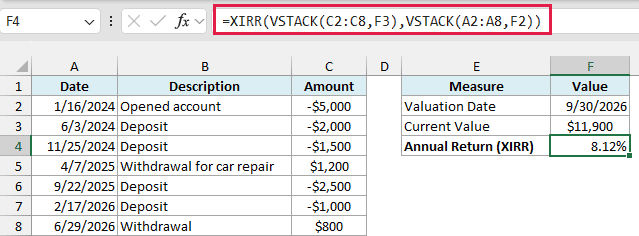
In Example 2, the current balance went into the log as its own row. Here, I want the log to hold only real transactions, so the valuation date and the current value sit in separate cells and the formula pulls them in.
Below is a log of deposits and withdrawals in an investment account, along with the account’s current value on a valuation date, and I want to calculate the annual return in cell F4.
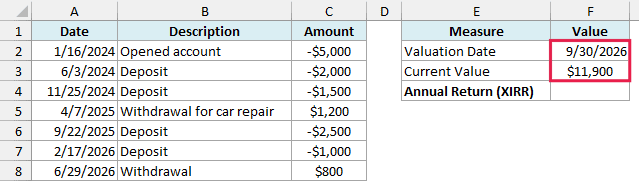
Here is the formula:
=XIRR(VSTACK(C2:C8,F3),VSTACK(A2:A8,F2))
How this formula works:
- VSTACK(C2:C8,F3) stacks the current value in F3 below the cash flows, so XIRR sees it as the last cash flow.
- VSTACK(A2:A8,F2) does the same with the dates, adding the valuation date in F2 below them.
- XIRR then calculates the return on the combined list, which gives 8.12%.
Notice the withdrawals are positive numbers. From your point of view, a withdrawal is money coming back to you, so it gets the same sign as the current value.
When you check the account next month, you only change F2 and F3, and the return updates without touching the log.
The VSTACK function is only available in Excel 365 and Excel 2024. If you are using an older version, enter the valuation date in cell A9 and the current value in cell C9, and then use the below formula in cell F4:
=XIRR(C2:C9,A2:A9)
Example 5: Why XIRR Shows a Huge Return on a Short-Term Flip
Now let’s see what happens when you hold something for only a couple of months.
Below are the cash flows from buying a used road bike, fixing it up, and selling it about two months later, and I want to see the annual return on this flip in cell F2.

Here is the formula:
=XIRR(C2:C4,A2:A4)
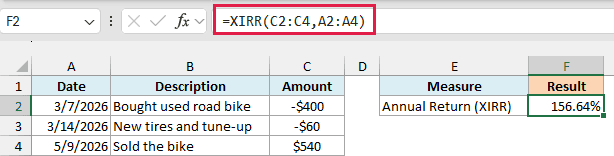
The result is 156.64%, which looks amazing for a used bike. But the actual profit is $80 on the $460 you spent, which is a gain of about 17%.
XIRR always gives an annual rate. A 17% gain in about two months is a very fast pace, so XIRR reports what that pace would add up to over a full year if you kept repeating it.
The number is correct, but it’s not the same thing as the profit you made. For anything you held for only a few weeks or months, also look at the plain profit percentage, because short periods can make XIRR look extreme.
Example 6: XIRR Returns 0% on a Big Loss? Use the Guess Argument
This next one is a problem you can easily miss, because XIRR doesn’t show an error.
Below are four purchases of shares in a stock that kept falling, along with what the shares are worth on 9/30/2026, and I want to calculate the annual return in column F.
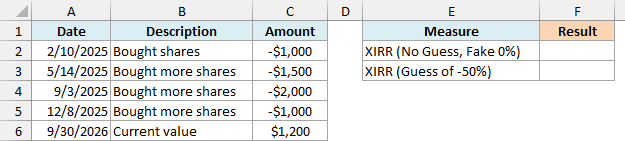
Here is the formula without a guess:
=XIRR(C2:C6,A2:A6)
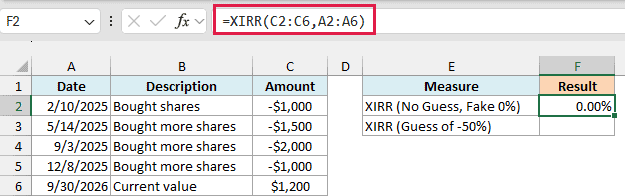
This shows 0.00%, which can’t be right. You put in $5,500 and the shares are now worth $1,200, so this investment clearly lost money.
If you change the cell to the General format, you’ll see the actual value is 2.98E-09 (a tiny number very close to zero).
This is what XIRR returns when it can’t find the answer starting from its default guess of 10%. A real 0% only happens when you get back exactly what you put in.
Here is the formula with a guess:
=XIRR(C2:C6,A2:A6,-0.5)
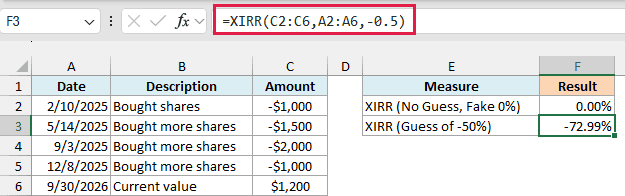
Now XIRR returns -72.99%, which is the actual annual return. The -0.5 tells XIRR to start its search at -50%, which is close enough to the real answer for it to get there.
The guess doesn’t need to be accurate. In this example, a guess of -10%, -30%, or -90% also gives -72.99%, because each of them points XIRR in the right direction.
Important: If XIRR shows 0.00% (or 2.98E-09) for an investment that clearly lost money, don’t trust it. Add a negative guess, such as -0.5, so XIRR starts its search closer to the real result.
Example 7: Calculate XIRR for Each Fund in One Transaction Log
Let’s finish with an example where XIRR works together with a dynamic array function.
Below is one combined log of deposits into three funds, with each fund’s current value on 9/30/2026 at the bottom, and I want to get the annual return of each fund in column G.
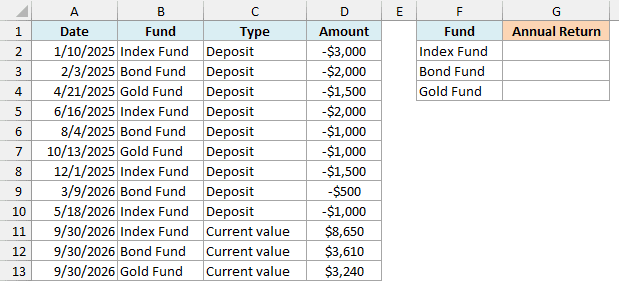
Here is the formula for cell G2, which you then copy down to G4:
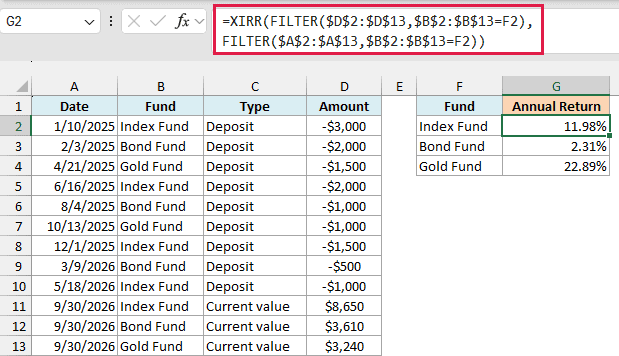
=XIRR(FILTER($D$2:$D$13,$B$2:$B$13=F2),FILTER($A$2:$A$13,$B$2:$B$13=F2))
How this formula works:
- FILTER($D$2:$D$13,$B$2:$B$13=F2) returns only the amounts for the fund named in F2 (Index Fund).
- FILTER($A$2:$A$13,$B$2:$B$13=F2) returns the dates for the same rows, in the same order.
- XIRR calculates the return on just that fund’s cash flows, which gives 11.98% for the Index Fund.
The data ranges are absolute references, so when you copy the formula down, only F2 changes to F3 and F4. That gives 2.31% for the Bond Fund and 22.89% for the Gold Fund.
If you’re used to FILTER, you might expect one formula to spill all three results. XIRR returns a single number, so you copy the formula down instead, one row per fund.
You might also think of using IF instead of FILTER, so the other funds’ amounts become 0. That breaks the Bond Fund and Gold Fund results, because their first cash flow becomes 0, and XIRR returns the fake 2.98E-09 from Example 6.
Important: Always start your XIRR ranges at the first real cash flow. A zero or blank amount at the top (such as a row with a date but no amount) gives a fake 0.00% result instead of an error.
The FILTER function needs Excel 365 or Excel 2021 and later. In older versions, sort the log by fund so each fund’s rows sit together, and point XIRR at that fund’s block of cells.
So these are some practical examples of using the XIRR function in Excel, starting with a simple loan and building up to an investment account with deposits, withdrawals, and a current value.
I also showed you how XIRR compares with IRR, why short holding periods give extreme results, and how the guess argument fixes the fake 0% result on a big loss. I hope you found this tutorial useful!
Other Excel Articles You May Also Like:
