

The MMULT function in Excel multiplies two arrays of numbers using matrix multiplication and returns the result as a block of values. You give it two ranges, and it does all the multiplying and adding for you.
That sounds like math class, but it’s really useful for everyday stuff. If you have a table of quantities and a list of prices, weights, or calories, MMULT gives you the total for every row with one formula.
Below I’ll show you how it works with seven examples, from adding up calories to working out the price of a coffee from two receipts.
Follow along with the example file
MMULT Function Examples.xlsx
MMULT Function Syntax
Here is the syntax of the MMULT function:
=MMULT(array1, array2)
- array1 – the first array of numbers. This can be a range of cells, an array constant, or a formula that returns an array.
- array2 – the second array of numbers, in any of the same forms. Both arguments are required.
The two arrays have to fit together. The number of columns in array1 must be the same as the number of rows in array2, or MMULT returns a #VALUE! error.
The size of the result also comes from the two arrays. You get as many rows as array1 has and as many columns as array2 has, so a 7-row by 4-column range times a 4-row by 1-column range gives you 7 results in one column.
The MMULT function works in all Excel versions, including Excel for Microsoft 365, Excel 2024, 2021, 2019, 2016, Excel for Mac, and Excel for the web.
When to Use the MMULT Function
Use this function when you need to:
- Multiply a table of quantities by a list of rates (prices, weights, calories) and get a total for each row.
- Multiply two tables together, such as orders by a recipe, to get a full grid of totals.
- Count or add up values across each row of a grid in a single formula.
- Solve a small set of equations together with the MINVERSE function.
Let me show you some practical examples of how to use MMULT.
Example 1: Calculate Total Calories per Day Using MMULT
Let’s start with a simple example.
Below I have a week of breakfast servings for four foods, with the calories per serving in a small table on the right, and I want the total calories for each day in column F.
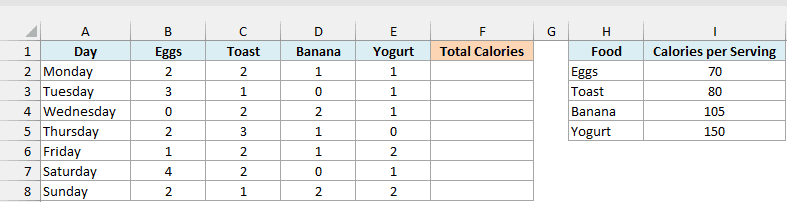
Here is the formula:
=MMULT(B2:E8,I2:I5)
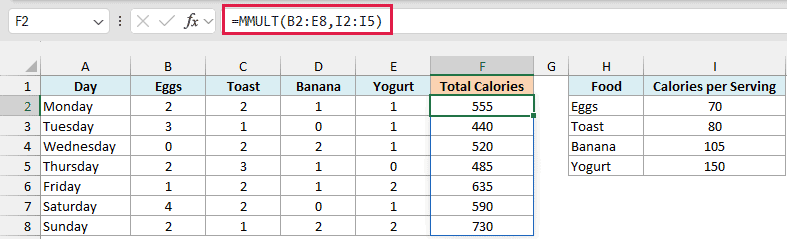
This one formula fills F2:F8 with the total calories for all seven days. The results spill into the cells below, so F3:F8 need to be empty, or you’ll see a #SPILL! error instead.
For each day, MMULT multiplies every serving count by the matching calories and adds them up. For Monday, that’s 2×70 + 2×80 + 1×10⁵ + 1×150, which gives 555.
The servings range B2:E8 has 4 columns and the calories range I2:I5 has 4 rows, so the two arrays fit. The result has 7 rows (one per day) and 1 column.
Important: MMULT matches values by position, not by name. Keep the foods in the calories table in the same order as the serving columns, or you’ll get wrong totals with no error to warn you.
If you’re using Excel 2019 or earlier, select F2:F8 first, enter the below formula, and press Control + Shift + Enter instead of Enter:
=MMULT(B2:E8,I2:I5)
Excel adds curly brackets around the formula on its own, so don’t type them yourself. You’ll need to enter every MMULT formula in this article this way in those versions.
Example 2: Matrix Multiplication in Excel With Two Tables
Now let’s multiply two full tables together, which is the job MMULT was built for.
Below I have a bakery’s orders (batches of each item) and a recipe table with the ingredients per batch, and I want the total ingredients for each order in columns F to H.
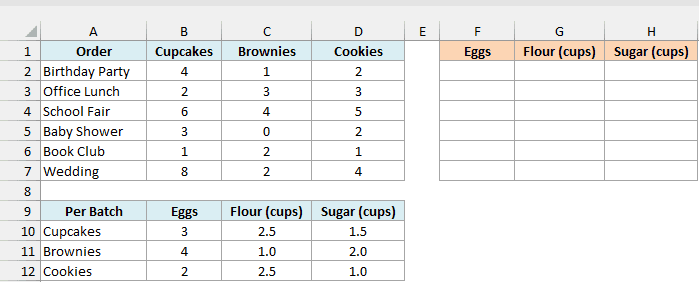
Here is the formula:
=MMULT(B2:D7,B10:D12)
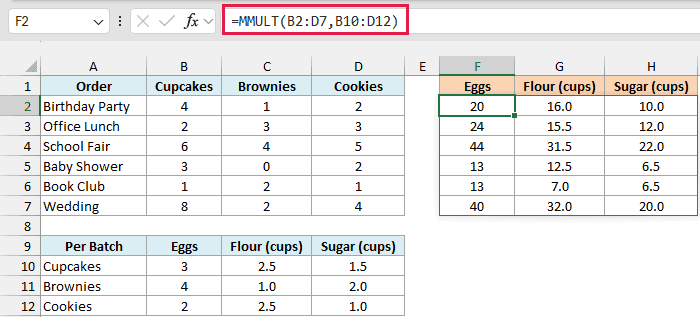
This returns a 6 by 3 block in F2:H7, with one row per order and one column per ingredient. The first row is the Birthday Party order, which needs 20 eggs, 16 cups of flour, and 10 cups of sugar.
Each result is one order row multiplied by one ingredient column of the recipe table. For example, the Birthday Party eggs are 4×3 + 1×4 + 2×2, which is 20.
If the recipe range had only two rows, say B10:D11, it wouldn’t match the 3 columns of orders, and MMULT would return a #VALUE! error.
Example 3: Use MMULT With an Array Constant
You don’t always need a second range of cells. You can also type the numbers right into the formula.
Below I have the number of quarters, dimes, nickels, and pennies in each kid’s piggy bank, and I want the total dollar amount for each kid in column F.
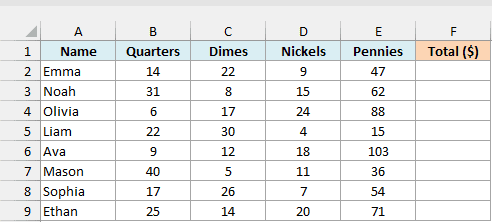
Here is the formula:
=MMULT(B2:E9,{0.25;0.1;0.05;0.01})
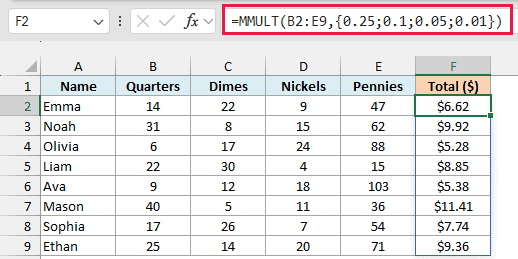
The array constant {0.25;0.1;0.05;0.01} holds the value of each coin, in the same order as the columns. MMULT multiplies each coin count by its value and adds them up, so Emma’s 14 quarters, 22 dimes, 9 nickels, and 47 pennies come to $6.62.
The semicolons are the important part here. A semicolon puts each value on a new row, which makes this constant 4 rows tall, matching the 4 coin columns.
If you use commas instead, like {0.25,0.1,0.05,0.01}, the values sit in one row. Now the 4 columns don’t match 1 row, and you get a #VALUE! error.
Typing the values into the formula works well here because coin values never change. For numbers that do change, like prices or rates, keep them in cells (as in Example 1) so you can update them without editing the formula.
Example 4: Multiply by Rates Stored in a Row (Using TRANSPOSE)
This next one is about the shape of your data.
Below I have the number of adult, child, and senior tickets a movie theater sold each day, with the ticket prices listed across a row on the right, and I want the ticket revenue for each day in column E.
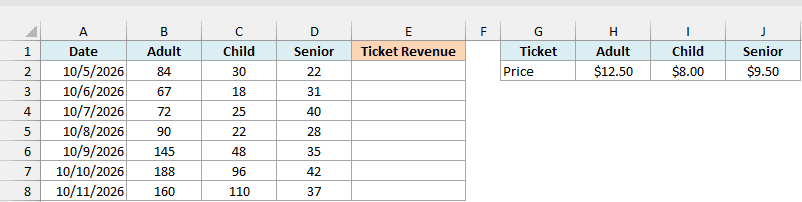
The catch is the shape of the prices. The ticket counts in B2:D8 have 3 columns, so MMULT needs 3 rows in the second array, but H2:J2 is 1 row with 3 columns.
So if you use =MMULT(B2:D8,H2:J2), you get a #VALUE! error. The fix is to turn the price row into a column first.
Here is the formula that does that:
=MMULT(B2:D8,TRANSPOSE(H2:J2))
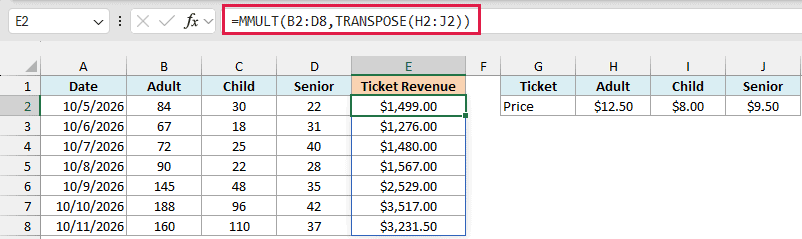
The TRANSPOSE function flips the price row into a column of 3 values, so the two arrays now fit. For the first day, 84 adult tickets at $12.50, 30 child tickets at $8.00, and 22 senior tickets at $9.50 add up to $1,499.00.
Example 5: Fix the #VALUE! Error Caused by Blank Cells
Blank cells are a very common reason MMULT stops working.
Below I have online orders with the quantity of each item (blank when it wasn’t ordered) and a table of item weights, and I want the shipping weight of each order in column E.
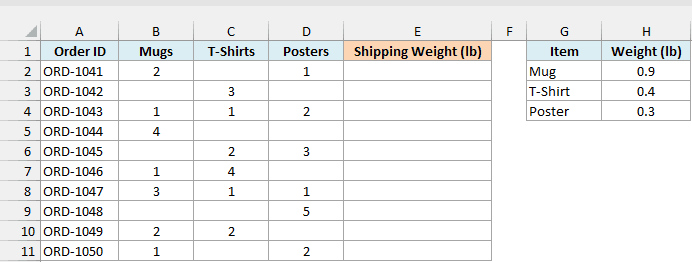
If you use =MMULT(B2:D11,H2:H4) here, you get a #VALUE! error. MMULT needs every cell in both arrays to be a number, and an empty cell doesn’t count as zero.
Here is the formula that fixes it:
=MMULT(--B2:D11,H2:H4)
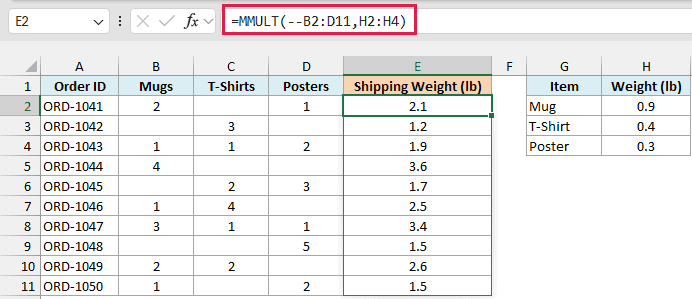
The double minus (–) in front of B2:D11 turns every blank cell into a 0 before MMULT sees it. Numbers stay the same, so order ORD-1042 with 3 t-shirts at 0.4 lb each gives a shipping weight of 1.2 lb.
Important: The double minus doesn’t fix cells that hold text, such as “none” or “n/a”. MMULT still returns a #VALUE! error for those, so clear that text or replace it with 0.
Example 6: Count How Many Days Each Person Hit a Goal
MMULT isn’t only for prices and totals. With a column of 1s, you can use it to add up each row of a grid, and that lets you count things too.
Below I have the daily step counts of ten people for one work week, and I want to count how many days each person walked 8,000 steps or more in column G.
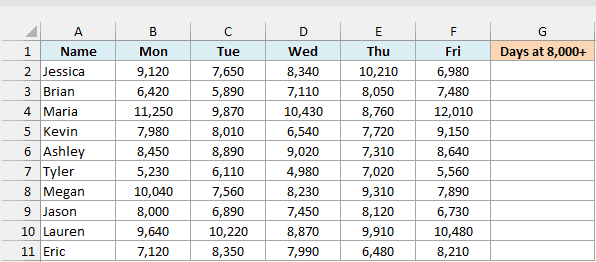
Here is the formula:
=MMULT(--(B2:F11>=8000),{1;1;1;1;1})
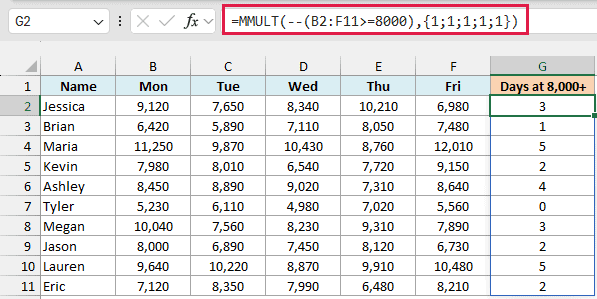
This returns the number of days each person hit the goal. Maria and Lauren did it all five days, Jason did it twice (his Monday is exactly 8,000, which counts), and Tyler didn’t hit it at all.
How this formula works:
- B2:F11>=8000 checks every step count and returns a grid of TRUE and FALSE values.
- –(…) converts that grid into 1s and 0s, since MMULT only works with numbers.
- {1;1;1;1;1} is a column of five 1s, one for each day. Multiplying a row by a column of 1s simply adds up that row.
If your data has a different number of columns, the column of 1s needs to match it. For a full seven-day week, you’d use {1;1;1;1;1;1;1}.
Pro Tip: In Excel 365 or Excel 2021 and later, you can use SEQUENCE(COLUMNS(B2:F11),1,1,0) instead of typing the 1s. It creates a column of 1s that’s always as tall as your data has columns.
Example 7: Solve Two Equations With MMULT and MINVERSE
Let’s finish with a fun one that uses MMULT the way it’s used in math.
Below I have two receipts from a coffee cart, each with the number of coffees and muffins bought and the total paid, and I want to work out the price of one coffee and one muffin in G2:G3.

Here is the formula:
=MMULT(MINVERSE(B2:C3),D2:D3)
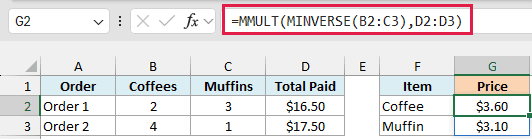
This returns $3.60 for a coffee and $3.10 for a muffin. You can check it against the first receipt: 2 coffees at $3.60 and 3 muffins at $3.10 come to exactly $16.50.
The two receipts are really two equations with two unknown prices. The MINVERSE function returns the inverse of the 2 by 2 grid of counts, and multiplying that inverse by the totals in D2:D3 solves both equations at once.
If one receipt is just a multiple of the other (say 2 coffees and 3 muffins, then 4 coffees and 6 muffins), there’s no single answer. In that case MINVERSE can’t invert the grid, and the formula returns a #NUM! error.
So these are some practical examples of the MMULT function in Excel. We covered multiplying a table by a list of rates, multiplying two full tables, and using an array constant.
I also showed you how to fix the #VALUE! errors caused by wrong shapes and blank cells, how to count across rows, and how to solve equations with MINVERSE.
I hope you found this article helpful.
Other Excel Articles You May Also Like:
